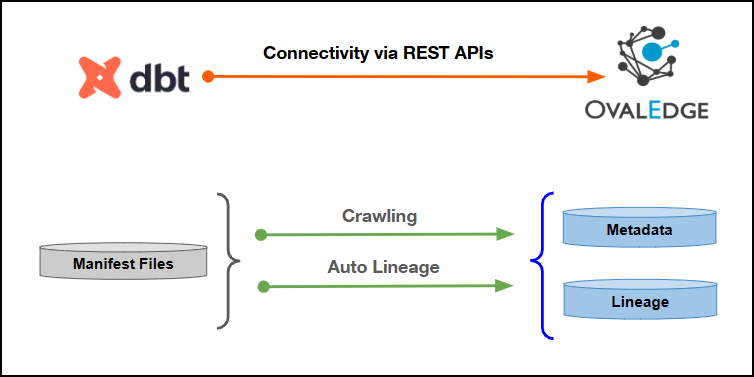
Connectivity
\[How the connection is established with DBT]
| REST APIs | | Verified DBT Version | 1.7.6 | {% hint style="info" %} The DBT connector has been validated with the mentioned "Verified DBT Versions" and is expected to be compatible with other supported DBT versions. If there are any issues with validation or metadata crawling, please submit a support ticket for investigation and feedback. {% endhint %} ### Connector Features | Feature | Availability | | -------------------------------------------- | :----------: | | Crawling | ✅ | | Delta Crawling | ❌ | | Data Preview | ❌ | | Auto Lineage | ✅ | | Manual Lineage | ✅ | | Secure Authentication via Credential Manager | ✅ | | Data Quality | ❌ | | DAM (Data Access Management) | ❌ | | Bridge | ✅ | ### Metadata Mapping The following objects are crawled from DBT and mapped to the corresponding UI assets.| DBT Object | DBT Attribute | OvalEdge Attribute | OvaEdge Category | OvalEdge Type |
|---|---|---|---|---|
| Manifest.json | Manifest.json | Code Name | Codes | DBT_JOB |
| SQL's inside Manifest file | Raw_code | Code Name | Codes | DBT_RUN_SQL |
| Field Name | Description |
|---|---|
| Connector Type | By default, "DBT" is displayed as the selected connector type. |
| Credential Manager* | Select the desired credentials manager from the drop-down list. Relevant parameters will be displayed based on the selection. Supported Credential Managers:
For more details, click here. |
| License Add Ons | Select the checkbox for Auto Lineage Add-On to build data lineage automatically. For more details, click here. |
| Connector Name* | Enter a unique name for the DBT connection (Example: "DBT"). |
| Connector Environment | Select the environment (Example: PROD, STG) configured for the connector. For more details, click here. |
| Connector Description | Enter a brief description of the connector. |
| Server* | Enter the DBT server name or IP address. |
| Account ID* | Enter the Account ID associated with the DBT workspace to establish the connection. |
| Service account token* | Enter the service account token generated for the DBT workspace. |
| Excluded Jobs | Enter comma-separated job names that must be excluded from crawling. |
| Proxy Enabled* | Select Yes to route the connection through a configured proxy, or No to connect directly without a proxy. |
| Plugin Server | Enter the server’s name when running as a plugin server. |
| Plugin Port | Enter the port number on which the plugin is running. |
| Default Governance Roles* | Select the appropriate users or teams for each governance role from the drop-down list. All users configured in the security settings are available for selection. |
| Admin Roles* | Select one or more users from the drop-down list for Integration Admin and Security & Governance Admin. All users configured in the security settings are available for selection. |
| No Of Archive Objects* | This shows the number of recent metadata changes to a dataset at the source. By default, it is off. To enable it, toggle the Archive button and specify the number of objects to archive. Example: Setting it to 4 retrieves the last four changes, displayed in the 'Version' column of the 'Metadata Changes' module. |
| Select Bridge* | If applicable, select the bridge from the drop-down list. The drop-down list displays all active bridges that have been configured. These bridges facilitate communication between data sources and the system without requiring changes to firewall rules. |
| S. No | Error Message | Error Description & Resolution |
|---|---|---|
| 1 | Error while validating connection: invalid or expired service token | The service account token used for the DBT connector has expired, been revoked, or does not carry read-only permission. Resolution:
|
| 2 | Unauthorized Access (401) | The authentication token or credentials are invalid or expired. Resolution:
|
| S. No | Error Message | Error Description & Resolution |
|---|---|---|
| 1 | Project listed during crawl selection but no dataset gets catalogued | The selected project has not yet been compiled, so no target folder or manifest file exists for it to be read. Resolution:
|
| 2 | Manifest file present but not recognized during crawl | The generated manifest file or its containing folder has been renamed away from the expected default names. Resolution:
|
| 3 | Descriptions are not getting copied from the DBT Manifest JSON file to Delta Lake tables and table columns after executing the DBT AdvanceJob. |
|
| S. No | Error Message | Error Description & Resolution |
|---|---|---|
| 1 | Table level lineage is present but column level lineage is missing for a model | The manifest file does not contain compiled code for that model, which happens when the project was run rather than compiled. Resolution:
|
| 2 | A table appears in the source list but is missing from the lineage mapping, or the reverse | This occurs when a table is referenced using a hardcoded name in the raw query instead of the standard reference syntax, causing a mismatch between the recorded sources and the compiled query content. Resolution:
|
| 3 | Lineage displays a temporary table name instead of the expected system name | The target or source system referenced by the model has not yet been catalogued separately in the application. Resolution:
|
| 4 | No clear indication of why lineage failed for a specific model | Detailed logging for lineage build failures is limited at present, making the root cause harder to identify directly from job logs. Resolution:
|
| S. No | Question | Answer |
|---|---|---|
| 1 | When should the dbt core connector be used instead of the dbt cloud connector? | The choice depends on where the dbt projects are hosted:
The project structure and lineage process remain the same for both connectors. Only the method used to access the metadata differs. |
| 2 | What access is required to set up each type of dbt connector? | DBT connector:
These details are generated from the dbt instance account settings. The service account token should have read-only permission because write access is not required for cataloguing metadata. |
| 3 | Can a single dbt project transform data between completely different source platforms? | No. A single dbt project is expected to work within one source platform at a time. Different databases or connection details within the same platform can be used. However, transformations between completely different platforms generally require separate dbt projects, with each project aligned to its respective platform |
| S. No | Question | Answer |
|---|---|---|
| 1 | What exactly gets crawled when a dbt project is catalogued? | The primary artifact collected from a dbt project is manifest.json.The manifest.json file is automatically generated in the target folder when the project is compiled. It contains information such as:
The dbt connector collects this manifest.json file, regardless of where the project is hosted. |
| 2 | What happens if a dbt project has not been compiled yet? | If the project has not been compiled:
Compile the project in compile mode to generate the target folder and manifest.json file. |
| 3 | Does each dbt project generate more than one manifest file? | No. Each dbt project generates one manifest.json file per compile action. The manifest.json contains information for all models in the project. If only selected models are included in the compile command, the manifest.json is still generated for the entire project, but compiled code is populated only for the models included in that compile step. |
| S. No | Question | Answer |
|---|---|---|
| 1 | How is table-level lineage built for a dbt project? | Table-level lineage is built using the depends-on information in the manifest.json file. The depends on field identifies the source objects used by each model. The connector uses this information across the models to link source tables to their target tables and build table-level lineage. |
| 2 | How is column-level lineage built for a dbt project? | Column-level lineage is built using the compiled code in the manifest.json file. The compiled code contains the processed query for each model. The query is parsed to identify the source and target column mappings, which are then used to build column-level lineage. If compiled code is not available for a model, column-level lineage cannot be generated for that model. |
| 3 | Why might column lineage be missing for certain models even though the project appears to be fine? | Column lineage may be missing when the required compiled code is not available. This can happen when:
Run the full project in compile mode to generate compiled code for all models. |
| 4 | What do the temporary table names shown in some lineage diagrams mean? | Temporary table names are displayed when a referenced source or target system has not yet been catalogued separately. In this case:
|
| 5 | Can lineage exist for a model even when there is no column-level mapping? | Yes. Table-level object lineage can be available even when column-level mapping is empty. This can occur when:
In these cases, the table relationship can still be identified even though column mappings cannot be generated. |
| 6 | Is detailed logging currently available when a lineage build fails for a specific model? | No. Detailed logging for lineage build failures is currently limited. Troubleshooting may require manual checks, such as:
Enhanced logging for easier diagnosis is being considered for a future update. |