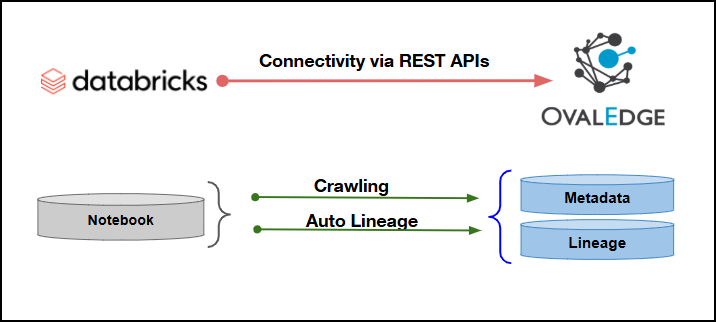
Connectivity
\[How the connection is established with Databricks]
| REST APIs | | Verified Databricks Version | Cloud Version | {% hint style="info" %} The Databricks connector has been validated with the mentioned "Verified Databricks Versions" and is expected to be compatible with other supported Databricks versions. If there are any issues with validation or metadata crawling, please submit a support ticket for investigation and feedback. {% endhint %} ### Connector Features | Feature | Availability | | -------------------------------------------- | :----------: | | Crawling | ✅ | | Delta Crawling | ❌ | | Data Preview | ❌ | | Auto Lineage | ✅ | | Manual Lineage | ✅ | | Secure Authentication via Credential Manager | ✅ | | Data Quality | NA | | DAM (Data Access Management) | NA | | Bridge | ✅ | {% hint style="info" %} 'NA' indicates that the respective feature is 'Not Applicable.' {% endhint %} ### Metadata Mapping The following objects are crawled from Databricks and mapped to the corresponding UI assets.| Databricks Object | Databricks Attribute | OvalEdge Attribute | OvaEdge Category | OvalEdge Type |
|---|---|---|---|---|
| Notebook | Notebook file | Code Name | Codes | ADB_<language type> |
| Commands inside Notebook | Command code | Code Name | Codes | ADB_<language type> |
| Operations | Objects | Access Permission |
|---|---|---|
| Crawling | Datasets | Read Permission for the API calls |
| Field Name | Description |
|---|---|
| Connector Type* | By default, "Databricks" is displayed as the selected connector type. |
| Credential Manager* | Select the desired credentials manager from the drop-down list. Relevant parameters will be displayed based on the selection. Supported Credential Managers:
|
| License Add-Ons* |
|
| Connector Name* | Enter a unique name for the Databricks connection (Example: "DatabricksDB"). |
| Connector Environment | Select the environment (Example: PROD, STG) configured for the connector. |
| Connection Description | Enter a brief description of the connector. |
| Server* | Enter the Databricks server name or IP address. |
| Authentication* | The following two types of authentication are supported for Databricks:
|
| Field Name | Description |
|---|---|
| Username* | Enter the username configured for Databricks server connectivity. |
| Password* | Enter the password associated with the Databricks server account. |
| Notebook Path | Enter the path to crawl specific folders from the Databricks workspace. |
| Proxy Enabled* | Select Yes to route the connection through a configured proxy, or No to connect directly without a proxy. |
| Field Name | Description |
|---|---|
| Access Token* | Enter the access token generated for Databricks server connectivity. |
| Notebook Path | Enter the path to crawl specific folders from the Databricks workspace. |
| Proxy Enabled* | Select Yes to route the connection through a configured proxy, or No to connect directly without a proxy. |
| Default Governance Roles* | Select the appropriate users or teams for each governance role from the drop-down list. All users configured in the security settings are available for selection. |
| Admin Roles* | Select one or more users from the drop-down list for Integration Admin and Security & Governance Admin. All users configured in the security settings are available for selection. |
| No Of Archive Objects* | This shows the number of recent metadata changes to a dataset at the source. By default, it is off. To enable it, toggle the Archive button and specify the number of objects to archive. Example: Setting it to 4 retrieves the last four changes, displayed in the 'Version' column of the 'Metadata Changes' module. |
| Select Bridge* | If applicable, select the bridge from the drop-down list. The drop-down list displays all active bridges that have been configured. These bridges facilitate communication between data sources and the system without requiring changes to firewall rules. |
| S.No. | Error Message(s) | Error Description & Resolution |
|---|---|---|
| 1 | Unauthorized Access (401) | Description: The authentication token or credentials are invalid or no longer valid. Resolution:
|
| 2 | Forbidden Access (403) | Description: The account lacks the required roles or privileges to execute the operation. Resolution:
|