> For the complete documentation index, see [llms.txt](https://docs.ovaledge.com/llms.txt). Markdown versions of documentation pages are available by appending `.md` to page URLs; this page is available as [Markdown](https://docs.ovaledge.com/connectors/connector-repositories/reporting-tool/power-bi/power-bi-on-prem/power-bi-on-prem-system-configuration.md).
# Power BI (On-Prem) System Configuration
Power BI (On-Prem) integrates with OvalEdge through **Power BI Report Server**, enabling secure metadata crawling and lineage generation within on-premises environments.\
The configuration involves preparing the **Power BI Report Server**, **Windows service accounts**, and **network/security settings** to ensure controlled and compliant access to reports, datasets, pages, and visuals.
### Prerequisites
#### **Service Account User Permissions**
Create a Power BI account to connect to OvalEdge with the following permissions to crawl metadata and build the lineage in OvalEdge.
* Create a Power BI account in the Windows environment.
* To crawl and build the lineage, give the Content Manager permission to the user.
This section explains the steps to provide users with the minimum permissions needed to crawl reports and build lineage from a Power BI On-Prem server to the OvalEdge application.
#### Assigning Content Manager Permission
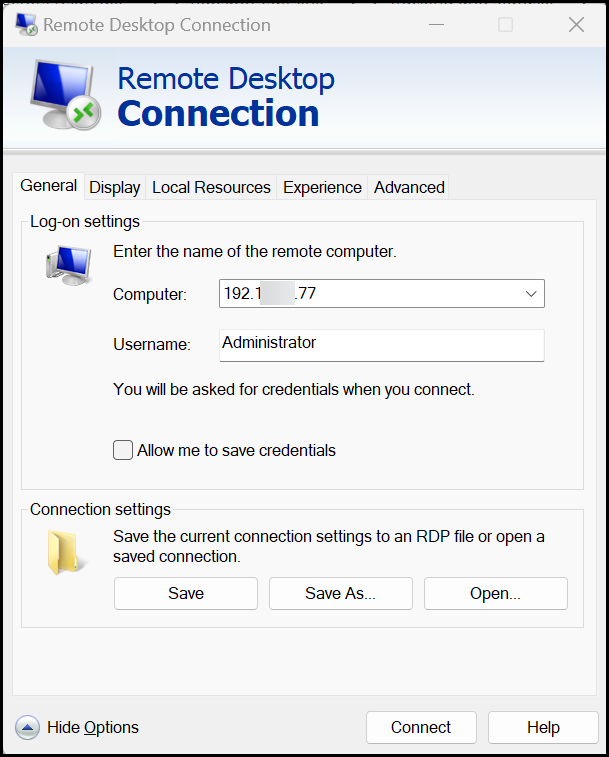
1. Log in to the Remote Server to connect to the Power BI server.
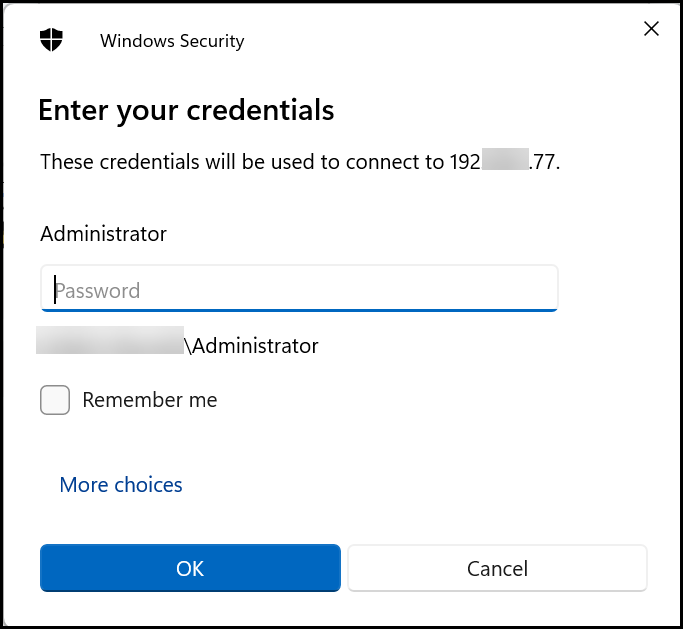
2. Enter valid credentials, then click **OK**.
3. The user will land on the remote server where the Power BI server is located.
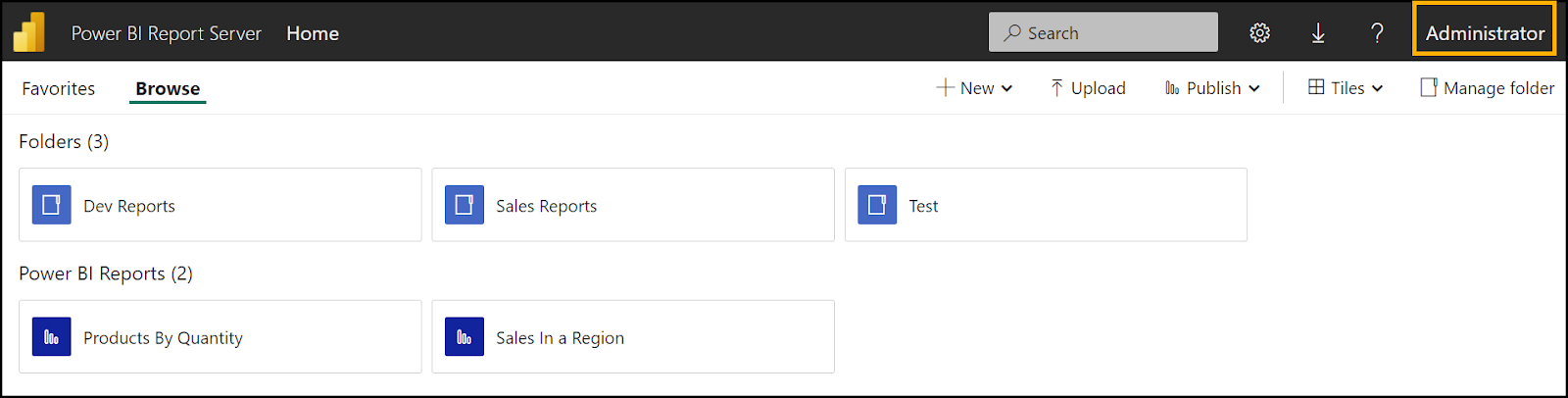
4. To give any user the minimum permission, i.e., Content Manager permission, to perform crawling and profiling, initially log in to the Power BI server with Administrator permissions.
5. The list of reports is displayed either at the folder level or placed directly on the Home page, as shown below.
6. Based on the requirement, the Content Manager permission can be given at the Folder level or to the individual report.
7. To give permission to reports, ensure that **Home** has permission from the Content Manager.\
Follow the below steps to provide Content Manager Access:
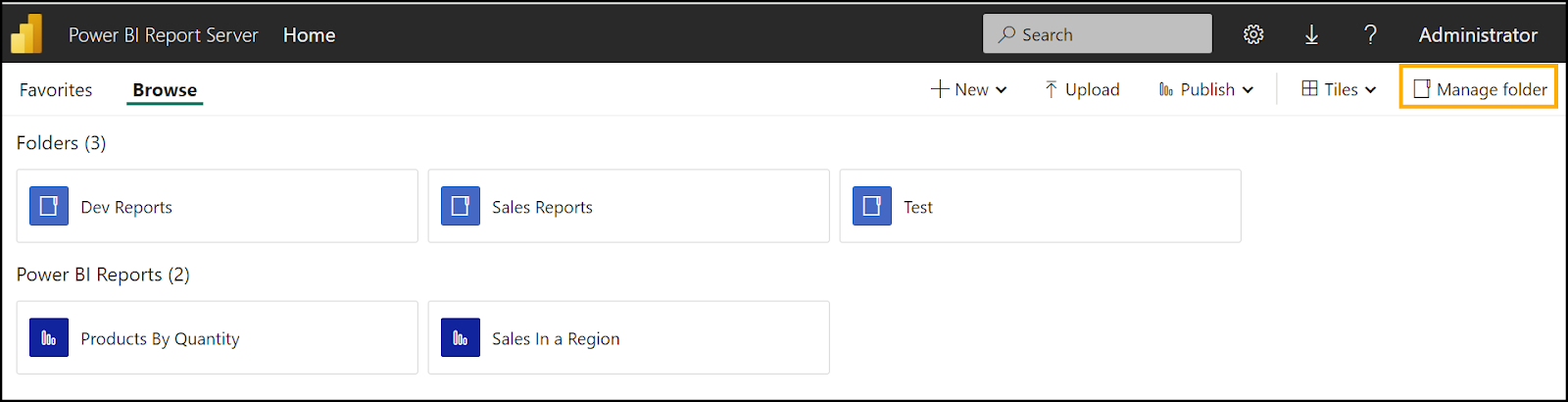
1. Select the **Manage folder** located at the top right of the page.
2. A Security page opens where the user can add a group or user by clicking **Add group or user**.
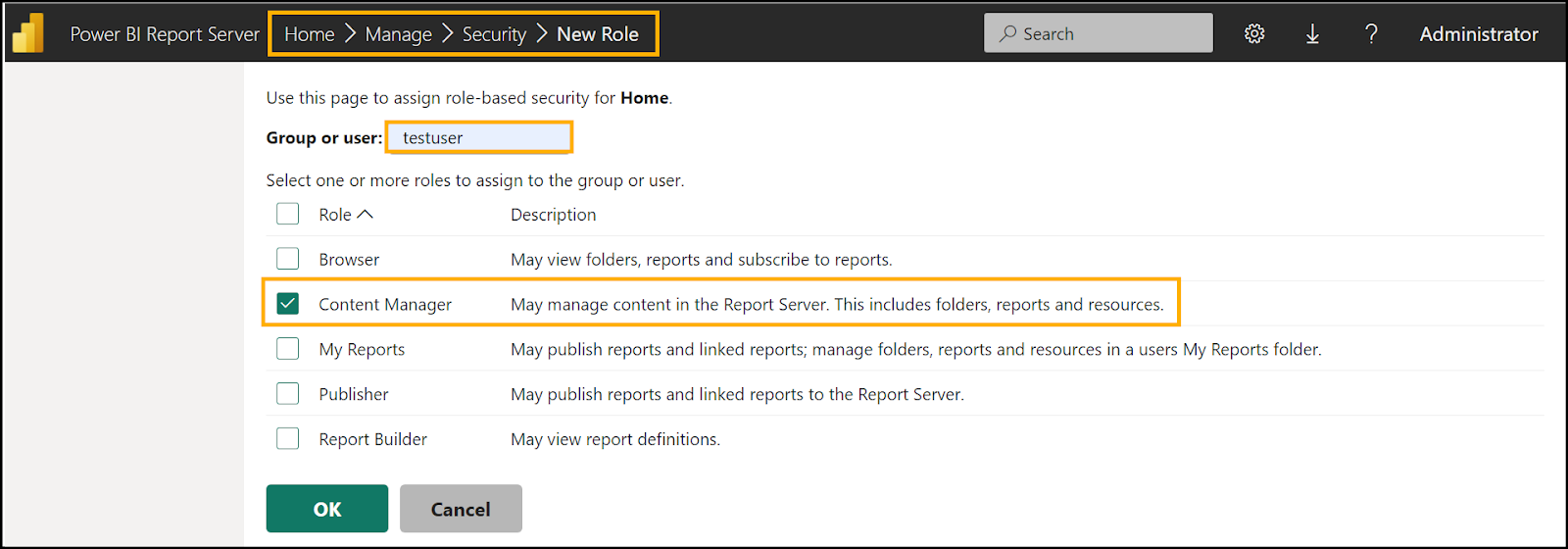
3. Select the user and the Content Manager permission as shown below. Then click **OK**.
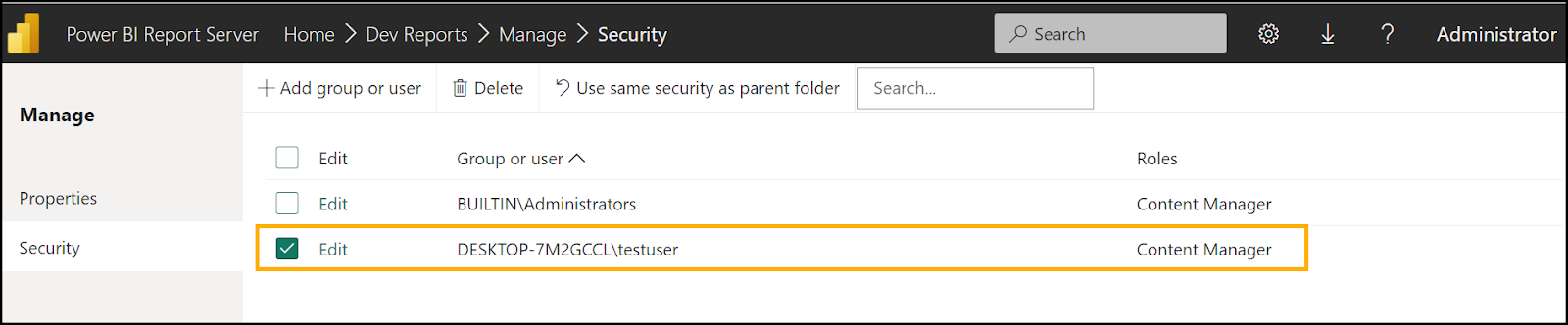
4. Now, the **testuser** gets the **Content Manager** permission.
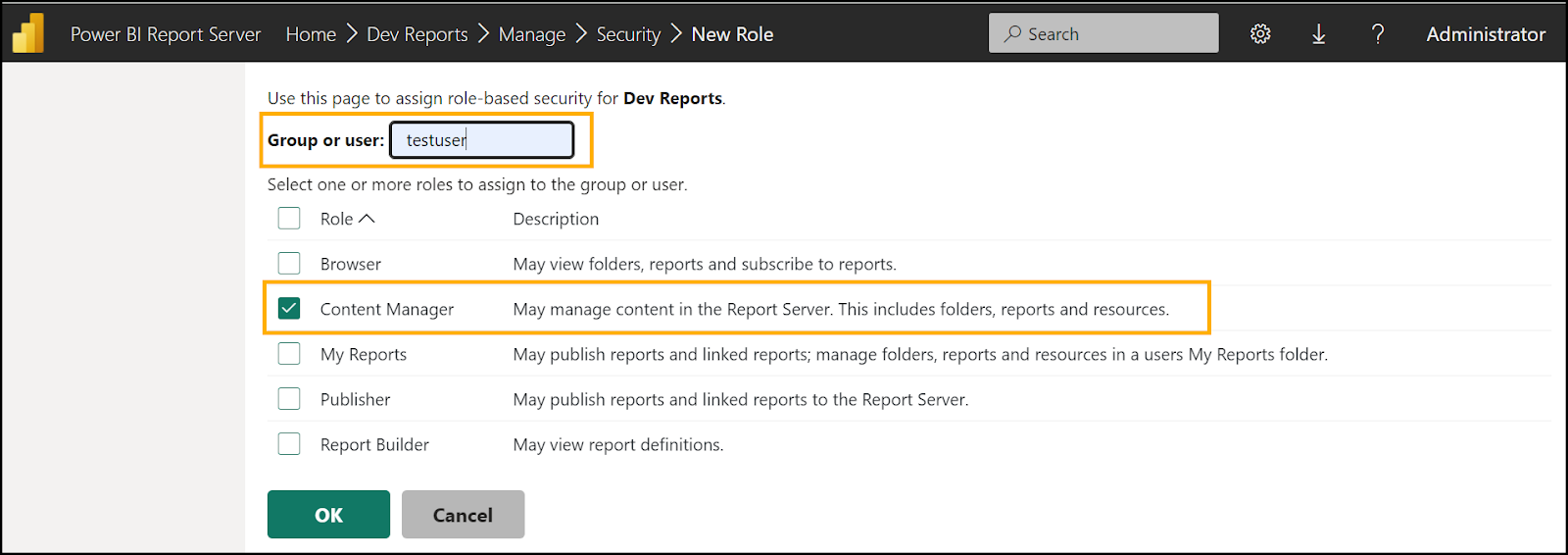
8. To give the **Content Manager permission** for a user at the folder level, follow the below steps:
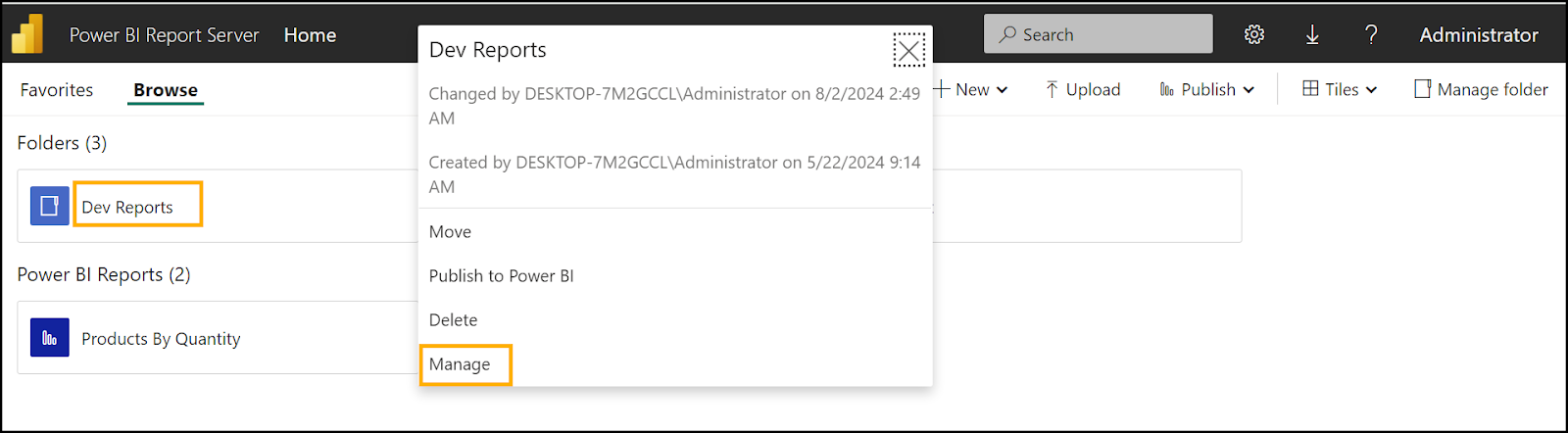
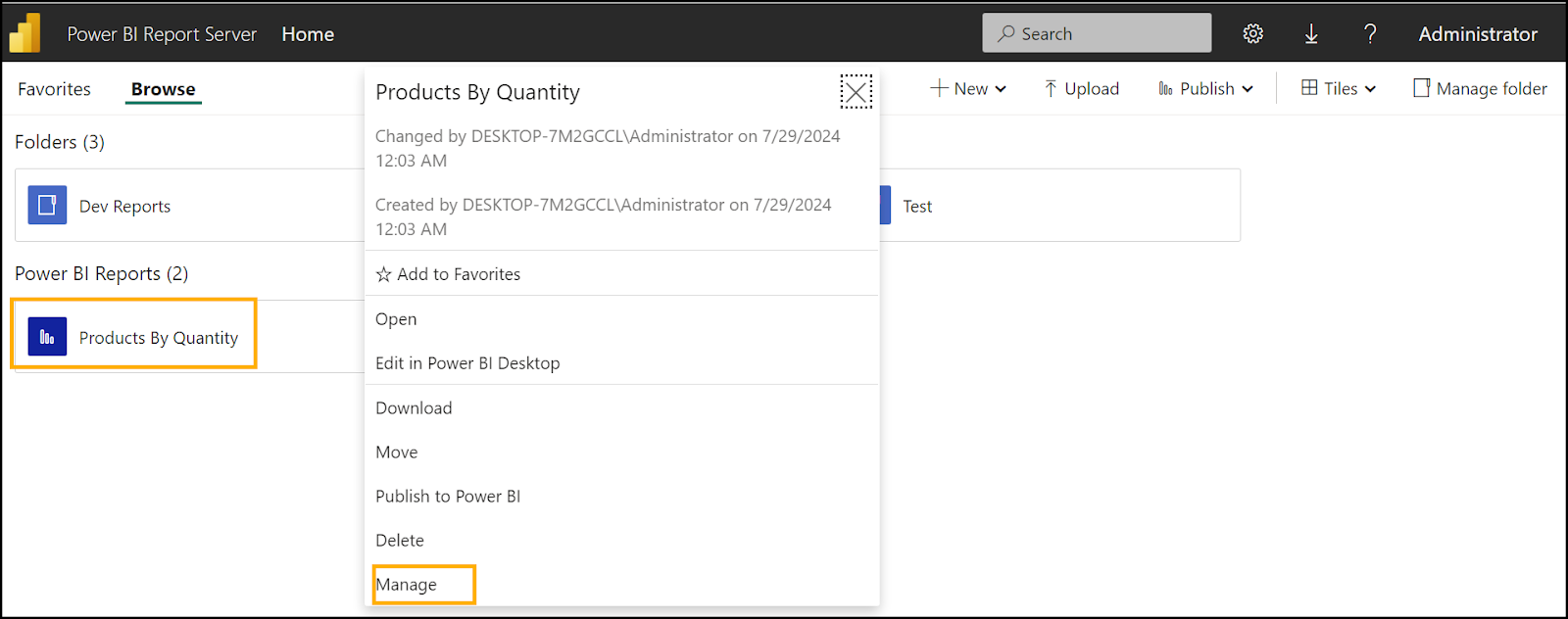
1. In the Report folder, hover over the mouse, click on **three dots,** then select **Manage**.