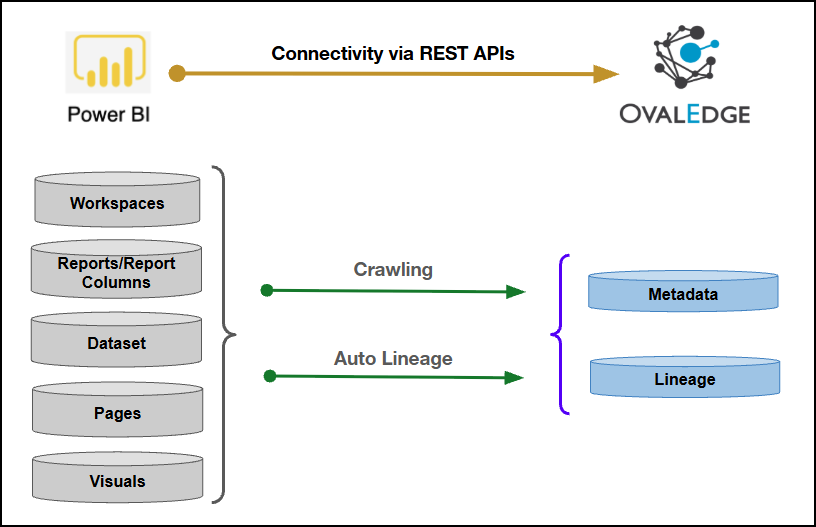
| Connector Category | Report System |
| OvalEdge Release Supported | Release6.3.x and later |
Connectivity [How OvalEdge connects to Power BI Cloud ] | REST APIs |
| Power BI Cloud Versions | Cloud Version |
✅
To learn more, click here.
| Source Object | Source Attribute | OvalEdge Attribute | OvalEdge Category | OvalEdge Type |
|---|---|---|---|---|
| Workspaces | Workspace | Report Group | Reports | Workspaces |
| Workspaces | Workspace description | source description | description | Workspaces |
| Reports | Reports Name | Report Name | Reports | Reports |
| Reports | Report description | source description | description | Reports |
| Reports | Report Type | type | Reprots | Dashboard, Report, Tile, Paginated report |
| Reports | webUrl | contentUrl | Reports | Reports |
| Pages | Page Name | Report Name | Reports | Page |
| Pages | Page description | source description | Reports | Page |
| Pages | Page type | type | Reports | Page |
| Dataset/Semantic Model | Dataset Name | Dataset Name | Reports | Dataset, Dataflow |
| Dataset/Semantic Model | Dataset Description | source description | description | Dataset, Dataflow |
| Dataset/Semantic Model | Dataset Type | type | Reports | Dataset, Dataflow |
| Datset/Semantic Model Tables | Table Name | Table name | Table | - |
| Datset/Semantic Model Tables | Description | source description | - | - |
| Datset/Semantic Model Table Fields | Field Name | Column name | Column | Measure, TField |
| Datset/Semantic Model Table Fields | Description | source description | Column | Measure, TField |
| Datset/Semantic Model Table Fields | Field Type | type | Column | Measure, TField |
| Datset/Semantic Model Table Fields | Expression | Formula | Column | Measure, TField |
| Operations | Objects | Access Permission |
|---|---|---|
| Crawling | Semantic Model / Dataset | Service Principal with Admin API Access or Service User with Admin rights |
| Crawling | Report | Service Principal with Admin API Access or Service User with Admin rights |
| Crawling | Pages | Service Principal with Admin API Access or Service User with Admin rights |
| Crawling | Visuals | Service Principal with Admin API Access or Service User with Admin rights |
| Field Name | Description |
|---|---|
| Connector Type | By default, "PowerBICloud" is displayed as the selected connector type. |
| Server Type* | From the dropdown list options (powerbionpremise/powerbicloud), select powerbicloud. |
| Authentication* | Power BI Cloud supports two types of authentication.
Note: Service User authentication requires a Power BI user account, while Service Principal authentication requires an Azure Entra ID application with Azure AD app configuration and workspace role assignment. An app using service principal authentication that calls read-only admin APIs must not have any admin-consent required permissions for Power BI set on it in the Azure portal. |
| Field Name | Description |
|---|---|
| Credential Manager* | Select the desired credentials manager from the drop-down list. Relevant parameters will be displayed based on the selection. Supported Credential Managers:
For more details, click here. |
| License Add Ons | Select the checkbox for Auto Lineage Add-On to build data lineage automatically. For more details, click here. |
| PBIX/PBIT/PBIP Source* | Enter the PBIX/PBIT/PBIP Source. Select an option from the drop-down.
|
| Connector Name* | Enter a unique name for the Power BI Cloud connection (Example: "PowerBICloud"). |
| Connector Environment | Select the environment (Example: PROD, STG) configured for the connector. For more details, click here. |
| Connector Description | Enter a brief description of the connector. |
| One Drive Connection* | Provide the OneDrive connector ID. Note: This field gets populated if the PBIX/PBIT/PBIP Source is selected as OneDrive. |
| OneDrive Folder Name | Provide the OneDrive folder Name. Note: This field gets populated if the PBIX/PBIT/PBIP Source is selected as OneDrive. |
| Organization* | Enter the Azure DevOps organization name associated with the target project. Note: This field gets populated if the PBIX/PBIT/PBIP Source is selected as Azure DevOps PBIP. |
| Project Id* | Enter the Project ID corresponding to the Azure DevOps project from which PBIP metadata will be retrieved. Note: This field gets populated if the PBIX/PBIT/PBIP Source is selected as Azure DevOps PBIP. |
| Personal Access Token* | Enter a valid Personal Access Token (PAT) with access to the target project repositories to enable authentication and metadata extraction. Note: This field gets populated if the PBIX/PBIT/PBIP Source is selected as Azure DevOps PBIP. |
| Extended Validation (Yes/No) | Enable or disable extended validation for the selected Local Drive source. Enter Yes to perform additional validation checks during processing, or No to proceed with standard validation only. |
| Client Id* | A unique identifier generated during app registration in Azure AD is used to authenticate the app in Power BI. |
| Client Secret* | A confidential key is generated during app registration and used to authenticate the app securely. |
| Tenant | An organization that owns and manages the Microsoft cloud instance (e.g., organization.onmicrosoft.com) |
| Tenant Id* | A unique identifier for the Azure AD instance is used to authenticate the app within the tenant. |
| Username* | Enter the service account username set up to access the Power BI Cloud (Example: "oesauser"). |
| Password* | Enter the password associated with the service account user (Example: "password"). |
| Files Path* | Provide a valid server file path for storing the PBIX/PBIT/PBIR files required for report column extraction. |
| Premium reports(Y/N) | Select the Premium Report option. When the option is Yes, the user can crawl the report's dataset, and when the premium option is selected as No, the user can only view the report. |
| Okta Enabled(Y/N) | If Okta is enabled for the given service user, enter ‘Y’; otherwise, enter ‘N’. |
| Read From NFS(Y/N) | To retrieve reports directly from the folder without connecting to the Power BI service, enter 'Y'; otherwise, enter 'N’. |
| Crawl Hidden Pages(Y/N) | To crawl the hidden pages, enter ‘Y’; otherwise, enter 'N’. |
| Plugin Open In PowerBI Apps(Y/N) | To open the reports using Apps in Power BI, enter ‘Y’. Else enter ‘N’. Note: Reports will open via apps if available; otherwise, they'll open through workspaces. |
| Exclude Auto-Generated Reports(Yes/No) | Enable or disable exclusion of system-generated reports. Enter Yes to skip auto-generated reports during processing, or No to include them. For more details about Usage Metrics reports and hidden semantic models, refer to Power BI Usage Metrics Reports. |
| Proxy Enabled* | Select Yes to route API calls through a proxy server. Select No to bypass the proxy and connect directly. |
| Field Name | Description |
|---|---|
| Credential Manager* | Select the desired credentials manager from the drop-down list. Relevant parameters will be displayed based on your selection. Supported Credential Managers:
|
| License Add Ons | Select the checkbox for Auto Lineage Add-On to build data lineage automatically. |
| PBIX/PBIT/PBIP Source* | Enter the PBIX/PBIT/PBIP Source. Select an option from the drop-down.
|
| Connector Name* | Enter a unique name for the Power BI Cloud connection (Example: "PowerBICloud"). |
| Connector Environment | Select the environment (Example: PROD, STG) configured for the connector. |
| Connector Description | Enter a brief description of the connector. |
| One Drive Connection* | Provide the OneDrive connector ID. Note: This field gets populated if the PBIX/PBIT/PBIP Source is selected as OneDrive. |
| OneDrive Folder Name | Provide the OneDrive folder Name. Note: This field gets populated if the PBIX/PBIT/PBIP Source is selected as OneDrive. |
| Organization* | Enter the Azure DevOps organization name associated with the target project. Note: This field gets populated if the PBIX/PBIT/PBIP Source is selected as Azure DevOps PBIP. |
| Project Id* | Enter the Project ID corresponding to the Azure DevOps project from which PBIP metadata will be retrieved. Note: This field gets populated if the PBIX/PBIT/PBIP Source is selected as Azure DevOps PBIP. |
| Personal Access Token* | Enter a valid PAT with access to the target project repositories to enable authentication and metadata extraction. Note: This field gets populated if the PBIX/PBIT/PBIP Source is selected as Azure DevOps PBIP. |
| Extended Validation (Yes/No) | Enable or disable extended validation for the selected Local Drive source. Enter Yes to perform additional validation checks during processing, or No to proceed with standard validation only. |
| Client Id* | A unique identifier generated during app registration in Azure AD is used to authenticate the app in Power BI. |
| Client Secret* | A confidential key is generated during app registration and used to authenticate the app securely. |
| Tenant | An organization that owns and manages the Microsoft cloud instance (e.g., organization.onmicrosoft.com) |
| Tenant Id* | A unique identifier for the Azure AD instance is used to authenticate the app within the tenant. |
| Files Path* | Provide a valid server file path for storing the PBIX/PBIT/PBIR files required for report column extraction. |
| Premium reports(Y/N) | Select the Premium Report option. When the option is Yes, the user can crawl the report's dataset, and when the premium option is selected as NO, the user can only view the report. |
| Okta Enabled(Y/N) | If Okta is enabled for the given service user, enter ‘Y’; otherwise, enter ‘N’. |
| Read From NFS(Y/N) | To retrieve reports directly from the folder without connecting to the Power BI service, enter 'Y'; otherwise, enter 'N’. |
| Crawl Hidden Pages(Y/N) | To crawl the hidden pages, enter ‘Y’; otherwise, enter 'N’. |
| Plugin Open In PowerBI Apps(Y/N) | To open the reports using Apps in Power BI, enter ‘Y’. Else enter ‘N’. Note: Reports will open via apps if available; otherwise, they'll open through workspaces. |
| Exclude Auto-Generated Reports(Yes/No) | Enable or disable exclusion of system-generated reports. Enter Yes to skip auto-generated reports during processing, or No to include them. For more details about Usage Metrics reports and hidden semantic models, refer to Power BI Usage Metrics Reports. |
| Proxy Enabled* | Select Yes to route API calls through a proxy server. Select No to bypass the proxy and connect directly. |
| Default Governance Roles* | Select the appropriate users or teams for each governance role from the drop-down list. All users configured in the security settings are available for selection. |
| Admin Roles* | Select one or more users from the drop-down list for Integration Admin and Security & Governance Admin. All users configured in the security settings are available for selection. |
| No Of Archive Objects* | This shows the number of recent metadata changes to a dataset at the source. By default, it is off. To enable it, toggle the Archive button and specify the number of objects to archive. Example: Setting it to 4 retrieves the last four changes, displayed in the 'Version' column of the 'Metadata Changes' module. |
| Select Bridge* | If applicable, select the bridge from the drop-down list. The drop-down list displays all active bridges that have been configured. These bridges facilitate communication between data sources and the system without requiring changes to firewall rules. |
| Custom Field | Field Mapping | Description |
|---|---|---|
| endorsement | TCF1 | Endorsement status of the report, dataset, dashboard, or dataflow. The value is Certified or Promoted. |
| certifiedBy | TCF2 | User who certified the object. This is set only when the endorsement is Certified. It is blank when the endorsement is Promoted. |
| Sl. No. | Scenario | Limitation |
|---|---|---|
| 1 | Dedicated Capacity (A, EM, P SKU) | No published limit on the number of embed tokens that can be generated. Embed token usage can be monitored using the “Available Features” API. |
| 2 | Shared Capacity / Pro / PPU Licensing | Embed token generation is limited (not published) and intended only for development/testing. Users may receive the error: “You have exceeded the amount of embed token that can be generated on a shared or ProPlus capacity.” |
| 3 | Shared Capacity / Pro / PPU Licensing | Microsoft states embed tokens generated under Pro/PPU are meant only for development testing. To avoid limitations, dedicated capacity (A/EM/P SKU) is required for production embedding. |
| 4 | Embed Token Lifetime | Embed tokens expire automatically. The token lifetime is tied to the Microsoft Entra ID access token used during token generation and is typically valid for approximately one hour. The expiration duration cannot be extended. |
| 5 | My Workspace Limitation | Embed tokens cannot be generated for reports or content stored in My Workspace. Reports must be located in a Power BI Workspace (App Workspace). |
| 6 | Workspace Permission Requirement | The configured Service Principal or Service User must be a member of the workspace containing the report and semantic model. If reports and semantic models exist in different workspaces, access permissions are required for all associated workspaces. |
| 7 | Workspace Capacity Requirement | For production embedding scenarios, the workspace must be assigned to Power BI Embedded or Premium capacity. Without dedicated capacity, embedding capabilities are intended only for development and testing purposes. |
| 8 | Token Scope Limitation | Embed tokens are generated only for supported artifacts such as reports, semantic models, and dashboards. Some APIs do not support generating a single embed token for multiple dashboards or tiles simultaneously. |
| Sl. No. | Limitation Type | Limitation |
|---|---|---|
| 1 | Report Type Limitation | Reports created directly in Power BI Service (online editing) cannot be exported as .pbix using REST API. |
| 2 | Report Type Limitation | Reports using Live Connection / DirectQuery to another dataset do not support PBIX export. |
| 3 | Report Type Limitation | Reports using Dataflows, Analysis Services live connection, or composite models cannot be exported using REST API. |
| 4 | File Size Limitation | Exporting large PBIX files (greater than 1 GB uncompressed) may fail or time out. Microsoft does not officially guarantee export success beyond approximately 500 MB. |
| 5 | Download Permission Requirement | PBIX export operations require the Download .pbix option to be enabled in the workspace or report settings. If the tenant administrator disables PBIX downloads, the REST API export operation fails. |
| 6 | Sensitivity Label Limitation | Reports configured with Microsoft Information Protection (MIP) sensitivity labels may restrict or block PBIX export operations depending on tenant-level security configurations. |
| 7 | Composite Model Limitation | Some complex composite models, particularly models referencing external semantic models, may not support PBIX export operations through REST APIs. |
| 8 | Workspace Permission Requirement | To export PBIX files through REST APIs, the configured Service Principal or Service User must have one of the following workspace roles: Admin, Member, or Contributor. Viewer access does not support PBIX export operations. |
| 9 | Export Scope Limitation | REST API export operations support report export only. Export operations are not supported for dashboards, individual visuals, or semantic models independently. |
| Sl. No. | Limitation Type | Limitation |
|---|---|---|
| 1 | Project Scope Limitation | Currently supports processing for a single project within a connection. Support for multiple projects within the same connection is not available. |
| 2 | Duplicate Report Name Limitation | Due to ambiguity in identifying reports with identical names across multiple repositories, such reports are skipped during PBIP extraction. This avoids incorrect metadata mapping and may require manual review using crawl logs. |
| S. No | Error Message | Error Description & Resolution |
|---|---|---|
| 1 | Report preview not rendering (embed token exhausted) | Power BI allocates a limited pool of free embed tokens to render report previews. Once this allocation is exhausted, typically under high preview usage, the report preview fails to populate. Resolution:
|
| 2 | Report preview is not displayed even though the report is available in OvalEdge | Report preview access is based on the Power BI permissions of the account currently signed in to Power BI in the browser. The service principal used for crawling does not provide preview access by itself. If the signed-in account does not have permission to view the report in Power BI, the report preview is not displayed. Resolution:
|
| S. No | Error Message | Error Description & Resolution |
|---|---|---|
| 1 | Connection validation succeeds, but crawling fails because required Power BI APIs cannot be accessed | Standard connection validation checks basic connectivity. It does not necessarily verify every API used during crawling. The Extended Validation option checks the APIs and permissions required by the Power BI connector, including APIs used for report metadata and PBIX processing. Resolution:
|
| 2 | Could not establish connection | Connection validation cannot establish communication with Power BI. The issue can result from incorrect Azure AD credentials, incorrect tenant details, missing permissions, or network access restrictions. Resolution:
|
| 3 | CLIENT BRIDGE connection error | A Bridge connection error can occur when the Bridge agent is unavailable, the connection is not assigned to the required Bridge, or credentials cannot be resolved through the Credential Manager during crawl execution. Resolution:
|
| S. No | Error Message | Error Description & Resolution |
|---|---|---|
| 1 | PBIX export not completing / "Layout file not found in the path" during regular crawl | The regular crawling job has a default export timeout of approximately 5 minutes. Larger reports (heavy visuals, large semantic models, or files exceeding 1 GB) cannot complete PBIX export within this window, so the layout file is not generated. Resolution:
|
| 2 | PowerbiNotAuthorizedException / authorization error while exporting PBIX for a specific report (others in same workspace succeed) | Power BI permissions can only be granted at the workspace level, not at the individual report level. This error typically occurs when a report's underlying semantic model resides in a different workspace than the report itself, and access has not been granted to that second workspace. Resolution:
|
| 3 | "Export model not found" during PBIX export | This is a known Power BI platform limitation, not an application-level issue, and occurs when the export API is unable to resolve the report's referenced semantic model. Resolution: Verify whether the report's semantic model is shared from a different workspace and confirm that access exists. |
| 4 | Not able to fetch the domain, report groups, or workspaces during crawling | The Power BI connection can be validated successfully, but crawling fails to retrieve available workspaces or report groups. This can occur when the required security group has not been given access to the required Power BI workspace. The security group must have access to each workspace that needs to be crawled. Resolution
|
| 5 | Report columns are not displayed after crawling | The Layout file may be successfully downloaded and processed, but report columns are not populated unless the Report Columns option is enabled in the crawler settings. The Layout file contains the visual and field information required to identify report columns. Layout or report definition is not exported as expected. Resolution:
|
| 6 | Hidden pages are not available after crawling | Hidden Power BI pages are excluded when the Crawl Hidden Pages option is disabled. A hidden page is not normally visible to standard report viewers in Power BI, but its metadata can still be crawled when the option is enabled. Resolution:
|
| 7 | Unexpected automatically generated reports are displayed after crawling | Power BI can contain automatically generated reports that are returned through the REST APIs even when they are not normally visible alongside the other reports in a workspace. These reports can be excluded from crawling by enabling the Exclude Autogenerated Reports option. Resolution:
|
| 8 | Curation Status is empty for some Power BI reports | Curation Status values such as endorsement and certified by are obtained from Power BI ReportMetadata. Older reports or reports for which the required administrative metadata could not be retrieved can have empty values. Resolution:
|
| S. No | Error Message | Error Description & Resolution |
|---|---|---|
| 1 | Lineage not built for a table, or gaps present in the lineage diagram | Lineage failures generally result from one of two causes: (a) the table's M-code uses a method or function that is not currently supported by the lineage parser, or (b) the underlying data warehouse or table has not yet been crawled and cataloged. Resolution
|
| 2 | java.lang.StackOverflowError during lineage build | Lineage processing can fail with a stack overflow for large Power BI environments, particularly when lineage is built for a large volume of source code at once. The issue has been reported with Service Principal authentication and large environments. Resolution:
|
| 3 | Lineage job completes with partial success | A lineage job can complete successfully at the job level while individual reports or tables remain in a Parse Failed state. This generally indicates object-level lineage parsing failures rather than a complete job failure. Resolution:
|
| 4 | Parse Failed for Power BI dataflow lineage | Dataflow lineage can show Parse Failed when the SQL or M code expression cannot be fully extracted or when the lineage parser receives an incomplete expression. Resolution:
|
| 5 | Lineage creates a temporary table instead of linking to an existing SQL Server table | SQL Server table names can differ between the source name extracted from M code and the table name already cataloged in OvalEdge. For example, the source expression can contain the database, schema, and table name, while the cataloged table uses the schema and table name. Resolution:
|
| 6 | Lineage is incomplete for a DirectQuery semantic model | DirectQuery semantic models can contain reference expressions that are not fully interpreted by the lineage parser. In such cases, some expected lineage relationships may not be generated. Resolution:
|
| 7 | Cross-workspace dataset lineage is not built | A report can reference a semantic model located in another Power BI workspace. Lineage requires the source workspace and its semantic model to be crawled before the consuming report can be resolved correctly. Resolution:
|
| S. No | Question | Answer |
|---|---|---|
| 1 | What is the difference between "Data Set" and "Semantic Model"? | Data Set and Semantic Model refer to the same Power BI object. Microsoft changed the terminology from Data Set to Semantic Model in newer Power BI versions.
|
| 2 | Why does the same column name appear more than once in a report? | The same column can be used in multiple visuals or pages within a Power BI report. As a result, the column may appear more than once. To identify where each occurrence is used:
|
| 3 | What is the Open Power BI Apps option? | The Open Power BI Apps option determines where the report opens when the Open Power BI option is selected from OvalEdge. When disabled:
When enabled:
This option is applicable when reports are published through Power BI Apps. If Power BI Apps are not used, the option can remain disabled. |
| 4 | What is the Premium Reports setting? | The Premium Reports setting is related to Power BI capacity used for report preview. Most environments can initially use the default setting without additional capacity. Additional capacity becomes relevant when report preview reaches Power BI token limitations or when extensive preview activity is required. Recommended approach:
|
| 5 | What metadata objects are crawled by the Power BI Cloud connector? | The Power BI Cloud connector retrieves metadata for the following Power BI objects:
The connector also extracts report fields and source information from the available Power BI source files and metadata. |
| 6 | Do we capture Power BI metric/KPI calculations and expressions, similar to what we support for MicroStrategy? | Yes, we are fetching this information at the semantic model level and adding the extracted details to the Formula and Technical Description fields. |
| 7 | What is the impact of renaming a Power BI workspace on curated metadata? | Renaming a Power BI workspace does not inactivate or delete curated metadata in OvalEdge.
Recommendation: |
| S. No | Question | Answer |
|---|---|---|
| 1 | Why is Extended Validation recommended when creating the Power BI connection? | Extended Validation checks more than basic connectivity. Standard validation confirms that the connection can communicate with Power BI, while Extended Validation checks the APIs and permissions required during crawling. Extended Validation is useful because:
|
| 2 | Does the Power BI Cloud connector require a Bridge? | No. The Power BI Cloud connector does not require a Bridge. The connector communicates directly with the Power BI service.
|
| 3 | What is the difference between Service Principal and Username and Password authentication? | The Power BI connector supports two authentication methods: Service Principal
Username and Password
|
| 4 | When is Okta authentication required for the Power BI connector? | Okta authentication applies to the Username and Password authentication method when the Power BI account uses Okta-based authentication. Important points:
|
| 5 | Why is a Tenant ID required for Service Principal authentication? | The Tenant ID identifies the Microsoft tenant in which the Power BI application and Service Principal are configured. The Service Principal setup uses:
Multiple Service Principals can use the same Tenant ID when they belong to the same Microsoft tenant. |
| 6 | Does the Client Secret have an expiration date? | Yes. A Client Secret created in Azure can have a defined expiration period. During Client Secret creation, an expiration period can be selected, such as:
The Client ID and Tenant ID do not have the same expiration behavior as the Client Secret. The Client Secret should therefore be renewed before its expiration to avoid authentication failures. |
| S. No | Question | Answer |
|---|---|---|
| 1 | Why can PBIX files not always be exported successfully? | PBIX export can fail because of Power BI platform limitations that are outside the application's control. Common reasons include:
If the PBIX file is not exported:
|
| 2 | What permissions are required for the Power BI workspaces that need to be crawled? | The security group configured for the Power BI connection must have access to the required Power BI workspaces. Workspace access includes:
|
| 3 | Why does the Power BI connector download a PBIX file? | The Power BI REST APIs provide information such as workspaces, reports, and semantic models. However, visual information and visual fields are not available through the required REST API responses. The PBIX file provides the additional information required for report columns and visual metadata. PBIX processing works as follows:
|
| 4 | What is the Advanced Job Download PBIX? | The Advanced Job Download PBIX provides an alternative PBIX export process for reports that require more processing time than the regular crawling process allows. The Advanced Job supports:
This job should be used when the regular crawl cannot obtain the PBIX or Layout file within the available processing time. |
| 5 | What should be done if PBIX files cannot be exported for many reports? | When multiple reports cannot be exported through the Power BI API, manually downloading every PBIX file may not be practical. Alternative PBIX source options are available in the connector. Available options include:
The appropriate option depends on where the Power BI files are already maintained. |
| 6 | What is the difference between PBIX, PBIT, and PBIP? | These are different Power BI file formats that can be used for report development or source management. PBIX
PBIT
PBIP
|
| 7 | Which visual types provide report columns? | Report columns are available for data-bound visuals that use fields from the semantic model. Examples discussed in the training include:
Visuals that do not use data fields do not provide report columns. Examples include:
Therefore, the absence of columns for a Text Box or Image is expected. If a data-bound visual does not display its fields, the Layout file and Report Columns setting should be checked. |
| 8 | Why are all semantic model tables displayed even when some tables are not used in a particular visual? | A Power BI report can use a semantic model containing multiple tables. A particular visual may use fields from only some of those tables, but the complete semantic model associated with the report is still available. For example:
|
| 9 | Can hidden Power BI pages be crawled? | Yes. Hidden pages can be crawled when the Crawl Hidden Pages option is enabled. When enabled:
When disabled:
|
| 10 | What are autogenerated reports, and can they be excluded from crawling? | Power BI can return automatically generated reports through its APIs even when those reports are not normally visible with the regular reports in a workspace. The Exclude Autogenerated Reports option controls whether these reports are included. When enabled:
When disabled:
The option is disabled by default. |
| 11 | What is Delta Crawl in the Power BI connector? | Delta Crawl processes only reports that have changed instead of processing the entire Power BI connection again. The connector compares the report modification information from Power BI with the corresponding information already available in OvalEdge. Delta Crawl is useful when:
This can reduce the amount of processing required for subsequent crawls. |
| 12 | What is the purpose of the crawl scheduling time zone? | The crawl scheduling time zone controls the time period during which the Power BI crawl runs. This is useful when Power BI data is refreshed during specific periods and crawling should not run at the same time. For example:
|
| 13 | Can PBIX files be read from a local path instead of being downloaded from Power BI? | Yes. The connector provides a local file path option for scenarios where PBIX files are already available locally. When the local path option is selected:
This option is useful when PBIX files are maintained separately and are already available in a designated file location. |
| 14 | Can PBIX files be retrieved from OneDrive? | Yes. OneDrive can be used as an alternative PBIX source. The setup requires:
This option can be useful when PBIX files are already maintained in OneDrive instead of being exported during every crawl. |
| 15 | Can Power BI project files from Azure DevOps be used instead of PBIX files? | Yes. The connector supports the PBIP source option for Power BI project files maintained in Azure DevOps. PBIP is useful when Power BI reports are maintained in a Git based development workflow. With the PBIP option:
This provides an alternative when PBIX export is not suitable for the environment. |
| 16 | What is the purpose of the Read from NFS option? | The Read from NFS option is intended for a specific setup where Power BI report files are read directly from a configured file location instead of connecting to Power BI through the normal Service Principal configuration. When this option is enabled:
For a standard Power BI Cloud connection, this option should remain disabled. |
| 17 | What source information is extracted from Power BI reports? | The connector extracts source information required for report metadata and lineage processing.
These source artifacts are used to identify report fields and build supported lineage relationships. |
| 18 | Can selective report crawling be used with Power BI? |
|
| 19 | What does Delta crawling do for Power BI? |
|
| S. No | Question | Answer |
|---|---|---|
| 1 | Why do some tables not display any columns even though lineage is built successfully? | Some tables are created from calculated formulas or expressions instead of a direct source-column mapping. In these cases:
Therefore, missing columns in this scenario do not necessarily indicate a lineage issue. |
| 2 | How much Power BI lineage is generated automatically? | Approximately 95% of Power BI lineage is generated automatically based on the supported M-code methods and functions. The remaining lineage depends on the specific M-code patterns used in individual reports.
|
| 3 | What is Augmented Lineage, and when should it be used? | Augmented Lineage can be used when a report contains an M-code method that is not supported by the standard lineage process. Standard approach:
When immediate lineage is required:
|
| 4 | Does Power BI Cloud support sub report lineage? | Sub report lineage is not fully supported by the Power BI Cloud connector.
|
| 5 | How do we currently parse Power BI lineage - is it only through PBIX files, or also through PowerBI APIs | We are building the lineage using Power BI APIs. For source-system lineage, we fetch the required information from the Power BI Admin APIs, which provide details about the semantic model and M code used in the report. We also use PBIR and PBIX files to extract information about the pages and visuals and build the corresponding lineage. |
| 6 | Are there any known API limitations, particularly for column-level lineage? If so, how do we typically address those gaps? The client specifically mentioned that PowerBI API has known limitations for building lineage and asked how OvalEdge can overcome that. | A known limitation is that, while parsing the M code, we may not be able to identify the exact source information at the column level with 100% accuracy automatically. To address any missing lineage gaps, we request customers to identify the missing lineage and export the corresponding source code and share it with us through OE Labs. We then import the source code, analyze the patterns, and enhance our algorithm accordingly to accurately extract the source information and build the corresponding lineage. |