> For the complete documentation index, see [llms.txt](https://docs.ovaledge.com/llms.txt). Markdown versions of documentation pages are available by appending `.md` to page URLs; this page is available as [Markdown](https://docs.ovaledge.com/connectors/additional-requirements/credential-manager-configuration.md).
# Credential Manager Configuration
This article describes how to configure Credential Manager keys for connectors in the **OvalEdge** application. It explains the supported credential storage mechanisms, how to create secrets in external secret managers, and how to reference those keys when creating or updating connectors in OvalEdge.
## Purpose
The purpose of this document is to define the process for storing sensitive connector attributes in supported credential managers and referencing those keys in the connector within the OvalEdge application.
## Credential Management in OvalEdge
OvalEdge connects to data sources to crawl metadata, profile data, catalog assets, and build lineage.
OvalEdge supports the following credential storage mechanisms:
* Encrypted credentials stored in OvalEdge
* MySQL Database
* AWS Secrets Manager (SaaS)
* Client Credentials Managers
* AWS Secrets Manager
* Azure Key Vault
* HashiCorp
## Reference Documentation
Before using a credential manager in other connectors, create a connector for the selected credential manager in the OvalEdge application. To configure the credential manager connection in the OvalEdge application, refer to the respective OvalEdge documentation:
* [AWS Secrets Manager](https://docs.ovaledge.com/release8.2/connectors/connector-repositories/identity-access-management/aws-secrets-manager)
* [Azure Key Vault](https://docs.ovaledge.com/release8.2/connectors/connector-repositories/identity-access-management/azure-key-vault)
* [HashiCorp](https://docs.ovaledge.com/release8.2/connectors/connector-repositories/identity-access-management/hashicorp)
For additional product-specific information, refer to the respective official documentation:
* [AWS Secrets Manager](https://aws.amazon.com/secrets-manager/)
* [Azure Key Vault](https://azure.microsoft.com/en-us/products/key-vault/)
* [HashiCorp](https://www.hashicorp.com/en/products/vault)
### Deployment Models and Credential Storage
#### SaaS Deployment
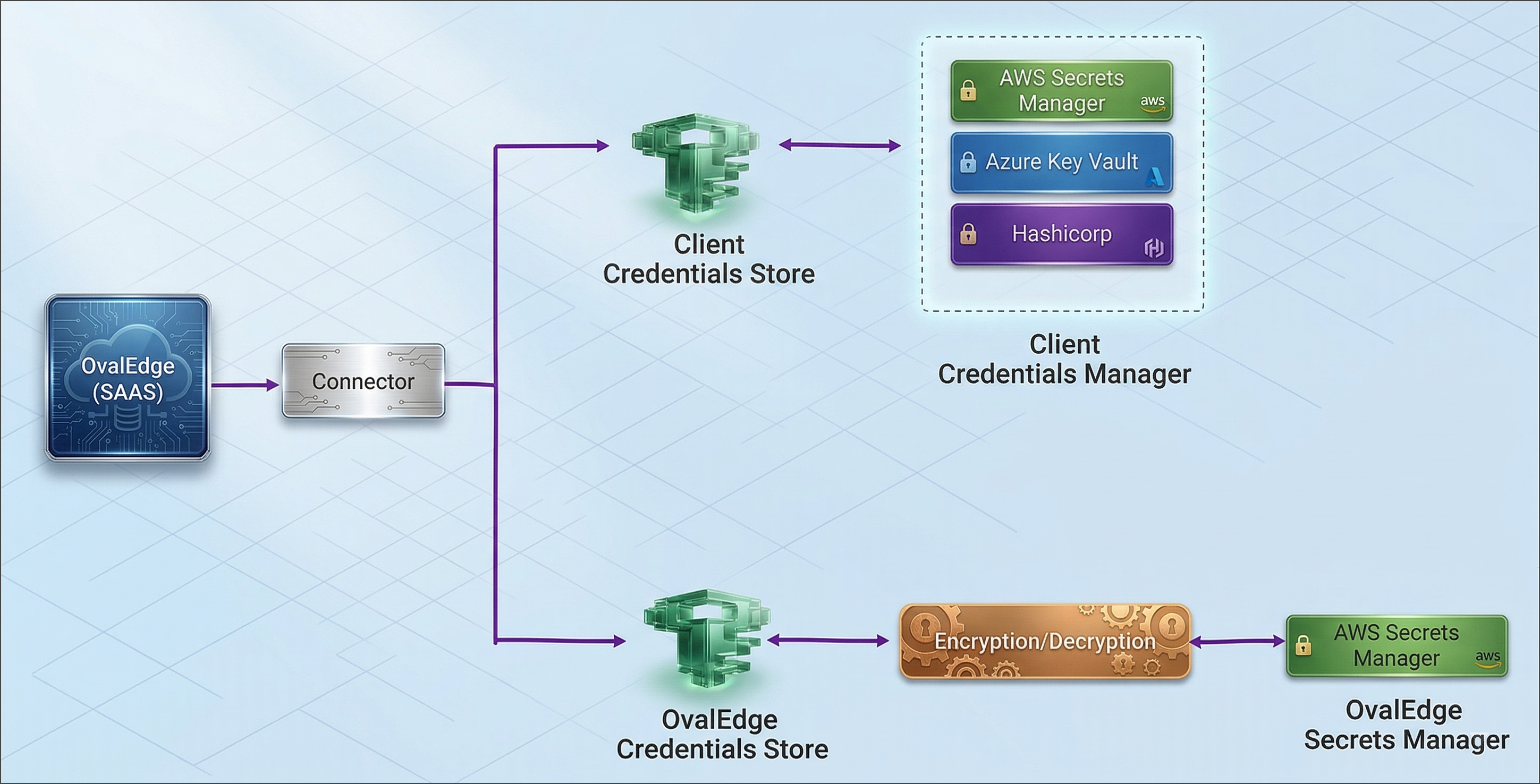
In SaaS deployments, client connection credentials are stored in OvalEdge AWS Secrets Manager.
* Sensitive credentials are encrypted and stored in OvalEdge AWS Secrets Manager.
* Non-sensitive attributes are stored in the OvalEdge database.
* Access to AWS Secrets Manager is restricted and managed with multi-factor authentication.
* Credentials are protected through encryption and secure secret storage.
* Alternatively, OvalEdge can read secrets from supported client credential managers.
 #### Standalone Deployment
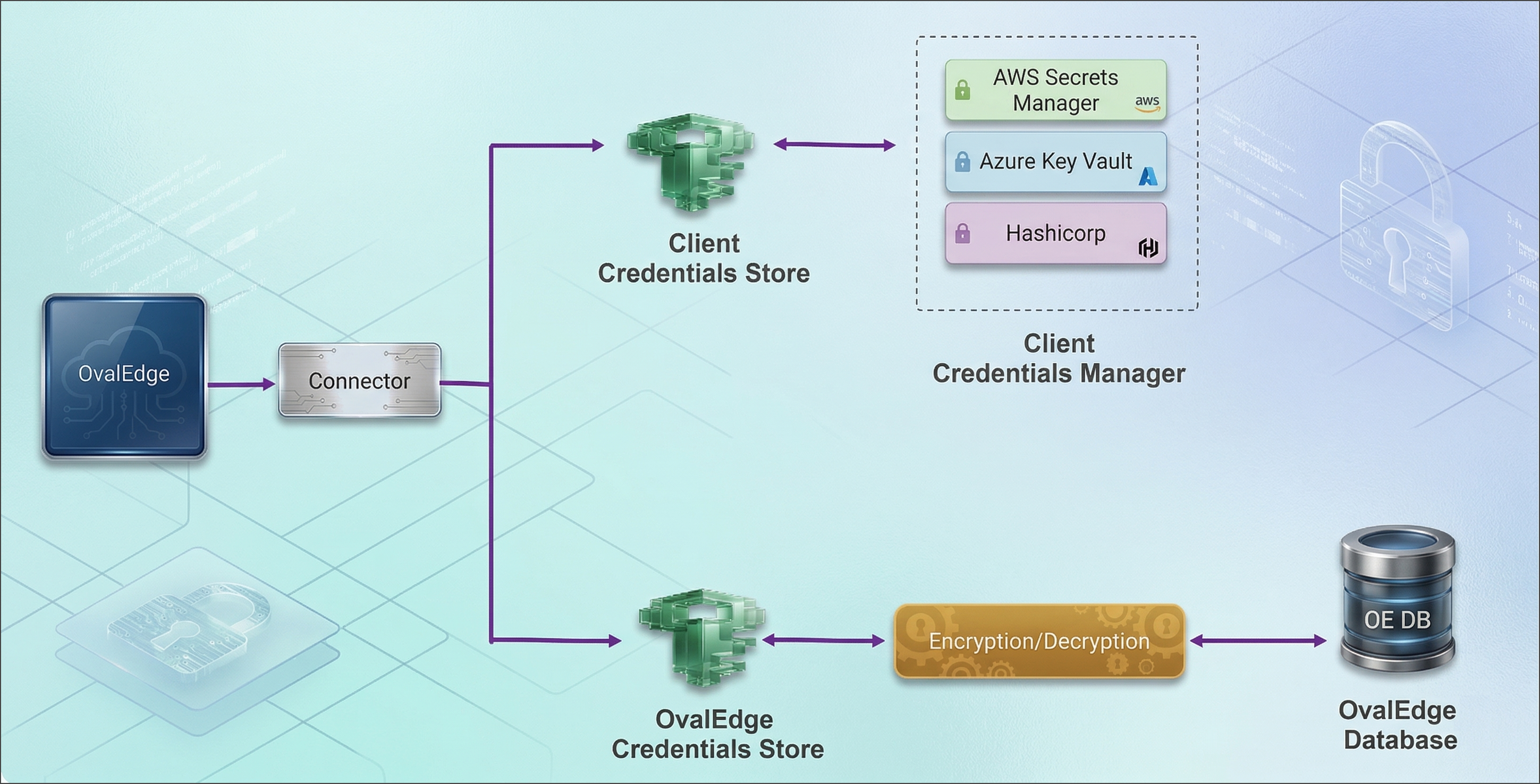
In standalone deployments, OvalEdge runs within the client’s secure network.
* Sensitive credentials, such as passwords and client secrets, can be stored in the OvalEdge database in encrypted form.
* Alternatively, credentials can be stored in supported client credential managers.
{% hint style="info" %}
In standalone deployments, the client retains full ownership and access control of credentials.
{% endhint %}
#### Standalone Deployment
In standalone deployments, OvalEdge runs within the client’s secure network.
* Sensitive credentials, such as passwords and client secrets, can be stored in the OvalEdge database in encrypted form.
* Alternatively, credentials can be stored in supported client credential managers.
{% hint style="info" %}
In standalone deployments, the client retains full ownership and access control of credentials.
{% endhint %}
 ## Secret Key Naming Conventions
Once the credentials are configured in the client credential manager, ensure that the secret keys follow the required naming pattern to be used in the OvalEdge application.
Secret key naming must follow specific patterns depending on the credential manager.
### AWS Secrets Manager
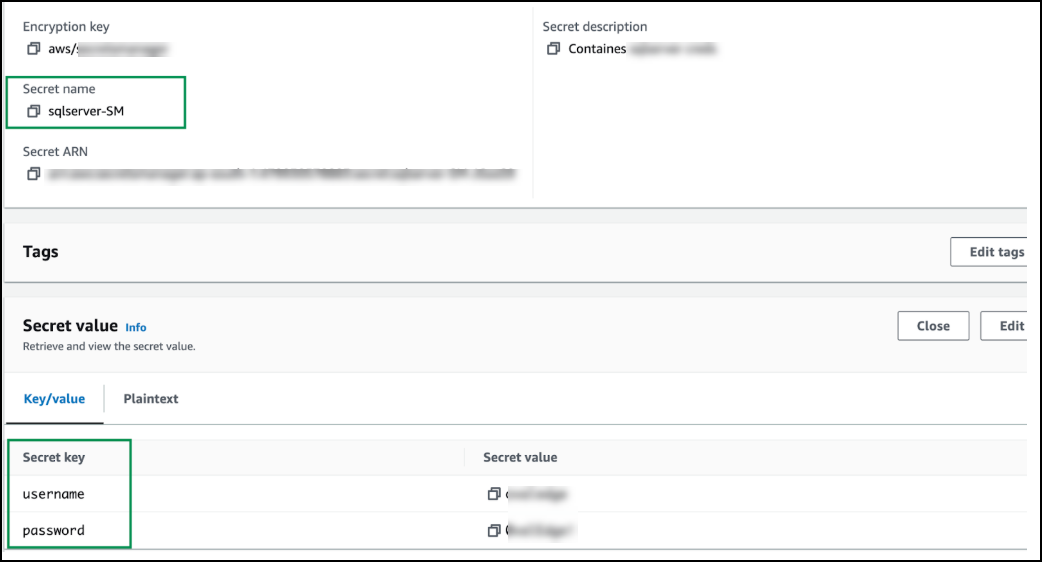
For AWS Secrets Manager, the connector retrieves credential details from the specified secret. The secret can contain different credential keys based on the connector configuration and the client’s authentication method.
**Example:**
* username
* password
**Key Pattern:**
`{secretname}/{key}`
**Example:**
* sqlserver-SM/username
* sqlserver-SM/password
## Secret Key Naming Conventions
Once the credentials are configured in the client credential manager, ensure that the secret keys follow the required naming pattern to be used in the OvalEdge application.
Secret key naming must follow specific patterns depending on the credential manager.
### AWS Secrets Manager
For AWS Secrets Manager, the connector retrieves credential details from the specified secret. The secret can contain different credential keys based on the connector configuration and the client’s authentication method.
**Example:**
* username
* password
**Key Pattern:**
`{secretname}/{key}`
**Example:**
* sqlserver-SM/username
* sqlserver-SM/password
 Use these secret keys/values when creating or updating the connector in the OvalEdge application.
**Reference Credential Manager When Creating/Editing a Connector**
**Example: SQL Server Connector**
1. Log in to the OvalEdge application.
2. Navigate to **Administration → Connectors**.
3. On the Connectors page, click **+ New Connector**.
4. Search for **SQL Server** and select the **SQL Server Connector**. The **Add Connector** page appears.
5. In the **Credentials Manager** dropdown, select **AWS Secrets Manager**. The parameters related to the selected credential manager appear.
6. Enter the required connection parameters.
7. In the **Username** and **Password** fields, enter the secret keys retrieved from AWS Secrets Manager:
1. sqlserver-SM/username
2. sqlserver-SM/password
Use these secret keys/values when creating or updating the connector in the OvalEdge application.
**Reference Credential Manager When Creating/Editing a Connector**
**Example: SQL Server Connector**
1. Log in to the OvalEdge application.
2. Navigate to **Administration → Connectors**.
3. On the Connectors page, click **+ New Connector**.
4. Search for **SQL Server** and select the **SQL Server Connector**. The **Add Connector** page appears.
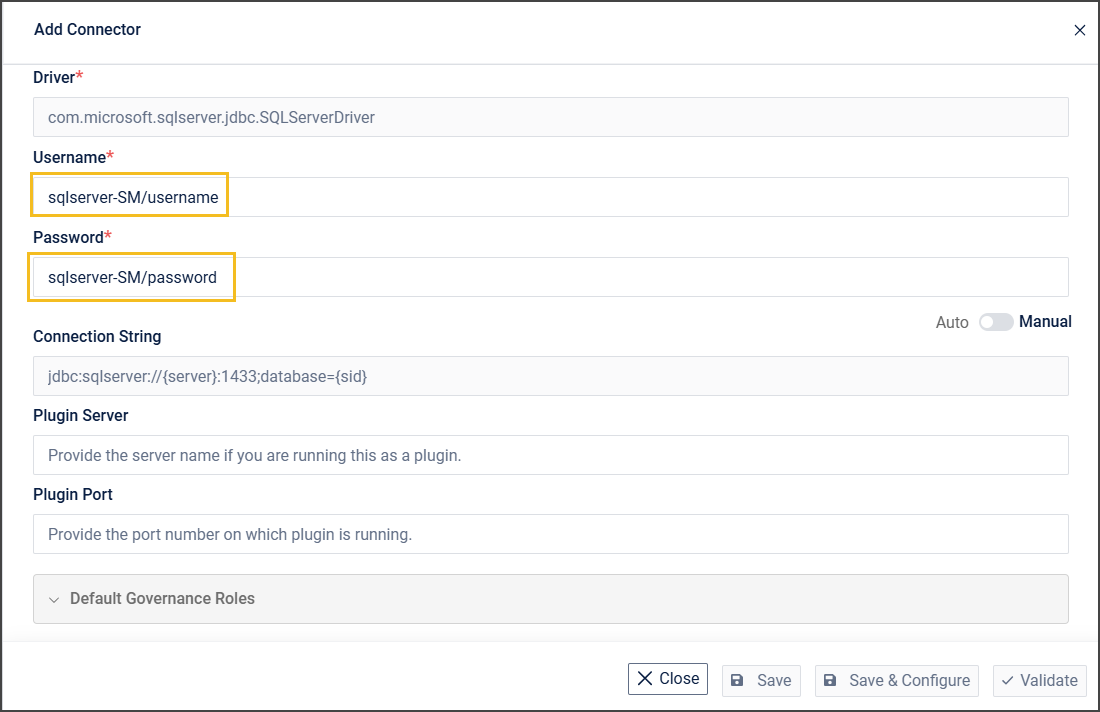
5. In the **Credentials Manager** dropdown, select **AWS Secrets Manager**. The parameters related to the selected credential manager appear.
6. Enter the required connection parameters.
7. In the **Username** and **Password** fields, enter the secret keys retrieved from AWS Secrets Manager:
1. sqlserver-SM/username
2. sqlserver-SM/password
 8. Click **Validate** to verify the connection.
9. Click **Save** to store the connection for future use.
10. Alternatively, click **Save & Configure** to configure additional settings before saving. The saved connector appears on the **Connectors** page.
{% hint style="info" %}
Users can update secret keys for an existing connector. On the **Connectors** page, locate the required connector (for example, SQL Server), click the **nine-dot** menu, and select **Edit Connector**. Update the required credential fields (for example, Username and Password) with the secret keys retrieved from **AWS Secrets Manager**, and then save the connector.
{% endhint %}
### Azure Key Vault
For **Azure Key Vault**, the connector requires only the key names. The connector retrieves the corresponding secret values directly from Azure Key Vault. The keys stored in the vault depend on the connector configuration and the client’s authentication method.
**Key Pattern:**
`{key}`
**Example:**
* adf-clientid-new
* adf-clientsecret-new
* adf-endpoint-new
* adf-tenantid-new
* azuredatafactory-subscriberId
* adf-apiversion
* adf-resourcegroup
8. Click **Validate** to verify the connection.
9. Click **Save** to store the connection for future use.
10. Alternatively, click **Save & Configure** to configure additional settings before saving. The saved connector appears on the **Connectors** page.
{% hint style="info" %}
Users can update secret keys for an existing connector. On the **Connectors** page, locate the required connector (for example, SQL Server), click the **nine-dot** menu, and select **Edit Connector**. Update the required credential fields (for example, Username and Password) with the secret keys retrieved from **AWS Secrets Manager**, and then save the connector.
{% endhint %}
### Azure Key Vault
For **Azure Key Vault**, the connector requires only the key names. The connector retrieves the corresponding secret values directly from Azure Key Vault. The keys stored in the vault depend on the connector configuration and the client’s authentication method.
**Key Pattern:**
`{key}`
**Example:**
* adf-clientid-new
* adf-clientsecret-new
* adf-endpoint-new
* adf-tenantid-new
* azuredatafactory-subscriberId
* adf-apiversion
* adf-resourcegroup
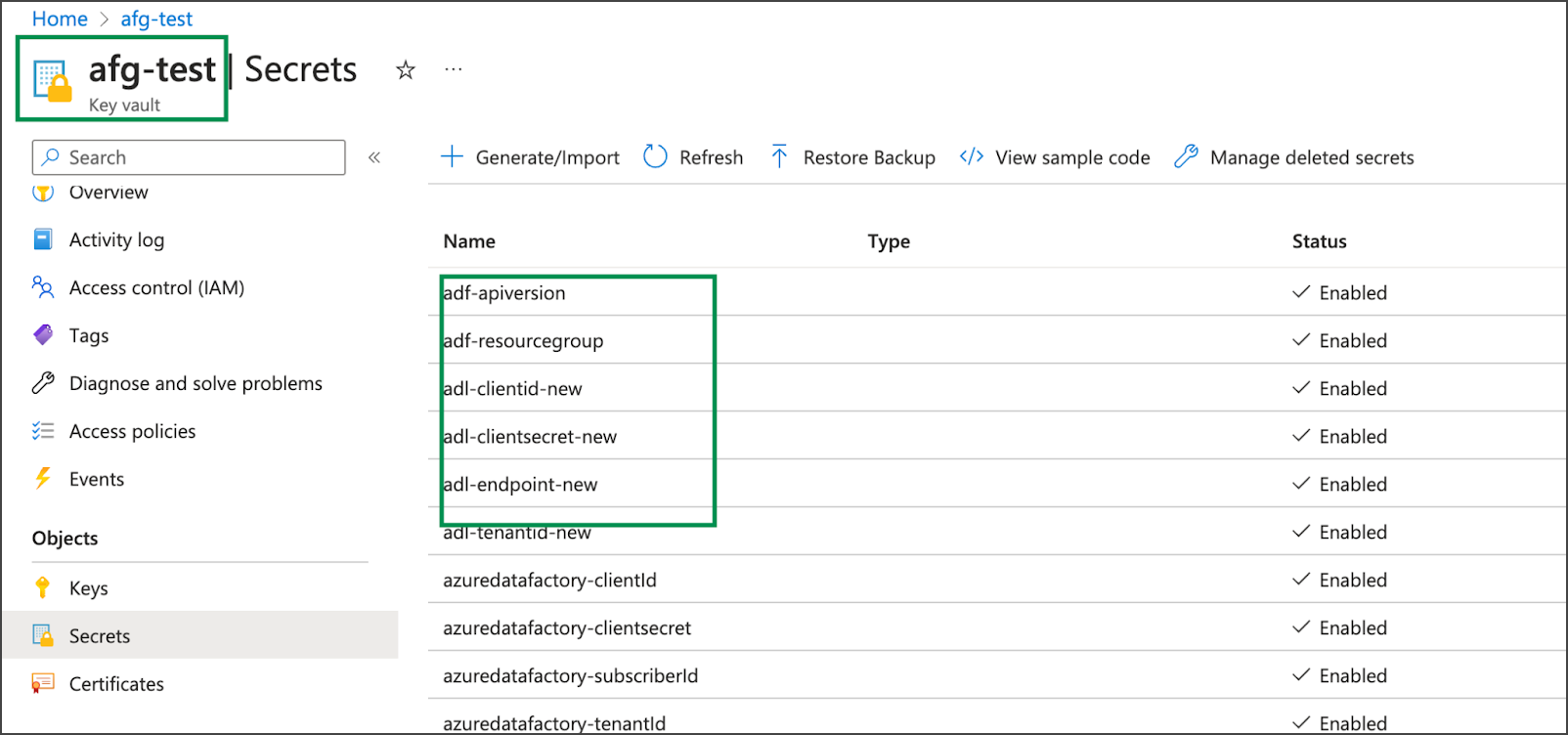 After retrieving the key names, use these names when creating or updating the connector in the OvalEdge application.
**Reference Credential Manager When Creating/Editing a Connector**
**Example: Azure Data Factory Connector**
1. Log in to the OvalEdge application.
2. Navigate to **Administration > Connectors**.
3. On the Connectors page, click **+ New Connector**.
4. Search for **Azure Data Factory** and select **Azure Data Factory**. The **Add Connector** page appears.
5. In the Credentials Manager dropdown, select Azure Key Vault. The parameters related to the selected credential manager appear.
6. Enter the required connection parameters.
7. In the following fields, enter the corresponding secret keys retrieved from Azure Key Vault:
| Connector Field | Key Name |
| ------------------- | ----------------------------- |
| Client Id | adf-clientid-new |
| Client Secret | adf-clientsecret-new |
| Tenant Id | adf-tenantid-new |
| Subscriber Id | azuredatafactory-subscriberId |
| Resource Group Name | adf-resourcegroup |
| API Version | adf-apiversion |
After retrieving the key names, use these names when creating or updating the connector in the OvalEdge application.
**Reference Credential Manager When Creating/Editing a Connector**
**Example: Azure Data Factory Connector**
1. Log in to the OvalEdge application.
2. Navigate to **Administration > Connectors**.
3. On the Connectors page, click **+ New Connector**.
4. Search for **Azure Data Factory** and select **Azure Data Factory**. The **Add Connector** page appears.
5. In the Credentials Manager dropdown, select Azure Key Vault. The parameters related to the selected credential manager appear.
6. Enter the required connection parameters.
7. In the following fields, enter the corresponding secret keys retrieved from Azure Key Vault:
| Connector Field | Key Name |
| ------------------- | ----------------------------- |
| Client Id | adf-clientid-new |
| Client Secret | adf-clientsecret-new |
| Tenant Id | adf-tenantid-new |
| Subscriber Id | azuredatafactory-subscriberId |
| Resource Group Name | adf-resourcegroup |
| API Version | adf-apiversion |
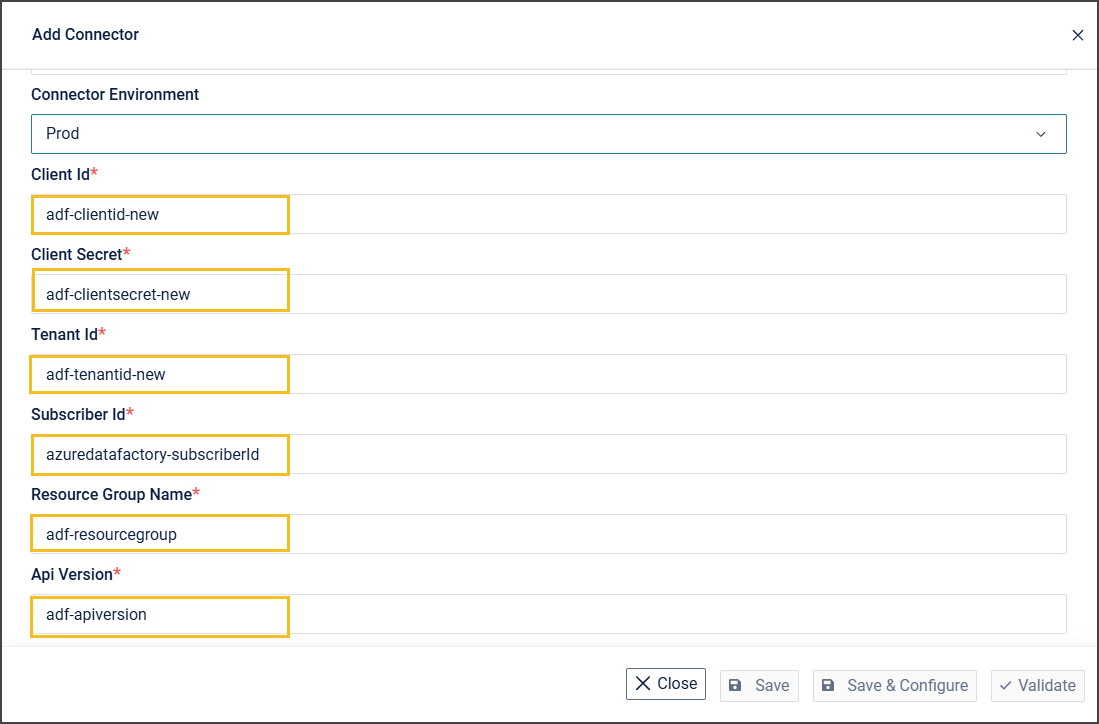 8. Click **Validate** to verify the connection.
9. Click **Save** to store the connection for future use.
10. Alternatively, click **Save & Configure** to configure additional settings before saving. The saved connector appears on the Connectors page.
{% hint style="info" %}
Users can update key values for an existing connector. On the **Connectors** page, locate the required connector (for example, Azure Data Factory), click the **nine-dot** menu, and select **Edit Connector**. Update the required credential fields (for example, Client Id, Client Secret, etc.) with the secret keys retrieved from **Azure Key Vault**, and then save the connector.
{% endhint %}
### HashiCorp
For **HashiCorp**, the connector retrieves credential details from the specified secret path. The secret can contain different credential keys based on the connector configuration and the client’s authentication method.
**Example:**
* IP
* Username
* Password
**Key Pattern:**
`/v1/{engine_name}/data/{secret_name}`
**Examples**
* /v1/SQLSERVER\_ONPREM/data/SQLSERVERCONN/IP
* /v1/SQLSERVER\_ONPREM/data/SQLSERVERCONN/Password
* /v1/SQLSERVER\_ONPREM/data/SQLSERVERCONN/Username
8. Click **Validate** to verify the connection.
9. Click **Save** to store the connection for future use.
10. Alternatively, click **Save & Configure** to configure additional settings before saving. The saved connector appears on the Connectors page.
{% hint style="info" %}
Users can update key values for an existing connector. On the **Connectors** page, locate the required connector (for example, Azure Data Factory), click the **nine-dot** menu, and select **Edit Connector**. Update the required credential fields (for example, Client Id, Client Secret, etc.) with the secret keys retrieved from **Azure Key Vault**, and then save the connector.
{% endhint %}
### HashiCorp
For **HashiCorp**, the connector retrieves credential details from the specified secret path. The secret can contain different credential keys based on the connector configuration and the client’s authentication method.
**Example:**
* IP
* Username
* Password
**Key Pattern:**
`/v1/{engine_name}/data/{secret_name}`
**Examples**
* /v1/SQLSERVER\_ONPREM/data/SQLSERVERCONN/IP
* /v1/SQLSERVER\_ONPREM/data/SQLSERVERCONN/Password
* /v1/SQLSERVER\_ONPREM/data/SQLSERVERCONN/Username
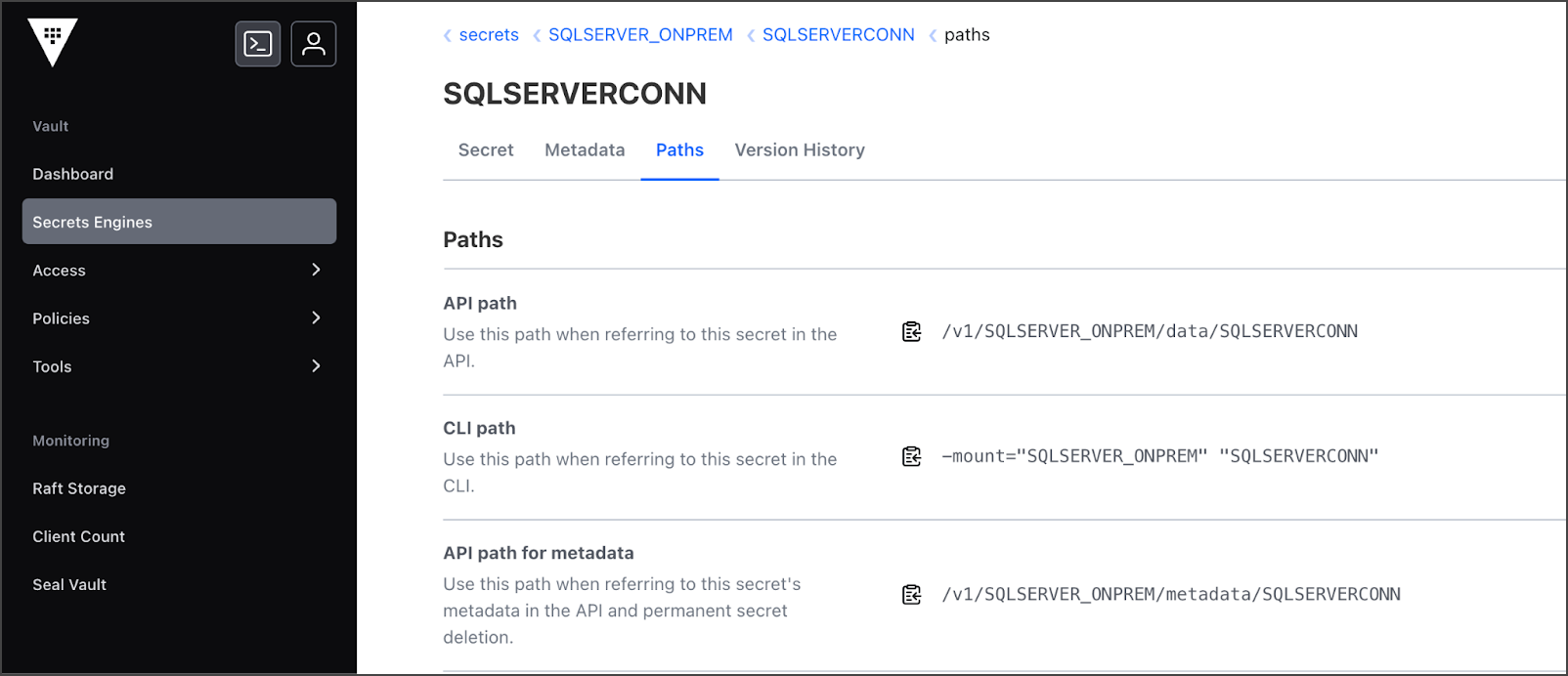
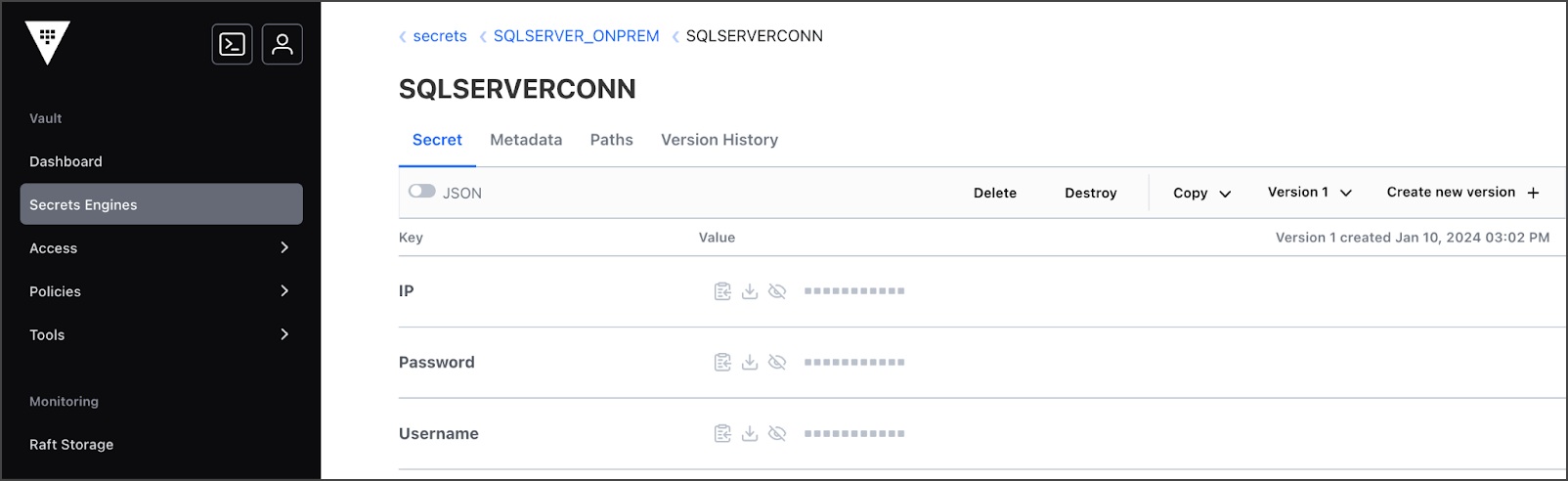 After retrieving the secret values, use these values when creating or updating the connector in the OvalEdge application.
**Reference Credential Manager When Creating/Editing a Connector**
**Example: SQL Server Connector**
1. Log in to the OvalEdge application.
2. Navigate to **Administration → Connectors**.
3. On the **Connectors** page, click **+ New Connector**.
4. Search for **SQL Server** and select the **SQL Server Connector**. The **Add Connector** page appears.
5. In the **Credentials Manager** dropdown, select **HashiCorp**. The parameters related to the selected credential manager appear.
6. Enter the required connection parameters.
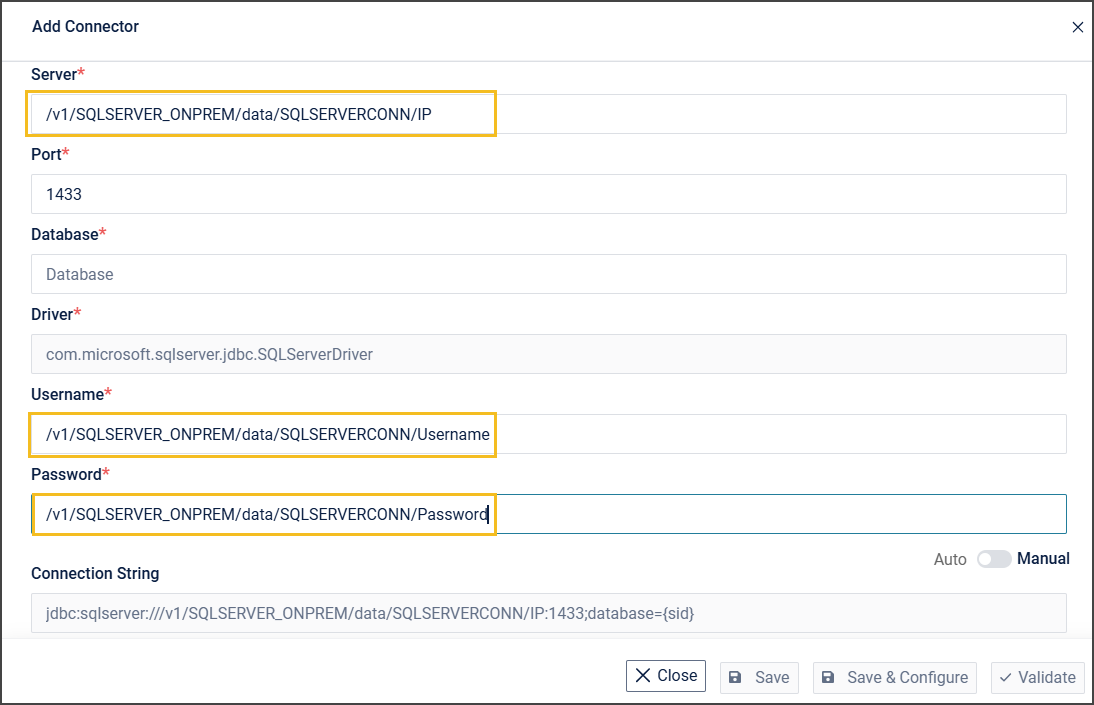
7. In the **Server**, **Username**, and **Password** fields, enter the secret keys retrieved from HashiCorp:
1. /v1/SQLSERVER\_ONPREM/data/SQLSERVERCONN/IP
2. /v1/SQLSERVER\_ONPREM/data/SQLSERVERCONN/Password
3. /v1/SQLSERVER\_ONPREM/data/SQLSERVERCONN/Username
After retrieving the secret values, use these values when creating or updating the connector in the OvalEdge application.
**Reference Credential Manager When Creating/Editing a Connector**
**Example: SQL Server Connector**
1. Log in to the OvalEdge application.
2. Navigate to **Administration → Connectors**.
3. On the **Connectors** page, click **+ New Connector**.
4. Search for **SQL Server** and select the **SQL Server Connector**. The **Add Connector** page appears.
5. In the **Credentials Manager** dropdown, select **HashiCorp**. The parameters related to the selected credential manager appear.
6. Enter the required connection parameters.
7. In the **Server**, **Username**, and **Password** fields, enter the secret keys retrieved from HashiCorp:
1. /v1/SQLSERVER\_ONPREM/data/SQLSERVERCONN/IP
2. /v1/SQLSERVER\_ONPREM/data/SQLSERVERCONN/Password
3. /v1/SQLSERVER\_ONPREM/data/SQLSERVERCONN/Username
 8. Click **Validate** to verify the connection.
9. Click **Save** to store the connection for future use.
10. Alternatively, click **Save & Configure** to configure additional settings before saving. The saved connector appears on the **Connectors** page.
{% hint style="info" %}
Users can update secret keys for an existing connector. On the **Connectors** page, locate the required connector (for example, SQL Server), click the **nine-dot** menu, and select **Edit Connector**. Update the required credential fields (for example, Server IP, Username, and Password) with the secret keys retrieved from **HashiCorp Manager**, and then save the connector.
{% endhint %}
{% hint style="warning" %}
The connector retrieves credential values (for example, Username and Password) from the configured credential manager store. Fields not stored in the secret are used as entered. If a secret key is incorrect, missing, or removed from the credential manager store, connection validation and operations fail.
{% endhint %}
***
Copyright © 2026, OvalEdge LLC, Peachtree Corners, GA, USA.
---
# Agent Instructions
This documentation is published with GitBook. GitBook is the documentation platform designed so that both humans and AI agents can read, navigate, and reason over technical content effectively. Learn more at gitbook.com.
## Querying This Documentation
If you need additional information that is not directly available in this page, you can query the documentation by asking a question.
Perform an HTTP GET request on the following URL with the `ask` and `goal` query parameters:
```
GET https://docs.ovaledge.com/connectors/additional-requirements/credential-manager-configuration.md?ask=&goal=
```
`ask` is the immediate question: it should be specific, self-contained, and written in natural language.
`goal` is what the user is ultimately trying to achieve, the reason they need the answer. Sharing it helps GitBook give you a better, more relevant answer. A goal is most helpful when it describes the outcome the user wants rather than restating the question. For example, with `ask=how do I create an API token`, a goal like `automate deployments from our CI pipeline` lets GitBook tailor the answer to that use case.
The response will contain a direct answer to the question and relevant excerpts and sources from the documentation.
Use this mechanism when the answer is not explicitly present in the current page, you need clarification or additional context, or you want to retrieve related documentation sections.
8. Click **Validate** to verify the connection.
9. Click **Save** to store the connection for future use.
10. Alternatively, click **Save & Configure** to configure additional settings before saving. The saved connector appears on the **Connectors** page.
{% hint style="info" %}
Users can update secret keys for an existing connector. On the **Connectors** page, locate the required connector (for example, SQL Server), click the **nine-dot** menu, and select **Edit Connector**. Update the required credential fields (for example, Server IP, Username, and Password) with the secret keys retrieved from **HashiCorp Manager**, and then save the connector.
{% endhint %}
{% hint style="warning" %}
The connector retrieves credential values (for example, Username and Password) from the configured credential manager store. Fields not stored in the secret are used as entered. If a secret key is incorrect, missing, or removed from the credential manager store, connection validation and operations fail.
{% endhint %}
***
Copyright © 2026, OvalEdge LLC, Peachtree Corners, GA, USA.
---
# Agent Instructions
This documentation is published with GitBook. GitBook is the documentation platform designed so that both humans and AI agents can read, navigate, and reason over technical content effectively. Learn more at gitbook.com.
## Querying This Documentation
If you need additional information that is not directly available in this page, you can query the documentation by asking a question.
Perform an HTTP GET request on the following URL with the `ask` and `goal` query parameters:
```
GET https://docs.ovaledge.com/connectors/additional-requirements/credential-manager-configuration.md?ask=&goal=
```
`ask` is the immediate question: it should be specific, self-contained, and written in natural language.
`goal` is what the user is ultimately trying to achieve, the reason they need the answer. Sharing it helps GitBook give you a better, more relevant answer. A goal is most helpful when it describes the outcome the user wants rather than restating the question. For example, with `ask=how do I create an API token`, a goal like `automate deployments from our CI pipeline` lets GitBook tailor the answer to that use case.
The response will contain a direct answer to the question and relevant excerpts and sources from the documentation.
Use this mechanism when the answer is not explicitly present in the current page, you need clarification or additional context, or you want to retrieve related documentation sections.