# Power BI (On-Prem)

This article outlines the integration with the **Power BI (On-Prem)** connector, enabling efficient data management through features such as **crawling** and **lineage building** (both automatic and manual), providing visibility into reports, datasets, pages, and visuals within on-premises environments.

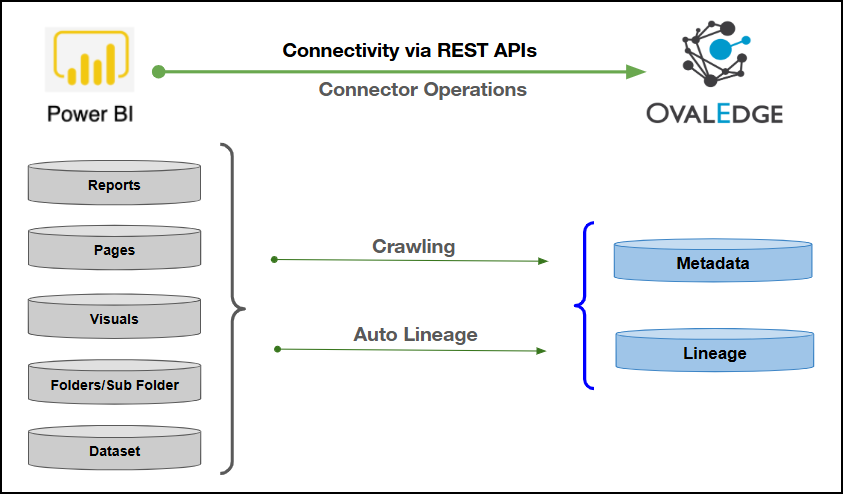
The Power BI (On-Prem) connector uses **REST APIs** to securely extract metadata from the **Power BI Report Server** for cataloging and lineage analysis. It also ensures secure authentication via Credential Manager.

<figure><img src="https://1813356899-files.gitbook.io/~/files/v0/b/gitbook-x-prod.appspot.com/o/spaces%2FhTnkoJQml0pok9awFDhx%2Fuploads%2F6VQfp1O12RycLe8unFa3%2Fimage.png?alt=media&#x26;token=dc3d8603-8aac-4660-b72e-76bf20a8917d" alt=""><figcaption></figcaption></figure>

## Overview

### Connector Details

<table data-header-hidden><thead><tr><th width="469.8333740234375"></th><th></th></tr></thead><tbody><tr><td>Connector Category</td><td>Reporting Tools</td></tr><tr><td>OvalEdge Release Supported</td><td>Release 6.3.X and later</td></tr><tr><td><p>Connectivity</p><p>[How the connection is established with Power BI (On-Prem)]</p></td><td>REST APIs</td></tr><tr><td>Verified Power BI (On-Prem) Version</td><td>1.1.6513.3500 - 1.22.9153.7886</td></tr></tbody></table>

{% hint style="info" %}
The Power BI (On-Prem) connector has been validated with the mentioned "Verified Power BI (On-Prem) Versions". It is expected to be compatible with other supported Power BI (On-Prem) versions. If there are any issues with validation or metadata crawling, please submit a support ticket for investigation and feedback.
{% endhint %}

### Connector Features

| Feature                                      | Availability |
| -------------------------------------------- | :----------: |
| Crawling                                     |       ✅      |
| Delta Crawling                               |       ✅      |
| Profiling                                    |       ❌      |
| Query Sheet                                  |       ❌      |
| Report Preview                               |       ❌      |
| Auto Lineage                                 |       ✅      |
| Manual Lineage                               |       ✅      |
| Secure Authentication via Credential Manager |       ✅      |
| Data Quality                                 |       ❌      |
| DAM (Data Access Management)                 |       ❌      |
| Bridge                                       |       ✅      |

### Metadata Mapping

The following objects are crawled from Power BI (On-Prem) and mapped to the corresponding UI assets.

<table><thead><tr><th width="222.3333740234375">Power BI (On-Prem) Object</th><th width="238.49993896484375">Power BI (On-Prem) Attribute</th><th width="171.333251953125">OvalEdge Attribute</th><th width="198">OvalEdge Category</th><th width="158.8333740234375">OvalEdge Type</th></tr></thead><tbody><tr><td>Folders</td><td>Folder</td><td>Report Group</td><td>Reports</td><td>Folders</td></tr><tr><td>Sub folder</td><td>subfolder</td><td>Report Group</td><td>Reports</td><td>Sub folder</td></tr><tr><td>Reports</td><td>Reports Name</td><td>Report Name</td><td>Reports</td><td>Reports</td></tr><tr><td>Reports</td><td>Report description</td><td>Report description</td><td>Descriptions</td><td>Reports</td></tr><tr><td>Reports</td><td>Report Type</td><td>Type</td><td>Reports</td><td>Reports</td></tr><tr><td>Dataset</td><td>Dataset Name</td><td>Dataset Name</td><td>Reports</td><td>Dataset</td></tr><tr><td>Dataset</td><td>Dataset Description</td><td>Source description</td><td>Descriptions</td><td>Dataset</td></tr><tr><td>Dataset</td><td>Dataset Type</td><td>Type</td><td>Reports</td><td>Dataset</td></tr><tr><td>Pages</td><td>Page Name</td><td>Report Name</td><td>Reports</td><td>Pages</td></tr><tr><td>Pages</td><td>Page description</td><td>Source description</td><td>Reports</td><td>Pages</td></tr><tr><td>Pages</td><td>Page type</td><td>Type</td><td>Reports</td><td>Pages</td></tr><tr><td>Visuals</td><td>Visual Name</td><td>Report Name</td><td>Reports</td><td>Visuals</td></tr><tr><td>Visuals</td><td>Visual type</td><td>Type</td><td>Reports</td><td>Visuals</td></tr><tr><td>Visuals</td><td>Visual Filed</td><td>Report Columns</td><td>Report Columns</td><td>Visuals</td></tr></tbody></table>

## Set up a Connection

### Prerequisites

The following are the prerequisites to establish a connection:

#### Whitelisting IP Address

{% hint style="warning" %}
Ensure that the **data source IP address** is **whitelisted** before establishing a connection to OvalEdge. IP whitelisting helps prevent connectivity issues, ensures a secure connection, and protects data from unauthorized access.
{% endhint %}

For detailed prerequisite configuration steps for **Power BI Report Server (On-Prem)** including **Windows service account creation**, **Content Manager permission assignment**, and **optional environment variable configuration** - refer to the [**Power BI (On-Prem) System Configuration**](https://docs.ovaledge.com/connectors/connector-repositories/reporting-tool/power-bi/power-bi-on-prem/power-bi-on-prem-system-configuration).

#### **Service Account User Permissions**

{% hint style="warning" %}
It is recommended to use a separate service account to establish the connection to the data source, configured with the following minimum set of permissions.
{% endhint %}

{% hint style="info" %}
👨‍💻Who can provide these permissions? These permissions are typically granted by the Power BI (On-Prem) administrator, as users may not have the required access to assign them independently.
{% endhint %}

<table><thead><tr><th width="144">Operation</th><th width="198.83331298828125">Objects</th><th>Access Permission</th></tr></thead><tbody><tr><td>Validation</td><td>Connector Validation</td><td>Windows user with a Content Manager permission</td></tr><tr><td>Crawling</td><td>Crawling</td><td>Windows user with a Content Manager permission</td></tr><tr><td>Build Lineage</td><td>Lineage</td><td>Windows user with a Content Manager permission</td></tr><tr><td>Crawling</td><td>Delta Crawl</td><td>Windows user with a Content Manager permission</td></tr><tr><td>Crawling</td><td>Semantic Model / Dataset</td><td>Windows user with a Content Manager permission</td></tr><tr><td>Crawling</td><td>Report</td><td>Windows user with a Content Manager permission</td></tr><tr><td>Crawling</td><td>Pages</td><td>Windows user with a Content Manager permission</td></tr><tr><td>Crawling</td><td>Visuals</td><td>Windows user with a Content Manager permission</td></tr></tbody></table>

### Connection Configuration Steps

{% hint style="info" %}
Users are required to have the Connector Creator role in order to configure a new connection.
{% endhint %}

1. Log into **OvalEdge**, go to **Administration > Connectors**, click **+ (New Connector)**, search for **Power BI**, and complete the required parameters.

{% hint style="info" %}
Fields marked with an asterisk (\*) are mandatory for establishing a connection.
{% endhint %}

<table><thead><tr><th width="219.8333740234375">Field Name</th><th>Description</th></tr></thead><tbody><tr><td>Connector Type</td><td>By default, "Power BI" is displayed as the selected connector type.</td></tr><tr><td>Server Type*</td><td>From the dropdown list options (powerbionpremise/powerbicloud), select <strong>powerbionpremise</strong>.</td></tr><tr><td>Credential Manager*</td><td><p>Select the desired credentials manager from the drop-down list. Relevant parameters will be displayed based on your selection.</p><p>Supported Credential Managers:</p><ul><li>OE Credential Manager</li><li>AWS Secrets Manager</li><li>HashiCorp</li><li>Azure Key Vault</li></ul></td></tr><tr><td>License Add Ons</td><td>Select the checkbox for <strong>Auto Lineage Add-On</strong> to build data lineage automatically.</td></tr><tr><td>Connector Name*</td><td><p>Enter a unique name for the Power BI (On-Prem) connection              </p><p>(Example: "PowerBIOnPrem").</p></td></tr><tr><td>Connector Environment</td><td>Select the environment (Example: PROD, STG) configured for the connector.</td></tr><tr><td>Connector Description</td><td>Enter a brief description of the connector.</td></tr><tr><td>Server Domain*</td><td>Enter the On-Premises Domain name. The Power BI Report Server allows organizations to host and share reports with users within their own domain or network.</td></tr><tr><td>Host Name*</td><td>This is the Hostname or IP address of the Power-BI Server. Database instance URL (on-premises). Example: app.powerbi.com [Localhost (on-premises)]</td></tr><tr><td>Connection URL*</td><td>Enter the On-Premise Database Connection URL. It is a URL string that the JDBC driver uses to connect to a database.</td></tr><tr><td>Files Path*</td><td>Enter the server files path. A user needs to create or take any existing path from the OvalEdge server and paste it here.</td></tr><tr><td>PBIT Files Path</td><td>Enter the server folder path where the PBIT files are stored. This path is used to read and process the PBIT files during the connection setup.</td></tr><tr><td>Connection String*</td><td>Set the Connection String toggle button to automatic to get the details automatically from the credentials provided. Alternatively, users can manually enter the string. https://app.powerbi.com/</td></tr><tr><td>Username*</td><td>A username is required to connect to the Power BI On-Premise server. Enter the Service Account Name established to access the Power BI-on premise environment.</td></tr><tr><td>Password*</td><td>Password is required to connect to the Power BI on-premises server.</td></tr><tr><td>Windows Authentication (Y/N)</td><td>To validate the connection using Windows Authentication, enter 'Y'; otherwise, enter 'N'.</td></tr><tr><td>Check With Certs (Y/N)</td><td>To validate the connection using certificates, export the certificates and place them in the Java path, then enter 'Y'; otherwise, enter 'N'.</td></tr><tr><td>Read From NFS(Y/N)</td><td>To retrieve reports directly from the folder without connecting to the Power BI service, enter 'Y'; otherwise, enter 'N'.</td></tr><tr><td>Proxy Enabled*</td><td>Select Yes to route API calls through a proxy server. Select No to bypass the proxy and connect directly.</td></tr></tbody></table>

**Default Governance Roles**

<table data-header-hidden><thead><tr><th width="219.8333740234375"></th><th></th></tr></thead><tbody><tr><td>Default Governance Roles*</td><td>Select the appropriate users or teams for each governance role from the drop-down list. All users configured in the security settings are available for selection.</td></tr></tbody></table>

**Admin Roles**

<table data-header-hidden><thead><tr><th width="219.83331298828125"></th><th></th></tr></thead><tbody><tr><td>Admin Roles*</td><td>Select one or more users from the dropdown list for Integration Admin and Security &#x26; Governance Admin. All users configured in the security settings are available for selection.</td></tr></tbody></table>

**No of Archive Objects**

<table data-header-hidden><thead><tr><th width="219.8333740234375"></th><th></th></tr></thead><tbody><tr><td>No Of Archive Objects*</td><td><p>This shows the number of recent metadata changes to a dataset at the source. By default, it is off. To enable it, toggle the Archive button and specify the number of objects to archive.</p><p>Example: Setting it to 4 retrieves the last four changes, displayed in the 'Version' column of the 'Metadata Changes' module.</p></td></tr></tbody></table>

**Bridge**

<table data-header-hidden><thead><tr><th width="219.83331298828125"></th><th></th></tr></thead><tbody><tr><td>Select Bridge*</td><td><p>If applicable, select the bridge from the drop-down list.</p><p>The drop-down list displays all active bridges that have been configured. These bridges facilitate communication between data sources and the system without requiring changes to firewall rules.</p></td></tr></tbody></table>

2. After entering all connection details, the following actions can be performed:
   1. Click **Validate** to verify the connection.
   2. Click **Save** to store the connection for future use.
   3. Click **Save & Configure** to apply additional settings before saving.
3. The saved connection will appear on the Connectors home page.

## Manage Connector Operations

### Crawl/Profile

{% hint style="warning" %}
To perform crawl operations, users must be assigned the Integration Admin role.
{% endhint %}

The **Crawl/Profile** button allows users to select one or more schemas for crawling.&#x20;

1. Navigate to the **Connectors** page and click **Crawl/Profile**.
2. Select the schemas to be crawled.
3. The **Crawl** option is selected by default.
4. After a successful crawl, the information appears in the **Data Catalog > Report / Report Column** tab.

The **Schedule checkbox** allows automated crawling for a selected timeframe, from a minute to a year.

1. Click the **Schedule** checkbox to enable the **Select Period drop-down**.
2. Select a **time period** for the operation from the **drop-down menu**.
3. Click **Schedule** to initiate metadata collection from the connected source.
4. The system will automatically execute the crawl operation at the scheduled time.

### Other Operations

The **Connectors** page provides a centralized view of all configured connectors, along with their health status.

**Managing connectors includes:**

* **Connector Health:** Displays the current status of each connector using a **green** icon for active connections and a **red** icon for inactive connections, helping to monitor the connectivity with data sources.
* **Viewing**: Click the **Eye icon** next to the connector name to view connector details, including databases, tables, columns, and codes.

**Nine Dots Menu Options:**

To view, edit, validate, build lineage, configure, or delete connectors, click on the **Nine Dots** menu.

* **Edit Connector**: Update and revalidate the data source.
* **Validate Connector**: Check the connection's integrity.
* **Settings**: Modify connector settings.
  * **Crawler**: Configure data extraction.
  * **Access Instructions**: Add notes on how data can be accessed.
  * **Business Glossary Settings**: Manage term associations at the connector level.
  * **Lineage**: Configure Server Dialects for source code parsing and Connector Priority for table lineage connection.
  * **Others**: Configure notification recipients for metadata changes.
* **Build Lineage**: Automatically build data lineage using source code parsing.
* **Delete Connector**: Remove a connector with confirmation.

## Limitations

### PBIX / PBIT Export Limitations

<table><thead><tr><th width="91.66665649414062">Sl. No.</th><th width="143.3333740234375">Scenario</th><th>Limitation</th></tr></thead><tbody><tr><td>1</td><td>PBIX Export from Power BI Report Server</td><td>Reports can be exported from Power BI Report Server; however, in some cases, exported <strong>.pbix</strong> files contain an <strong>encrypted DataModel or DataModelSchema</strong> that cannot be parsed or processed.</td></tr><tr><td>2</td><td>Encrypted Data Models</td><td>Metadata extraction and lineage generation are <strong>not supported</strong> for <strong>.pbix</strong> files with encrypted data models.</td></tr><tr><td>3</td><td>PBIT File Requirement</td><td>When encryption is present, the corresponding <strong>.pbit (Power BI template)</strong> file is required to extract metadata and build lineage.</td></tr></tbody></table>

### SSL and Certificate Limitations

<table><thead><tr><th width="92.33334350585938">Sl. No.</th><th width="140.33331298828125">Scenario</th><th>Limitation</th></tr></thead><tbody><tr><td>1</td><td>HTTPS Connectivity</td><td>Secure connectivity fails if the <strong>Power BI Report Server SSL certificate</strong> is not trusted by the Java runtime used by OvalEdge.</td></tr><tr><td>2</td><td>Java Trust Store</td><td>SSL certificates must be manually imported into the <strong>Java keystore (cacerts)</strong> to establish a trusted HTTPS connection.</td></tr><tr><td>3</td><td>Certificate Renewal</td><td>When server certificates are renewed or replaced, the updated certificates must be <strong>re-imported</strong> into the Java keystore.</td></tr></tbody></table>

### Environment and Deployment Limitations

<table><thead><tr><th width="92.33334350585938">Sl. No.</th><th width="141">Scenario</th><th>Limitation</th></tr></thead><tbody><tr><td>1</td><td>Multiple Environments</td><td>Separate SSL certificate entries are required for <strong>each environment</strong> (for example, QA, UAT, PROD), each using a unique alias.</td></tr><tr><td>2</td><td>Containerized Java Deployments</td><td>In containerized or isolated Java environments, the default <strong>cacerts</strong> file may need to be <strong>copied and maintained separately</strong>.</td></tr></tbody></table>

***

Copyright © 2026, OvalEdge LLC, Peachtree Corners GA USA
