Salesforce Authentication and Integration
This article outlines the process of user creation and authentication configuration in Salesforce, covering account setup, organization level OAuth settings, login access, and the enablement of connected apps for integration, and defines the steps needed to manage user access and set up secure application connectivity through token based and JWT based authentication methods, ensuring that user credentials, authentication flows, and security settings are properly configured.
User Creation in Salesforce
Log In to Salesforce
Navigate to the Salesforce login page: https://login.salesforce.com
Enter administrator credentials.
Click Login.
Access User Management
Click the Setup gear icon in the top-right corner.
Select Setup from the dropdown.
In the Quick Find search bar on the left-hand side, type Users.
Click on Users under Administration > Users.
Create a New User
Click New User.
A user creation form will open.
Enter User Details
Complete the following fields in the form:
First Name
Enter user’s first name
Last Name
Enter user’s last name
Alias
Auto-filled based on name or enter manually
Enter user’s email address
Username
Must be in email format, unique across all Salesforce orgs
Nickname
Unique name for internal use
Role
Select appropriate role (e.g., Sales Rep)
User License
Select the appropriate license (e.g., Salesforce)
Profile
Select a profile such as Standard User or System Administrator
Locale Settings (Optional)
Configure locale-specific settings:
Language: User’s preferred language
Time Zone: Based on user location
Locale: Regional format for dates, times, and numbers
Enable Login Notification
Select the checkbox Generate new password and notify user immediately.
Click Save.
First-Time Login for New User
A welcome email with a temporary password is sent to the user.
User logs in with Username and temporary Password.
Users are prompted to set a new password on first login.
Token-Based Authentication Configuration
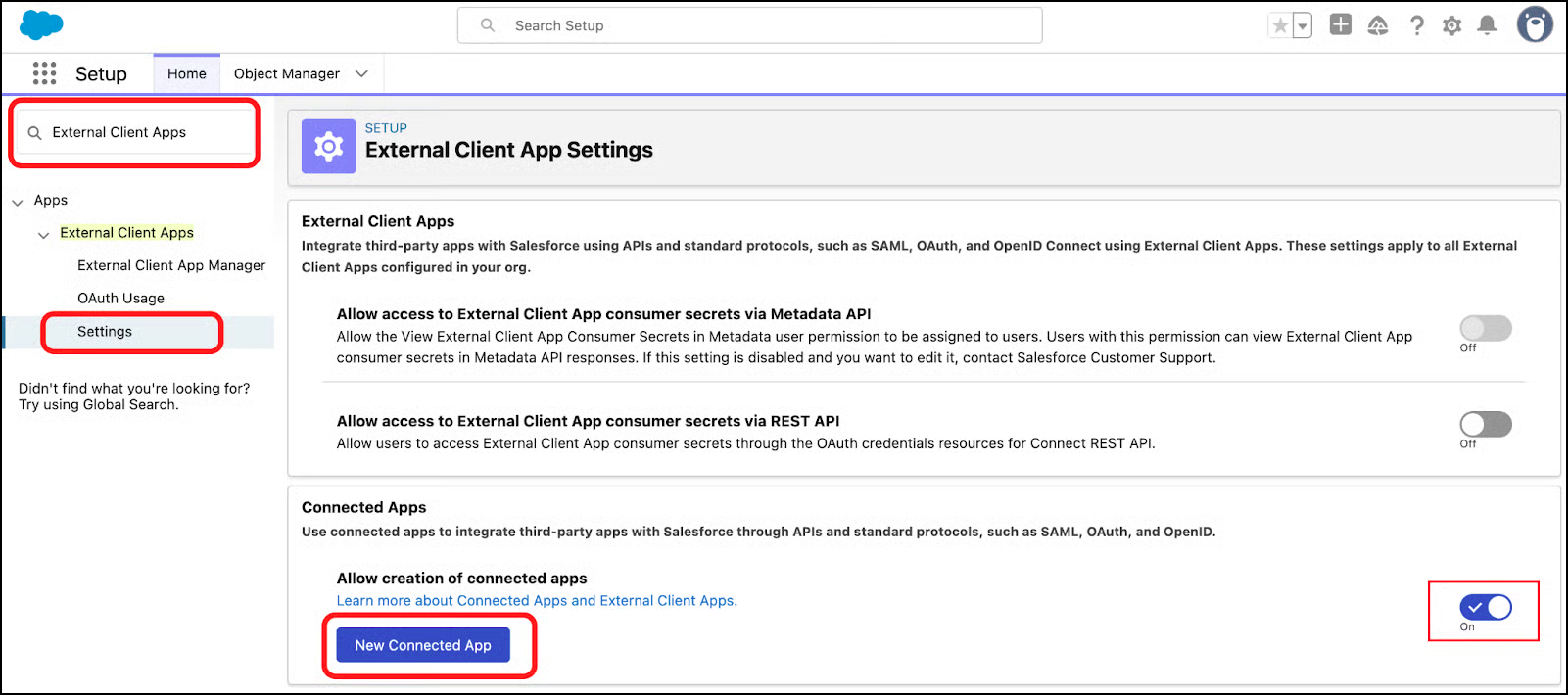
Enable Connected App Creation
Navigate to Setup.
In the Quick Find search box, search for External Client Apps.
Click on Settings.
Ensure the checkbox Allow users to create connected apps is selected.
Create a New Connected App
Navigate to Setup > App Manager.
Click New Connected App.

Provide Basic App Information
Complete the following fields:
Connected App Name
E.g., MyApp Integration
API Name
Auto-populated based on the App Name
Contact Email
Enter a valid email for support and identification
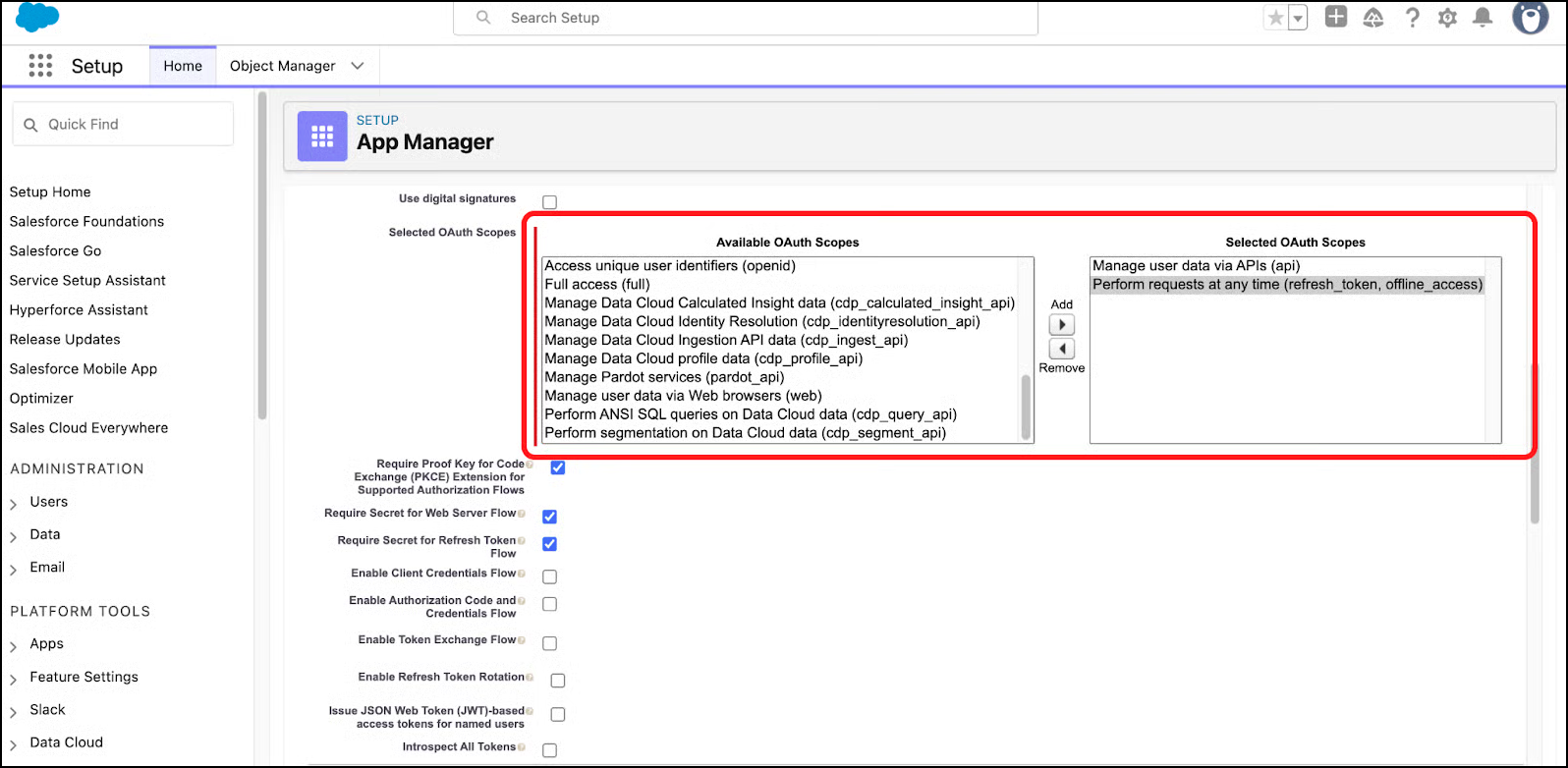
Configure OAuth Settings
Enable OAuth
Scroll down to the API (Enable OAuth Settings) section.
Check Enable OAuth Settings.
Define Callback URL
Enter the Callback URL: https://login.salesforce.com/services/oauth2/callback
Assign OAuth Scopes
Move the following scopes to the Selected OAuth Scopes box:
Access and manage your data (API)
Perform requests on your behalf at any time (refresh_token, offline_access)


Configure Additional App Security Settings
Ensure the following are checked:
Require Secret for Web Server Flow
Require Secret for Refresh Token Flow
Require Proof Key for Code Exchange (PKCE)
Click Save.
Manage Connected App Policies
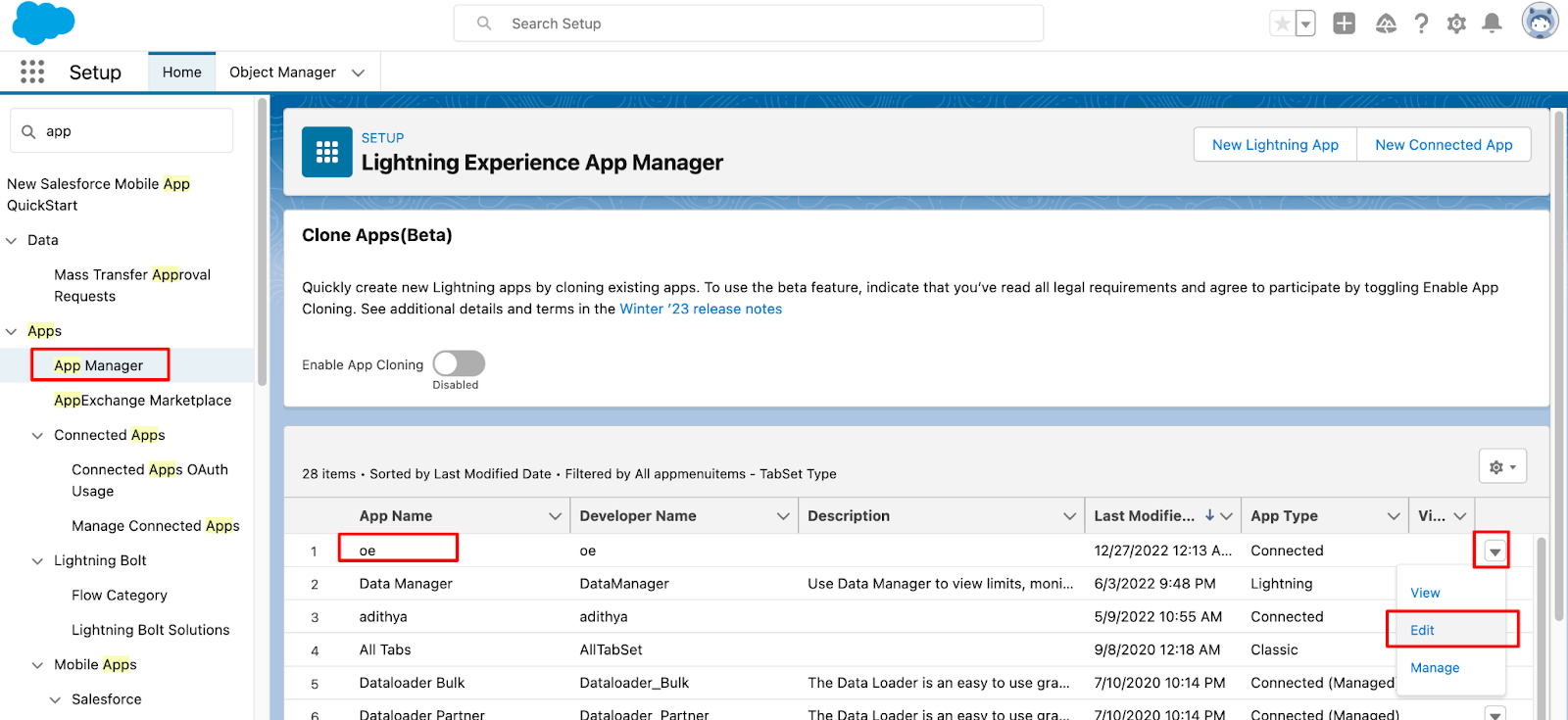
Go to Setup > App Manager.
Find the connected app, click the dropdown arrow, and select Manage.
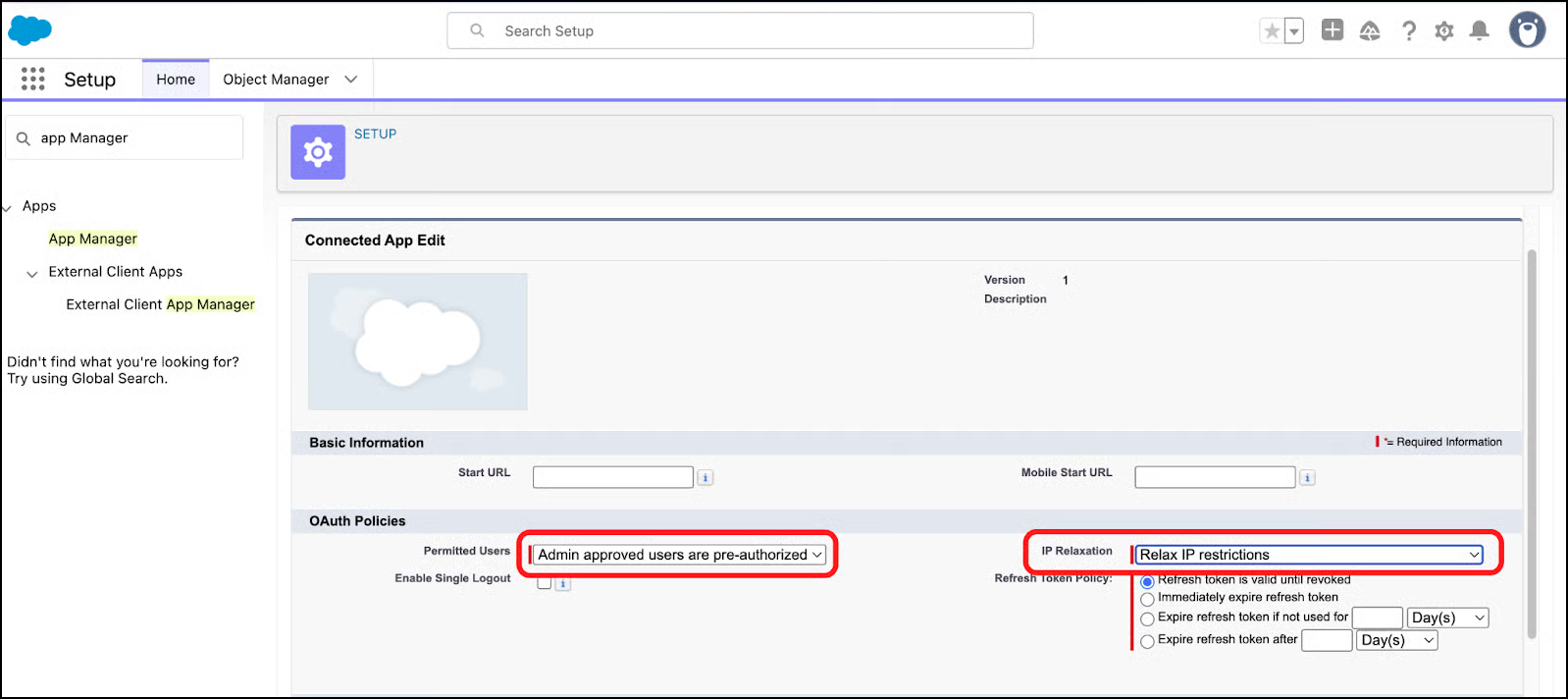
Click Edit Policies.


Update the Following:
IP Relaxation
Relax IP restrictions (recommended when the app will be accessed from multiple or dynamic IP addresses)
Permitted Users
Admin approved users are pre-authorized (ensures only users with assigned permission sets or profiles can use the app.)
Click Save.

Retrieve Consumer Key and Secret
Go to App Manager > locate the connected app > click the dropdown > View.

On the Connected App detail page, click Manage Consumer Details.

Re-authenticate when prompted.
After login, the following will be visible:
Consumer Key: Used as Client ID in integrations
Consumer Secret: Used to authenticate OAuth requests
View and note the Consumer Key and Consumer Secret.

JWT-Based Authentication Configuration
Generate a Self-Signed Certificate
In Setup, search for Certificate and Key Management.
Click Create Self-Signed Certificate.
Fill in the following:
Label: Descriptive name
Unique Name (Also known as Alias name): Auto-generated or custom (must be alphanumeric with underscores only, no spaces or consecutive underscores)
Key Size:
2048-bit (1-year validity, faster)
4096-bit (2-year validity, more secure)
Click Save.

Download the Certificate
After saving, click on the certificate label.

Download the certificate.

Upload Certificate to Connected App
Edit the previously created connected app.

Select Use digital signatures.
Upload the downloaded certificate.
Update OAuth scopes to include:
Manage user data via APIS (api)
Perform requests at any time (refresh_token, offline_access)

Edit OAuth Policies
Update the following settings:
IP Relaxation: Relax IP restrictions
Permitted Users: Admin-approved users are pre-authorized
Click Save.

Export Java KeyStore (JKS) File
After configuring the app, export the JKS file using the certificate created in Salesforce.
Navigate to the Certificate and Key Management screen.
Click Export to Keystore.

On the Keystore password screen, enter a secure password and click Export.

The JKS file will be automatically downloaded to the local system.
Ensure the downloaded JKS file is stored in a secure location.
Make sure that the downloaded JKS file is accessible to the OvalEdge application for authentication and integration.
Integration Configuration Parameters
Use the following credentials for JWT-based integration:
Client ID (Also known as Customer Key)
Use the Consumer Key from the Connected App
Username
Salesforce user’s username
Alias Name
Alias of the certificate in the JKS file
Keystore Password
Password set during the JKS export process
Keystore File Path
Full path to the stored JKS file accessible by the OvalEdge application
Additional Settings
OAuth and OpenID Connect Settings Configuration
Configure Org-Level OAuth Settings Before creating connected apps, the specific OAuth flows required for authentication must be enabled.
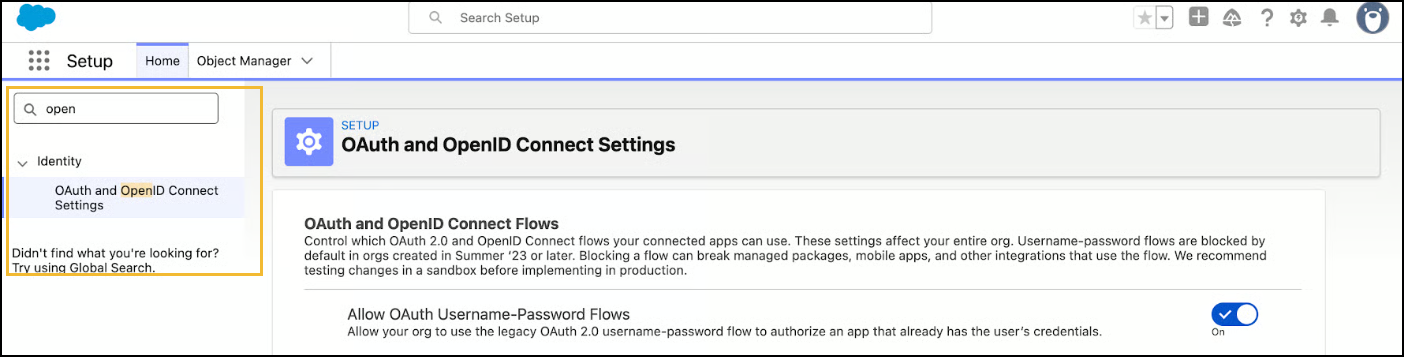
Navigate to OAuth Settings
In the Salesforce Setup Quick Search box, enter OpenID or OAuth.
Select the OAuth and OpenID Connect Settings located under the Identity menu.

Enable Required OAuth Flows
To support specific authentication methods, such as the username-password flow, users must enable the corresponding OAuth settings at the organization level.
Steps to Configure:
Navigate to the OAuth and OpenID Connect Settings section.
Locate the setting labeled Allow OAuth Username-Password Flows.
Set the toggle to On.
Purpose: This setting enables the legacy OAuth 2.0 username-password flow, which is required for applications that authenticate by sending a username, password, and security token directly (e.g., automated scripts, Postman, or legacy integration tools).

Configuration Reference
Use the table below to verify if a setting is required for the specific integration scenario:
Allow OAuth Username-Password Flows
Enable if using username/password flow (e.g., scripts, Postman).
This also requires the "Enable Username-Password Flow" setting to be enabled within the Connected App configuration itself.
Copyright © 2025, OvalEdge LLC, Peachtree Corners GA USA
Last updated
Was this helpful?