> For the complete documentation index, see [llms.txt](https://docs.ovaledge.com/llms.txt). Markdown versions of documentation pages are available by appending `.md` to page URLs; this page is available as [Markdown](https://docs.ovaledge.com/installation-and-settings/deployment-types/virtual-machine-vm-deployment.md).
# Virtual Machine (VM) Deployment
In most cases, OvalEdge is installed on a virtual machine (VM). The operating system can be selected based on organizational preference.
Before installing the OvalEdge application on a VM, the following steps must be completed:
1. Verify that the hardware meets the specifications listed in the **Hardware Requirements** section.
2. Install the software specified in the **Software Requirements** section.
3. Complete the mandatory pre-installation steps outlined in the **Installation Activities** section.
## Prerequisites
### Hardware Requirements
### **Single Virtual Machine (All-in-One VM)**
Installing all components—including the database, Elasticsearch, and application server—on a single VM is recommended only for the Essential edition or for proof-of-concept (POC) environments. This configuration is not suitable for multi-user deployments.
**Supported Operating Systems**:
* Windows
* Linux: Ubuntu and RHEL
**Recommended Hardware:**
| HARDWARE | ESSENTIAL | PROFESSIONAL | ENTERPRISE |
| --------------------------------------------- | --------------------------------------- | ----------------------------------- | ------------------------------------- |
| **RAM** | 32GB | NR | NR |
| **SSD** | 200GB | NR | NR |
| **vCPU** | 8 | NR | NR |
{% hint style="warning" %}
\*A single VM is not recommended for Professional and Enterprise packages since it will result in performance issues.
{% endhint %}
### **Multiple VMs (Separate VMs for different components)**
It is recommended to use:
* One VM for the Application Server (AS)
* A separate VM for Elasticsearch (ES)
* A separate VM or cloud-hosted database service
As Amazon RDS manages backups and recovery tasks, using RDS or an equivalent cloud database service is recommended for the database.
For non-production or proof-of-concept (POC) workloads, a separate database environment is advised. In such cases, the AS and ES components can be hosted on a single VM.
**Recommended Hardware for the Application Server(AS) VM1**
| HARDWARE | ESSENTIAL | PROFESSIONAL | ENTERPRISE |
| --------------------------------------------- | --------------------------------------- | -------------------------------------- | ---------------------------------------- |
| **RAM** | 32GB | 64GB | 64GB |
| **SSD** | 100GB | 200GB | 200GB |
| **vCPU** | 8 | 16 | 16 |
**Recommended Hardware for the AS+ES’s VM2**
| HARDWARE | ESSENTIAL | PROFESSIONAL | ENTERPRISE |
| --------------------------------------------- | --------------------------------------- | -------------------------------------- | ---------------------------------------- |
| **RAM** | 32GB | 64GB | 64GB |
| **SSD** | 100GB | 200GB | 200GB |
| **vCPU** | 8 | 16 | 16 |
**Recommended Hardware for the Database RDS or VM3**
| HARDWARE | ESSENTIAL | PROFESSIONAL | ENTERPRISE |
| --------------------------------------------- | --------------------------------------- | -------------------------------------- | ---------------------------------------- |
| **RAM** | 16GB | 32GB | 64GB |
| **SSD** | 100GB | 100GB | 200GB |
| **vCPU** | 4 | 8 | 16 |
## Software Requirements
To run OvalEdge on a VM, install the following software components:
* **Database Server**
* **MySQL (Standalone)**
* [MySQL 8.4.x (Ubuntu)](/deployment-and-maintenance/installation/mysql-8.4.x-on-ubuntu-22.04+.md)
* [MySQL 8.4.x (RHEL)](/deployment-and-maintenance/installation/mysql-8.4.x-on-rhel-8+.md)
* [MySQL 8.4.x (Windows)](/deployment-and-maintenance/installation/mysql-8.4.x-on-windows.md)
* **MySQL (RDS)**
* [MySQL 8.4.x (Azure)](/deployment-and-maintenance/installation/ovaledge-db-on-azure-mysql.md)
* **Elasticsearch Server**
* [Elasticsearch 9 (Ubuntu)](/deployment-and-maintenance/installation/elasticsearch-9.x-on-ubuntu-22.04+.md)
* [Elasticsearch 9 (RHEL)](/deployment-and-maintenance/installation/elasticsearch-9.x-on-rhel.md)
* [Elasticsearch 9 (Windows)](/deployment-and-maintenance/installation/elasticsearch-9.3.x-on-windows.md)
* **Application Server**
* **Java**
* [Java 21 (Ubuntu)](/deployment-and-maintenance/installation/java-21.x-on-ubuntu-22.04+.md)
* [Java 21 (Windows)](/deployment-and-maintenance/installation/java-21-on-windows-machine.md)
* **Apache Tomcat**
* [Apache Tomcat 10.1.x (Ubuntu)](/deployment-and-maintenance/installation/tomcat-10.1.x-on-ubuntu-24.04.md)
* [Apache Tomcat 10.1.x (Windows)](/deployment-and-maintenance/installation/tomcat-10.1.x-on-windows.md)
* **askEdgi Installation**
* [askEdgi Components Implementation on ECS-Varient-1 (8.0) (New Customer)](/askedgi/deployment-and-installation/ecs-variant/ecs-variant-1-new-customers.md)
* [askEdgi Components Implementation on ECS-Varient-2 (8.0) (New Customer)](/askedgi/deployment-and-installation/ecs-variant/ecs-variant-2-new-customers.md)
## Pre-Installation Activities
The following activities must be completed to install OvalEdge on a virtual machine.
#### 1. Download OvalEdge installation artifacts
Clients using a virtual machine infrastructure must complete the questionnaire to receive the installation artifacts link. The artifacts include:
* **ovaledge.war** – Application WAR file
* **masterscripts.sql** – Database scripts file
* **Connector JARs and drivers**
* **Configuration files** – `oasis.properties`, `log4j.properties`
* **askEdgi bundled tar file.(Python packages)**
#### 2. Verify database setup
Ensure the MySQL database is installed and configured, and the required schemas, users, and tables are created using the provided **masterscripts.sql**.
#### 3. Verify Tomcat configuration
Ensure the Tomcat server is installed and configured with the required settings, including:
* Deployment of **ovaledge.war** in the `webapps` folder
* Placement of configuration files (`oasis.properties`, `log4j.properties`) in the correct location
* Correct configuration of the **setenv** file (`setenv.bat` for Windows or `setenv.sh` for Linux/Unix)
## Post-Installation Activities
1. **Access the Application**
* Open a web browser and go to:
```
http://:8080/ovaledge/login
```
* The **OvalEdge License Information** page is displayed.
* Enter the license key provided by the OvalEdge Global Customer Service (GCS) team in the **Apply License** section, then click **Update License**.
* A pop-up with one-time admin credentials is displayed.
* Use the admin credentials to log in and immediately change the default password.
2. **Update Application Configurations**
* In the OvalEdge application, navigate to **Configuration** and update the following:
**System Path**
* `ovaledge.base.url` – Replace the default `http://localhost:8080/ovaledge` with the actual OvalEdge access URL.
* `ovaledge.temppath` – Update with the path to the temp folder created during installation. This folder must also be on the same machine where OvalEdge is installed.
**Notification**
* Update the **SMTP details** to enable email notifications for configured alerts.
**AI**
* Validate and crawl -1 connector and update askEdgi settings in AI configurations (under system settings)
* askedgiplus.enable – Enable or disable the askEdgi feature (Default: False).
* ai.config – Configure and manage AI settings including required API configurations.
* askedgi.edition – Select the askEdgi edition (Metadata Analytics or Data Analytics). Default is Metadata Analytics.
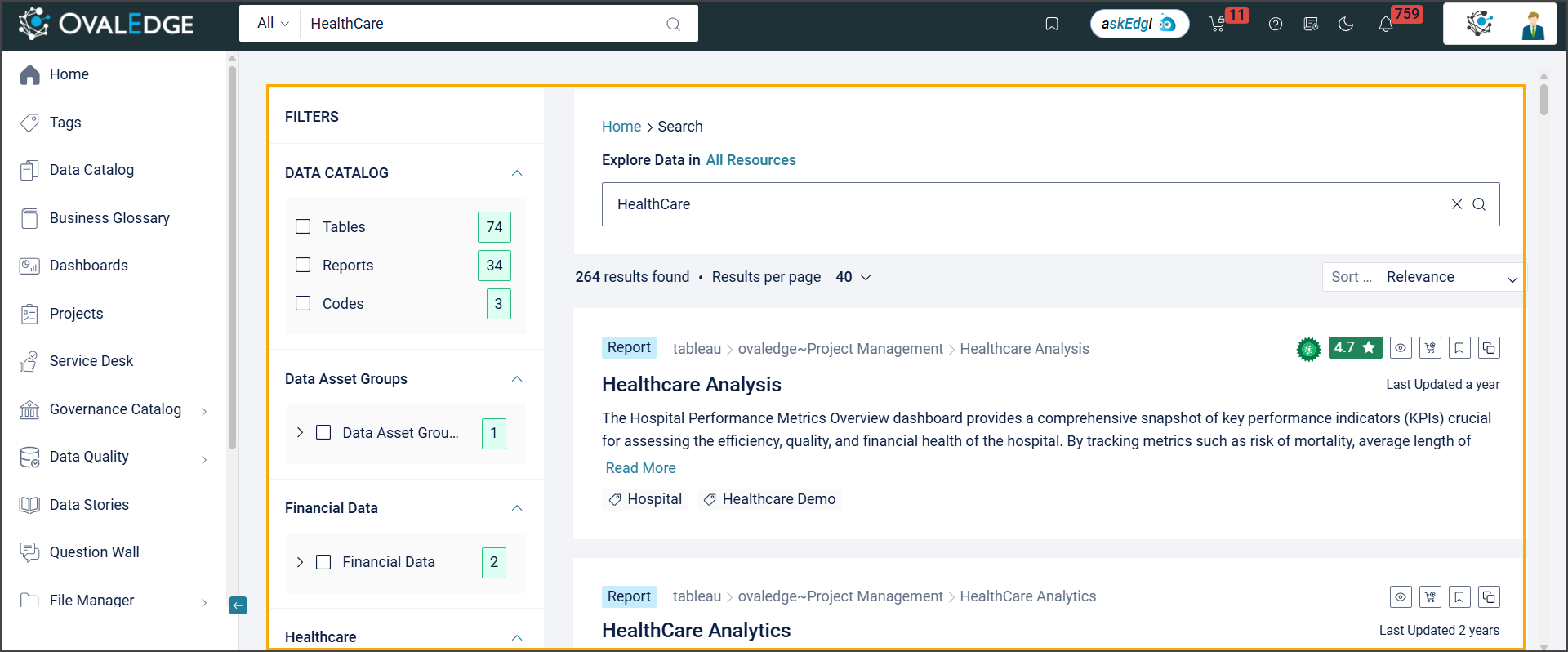
3. **Verify Elasticsearch Integration**
* On the OvalEdge Home page, enter text in the search bar and press Enter.
* The **Global Search** results page should appear, confirming Elasticsearch integration.
 ***
Copyright © 2025, OvalEdge LLC, Peachtree Corners, GA, USA.
---
# Agent Instructions
This documentation is published with GitBook. GitBook is the documentation platform designed so that both humans and AI agents can read, navigate, and reason over technical content effectively. Learn more at gitbook.com.
## Querying This Documentation
If you need additional information that is not directly available in this page, you can query the documentation by asking a question.
Perform an HTTP GET request on the following URL with the `ask` and `goal` query parameters:
```
GET https://docs.ovaledge.com/installation-and-settings/deployment-types/virtual-machine-vm-deployment.md?ask=&goal=
```
`ask` is the immediate question: it should be specific, self-contained, and written in natural language.
`goal` is what the user is ultimately trying to achieve, the reason they need the answer. Sharing it helps GitBook give you a better, more relevant answer. A goal is most helpful when it describes the outcome the user wants rather than restating the question. For example, with `ask=how do I create an API token`, a goal like `automate deployments from our CI pipeline` lets GitBook tailor the answer to that use case.
The response will contain a direct answer to the question and relevant excerpts and sources from the documentation.
Use this mechanism when the answer is not explicitly present in the current page, you need clarification or additional context, or you want to retrieve related documentation sections.
***
Copyright © 2025, OvalEdge LLC, Peachtree Corners, GA, USA.
---
# Agent Instructions
This documentation is published with GitBook. GitBook is the documentation platform designed so that both humans and AI agents can read, navigate, and reason over technical content effectively. Learn more at gitbook.com.
## Querying This Documentation
If you need additional information that is not directly available in this page, you can query the documentation by asking a question.
Perform an HTTP GET request on the following URL with the `ask` and `goal` query parameters:
```
GET https://docs.ovaledge.com/installation-and-settings/deployment-types/virtual-machine-vm-deployment.md?ask=&goal=
```
`ask` is the immediate question: it should be specific, self-contained, and written in natural language.
`goal` is what the user is ultimately trying to achieve, the reason they need the answer. Sharing it helps GitBook give you a better, more relevant answer. A goal is most helpful when it describes the outcome the user wants rather than restating the question. For example, with `ask=how do I create an API token`, a goal like `automate deployments from our CI pipeline` lets GitBook tailor the answer to that use case.
The response will contain a direct answer to the question and relevant excerpts and sources from the documentation.
Use this mechanism when the answer is not explicitly present in the current page, you need clarification or additional context, or you want to retrieve related documentation sections.