> For the complete documentation index, see [llms.txt](https://docs.ovaledge.com/llms.txt). Markdown versions of documentation pages are available by appending `.md` to page URLs; this page is available as [Markdown](https://docs.ovaledge.com/deployment-and-maintenance/installation/mysql-8.4.x-on-azure.md).
# MySQL 8.4.x on Azure
This article provides step-by-step instructions to create an **Azure Database for MySQL Flexible Server** with **VNet Integration and private access**. After completing the steps, you will have a fully provisioned and secure MySQL server in Azure, ready for application use.
### Prerequisites
* Access to the **Azure Portal**: [https://portal.azure.com](https://portal.azure.com?utm_source=chatgpt.com)
* Azure permissions to:
* Create Resource Groups
* Provision Azure Database for MySQL Flexible Server
* Create Virtual Networks (VNets) and Private Endpoints
### Steps
* **Log in to Azure Portal**
* Open the Azure portal and search for **Azure MySQL**.
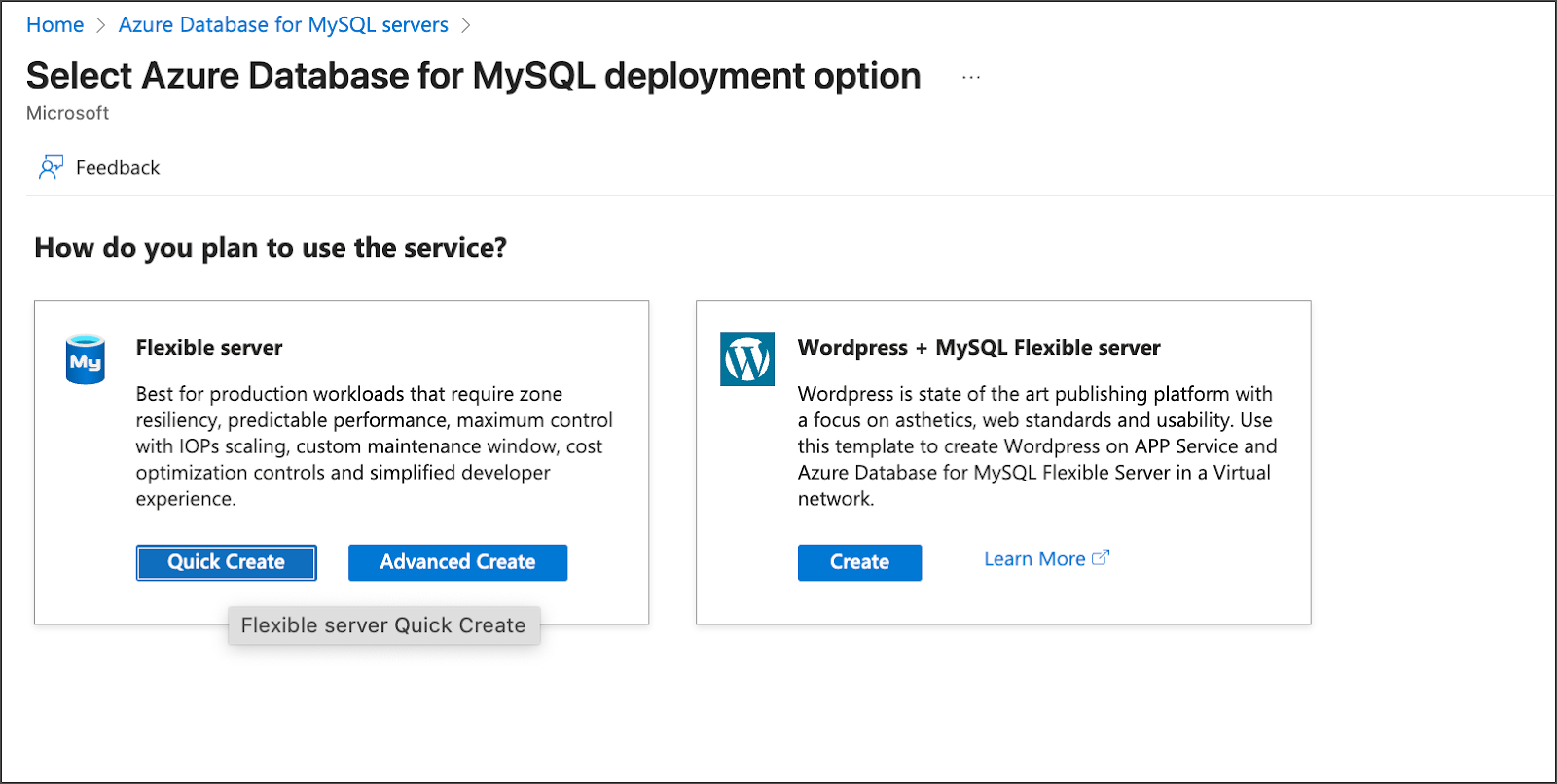
 * **Create Flexible Server**
* Click **Create** and select **Flexible Server**.
* **Create Flexible Server**
* Click **Create** and select **Flexible Server**.
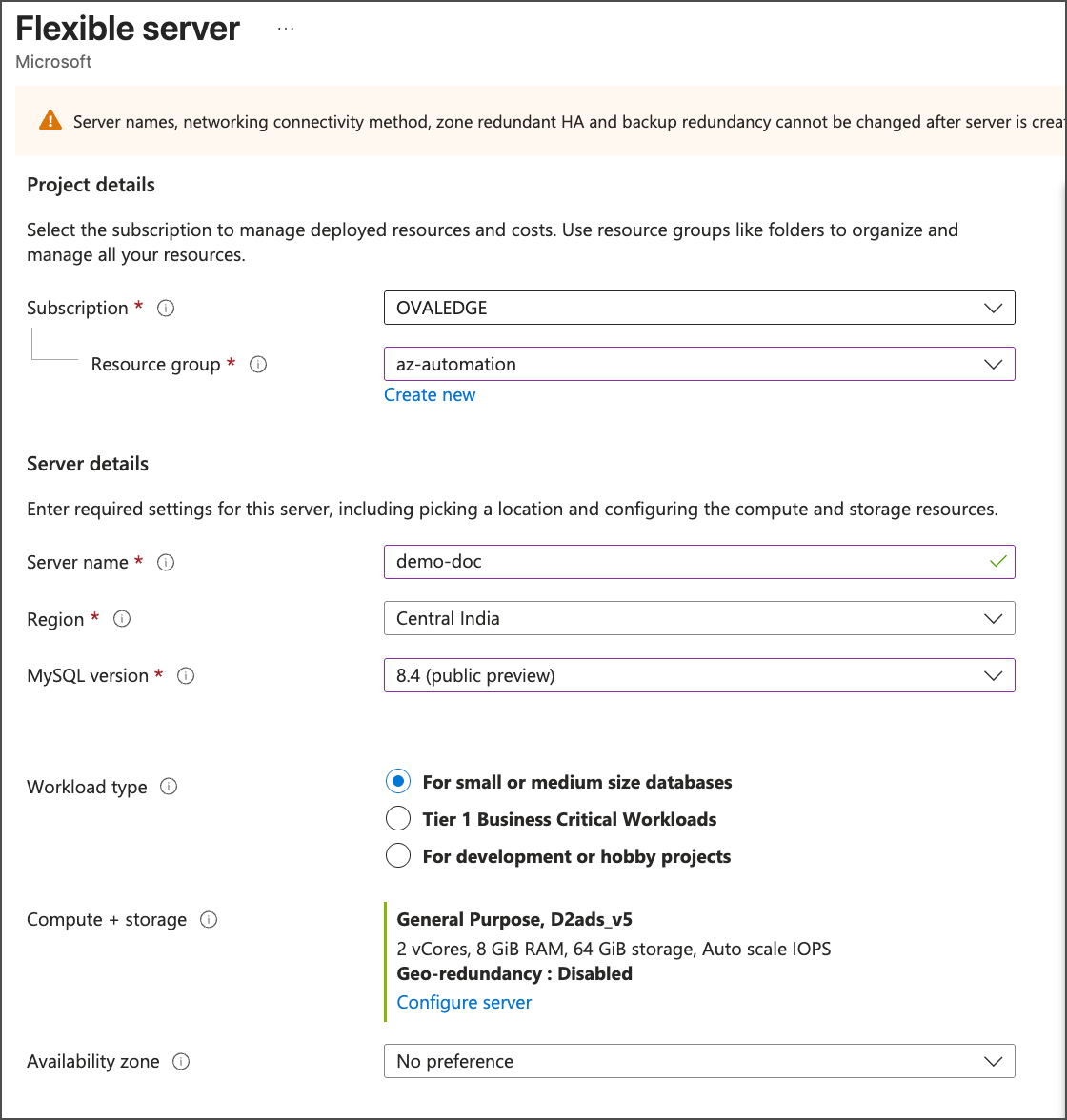
 * **Specify Server Details**
* Resource group
* Name
* Region
* Workload
* **Configure Authentication**
* Select **MySQL Authentication**.
* Enter a username and password.
* **Specify Server Details**
* Resource group
* Name
* Region
* Workload
* **Configure Authentication**
* Select **MySQL Authentication**.
* Enter a username and password.


 * **Configure Connectivity**
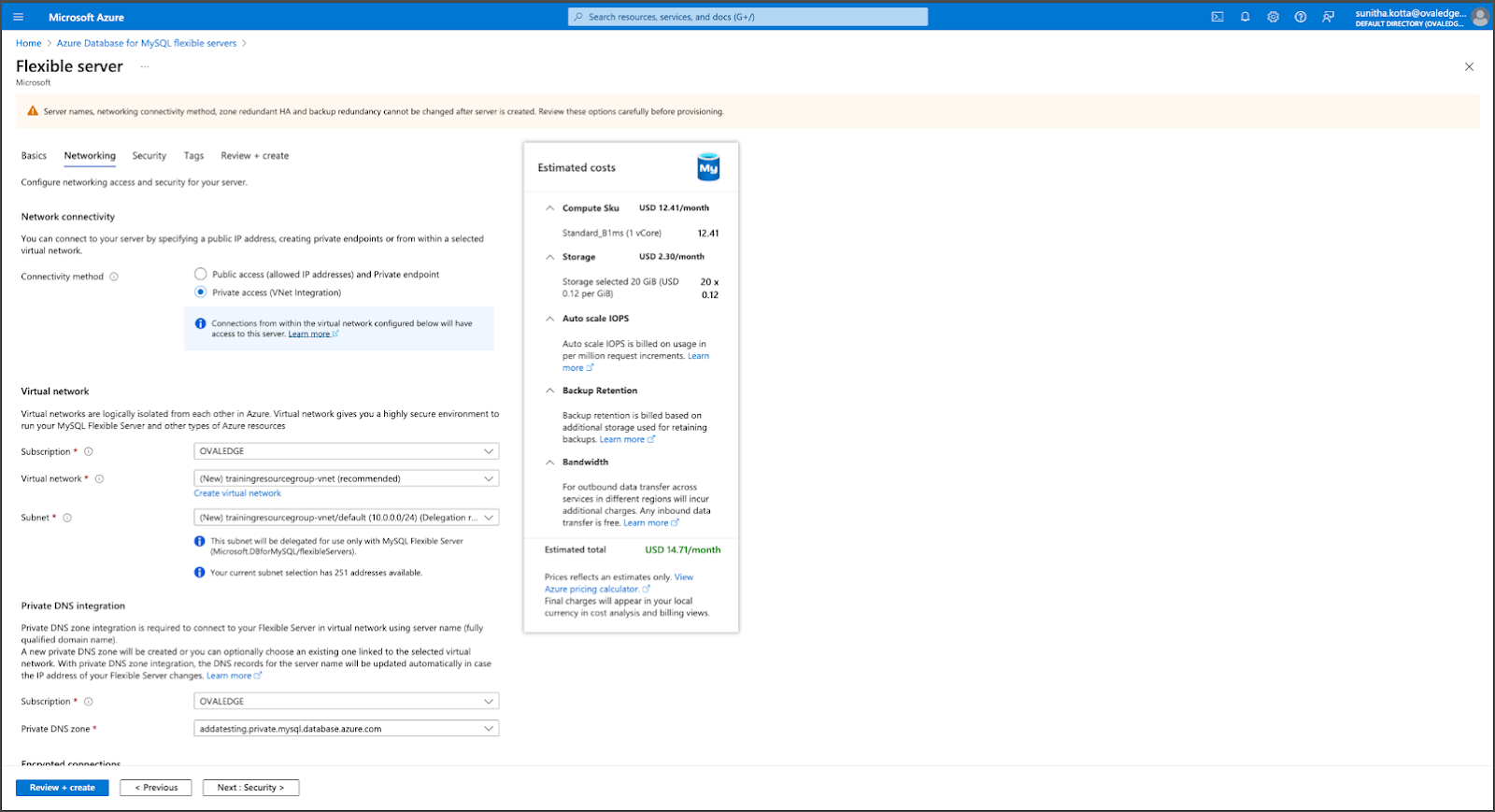
* Choose **Private access (VNet Integration)**.
* If VNets exist under the selected resource group, they appear automatically.
* If no VNets exist:
* Click **Create VNet**.
* Select **OK**.
* **Configure Connectivity**
* Choose **Private access (VNet Integration)**.
* If VNets exist under the selected resource group, they appear automatically.
* If no VNets exist:
* Click **Create VNet**.
* Select **OK**.
 * **Set Security and Tags**
* Configure preferred security settings under the **Security** blade.
* Add the required tags.
* **Review and Create**
* Click **Review + Create** to validate the configuration.
* Click **Create** to start provisioning the server.
* Wait a few minutes for the deployment to complete.
* **Capture Connection Details**
* After creation, record the following for later use:
* MySQL endpoint (private endpoint if configured)
* Username
* Password
***
Copyright © 2025, OvalEdge LLC, Peachtree Corners, GA, USA.
---
# Agent Instructions
This documentation is published with GitBook. GitBook is the documentation platform designed so that both humans and AI agents can read, navigate, and reason over technical content effectively. Learn more at gitbook.com.
## Querying This Documentation
If you need additional information that is not directly available in this page, you can query the documentation dynamically by asking a question.
Perform an HTTP GET request on the current page URL with the `ask` query parameter, and the optional `goal` query parameter:
```
GET https://docs.ovaledge.com/deployment-and-maintenance/installation/mysql-8.4.x-on-azure.md?ask=&goal=
```
`ask` is the immediate question: it should be specific, self-contained, and written in natural language.
`goal` is optional and describes the broader end goal you are ultimately trying to accomplish on behalf of the user. GitBook uses it to tailor the answer towards what is most useful for that goal.
The response will contain a direct answer to the question and relevant excerpts and sources from the documentation.
Use this mechanism when the answer is not explicitly present in the current page, you need clarification or additional context, or you want to retrieve related documentation sections.
* **Set Security and Tags**
* Configure preferred security settings under the **Security** blade.
* Add the required tags.
* **Review and Create**
* Click **Review + Create** to validate the configuration.
* Click **Create** to start provisioning the server.
* Wait a few minutes for the deployment to complete.
* **Capture Connection Details**
* After creation, record the following for later use:
* MySQL endpoint (private endpoint if configured)
* Username
* Password
***
Copyright © 2025, OvalEdge LLC, Peachtree Corners, GA, USA.
---
# Agent Instructions
This documentation is published with GitBook. GitBook is the documentation platform designed so that both humans and AI agents can read, navigate, and reason over technical content effectively. Learn more at gitbook.com.
## Querying This Documentation
If you need additional information that is not directly available in this page, you can query the documentation dynamically by asking a question.
Perform an HTTP GET request on the current page URL with the `ask` query parameter, and the optional `goal` query parameter:
```
GET https://docs.ovaledge.com/deployment-and-maintenance/installation/mysql-8.4.x-on-azure.md?ask=&goal=
```
`ask` is the immediate question: it should be specific, self-contained, and written in natural language.
`goal` is optional and describes the broader end goal you are ultimately trying to accomplish on behalf of the user. GitBook uses it to tailor the answer towards what is most useful for that goal.
The response will contain a direct answer to the question and relevant excerpts and sources from the documentation.
Use this mechanism when the answer is not explicitly present in the current page, you need clarification or additional context, or you want to retrieve related documentation sections.