> For the complete documentation index, see [llms.txt](https://docs.ovaledge.com/llms.txt). Markdown versions of documentation pages are available by appending `.md` to page URLs; this page is available as [Markdown](https://docs.ovaledge.com/deployment-and-maintenance/installation/elasticsearch-7.17.x-on-rhel-8+.md).
# Elasticsearch 7.17.x on RHEL 8+
This article provides a comprehensive guide for installing Elasticsearch version 7.17.x on Ubuntu 22.04, Amazon Linux, and RHEL 8.x systems. It includes prerequisites, installation steps, configuration instructions, and integration steps with the OvalEdge application.
### Hardware Requirements
* Minimum 4 GB RAM (8 GB recommended)
* Minimum 2 vCPUs
* 10 GB available disk space
### Prerequisites
* Ubuntu system with version 22.04 or later
* User with sudo privileges
* Stable internet connection
* Java 17 installed (or to be installed during the process)
## Elasticsearch Installation on RHEL 8.x
### Install Java 17
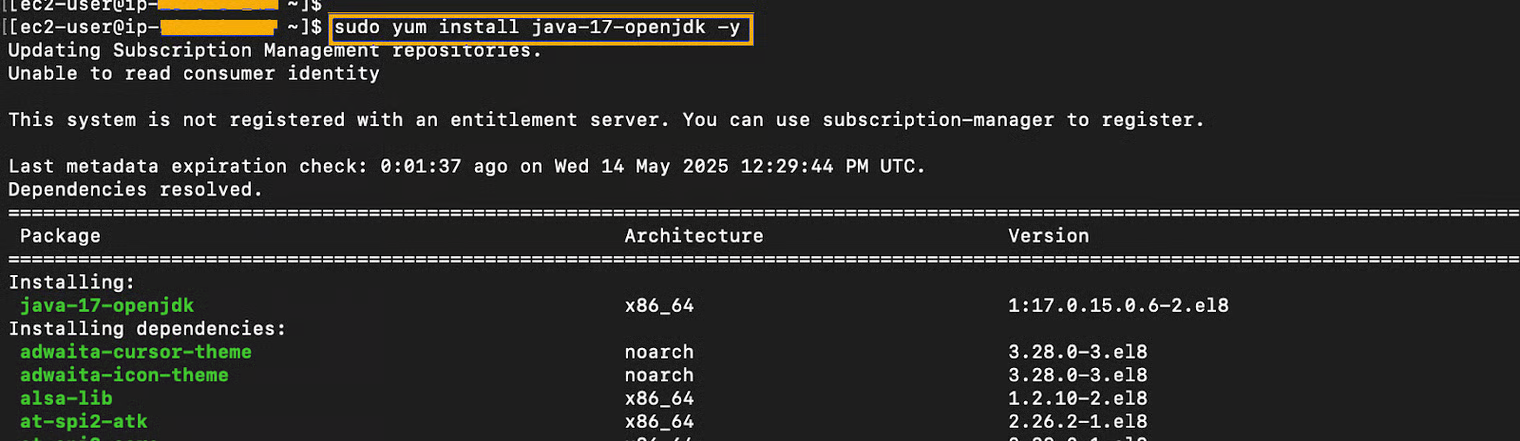
* Elasticsearch requires Java 17. Install it with the following command. If Java is already installed, verify using the version check command.
```bash
sudo yum install java-17-openjdk -y
```
 ```bash
java -version
```
```bash
java -version
```
 ### Import the Elasticsearch GPG Key
* Add the official GPG key to verify package authenticity.
```bash
sudo rpm --import https://artifacts.elastic.co/GPG-KEY-elasticsearch
```
### Import the Elasticsearch GPG Key
* Add the official GPG key to verify package authenticity.
```bash
sudo rpm --import https://artifacts.elastic.co/GPG-KEY-elasticsearch
```
 ### Add the Elasticsearch YUM Repository
* Create the repository file for Elasticsearch packages:
```bash
sudo vi /etc/yum.repos.d/elasticsearch.repo
```
### Add the Elasticsearch YUM Repository
* Create the repository file for Elasticsearch packages:
```bash
sudo vi /etc/yum.repos.d/elasticsearch.repo
```
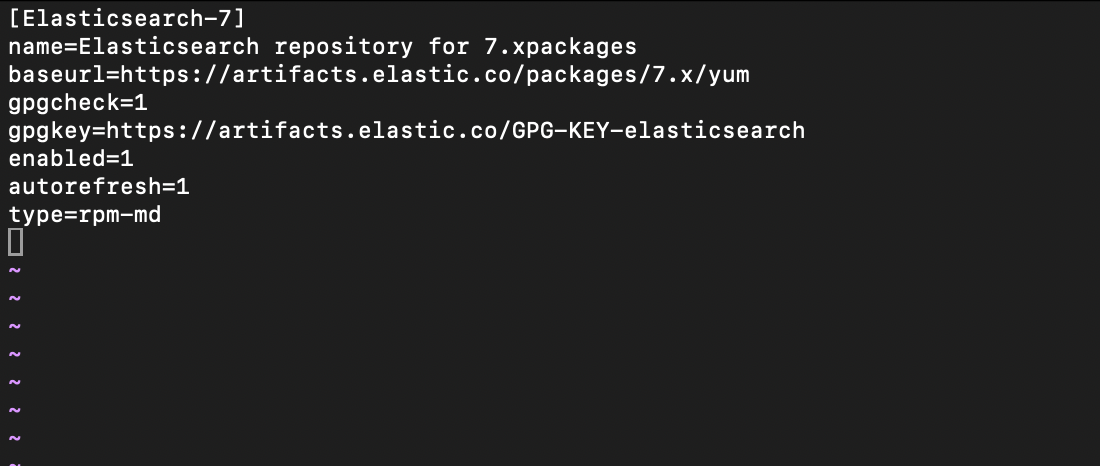
 * Insert the following content:
```ini
[Elasticsearch-7]
name=Elasticsearch repository for 7.x packages
baseurl=https://artifacts.elastic.co/packages/7.x/yum
gpgcheck=1
gpgkey=https://artifacts.elastic.co/GPG-KEY-elasticsearch
enabled=1
autorefresh=1
type=rpm-md
```
* Insert the following content:
```ini
[Elasticsearch-7]
name=Elasticsearch repository for 7.x packages
baseurl=https://artifacts.elastic.co/packages/7.x/yum
gpgcheck=1
gpgkey=https://artifacts.elastic.co/GPG-KEY-elasticsearch
enabled=1
autorefresh=1
type=rpm-md
```
 {% hint style="info" %}
Ensure there are no typos in the `baseurl` or `gpgkey` to avoid installation issues.
{% endhint %}
## Install Elasticsearch
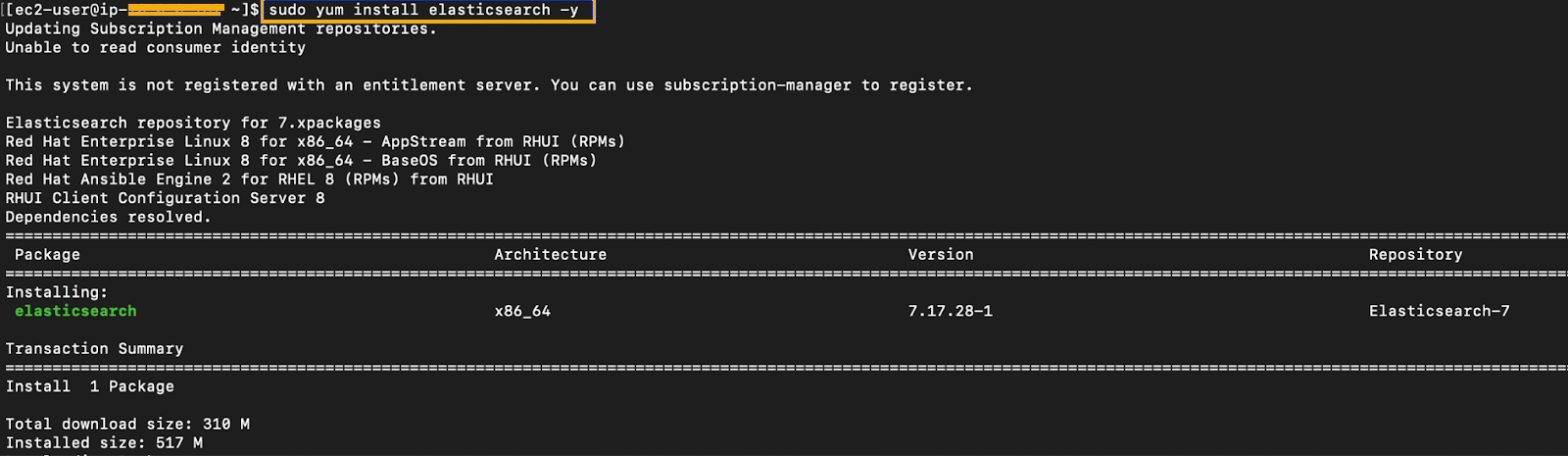
* Update the package index and install Elasticsearch:
```bash
sudo yum update -y
sudo yum install elasticsearch -y
```
{% hint style="info" %}
Ensure there are no typos in the `baseurl` or `gpgkey` to avoid installation issues.
{% endhint %}
## Install Elasticsearch
* Update the package index and install Elasticsearch:
```bash
sudo yum update -y
sudo yum install elasticsearch -y
```
 ### Enable and Start the Elasticsearch Service
* Reload the systemd configuration to register the new service.
* Enable Elasticsearch to start on system boot:
```bash
sudo systemctl daemon-reexec
```
* Enable Elasticsearch to start on system boot:
```bash
sudo systemctl enable elasticsearch.service
```
### Enable and Start the Elasticsearch Service
* Reload the systemd configuration to register the new service.
* Enable Elasticsearch to start on system boot:
```bash
sudo systemctl daemon-reexec
```
* Enable Elasticsearch to start on system boot:
```bash
sudo systemctl enable elasticsearch.service
```
 * Start the service and verify its status:
```bash
sudo systemctl daemon-reexec
sudo systemctl enable elasticsearch.service
sudo systemctl start elasticsearch.service
sudo systemctl status elasticsearch.service
```
* Start the service and verify its status:
```bash
sudo systemctl daemon-reexec
sudo systemctl enable elasticsearch.service
sudo systemctl start elasticsearch.service
sudo systemctl status elasticsearch.service
```
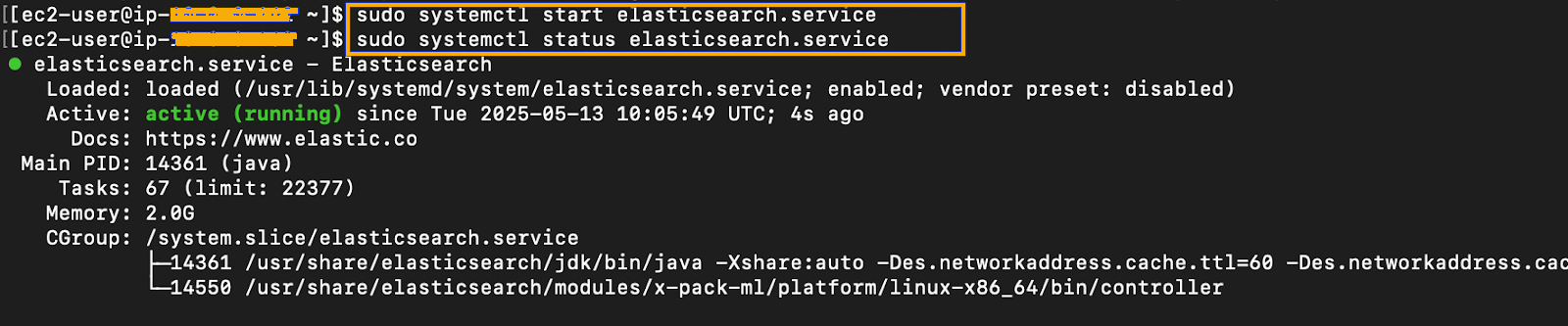 * At this point, Elasticsearch is installed and running.
## Configure Elasticsearch
### Update elasticsearch.yml
* Edit the configuration file at `/etc/elasticsearch/elasticsearch.yml`:
```bash
sudo vim /etc/elasticsearch/elasticsearch.yml
```
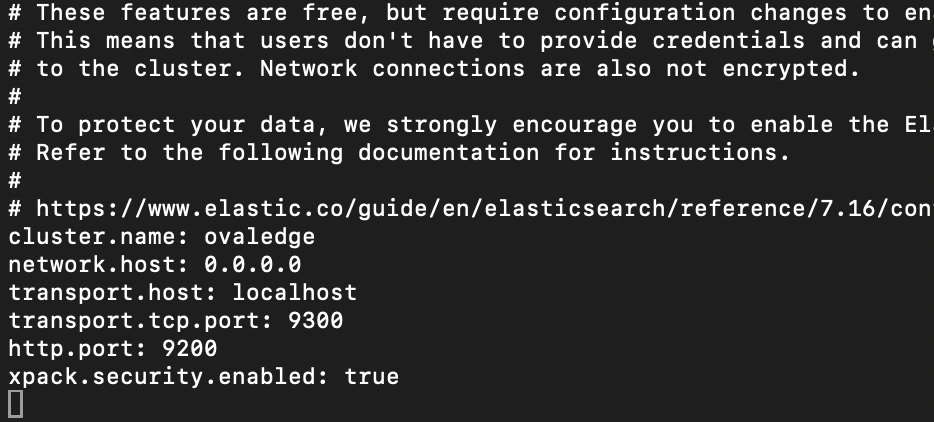
* Add or modify the following settings:
```yaml
cluster.name: ovaledge
network.host: 0.0.0.0
transport.host: localhost
transport.tcp.port: 9300
http.port: 9200
xpack.security.enabled: true
```
These settings configure the node to:
* Be accessible from external networks (`network.host: 0.0.0.0`)
* Use custom cluster and port settings
* Enable security features for authentication
* At this point, Elasticsearch is installed and running.
## Configure Elasticsearch
### Update elasticsearch.yml
* Edit the configuration file at `/etc/elasticsearch/elasticsearch.yml`:
```bash
sudo vim /etc/elasticsearch/elasticsearch.yml
```
* Add or modify the following settings:
```yaml
cluster.name: ovaledge
network.host: 0.0.0.0
transport.host: localhost
transport.tcp.port: 9300
http.port: 9200
xpack.security.enabled: true
```
These settings configure the node to:
* Be accessible from external networks (`network.host: 0.0.0.0`)
* Use custom cluster and port settings
* Enable security features for authentication
 ### Restart Elasticsearch
* Restart the service to apply the configuration changes:
```bash
sudo systemctl restart elasticsearch.service
sudo systemctl status elasticsearch.service
```
## Setting Up Passwords
To secure the installation, set passwords for the built-in reserved users. These accounts are used by Elastic Stack components for internal authentication.
#### Navigate to the Elasticsearch Binary Directory
```bash
cd /usr/share/elasticsearch/bin
```
#### Run the Password Setup Script
* Use interactive mode to configure passwords:
```bash
sudo ./elasticsearch-setup-passwords interactive
```
When prompted:
* Press `y` to continue
### Restart Elasticsearch
* Restart the service to apply the configuration changes:
```bash
sudo systemctl restart elasticsearch.service
sudo systemctl status elasticsearch.service
```
## Setting Up Passwords
To secure the installation, set passwords for the built-in reserved users. These accounts are used by Elastic Stack components for internal authentication.
#### Navigate to the Elasticsearch Binary Directory
```bash
cd /usr/share/elasticsearch/bin
```
#### Run the Password Setup Script
* Use interactive mode to configure passwords:
```bash
sudo ./elasticsearch-setup-passwords interactive
```
When prompted:
* Press `y` to continue
 * Provide passwords for the following users:
* `elastic`, `kibana_system`, `logstash_system`, `beats_system`, `apm_system`, `remote_monitoring_user`
* It is recommended to use the same password for all users for ease of configuration unless stricter separation is required.
{% hint style="info" %}
**Note:** Store these credentials securely, as they are required for configuring clients such as Kibana, Logstash, and OvalEdge.
{% endhint %}
## Integration with the OvalEdge Application
### Locate and Open the Configuration File
* Navigate to the `extprop` directory inside the OvalEdge installation folder:
```bash
cd //extprop
sudo vi oasis.properties
```
### Update Elasticsearch Properties
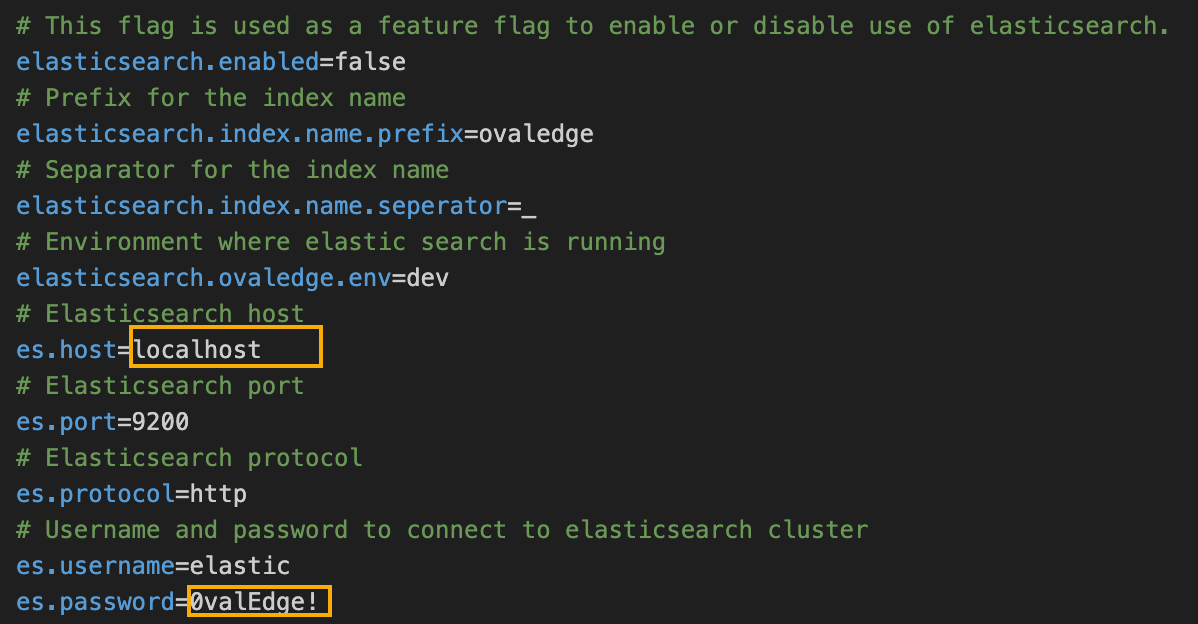
* Modify or add the following entries:
```properties
es.host=
es.port=9200
es.protocol=http
es.username=elastic
es.password=
```
* `es.host`: Use `localhost` if Elasticsearch is on the same VM as OvalEdge. Otherwise, provide the server’s IP address.
* `es.password`: Use the password configured for the `elastic` user.
### Restart Tomcat
* After saving the changes, restart Tomcat:
```bash
sudo systemctl restart tomcat
```
* Provide passwords for the following users:
* `elastic`, `kibana_system`, `logstash_system`, `beats_system`, `apm_system`, `remote_monitoring_user`
* It is recommended to use the same password for all users for ease of configuration unless stricter separation is required.
{% hint style="info" %}
**Note:** Store these credentials securely, as they are required for configuring clients such as Kibana, Logstash, and OvalEdge.
{% endhint %}
## Integration with the OvalEdge Application
### Locate and Open the Configuration File
* Navigate to the `extprop` directory inside the OvalEdge installation folder:
```bash
cd //extprop
sudo vi oasis.properties
```
### Update Elasticsearch Properties
* Modify or add the following entries:
```properties
es.host=
es.port=9200
es.protocol=http
es.username=elastic
es.password=
```
* `es.host`: Use `localhost` if Elasticsearch is on the same VM as OvalEdge. Otherwise, provide the server’s IP address.
* `es.password`: Use the password configured for the `elastic` user.
### Restart Tomcat
* After saving the changes, restart Tomcat:
```bash
sudo systemctl restart tomcat
```
 {% hint style="warning" %}
**Important:** Ensure the Elasticsearch service is running and accessible from the OvalEdge server before restarting Tomcat.
{% endhint %}
***
Copyright © 2025, OvalEdge LLC, Peachtree Corners, GA, USA.
---
# Agent Instructions
This documentation is published with GitBook. GitBook is the documentation platform designed so that both humans and AI agents can read, navigate, and reason over technical content effectively. Learn more at gitbook.com.
## Querying This Documentation
If you need additional information that is not directly available in this page, you can query the documentation dynamically by asking a question.
Perform an HTTP GET request on the current page URL with the `ask` query parameter, and the optional `goal` query parameter:
```
GET https://docs.ovaledge.com/deployment-and-maintenance/installation/elasticsearch-7.17.x-on-rhel-8+.md?ask=&goal=
```
`ask` is the immediate question: it should be specific, self-contained, and written in natural language.
`goal` is optional and describes the broader end goal you are ultimately trying to accomplish on behalf of the user. GitBook uses it to tailor the answer towards what is most useful for that goal.
The response will contain a direct answer to the question and relevant excerpts and sources from the documentation.
Use this mechanism when the answer is not explicitly present in the current page, you need clarification or additional context, or you want to retrieve related documentation sections.
{% hint style="warning" %}
**Important:** Ensure the Elasticsearch service is running and accessible from the OvalEdge server before restarting Tomcat.
{% endhint %}
***
Copyright © 2025, OvalEdge LLC, Peachtree Corners, GA, USA.
---
# Agent Instructions
This documentation is published with GitBook. GitBook is the documentation platform designed so that both humans and AI agents can read, navigate, and reason over technical content effectively. Learn more at gitbook.com.
## Querying This Documentation
If you need additional information that is not directly available in this page, you can query the documentation dynamically by asking a question.
Perform an HTTP GET request on the current page URL with the `ask` query parameter, and the optional `goal` query parameter:
```
GET https://docs.ovaledge.com/deployment-and-maintenance/installation/elasticsearch-7.17.x-on-rhel-8+.md?ask=&goal=
```
`ask` is the immediate question: it should be specific, self-contained, and written in natural language.
`goal` is optional and describes the broader end goal you are ultimately trying to accomplish on behalf of the user. GitBook uses it to tailor the answer towards what is most useful for that goal.
The response will contain a direct answer to the question and relevant excerpts and sources from the documentation.
Use this mechanism when the answer is not explicitly present in the current page, you need clarification or additional context, or you want to retrieve related documentation sections.