> For the complete documentation index, see [llms.txt](https://docs.ovaledge.com/llms.txt). Markdown versions of documentation pages are available by appending `.md` to page URLs; this page is available as [Markdown](https://docs.ovaledge.com/deployment-and-maintenance/installation/mysql-8.4.x-on-aws.md).
# MySQL 8.4.x on AWS
This article describes the steps to configure a **MySQL 8.4.x database on AWS RDS** for use with OvalEdge. The procedure covers RDS instance creation, parameter configuration, and schema setup.
**Audience:** System Administrators, DevOps Engineers, Database Administrators
## Prerequisites
Before starting the installation, ensure the following:
* **AWS Permissions**
* IAM user/role with permissions to create and manage RDS instances, networking (VPC, Subnet Groups, Security Groups), and parameter groups.
* **Technical Knowledge**
* Basic understanding of AWS networking concepts (VPC, Subnets, Security Groups).
* Familiarity with MySQL administration.
* **Tools**
* MySQL client installed on the local machine or bastion host.
* Access to the **Masterscripts.sql** file provided by the OvalEdge team.
### Steps Involved
1. **Create a MySQL RDS Instance**
* Log in to the [**AWS Management Console**](https://eu-north-1.signin.aws.amazon.com/oauth?client_id=arn%3Aaws%3Asignin%3A%3A%3Aconsole%2Fcanvas\&code_challenge=Pf0_a-fQXerL2wFLkJZcxA9wnjSYKrttmoqFrHQ_PJ4\&code_challenge_method=SHA-256\&response_type=code\&redirect_uri=https%3A%2F%2Fconsole.aws.amazon.com%2Fconsole%2Fhome%3FhashArgs%3D%2523%26isauthcode%3Dtrue%26nc2%3Dh_ct%26src%3Dheader-signin%26state%3DhashArgsFromTB_eu-north-1_af0dd427315d135e) and navigate to:\
**RDS → Databases → Create Database**
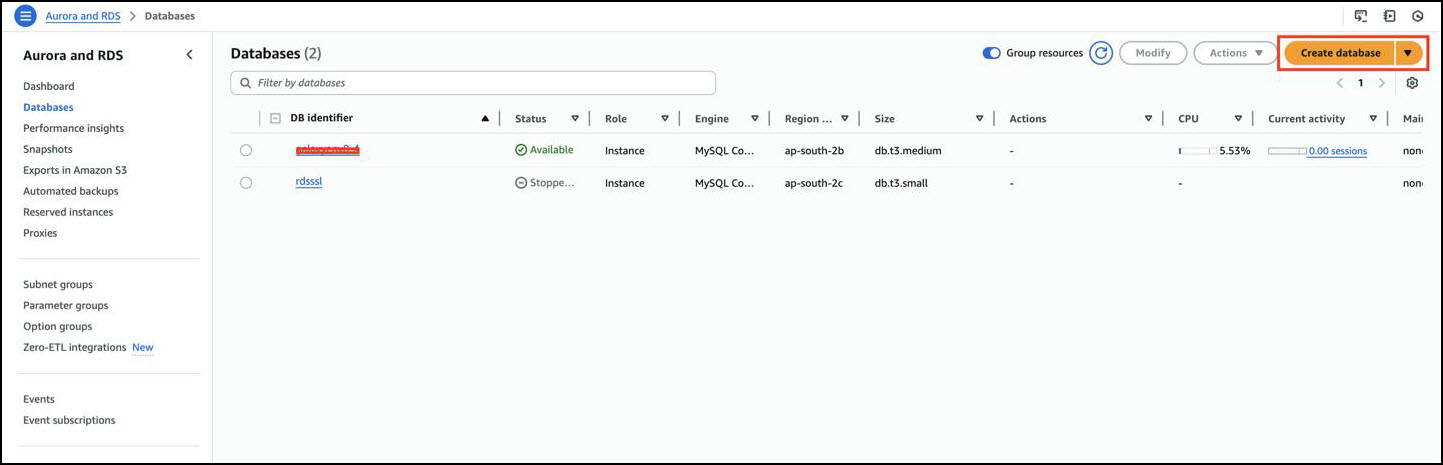 * Select **Standard Create** as the creation method.
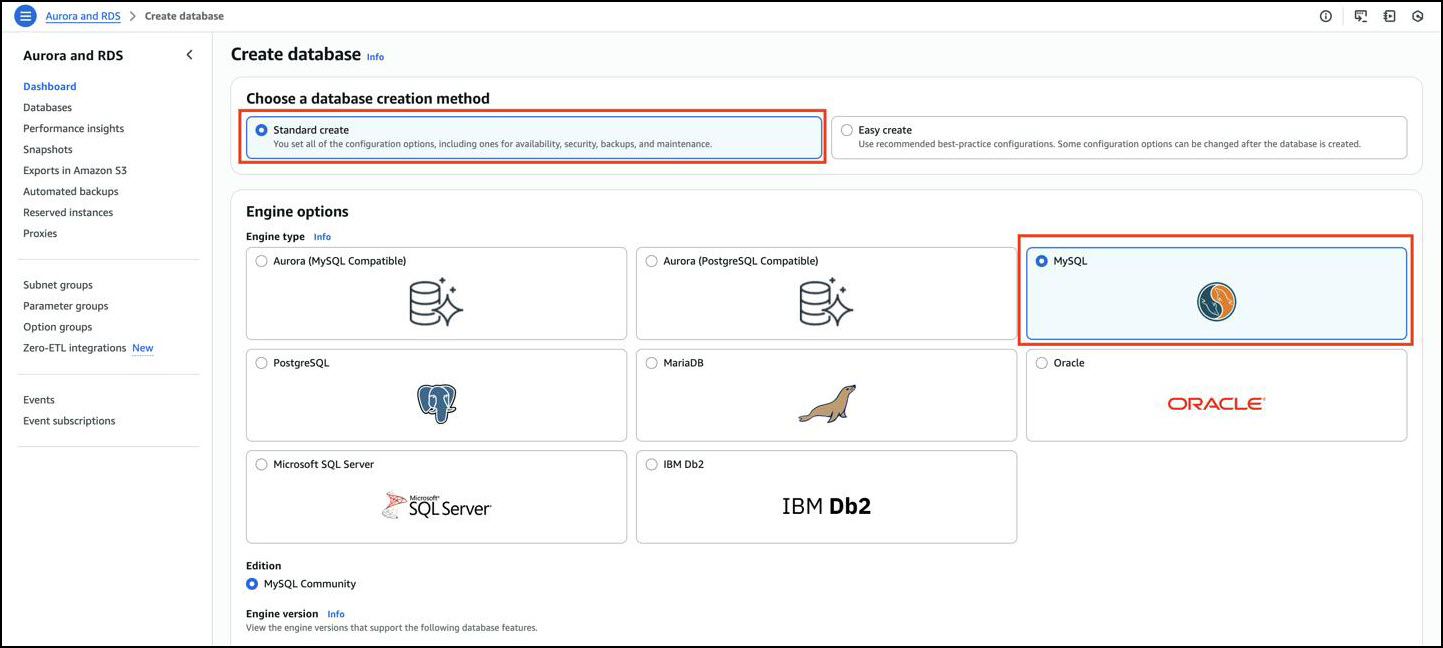 * In **Engine Options**, choose **MySQL**.
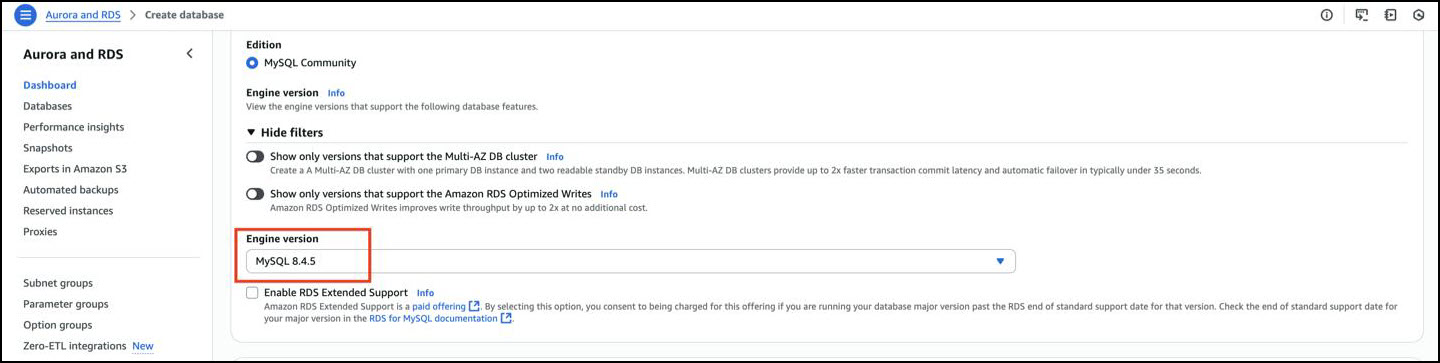 * **Recommended Version:** 8.4.x (Latest GA release)
* Configure Templates, Availability, and Durability based on organizational requirements (e.g., **Multi-AZ** for high availability).
* **Recommended Version:** 8.4.x (Latest GA release)
* Configure Templates, Availability, and Durability based on organizational requirements (e.g., **Multi-AZ** for high availability).
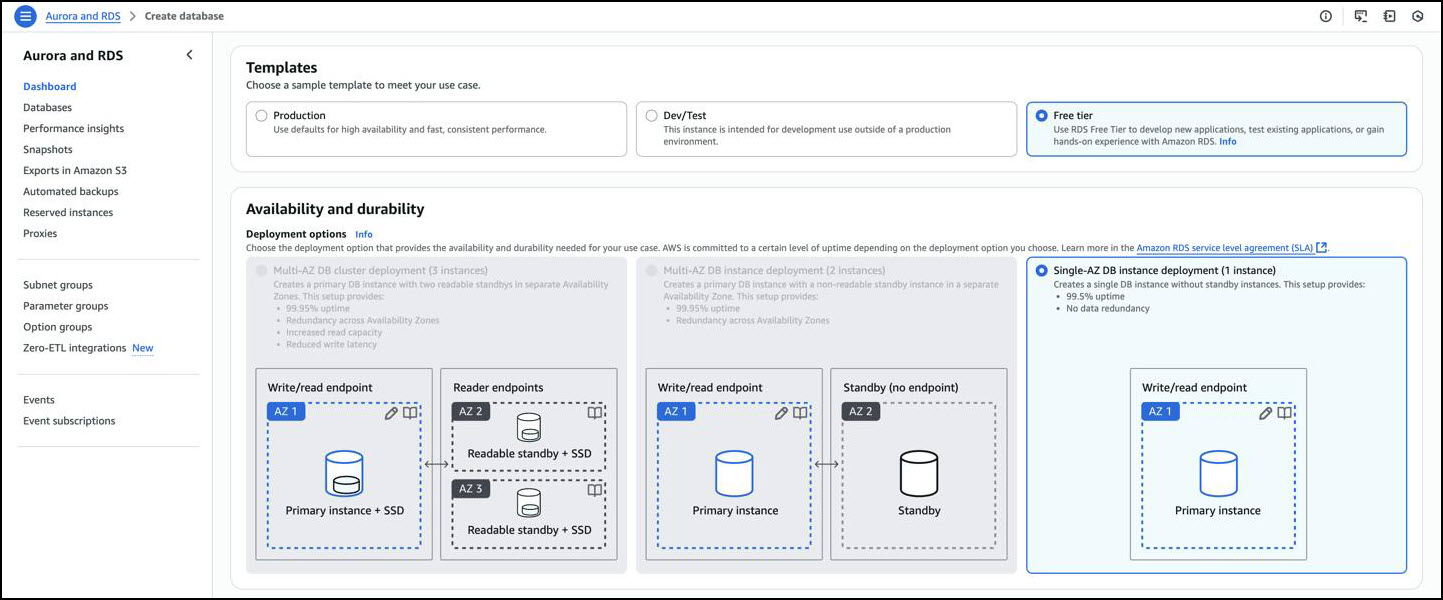 * Provide database details:
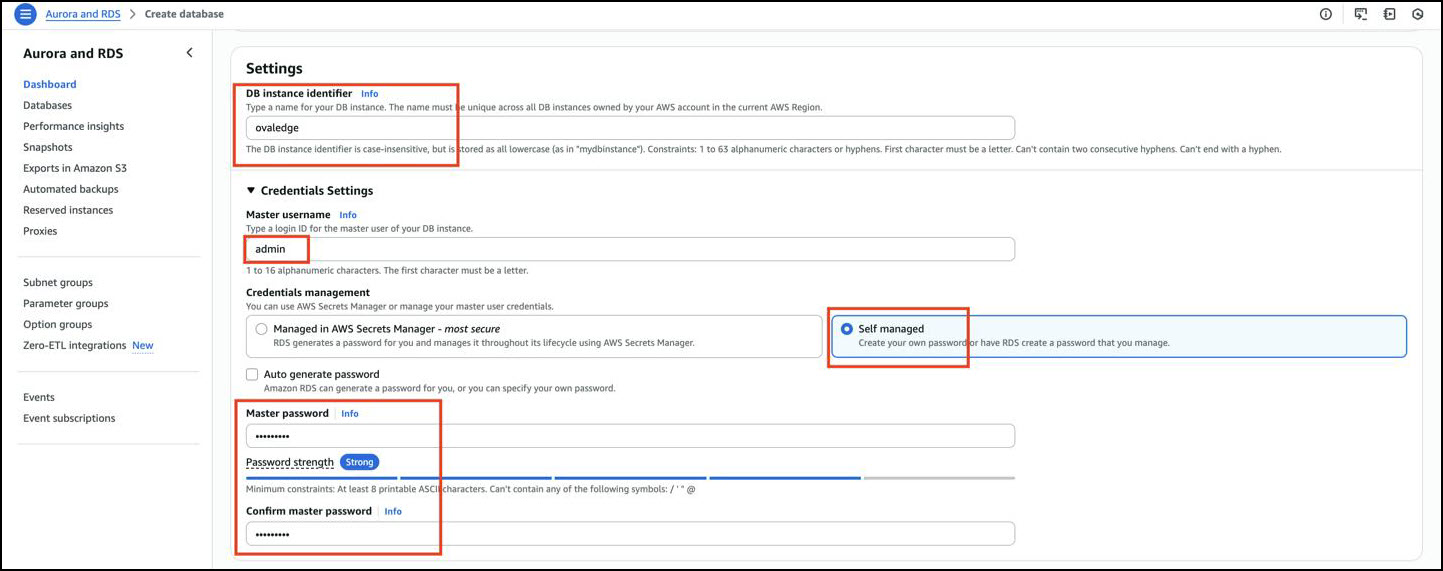 * **DB Identifier:** ``
* **Master Username:** ``
* **Password:** ``
* Select an **Instance Configuration** that meets workload requirements.
* **DB Identifier:** ``
* **Master Username:** ``
* **Password:** ``
* Select an **Instance Configuration** that meets workload requirements.
 * Example: `db.m6g.large` for medium workloads.
* In **Storage**, configure:
* Example: `db.m6g.large` for medium workloads.
* In **Storage**, configure:
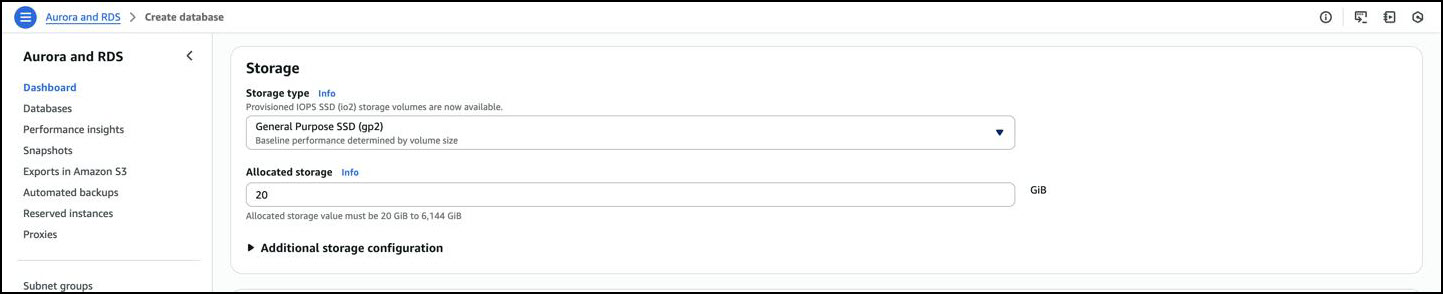 * Storage type (e.g., **General Purpose SSD**)
* Allocated storage size (e.g., **100 GB**, scalable as required).
* **Configure Connectivity:**
* Select the appropriate **VPC**, **Subnet group**, and **Security group** as per the Cloud/Networking team’s recommendations.
* Storage type (e.g., **General Purpose SSD**)
* Allocated storage size (e.g., **100 GB**, scalable as required).
* **Configure Connectivity:**
* Select the appropriate **VPC**, **Subnet group**, and **Security group** as per the Cloud/Networking team’s recommendations.

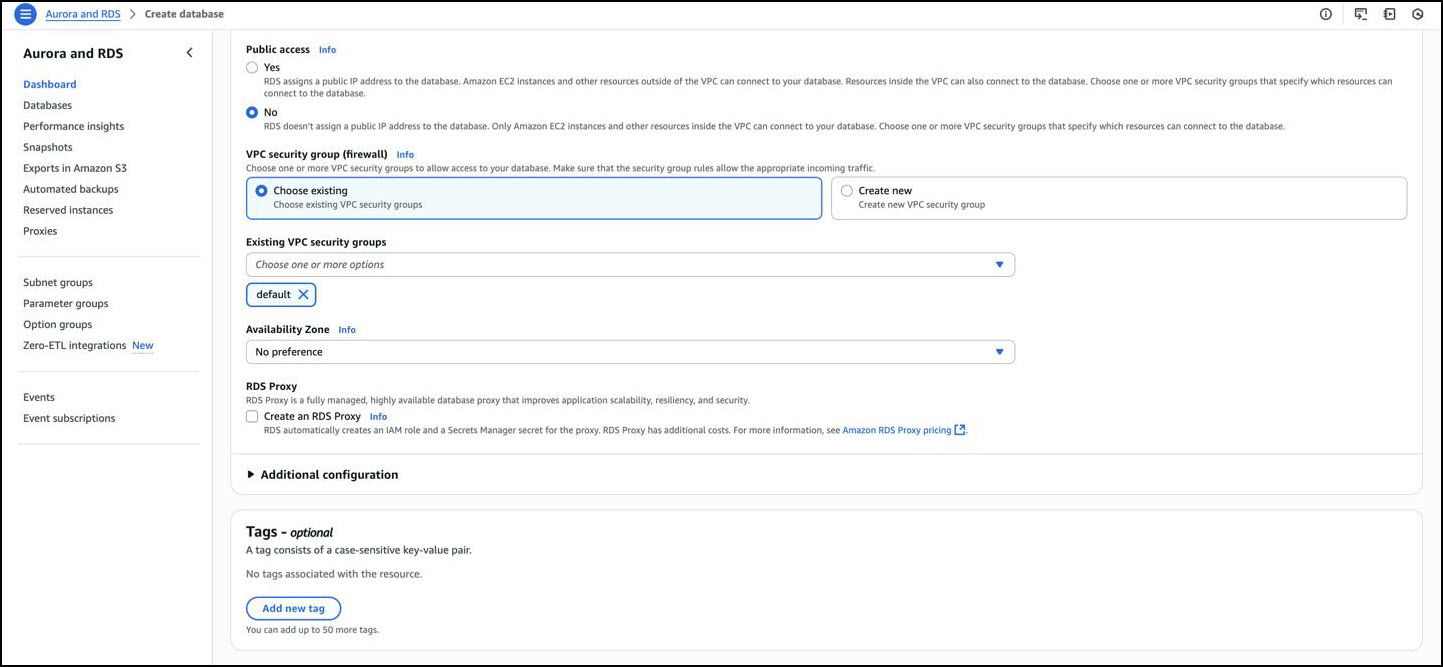 * Ensure that **MySQL (port 3306)** is open to the required application servers.
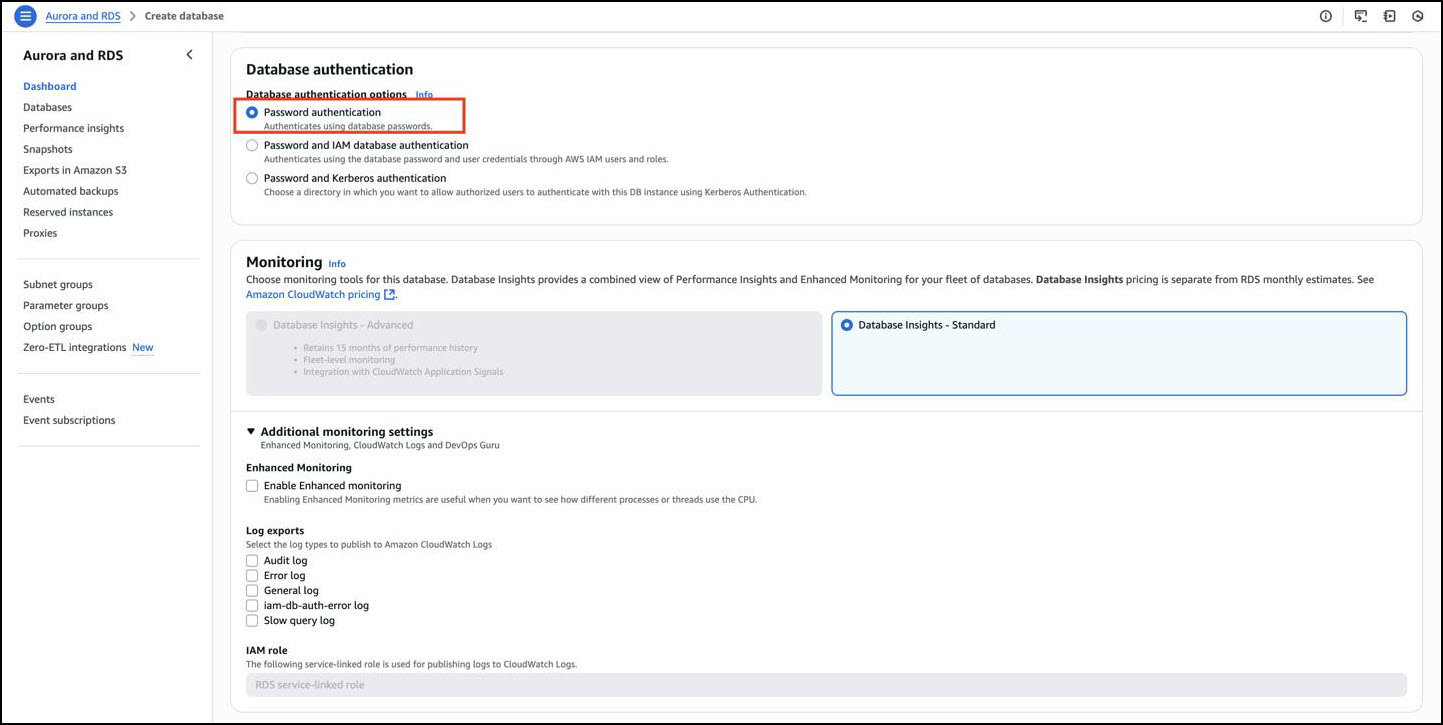
* Under **Authentication**, select **Password Authentication**.
* Ensure that **MySQL (port 3306)** is open to the required application servers.
* Under **Authentication**, select **Password Authentication**.
 * In **Additional Configuration:**
* Set an initial database name if required.
* Attach a new **DB Parameter Group** customized for OvalEdge.
* Click **Create Database**.
* In **Additional Configuration:**
* Set an initial database name if required.
* Attach a new **DB Parameter Group** customized for OvalEdge.
* Click **Create Database**.
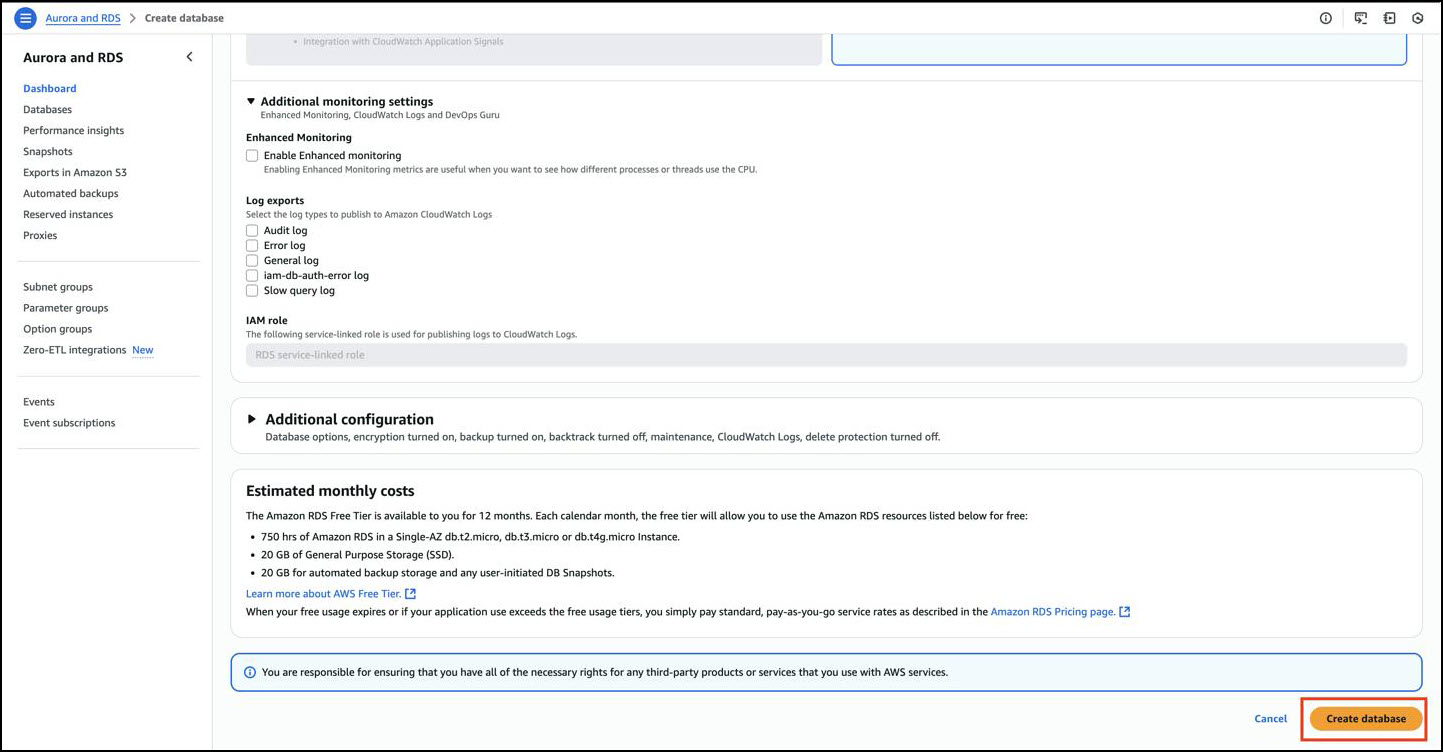 ⚡ It will take a few minutes to create the RDS, and then it will display the **available** status.
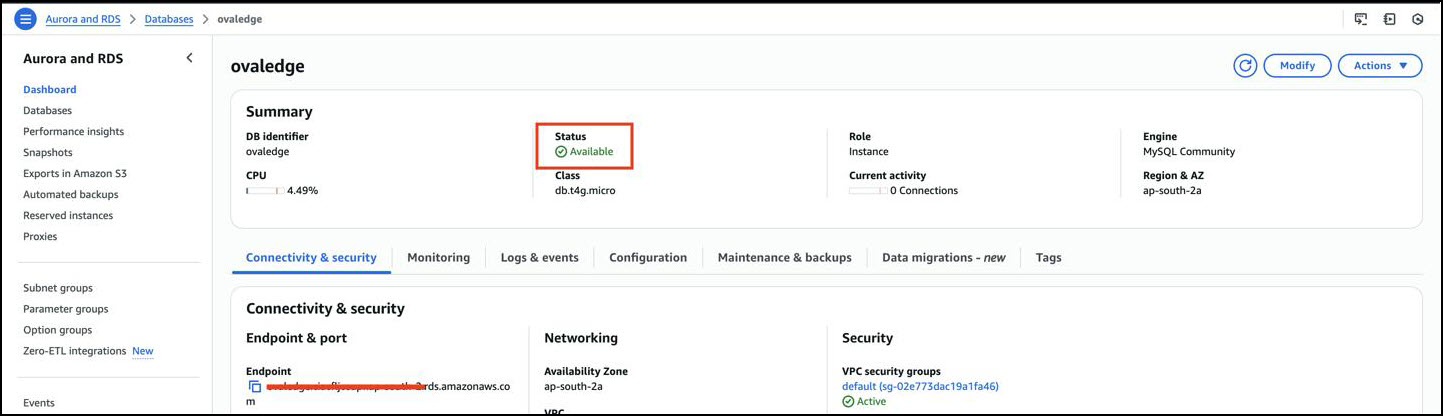 2. **Retrieve Database Endpoint**
* From the **RDS console**, select the newly created instance.
2. **Retrieve Database Endpoint**
* From the **RDS console**, select the newly created instance.
 * Copy the **Endpoint** value (host address).
3. **Connect to the Database**
* Run the following command from a system with the MySQL client installed:
```bash
mysql -h -u -p
```
\
*Sample Reference Screenshot:*
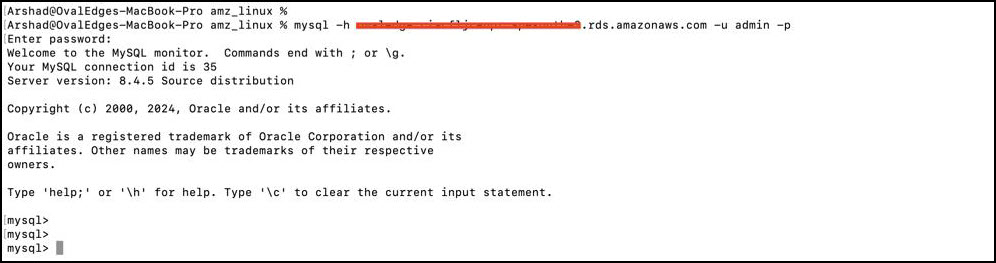 * Replace `` with the RDS instance endpoint.
* Enter the master password when prompted.
#### **Error Handling Tip**
If the connection fails, verify:
* Security group inbound rules allow access from the client machine.
* Correct endpoint, username, and password are used.
* MySQL client version is compatible with **MySQL 8.4.x**.
* Replace `` with the RDS instance endpoint.
* Enter the master password when prompted.
#### **Error Handling Tip**
If the connection fails, verify:
* Security group inbound rules allow access from the client machine.
* Correct endpoint, username, and password are used.
* MySQL client version is compatible with **MySQL 8.4.x**.
4. **Create OvalEdge Schema**
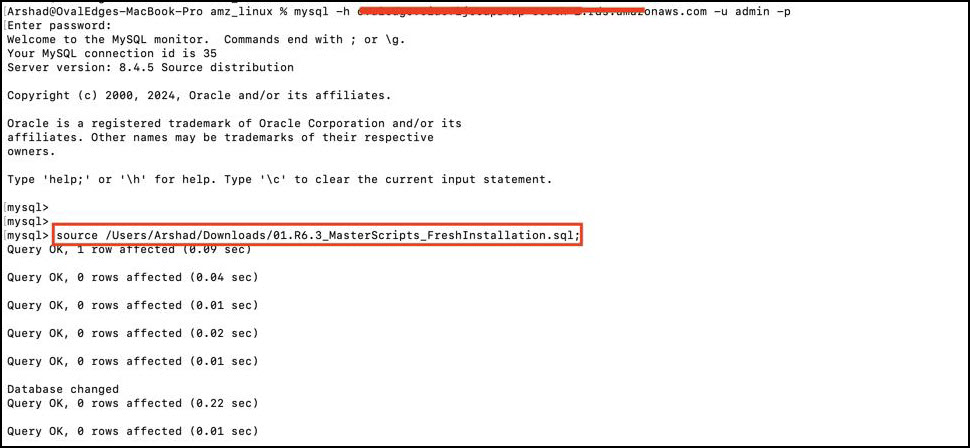
* From the MySQL prompt, execute the OvalEdge **Masterscripts.sql** file:
```sql
source
```
\
*Sample Reference Screenshot:*
 * Verify database creation with:
```sql
SHOW DATABASES;
```
\
*Sample Reference Screenshot:*\

### Rollback Instructions
* **If incorrect parameters or instance class were selected:**
* Delete the RDS instance from the AWS console.
* Recreate with correct parameters.
* **If schema creation fails:**
* Drop the failed database using:
```sql
DROP DATABASE ;
```
* Re-run the **Masterscripts.sql** file.
***
Copyright © 2025, OvalEdge LLC, Peachtree Corners, GA, USA.
---
# Agent Instructions
This documentation is published with GitBook. GitBook is the documentation platform designed so that both humans and AI agents can read, navigate, and reason over technical content effectively. Learn more at gitbook.com.
## Querying This Documentation
If you need additional information that is not directly available in this page, you can query the documentation dynamically by asking a question.
Perform an HTTP GET request on the current page URL with the `ask` query parameter, and the optional `goal` query parameter:
```
GET https://docs.ovaledge.com/deployment-and-maintenance/installation/mysql-8.4.x-on-aws.md?ask=&goal=
```
`ask` is the immediate question: it should be specific, self-contained, and written in natural language.
`goal` is optional and describes the broader end goal you are ultimately trying to accomplish on behalf of the user. GitBook uses it to tailor the answer towards what is most useful for that goal.
The response will contain a direct answer to the question and relevant excerpts and sources from the documentation.
Use this mechanism when the answer is not explicitly present in the current page, you need clarification or additional context, or you want to retrieve related documentation sections.
* Verify database creation with:
```sql
SHOW DATABASES;
```
\
*Sample Reference Screenshot:*\

### Rollback Instructions
* **If incorrect parameters or instance class were selected:**
* Delete the RDS instance from the AWS console.
* Recreate with correct parameters.
* **If schema creation fails:**
* Drop the failed database using:
```sql
DROP DATABASE ;
```
* Re-run the **Masterscripts.sql** file.
***
Copyright © 2025, OvalEdge LLC, Peachtree Corners, GA, USA.
---
# Agent Instructions
This documentation is published with GitBook. GitBook is the documentation platform designed so that both humans and AI agents can read, navigate, and reason over technical content effectively. Learn more at gitbook.com.
## Querying This Documentation
If you need additional information that is not directly available in this page, you can query the documentation dynamically by asking a question.
Perform an HTTP GET request on the current page URL with the `ask` query parameter, and the optional `goal` query parameter:
```
GET https://docs.ovaledge.com/deployment-and-maintenance/installation/mysql-8.4.x-on-aws.md?ask=&goal=
```
`ask` is the immediate question: it should be specific, self-contained, and written in natural language.
`goal` is optional and describes the broader end goal you are ultimately trying to accomplish on behalf of the user. GitBook uses it to tailor the answer towards what is most useful for that goal.
The response will contain a direct answer to the question and relevant excerpts and sources from the documentation.
Use this mechanism when the answer is not explicitly present in the current page, you need clarification or additional context, or you want to retrieve related documentation sections.