> For the complete documentation index, see [llms.txt](https://docs.ovaledge.com/llms.txt). Markdown versions of documentation pages are available by appending `.md` to page URLs; this page is available as [Markdown](https://docs.ovaledge.com/connectors/connector-repositories/file-connectors/sharepoint.md).

# SharePoint

This article outlines the integration with the SharePoint connector, enabling streamlined metadata management through features such as crawling, data preview, manual lineage building, and Data Quality support for files and folders stored in SharePoint environments. It also supports sample profiling for file-based assets, including CSV, TXT, Parquet, ORC, JSON, YAML, Excel, and other supported file formats.

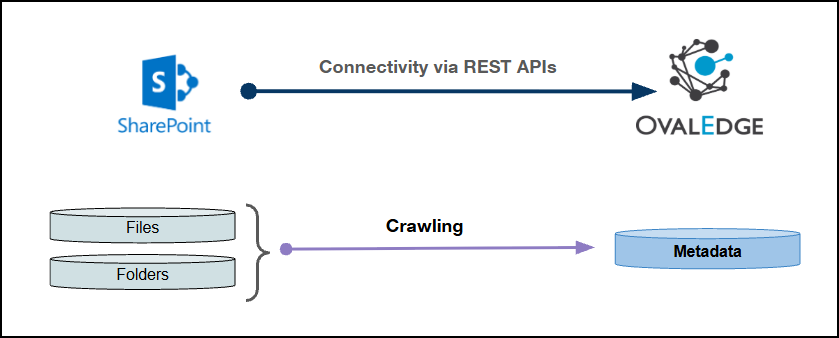
This connector uses REST APIs to establish connectivity with SharePoint environments and supports access to metadata objects such as sites, folders, files, and file columns. Authentication is supported through Online, On-Premise-Basic, and On-Premise-Kerberos methods for accessing SharePoint resources and metadata objects.

<figure><img src="https://content.gitbook.com/content/gnJyYKHzsnoFOdZJtHsc/blobs/XXSW7cFvO1xKQiGlVrWp/image.png" alt=""><figcaption></figcaption></figure>

## **Overview**

### **Connector Details**

<table data-header-hidden><thead><tr><th width="421.5"></th><th></th></tr></thead><tbody><tr><td>Connector Category</td><td>File Connectors</td></tr><tr><td>OvalEdge Release Supported</td><td>Release6.x and later</td></tr><tr><td><p>Connectivity</p><p>[How the connection is established with SharePoint]</p></td><td>REST APIs</td></tr><tr><td>Verified SharePoint Version</td><td>SharePoint 2013</td></tr></tbody></table>

{% hint style="info" %}
The SharePoint connector has been validated with the mentioned "Verified SharePoint Versions" and is expected to be compatible with other supported SharePoint versions. If there are any issues with validation or metadata crawling, please submit a support ticket for investigation and feedback.
{% endhint %}

### **Connector Features**

| Feature                                      | Availability |
| -------------------------------------------- | :----------: |
| Crawling                                     |       ✅      |
| Delta Crawling                               |       ❌      |
| Profiling                                    |       ❌      |
| Sample Profiling                             |       ✅      |
| Query Sheet                                  |      NA      |
| Data Preview                                 |       ✅      |
| Auto Lineage                                 |      NA      |
| Manual Lineage                               |       ✅      |
| Secure Authentication via Credential Manager |       ✅      |
| Data Quality                                 |       ✅      |
| DAM (Data Access Management)                 |       ❌      |
| Bridge                                       |       ✅      |

{% hint style="info" %}
NA' indicates that the respective feature is 'Not Applicable.'
{% endhint %}

### Metadata Mapping

The following objects are crawled from SharePoint and mapped to the corresponding UI assets.

<table><thead><tr><th width="177.75">SharePoint Object</th><th width="187">SharePoint Property</th><th width="178">OvalEdge Attribute</th><th width="170.5">OvalEdge Type</th><th width="176.75">OvalEdge Category</th></tr></thead><tbody><tr><td>Folder</td><td>Folder</td><td>Folder</td><td>Folder</td><td>Folder</td></tr><tr><td>File</td><td>File</td><td>File</td><td>File</td><td>File</td></tr><tr><td>XLSX (sheets)</td><td>XLSX</td><td>Folder (subfile)</td><td>Folder (subfile)</td><td>Folder (subfile)</td></tr><tr><td>XLS (sheets)</td><td>XLS</td><td>Folder (subfile)</td><td>Folder (subfile)</td><td>Folder (subfile)</td></tr><tr><td>CSV</td><td>CSV</td><td>File</td><td>File</td><td>File</td></tr><tr><td>TXT</td><td>TXT</td><td>File</td><td>File</td><td>File</td></tr><tr><td>PARQUET</td><td>PARQUET</td><td>File</td><td>File</td><td>File</td></tr><tr><td>ORC</td><td>ORC</td><td>File</td><td>File</td><td>File</td></tr><tr><td>JSON</td><td>JSON</td><td>File</td><td>File</td><td>File</td></tr><tr><td>YAML</td><td>YAML</td><td>File</td><td>File</td><td>File</td></tr><tr><td>PIP</td><td>PIP</td><td>File</td><td>File</td><td>File</td></tr><tr><td>YML</td><td>YML</td><td>File</td><td>File</td><td>File</td></tr><tr><td>XML</td><td>XML</td><td>File</td><td>File</td><td>File</td></tr><tr><td>AVRO</td><td>AVRO</td><td>File</td><td>File</td><td>File</td></tr><tr><td>SQL</td><td>SQL</td><td>File</td><td>File</td><td>File</td></tr></tbody></table>

### Set up a Connection

#### Prerequisites

The following are the prerequisites to establish a connection.

Ensure that the CSV files follow the required formatting standards for proper data processing and visibility. Refer to [CSV Format Requirements](https://docs.ovaledge.com/connectors/additional-requirements/csv-format-requirements-for-file-connectors)**.**

For detailed steps to create a Microsoft Entra application registration, configure Microsoft Graph API permissions, grant administrative consent, and generate the required Client ID, Tenant ID, and Client Secret for SharePoint connector authentication, refer to [SharePoint - Microsoft Entra Authentication](https://docs.ovaledge.com/release8.1/connectors/connector-repositories/file-connectors/sharepoint/sharepoint-microsoft-entra-authentication).

**Service Account User Permissions**

{% hint style="warning" %}
It is recommended to use a separate service account to establish the connection to the data source, configured with the following minimum set of permissions.
{% endhint %}

{% hint style="info" %}
👨‍💻Who can provide these permissions? These permissions are typically granted by the SharePoint administrator, as users may not have the required access to assign them independently.
{% endhint %}

| Objects              | Permission Level        | Access Permission |
| -------------------- | ----------------------- | ----------------- |
| Connector Validation | Application Permissions | Site.Read.All     |
| Sites                | Application Permissions | Site.Read.All     |
| Lineage (Manual)     | Application Permissions | Site.Read.All     |
| Folder               | Application Permissions | Site.Read.All     |
| Files                | Application Permissions | Site.Read.All     |

### Connection Configuration Steps

{% hint style="warning" %}
Users are required to have the Connector Creator role in order to configure a new connection.
{% endhint %}

1. Log into **OvalEdge**, go to **Administration > Connectors**, click **+ (New Connector)**, search for **SharePoint**, and complete the required parameters.

{% hint style="info" %}
Fields marked with an asterisk (\*) are mandatory for establishing a connection.
{% endhint %}

<table><thead><tr><th width="220.25">Field Name</th><th>Description</th></tr></thead><tbody><tr><td>Connector Type</td><td>By default, "SharePoint" is displayed as the selected connector type.</td></tr><tr><td>Authentication*</td><td><p>The following authentication are supported for SharePoint:</p><ul><li>Online</li><li>On-Premise-Basic</li><li>On-Premise-Kerberos</li></ul></td></tr></tbody></table>

{% tabs %}
{% tab title="Online" %}

<table><thead><tr><th width="191.5">Field Name</th><th>Description</th></tr></thead><tbody><tr><td>Version*</td><td><p>Select version from the drop down menu.</p><ul><li>SharePoint</li><li>Graph</li></ul></td></tr><tr><td>Credential Manager*</td><td><p>Select the desired credentials manager from the drop-down list. Relevant parameters will be displayed based on the selected option.</p><p>Supported Credential Managers:</p><ul><li>OE Credential Manager</li><li>AWS Secrets Manager</li><li>HashiCorp</li><li>Azure Key Vault</li></ul><p>For more details, click <a href="https://docs.ovaledge.com/connectors/additional-requirements/credential-manager-configuration">here</a>.</p></td></tr><tr><td>License Add Ons</td><td>Select the checkbox for Data Quality Add-On to identify data quality issues using data anomaly detection.<br>For more details, click <a href="https://docs.ovaledge.com/connectors/introduction-to-connectors/setup-and-connectivity/license-types-and-add-ons">here</a>.</td></tr><tr><td>Connector Name*</td><td><p>Enter a unique name for the SharePoint connection              </p><p>(Example: "SharePointdb").</p></td></tr><tr><td>Connector Environment</td><td>Select the environment (Example: PROD, STG) configured for the connector.<br>For more details, click <a href="https://docs.ovaledge.com/connectors/introduction-to-connectors/setup-and-connectivity/prerequisites#connector-environment">here</a>.</td></tr><tr><td>Connector Description</td><td>Enter a brief description of the connector.</td></tr><tr><td>Share point Url*</td><td>Enter the URL or address of the SharePoint site.</td></tr><tr><td>Site*</td><td>Enter the site (URL path) within the SharePoint tenant.</td></tr><tr><td>Client Id*</td><td>Enter the Client ID assigned to the application.</td></tr><tr><td>Client Secret*</td><td>Enter the Client Secret associated with the Client ID for authentication.</td></tr><tr><td>Tenant Id*</td><td>Enter the unique tenant identifier for the SharePoint.<br><strong>Note</strong>: This field is available only when the version is selected as "Graph".</td></tr><tr><td>Sharepoint Path</td><td>Enter the URL path or address to the SharePoint site.<br><strong>Note</strong>: This field is available only when the version is selected as "Graph".</td></tr><tr><td>Title</td><td>Enter the title name for the connector.<br><strong>Note</strong>: This field is available only when the version is selected as "SharePoint".</td></tr><tr><td>App Domain</td><td>Enter the domain name where the client application is hosted.<br><strong>Note</strong>: This field is available only when the version is selected as "SharePoint".</td></tr><tr><td>Redirect URI</td><td>Enter the redirect URI configured in the App registration for authentication.<br><strong>Note</strong>: This field is available only when the version is selected as "SharePoint".</td></tr><tr><td>Proxy Enabled*</td><td>Select <strong>Yes</strong> to route API calls through a proxy server. Select <strong>No</strong> to bypass the proxy and connect directly.</td></tr></tbody></table>
{% endtab %}

{% tab title="On-Premise-Basic" %}

<table><thead><tr><th width="191.5">Field Name</th><th>Description</th></tr></thead><tbody><tr><td>Credential Manager*</td><td><p>Select the desired credentials manager from the drop-down list. Relevant parameters will be displayed based on the selected option.</p><p>Supported Credential Managers:</p><ul><li>OE Credential Manager</li><li>AWS Secrets Manager</li><li>HashiCorp</li><li>Azure Key Vault</li></ul><p>For more details, click <a href="https://docs.ovaledge.com/connectors/additional-requirements/credential-manager-configuration">here</a>.</p></td></tr><tr><td>License Add Ons</td><td>Select the checkbox for Data Quality Add-On to identify data quality issues using data anomaly detection.<br>For more details, click <a href="https://docs.ovaledge.com/connectors/introduction-to-connectors/setup-and-connectivity/license-types-and-add-ons">here</a>.</td></tr><tr><td>Connector Name*</td><td><p>Enter a unique name for the SharePoint connection              </p><p>(Example: "SharePointdb").</p></td></tr><tr><td>Connector Environment</td><td>Select the environment (Example: PROD, STG) configured for the connector.<br>For more details, click <a href="https://docs.ovaledge.com/connectors/introduction-to-connectors/setup-and-connectivity/prerequisites#connector-environment">here</a>.</td></tr><tr><td>Connector Description</td><td>Enter a brief description of the connector.</td></tr><tr><td>Share point Url*</td><td>Enter the URL or address of the SharePoint site.</td></tr><tr><td>Site*</td><td>Enter the URL path or address of the SharePoint site.</td></tr><tr><td>Username*</td><td>Enter the username authorized to access the SharePoint site.</td></tr><tr><td>Password*</td><td>Enter the password associated with the specified username for authentication.</td></tr></tbody></table>
{% endtab %}

{% tab title="On-Premise-Kerberos" %}

<table><thead><tr><th width="191.5">Field Name</th><th>Description</th></tr></thead><tbody><tr><td>Credential Manager*</td><td><p>Select the desired credentials manager from the drop-down list. Relevant parameters will be displayed based on the selected option.</p><p>Supported Credential Managers:</p><ul><li>OE Credential Manager</li><li>AWS Secrets Manager</li><li>HashiCorp</li><li>Azure Key Vault</li></ul><p>For more details, click <a href="https://docs.ovaledge.com/connectors/additional-requirements/credential-manager-configuration">here</a>.</p></td></tr><tr><td>License Add Ons</td><td>Select the checkbox for Data Quality Add-On to identify data quality issues using data anomaly detection.<br>For more details, click <a href="https://docs.ovaledge.com/connectors/introduction-to-connectors/setup-and-connectivity/license-types-and-add-ons">here</a>.</td></tr><tr><td>Connector Name*</td><td><p>Enter a unique name for the SharePoint connection              </p><p>(Example: "SharePointdb").</p></td></tr><tr><td>Connector Environment</td><td>Select the environment (Example: PROD, STG) configured for the connector.<br>For more details, click <a href="https://docs.ovaledge.com/connectors/introduction-to-connectors/setup-and-connectivity/prerequisites#connector-environment">here</a>.</td></tr><tr><td>Connector Description</td><td>Enter a brief description of the connector.</td></tr><tr><td>Share point Url*</td><td>Enter the URL or address of the SharePoint site.</td></tr><tr><td>Site*</td><td>Enter the URL path or address of the SharePoint site.</td></tr><tr><td>Username*</td><td>Enter the username authorized to access the SharePoint site.</td></tr><tr><td>Password*</td><td>Enter the password associated with the specified username for authentication.</td></tr><tr><td>Domain</td><td>Enter the domain name associated with the Sharepoint site.</td></tr></tbody></table>
{% endtab %}
{% endtabs %}

**Default Governance Roles**

<table data-header-hidden><thead><tr><th width="220.25"></th><th></th></tr></thead><tbody><tr><td>Default Governance Roles*</td><td>Select the appropriate users or teams for each governance role from the drop-down list. All users configured in the security settings are available for selection.</td></tr></tbody></table>

**Admin Roles**

<table data-header-hidden><thead><tr><th width="220.25"></th><th></th></tr></thead><tbody><tr><td>Admin Roles*</td><td><p>Select one or more users from the dropdown list for Integration Admin and Security &#x26; Governance Admin. All users configured</p><p>in the security settings are available for selection.</p></td></tr></tbody></table>

**No of Archive Objects**

<table data-header-hidden><thead><tr><th width="220.25"></th><th></th></tr></thead><tbody><tr><td>No Of Archive Objects*</td><td><p>This shows the number of recent metadata changes to a dataset at the source. By default, it is off. To enable it, toggle the Archive button and specify the number of objects to archive.</p><p>Example: Setting it to 4 retrieves the last four changes, displayed in the 'Version' column of the 'Metadata Changes' module.</p></td></tr></tbody></table>

**Bridge**

<table data-header-hidden><thead><tr><th width="220.25"></th><th></th></tr></thead><tbody><tr><td>Select Bridge*</td><td><p>If applicable, select the bridge from the drop-down list.</p><p>The drop-down list displays all active bridges that have been configured. These bridges facilitate communication between data sources and the system without requiring changes to firewall rules.</p></td></tr></tbody></table>

2. After entering all connection details, the following actions can be performed:
   1. Click **Validate** to verify the connection.
   2. Click **Save** to store the connection for future use.
   3. Click **Save & Configure** to apply additional settings before saving.
3. The saved connection will appear on the Connectors home page.

## Manage Connector Operations

### Crawl

{% hint style="warning" %}
To perform crawl operations, users must be assigned the Integration Admin role.
{% endhint %}

1. Navigate to the **Connectors** page and click **Crawl/Profile.**
2. This action initiates the metadata collection process from the data source and loads the retrieved metadata into the **File Manager > File Explorer.**
3. In the File Manager, click the connector name, select the specific **folder(s) or file(s)**, then click **Catalog /** **Catalog and Profile** from the **Nine Dots** menu. For more details, click [here](https://docs.ovaledge.com/file-manager/file-explorer).
4. The selected files or folders will be added to the **Data Catalog > Files/File Columns** tab.

{% hint style="info" %}
Only file columns are fetched into the system after file profiling is performed.
{% endhint %}

#### Other Operations

The **Connectors** page provides a centralized view of all configured connectors, along with their health status.

**Managing connectors includes:**

* **Connectors Health:** Displays the current status of each connector using a green icon for active connections and a red icon for inactive connections, helping to monitor the connectivity with data sources.
* **Viewing**: Click the **Eye** icon next to the connector name to view connector details.

**Nine Dots Menu Options:**

To view, edit, validate, configure, or delete connectors, click on the **Nine Dots** menu.

* **Edit Connector:** Update and revalidate the data source.
* **Validate Connector**: Check the connection's integrity.
* **Settings**: Modify connector settings.
  * **Crawler**: Configure data extraction.
  * **Access Instructions**: Add notes on how data can be accessed.
  * **Business Glossary Settings:** Manage term associations at the connector level.
* **Delete Connector:** Remove a connector with confirmation.

For more details on connector settings, click [here](https://docs.ovaledge.com/connectors/introduction-to-connectors/setup-and-connectivity/connector-settings).

## Limitations

<table><thead><tr><th width="91.2728271484375">Sl. No.</th><th>Description</th></tr></thead><tbody><tr><td>1</td><td>Full profiling is not supported for the SharePoint connector. Profiling operations performed on files support sample-based profiling only.</td></tr><tr><td>2</td><td>For File-based connectors, the folder count in the File Manager and Data Catalog Files module may not match if folders or files are added or deleted in the source system after crawling. Run the connection crawl again to refresh and display the latest changes.</td></tr></tbody></table>

## Troubleshooting

If incorrect parameters are entered, error messages may appear. Ensure all inputs are accurate to resolve these issues. If issues persist, contact the assigned support team.

{% tabs %}
{% tab title="Connectivity" %}

<table><thead><tr><th width="58.640625" align="right">S. No</th><th width="190.5234375">Error Message</th><th width="410.46484375">Error Description &#x26; Resolution</th></tr></thead><tbody><tr><td align="right">1</td><td>Graph API validation failed: unable to resolve site ID or drive ID</td><td><p>The site path is incorrect, the host name format is invalid, or the required site-level permissions are not granted.</p><p><strong>Resolution:</strong></p><ul><li>Confirm the SharePoint URL and site name match the actual site path.</li><li>Confirm <strong>Site.Read.All</strong> permission is granted to the application registration.</li><li>Confirm the correct site name is provided.</li></ul></td></tr><tr><td align="right">2</td><td>Error while validating connection: authentication failed / unable to acquire access token</td><td><p>Authentication fails due to invalid credentials, incorrect tenant details, or missing application permissions.</p><p><strong>Resolution:</strong></p><ul><li>Verify the Client ID, Client Secret, and Tenant ID.</li><li>Confirm required permissions and admin consent are granted.</li><li>Confirm the credentials are active and valid.</li></ul></td></tr><tr><td align="right">3</td><td>Could not discover SharePoint tenant or resource</td><td><p>Tenant discovery fails due to an incorrect URL or a network connectivity issue.</p><p><strong>Resolution:</strong></p><ul><li>Verify the SharePoint URL.</li><li>Confirm network connectivity to the SharePoint source.</li><li>Retry validation after correcting the URL or network issue.</li></ul></td></tr><tr><td align="right">4</td><td>Proxy settings not being applied during connection</td><td><p>Proxy is disabled by default, so the connection does not use a proxy unless proxy details are provided.</p><p><strong>Resolution:</strong></p><ul><li>Confirm whether a proxy is required.</li><li>Provide the required proxy details in the connector settings.</li><li>Leave the proxy setting disabled when a direct connection is expected.</li></ul></td></tr><tr><td align="right">5</td><td>Validation failed for ACS / On-Premise connection</td><td><p>The connection fails due to incorrect credentials, token issues, or an incorrect site path.</p><p><strong>Resolution:</strong></p><ul><li>Verify the username and password.</li><li>Verify the site URL and path.</li><li>Confirm token generation when applicable.</li><li>Verify the authentication configuration.</li></ul></td></tr><tr><td align="right">6</td><td>Kerberos authentication not working (On-Premise)</td><td><p>Authentication fails due to incomplete or incorrect Kerberos configuration.</p><p><strong>Resolution:</strong></p><ul><li>Configure SPNEGO/JAAS correctly.</li><li>Verify domain and network connectivity.</li><li>Confirm the SPN is registered correctly.</li><li>Synchronize system clocks.</li></ul></td></tr><tr><td align="right">7</td><td>SSL certificate validation failure (On-Premise)</td><td><p>The connection fails because the SSL certificate is invalid, expired, or untrusted.</p><p><strong>Resolution:</strong></p><ul><li>Import the certificate into the trust store.</li><li>Verify certificate validity and hostname match.</li><li>Confirm the SSL configuration.</li></ul></td></tr><tr><td align="right">8</td><td>Access denied or insufficient permissions</td><td><p>The user or application does not have the required permissions to access SharePoint resources.</p><p><strong>Resolution:</strong></p><ul><li>Grant the required permissions.</li><li>Confirm admin consent is provided.</li><li>Verify access to the required sites and files.</li><li>Retry after permission changes are applied.</li></ul></td></tr><tr><td align="right">9</td><td>Authentication fails during long-running operations</td><td><p>Authentication fails because the access token expires or the authentication session becomes invalid.</p><p><strong>Resolution:</strong></p><ul><li>Confirm token refresh handling.</li><li>Verify token validity before execution.</li><li>Re-authenticate when required.</li><li>Clear invalid cached tokens.</li></ul></td></tr><tr><td align="right">10</td><td>Connection validation fails for a SharePoint site using a /teams/ address</td><td><p>The current SharePoint connector searches for sites under /sites/. It does not connect to a site whose address uses /teams/.</p><p><strong>Resolution</strong>:</p><ul><li>Confirm the site address in SharePoint and identify whether it uses /sites/ or /teams/.</li><li>For a /teams/ site, note that the current connector cannot validate or crawl the site.</li></ul></td></tr></tbody></table>
{% endtab %}

{% tab title="Crawling" %}

<table data-search="true"><thead><tr><th width="59.10546875" align="right">S. No</th><th width="189.97265625">Error Message(s)</th><th>Error Description &#x26; Resolution</th></tr></thead><tbody><tr><td align="right">1</td><td>Expected files or folders are missing from the catalog after crawling</td><td><p>Connector-level crawling reaches only the first level, or the required file extension is not included in the configured cataloguable types.</p><p><strong>Resolution:</strong></p><ul><li>Use the folder-level options to reach deeper levels.</li><li>Confirm the required file extension is included in the configured list.</li><li>Add the missing extension and recrawl.</li></ul></td></tr><tr><td align="right">2</td><td>CSV file catalogued but structure or data appears incorrect</td><td><p>CSV files with inconsistent delimiters, such as extra or missing commas, are not parsed correctly.</p><p><strong>Resolution:</strong></p><ul><li>Ensure the CSV follows the documented structure.</li><li>Correct extra or missing delimiters.</li><li>Recrawl the file after correcting the structure.</li></ul></td></tr><tr><td align="right">3</td><td>Only site names appear after crawling, with no files visible at the top level</td><td><p>Each configured site is treated as a folder-level object, so files inside the site are not displayed until the site is opened or a deeper path is provided.</p><p><strong>Resolution:</strong></p><ul><li>Open the relevant site folder in the file explorer.</li><li>Provide a more specific path when required.</li><li>Use folder-level cataloguing options to include files.</li></ul></td></tr><tr><td align="right">4</td><td>File or folder access fails due to invalid path</td><td><p>Access fails because the path is incorrectly formatted or encoded.</p><p><strong>Resolution:</strong></p><ul><li>Verify the path format and encoding.</li><li>Remove unnecessary leading or trailing slashes.</li><li>Confirm the file or folder exists.</li></ul></td></tr><tr><td align="right">5</td><td>File upload operation fails</td><td><p>Upload fails due to insufficient permissions, an invalid path, or file constraints.</p><p><strong>Resolution:</strong></p><ul><li>Verify write permissions on the target location.</li><li>Confirm the folder path exists.</li><li>Check file size and applicable constraints.</li></ul></td></tr><tr><td align="right">6</td><td>Issues with special characters in file or folder names</td><td><p>Special characters in names can cause path resolution failures when the path is not encoded correctly.</p><p><strong>Resolution:</strong></p><ul><li>Use UTF-8 encoding for path values.</li><li>Ensure special characters are handled correctly.</li><li>Validate the encoded path before execution.</li></ul></td></tr></tbody></table>
{% endtab %}

{% tab title="Profiling" %}

<table data-search="true"><thead><tr><th width="74.5390625" align="right">S. No</th><th width="190.23046875">Error Message</th><th>Error Description &#x26; Resolution</th></tr></thead><tbody><tr><td align="right">1</td><td>Profile completed but only a limited number of rows are shown</td><td><p>Full profiling is not supported. Sample profiling uses a configured row limit, which defaults to 10,000 rows for profile metrics.</p><p><strong>Resolution:</strong></p><ul><li>Confirm that sample profiling is expected for large files.</li><li>Adjust the configured row limit when a different sample size is required.</li><li>Files around a gigabyte or larger are expected to use sampling to maintain page responsiveness.</li></ul></td></tr><tr><td align="right">2</td><td>No columns appear for a file even after crawling</td><td><p>Column information becomes available after the specific file is opened and profiled individually.</p><p><strong>Resolution:</strong></p><ul><li>Open the file through the file explorer and select the profile option.</li><li>Confirm that the file type supports profiling.</li><li>Recrawl the file if column information is still unavailable.</li></ul></td></tr></tbody></table>
{% endtab %}
{% endtabs %}

## FAQs

{% tabs %}
{% tab title="Authentication" %}

<table><thead><tr><th width="58.45703125" align="right">S. No</th><th width="190.265625">Question</th><th>Answer</th></tr></thead><tbody><tr><td align="right">1</td><td>What is the difference between Graph API and ACS API?</td><td><strong>Graph API</strong> is the modern Microsoft API for SharePoint Online. <strong>ACS API</strong> is a legacy SharePoint REST API that supports both Online and on-premises environments with different authentication mechanisms.</td></tr><tr><td align="right">2</td><td>When should Graph API be used over ACS API?</td><td>Use <strong>Graph API</strong> for SharePoint Online environments with modern authentication. Use <strong>ACS API</strong> for On-Premise SharePoint or when Graph API is not supported.</td></tr><tr><td align="right">3</td><td>What authentication types are available for connecting to SharePoint?</td><td>The connector supports <strong>Online Graph</strong>, <strong>Online SharePoint</strong>, <strong>On-Premise Basic</strong>, and <strong>On-Premise Kerberos</strong> authentication types.</td></tr><tr><td align="right">4</td><td>What credentials are required for Online Graph authentication?</td><td><strong>Client ID, Client Secret, Tenant ID</strong>, and <strong>Site.Read.All</strong> permission are required. The credentials are obtained from an application registration in the <strong>Microsoft Entra admin center</strong>. Admin consent is required for the assigned permissions.</td></tr><tr><td align="right">5</td><td>Why is Site.Read.All permission required?</td><td><strong>Site.Read.All</strong> is required for connection validation and site discovery. Additional read permissions are required for manual lineage linking of folders and files.</td></tr><tr><td align="right">6</td><td>How can Graph API permissions be verified?</td><td>Verify the application registration in the <strong>Azure Portal</strong>, confirm the required permissions are added, and confirm that admin consent is granted.</td></tr><tr><td align="right">7</td><td>Can a single connection crawl multiple SharePoint sites?</td><td>Yes. The <strong>Online Graph</strong> authentication type supports multiple sites in a single connection. Site names can be entered as a comma-separated list. Other authentication types support one site per connection.</td></tr><tr><td align="right">8</td><td>Why is a domain field shown for On-Premise Basic authentication?</td><td>The <strong>Domain</strong> field is optional. Enter it when the username contains a domain name. Otherwise, leave it blank.</td></tr><tr><td align="right">9</td><td>Can SharePoint On Premises be connected?</td><td><ul><li>The final internal clarification in the supplied table confirms that SharePoint On Premises is supported.</li><li>Confirm the deployment details and authentication requirements against the applicable connector documentation before setup.</li></ul></td></tr></tbody></table>
{% endtab %}

{% tab title="Crawling" %}

<table data-search="true"><thead><tr><th width="71.77734375" align="right">S. No</th><th width="191.3671875">Question</th><th width="457.77734375">Answer</th></tr></thead><tbody><tr><td align="right">1</td><td>What file types are supported for cataloguing through this connector?</td><td><p>The connector supports a default list of file types, including spreadsheet, comma-separated, text, columnar, structured data, script, and configuration file types.</p><p>The supported file types can be configured through <strong>system settings</strong>. Any extension added to the configured list will be picked up during future crawls.</p><p>Files with extensions not included in the configured list will not be catalogued.</p></td></tr><tr><td align="right">2</td><td>Is there anything specific to keep in mind when cataloguing CSV files?</td><td><p>Yes. CSV files must follow a <strong>consistent structure</strong>.</p><p>Even a misplaced or missing comma can prevent the file from being parsed correctly during cataloguing or profiling.</p><p>Follow the documented <strong>CSV format</strong> to ensure that the file is catalogued and profiled correctly.</p></td></tr><tr><td align="right">3</td><td>Why are files or folders not accessible during operations?</td><td>This can occur due to incorrect path format, missing permissions, or invalid encoding of special characters in file or folder names.</td></tr><tr><td align="right">4</td><td>Why do folders not show a download option, while files do?</td><td><p>Download applies to individual files and not to folders.</p><p>For <strong>SharePoint</strong>, the <strong>download file</strong> option is currently disabled for both files and folders. Therefore, the download option is not expected to appear during file exploration.</p></td></tr><tr><td align="right">5</td><td>What is the difference between the folder level cataloguing and profiling options in the file manager?</td><td><p>The folder-level options work as follows:</p><ul><li><strong>Selected item:</strong> Catalogues only the selected folder.</li><li><strong>Selected item plus files:</strong> Catalogues the files within the folder up to the selected depth.</li><li><strong>Selected item plus subfolders:</strong> Catalogues the subfolder structure without individually cataloguing the files.</li><li><strong>Selected item plus subfolders and files:</strong> Catalogues both subfolders and files.</li></ul><p>The same options are available for <strong>profiling</strong>. Profiling also performs the data sampling step in addition to cataloguing.</p></td></tr></tbody></table>
{% endtab %}

{% tab title="Profiling" %}

<table data-search="true"><thead><tr><th width="58.83203125" align="right">S. No</th><th width="191.3203125">Question</th><th>Answer</th></tr></thead><tbody><tr><td align="right">1</td><td>Why is profiling not executed for the SharePoint connector?</td><td>The SharePoint connector supports only limited (sample-based) profiling. Full profiling is not supported due to connector limitations.</td></tr><tr><td align="right">2</td><td>Does enabling DuckDB allow full profiling for SharePoint?</td><td><p>No. DuckDB functionality is not applicable to the SharePoint connector.</p><p>Enabling the key: <strong><code>enable.duckdb</code></strong> does not enable full profiling.</p></td></tr><tr><td align="right">3</td><td>Does this connector support full profiling of large files?</td><td><p>No. <strong>Full profiling</strong> is not supported for this connector.</p><p><strong>Sample profiling</strong> is supported instead. The number of rows used for sample data viewing and profile metric calculation can be configured through the connector settings.</p><p>The default limit for profiling is <strong>10,000 rows</strong>.</p></td></tr><tr><td align="right">4</td><td>How can the number of sample rows shown for a file be changed?</td><td><p>The number of rows displayed in <strong>sample data view</strong> can be changed through the connection settings.</p><p>For example, the setting can be reduced to <strong>10 rows</strong> when only a quick preview is required.</p><p>This setting is separate from the row limit used for <strong>profile metric calculation</strong>, which defaults to <strong>10,000 rows</strong>.</p></td></tr><tr><td align="right">5</td><td>Is the profile assuming same content option available for SharePoint?</td><td><p>No. The <strong>profile assuming the same content</strong> option, is not currently enabled for the SharePoint connector.</p><p>This option is available for certain other file connectors and allows individual profiling to be skipped when files have a known consistent structure.</p></td></tr></tbody></table>
{% endtab %}
{% endtabs %}

***

Copyright © 2026, OvalEdge LLC, Peachtree Corners, GA, USA.


---

# Agent Instructions
This documentation is published with GitBook. GitBook is the documentation platform designed so that both humans and AI agents can read, navigate, and reason over technical content effectively. Learn more at gitbook.com.

## Querying This Documentation
If you need additional information that is not directly available in this page, you can query the documentation by asking a question.

Perform an HTTP GET request on the following URL with the `ask` and `goal` query parameters:

```
GET https://docs.ovaledge.com/connectors/connector-repositories/file-connectors/sharepoint.md?ask=<question>&goal=<user_goal>
```

`ask` is the immediate question: it should be specific, self-contained, and written in natural language.
`goal` is what the user is ultimately trying to achieve, the reason they need the answer. Sharing it helps GitBook give you a better, more relevant answer. A goal is most helpful when it describes the outcome the user wants rather than restating the question. For example, with `ask=how do I create an API token`, a goal like `automate deployments from our CI pipeline` lets GitBook tailor the answer to that use case.

The response will contain a direct answer to the question and relevant excerpts and sources from the documentation.

Use this mechanism when the answer is not explicitly present in the current page, you need clarification or additional context, or you want to retrieve related documentation sections.
