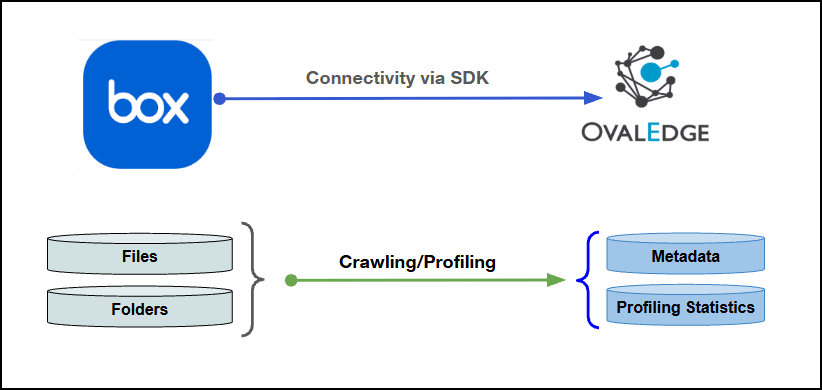
Connectivity
\[How the connection is established with Box]
| SDK | | Verified Box Version | 4.x | {% hint style="info" %} The Box connector has been validated with the mentioned "Verified Box Versions" and is expected to be compatible with other supported Box versions. If there are any issues with validation or metadata crawling, please submit a support ticket for investigation and feedback. {% endhint %} ### Connector Features | Feature | Availability | | -------------------------------------------- | :----------: | | Crawling | ✅ | | Delta Crawling | ❌ | | Profiling\* | ✅ | | Sample Profiling | ✅ | | Query Sheet | NA | | Data Preview | ✅ | | Auto Lineage | NA | | Manual Lineage | ✅ | | Secure Authentication via Credential Manager | ✅ | | Data Quality | ✅ | | DAM (Data Access Management) | ❌ | | Bridge | ✅ | {% hint style="info" %} NA' indicates that the respective feature is 'Not Applicable.' {% endhint %} {% hint style="info" %} \*Full profiling is supported through DuckDB. To enable this capability, configure the system setting (**enable.duckdb**) to **True**. When enabled, the File Data tab displays only the first 100 rows from the source file. {% endhint %} ### Metadata Mapping The following objects are crawled from Box and mapped to the corresponding UI assets.| Box Object | Box Attribute | OvalEdge Attribute | OvaEdge Category | OvalEdge Type |
|---|---|---|---|---|
| Folder | Folder | Folder | Folder | Folder |
| File | File | File | File | File |
| ↳ XLSX (Sheets) | File | File (subfile) | File (subfile) | File (subfile) |
| ↳ XLS (Sheets) | File | File (subfile) | File (subfile) | File (subfile) |
| CSV | File | File | File | File |
| TXT | File | File | File | File |
| PARQUET | File | File | File | File |
| ORC | File | File | File | File |
| JSON | File | File | File | File |
| YAML | File | File | File | File |
| PIP | File | File | File | File |
| Field Name | Description |
|---|---|
| Connector Type | By default, "Box" is displayed as the selected connector type. |
| Credential Manager* | Select the desired credentials manager from the drop-down list. Relevant parameters will be displayed based on the selected option. Supported Credential Managers:
For more details, click here. |
| License Add Ons | Select the checkbox for Data Quality Add-On to identify data quality issues using data quality rules and anomaly detection. For more details, click here. |
| Connector Environment | Select the environment (Example: PROD, STG) configured for the connector. For more details, click here. |
| Connector Name* | Enter a unique name for the Box connection (Example: "Boxdb"). |
| Connector Description | Enter a brief description of the connector. |
| Client ID* | Enter the unique Client ID provided by the service or application for authentication. |
| Client Secret* | Enter the Client Secret associated with the Client ID to securely authenticate the connection. |
| User ID* | Enter the registered User ID used to access the external system or service. Note: The User ID must be the Box numeric user ID. Ensure to provide the correct numeric ID associated with the Box account. |
| Default Governance Roles* | Select the appropriate users or teams for each governance role from the drop-down list. All users configured in the security settings are available for selection. |
| Admin Roles* | Select one or more users from the dropdown list for Integration Admin and Security & Governance Admin. All users configured in the security settings are available for selection. |
| No Of Archive Objects* | This shows the number of recent metadata changes to a dataset at the source. By default, it is off. To enable it, toggle the Archive button and specify the number of objects to archive. Example: Setting it to 4 retrieves the last four changes, displayed in the 'Version' column of the 'Metadata Changes' module. |
| Select Bridge* | If applicable, select the bridge from the drop-down list. The drop-down list displays all active bridges that have been configured. These bridges facilitate communication between data sources and the system without requiring changes to firewall rules. |
| S.No. | Limitation |
|---|---|
| 1 | For File-based connectors, the folder count in the File Manager and Data Catalog Files module may not match if folders or files are added or deleted in the source system after crawling. Run the connection crawl again to refresh and display the latest changes. |
| S. No | Error Message | Error Description & Resolution |
|---|---|---|
| 1 | Error while validating connection: connection API returns 400 error | This error typically indicates that the client ID or client secret provided is invalid or does not match the application created in the developer console. Resolution:
|
| 2 | Connection validates but profiling or data preview fails | The application used for authentication has only been granted read permission, whereas profiling and data preview require write permission on the application. Resolution:
|
| S. No | Error Message | Error Description & Resolution |
|---|---|---|
| 1 | Only first-level files and folders appear after crawling | The standard crawl and profile job only captures the first level of files and folders by default, without automatically traversing deeper into the folder structure. Resolution: • Use the file manager to open the relevant folder and view its contents directly. • Use the catalog options in the file manager, such as catalog all subfolders or catalog all files, and specify the required folder level to reach deeper content. • Recrawl or catalog the specific inner folder if content beyond the first level needs to be included. |
| 2 | Files removed from the source still appear in the catalog | The connector does not automatically detect or remove files that have been deleted from the source system, so the catalog remains out of sync until a new crawl is run. Resolution: • Recrawl the connector to synchronize the catalog with the current state of the source. • Confirm the removed file no longer appears after the recrawl completes. • Repeat this recrawl step periodically if source content is expected to change frequently. |
| 3 | Certain file extensions do not appear in the catalog after crawling | Only file extensions included in the configured list of cataloguable types in the system settings are picked up during crawling. Resolution: • Open the connector system settings and review the configured list of file types to be catalogued. • Add the required file extension to the list if it is missing. • Recrawl the connector once the extension has been added. |
| S. No | Error Message | Error Description & Resolution |
|---|---|---|
| 1 | File is catalogued but cannot be profiled | Profiling depends on the file having a structured, column-based format, so certain file types such as images, videos, or unstructured documents cannot be profiled regardless of configuration. Resolution: • Confirm the file type is one of the specific types currently supported for profiling, rather than only cataloguing. • Recognize that unstructured file types, such as images or videos, are not expected to support profiling. • Refer to the connector documentation for the current list of profiling-supported extensions. |
| 2 | CSV file does not display data correctly during profiling | CSV files with inconsistent structure, such as embedded newlines or improperly placed quotes, are not supported and can prevent correct data extraction during profiling. Resolution: • Confirm the CSV file follows the documented formatting guidelines, without embedded newlines or misplaced quotes. • Correct the file structure to match the required CSV format before recataloguing. • Reprofile the file once the structure has been corrected. |
| 3 | Sub sheets within an Excel file do not appear as separate cataloged items | Only the main Excel file is catalogued as a single item, while individual sub-sheets within it are not catalogued separately. Resolution: • Confirm this is expected behaviour, since sub-sheets are treated as part of the main file rather than as individual catalog entries. • Profile the main Excel file to access the content of its individual sheets. • Note that all sheets within the file remain accessible through profiling even though they are not listed as separate catalog items. |
| S. No | Question | Answer |
|---|---|---|
| 1 | What access is needed before setting up the Box connector? | The following access is required:
Create an application in the developer console to generate the client ID, client secret, and user ID required for the connection. |
| 2 | What is the difference between read and write permission on the Box application? |
With only read permission, files can be catalogued but their content cannot be previewed or profiled. |
| 3 | Which credential managers are supported for storing Box connector credentials? | The Box connector supports the standard credential managers:
|
| S. No | Question | Answer |
|---|---|---|
| 1 | Does crawling automatically reach every folder level? | No. The standard crawl and profile job reaches only the first level of files and folders. To catalog deeper folder levels, use the file manager and specify the required folder level. This allows subfolders and files up to the selected level to be included. |
| 2 | Does this connector support delta crawling? | No. Delta crawling is not supported for the Box connector. Each crawl processes the currently selected files and folders instead of automatically identifying only changed content. |
| 3 | What happens if a file is deleted from Box after it has been catalogued? | The catalog does not automatically detect or remove deleted files. The deleted file continues to appear in the catalog until the source is crawled again. A new crawl synchronizes the catalog with the current source and removes the deleted file. |
| 4 | Can specific file types be added to or removed from what gets catalogued? | Yes. The list of file extensions eligible for cataloguing can be configured through system settings.
|
| 5 | Can an entire folder be downloaded through the connector? | No. Downloading an entire folder is not supported. The number and size of objects in a folder are not known in advance. Individual files can be downloaded where the connector supports the operation, but folder-level downloads are not available. |
| S. No | Question | Answer |
|---|---|---|
| 1 | Why is profiling limited to a sample of rows by default? | By default, profiling uses a sample size of 10,000 rows. This helps avoid performance issues when processing large files. Full profiling can be enabled through the dedicated setting to process the complete file instead of the default sample. |
| 2 | Can the number of rows shown in the data preview be adjusted? | Yes. The number of rows displayed in the file data preview can be configured. For example, you can select 100, 1,000, or 5,000 rows, depending on the required preview size. |
| 3 | Why are only certain file types supported for profiling? | Cataloguing only requires the connector to identify the file and capture its basic details, so more file types can be catalogued. Profiling requires the connector to read and interpret the file content in a structured, column-based format. Therefore, only supported file types can be profiled. Unstructured file types, such as images and videos, cannot be profiled. |
| 4 | Why do columns not appear immediately after a file is catalogued? | Column information is available only after the file is profiled.
|
| S. No | Question | Answer |
|---|---|---|
| 1 | Is automatic lineage supported for the Box connector? | No. Automatic lineage is not supported for the Box connector. Manual lineage is supported, allowing a file to be manually linked to a lineage flow, including files referenced by name in another ETL tool or platform such as Power BI. |