Bridge Installation for Windows
This article outlines the process for installing and configuring the OvalEdge Bridge Client on Windows operating systems. The Bridge component enables secure connectivity between the OvalEdge cloud-hosted server and client data sources, whether hosted on-premise or in any public cloud environment.
OvalEdge’s cloud offering allows customers to utilize the platform as a hosted service without directly connecting to client data sources. This is achieved through the OvalEdge Bridge component, which enables secure communication between cloud and on-premise environments without modifying firewall rules.
The client component of the Bridge is installed within the client infrastructure, requiring only the whitelisting of the client’s IP address and port.
Purpose of the Document
The purpose of this article is to outline the detailed procedure for installing, configuring, and validating the OvalEdge Bridge Client on Windows systems, including prerequisites, system setup, connectivity validation, installation, and service management.
Prerequisites
Installation Files
The following files must be available before starting the Bridge Client installation:
Bridge Secure Connectivity Pack (.zip)
Contains certificates and configuration files required for secure communication between the Bridge Client and Bridge Server.
Bridge Client Installer (.jar)
Required to execute the Bridge Client installation process.
Bridge Component File (.nar)
Must be placed in the NiFi lib folder after installation to enable communication with the OvalEdge SaaS platform.
Bridge As Service Files
Required to run the Bridge process as a service.
The OvalEdge GCS team provides these files via a secure channel (email) and must be copied to the Bridge Client VM before installation.
Recommended Hardware
RAM
32 GB
SSD
250 GB
vCPU
8
Recommended Software
OS
Windows
Open JDK
17.0
Whitelisting Ports
Inbound
9443
Required for NiFi UI configuration changes
Outbound
9443
Communication from Bridge Client to Bridge Server
The Bridge Client IP must be whitelisted in all connector data sources.
Ensure outbound traffic on port 9443 is allowed to the Bridge Server.
OvalEdge Bridge Architecture and Communication Model
The Bridge works in a Pull Model where the Bridge client will be Polling (Checks for any commands that are stored at the Bridge Server, issued from the OE Platform, eg, establishing a connection to the dataSource) to execute, waiting in the queue (A queue is a Flow File that holds the data to be transmitted through Bridge) every 5 seconds.
The pull time can be configured, and the Bridge client pulls commands from the Bridge Server and transmits the metadata to the OE Platform for processing, securely over the whitelisted secure ports.
The Bridge is owned by OE, except for the client VM on which it is deployed in the client Data Center (OE provides all software components).
OE provides and maintains the bridge component. The Bridge Server is hosted along with the OE Platform and interacts with it. Users perform actions like crawling and profiling data sources and the Bridge Client Pools for the commands, and securely execute the same connection to the client data Sources over TLS 1.2 (Transport Layer Security) and SSL.
The Bridge Component, offered as part of the SaaS, reduces communication pain points with client data sources, whether hosted on a VM (provided by the client) or on-premises.
Bridge Components
Bridge Server
Hosted on the OvalEdge SaaS AWS environment and interacts directly with the OvalEdge platform.
Bridge Client
Installed on the client’s infrastructure (cloud or on-premise) and communicates securely with the Bridge Server.
The Bridge is owned and maintained by OvalEdge.
The client provides the VM and network configurations within their environment.
All communications are encrypted using TLS 1.2 and SSL protocols.
Deployment Scenarios
Cloud-based Sources
OvalEdge SaaS AWS Server
Public cloud VM (provided by client)
The Client VM IP address must be whitelisted to communicate securely with the Bridge Server hosted on the SaaS VM.
On-Premise Sources
OvalEdge SaaS AWS Server
On-prem VM (provided by client)
The Client VM IP address must be whitelisted to communicate securely with the Bridge Server hosted on the SaaS VM.
Setting up the VM
Download and install Open JDK version 17
Download Java 17.
Once Java is downloaded, double-click on the link to install Java as shown below.

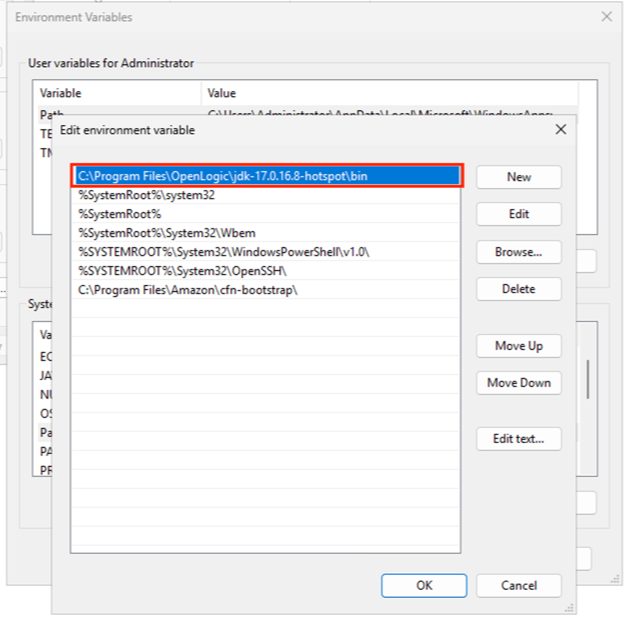
Now configure the env variable of java i,e JAVA _HOME.


Click on OK.
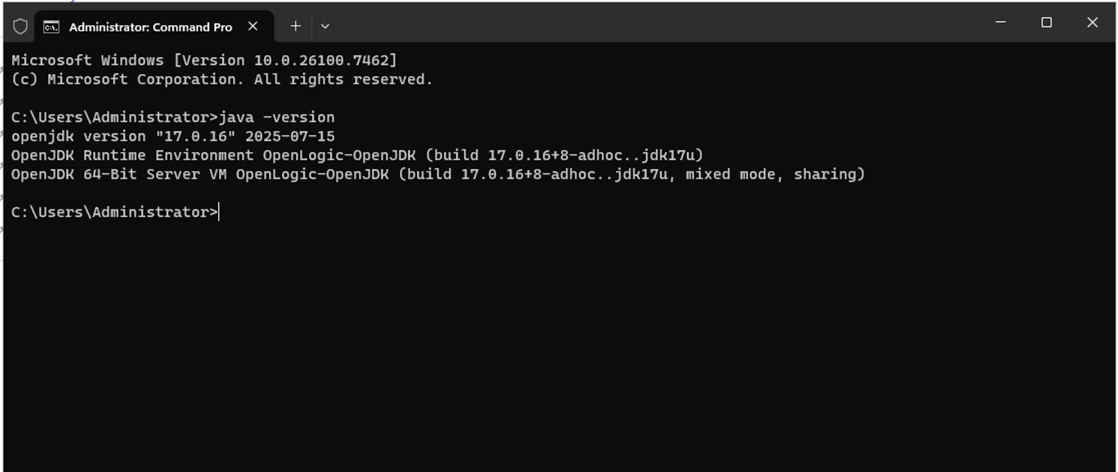
Now open the command prompt and check the Java version using the command below.

Identify Public IP:
Share the static public or NAT IP of the VM with the OvalEdge team (GCS). The IP will be whitelisted on the OvalEdge SaaS system to allow traffic between the Bridge Client and Bridge Server.
On the customer’s network, make sure that outbound traffic is permitted to the bridge server IP (which will be shared by the OvalEdge team) on port 9443
Verify Connectivity:

The bridge_server_domain will be provided by the OvalEdge team.
For the OvalEdge application to crawl data from the customer's data sources, the VM running the bridge client must be able to connect to them. The customer must ensure that the Bridge client VM is allowed to access the data sources.
Ensure the Bridge Client VM has network access to all required data sources.
Only required ports on the data sources should be opened for traffic from the Bridge Client VM.
Service accounts should have read-only access.
Installation Process
Client Installation Steps
Deploy a Windows machine that serves as a mediator between the Bridge Server and data connectors.
Log in to the OvalEdge application.
Navigate to Administration > Connectors and click Manage Bridge.

Click "+" to add the Bridge.
Enter the public IP address of the Bridge Client machine in the Bridge IP Address field.


A pop-up displays the Bridge ID, Security Code, and download links for the Bridge Secure Connectivity Pack and Bridge Installation Software.

Download both files and copy them to the Bridge Client VM.
Download and copy the Bridge Secure Connectivity Pack ( zip file) to the bridge client VM. Note the Security Code displayed during the Bridge Installation process.
Note the Security Code in the format:
Click on the Ok button, and the new bridge is created and displayed on the Bridge page.

Download the Bridge Installation Software file shared by the OvalEdge GCS Team via email and move it to the bridge client VM.
The installation file size is approximately 1 GB.
Install and Register the Bridge
Installation Steps
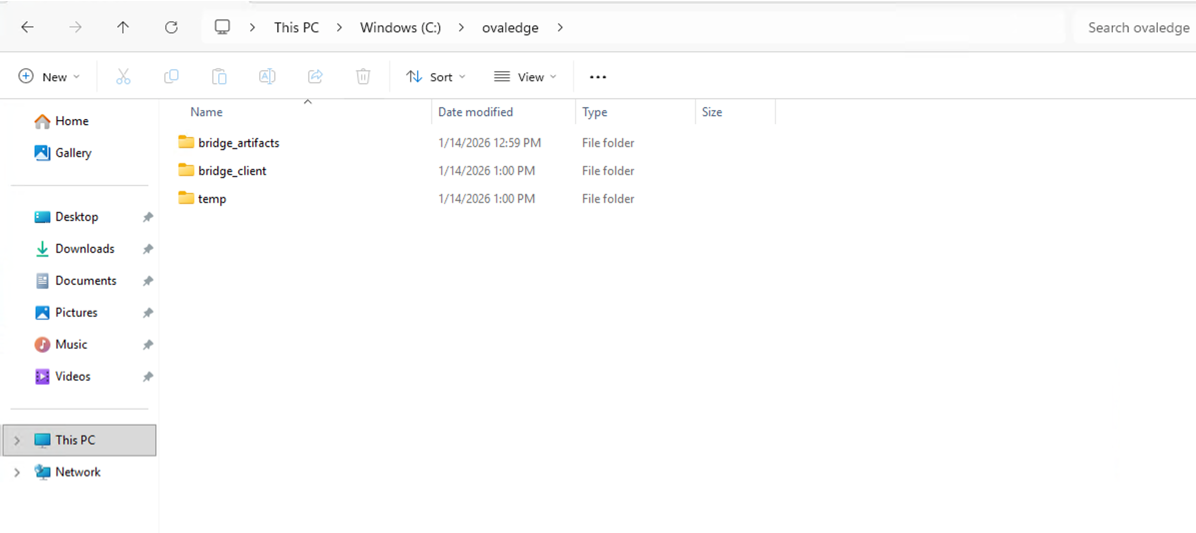
Create three folders:
bridge_artifacts
bridge_client
temp

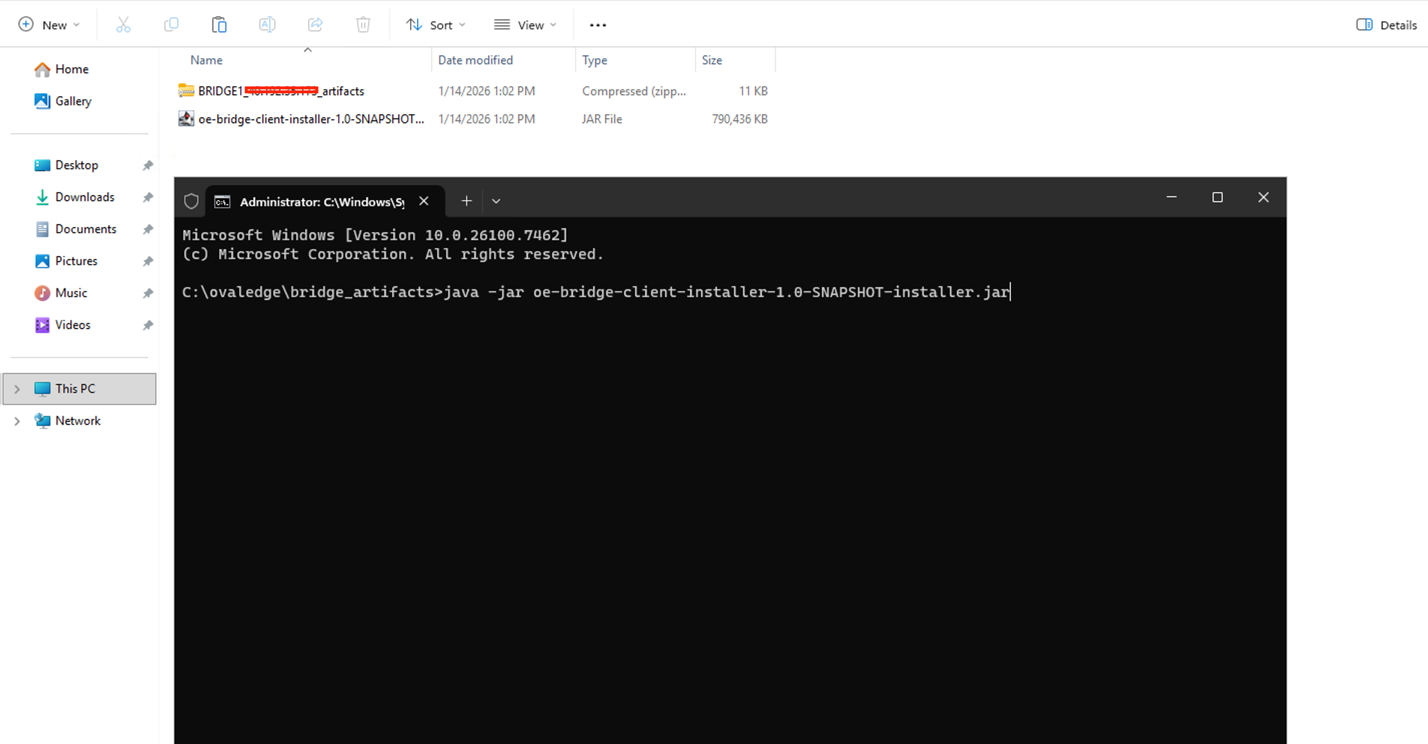
Copy the Bridge Secure Connectivity Pack (zip file) and ovaledge-bridge-client-installer.jar into the bridge_artifacts folder.
Run the installation:

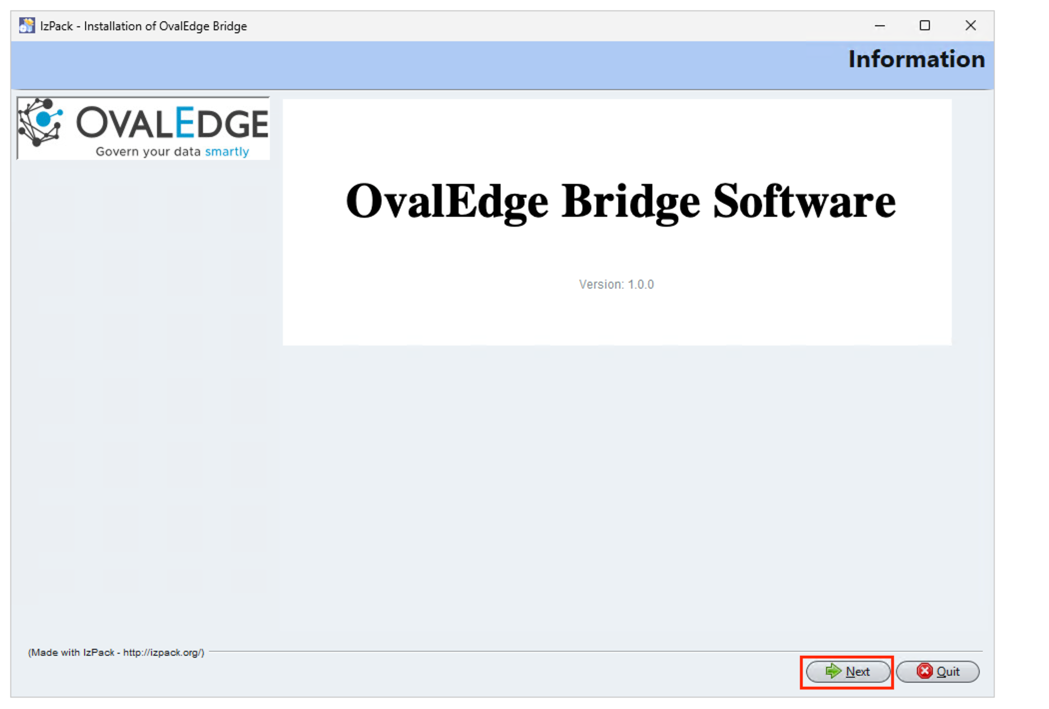
Upon running the JAR file, you will get the screen below, click on Next as shown below.

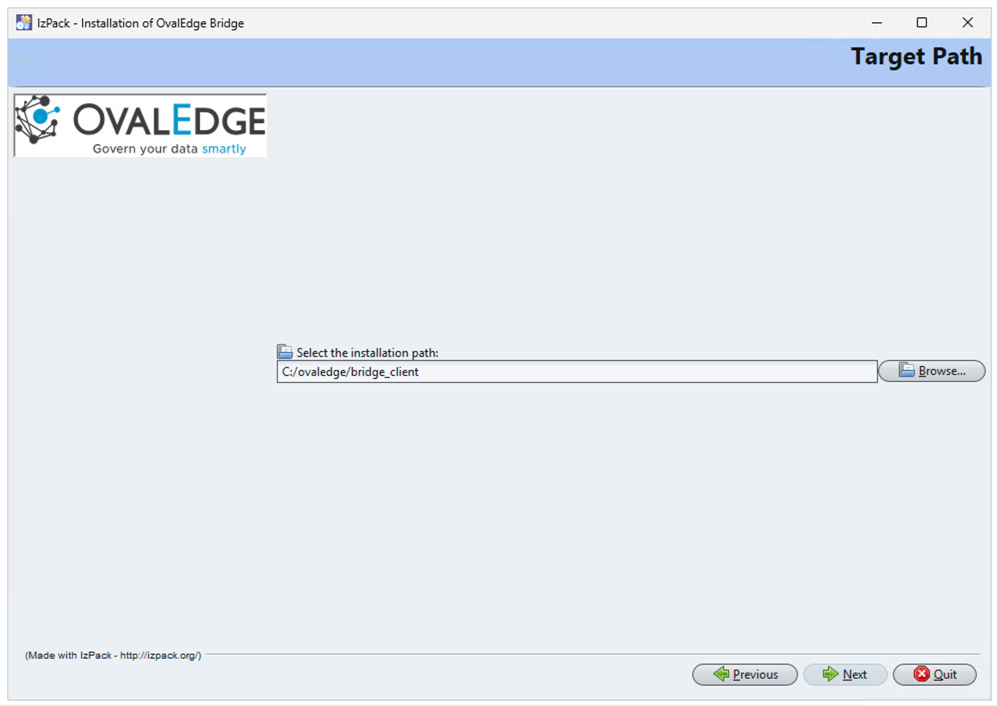
When prompted, select the installation path for the Bridge Client.
The default installation path is C:/ovaledge/ovaledge_bridge
Enter the path of the folder created earlier, named bridge_client.

Click on Next.

Enter the Security Code noted during the bridge creation process in the OvalEdge application.
Provide the same IP Address used when adding the bridge IP details in the OvalEdge application under the M/C IP Address field.
Enter a suitable Bridge Name to identify the Bridge Client.
Provide the Cloud Server URL shared by the OvalEdge team.
For the Certificates Path, enter the location of the Bridge Secure Connectivity Pack (ZIP file) copied earlier to the VM.
For the Bridge Temp Path, enter the location of the temp path on the VM.
Enter the required User Name and Email Address, then press 1 and Enter to confirm.
The user details are mandatory and must be entered without spaces.
For NIFI service creation, enter the service name.
For the Is askEdgi option, specify whether the askEdgi feature should be enabled.
Enter true to enable askEdgi.
Enter False to proceed without enabling askEdgi.

Wait for the installation to complete. A message stating “Installation was successful” will appear.

Copy the bridge-oe-<version>.nar file to the NiFi lib folder.
Restart the NiFi service from the NiFi bin folder using the command:
After restarting, check the NiFi logs to confirm that the service has started correctly.
Verify the bridge status from the OvalEdge application UI.
The bridge status should display as Green, indicating successful installation and connectivity.

Add the bridge.temppath in the application Bridge settings.
Navigate to Administration > System Settings> Bridge

Provide the path that was created in the Bridge Client VM during the Bridge installation process.
Running Bridge as a Service
OvalEdge offers the capability to run the Bridge Client as a Windows service, enhancing reliability and eliminating the need for manual intervention.
Overview
When the Bridge is installed manually on a client machine, it must be restarted if the server or virtual machine goes down. To mitigate this risk and ensure high availability, OvalEdge provides a "Bridge as a Service" option.
This approach ensures the Bridge Client automatically restarts on system reboot, supporting seamless connectivity to client data sources.
Key Benefits
Automated Restart: Automatically starts with the system, reducing manual overhead.
High Availability: Supports service-level availability of up to 99.999%.
Client-Side Reliability: Ensures the Bridge Client remains operational even after VM or system restarts.
Hybrid Support: Works for both SaaS-hosted Bridge Servers and client-hosted environments (cloud or on-premises).
Prerequisites
Before proceeding, ensure you have administrative privileges on the system and have downloaded the necessary service files from the provided link.
Steps
Remove Existing Service Files
Delete the nifi-windowsservice-1.11.4.jar file located in the nifi-1.28.1/lib/bootstrap folder.

Delete the following files located in the nifi-1.28.1/bin folder:
install_service.bat
nifi-service.exe
nifi-servicew.exe

Download and Extract Service Files
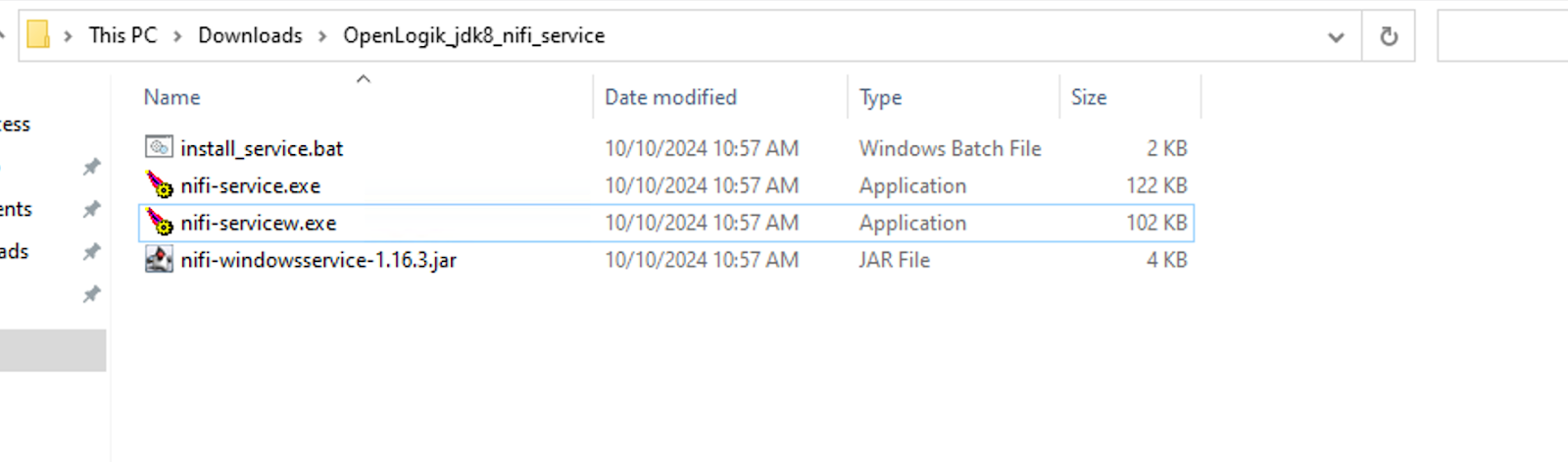
Download the service files shared by the OvalEdge team.
Extract the downloaded ZIP file to a temporary location on your system.

Copy New Service Files to Apache NiFi-1.28.1 Directories
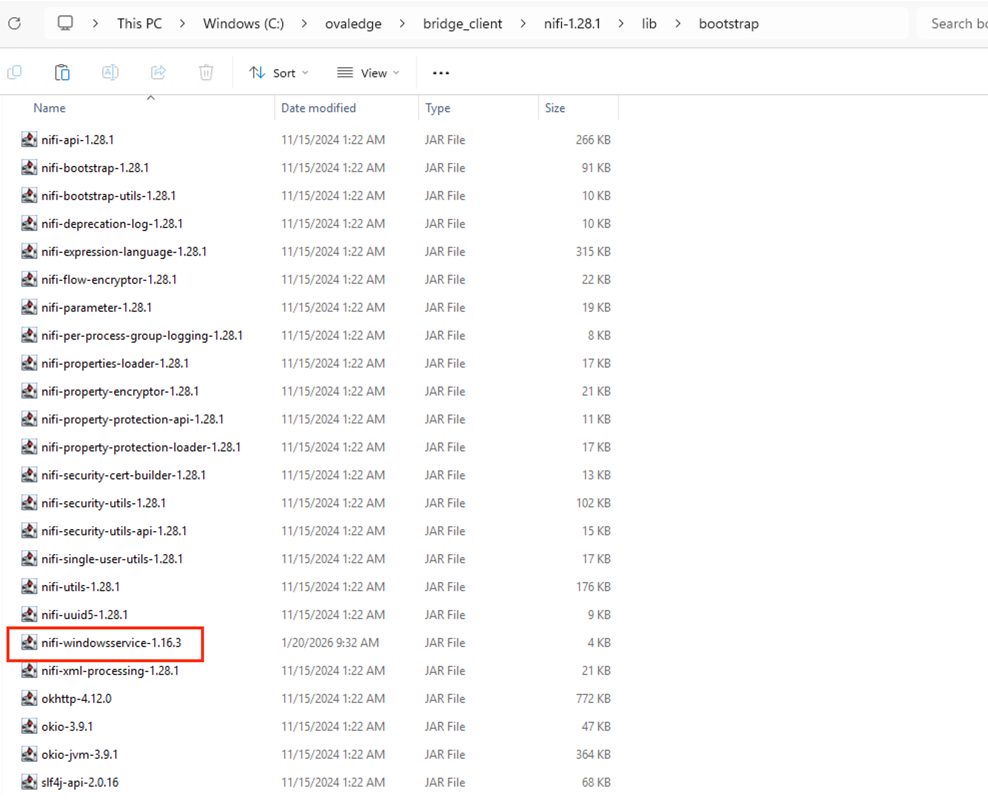
Copy the nifi-windowsservice file to the nifi-1.28.1/lib/bootstrap folder.

Copy the following files to the nifi-1.28.1/bin folder:
install_service.bat
nifi-service.exe
nifi-servicew.exe

Edit the install_service.bat File
Open the install_service.bat file in a text editor.
Modify the file by setting the following paths:
SRV_BIN: Specify the full path to the nifi-service.exe file in the nifi-1.28.1/bin folder.
JVM: Specify the full path to the jvm.dll file, typically located at: C:\Program Files\OpenLogic\jdk-17.0.16.8-hotspot\bin\server\jvm.dll
Please refer to the screenshot below.

Install the Apache NiFi-1.28.1 Service
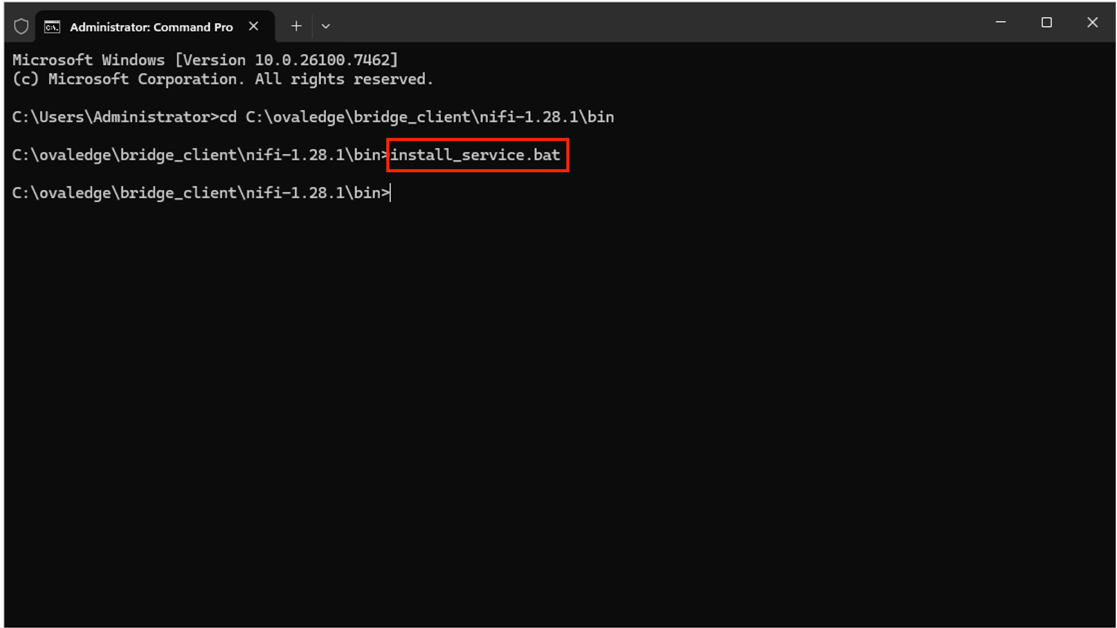
Open the Command Prompt with Administrator privileges.
Change the directory to the nifi-1.28.1/bin folder.
Execute the install_service.bat file.
Please refer to the screenshot below.

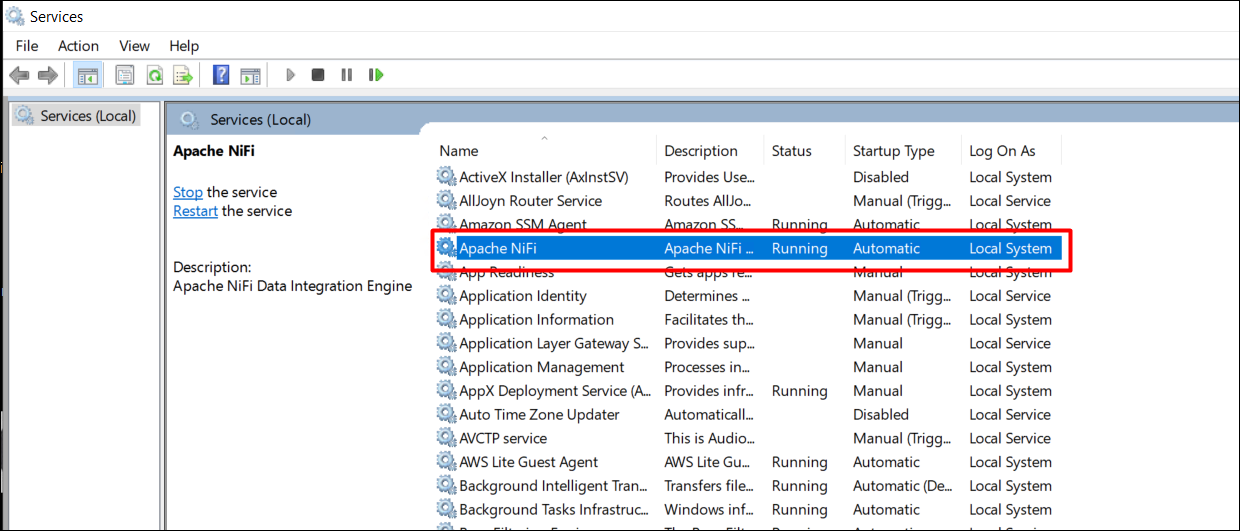
Verify Apache NiFi-1.28.1 Service Installation
Open the Services management console (services.msc).
Check if the Apache NiFi-1.28.1 service is listed and running.

The Bridge service (powered by NiFi) operates on port 9443.
Copyright © 2025, OvalEdge LLC, Peachtree Corners GA USA
Last updated
Was this helpful?