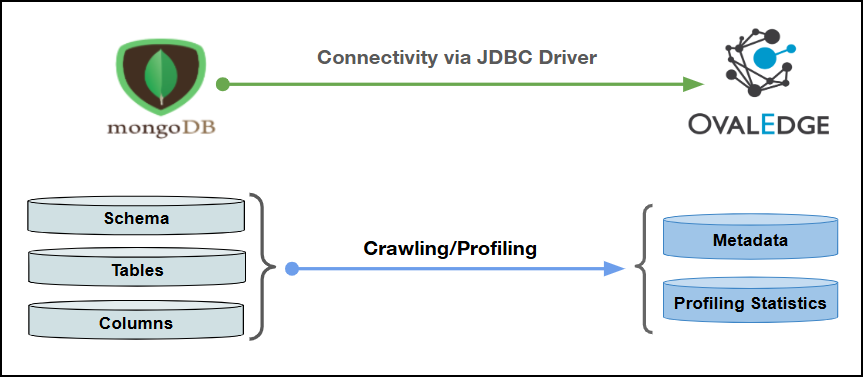
| Connector Category | NoSQL |
| OvalEdge Release Supported | Release6.x and later |
Connectivity [How the connection is established with MongoDB] | JDBC driver |
| Verified MongoDB Version | 3.12.11 |
| MongoDB Object | MongoDB Attribute | OvalEdge Attribute | OvalEdge Category | OvalEdge Type |
|---|---|---|---|---|
| Table | Table Name | Table | Tables | Table |
| Table | Table Type | Table | Tables | Table |
| Table | Table Comments | Source Description | Descriptions | Source Description |
| Columns | Column Name | Column | Table Columns | Columns |
| Columns | Data Type | Column Type | Table Columns | Columns |
| Columns | Description | Source Description | Table Columns | Columns |
| Columns | Ordinal Position | Column Position | Table Columns | Columns |
| Columns | Length | Data Type Size | Table Columns | Columns |
| Objects | Sys Tables | Access Permissions |
|---|---|---|
| Schema (Database) | listDatabases command | listDatabases privilege on the cluster |
| Tables (Collections) | listCollections command or system.namespaces collection | listCollections privilege on each database |
| Columns (Fields) | Derived by sampling documents using the find command | Find privilege on each collection |
| Field Name | Description |
|---|---|
| Connector Type | By default, "MongoDB" is displayed as the selected connector type. |
| Authentication | OvalEdge supports the following two types of authentication for MongoDB:
|
| Field Name | Description |
|---|---|
| Credential Manager* | Select the desired credentials manager from the drop-down list. Relevant parameters will be displayed based on your selection.
|
| Connector Name* | Enter a unique name for the MongoDB connection (Example: "MongoDB_Prod"). |
| Connector Environment | Select the environment (Example: PROD, STG) configured for the connector. |
| Connector description | Enter a brief description of the connector. |
| Server* | Enter the MongoDB database server name or IP address (Example: xxxx-xxxx.xxxx4ijtzasl.xx-south-1.rds.xxxxx.com or 1xx.xxx.1.x0). |
| Database* | Enter the database name to which the service account user has access within the MongoDB. |
| Driver* | By default, the MongoDB driver details are auto-populated. |
| Username* | Enter the service account username set up to access the MongoDB database (Example: "oesauser"). |
| Password* | Enter the password associated with the service account user. |
| Connection String | Configure the connection string for the MongoDB database: Automatic Mode: The system generates a connection string based on the provided credentials. Manual Mode: Enter a valid connection string manually. Replace placeholders with actual database details. {sid} refers to Database Name. |
| Plugin Server | Enter the server’s name when running as a plugin server. |
| Plugin Port | Enter the port number on which the plugin is running. |
| Field Name | Description |
|---|---|
| Credential Manager* | Select the desired credentials manager from the drop-down list. Relevant parameters will be displayed based on your selection. Supported Credential Managers: OE Credential Manager AWS Secrets Manager HashiCorp Vault Azure Key Vault |
| Connector Name* | Enter a unique name for the MongoDB connection (Example: "MongoDB_Prod"). |
| Connector Environment | Select the environment (Example: PROD, STG) configured for the connector. |
| Connector description | Enter a brief description of the connector. |
| Server* | Enter the MongoDB database server name or IP address (Example: xxxx-xxxx.xxxx4ijtzasl.xx-south-1.rds.xxxxx.com or 1xx.xxx.1.x0). |
| Port* | By default, the port number for MongoDB, "27017," is auto-populated. If required, the port number can be modified as per the custom port number that is configured for the MongoDB. |
| Database* | Enter the database name to which the service account user has access within the MongoDB. |
| Driver* | By default, the MongoDB driver details are auto-populated. |
| Username* | Enter the service account username set up to access the MongoDB database (Example: "oesauser"). |
| Password* | Enter the password associated with the service account user. |
| Connection String | Configure the connection string for the MongoDB database: Automatic Mode: The system generates a connection string based on the provided credentials. Manual Mode: Enter a valid connection string manually. Replace placeholders with actual database details. {sid} refers to Database Name. |
| Plugin Server | Enter the server’s name when running as a plugin server. |
| Plugin Port | Enter the port number on which the plugin is running. |
| Default Governance Roles* | Select the appropriate users or teams for each governance role from the drop-down list. All users and teams configured in OvalEdge Security are displayed for selection. |
| Admin Roles* | Select one or more users from the dropdown list for Integration Admin and Security & Governance Admin. All users configured in OvalEdge Security are available for selection. |
| No Of Archive Objects* | This shows the number of recent metadata changes to a dataset at the source. By default, it is off. To enable it, toggle the Archive button and specify the number of objects to archive. Example: Setting it to 4 retrieves the last four changes, displayed in the 'Version' column of the 'Metadata Changes' module. |
| Select Bridge* | If applicable, select the bridge from the drop-down list. The drop-down list displays all active bridges configured in OvalEdge. These bridges enable communication between data sources and OvalEdge without altering firewall rules. |
| S.No. | Error Message(s) | Error Description & Resolution |
|---|---|---|
| 1 | Authentication failed | Description: The connection failed because the MongoDB credentials provided are incorrect or not properly configured. Resolution:
|
| 2 | "Communications link failure" or "Connection timeout" | Description: The connection failed due to network connectivity issues between the application and the MongoDB server. Resolution:
|
| 3 | Database does not exist | Description: The connection failed because the database name is incorrect or does not exist in MongoDB.
|
| 4 | Failed to retrieve DataSource from DataSourceProvider | Description: The issue occurs due to connection pool or data source initialization problems while creating the MongoDB connection.
|