> For the complete documentation index, see [llms.txt](https://docs.ovaledge.com/llms.txt). Markdown versions of documentation pages are available by appending `.md` to page URLs; this page is available as [Markdown](https://docs.ovaledge.com/home/browser-extension/login.md).
# Login
The OvalEdge browser extension enables users to securely access the OvalEdge application directly from their browser. The platform supports multiple authentication methods to accommodate various deployment environments and user access requirements.
## Supported Login Methods
OvalEdge primarily supports two types of login methods:
### Licensed User Login
Licensed users can log in using the following authentication methods:
* Database Credentials: Applicable only for on-premise environments.
* API Authentication Token
* Single Sign-On (SSO): Supports the following SSO providers:
* OneLogin
* Azure Active Directory (Azure AD)
* Lightweight Directory Access Protocol (LDAP)
* Okta
**Login Process**
To initiate the login process:
1. After installing the OvalEdge extension, click the Extensions icon in the browser menu to open the OvalEdge add-on pop-up.
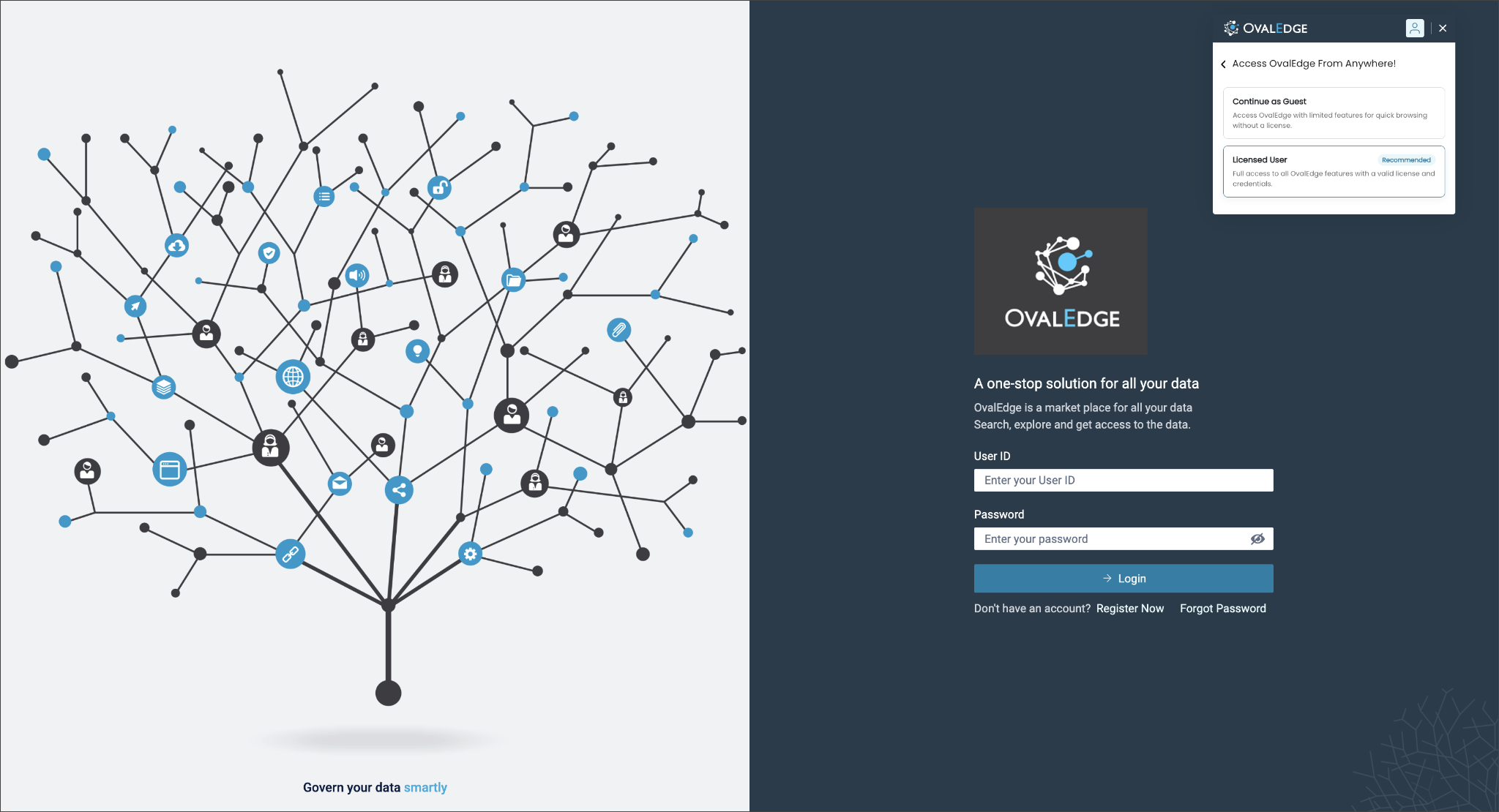
2. The Browser Extension sign-in page provides sign-in options based on the Guest access setting and the user's account type.
When Guest access is enabled, the sign-in page provides the following two options:
1. **Continue as Guest** – Access limited features without a licensed account.
2. **Continue as Licensed User** – Sign in with credentials to access full features.
Licensed users can directly access the credential screen without navigating through the Guest interface.
3. Select either Continue as Guest or Continue as Licensed User. The **Access OvalEdge From Anywhere** pop-up is displayed.\

4. In the OvalEdge Server URL field, enter the OvalEdge Server Domain URL. This URL connects the extension to the OvalEdge application instance, enabling access from anywhere.
5. Click Next to proceed. The login pop-up appears, presenting multiple authentication options to access the OvalEdge application. Users can log in using OvalEdge (database) credentials, API authentication tokens, or Single Sign-On (SSO).
**Database Credentials**
* Enter the OvalEdge application username and password, then click Sign In. Upon successful validation, the plugin home page is displayed.

{% hint style="info" %}
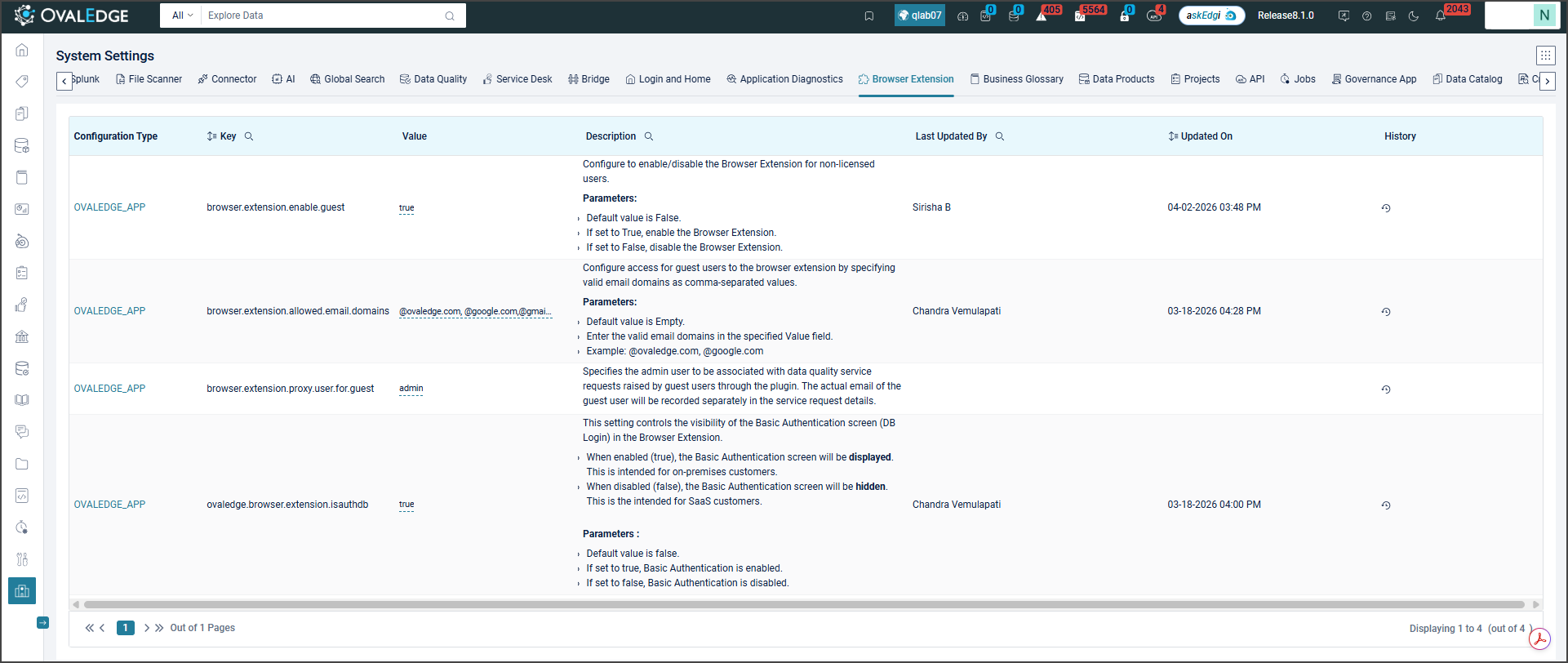
Sign in to the browser plugin using database credentials is supported in on-premise environments and is enabled when the system setting ovaledge.browser.extension.isauthdb is set to true.
{% endhint %}
**API Authentication Tokens**
To access the browser plugin using an API authentication token, follow the steps below:
1. In the browser plugin login pop-up, click Sign in with Token Credentials.

2. The Login with a Token pop-up window appears.

3. Enter the User Token and User Secret values.
To obtain these credentials:
* Log in to the OvalEdge application.
* Click the Profile icon in the top header and select My Profile.
* On the My Profile page, click the Nine Dots icon and select Download User API Credentials.\
A text file containing the User Token and User Secret is downloaded to the desktop.
* Open the downloaded file, copy the credentials, and paste them into the corresponding fields in the browser plugin login window.
* Click Login. The credentials are validated, and upon successful authentication, the plugin home page is displayed.
{% hint style="info" %}
Signing in to the browser plugin using API authentication tokens is supported in both SaaS and on-premise environments. By default, the system setting ovaledge.browser.extension.isauthdb is set to false, enabling token-based authentication by default.
{% endhint %}
**Single Sign-On (SSO) Options**
* **OneLogin SSO:**\
For organizations using OneLogin SSO, authentication is performed through the OneLogin platform.\
Detailed steps are provided in the Chrome Plugin using the OneLogin section.
* **Azure AD SSO:**\
For users with Azure Active Directory (Azure AD) SSO enabled, authentication follows the Azure AD workflow.\
Detailed steps are available in the Chrome Plugin Login Using Azure AD section.
* **LDAP SSO:**\
For users with LDAP SSO enabled, authentication follows the standard LDAP workflow.
* **Okta SSO:**\
For users with Okta SSO enabled, authentication follows the Okta workflow.
### Guest User Login
The Guest (External) User Flow in the OvalEdge browser extension provides limited access to predefined functionalities for external stakeholders, including consultants, third-party vendors, or external teams.
* External users log in using their email. Only emails from approved domains (configured in the System Settings under the Browser Extension tab) are allowed access.
* To ensure secure access, the administrator specifies valid email domains (e.g., \*@yahoo.com, @gmail.com).
**To log in as a Guest User:**
1. After installing the OvalEdge extension, click the **Extensions** icon in the browser menu to open the **OvalEdge** add-on pop-up.
2. In the **OvalEdge Server URL** field, enter the OvalEdge Server Domain URL. This URL connects the extension to the OvalEdge application instance, enabling access from anywhere. Click **Next**. The **Email** pop-up will appear.

3. Enter the email address and click **Sign In**. After validation, the plugin opens in guest user mode, allowing access to glossary terms and raising data quality requests.
---
# Agent Instructions
This documentation is published with GitBook. GitBook is the documentation platform designed so that both humans and AI agents can read, navigate, and reason over technical content effectively. Learn more at gitbook.com.
## Querying This Documentation
If you need additional information that is not directly available in this page, you can query the documentation by asking a question.
Perform an HTTP GET request on the following URL with the `ask` and `goal` query parameters:
```
GET https://docs.ovaledge.com/home/browser-extension/login.md?ask=&goal=
```
`ask` is the immediate question: it should be specific, self-contained, and written in natural language.
`goal` is what the user is ultimately trying to achieve, the reason they need the answer. Sharing it helps GitBook give you a better, more relevant answer. A goal is most helpful when it describes the outcome the user wants rather than restating the question. For example, with `ask=how do I create an API token`, a goal like `automate deployments from our CI pipeline` lets GitBook tailor the answer to that use case.
The response will contain a direct answer to the question and relevant excerpts and sources from the documentation.
Use this mechanism when the answer is not explicitly present in the current page, you need clarification or additional context, or you want to retrieve related documentation sections.