

This article outlines the steps to configure SSO in OvalEdge using Google OAuth2.
Single Sign-On (SSO) is a user authentication method that enables access to multiple applications using a single set of credentials. Integrating SSO enhances user experience and reduces the overhead of managing multiple usernames and passwords across platforms.
Purpose
The purpose of this document is to provide a step-by-step guide for configuring Google OAuth2 as the identity provider for SSO in OvalEdge. This includes:
Creating a Google project
Generating OAuth credentials
Updating the OvalEdge configuration files
Setting Tomcat runtime environment variables
Restarting the OvalEdge application server
Prerequisites
Access to Google Cloud Console
Admin privileges in the OvalEdge application server
Valid domain name and redirect URL for OvalEdge (e.g.,
https://<your-domain>/ovaledge/oauth2/code/google)Access to modify the
oasis.propertiesfile
Configuration Steps
Create a Project in Google Cloud Console
Navigate to: Google Cloud Console
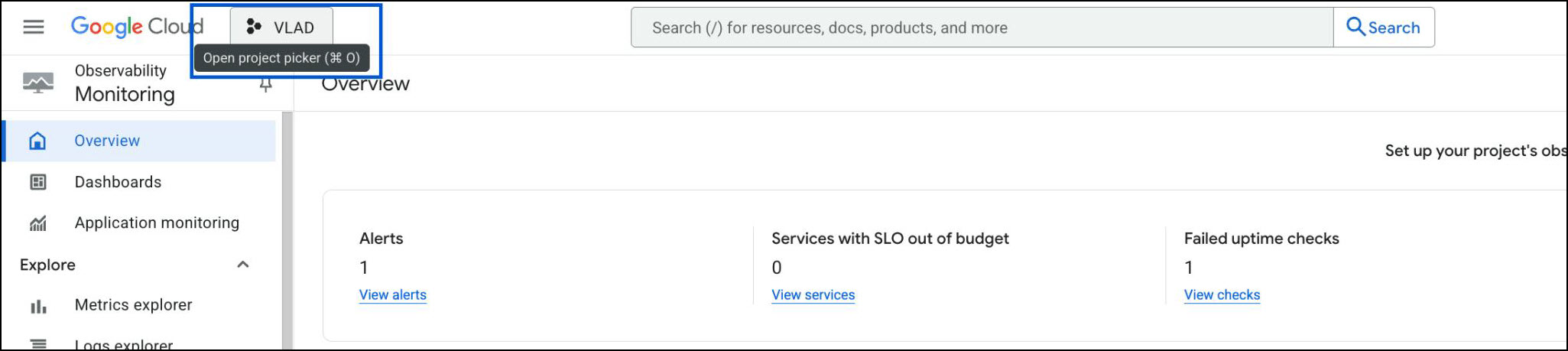
Click Open project picker in the top navigation bar.
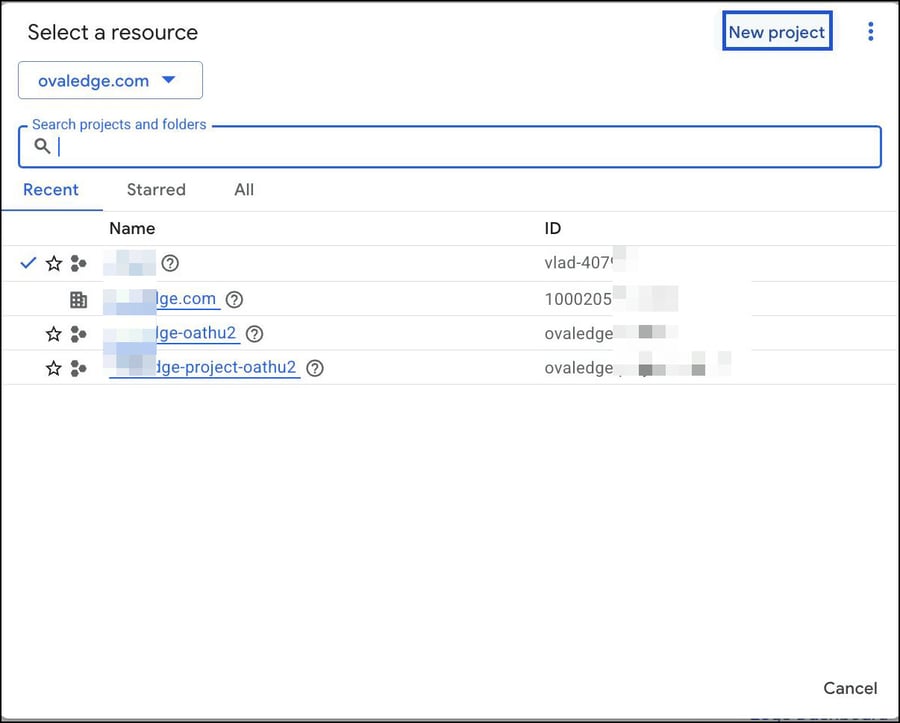
Select Resource → click New Project.
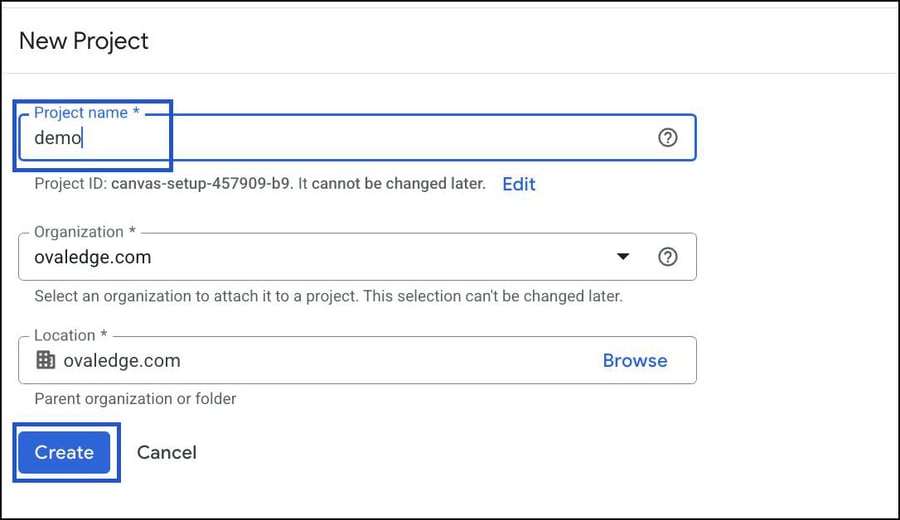
Enter a Project Name → click Create.
After creation, click Select Project to open the newly created project.

Enable OAuth2 and Configure Consent Screen
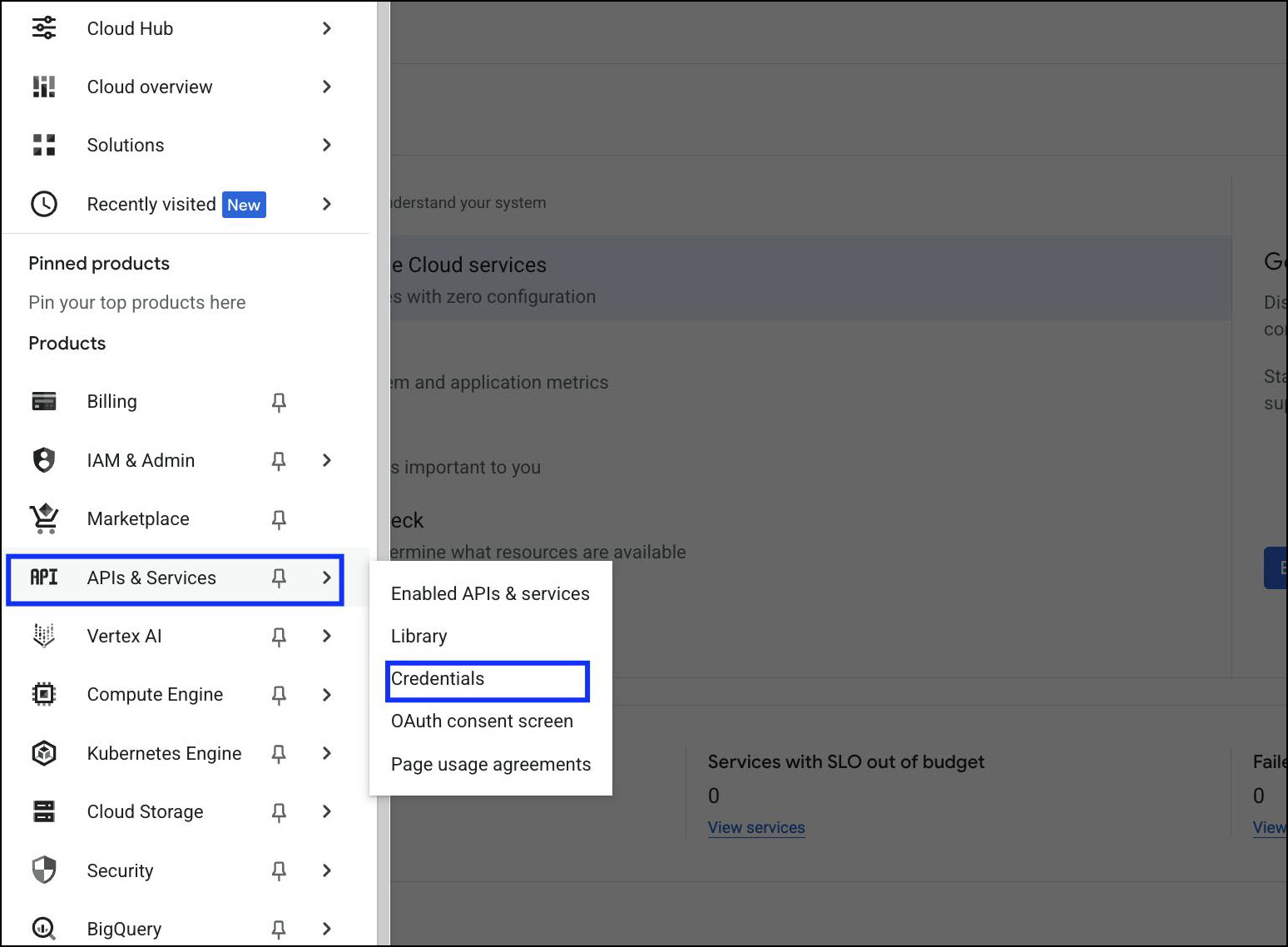
Navigate to APIs & Services > Credentials.
Click + CREATE CREDENTIALS → OAuth client ID.
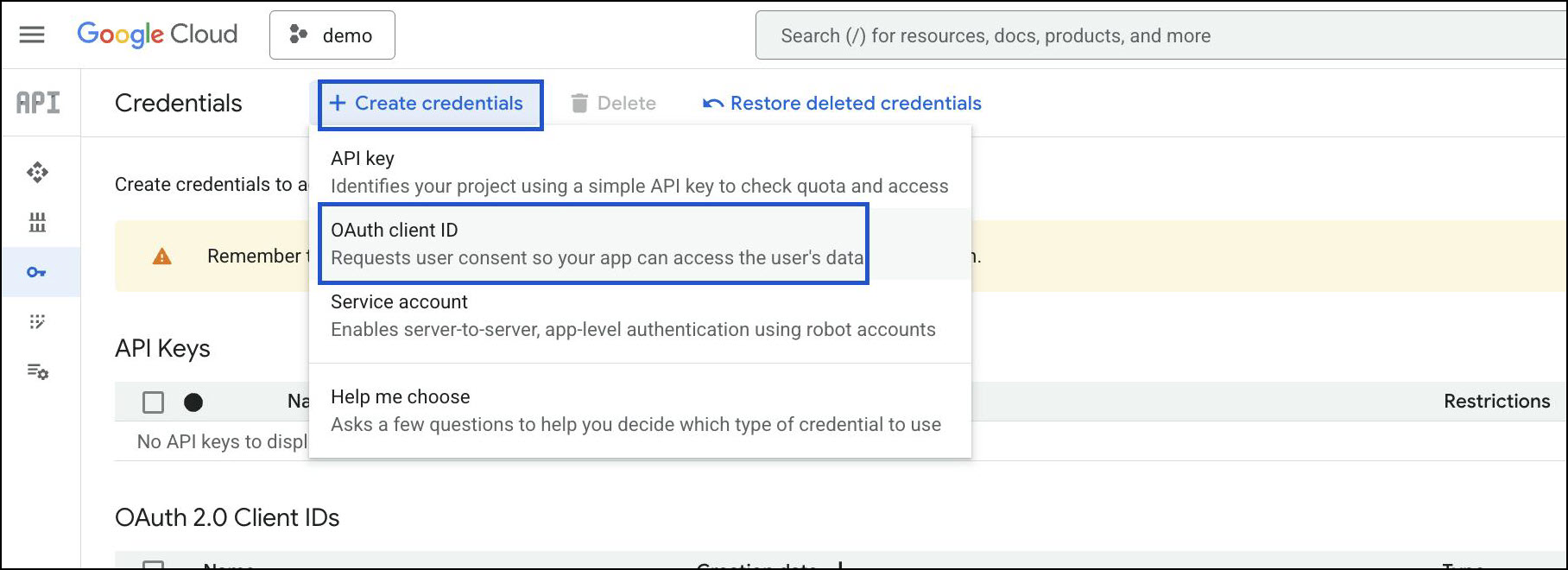
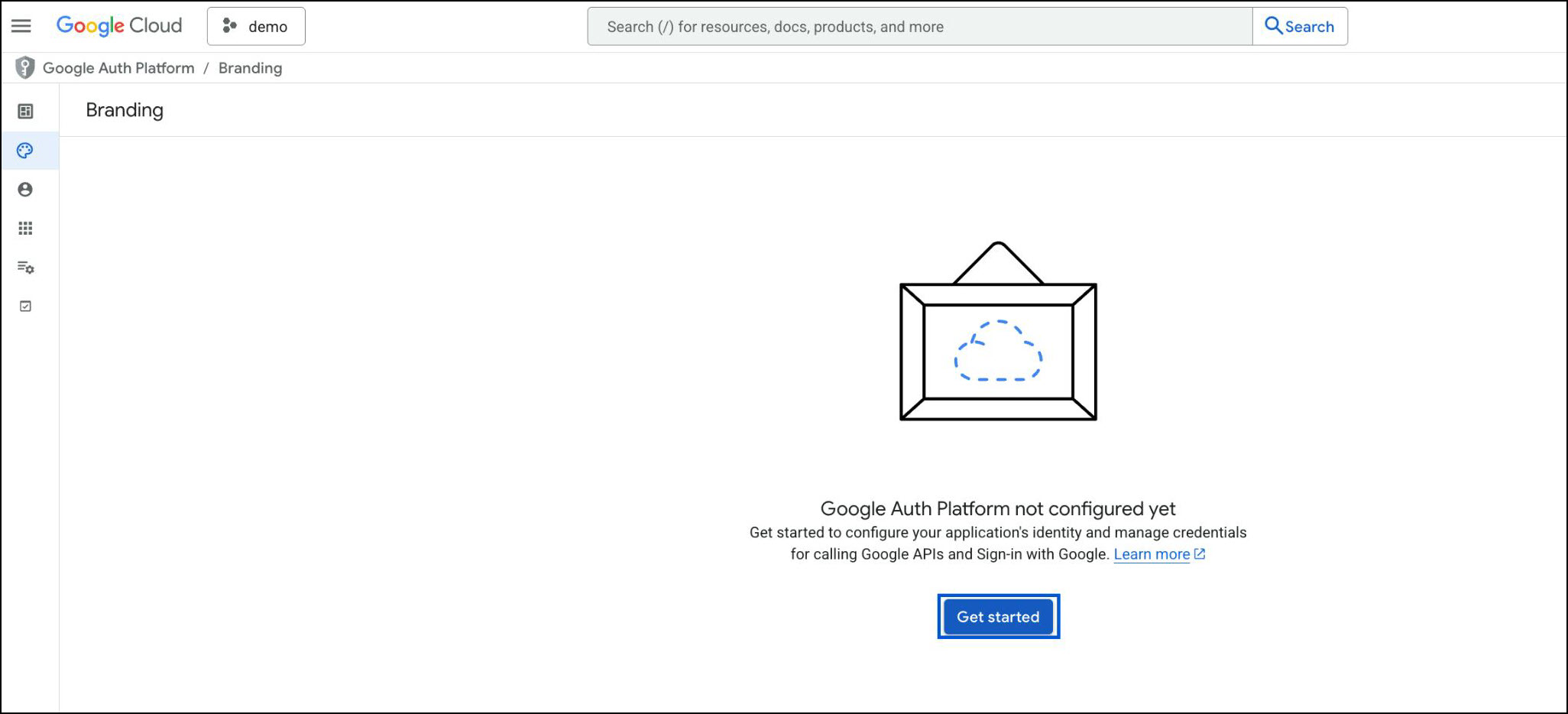
Configure consent screen:

Click Create to start a new consent screen.
Click Getting Started.
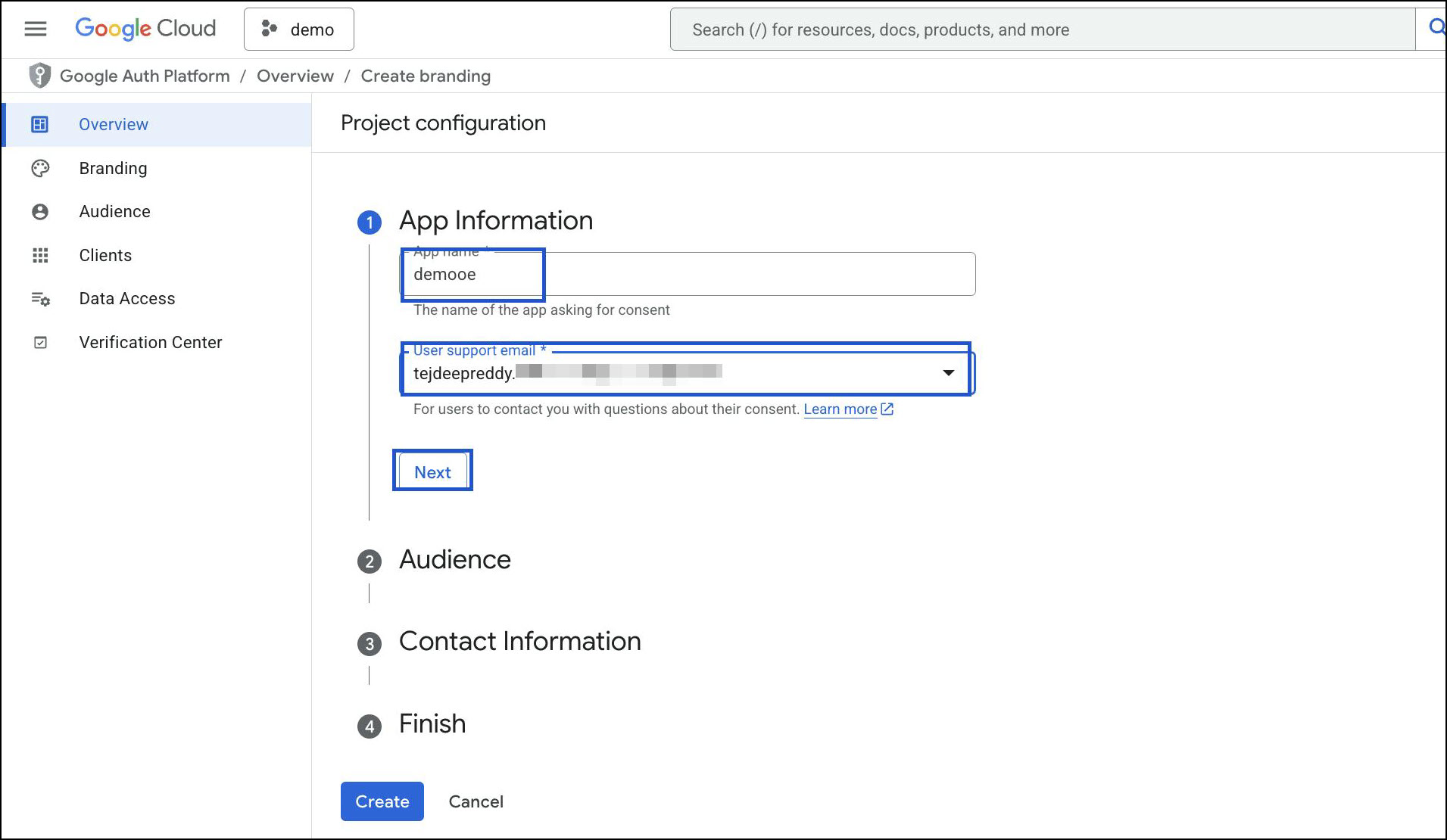
Provide App Name and Support Email → click Next.
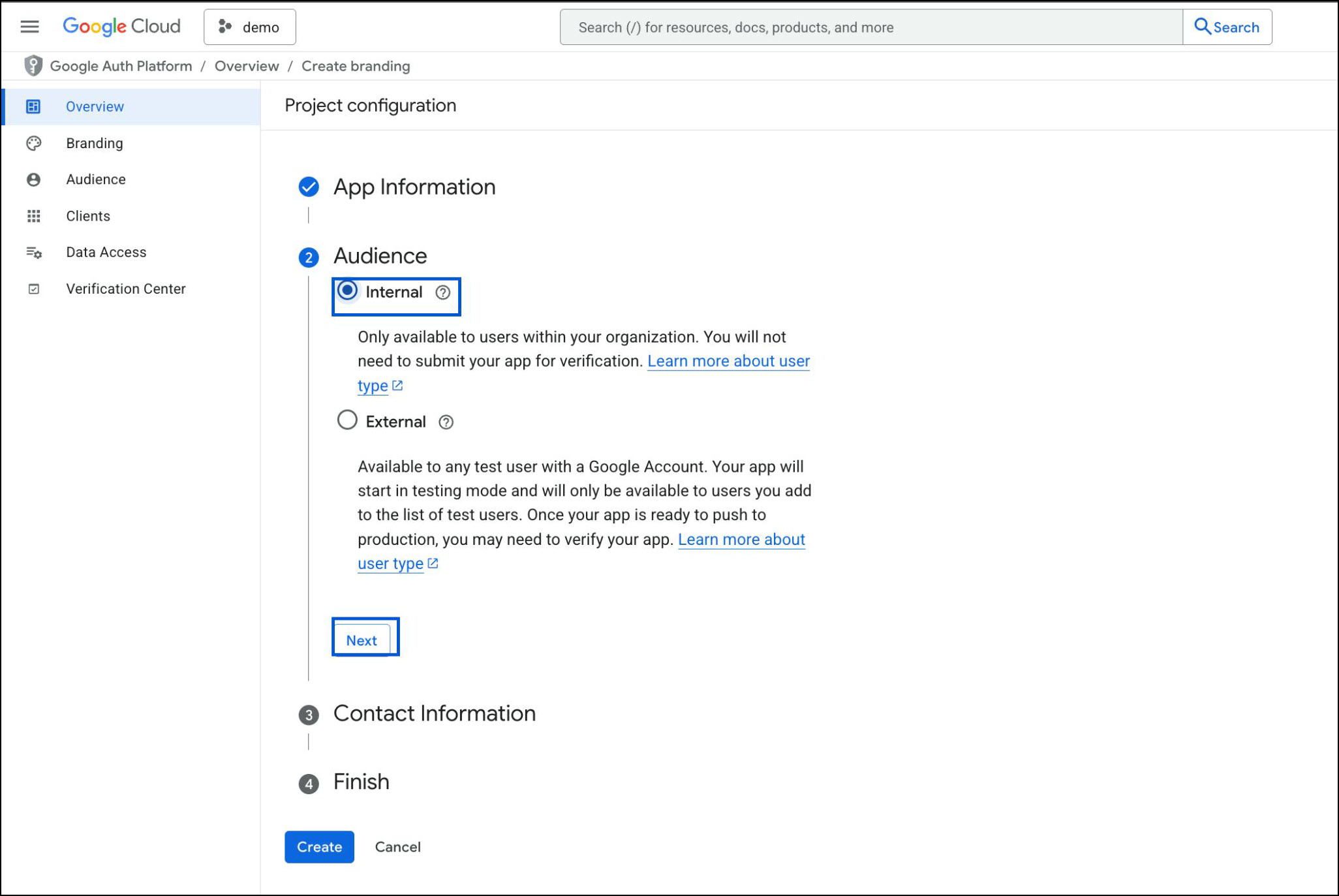
Select Internal as the user type (recommended for organizations).
Add a Contact Email address → click Next.
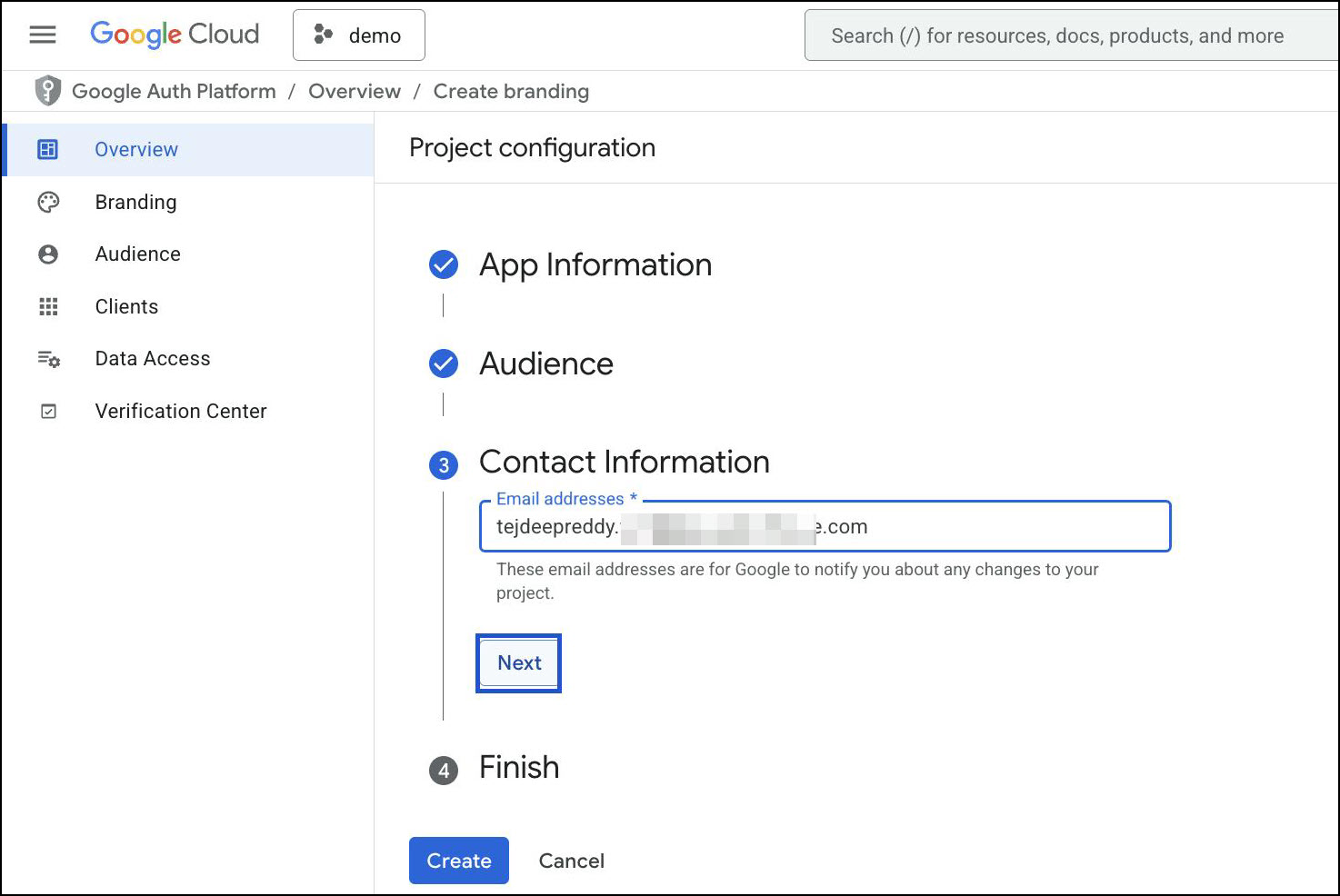
Select I agree and click Continue.
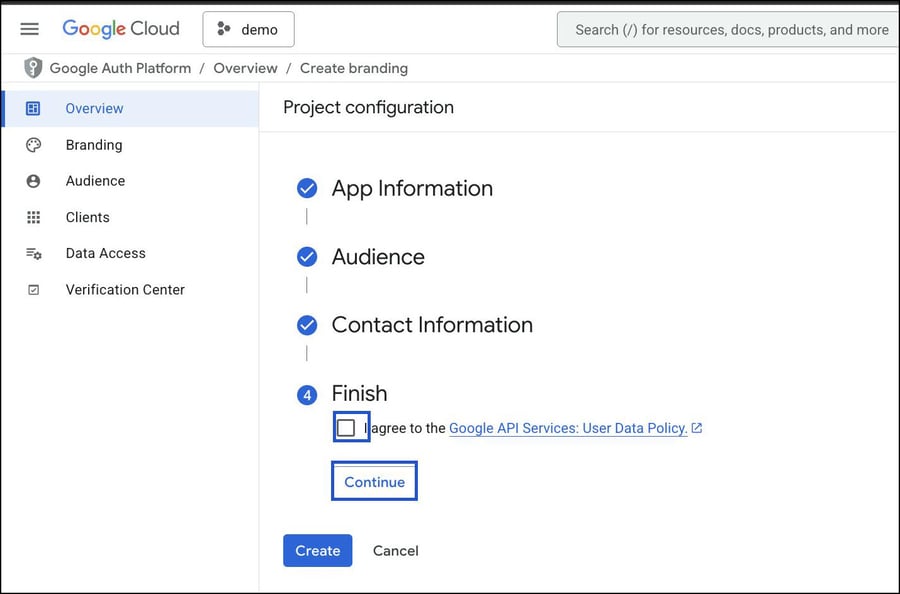
Once all sections show a checkmark (App Information, Audience, Contact Information, Finish), click Create.
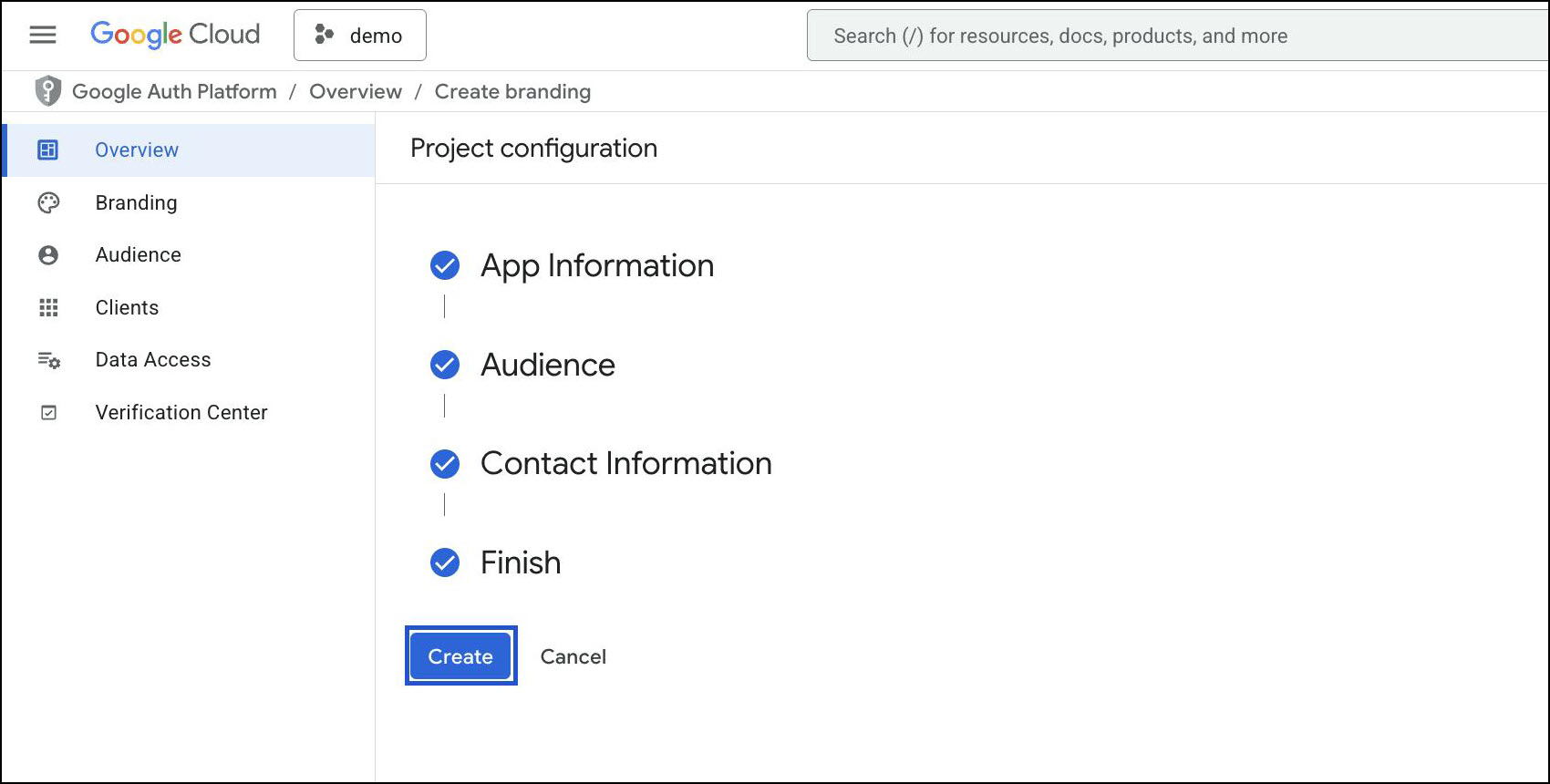
Create OAuth Client ID
From the Credentials tab, click + CREATE CREDENTIALS → OAuth client ID.
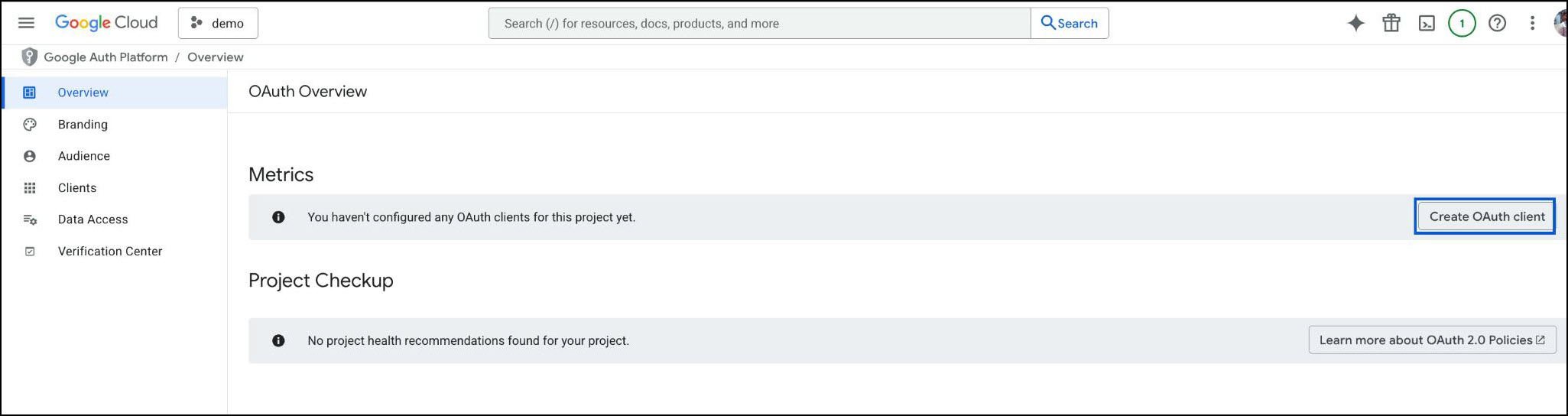
Choose Application type = Web application.
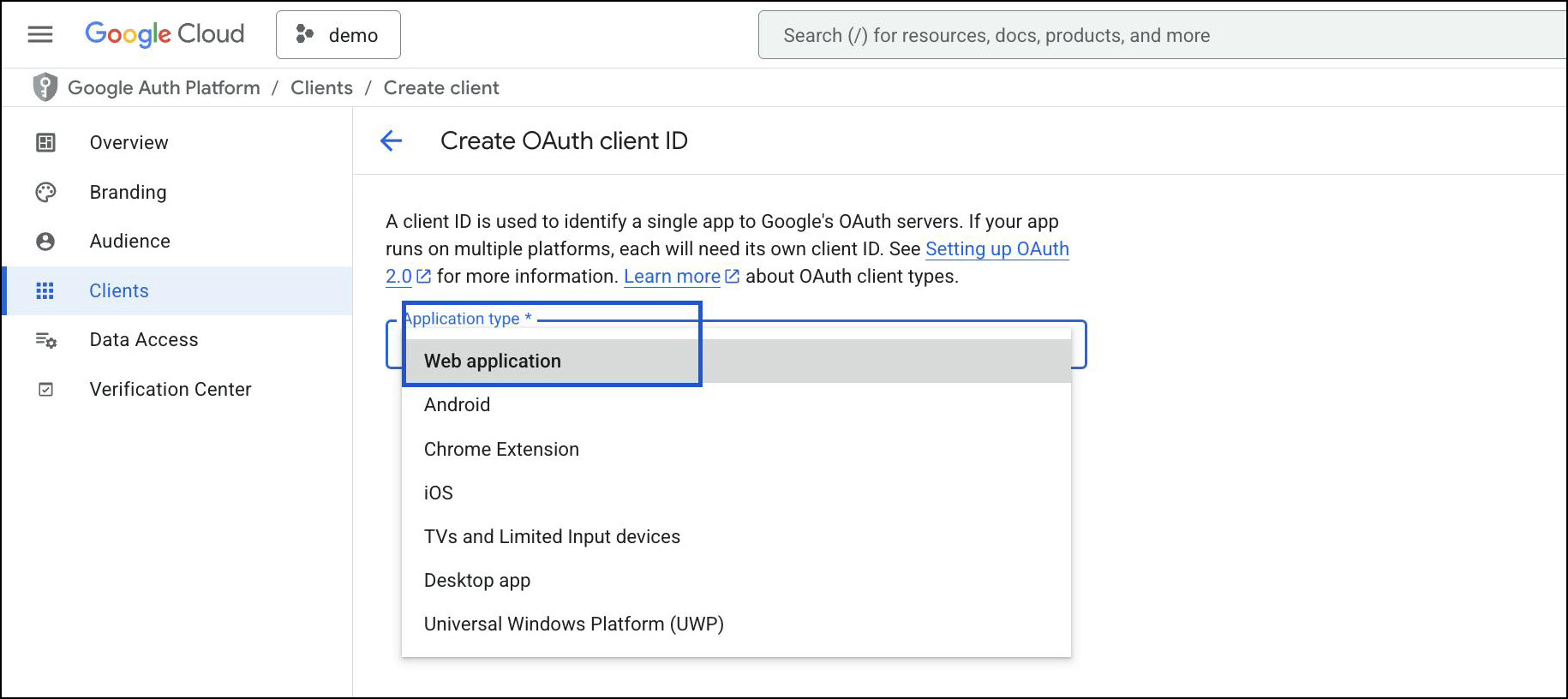
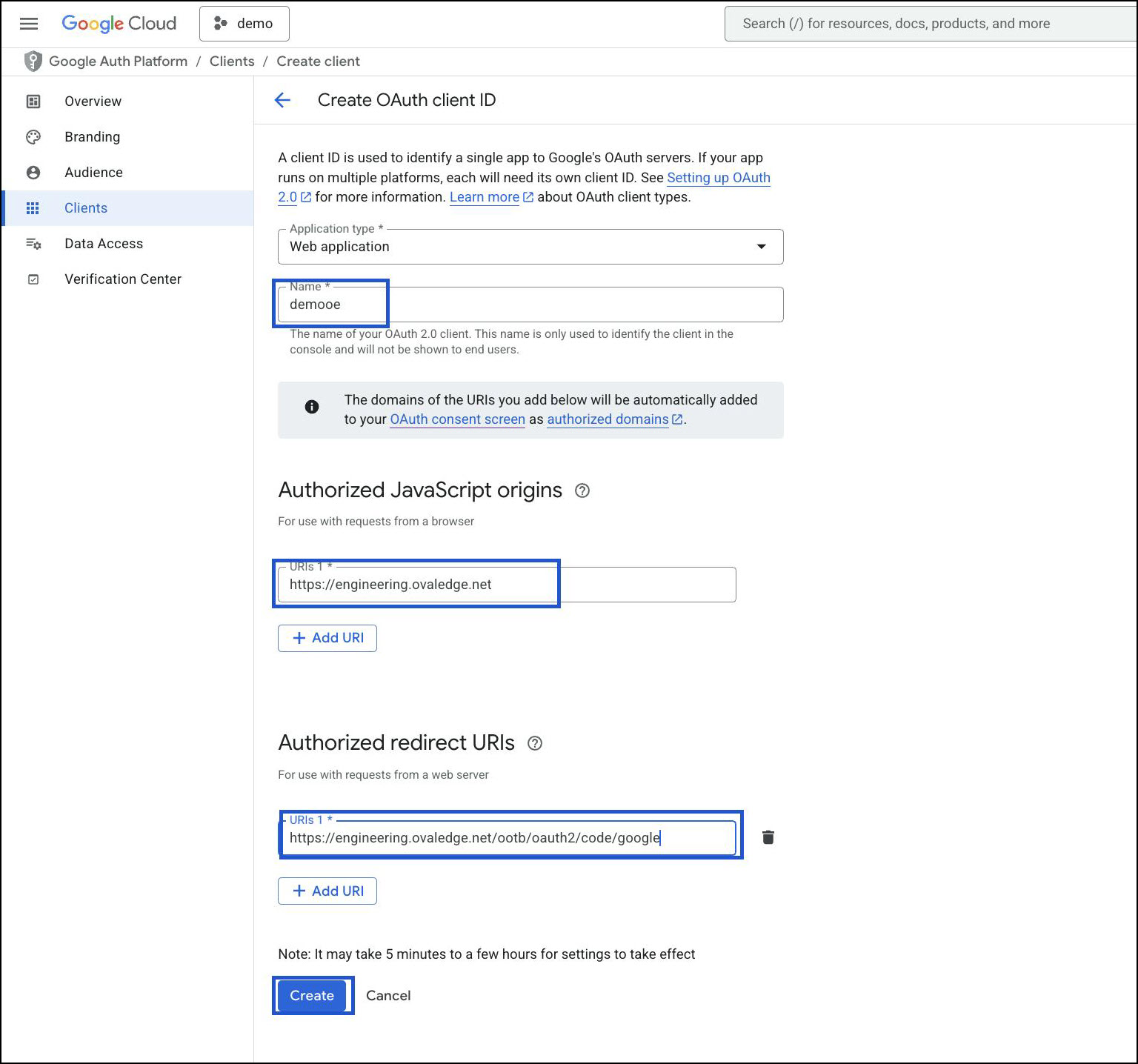
Enter a Name (e.g.,
OvalEdgeSSO).Under Authorized JavaScript origins, add:
Under Authorized redirect URIs, add:
Click Create.
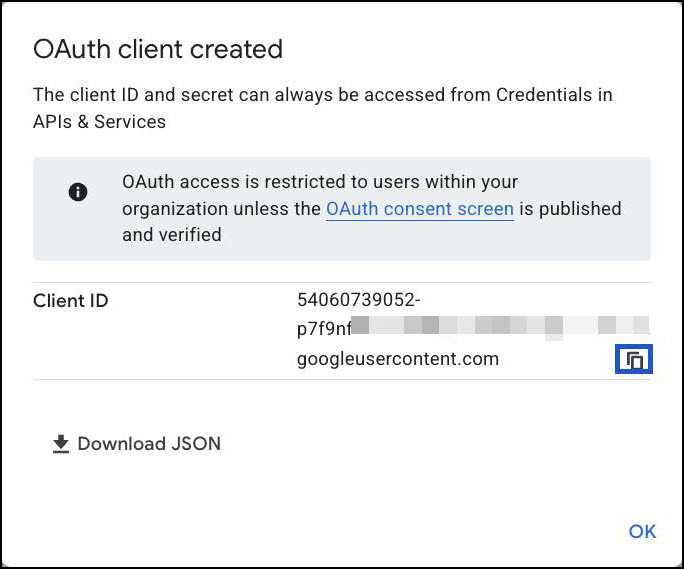
Copy the Client ID and click OK.
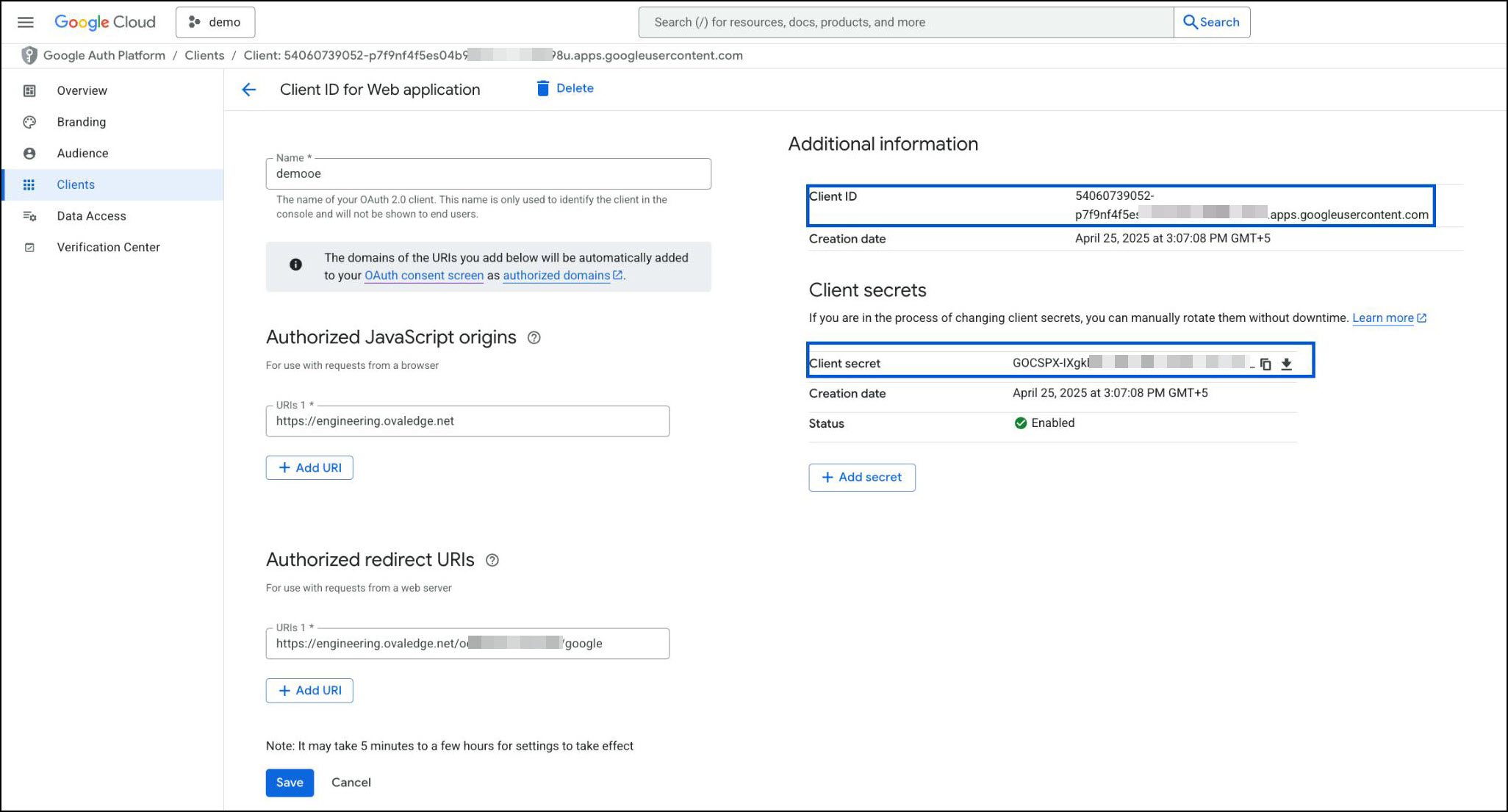
Navigate to Clients and click on the OAuth2.0 Client ID.

From the Additional Information section, copy the Client ID and Client Secret. These will be used in the OvalEdge configuration.
Update OvalEdge Configuration
Edit the
oasis.propertiesfile and add the following lines: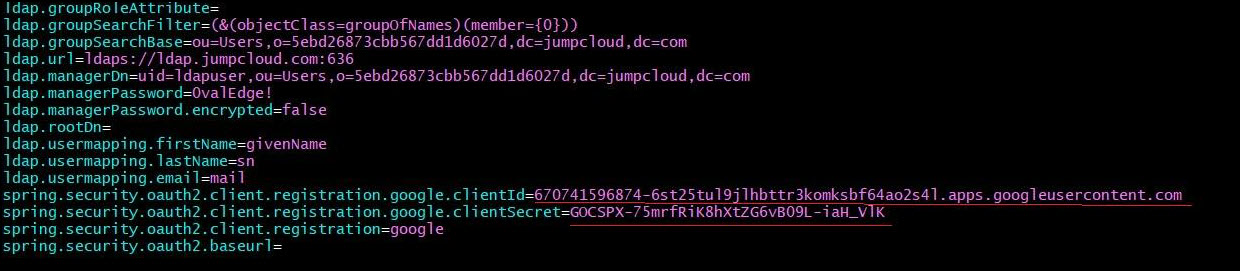
Enable OAuth2 in the OvalEdge Server
For Windows (Tomcat)
Navigate to the
Tomcat/bindirectory.Create a file named
setenv.batwith the following content: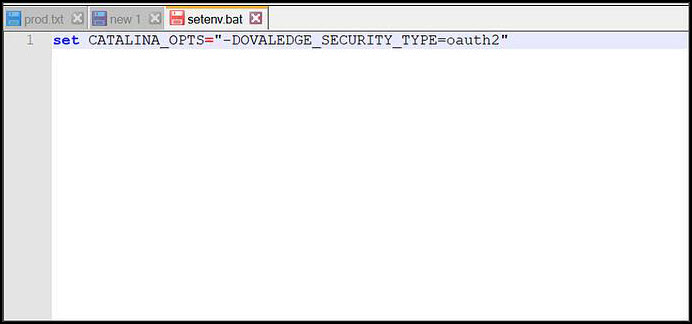
For Linux/Unix (Tomcat)
Navigate to the
Tomcat/bindirectory.Create a file named
setenv.shwith the following content:
Make the script executable:
Restart the Server
Restart the Tomcat server to apply the changes.
Once the server is up, navigate to the OvalEdge application URL.

Click Continue with Google.
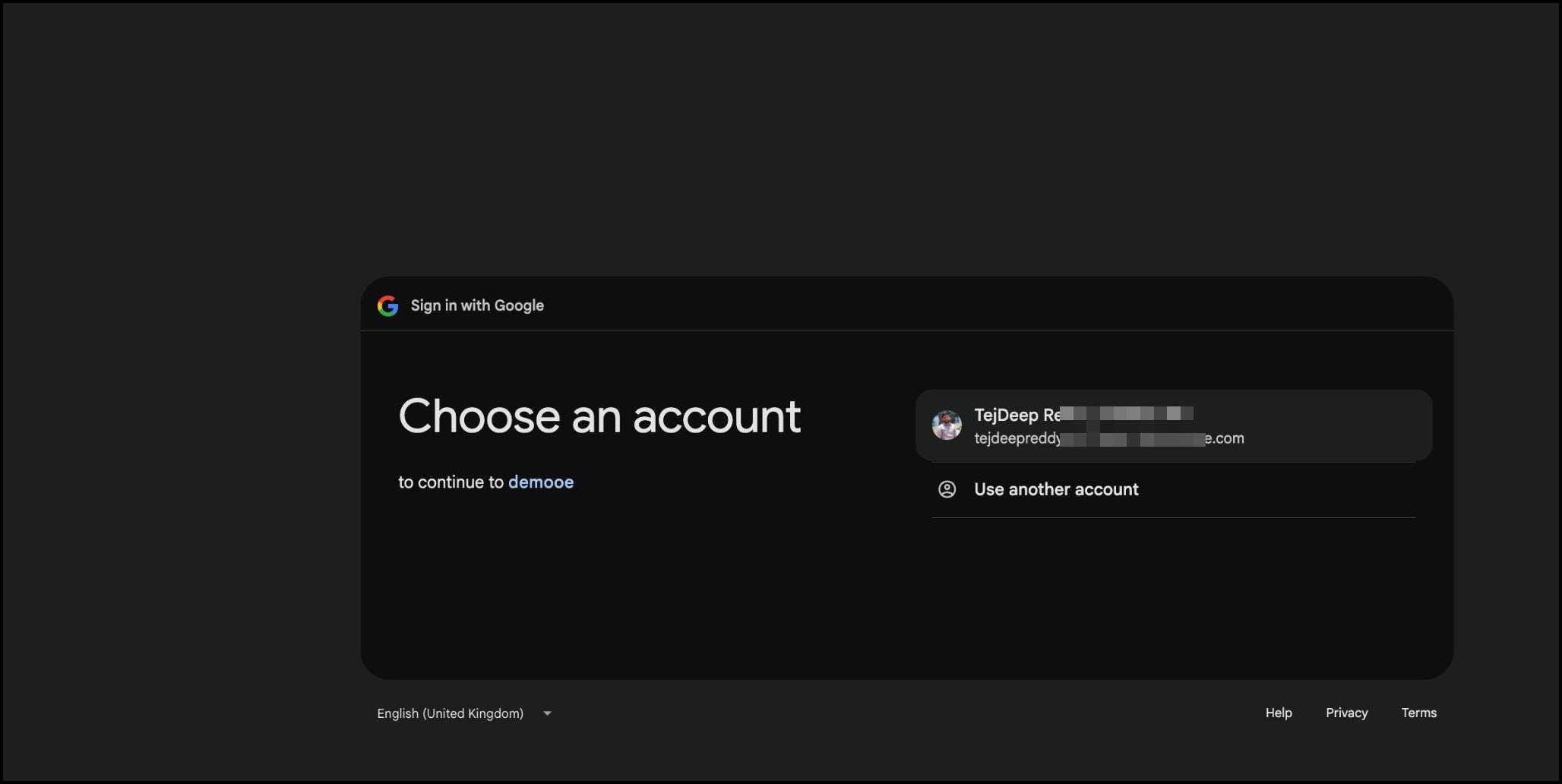
Select a Google OAuth 2.0 account.
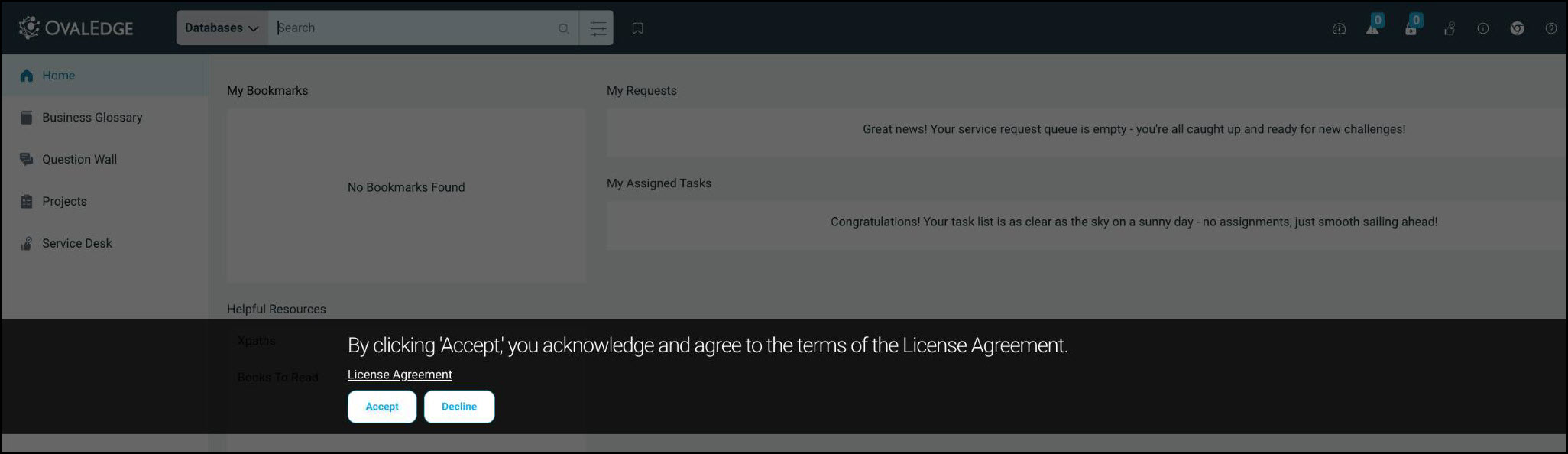
After successful validation, the OvalEdge Home page will appear.
Copyright © 2025, OvalEdge LLC, Peachtree Corners, GA, USA.
Was this helpful?