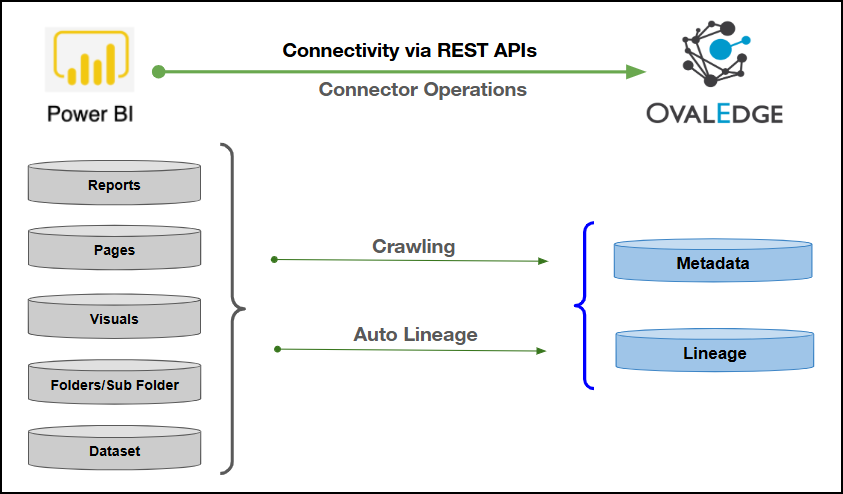
| Connector Category | Reporting Tools |
| OvalEdge Release Supported | Release 6.3.X and later |
Connectivity [How the connection is established with Power BI (On-Prem)] | REST APIs |
| Verified Power BI (On-Prem) Version | 1.1.6513.3500 - 1.22.9153.7886 |
| Power BI (On-Prem) Object | Power BI (On-Prem) Attribute | OvalEdge Attribute | OvalEdge Category | OvalEdge Type |
|---|---|---|---|---|
| Folders | Folder | Report Group | Reports | Folders |
| Sub folder | subfolder | Report Group | Reports | Sub folder |
| Reports | Reports Name | Report Name | Reports | Reports |
| Reports | Report description | Report description | Descriptions | Reports |
| Reports | Report Type | Type | Reports | Reports |
| Dataset | Dataset Name | Dataset Name | Reports | Dataset |
| Dataset | Dataset Description | Source description | Descriptions | Dataset |
| Dataset | Dataset Type | Type | Reports | Dataset |
| Pages | Page Name | Report Name | Reports | Pages |
| Pages | Page description | Source description | Reports | Pages |
| Pages | Page type | Type | Reports | Pages |
| Visuals | Visual Name | Report Name | Reports | Visuals |
| Visuals | Visual type | Type | Reports | Visuals |
| Visuals | Visual Filed | Report Columns | Report Columns | Visuals |
| Operation | Objects | Access Permission |
|---|---|---|
| Validation | Connector Validation | Windows user with a Content Manager permission |
| Crawling | Crawling | Windows user with a Content Manager permission |
| Build Lineage | Lineage | Windows user with a Content Manager permission |
| Crawling | Delta Crawl | Windows user with a Content Manager permission |
| Crawling | Semantic Model / Dataset | Windows user with a Content Manager permission |
| Crawling | Report | Windows user with a Content Manager permission |
| Crawling | Pages | Windows user with a Content Manager permission |
| Crawling | Visuals | Windows user with a Content Manager permission |
| Field Name | Description |
|---|---|
| Connector Type | By default, "Power BI" is displayed as the selected connector type. |
| Server Type* | From the dropdown list options (powerbionpremise/powerbicloud), select powerbionpremise. |
| Credential Manager* | Select the desired credentials manager from the drop-down list. Relevant parameters will be displayed based on your selection. Supported Credential Managers:
|
| License Add Ons | Select the checkbox for Auto Lineage Add-On to build data lineage automatically. |
| Connector Name* | Enter a unique name for the Power BI (On-Prem) connection (Example: "PowerBIOnPrem"). |
| Connector Environment | Select the environment (Example: PROD, STG) configured for the connector. |
| Connector Description | Enter a brief description of the connector. |
| Server Domain* | Enter the On-Premises Domain name. The Power BI Report Server allows organizations to host and share reports with users within their own domain or network. |
| Host Name* | This is the Hostname or IP address of the Power-BI Server. Database instance URL (on-premises). Example: app.powerbi.com [Localhost (on-premises)] |
| Connection URL* | Enter the On-Premise Database Connection URL. It is a URL string that the JDBC driver uses to connect to a database. |
| Files Path* | Enter the server files path. A user needs to create or take any existing path from the OvalEdge server and paste it here. |
| PBIT Files Path | Enter the server folder path where the PBIT files are stored. This path is used to read and process the PBIT files during the connection setup. |
| Connection String* | Set the Connection String toggle button to automatic to get the details automatically from the credentials provided. Alternatively, users can manually enter the string. https://app.powerbi.com/ |
| Username* | A username is required to connect to the Power BI On-Premise server. Enter the Service Account Name established to access the Power BI-on premise environment. |
| Password* | Password is required to connect to the Power BI on-premises server. |
| Windows Authentication (Y/N) | To validate the connection using Windows Authentication, enter 'Y'; otherwise, enter 'N'. |
| Check With Certs (Y/N) | To validate the connection using certificates, export the certificates and place them in the Java path, then enter 'Y'; otherwise, enter 'N'. |
| Read From NFS(Y/N) | To retrieve reports directly from the folder without connecting to the Power BI service, enter 'Y'; otherwise, enter 'N'. |
| Proxy Enabled* | Select Yes to route API calls through a proxy server. Select No to bypass the proxy and connect directly. |
| Default Governance Roles* | Select the appropriate users or teams for each governance role from the drop-down list. All users configured in the security settings are available for selection. |
| Admin Roles* | Select one or more users from the dropdown list for Integration Admin and Security & Governance Admin. All users configured in the security settings are available for selection. |
| No Of Archive Objects* | This shows the number of recent metadata changes to a dataset at the source. By default, it is off. To enable it, toggle the Archive button and specify the number of objects to archive. Example: Setting it to 4 retrieves the last four changes, displayed in the 'Version' column of the 'Metadata Changes' module. |
| Select Bridge* | If applicable, select the bridge from the drop-down list. The drop-down list displays all active bridges that have been configured. These bridges facilitate communication between data sources and the system without requiring changes to firewall rules. |
| Sl. No. | Scenario | Limitation |
|---|---|---|
| 1 | PBIX Export from Power BI Report Server | Reports can be exported from Power BI Report Server; however, in some cases, exported .pbix files contain an encrypted DataModel or DataModelSchema that cannot be parsed or processed. |
| 2 | Encrypted Data Models | Metadata extraction and lineage generation are not supported for .pbix files with encrypted data models. |
| 3 | PBIT File Requirement | When encryption is present, the corresponding .pbit (Power BI template) file is required to extract metadata and build lineage. |
| Sl. No. | Scenario | Limitation |
|---|---|---|
| 1 | HTTPS Connectivity | Secure connectivity fails if the Power BI Report Server SSL certificate is not trusted by the Java runtime used by OvalEdge. |
| 2 | Java Trust Store | SSL certificates must be manually imported into the Java keystore (cacerts) to establish a trusted HTTPS connection. |
| 3 | Certificate Renewal | When server certificates are renewed or replaced, the updated certificates must be re-imported into the Java keystore. |
| Sl. No. | Scenario | Limitation |
|---|---|---|
| 1 | Multiple Environments | Separate SSL certificate entries are required for each environment (for example, QA, UAT, PROD), each using a unique alias. |
| 2 | Containerized Java Deployments | In containerized or isolated Java environments, the default cacerts file may need to be copied and maintained separately. |