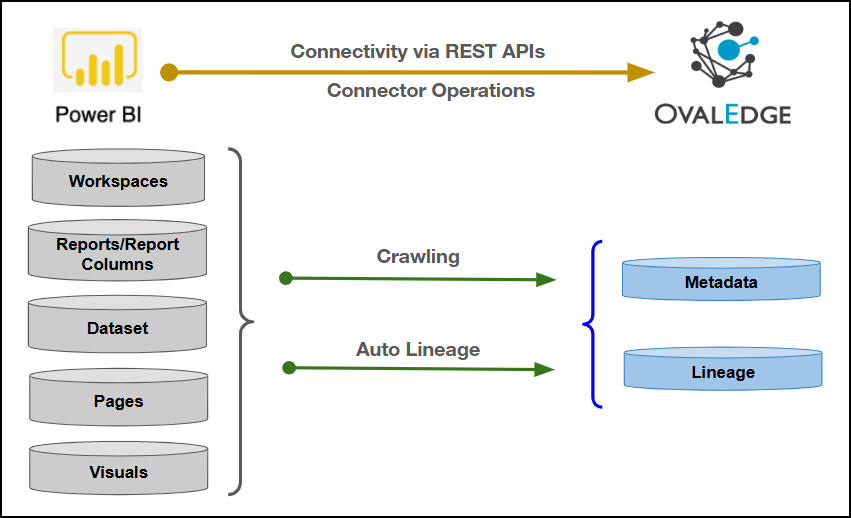
Connectivity
\[How OvalEdge connects to Power BI Cloud ]
| REST APIs | | OvalEdge Releases Supported (Available from) | Release3.0 | | Power BI Cloud Versions | 1.1.6513.3500 - 1.22.9153.7886 | {% hint style="info" %} The Power BI Cloud connector has been validated with the mentioned "Verified Power BI Cloud Versions" and is expected to be compatible with other supported Power BI Cloud versions. If there are any issues with validation or metadata crawling, please submit a support ticket for investigation and feedback. {% endhint %} ### **Connector Features** | Feature | Availability | | -------------------------------------------- | :----------: | | Crawling | ✅ | | Delta Crawling | ✅ | | Profiling | ❌ | | Query Sheet | ❌ | | Report Preview | ✅ | | Auto Lineage | ✅ | | Manual Lineage | ✅ | | Secure Authentication via Credential Manager | ✅ | | Data Quality | ❌ | | DAM (Data Access Management) | ❌ | | Bridge | ✅ | ### Metadata Mapping The metadata objects that can be extracted from Power BI Cloud using REST APIs include tenant, workspace, report, page, and semantic model metadata. For more details, click [here](https://docs.ovaledge.com/release8.0/connectors/connector-repositories/reporting-tool/power-bi/power-bi-cloud/power-bi-rest-apis-metadata). The following objects are crawled from Power BI Cloud and mapped to the corresponding UI assets. | Source Object | Source Attribute | OvalEdge Attribute | OvaEdge Category | OvalEdge Type | | ---------------------------------- | --------------------- | ------------------ | ---------------- | ----------------------------------------- | | Workspaces | Workspace | Report Group | Reports | Workspaces | | Workspaces | Workspace description | source description | description | Workspaces | | Reports | Reports Name | Report Name | Reports | Reports | | Reports | Report description | source description | description | Reports | | Reports | Report Type | type | Reprots | Dashboard, Report, Tile, Paginated report | | Reports | webUrl | contentUrl | Reports | Reports | | Pages | Page Name | Report Name | Reports | Page | | Pages | Page description | source description | Reports | Page | | Pages | Page type | type | Reports | Page | | Dataset/Semantic Model | Dataset Name | Dataset Name | Reports | Dataset, Dataflow | | Dataset/Semantic Model | Dataset Description | source description | description | Dataset, Dataflow | | Dataset/Semantic Model | Dataset Type | type | Reports | Dataset, Dataflow | | Datset/Semantic Model Tables | Table Name | Table name | Table | | | Datset/Semantic Model Tables | Description | source description | | | | Datset/Semantic Model Table Fields | Field Name | Column name | Column | Measure, TField | | Datset/Semantic Model Table Fields | Description | source description | Column | Measure, TField | | Datset/Semantic Model Table Fields | Field Type | type | Column | Measure, TField | | Datset/Semantic Model Table Fields | Expression | Formula | Column | Measure, TField | The following metadata information can be extracted only from the PBIX file: | Source Object | Source Attribute | OvalEdge Attribute | OvaEdge Category | OvalEdge Type | | ------------- | ----------------- | ------------------ | ---------------- | -------------------------- | | Visual | Visual Name | Report Name | Reports | Visual | | Visual | Visual type | type | Reports | Bar chart, pie chart etc.. | | Visual Fields | Visual Field Name | Column name | Report Field | Measure, TField | | Visual Fields | Description | source description | Report Field | Measure, TField | | Visual Fields | Visual Field Type | type | Report Field | Measure, TField | | Visual Fields | Expression | Formula | Report Field | Measure, TField | ## Set up a Connection ### Prerequisites The following are the prerequisites to establish a connection: For detailed prerequisite configuration steps in **Azure** and **Power BI** (including **App Registration**, **Security Group creation**, and **Power BI Admin Portal settings**), refer to the [**Power BI Cloud System Configuration**](https://docs.ovaledge.com/release8.0/connectors/connector-repositories/reporting-tool/power-bi/power-bi-cloud/power-bi-cloud-system-configuration)**.** #### **Service Account User Permissions** {% hint style="warning" %} It is recommended to use a separate service account to establish the connection to the data source, configured with the following minimum set of permissions. {% endhint %} {% hint style="info" %} 👨💻Who can provide these permissions? These permissions are typically granted by the Power BI Cloud administrator, as users may not have the required access to assign them independently. {% endhint %}| Objects | Access Permission |
|---|---|
| Connector Validation | Service Principal with Admin API Access or Service User with Admin rights |
| Crawling | Service Principal with Admin API Access or Service User with Admin rights |
| Lineage | Service Principal with Admin API Access or Service User with Admin rights |
| Delta Crawl | Service Principal with Admin API Access or Service User with Admin rights |
| Semantic Model / Dataset | Service Principal with Admin API Access or Service User with Admin rights |
| Report | Service Principal with Admin API Access or Service User with Admin rights |
| Pages | Service Principal with Admin API Access or Service User with Admin rights |
| Visuals | Service Principal with Admin API Access or Service User with Admin rights |
| Field Name | Description |
|---|---|
| Connector Type | By default, "PowerBI Cloud" is displayed as the selected connector type. |
| Server Type* | From the dropdown list options (powerbionpremise/powerbicloud), select powerbicloud. |
| Authentication* | Power BI Cloud supports two types of authentication.
Note: Service User authentication requires a Power BI user account, while Service Principal authentication requires an Azure Entra ID application with Azure AD app configuration and workspace role assignment. An app using service principal authentication that calls read-only admin APIs must not have any admin-consent required permissions for Power BI set on it in the Azure portal. |
| Field Name | Description |
|---|---|
| Credential Manager* | Select the desired credentials manager from the drop-down list. Relevant parameters will be displayed based on your selection. Supported Credential Managers:
|
| License Add Ons |
|
| PBIX/PBIT Source* | Enter the PBIX/PBIT Source. It has two options.
|
| Connector Name* | Enter a unique name for the Power BI Cloud connection (Example: "PowerBICloud"). |
| Connector Environment | Select the environment (Example: PROD, STG) configured for the connector. |
| Connector Description | Enter a brief description of the connector. |
| One Drive Connection* | Provide the OneDrive connector ID. Note: This field gets populated if the PBIX/PBIT Source is selected as OneDrive. |
| OneDrive Folder Name | Provide the OneDrive folder Name. Note: This field gets populated if the PBIX/PBIT Source is selected as OneDrive. |
| Client Id* | A unique identifier generated during app registration in Azure AD is used to authenticate the app in Power BI. |
| Client Secret* | A confidential key is generated during app registration and used to authenticate the app securely. |
| Tenant | An organization that owns and manages the Microsoft cloud instance (e.g., organization.onmicrosoft.com) |
| Tenant Id* | A unique identifier for the Azure AD instance is used to authenticate the app within the tenant. |
| Username* | Enter the service account username set up to access the Power BI Cloud (Example: "oesauser"). |
| Password* | Enter the password associated with the service account user (Example: "password"). |
| Files Path* | Provide the server file path to temporarily store exported PBIX files. |
| Premium reports(Y/N) | Select the Premium Report option. When the option is Yes, the user can crawl the report's dataset, and when the premium option is selected as NO, the user can only view the report. |
| Okta Enabled(Y/N) | If Okta is enabled for the given service user, enter ‘Y’; otherwise, enter ‘N’. |
| Read From NFS(Y/N) | To retrieve reports directly from the folder without connecting to the Power BI service, enter 'Y'; otherwise, enter 'N’. |
| Crawl Hidden Pages(Y/N) | To crawl the hidden pages, enter ‘Y’; otherwise, enter 'N’. |
| Plugin Open In PowerBI Apps(Y/N) | To open the reports using Apps in Power BI, enter ‘Y’. Else enter ‘N’. Note: Reports will open via apps if available; otherwise, they'll open through workspaces. |
| Proxy Enabled* | Select Yes to route API calls through a proxy server. Select No to bypass the proxy and connect directly. |
| Field Name | Description |
|---|---|
| Credential Manager* | Select the desired credentials manager from the drop-down list. Relevant parameters will be displayed based on your selection. Supported Credential Managers:
|
| License Add Ons |
|
| PBIX/PBIT Source* | Enter the PBIX/PBIT Source. It has two options.
|
| Connector Name* | Enter a unique name for the Power BI Cloud connection (Example: "PowerBICloud"). |
| Connector Environment | Select the environment (Example: PROD, STG) configured for the connector. |
| Connector Description | Enter a brief description of the connector. |
| One Drive Connection* | Provide the OneDrive connector ID. Note: This field gets populated if the PBIX/PBIT Source is selected as OneDrive. |
| OneDrive Folder Name | Provide the OneDrive folder Name. Note: This field gets populated if the PBIX/PBIT Source is selected as OneDrive. |
| Client Id* | A unique identifier generated during app registration in Azure AD is used to authenticate the app in Power BI. |
| Client Secret* | A confidential key is generated during app registration and used to authenticate the app securely. |
| Tenant | An organization that owns and manages the Microsoft cloud instance (e.g., organization.onmicrosoft.com) |
| Tenant Id* | A unique identifier for the Azure AD instance is used to authenticate the app within the tenant. |
| Files Path* | Provide the server file path to temporarily store exported PBIX files. |
| Premium reports(Y/N) | Select the Premium Report option. When the option is Yes, the user can crawl the report's dataset, and when the premium option is selected as NO, the user can only view the report. |
| Okta Enabled(Y/N) | If Okta is enabled for the given service user, enter ‘Y’; otherwise, enter ‘N’. |
| Read From NFS(Y/N) | To retrieve reports directly from the folder without connecting to the Power BI service, enter 'Y'; otherwise, enter 'N’. |
| Crawl Hidden Pages(Y/N) | To crawl the hidden pages, enter ‘Y’; otherwise, enter 'N’. |
| Plugin Open In PowerBI Apps(Y/N) | To open the reports using Apps in Power BI, enter ‘Y’. Else enter ‘N’. Note: Reports will open via apps if available; otherwise, they'll open through workspaces. |
| Proxy Enabled* | Select Yes to route API calls through a proxy server. Select No to bypass the proxy and connect directly. |
| Default Governance Roles* | Select the appropriate users or teams for each governance role from the drop-down list. All users configured in the security settings are available for selection. |
| Admin Roles* | Select one or more users from the drop-down list for Integration Admin and Security & Governance Admin. All users configured in the security settings are available for selection. |
| No Of Archive Objects* | This shows the number of recent metadata changes to a dataset at the source. By default, it is off. To enable it, toggle the Archive button and specify the number of objects to archive. Example: Setting it to 4 retrieves the last four changes, displayed in the 'Version' column of the 'Metadata Changes' module. |
| Select Bridge* | If applicable, select the bridge from the drop-down list. The drop-down list displays all active bridges that have been configured. These bridges facilitate communication between data sources and the system without requiring changes to firewall rules. |
| Sl. No. | Scenario | Limitation |
|---|---|---|
| 1 | Dedicated Capacity (A, EM, P SKU) | No published limit on the number of embed tokens that can be generated. Embed token usage can be monitored using the “Available Features” API. |
| 2 | Shared Capacity / Pro / PPU Licensing | Embed token generation is limited (not published) and intended only for development/testing. Users may receive the error: “You have exceeded the amount of embed token that can be generated on a shared or ProPlus capacity.” |
| 3 | Shared Capacity / Pro / PPU Licensing | Microsoft states embed tokens generated under Pro/PPU are meant only for development testing. To avoid limitations, dedicated capacity (A/EM/P SKU) is required for production embedding. |
| Sl. No. | Limitation Type | Limitation |
|---|---|---|
| 1 | Report Type Limitation | Reports created directly in Power BI Service (online editing) cannot be exported as .pbix using REST API. |
| 2 | Report Type Limitation | Reports using Live Connection / DirectQuery to another dataset do not support PBIX export. |
| 3 | Report Type Limitation | Reports using Dataflows, Analysis Services live connection, or composite models cannot be exported using REST API. |
| 4 | File Size Limitation | Exporting large PBIX files (greater than 1 GB uncompressed) may fail or time out. Microsoft does not officially guarantee export success beyond approximately 500 MB. |