# Oracle Analytics Server (OBIEE OAS)

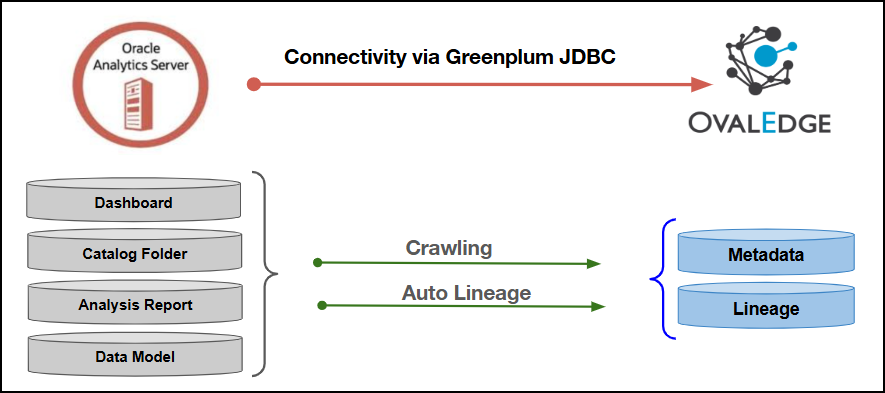
This article outlines the integration with the Oracle Analytics Server (OBIEE OAS) connector, enabling streamlined metadata management through features such as crawling and lineage (Auto & Manual). It also ensures secure authentication via Credential Manager.

<figure><img src="https://content.gitbook.com/content/ztcvwwOJCeaE1n6oHp4C/blobs/y1UKQ5dldrLIiRyPD6sY/unknown.png" alt=""><figcaption></figcaption></figure>

## Overview

### Connector Details

| Connector Category                                                            | Reporting Tools       |
| ----------------------------------------------------------------------------- | --------------------- |
| Connector Version                                                             | Release6.3            |
| Releases Supported (Available from)                                           | Release6.3            |
| <p>Connectivity</p><p>\[How the connection is established with OBIEE OAS]</p> | GreenPlum JDBC Driver |

### Connector Features

| Feature                                      | Availability |
| -------------------------------------------- | :----------: |
| Crawling                                     |       ✅      |
| Delta Crawling                               |       ❌      |
| Profiling                                    |      NA      |
| Query Sheet                                  |      NA      |
| Report Preview                               |       ❌      |
| Auto Lineage                                 |       ✅      |
| Manual Lineage                               |       ✅      |
| Secure Authentication via Credential Manager |       ✅      |
| Data Quality                                 |       ❌      |
| DAM (Data Access Management)                 |      NA      |

{% hint style="info" %}
'NA' indicates that the respective feature is 'Not Applicable.'
{% endhint %}

### Metadata Mapping

The following objects are crawled from OBIEE OAS and mapped to the corresponding UI assets.

<table><thead><tr><th width="186.88885498046875">OBIEE OAS Object</th><th width="330.3333740234375">OBIEE OAS Attribute</th><th width="179.5555419921875">OvalEdge Attribute</th><th width="171.5555419921875">OvalEdge Category</th><th width="179.5555419921875">OvalEdge Type</th></tr></thead><tbody><tr><td>Dashboard (Domain)</td><td>catalog_dashboardpages_data.folder</td><td>Report Group</td><td>Reports</td><td>Report Group</td></tr><tr><td>Dashboard (Domain)</td><td>catalog_dashboardpages_data.type</td><td>Report Group Type</td><td>              -</td><td>              -</td></tr><tr><td>Catalog Folder (Domain)</td><td>rpt_catalog_fold_data_table.folder</td><td>Report Group</td><td>Reports</td><td>Report Group</td></tr><tr><td>Catalog Folder (Domain)</td><td>rpt_catalog_fold_data_table.type</td><td>Report Group Type</td><td>              -</td><td>              -</td></tr><tr><td>Catalog Analysis Folder (Domain)</td><td>rpt_catalog_analy_data_table.folder</td><td>Report Group</td><td>Reports</td><td>Report Group</td></tr><tr><td>Catalog Analysis Folder (Domain)</td><td>rpt_catalog_analy_data_table.type</td><td>Report Group Type</td><td>              -</td><td>              -</td></tr><tr><td>Dashboard (Report)</td><td>Name: derived from catalog_dashboardpages_data.folder (last segment after /_portal/, Scheduled_Reports/, /shared/Templates/, /shared/Custom Made Reports/)</td><td>Report</td><td>Reports</td><td>Report Name</td></tr><tr><td>Dashboard (Report)</td><td>Type: literal “Dashboard”</td><td>Report Type</td><td>Reports</td><td>Dashboard</td></tr><tr><td>Analysis Report</td><td>rpt_catalog_analy_data_table.name</td><td>Report</td><td>Reports</td><td>Report Name</td></tr><tr><td>Analysis Report</td><td>Analysis Report' literal</td><td>Report Type</td><td>Reports</td><td>Analysis Report'</td></tr><tr><td>Subject Area Report</td><td>CONCAT(name,'.',subject_area) from rpt_catalog_analy_data_table</td><td>Report</td><td>Reports</td><td>Report Name</td></tr><tr><td>Subject Area Report</td><td>Subject Area Report' literal</td><td>Report Type</td><td>Reports</td><td>Subject Area Report</td></tr><tr><td>Data Model (.xdm)</td><td>rpt_catalog_fold_data_table.name (like '%.xdm')</td><td>Report</td><td>Reports</td><td>Report Name</td></tr><tr><td>Data Model (.xdm)</td><td>Data Model' literal</td><td>Report Type</td><td>Reports</td><td>Data Model</td></tr><tr><td>Publisher Report (.xdo)</td><td>vw_publisher_reports_data.report_name</td><td>Report</td><td>Reports</td><td>Report Name</td></tr><tr><td>Publisher Report (.xdo)</td><td>Publisher Report' literal</td><td>Report Type</td><td>Reports</td><td>Publisher Report</td></tr><tr><td>Analysis Field</td><td>rpt_catalog_analy_data_table.column_name</td><td>Report Columns</td><td>Report Columns</td><td>Report Column Name</td></tr><tr><td>Analysis Field</td><td>analysis' literal</td><td>Type</td><td>Report Columns</td><td>analysis</td></tr><tr><td>Analysis Field</td><td>rpt_catalog_analy_data_table.formula</td><td>Source Description</td><td>Report Columns</td><td>Source Description</td></tr><tr><td>Data Model Field</td><td>catalog_datamodel_fileds.fieldname (via joins)</td><td>Report Columns</td><td>Report Columns</td><td>Report Column Name</td></tr><tr><td>Data Model Field</td><td>datamodel' literal</td><td>Type</td><td>Report Columns</td><td>datamodel</td></tr></tbody></table>

## Set up a Connection

### Prerequisites

The prerequisites to establish a connection:

### **Whitelisting Ports**

Whitelist the inbound port 5432 to allow OvalEdge to connect to the OBIEE OAS database.

{% hint style="warning" %}
OBIEE OAS uses port 5432 by default. When a different port is configured, specify the updated port number during connection setup, whitelist the port, and establish proper communication between the system and the OBIEE OAS Server.
{% endhint %}

### Service Account User Permissions

{% hint style="warning" %}
It is recommended to use a separate service account to establish the connection to the data source, configured with the following minimum set of permissions.
{% endhint %}

{% hint style="info" %}
**👨‍💻 Who can provide these permissions?** The OBIEE OAS administrator grants these permissions, since users may not have sufficient access to assign them.
{% endhint %}

<table><thead><tr><th width="324.22216796875">Objects</th><th>Access Permission</th></tr></thead><tbody><tr><td>Connector Validation</td><td>DB user with read access to the OBIEE/OAS metadata repository database</td></tr><tr><td>Crawling</td><td>Read access to the repository tables</td></tr><tr><td>Lineage</td><td>Read access to analysis, publisher, datamodel, and repository mapping tables</td></tr><tr><td>Catalog Folder (Domain)</td><td>Read repo tables</td></tr><tr><td>Catalog Analysis Folder (Domain)</td><td>Read repo tables</td></tr><tr><td>Dashboard (Domain)</td><td>Read repo tables</td></tr><tr><td>Dashboards (Reports under Dashboard Domain)</td><td>Read repo tables</td></tr><tr><td>Analysis Reports (Report)</td><td>Read repo tables</td></tr><tr><td>Subject Area Reports (Report)</td><td>Read repo tables</td></tr><tr><td>Data Models (.xdm) (Report)</td><td>Read repo tables</td></tr><tr><td>Publisher Reports (.xdo) (Report)</td><td>Read repo tables</td></tr><tr><td>Dashboard Pages (optional)</td><td>Read repo tables</td></tr><tr><td>ACL (Access Control List) metadata</td><td>Read repo tables</td></tr></tbody></table>

### Connection Configuration Steps

{% hint style="warning" %}
Users must have the Connector Creator role to configure a new connection.
{% endhint %}

1. Log into OvalEdge, go to Administration > Connectors, click + **(New Connector)**, search for **OBIEE OAS**, and enter the required parameters.

{% hint style="info" %}
Fields marked with an asterisk (\*) are mandatory for establishing a connection.
{% endhint %}

<table><thead><tr><th width="219.3333740234375">Field Name</th><th>Description</th></tr></thead><tbody><tr><td>Connector Type</td><td>By default, "OBIEEOAS" is displayed as the selected connector type.</td></tr><tr><td>Credential Manager*</td><td><p>Select the desired credentials manager from the drop-down list. Relevant parameters will be displayed based on the selection.</p><p>Supported Credential Managers:</p><ul><li>OE Credential Manager</li><li>AWS Secrets Manager</li><li>HashiCorp</li><li>Azure Key Vault</li></ul></td></tr><tr><td>License Add-On</td><td><p></p><ul><li>Select the Auto Lineage Add-On checkbox to automatically build data lineage.</li></ul></td></tr><tr><td>Connector Name*</td><td><p>Enter a unique name for the OBIEE OAS connection              </p><p>(Example: "OAS_Prod").</p></td></tr><tr><td>Connector Environment</td><td>Select the environment (Example: PROD, STG) configured for the connector.</td></tr><tr><td>Connector Description</td><td>Enter a brief description of the connector.</td></tr><tr><td>Server*</td><td>Enter the Oracle Analytics Server hostname or IP address where the OAS instance is hosted.</td></tr><tr><td>Port*</td><td>Enter the port number configured for the Oracle Analytics Server (OBIEE OAS) instance.</td></tr><tr><td>Database*</td><td>Enter the service name or SID of the Oracle Analytics Server (OBIEE OAS) database.</td></tr><tr><td>Driver*</td><td>By default, OBIEE OAS uses ‘com.pivotal.jdbc.GreenplumDriver.’ This field is not editable.</td></tr><tr><td>Username*</td><td>Enter the username to access the OBIEE OAS server.</td></tr><tr><td>Password*</td><td>Enter the password associated with the OBIEE OAS username.</td></tr><tr><td>Connection String</td><td><p>Configure the connection string for the OBIEE OAS database:</p><ul><li>Automatic Mode: The system generates a connection string based on the provided credentials.</li><li>Manual Mode: Enter a valid connection string manually.</li></ul><p>Replace placeholders with actual database details.</p><p>{sid} refers to Database Name.</p></td></tr><tr><td>Plugin Server</td><td>Enter the server name when running as a plugin server.</td></tr><tr><td>Plugin Port</td><td>Enter the port number on which the plugin is running.</td></tr></tbody></table>

**Default Governance Roles**

<table data-header-hidden><thead><tr><th width="220.22222900390625"></th><th></th></tr></thead><tbody><tr><td>Default Governance Roles*</td><td>Select the appropriate users or teams for each governance role from the drop-down list. All users and teams configured in OvalEdge Security are displayed for selection.</td></tr></tbody></table>

**Admin Roles**

<table data-header-hidden><thead><tr><th width="219.33331298828125"></th><th></th></tr></thead><tbody><tr><td>Admin Roles*</td><td>Select one or more users from the dropdown list for Integration Admin and Security &#x26; Governance Admin. All users configured in OvalEdge Security are available for selection.</td></tr></tbody></table>

**No of Archive Objects**

<table data-header-hidden><thead><tr><th width="221.11114501953125"></th><th></th></tr></thead><tbody><tr><td>No Of Archive Objects*</td><td><p>This shows the number of recent metadata changes to a dataset at the source. By default, it is off. To enable it, toggle the Archive button and specify the number of objects to archive.</p><p>Example: Setting it to 4 retrieves the last four changes, displayed in the 'Version' column of the 'Metadata Changes' module.</p></td></tr></tbody></table>

**Bridge**

<table data-header-hidden><thead><tr><th width="220.22222900390625"></th><th></th></tr></thead><tbody><tr><td>Select Bridge*</td><td><p>If applicable, select the bridge from the drop-down list.</p><p>The drop-down list displays all active bridges configured in OvalEdge. These bridges enable communication between data sources and OvalEdge without altering firewall rules.</p></td></tr></tbody></table>

2. After entering all connection details, the following actions can be performed:
   1. Click **Validate** to verify the connection.
   2. Click **Save** to store the connection for future use.
   3. Click **Save & Configure** to apply additional settings before saving.
3. The saved connection will appear on the Connectors home page.

## Manage Connector Operations

### Crawl

{% hint style="warning" %}
To perform crawl operations, users must be assigned the Integration Admin role.
{% endhint %}

The **Crawl/Profile** button allows users to select one or more schemas for crawling.&#x20;

1. Navigate to the **Connectors** page and click **Crawl/Profile**.
2. Select the schemas to crawl.
3. Click **Run** to collect metadata from the connected source and load it into the Data Catalog.
4. After a successful crawl, the information appears in the **Data Catalog > Report / Report Column** tab.

The **Schedule** checkbox allows automated crawling for a selected timeframe, from a minute to a year.

1. Click the **Schedule** checkbox to enable the **Select Period** drop-down.
2. Select a time period for the operation from the drop-down menu.
3. Click **Schedule** to initiate metadata collection from the connected source.
4. The system will automatically execute the crawl operation at the scheduled time.

### Other Operations

The Connectors page provides a centralized view of all configured connectors and their health status.

**Managing connectors includes:**

* **Connectors Health**: Displays the current status of each connector, with a **green** icon for active connections and a **red** icon for inactive connections, helping monitor connectivity to data sources.
* **Viewing**: Click the **Eye** icon next to the connector name to view connector details, including Reports, Report Groups, and Report Columns.

**Nine Dots Menu Options:**

To view, edit, validate, build lineage, configure, or delete connectors, click on the **Nine Dots menu**.

* **Edit Connector**: Update and revalidate the data source.
* **Validate Connector**: Check the integrity of the connection.
* **Settings**: Modify connector settings.
  * **Crawler**: Configure data extraction.
  * **Access Instructions**: Add notes on how data can be accessed.
  * **Lineage**: Select server dialects for parsing and setting connector priority for table lineage.
  * **Business Glossary Settings**: Manage term associations at the connector level.
  * **Others**: Configure notification recipients for metadata changes.
* **Build Lineage**: Automatically build data lineage using source code parsing.
* **Delete Connector**: Remove a connector with confirmation.

### Connectivity Troubleshooting

If incorrect parameters are entered, error messages may appear. Ensure all inputs are accurate to resolve these issues. If issues persist, contact the assigned support team.

<table><thead><tr><th width="88.111083984375">S.No.</th><th width="209.888916015625">Error Message(s)</th><th>Error Description &#x26; Resolution</th></tr></thead><tbody><tr><td>1</td><td>Error while validating OBIEEOAS connection Error while validating Database Connection in GreenPlumConnection : Failed to obtain JDBC Connection</td><td><p>Error Description: The system failed to establish a JDBC connection to the Greenplum database during validation of the OBIEE OAS connector, due to incorrect connection details or an unavailable database service.</p><p>Resolution: Verify the JDBC connection string, database credentials, and network connectivity to the Greenplum server, then reattempt the validation.</p></td></tr></tbody></table>

***

Copyright © 2025, OvalEdge LLC, Peachtree Corners, GA, USA.
