# QuickBooks Online - Access Configuration
This document describes the required configurations within QuickBooks Online to enable secure, API-based access to company accounting data. It outlines the prerequisite application credentials, company identification details, environment selection, and token requirements necessary to authorize and maintain controlled access through Intuit’s platform.
## Purpose
The purpose of this document is to provide administrators with clear guidance on preparing a QuickBooks Online environment for platform access by defining required application credentials, identifying the target company, selecting the appropriate environment, and managing authorization tokens to ensure secure and uninterrupted connectivity.
## Supported Server Type and Scope
| Parameter | Value |
| ----------- | -------------------------------- |
| Server Type | quickbooks-online |
| OAuth Scope | com.intuit.quickbooks.accounting |
{% hint style="info" %}
The specified scope grants access to QuickBooks Online accounting data and must be enabled during authorization.
{% endhint %}
## Application Credentials
### Client ID
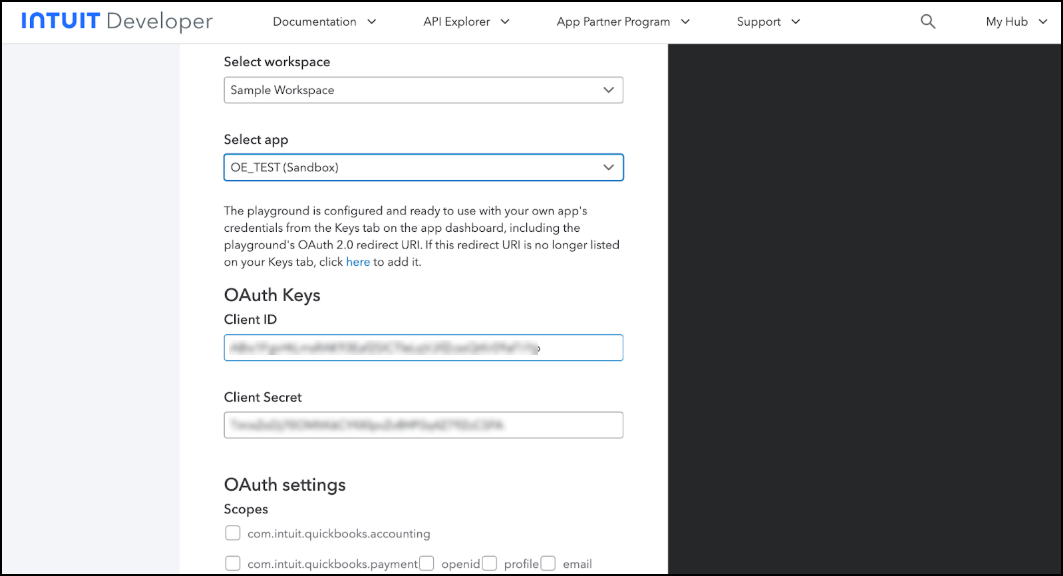
The Client ID is the unique identifier assigned to the application registered with Intuit. It is used to identify the application during OAuth authorization and token requests.
1. Log in to the Intuit Developer Portal:[ https://developer.intuit.com/](https://developer.intuit.com/)
2. Navigate to the application dashboard.
3. Open the Keys & OAuth section.
4. Copy the Client ID from the Production or Sandbox section, based on the target environment.
 ### Client Secret
The Client Secret is a confidential key used to authenticate the application with Intuit during token generation and refresh operations.
1. Log in to the Intuit Developer Portal.
2. Navigate to the application dashboard.
3. Open the Keys & OAuth section.
4. Copy the Client Secret associated with the selected Client ID.
### Client Secret
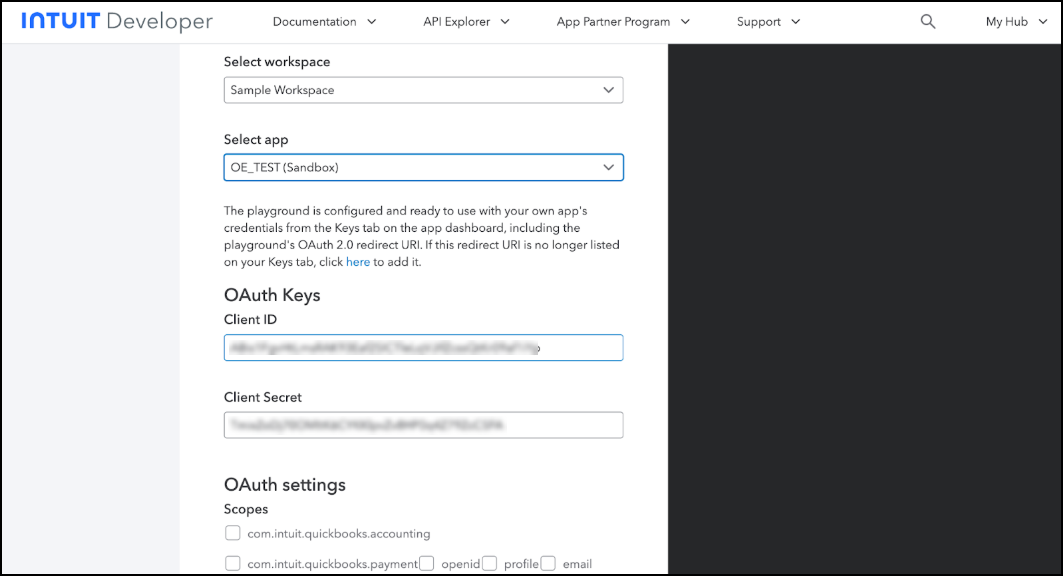
The Client Secret is a confidential key used to authenticate the application with Intuit during token generation and refresh operations.
1. Log in to the Intuit Developer Portal.
2. Navigate to the application dashboard.
3. Open the Keys & OAuth section.
4. Copy the Client Secret associated with the selected Client ID.
 {% hint style="info" %}
The Client Secret must be stored securely and should never be exposed in public repositories or shared locations.
{% endhint %}
## Company Identification
### Company ID (Realm ID)
The Company ID, also referred to as the Realm ID, uniquely identifies the QuickBooks Online company whose data will be accessed through the API.
Production
1. Log in to the QuickBooks Online company.
2. Navigate to Settings (Gear icon) > Account and Settings > Billing & Subscription.
3. Locate the Company ID listed on the page.
Alternatively:
1. From the QuickBooks Online dashboard, use:
1. Ctrl + Alt + ? (Windows)
2. Cmd + Option + ? (Mac)
Sandbox
* Log in to the Intuit Developer Portal.
* Navigate to Sandbox.
* Select the required sandbox company to view the Company ID.
## Environment Selection
### Environment
Specifies whether the connector communicates with the live QuickBooks Online Production APIs or the Sandbox APIs used for testing and validation.
* Select the appropriate environment from the dropdown during connector configuration.
Supported Values
* production
* sandbox
## Token Configuration
### Refresh Token
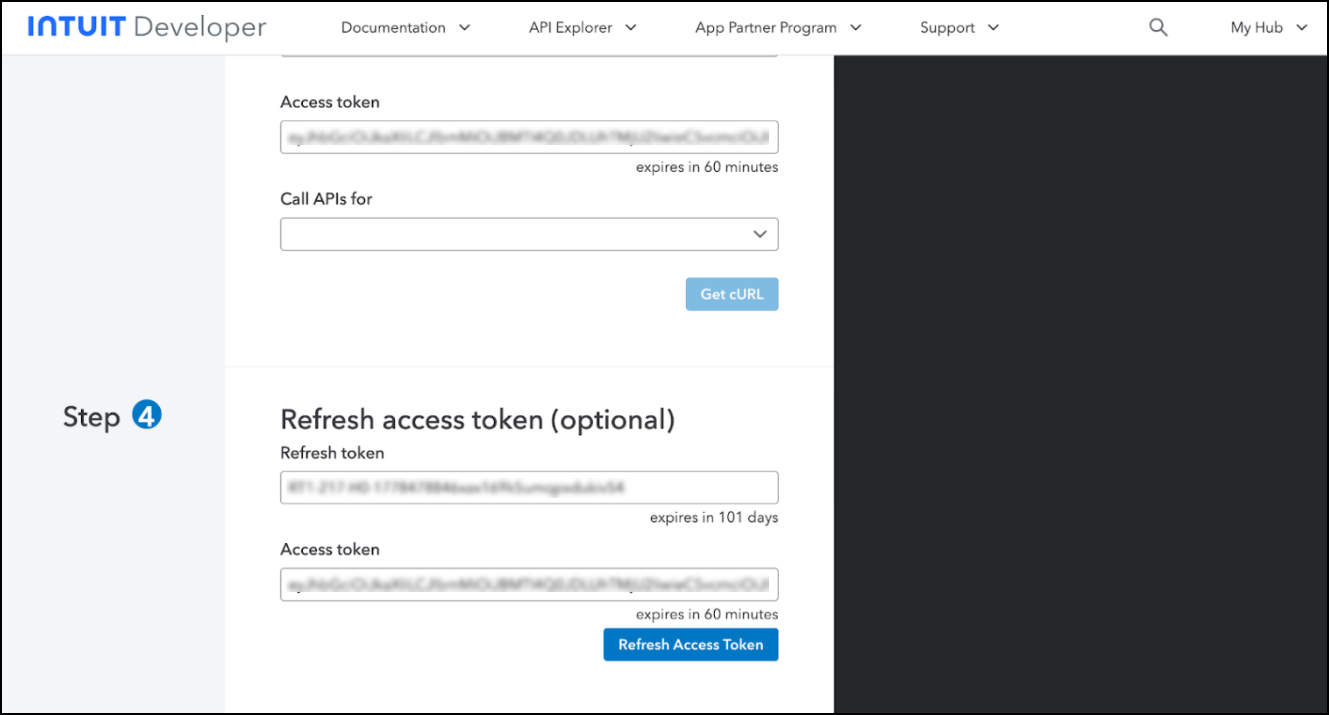
The Refresh Token is an encrypted token used to obtain new access tokens when existing access tokens expire. It allows the connector to maintain ongoing access without requiring repeated user authentication.
Manual Generation (for testing or API-only setups)
1. Navigate to the Intuit Developer OAuth Playground:\
2. Select the application from the Select App dropdown.
3. Step 1 – Select Scopes
1. Select the Accounting scope: com.intuit.quickbooks.accounting
2. Click Get Authorization Code.
4. Step 2 – Get Tokens
1. Click Get Tokens.
5. Step 3 – Retrieve Token
1. Copy the refresh\_token value from the Response section.
{% hint style="info" %}
The Client Secret must be stored securely and should never be exposed in public repositories or shared locations.
{% endhint %}
## Company Identification
### Company ID (Realm ID)
The Company ID, also referred to as the Realm ID, uniquely identifies the QuickBooks Online company whose data will be accessed through the API.
Production
1. Log in to the QuickBooks Online company.
2. Navigate to Settings (Gear icon) > Account and Settings > Billing & Subscription.
3. Locate the Company ID listed on the page.
Alternatively:
1. From the QuickBooks Online dashboard, use:
1. Ctrl + Alt + ? (Windows)
2. Cmd + Option + ? (Mac)
Sandbox
* Log in to the Intuit Developer Portal.
* Navigate to Sandbox.
* Select the required sandbox company to view the Company ID.
## Environment Selection
### Environment
Specifies whether the connector communicates with the live QuickBooks Online Production APIs or the Sandbox APIs used for testing and validation.
* Select the appropriate environment from the dropdown during connector configuration.
Supported Values
* production
* sandbox
## Token Configuration
### Refresh Token
The Refresh Token is an encrypted token used to obtain new access tokens when existing access tokens expire. It allows the connector to maintain ongoing access without requiring repeated user authentication.
Manual Generation (for testing or API-only setups)
1. Navigate to the Intuit Developer OAuth Playground:\
2. Select the application from the Select App dropdown.
3. Step 1 – Select Scopes
1. Select the Accounting scope: com.intuit.quickbooks.accounting
2. Click Get Authorization Code.
4. Step 2 – Get Tokens
1. Click Get Tokens.
5. Step 3 – Retrieve Token
1. Copy the refresh\_token value from the Response section.
 ## Refresh Token Validity
### Refresh Token Lifetime
* Rolling Expiry (100 Days)\
A QuickBooks Online refresh token is valid for 100 days. Each successful token refresh resets the 100-day expiration window.
* Inactivity Limit\
If the refresh token is not used for 100 consecutive days, it expires. In such cases, re-authorization is required to generate a new refresh token.
{% hint style="info" %}
Regular API activity is required to keep the refresh token valid.
{% endhint %}
{% hint style="warning" %}
* Ensure the correct environment (Production or Sandbox) is selected when copying credentials.
* Maintain separate credentials for Production and Sandbox environments.
* Store Client Secret and Refresh Token securely.
* Re-authorize access if the refresh token expires due to inactivity.
* Use Sandbox configuration for testing to avoid impacting live accounting data.
{% endhint %}
***
Copyright © 2026, OvalEdge LLC, Peachtree Corners GA USA
## Refresh Token Validity
### Refresh Token Lifetime
* Rolling Expiry (100 Days)\
A QuickBooks Online refresh token is valid for 100 days. Each successful token refresh resets the 100-day expiration window.
* Inactivity Limit\
If the refresh token is not used for 100 consecutive days, it expires. In such cases, re-authorization is required to generate a new refresh token.
{% hint style="info" %}
Regular API activity is required to keep the refresh token valid.
{% endhint %}
{% hint style="warning" %}
* Ensure the correct environment (Production or Sandbox) is selected when copying credentials.
* Maintain separate credentials for Production and Sandbox environments.
* Store Client Secret and Refresh Token securely.
* Re-authorize access if the refresh token expires due to inactivity.
* Use Sandbox configuration for testing to avoid impacting live accounting data.
{% endhint %}
***
Copyright © 2026, OvalEdge LLC, Peachtree Corners GA USA