# Salesforce

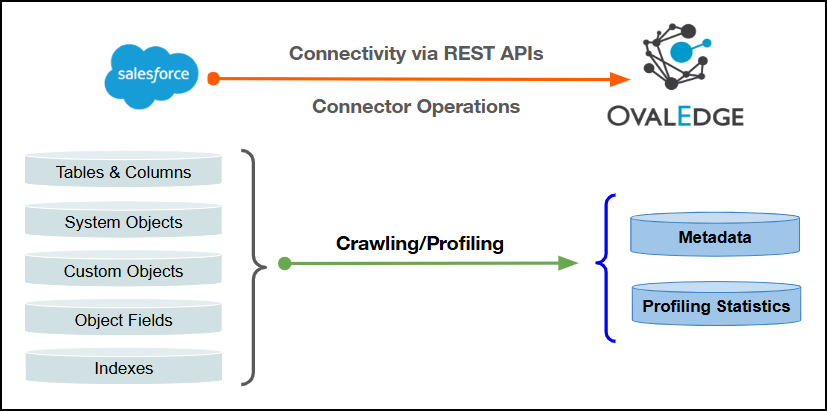
This document outlines the integration with the Salesforce sales cloud connector, enabling streamlined metadata management through features such as crawling, profiling, data preview, querying, and manual lineage building. It also ensures secure authentication via Credential Manager.

<figure><img src="https://content.gitbook.com/content/ztcvwwOJCeaE1n6oHp4C/blobs/OiHEnXj66Y1NjAW7yAQ4/image.png" alt=""><figcaption></figcaption></figure>

## Overview

### Connector Details

<table data-header-hidden><thead><tr><th width="444"></th><th></th></tr></thead><tbody><tr><td>Connector Category</td><td>Application</td></tr><tr><td>Connector Version</td><td>Release6.3.x</td></tr><tr><td>Releases Supported (Available from)</td><td>Legacy connector</td></tr><tr><td><p>Connectivity</p><p>[How the connection is established with RDBMS System]</p></td><td>REST APIs</td></tr></tbody></table>

### Connector Features

| Feature                                      | Availability |
| -------------------------------------------- | :----------: |
| Crawling                                     |       ✅      |
| Delta Crawling                               |       ❌      |
| Profiling                                    |       ✅      |
| Query Sheet                                  |       ✅      |
| Data Preview                                 |       ✅      |
| Auto Lineage                                 |       ❌      |
| Manual Lineage                               |       ✅      |
| Secure Authentication via Credential Manager |       ✅      |
| Data Quality                                 |       ❌      |
| DAM (Data Access Management)                 |       ❌      |
| Bridge                                       |       ✅      |

### Metadata Mapping

The following objects are crawled from Salesforce sales cloud and mapped to the corresponding UI assets.

<table><thead><tr><th width="250.5">Salesforce sales cloud Object</th><th width="200.916748046875">Salesforce sales cloud Attribute</th><th width="184.7501220703125">OvalEdge Attribute</th><th width="179">OvalEdge Category</th><th width="237.166748046875">OvalEdge Type</th></tr></thead><tbody><tr><td>Objects (System &#x26; Custom)</td><td>Object Name</td><td>Table Name</td><td>Tables</td><td>Table</td></tr><tr><td>Objects (System &#x26; Custom)</td><td>Object Description</td><td>Table Comment</td><td>Tables</td><td>Table</td></tr><tr><td>Object Fields</td><td>Field Name</td><td>Column Name</td><td>Table Columns</td><td>Columns</td></tr><tr><td>Object Fields</td><td>Field Type</td><td>Data Type</td><td>Table Columns</td><td>Columns</td></tr><tr><td>Object Fields</td><td>Field Length</td><td>Data Type Size</td><td>Table Columns</td><td>Columns</td></tr><tr><td>Object Fields</td><td>Field Description</td><td>Source Description</td><td>Table Columns</td><td>Description</td></tr><tr><td>Object Fields</td><td>Field Name</td><td>Title</td><td>Table Columns</td><td>Columns</td></tr><tr><td>Indexes</td><td>Index Name</td><td>Index</td><td>Indexes</td><td>Index</td></tr><tr><td>Indexes</td><td>If Unique</td><td>Yes/No</td><td>Indexes</td><td>Index</td></tr></tbody></table>

{% hint style="info" %}
Salesforce sales cloud does not provide a native schema concept. A default schema named "Salesforce" is created to act as a logical container for organizing and managing all Salesforce-related objects and attributes.
{% endhint %}

## Set up a Connection

### Prerequisites

The following are the prerequisites to establish a connection:

#### **Service Account User Permissions**

Before configuring the connector, the Salesforce sales cloud environment must be prepared with the necessary User, Connected App, and authentication flows. These components are essential for managing secure access and generating the required integration credentials. For detailed instructions on setting up these prerequisites, click [here](https://docs.ovaledge.com/connectors/connector-repositories/application/salesforce/salesforce-authentication-and-integration).

{% hint style="warning" %}
It is recommended to use a separate service account to establish the connection to the data source, configured with the following minimum set of permissions.
{% endhint %}

{% hint style="info" %}
👨‍💻Who can provide these permissions? These permissions are typically granted by the Salesforce sales cloud administrator, as users may not have the required access to assign them independently.
{% endhint %}

| Objects | Sys Tables     | Permission |
| ------- | -------------- | ---------- |
| Schema  | Salesforce     | N/A        |
| Tables  | Objects        | Read       |
| Columns | Object fields  | Read       |
| Indexes | Indexed Fields | Read       |

{% hint style="info" %}
For the Tables operation, the user must have API Enabled permission and read access to the objects to be crawled. These objects will appear as tables in the Application after crawling.
{% endhint %}

{% hint style="info" %}
For the Columns & Indexes operation, the user must have read access to the object fields to be crawled. These fields will appear as table columns in the Application after crawling.
{% endhint %}

### Connection Configuration Steps

{% hint style="warning" %}
Users are required to have the Connector Creator role in order to configure a new connection.
{% endhint %}

1. Log into **OvalEdge**, go to **Administration > Connectors**, click **+ (New Connector)**, search for **Salesforce**, and complete the required parameters.

{% hint style="info" %}
Fields marked with an asterisk (\*) are mandatory for establishing a connection.
{% endhint %}

<table><thead><tr><th width="220.25">Field Name</th><th>Description</th></tr></thead><tbody><tr><td>Connector Type</td><td>By default, "Salesforce" is displayed as the selected connector type.</td></tr><tr><td>Credential Manager*</td><td><p>Select the desired credentials manager from the drop-down list. Relevant parameters will be displayed based on the selection.</p><p>Supported Credential Managers:</p><ul><li>OE Credential Manager</li><li>AWS Secrets Manager</li><li>HashiCorp Vault</li><li>Azure Key Vault</li></ul></td></tr><tr><td>Authentication Type</td><td><p>The following two types of authentication are supported for Salesforce sales cloud:</p><ul><li>Token Based</li><li>JSON Web Token (JWT)</li></ul></td></tr></tbody></table>

{% tabs %}
{% tab title="Token Based" %}

<table><thead><tr><th width="191.8055419921875">Field Name</th><th>Description</th></tr></thead><tbody><tr><td>Connector Name*</td><td>Enter a unique name for the Salesforce sales cloud connection (Example: "Salesforce_Prod").</td></tr><tr><td>Connector Description</td><td>Enter a description to identify the purpose of the connector.</td></tr><tr><td>Connector Environment</td><td>Select the environment (Example: PROD, STG) configured for the connector.</td></tr><tr><td>Username*</td><td>Enter the Salesforce sales cloud username for the user account used for API access. It is usually in the format of an email (e.g., apiuser@xxxx.com).</td></tr><tr><td>Password*</td><td>Enter the password for the Salesforce sales cloud user account used for API access.</td></tr><tr><td>Consumer Key*</td><td>It is generated when a Connected App is created in Salesforce sales cloud and is used to identify the client making the API request.</td></tr><tr><td>Consumer Secret*</td><td>It is generated with the Connected App in Salesforce sales cloud and is used along with the Customer Key to connect and authenticate the application securely.</td></tr><tr><td>Security token</td><td>A unique token generated by Salesforce sales cloud for API access. Required when logging in from untrusted IP addresses. It must be appended to the password during login if the IP address is not whitelisted. This can be obtained by using the "Reset My Security Token" option in Salesforce.</td></tr><tr><td>API version*</td><td>Enter the version of the Salesforce REST or SOAP API to be used (e.g., v59.0). This determines the available endpoints and features.</td></tr><tr><td>Sandbox Environment*</td><td>Select Yes if the Salesforce sales cloud environment is a sandbox (test environment), or No if it is a production environment. Sandbox environments usually have URLs like test.salesforce.com.</td></tr><tr><td>Proxy Enabled*</td><td>Select Yes to route API calls through a proxy server. Select No to bypass the proxy and connect directly.</td></tr></tbody></table>
{% endtab %}

{% tab title="JSON Web Token (JWT)" %}

<table><thead><tr><th width="220.25">Field Name</th><th>Description</th></tr></thead><tbody><tr><td>Connector Name*</td><td>Enter a unique name for the Salesforce connection (Example: "Salesforce_Prod").</td></tr><tr><td>Connector Description</td><td>Enter a description to identify the purpose of the connector.</td></tr><tr><td>Connector Environment</td><td>Select the environment (Example: PROD, STG) configured for the connector.</td></tr><tr><td>Username*</td><td>Enter the Salesforce username for the user account used for API access. It is usually in the format of an email (e.g., apiuser@xxxx.com).</td></tr><tr><td>Consumer Key*</td><td>It is generated when a Connected App is created in Salesforce and is used to identify the client making the API request.</td></tr><tr><td>API version*</td><td>Enter the version of the Salesforce REST or SOAP API to be used (e.g., v59.0). This determines the available endpoints and features.</td></tr><tr><td>Sandbox Environment*</td><td>Select Yes if the Salesforce environment is a sandbox (test environment), or No if it is a production environment. Sandbox environments usually have URLs like test.salesforce.com.</td></tr><tr><td>Alias name*</td><td>Enter the alias name used to identify the specific key entry within the keystore. Each key entry in the key store is associated with a unique alias.</td></tr><tr><td>Keystore password*</td><td>Enter the password used to access the keystore file. This password protects the keystore and ensures secure access to the stored certificates and keys.</td></tr><tr><td>Keystore file path*</td><td>Provide the full path and file name of the Java Keystore (jks) file. This file contains the security certificates and keys required for establishing a secure SSL/TLS connection.</td></tr><tr><td>Proxy Enabled*</td><td>Select Yes to route API calls through a proxy server. Select No to bypass the proxy and connect directly.</td></tr></tbody></table>
{% endtab %}
{% endtabs %}

**Default Governance Roles**

<table data-header-hidden><thead><tr><th width="220.22222900390625"></th><th></th></tr></thead><tbody><tr><td>Default Governance Roles*</td><td>Select the appropriate users or teams for each governance role from the drop-down list. All users configured in the security settings are available for selection.</td></tr></tbody></table>

**Admin Roles**

<table data-header-hidden><thead><tr><th width="219.3333740234375"></th><th></th></tr></thead><tbody><tr><td>Admin Roles*</td><td>Select one or more users from the dropdown list for Integration Admin and Security &#x26; Governance Admin. All users configured in the security settings are available for selection.</td></tr></tbody></table>

**Bridge**

<table data-header-hidden><thead><tr><th width="219.3333740234375"></th><th></th></tr></thead><tbody><tr><td>Select Bridge*</td><td><p>Select the bridge from the drop-down list.</p><p>The drop-down list displays all active bridges that have been configured. These bridges facilitate communication between data sources and the system without requiring changes to firewall rules.</p></td></tr></tbody></table>

2. After entering all connection details, the following actions can be performed:
   1. Click **Validate** to verify the connection.
   2. Click **Save** to store the connection for future use.
   3. Click **Save & Configure** to apply additional settings before saving.
3. The saved connection will appear on the **Connectors home** page.

## Manage Connector Operations

### Crawl/Profile

{% hint style="warning" %}
To perform crawl and profile operations, users must be assigned the Integration Admin role.
{% endhint %}

The **Crawl/Profile** button allows users to select one or more schemas for crawling and profiling.

1. Navigate to the **Connectors page** and click **Crawl/Profile.**
2. Select the schemas to be crawled.
3. The **Crawl** option is selected by default. To perform both operations, select the **Crawl & Profile** radio button.
4. Click **Run** to collect metadata from the connected source and load it into the Data Catalog.
5. After a successful crawl, the information appears in the **Data Catalog > Databases** tab.

The **Schedule** checkbox allows automated crawling and profiling at defined intervals, from a minute to a year.

1. Click the **Schedule** checkbox to enable the **Select Period** drop-down.
2. Select a time period for the operation from the drop-down menu.
3. Click **Schedule** to initiate metadata collection from the connected source.
4. The system will automatically execute the selected operation (**Crawl** or **Crawl & Profile**) at the scheduled time.

#### Other Operations

The Connectors page provides a centralized view of all configured connectors, along with their health status.

**Managing connectors includes:**

* **Connector Health:** Displays the current status of each connector using a green icon for active connections and a red icon for inactive connections, helping to monitor the connectivity with data sources.
* **Viewing**: Click the **Eye icon** next to the connector name to view connector details, including databases, tables, columns, and codes.

**Nine Dots Menu Options:**

To view, edit, validate, build lineage, configure, or delete connectors, click on the **Nine Dots** menu.

* **Edit Connector**: Update and revalidate the data source.
* **Validate Connector:** Check the connection's integrity.
* **Settings**: Modify connector settings.
  * **Crawler**: Configure data extraction.
  * **Profiler**: Customize data profiling rules and methods.
  * **Query Policies:** Define query execution rules based on roles.
  * **Access Instructions**: Add notes on how data can be accessed.
  * **Business Glossary Settings:** Manage term associations at the connector level.
  * **Others**: Configure notification recipients for metadata changes.
* **Delete Connector:** Remove a connector with confirmation.

***

Copyright © 2025, OvalEdge LLC, Peachtree Corners GA USA
