Tally

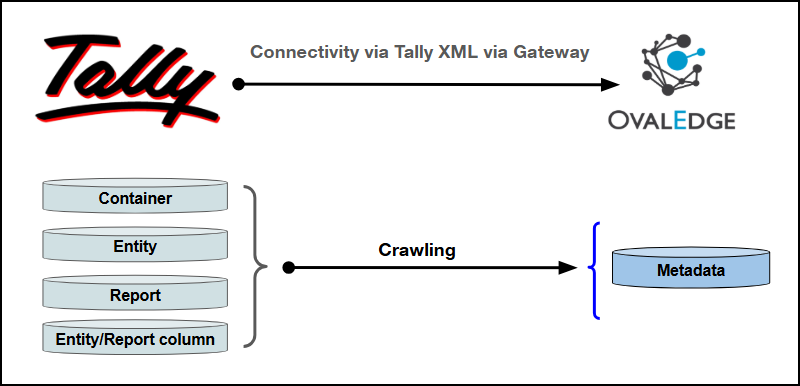
This document outlines the integration with the Tally connector, enabling OvalEdge to connect with Tally Prime for external integrations via the Tally XML protocol using a Tally Gateway Service. Since Tally does not provide a native REST API, all communication is performed through XML requests routed by the Gateway, which must have network access to the Tally XML Server.

The connector supports metadata extraction via crawling and data preview for entities and reports. Authentication and security are enforced at the Gateway using HTTP Basic Authentication to ensure only authorized requests from OvalEdge CSP Apps are allowed. The Tally XML Server does not enforce authentication.

Overview

Connector Details

Connector Category
Application

OE Application Version

R8.0

Connectivity [How the connection is established with Tally]

Tally XML via Gateway

Authentication

HTTP Basic (Gateway)

Protocol

Tally XML (TDL-based)

Connector Features

Feature
Availability

Crawling

Profiling

Query Sheet

Data Preview

Auto Lineage

Manual Lineage

Secure Authentication via Gateway

Tally Gateway Service

The Tally Gateway Service is an HTTP proxy component that acts as an intermediary between OvalEdge Application and the Tally XML Server. It exposes standardized HTTP endpoints (typically on default port 8888) to receive XML-based requests from OvalEdge and forwards them to the Tally XML Server (typically running on default port 9000).

These port values are default configurations and may vary based on the deployment environment.

The Gateway manages authentication, request forwarding, encoding conversion, and response relaying to ensure secure and reliable communication.

Tally Gateway Capabilities

Capability
Description

HTTP Interface

Exposes HTTP endpoints to accept Tally XML requests

Authentication

Enforces HTTP Basic Authentication for secure access

Request Forwarding

Routes XML requests to the Tally XML Server

Response Relay

Returns XML responses back to the connector

Encoding Handling

Converts payloads to UTF-16LE as required by Tally

Connection Management

Manages request routing and connection pooling

Tally Connectivity Design Considerations

Tally exposes data only through the Tally XML Server, which is designed primarily for local usage and does not provide a REST API. Due to network access limitations, encoding requirements, and security constraints, direct integration with the XML Server is not suitable for enterprise environments. The Tally Gateway Service is used to enable secure, standardized, and scalable connectivity between OvalEdge and Tally.

Constraints of Direct Tally XML Server Access

Area
Description

Network Reachability

XML Server may not be accessible from OvalEdge environments

Encoding Format

Requires UTF-16LE encoding and specialized handling

Security Exposure

Direct access may require firewall changes and open network ports

Access Governance

No centralized authentication or access management.

Tally lacks role-based access control APIs.

Scalability Support

No built-in connection pooling or optimized routing

Communication Flow

The connection is configured using the Tally Gateway URL, username, password, and company name which is optional.

  1. The connector validates Gateway connectivity.

  2. The Gateway forwards XML requests to the Tally XML Server.

  3. Metadata Service retrieves companies, entities, and reports.

  4. Query Service executes entity and report queries.

  5. Responses are returned in XML format and converted into structured data.

Metadata Mapping

The following objects are crawled from Tally and mapped to the corresponding UI assets.

Source
Object Type
OvalEdge Asset

Tally Company Name

Container

Database for Tables

Domain for Reports

Tally Collection Type

Entity

Table

Tally Report Name

Report

Report

Entity/Report Column

Field

Table Column/ Report Column

Set up a Connection

Prerequisites

The following are the prerequisites to establish a connection:

Before configuring the connector, the Tally environment must be prepared with the Tally Gateway service, gateway authentication credentials, and required connectivity settings within Tally Prime. These prerequisites are essential for enabling secure communication with Tally and ensuring reliable access to company data. For detailed instructions on setting up these prerequisites, click here.

Whitelisting Ports

Ensure the port on which the Tally Gateway application is running is whitelisted for OvalEdge to connect to Tally.

circle-exclamation

System & Software Requirements

Requirement
Description

Tally

Must be running with Tally Prime with XML Server enabled

Tally Gateway Service

Must be installed and accessible

Gateway Credentials

Required for HTTP Basic Authentication

Network Access

The Tally Gateway Service must have network access to the Tally XML Server running on Tally

External Supporting Services

Service Name
Description

Tally Gateway Service

Proxy between OvalEdge and Tally

Tally XML Server

Processes XML requests

circle-exclamation

Connection Configuration Steps

circle-exclamation
  1. Log into OvalEdge, go to Administration > Connectors, click + (New Connector), search for Tally, and complete the required parameters.

circle-info

Fields marked with an asterisk (*) are mandatory for establishing a connection.

Field Name
Description

Connector Type

By default, "Tally" is displayed as the selected connector type.

Connector Name*

Enter a unique name for the Tally connection

(Example: "Tally_Prod").

Connector description

Enter a brief description of the connector.

Tally Gateway URL*

Enter the base URL of the Tally Gateway Service (for example, http://192.168.1.100:8888). All XML requests from OvalEdge are routed through this gateway to reach the Tally XML Server.

Gateway Username*

Enter the username configured for HTTP Basic Authentication on the Tally Gateway Service. This credential is required to authenticate and authorize access before requests are forwarded to the Tally XML Server.

Gateway Password*

Enter the password associated with the Gateway Username. This password is used to securely authenticate all incoming requests to the Tally Gateway. Ensure credentials match the Gateway configuration to avoid authentication failures.

Tally Company

Enter the Tally Company name to specify the company context for the connection. If left empty, the connector automatically uses the currently active company in Tally. This field is optional and useful when multiple companies exist in Tally.

Default Governance Roles

Default Governance Roles*

Select the appropriate users or teams for each governance role from the drop-down list. All users and teams configured in OvalEdge Security are displayed for selection.

Admin Roles

Admin Roles*

Select one or more users from the dropdown list for Integration Admin and Security & Governance Admin. All users configured in OvalEdge Security are available for selection.

  1. After entering all connection details, the following actions can be performed:

  • Click Validate to verify Gateway connectivity.

  • Click Save to store the connection for future use.

  • Click Save & Configure to apply additional settings before saving.

  1. The saved connection will appear on the Connectors home page.

Manage Connector Operations

Crawl

circle-exclamation

The Crawl/Profile button allows users to select one or more schemas for crawling.

  1. Navigate to the Connectors page and click Crawl/Profile.

  2. Select the schemas to crawl.

  3. The Crawl option is selected by default.

  4. Click Run to collect metadata from the connected source and load it into the OvalEdge Data Catalog.

  5. After a successful crawl, the information appears in the Data Catalog > Databases/Reports/Tables tab.

The Schedule checkbox allows automated crawling at defined intervals, from a minute to a year.

  1. Click the Schedule checkbox to enable the Select Period drop-down.

  2. Select a time period for the operation from the drop-down menu.

  3. Click Schedule to initiate metadata collection from the connected source.

  4. The system will automatically execute the Crawl operation at the scheduled time.

Other Operations

The Connectors page in OvalEdge provides a centralized view of all configured connectors, including their health status.

Managing connectors includes:

  • Connectors Health: Displays the current status of each connector using a green icon for active connections and a red icon for inactive connections, helping to monitor the connectivity with data sources.

  • Viewing: Click the Eye icon next to the connector name to view connector details, including databases, tables, columns, and codes.

Nine Dots Menu Options:

To view, edit, validate, configure, or delete connectors, click on the Nine Dots menu.

  • Edit Connector: Update and revalidate the data source.

  • Validate Connector: Check the integrity of the connection.

  • Settings: Modify connector settings.

    • Crawler: Configure data extraction.

    • Business Glossary Settings: Manage term associations at the connector level.

    • Others: Configure notification recipients for metadata changes.

  • Delete Connector: Remove a connector with confirmation.

Connectivity Troubleshooting

If incorrect parameters are entered, error messages may appear. Ensure all inputs are accurate to resolve these issues. If issues persist, contact the assigned support team.

S.No.
Error Message(s)
Error Description & Resolution

1

Missing Gateway URL

Error Description:

The Tally Gateway URL field in the connector configuration is empty or not provided, preventing the connector from routing XML requests through the Gateway service. Note: This field maps internally to the system variable TALLY_GATEWAY_URL.

Resolution:

  • Provide a valid TALLY_GATEWAY_URL in the connection attributes.

  • Ensure the URL follows the correct format and that the Gateway service is reachable over the network.

2

Gateway authentication errors

Error Description:

The Gateway Username or Password is incorrect or does not match the credentials configured in the Tally Gateway Service, resulting in HTTP Basic Authentication failure.

Resolution:

  • Verify the Gateway Username and Password entered in the connector configuration.

  • Ensure credentials match the Gateway authentication settings.

3

No companies found

Error Description: Tally is not running or no company is currently open, preventing the connector from retrieving company metadata.

Resolution:

  • Ensure Tally is running and a company is open before validating or crawling the connector.

4

Empty results for Voucher

Error Description: Voucher queries require a valid date range. If start_date and end_date are not provided, results may return empty.

Resolution:

Provide a valid date range using start_date and end_date when executing Voucher data preview.

Additional Notes

Topic
Description

Date Ranges

Transaction entity queries support start_date and end_date parameters to define the data retrieval period.

Default Date Ranges

Voucher queries default to the current financial year. Report discovery defaults to the last 30 days when dates are not provided.

Gateway Endpoint

All requests are internally routed to the Gateway endpoint {gateway}/api/tally/xml.

Query Execution

Entity queries use Tally XML COLLECTION TYPE requests. Report queries use Tally XML REPORT NAME requests.

Gateway Requirement

The Tally Gateway Service must be accessible and properly configured to connect to the Tally XML Server.

Company Selection

Company name is optional. If left empty, the connector uses the currently active company in Tally.

Error Handling

Gateway connectivity and credentials are validated during connection setup. Field validation falls back to static lists when dynamic validation is unavailable.


Copyright © 2026, OvalEdge LLC, Peachtree Corners GA USA

Was this helpful?