> For the complete documentation index, see [llms.txt](https://docs.ovaledge.com/llms.txt). Markdown versions of documentation pages are available by appending `.md` to page URLs; this page is available as [Markdown](https://docs.ovaledge.com/release8.1/connectors/connector-repositories/reporting-tool/microsoft-sql-server-reporting-services-ssrs.md).

# Microsoft SQL Server Reporting Services (SSRS)

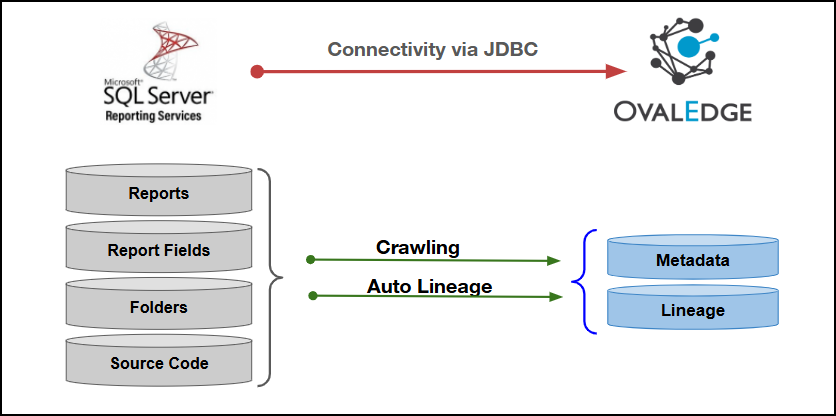
This article outlines the integration with the Microsoft SQL Server Reporting Services (SSRS) connector, enabling streamlined metadata management through features such as crawling, report preview, and lineage building (Auto and Manual). It also ensures secure authentication via Credential Manager.

The connector supports multiple authentication methods, including SQL Server Authentication, File Authentication, and Windows Authentication, to establish secure connectivity with Microsoft SQL Server Reporting Services.

<figure><img src="https://content.gitbook.com/content/FZv5WsZmBfXjiJfMU2zR/blobs/TQBbaC3oVLmdcOOn63Zx/image.png" alt=""><figcaption></figcaption></figure>

## Overview

### Connector Details

<table data-header-hidden><thead><tr><th width="376.6666259765625"></th><th></th></tr></thead><tbody><tr><td>Connector Category</td><td>Reporting Tools</td></tr><tr><td>OvalEdge Release Supported</td><td>Release7.2 and later</td></tr><tr><td><p>Connectivity</p><p>[How the connection is established with Microsoft SQL Server Reporting Services]</p></td><td>JDBC</td></tr><tr><td>Verified Microsoft SQL Server Reporting Services Versions</td><td>7.1.4.jre8-preview</td></tr></tbody></table>

{% hint style="info" %}
The Microsoft SQL Server Reporting Services connector has been validated with the mentioned "Verified Microsoft SQL Server Reporting Services Versions" and is expected to be compatible with other supported Microsoft SQL Server Reporting Services versions. If there are any issues with validation or metadata crawling, please submit a support ticket for investigation and feedback.
{% endhint %}

### Connector Features

| Feature                                      |                                       Availability                                       |
| -------------------------------------------- | :--------------------------------------------------------------------------------------: |
| Crawling                                     |                                             ✅                                            |
| Delta Crawling                               |                                             ✅                                            |
| Profiling                                    |                                            NA                                            |
| Query Sheet                                  |                                            NA                                            |
| Report Preview                               |                                             ✅                                            |
| Auto Lineage                                 | <p>✅<br>To learn more, click <a href="broken://pages/fKWmjLl4FA3EWltMLXnm">here</a>.</p> |
| Manual Lineage                               |                                             ✅                                            |
| Secure Authentication via Credential Manager |                                             ✅                                            |
| Data Quality                                 |                                             ❌                                            |
| DAM (Data Access Management)                 |                                             ❌                                            |

{% hint style="info" %}
'NA' indicates that the respective feature is 'Not Applicable.'
{% endhint %}

### Metadata Mapping

The following objects are crawled from Microsoft SQL Server Reporting Services and mapped to the corresponding UI assets.

<table><thead><tr><th width="135.2222900390625">SSRS Object</th><th width="191.6666259765625">SSRS Attribute</th><th width="188">OvalEdge Attribute</th><th width="194">OvalEdge Category</th><th width="160">SSRS</th></tr></thead><tbody><tr><td>Folder [Database]</td><td>Catalog.Name</td><td>Report Group</td><td>Reports</td><td>Folder [Database]</td></tr><tr><td>Folder [Database]</td><td>Catalog.Description</td><td>Source Description</td><td>Descriptions</td><td>Folder [Database]</td></tr><tr><td>Folder [File]</td><td>Name: Child Directory Name Under Base SSRS Path</td><td>Report Group</td><td>Report</td><td>Folder [File]</td></tr><tr><td>Report</td><td>Last Segment of Catalog.Path</td><td>Reports</td><td>Report</td><td>Report Name</td></tr><tr><td>Report</td><td>Literal “Report”</td><td>Report Type</td><td>Report</td><td>Report</td></tr><tr><td>Report [File]</td><td>.RDL Filename</td><td>Reports</td><td>Report</td><td>Report Name</td></tr><tr><td>Report [File]</td><td>“Report”</td><td>Report Type</td><td>Report</td><td>Report</td></tr></tbody></table>

## Set up a Connection

### Prerequisites

The following are the prerequisites to establish a connection:

#### Authentication Type

The prerequisites vary depending on the authentication method selected for the SSRS connection. To ensure a smooth and successful configuration, the required setup steps and supporting components are listed separately for each authentication type.

1. **File Authentication**
   1. Ensure the OvalEdge server can access the shared folder where SSRS File/Report are stored.
      1. The shared folder path must be accessible from the OvalEdge server.
      2. Required read permissions must be granted on the shared directory.
2. **SQL Server Authentication**
   1. A SQL Server login must exist and be active.
   2. The account must have access to the target database and required metadata objects.
   3. Ensure the SQL Server instance is configured to allow SQL Server Authentication.
3. **Windows Authentication**
   1. Windows Authentication requires additional native libraries depending on the OvalEdge release and JVM architecture.
   2. **For detailed file versions and download links, click** [**here**](/release8.1/connectors/additional-requirements/external-supporting-files-for-windows-authentication.md)**.**

#### Database Connectivity Prerequisites

**Whitelisting Ports**

* Whitelist the required SQL Server and SSRS Web Service ports to allow communication between OvalEdge and Microsoft SQL Server Reporting Services.  &#x20;Ensure the SSRS Web Service URL / Web Portal URL is accessible from the OvalEdge application server.

{% hint style="warning" %}
When a port is configured, specify the required port number during connection setup, whitelist the port, and establish proper communication between the system and the Microsoft SQL Server Reporting Services.
{% endhint %}

**Service Account User Permissions**

{% hint style="warning" %}
It is recommended to use a dedicated service account to establish the connection to the data source, configured with the following minimum set of permissions.
{% endhint %}

{% hint style="info" %}
**👨‍💻 Who can provide these permissions?** The Microsoft SQL Server Reporting Services administrator grants these permissions, since users may not have sufficient access to assign them.
{% endhint %}

<table><thead><tr><th width="220.666748046875">Objects</th><th>Permissions</th></tr></thead><tbody><tr><td>Connector Validation</td><td>DB mode: SQL Server login or Windows Integrated Security to ReportServer DB; Network access to SQL Server. File mode: Read access to SSRS NFS path.</td></tr><tr><td>Crawling</td><td>DB mode: Select on {sid}.dbo.Catalog; File mode: read/execute on SSRS base path</td></tr><tr><td>Lineage</td><td>DB mode: Select on {sid}.dbo.Catalog; File mode: read .rdl/.rsd files</td></tr><tr><td>Delta Crawl</td><td>DB: Select on {sid}.dbo.Catalog (ModifiedDate).</td></tr><tr><td>Domains (Folders)</td><td>DB mode: Select on {sid}.dbo.Catalog. File mode: read directories under SSRS base path.</td></tr><tr><td>Reports (Under Domain)</td><td>Select on {sid}.dbo.Catalog</td></tr><tr><td>Report Fields</td><td>Select on {sid}.dbo.Catalog (RDL content) or file read (.rdl)</td></tr><tr><td>Source Code – RDL</td><td>Select on {sid}.dbo.Catalog or file read (.RDL)</td></tr><tr><td>Source Code – Datasets (RSD)</td><td>Select on {sid}.dbo.Catalog or file read (.RSD)</td></tr></tbody></table>

### Connection Configuration Steps

{% hint style="warning" %}
Users must have the Connector Creator role to configure a new connection.
{% endhint %}

1. Log into OvalEdge, go to Administration > Connectors, click + (**New Connector**), search for **SSRS**, and enter the required parameters.

{% hint style="info" %}
Fields marked with an asterisk (\*) are mandatory for establishing a connection.
{% endhint %}

<table><thead><tr><th width="219.3333740234375">Field Name</th><th>Description</th></tr></thead><tbody><tr><td>Connector Type</td><td>By default, "Microsoft SQL Server Reporting Services" is displayed as the selected connector type.</td></tr><tr><td>Authentication</td><td><p>The following three types of authentication are supported for Microsoft SQL Server Reporting Services:</p><ul><li>Sql Server Authentication</li><li>Windows Authentication</li><li>File Authentication</li></ul></td></tr></tbody></table>

{% tabs %}
{% tab title="Sql Server Authentication" %}

<table><thead><tr><th width="220">Field Name</th><th>Description</th></tr></thead><tbody><tr><td>Credential Manager*</td><td><p>Select the desired credential manager from the drop-down list. Relevant parameters will be displayed based on the selection.</p><p>Supported Credential Managers:</p><ul><li>OE Credential Manager</li><li>AWS Secrets Manager</li><li>HashiCorp</li><li>Azure Key Vault</li></ul><p>For more details, click <a href="https://docs.ovaledge.com/connectors/additional-requirements/credential-manager-configuration">here</a>.</p></td></tr><tr><td>License Add-On</td><td>Select the Auto Lineage Add-On checkbox to build data lineage automatically.<br>For more details, click <a href="https://docs.ovaledge.com/connectors/introduction-to-connectors/setup-and-connectivity/license-types-and-add-ons">here</a>.</td></tr><tr><td>Connector Name*</td><td><p>Enter a unique name for the Microsoft SQL Server Reporting Services connection.              </p><p>(Example: "SSRS_Prod").</p></td></tr><tr><td>Connector Environment</td><td>Select the environment (Example: PROD, STG) configured for the connector.<br>For more details, click <a href="https://docs.ovaledge.com/connectors/introduction-to-connectors/setup-and-connectivity/prerequisites#connector-environment">here</a>.</td></tr><tr><td>Connector Description</td><td>Enter the description related to the connector.</td></tr><tr><td>Host Name* </td><td>Enter the host name or IP address of the server where Microsoft SQL Server Reporting Services (SSRS) is installed.</td></tr><tr><td>Port* </td><td>Enter the port number used by the Microsoft SQL Server Reporting Services instance for communication.</td></tr><tr><td>SID* </td><td>Enter the unique Security Identifier (SID) associated with the SQL Server Reporting Services (SSRS) instance.</td></tr><tr><td>SSRS Web Port </td><td>Enter the port number configured for the SSRS Web Service. This value ensures the connector can communicate with the SSRS web endpoint.</td></tr><tr><td>SSRS Web URL* </td><td>Enter the Web Portal URL of the SSRS server, typically in the format http://&#x3C;server-name>/Reports or https://&#x3C;server-name>/Reports. Ensure the URL is accessible and corresponds to the deployed SSRS instance.</td></tr><tr><td>Connection String* </td><td><p>Automatic Mode: The system generates a connection string based on the provided credentials.</p><p>Manual Mode: Enter a valid connection string manually.</p><p></p><p>Replace placeholders with actual server details:</p><ul><li>{server} refers to the SQL Server Reporting Services host or IP address.</li><li>{sid} refers to the SSRS catalog database name (typically ReportServer or ReportServerTempDB).</li></ul><p></p><p>Authentication Plugins:</p><p>jdbc:sqlserver://{server}:{port};database={sid};integratedSecurity=true</p><p>This is the default authentication string used for connecting to the SSRS database. </p></td></tr><tr><td>Username* </td><td>Enter the SQL Server account name or domain user name with access to the Reporting Services instance.</td></tr><tr><td>Is WebService URL (Y/N)*) </td><td>Enter the value to ‘Y’ for a Web Service URL or ‘N’ for a standard Report Manager URL.</td></tr><tr><td>Password* </td><td>Enter the password associated with the specified SQL Server Reporting Services account used for authentication.</td></tr><tr><td>Driver* </td><td>By default, SSRS uses ‘com.microsoft.sqlserver.jdbc.SQLServerDriver.’ This field is not editable.</td></tr></tbody></table>
{% endtab %}

{% tab title="Windows Authentication" %}

<table><thead><tr><th width="221.333251953125">Field Name</th><th>Description</th></tr></thead><tbody><tr><td>Credential Manager*</td><td><p>Select the desired credential manager from the drop-down list. Relevant parameters will be displayed based on the selection.</p><p>Supported Credential Managers:</p><ul><li>OE Credential Manager</li><li>AWS Secrets Manager</li><li>HashiCorp</li><li>Azure Key Vault</li></ul><p>For more details, click <a href="https://docs.ovaledge.com/connectors/additional-requirements/credential-manager-configuration">here</a>.</p></td></tr><tr><td>License Add-On</td><td>Select the Auto Lineage Add-On checkbox to build data lineage automatically.<br>For more details, click <a href="https://docs.ovaledge.com/connectors/introduction-to-connectors/setup-and-connectivity/license-types-and-add-ons">here</a>.</td></tr><tr><td>Connector Name*</td><td><p>Enter a unique name for the Microsoft SQL Server Reporting Services connection.              </p><p>(Example: "SSRS_Prod").</p></td></tr><tr><td>Connector Environment</td><td>Select the environment (Example: PROD, STG) configured for the connector.<br>For more details, click <a href="https://docs.ovaledge.com/connectors/introduction-to-connectors/setup-and-connectivity/prerequisites#connector-environment">here</a>.</td></tr><tr><td>Connector Description</td><td>Enter the description related to the connector.</td></tr><tr><td>Host Name* </td><td>Enter the host name or IP address of the server where Microsoft SQL Server Reporting Services (SSRS) is installed.</td></tr><tr><td>Port* </td><td>Enter the port number used by the Microsoft SQL Server Reporting Services instance for communication.</td></tr><tr><td>SID* </td><td>Enter the unique Security Identifier (SID) associated with the SQL Server Reporting Services (SSRS) instance.</td></tr><tr><td>Domain</td><td><p>Enter the Windows domain associated with the SSRS server credentials.</p><p></p><p>Note: This field appears only when the installation environment is selected as Linux/Unix<em>.</em></p></td></tr><tr><td>SSRS Web Port </td><td>Enter the port number configured for the SSRS Web Service. This value ensures the connector can communicate with the SSRS web endpoint.</td></tr><tr><td>SSRS Web URL* </td><td>Enter the Web Portal URL of the SSRS server, typically in the format http://&#x3C;server-name>/Reports or https://&#x3C;server-name>/Reports. Ensure the URL is accessible and corresponds to the deployed SSRS instance.</td></tr><tr><td>Connection String* </td><td><p>Automatic Mode: The system generates a connection string based on the provided credentials.</p><p>Manual Mode: Enter a valid connection string manually.</p><p></p><p>Replace placeholders with actual server details:</p><ul><li>{server} refers to the SQL Server Reporting Services host or IP address.</li><li>{sid} refers to the SSRS catalog database name (typically ReportServer or ReportServerTempDB).</li></ul><p>Authentication Plugins:</p><p>jdbc:sqlserver://{server}:{port};database={sid};integratedSecurity=true</p><p>This is the default authentication string used for connecting to the SSRS database. </p></td></tr><tr><td>Username* </td><td><p>Enter the SQL Server account name or domain user name with access to the Reporting Services instance.<br></p><p>Note: This field appears only when the installation environment is selected as Linux/Unix.</p></td></tr><tr><td>Is WebService URL (Y/N)*) </td><td>Enter the value to ‘Y’ for a Web Service URL or ‘N’ for a standard Report Manager URL.</td></tr><tr><td>Password* </td><td><p>Enter the password associated with the specified SQL Server Reporting Services account used for authentication.</p><p></p><p>Note: This field appears only when the installation environment is selected as Linux/Unix.</p></td></tr><tr><td>Driver* </td><td>By default, SSRS uses ‘com.microsoft.sqlserver.jdbc.SQLServerDriver.’ This field is not editable.</td></tr></tbody></table>
{% endtab %}

{% tab title="File Authentication" %}

<table><thead><tr><th width="221.3333740234375">Field Name</th><th>Description</th></tr></thead><tbody><tr><td>Credential Manager*</td><td><p>Select the desired credential manager from the drop-down list. Relevant parameters will be displayed based on the selection.</p><p>Supported Credential Managers:</p><ul><li>OE Credential Manager</li><li>AWS Secrets Manager</li><li>HashiCorp</li><li>Azure Key Vault</li></ul><p>For more details, click <a href="https://docs.ovaledge.com/connectors/additional-requirements/credential-manager-configuration">here</a>.</p></td></tr><tr><td>License Add-On</td><td>Select the Auto Lineage Add-On checkbox to build data lineage automatically.<br>For more details, click <a href="https://docs.ovaledge.com/connectors/introduction-to-connectors/setup-and-connectivity/license-types-and-add-ons">here</a>.</td></tr><tr><td>Connector Name*</td><td><p>Enter a unique name for the Microsoft SQL Server Reporting Services connection.              </p><p>(Example: "SSRS_Prod").</p></td></tr><tr><td>Connector Environment</td><td>Select the environment (Example: PROD, STG) configured for the connector.<br>For more details, click <a href="https://docs.ovaledge.com/connectors/introduction-to-connectors/setup-and-connectivity/prerequisites#connector-environment">here</a>.</td></tr><tr><td>Connector Description</td><td>Enter the description related to the connector.</td></tr><tr><td>SSRS File Path* </td><td>Enter the full file path or network location of the SSRS report file (.rdl) to be accessed by the connector. The path should point to the directory where the SSRS reports are stored.</td></tr></tbody></table>
{% endtab %}
{% endtabs %}

**Default Governance Roles**

<table data-header-hidden><thead><tr><th width="219.3333740234375"></th><th></th></tr></thead><tbody><tr><td>Default Governance Roles*</td><td>Select the appropriate users or teams for each governance role from the drop-down list. All users and teams configured in OvalEdge Security are displayed for selection.</td></tr></tbody></table>

**Admin Roles**

<table data-header-hidden><thead><tr><th width="219.333251953125"></th><th></th></tr></thead><tbody><tr><td>Admin Roles*</td><td>Select one or more users from the dropdown list for Integration Admin and Security &#x26; Governance Admin. All users configured in OvalEdge Security are available for selection.</td></tr></tbody></table>

**No of Archive Objects**

<table data-header-hidden><thead><tr><th width="219.333251953125"></th><th></th></tr></thead><tbody><tr><td>No Of Archive Objects*</td><td><p>This shows the number of recent metadata changes to a dataset at the source. By default, it is off. To enable it, toggle the Archive button and specify the number of objects to archive.</p><p>Example: Setting it to 4 retrieves the last four changes, displayed in the 'Version' column of the 'Metadata Changes' module.</p></td></tr></tbody></table>

**Bridge**

<table data-header-hidden><thead><tr><th width="219.3333740234375"></th><th></th></tr></thead><tbody><tr><td>Select Bridge*</td><td><p>If applicable, select the bridge from the drop-down list.</p><p>The drop-down list displays all active bridges configured in OvalEdge. These bridges enable communication between data sources and OvalEdge without altering firewall rules.</p></td></tr></tbody></table>

2. After entering all connection details, the following actions can be performed:
   1. Click **Validate** to verify the connection.
   2. Click **Save** to store the connection for future use.
   3. Click **Save & Configure** to apply additional settings before saving.
3. The saved connection will appear on the Connectors home page.

## Manage Connector Operations

### Crawl

{% hint style="info" %}
To perform a crawl operation, users must be assigned the Integration Admin role.
{% endhint %}

The **Crawl/Profile** button allows users to select one or more reports/report groups for crawling.&#x20;

1. Navigate to the **Connectors** page and click **Crawl/Profile**.
2. Select the reports/report groups to crawl.
3. Click **Run** to collect metadata from the connected source and load it into the Data Catalog.
4. After a successful crawl, the information appears in the **Data Catalog > Report / Report Column** tab.

The **Schedule** checkbox allows automated crawling for a selected timeframe, from a minute to a year.

1. Click the **Schedule** checkbox to enable the **Select Period** drop-down.
2. Select a time period for the operation from the drop-down menu.
3. Click **Schedule** to initiate metadata collection from the connected source.
4. The system will automatically execute the crawl operation at the scheduled time.

### Other Operations

The **Connectors page** provides a centralized view of all configured connectors and their health status.

**Managing connectors includes:**

* **Connector Health**: Displays the current status of each connector, with a green icon for active connections and a red icon for inactive connections, helping monitor connectivity to data sources.
* **Viewing**: Click the **Eye** icon next to the connector name to view connector details.

**Nine Dots Menu Options:**

To view, edit, validate, build lineage, configure, or delete connectors, click on the Nine Dots menu.

* **Edit Connector**: Update and revalidate the data source.
* **Validate Connector**: Check the integrity of the connection.
* **Settings**: Modify connector settings.
  * **Crawler**: Configure data extraction.
  * **Access Instructions**: Add notes on how data can be accessed.
  * **Business Glossary Settings**: Manage term associations at the connector level.
  * **Lineage**: Select the parsing method (Regular or AI-Augmented) for generating lineage, and set a confidence threshold to control when AI-generated lineage is accepted or held for review. For more details, click [here](https://docs.ovaledge.com/release8.1/connectors/introduction-to-connectors/setup-and-connectivity/connector-settings#lineage-applicable-for-supported-connectors).
  * **Others**: Configure notification recipients for metadata changes.
* **Build Lineage**: Automatically build data lineage using source code parsing.
* **Delete Connector**: Remove a connector with confirmation.

For more details on connector settings, click [here](https://docs.ovaledge.com/release8.2/connectors/introduction-to-connectors/setup-and-connectivity/connector-settings).

## Troubleshooting

If incorrect parameters are entered, error messages may appear. Ensure all inputs are accurate to resolve these issues. If issues persist, contact the assigned support team.

{% tabs %}
{% tab title="Connectivity" %}

<table data-search="true"><thead><tr><th width="59.06640625">S. No</th><th width="190.7890625">Error Message</th><th width="512.54296875">Error Description &#x26; Resolution</th></tr></thead><tbody><tr><td>1</td><td>Error while validating connection: unable to authenticate with SQL server login</td><td><p>The SQL login user provided for SQL Server authentication is either incorrect or does not have the required access to the report server database.</p><p><strong>Resolution</strong>:</p><ul><li>Confirm the SQL login username and password entered are correct.</li><li>Confirm the SQL login has SELECT permission granted on the report server database catalog table.</li><li>Create a dedicated SQL login for this connection if no suitable existing account is available.</li></ul></td></tr><tr><td>2</td><td>Error while validating connection: Windows authentication failed</td><td><p>The domain or Active Directory account used for Windows authentication does not have the required database-level access on the report server.</p><p><strong>Resolution</strong>:</p><ul><li>Confirm the domain account entered is valid and active in Active Directory.</li><li>Confirm the account has been granted SELECT permission on the report server and the report server temp DB, under the default DBO schema.</li><li>Retry validation once the required access has been confirmed.</li></ul></td></tr><tr><td>3</td><td>Connection details appear correct but validation still fails</td><td><p>Incorrect values entered for the host name, user name, password, or port most commonly produce a direct validation error, distinct from issues related to the report preview fields.</p><p><strong>Resolution</strong>:</p><ul><li>Confirm the host name, username, password, and port entered are all accurate.</li><li>Confirm network connectivity exists between the application and the SQL server hosting the report server database.</li><li>Confirm the required web service port has been whitelisted to permit communication for metadata extraction.</li></ul></td></tr><tr><td>4</td><td>Report preview does not load after a successful connection validation</td><td><p>The SSRS Web URL is used to build the report preview and visualization link. Connection validation only checks the SQL Server / Report Catalog connection and does not verify that the Web URL is reachable or correct. As a result, Validate Connection can succeed while report preview still fails to load.</p><p><strong>Note</strong>: SSRS Web Port is collected on the connection form but is not used to build the preview URL. The host and port must be included in the SSRS Web URL itself.</p><p><strong>Resolution</strong>:</p><ul><li>Confirm the SSRS Web URL points to the correct Report Server or Web Portal base URL, including the correct port in the URL if required.</li><li>Confirm the Is WebService URL (Y/N) matches the URL type (Y for ReportServer-style, N for Web Portal-style).</li><li>Open the same Web URL in a browser to confirm it loads outside OvalEdge.</li><li>Confirm the SSRS reporting service or portal is available in that environment (service, network, authentication, or license issues can block preview even when connection validation succeeds).</li></ul></td></tr></tbody></table>
{% endtab %}

{% tab title="Crawling" %}

<table data-search="true"><thead><tr><th width="58.53515625">S. No</th><th width="190.11328125">Error Message</th><th>Error Description &#x26; Resolution</th></tr></thead><tbody><tr><td>1</td><td>Report columns are not appearing after a crawl</td><td><p>Report column crawling is a separate option from report crawling and is not enabled automatically by default.</p><p><strong>Resolution</strong>:</p><ul><li>Open the crawler settings and confirm that the report columns option has been enabled.</li><li>Recrawl the connector after enabling this option.</li><li>Confirm the reports containing the expected columns have themselves been successfully crawled first.</li></ul></td></tr><tr><td>2</td><td>Only some reports appear after a repeat crawl, or expected updates are missing</td><td><p><strong>Delta Crawl:</strong> When enabled, only reports that have been updated since the previous crawl are picked up for crawling, instead of recrawling all reports.</p><p><strong>Resolution</strong>:</p><ul><li>Confirm whether delta crawl is enabled and whether the missing report was actually modified since the last crawl.</li><li>Disable delta crawl temporarily and run a full crawl if a complete refresh is needed.</li><li>Confirm the report in question exists in the expected folder on the report server.</li></ul></td></tr><tr><td>3</td><td>Datasets or datasources do not appear in the catalog after crawling</td><td><p>These object types depend on the relevant report server environment being available and properly configured, and may not be present if the environment lacks sample datasets or Datasources.</p><p><strong>Resolution</strong>:</p><ul><li>Confirm datasets and datasources exist on the report server environment being connected to.</li><li>Confirm the RDL and RSD files, where used, are placed in the folder path provided during connection setup.</li><li>Confirm read access is available on the configured folder path containing these files.</li></ul></td></tr></tbody></table>
{% endtab %}

{% tab title="Lineage" %}

<table data-search="true"><thead><tr><th width="59.4453125">S. No</th><th width="189.2109375">Error Message</th><th>Error Description &#x26; Resolution</th></tr></thead><tbody><tr><td>1</td><td>Lineage shows a temporary table instead of the actual source table</td><td><p>This occurs when the SQL Server connector representing the underlying source tables used in the report query has not been crawled and catalogued separately.</p><p><strong>Resolution</strong>:</p><ul><li>Confirm the relevant SQL Server connector has already been catalogued in the application.</li><li>Rebuild lineage after that source connector is crawled, so actual table names resolve correctly.</li><li>Expect temporary placeholder names to continue appearing until the source connector is catalogued.</li></ul></td></tr><tr><td>2</td><td>Lineage does not extend to the subreport level</td><td><p>Subreport-level lineage is not currently supported, since subreports are not crawled as part of this connector at this time.</p><p><strong>Resolution</strong>:</p><ul><li>Note that lineage will stop at the main report level and will not include subreport details.</li><li>Rely on the main report's data set and data source associations for the available lineage information.</li><li>Escalate to the development team if subreport-level lineage is specifically required, as this is a planned enhancement area.</li></ul></td></tr><tr><td>3</td><td>Lineage fails to resolve certain queries or expressions used in a report</td><td><p>Some queries or expressions may not be recognized by the standard parsing method used to build lineage.</p><p><strong>Resolution</strong>:</p><ul><li>Confirm the lineage sync method setting reflects the intended parsing approach for the environment.</li><li>Enable the alternate parser option in the lineage settings if the regular parser is unable to process a specific query or expression.</li><li>Confirm the connector version in use supports the alternate parser, as this capability was introduced from a later version.</li></ul></td></tr><tr><td>4</td><td>Lineage priority is unclear when multiple SQL server connectors are catalogued</td><td><p>When more than one SQL Server connector has been crawled, the lineage settings determine which connector is treated as the priority source for resolving report tables.</p><p><strong>Resolution</strong>:</p><ul><li>Open the lineage settings and confirm the correct priority connector has been selected.</li><li>Update the priority connector setting if lineage is resolving against the wrong SQL Server source.</li><li>Rebuild lineage after updating the priority setting.</li></ul></td></tr></tbody></table>
{% endtab %}
{% endtabs %}

## FAQs

{% tabs %}
{% tab title="Authentication" %}

<table data-search="true"><thead><tr><th width="58.578125" align="right">S. No</th><th width="189.25390625">Question</th><th width="571.2890625">Answer</th></tr></thead><tbody><tr><td align="right">1</td><td>What authentication types are available for connecting to SSRS?</td><td><p>The following authentication types are available:</p><ul><li><strong>SQL Server authentication:</strong> Uses a SQL login user and requires <strong>SELECT permission</strong> on the <strong>report server database</strong>.</li><li><strong>Windows authentication:</strong> Uses a <strong>domain or Active Directory account</strong> and requires the same <strong>SELECT permission</strong> on the report server database.</li><li><strong>File authentication:</strong> Uses <strong>RDL and RSD files</strong> from a configured folder path and requires <strong>read access</strong> to that path.</li></ul></td></tr><tr><td align="right">2</td><td>What is the difference between RDL files and RSD files?</td><td><ul><li><strong>RDL (report definition language):</strong> Contains the report definition, including its columns, dependencies, and display structure.</li><li><strong>RSD (report server data source or definition):</strong> Contains information about the data sources and data sets used by reports.</li></ul><p>A single RSD file can be shared across multiple reports.</p></td></tr><tr><td align="right">3</td><td>What is the SSRS web port field used for, and is it always required?</td><td><p>The <strong>SSRS web port</strong> is the network port used to access the SSRS reporting service.</p><p>It is optional for the core connection in many cases. However, the SSRS web service URL is required for report preview because they allow the report visualization to be fetched and displayed.</p></td></tr><tr><td align="right">4</td><td>Why does the web service URL field behave differently from other connection fields during validation?</td><td><p>The <strong>SSRS Web URL</strong> is used only for <strong>report preview</strong>. It is not used for connection validation or metadata crawl.</p><p>Therefore, <strong>Validate Connection</strong> can succeed even if the SSRS Web URL is incorrect or unavailable. However, report preview may fail.</p></td></tr><tr><td align="right">5</td><td>What permissions are needed for the report server database access?</td><td><p>For both <strong>SQL Server authentication</strong> and <strong>Windows authentication</strong>, <strong>SELECT permission</strong> is required on the <strong>report server database</strong>.</p><p>This permission allows the connector to read the <strong>catalog table</strong>, which contains the report metadata.</p><p>The default schema is <strong>DBO</strong>. The databases are typically:</p><ul><li><strong>report server</strong></li><li><strong>report server temp</strong></li></ul></td></tr><tr><td align="right">6</td><td>Is there a requirement around network or port access for this connector?</td><td><p>Yes. The required web service port must be allow-listed to allow communication between the database and the application.</p><p>Confirm the required port access as part of the initial environment setup.</p></td></tr></tbody></table>
{% endtab %}

{% tab title="Crawling" %}

<table data-search="true"><thead><tr><th width="58.9921875" align="right">S. No</th><th width="188.4765625">Question</th><th width="473.80078125">Answer</th></tr></thead><tbody><tr><td align="right">1</td><td>What gets crawled from an SSRS instance, and how is it organized?</td><td><p>SSRS objects are crawled in the following hierarchy:</p><ul><li><strong>Folders:</strong> Represent domains or report groups.</li><li><strong>Reports, shared data sets, and subreports:</strong> Located within folders.</li><li><strong>Data sources and report parameters:</strong> Associated with individual reports.</li><li><strong>Report items:</strong> Represent subreports.</li><li><strong>Report columns:</strong> Include fields used by visualizations such as text boxes, tables, and charts.</li></ul></td></tr><tr><td align="right">2</td><td>Are report columns crawled by default?</td><td><p>No. <strong>Report crawling</strong> is enabled by default, but <strong>report column crawling</strong> is a separate option.</p><p>Enable report column crawling in the crawler settings to collect report columns. Subsequent crawls will then include the report columns.</p></td></tr><tr><td align="right">3</td><td>Does this connector support delta crawling?</td><td><p>Yes. <strong>Delta crawl</strong> functionality is supported.</p><p>When enabled, a recrawl picks up only reports that have been updated since the previous crawl instead of processing every report.</p></td></tr><tr><td align="right">4</td><td>Are subreports and their visual objects fully catalogued?</td><td><p>Subreports are catalogued to the extent that their associated <strong>columns</strong> are extracted.</p><p>Visual objects such as <strong>panels, charts, and text boxes</strong> are not catalogued as separate objects. Instead, the columns used by these visual elements are captured and associated with the parent report.</p></td></tr><tr><td align="right">5</td><td>What versions of SSRS are supported?</td><td><strong>SSRS 2012 and later versions</strong> are supported.</td></tr><tr><td align="right">6</td><td>Why is the report preview feature sometimes unavailable even though the connector is working?</td><td><p>Report preview depends on access to the SSRS web service URL.</p><p>If the web service is unavailable or the environment hosting it has an expired license, report preview will not load. However, metadata crawling and lineage can continue to work through the database connection.</p><p>This is separate from core connector validation, which does not depend on the web service being reachable.</p></td></tr><tr><td align="right">7</td><td>Can data sets be crawled directly?</td><td><p>Yes. Data sets are supported as a catalogued object type.</p><p>However, their availability depends on the SSRS environment and whether shared data sets are configured there. If shared data sets are not configured or used, they will not appear in the catalog.</p></td></tr></tbody></table>
{% endtab %}

{% tab title="Lineage" %}

<table data-search="true"><thead><tr><th width="58.80078125" align="right">S. No</th><th width="188.3984375">Question</th><th width="489.3203125">Answer</th></tr></thead><tbody><tr><td align="right">1</td><td>How is lineage built for an SSRS report?</td><td><p>Lineage is built by:</p><ol><li>Extracting the <strong>data source</strong> information from the RSD file.</li><li>Connecting the data source to the report.</li><li>Extracting fields, relationships, and underlying queries from the report.</li><li>Parsing the queries to identify the source tables and columns.</li></ol><p>This creates the end-to-end lineage from the data source through the report to the source tables.</p></td></tr><tr><td align="right">2</td><td>Why might lineage show a temporary table name instead of the real source table?</td><td><p>This occurs when the <strong>SQL Server connector</strong> containing the source tables has not yet been crawled.</p><p>Until the source system is catalogued, a temporary table name is displayed. After the source connector is catalogued, <strong>rebuild lineage</strong> to resolve the reference to the actual table.</p></td></tr><tr><td align="right">3</td><td>Is subreport level lineage available?</td><td><p>No. <strong>Subreport-level lineage</strong> is not currently supported.</p><p>Lineage is available at the <strong>main report level</strong>, but does not extend into individual subreports.</p></td></tr><tr><td align="right">4</td><td>What is the alternate parser option in the lineage settings used for?</td><td><p>The <strong>alternate parser</strong> is used when the regular parser cannot process a query or expression correctly.</p><p>If the regular parser encounters an error, enabling the alternate parser allows the system to try processing the content again and extract the relevant source objects where possible.</p><p>This option is available from a specific later connector version onward.</p></td></tr><tr><td align="right">5</td><td>What happens when multiple SQL server connectors are catalogued and a report could match more than one?</td><td><p>Use the <strong>priority connector</strong> option in the lineage settings to specify which <strong>SQL Server connector</strong> should be used to resolve the source tables.</p><p>Setting the priority connector ensures that lineage is linked to the intended source system when multiple matching connectors exist.</p></td></tr></tbody></table>
{% endtab %}
{% endtabs %}

***

Copyright © 2026, OvalEdge LLC, Peachtree Corners, GA, USA.


---

# Agent Instructions
This documentation is published with GitBook. GitBook is the documentation platform designed so that both humans and AI agents can read, navigate, and reason over technical content effectively. Learn more at gitbook.com.

## Querying This Documentation
If you need additional information that is not directly available in this page, you can query the documentation by asking a question.

Perform an HTTP GET request on the following URL with the `ask` and `goal` query parameters:

```
GET https://docs.ovaledge.com/release8.1/connectors/connector-repositories/reporting-tool/microsoft-sql-server-reporting-services-ssrs.md?ask=<question>&goal=<user_goal>
```

`ask` is the immediate question: it should be specific, self-contained, and written in natural language.
`goal` is what the user is ultimately trying to achieve, the reason they need the answer. Sharing it helps GitBook give you a better, more relevant answer. A goal is most helpful when it describes the outcome the user wants rather than restating the question. For example, with `ask=how do I create an API token`, a goal like `automate deployments from our CI pipeline` lets GitBook tailor the answer to that use case.

The response will contain a direct answer to the question and relevant excerpts and sources from the documentation.

Use this mechanism when the answer is not explicitly present in the current page, you need clarification or additional context, or you want to retrieve related documentation sections.
