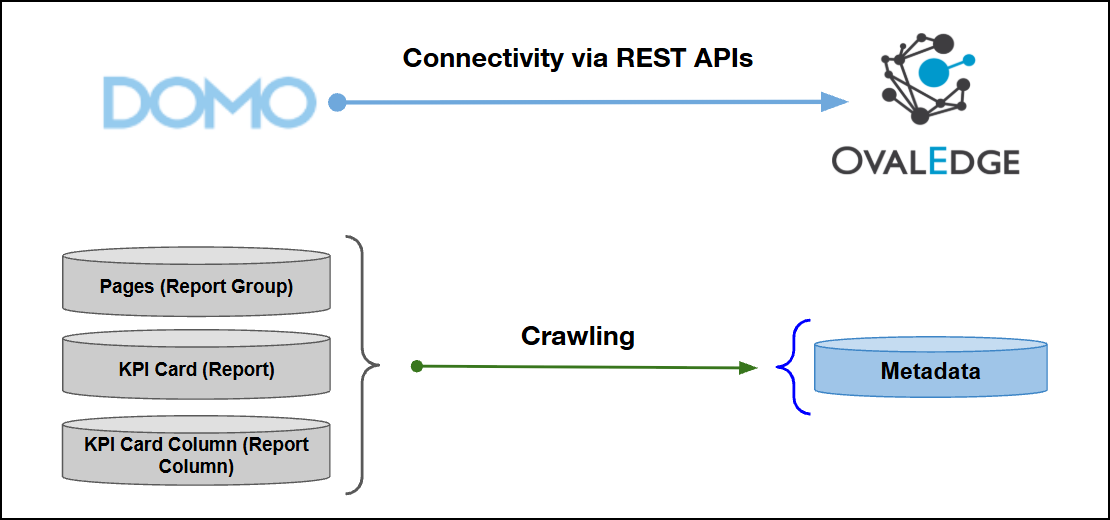
| Connector Category | Reporting Tool |
| OvalEdge Release Supported | Release6.0.x and later |
Connectivity [How the connection is established with Domo] | REST APIs |
| Verified Domo Version | REST APIs (v1 and v3) |
| Domo Object | Domo Attribute | OvalEdge Attribute | OvaEdge Category | OvalEdge Type |
|---|---|---|---|---|
| Pages | name | Report Group | Report Group | Report Group |
| KPI Card | title | Report | Report | Report Name |
| KPI Card | type | Report Type | Report | KPI |
| KPI Card | description | Source Description | Report | Source Description |
| KPI Card Column | column/name | Column | Report Column | Report Column Name |
| KPI Card Column | mapping/dataType | Type | Report Column | Column Type |
| KPI Card Column | formula | Formula | Report Column | Formula |
| Operations | Objects | Access Permissions | Comments |
|---|---|---|---|
| Connector Validation | - |
| Validates by obtaining an OAuth access token via validateConnection() > getAccessToken(). Validation fails if the token response starts with ERROR. Card and metadata APIs are not fully validated until the crawl operation runs. |
| Crawling | Pages |
| Performs metadata crawl for Pages > KPI Cards (type = KPI only) > Columns/Formulas. Uses OAuth for Pages and a session cookie (username/password) for cards and fields. Non-KPI cards, datasets, sub-reports, users, and source code are not crawled. |
| Manual Lineage | - | Manual lineage requires OvalEdge user permissions to edit lineage on Report and Report Column objects. | Supports manual lineage creation and management within OvalEdge. Auto lineage is not available. |
| Crawling | Pages |
| Domo Page maps to OvalEdge Report Group (REPORTGROUP). Metadata is retrieved through getRemoteDomains(). The Page ID is used as the external reference, and the Page name is mapped as the Report Group name. |
| Crawling | KPI Cards | User session: Domo user must have login access and permission to view the Page and KPI cards. | Domo KPI Card (type = KPI only) maps to OvalEdge Report (OECHART). Other card types (such as chart and table) are skipped. The embed URL is retrieved for report preview and stored in nametypemap and colNameTypeMap. |
| Crawling | KPI Card Columns | User session: Same Domo user must have access to card metadata, including subscriptions and formulas for each KPI card. | Domo card subscription columns and formulas map to OvalEdge Report Column (CHARTCHILD). Physical columns use the column name and mapped data type, while calculated fields use the formula ID resolved from formulas. Measures and dimensions are not categorized separately. |
| Field Name | Description |
|---|---|
| Connector Type | By default, "Domo" is displayed as the selected connector type. |
| Credential Manager* | Select the desired credentials manager from the drop-down list. Relevant parameters will be displayed based on the selection. Supported Credential Managers:
For more details, click here. |
| Connector Name* | Enter a unique name for the Domoconnection (Example: "Domodb"). |
| Connector Environment | Select the environment (Example: PROD, STG) configured for the connector. For more details, click here. |
| Connector Description | Enter a brief description of the connector. |
| Client id* | Enter the Client ID of the Domo Developer Client (OAuth application) configured in Domo. This identifier is used to authenticate API requests and obtain access tokens. |
| Client secret* | Enter the Client Secret associated with the Domo Developer Client. This value is used with the Client ID to authenticate and obtain an API access token. |
| Scopes* | Enter the OAuth scopes granted to the Domo Developer Client. These scopes are passed during access token generation and determine the APIs and resources accessible to the connector. Specify scopes as space-separated values and include the required permissions, such as dashboard for Page API access. |
| Base URL* | Enter the URL of the Domo instance to which the connector will connect (Example: https://xyz.domo.com). |
| Username* | Enter the username of a Domo account with access to the Pages and KPI Cards to be crawled. This account is used to establish an authenticated session for content-related API operations. |
| Password* | Enter the password associated with the specified Domo user account. This value is used to authenticate the user and establish a session for content API access. |
| Proxy Enabled* | Select Yes to route API calls through a proxy server. Select No to bypass the proxy and connect directly. |
| Default Governance Roles* | Select the appropriate users or teams for each governance role from the drop-down list. All users configured in the security settings are available for selection. |
| Admin Roles* | Select one or more users from the dropdown list for Integration Admin and Security & Governance Admin. All users configured in the security settings are available for selection. |
| No Of Archive Objects* | This shows the number of recent metadata changes to a dataset at the source. By default, it is off. To enable it, toggle the Archive button and specify the number of objects to archive. Example: Setting it to 4 retrieves the last four changes, displayed in the 'Version' column of the 'Metadata Changes' module. |
| Select Bridge* | If applicable, select the bridge from the drop-down list. The drop-down list displays all active bridges that have been configured. These bridges facilitate communication between data sources and the system without requiring changes to firewall rules. |
| S. No | Error Message | Error Description & Resolution |
|---|---|---|
| 1 | Error while validating connection: Invalid Client ID or Client Secret | Error Description: Authentication failed because the configured Client ID or Client Secret is incorrect or does not match the Domo Developer Client. Resolution:
|
| 2 | Error while validating connection: Invalid Base URL | Error Description: The specified Domo Base URL is invalid, unreachable, or does not correspond to the target Domo environment. Resolution:
|
| 3 | Error while validating connection: Invalid Username or Password | Error Description: Authentication failed because the specified Domo user credentials are incorrect or the account cannot access the Domo environment. Resolution:
|
| 4 | Error while validating connection: Invalid OAuth Scopes | Error Description: The configured OAuth scopes are missing required permissions or contain invalid values, preventing access token generation or metadata retrieval. Resolution:
|