For the complete documentation index, see llms.txt. This page is also available as Markdown.

DBT

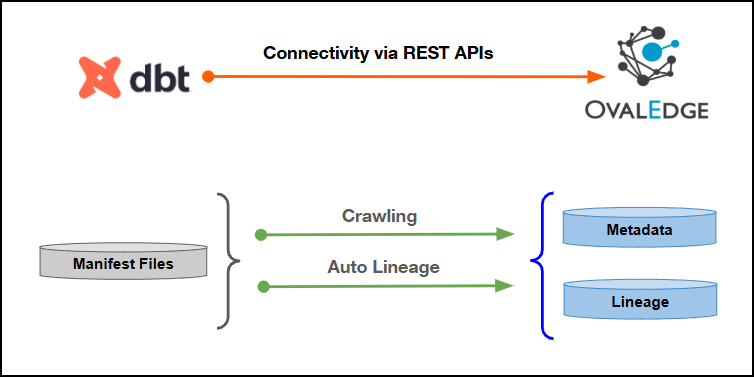
This article outlines the integration with the DBT (Data Build Tool) connector, enabling streamlined metadata management through features such as crawling and lineage building (both automatic and manual).

The connector establishes connectivity to DBT through REST APIs. Authentication is performed using a service token with the required permissions to access DBT APIs and retrieve metadata for crawling, validation, and lineage generation.

Overview

Connector Details

Connector Category

ETL Tool

Connector Version

Release7.2.3

Releases Supported (Available from)

Release6.1

Connectivity

[How the connection is established with DBT]

REST APIs

Verified DBT Version

1.7.6

The DBT connector has been validated with the mentioned "Verified DBT Versions" and is expected to be compatible with other supported DBT versions. If there are any issues with validation or metadata crawling, please submit a support ticket for investigation and feedback.

Connector Features

Feature
Availability

Crawling

✅

Delta Crawling

❌

Data Preview

❌

Auto Lineage

✅

Manual Lineage

✅

Secure Authentication via Credential Manager

✅

Data Quality

❌

DAM (Data Access Management)

❌

Bridge

✅

Metadata Mapping

The following objects are crawled from DBT and mapped to the corresponding UI assets.

DBT Object
DBT Attribute
OvalEdge Attribute
OvaEdge Category
OvalEdge Type

Manifest.json

Manifest.json

Code Name

Codes

DBT_JOB

SQL's inside Manifest file

Raw_code

Code Name

Codes

DBT_RUN_SQL

Set up a Connection

Prerequisites

The following are the prerequisites to establish a connection:

Service Account User Permissions

👨‍💻 Who can provide these permissions? These permissions are typically granted by the DBT administrator, as users may not have the required access to assign them independently.

Operations
Objects
Access Permission

Crawling

Projects

Read-only

Crawling & Lineage Building

Manifest.json

Read-only

Connection Configuration Steps

  1. Log into OvalEdge, go to Administration > Connectors, click + (New Connector), search for DBT, and complete the required parameters.

Fields marked with an asterisk (*) are mandatory for establishing a connection.

Field Name
Description

Connector Type

By default, "DBT" is displayed as the selected connector type.

Credential Manager*

Select the desired credentials manager from the drop-down list. Relevant parameters will be displayed based on the selection.

Supported Credential Managers:

  • OE Credential Manager

  • AWS Secrets Manager

  • HashiCorp

  • Azure Key Vault

For more details, click here.

License Add Ons

Select the checkbox for Auto Lineage Add-On to build data lineage automatically. For more details, click here.

Connector Name*

Enter a unique name for the DBT connection

(Example: "DBT").

Connector Environment

Select the environment (Example: PROD, STG) configured for the connector. For more details, click here.

Connector Description

Enter a brief description of the connector.

Server*

Enter the DBT server name or IP address.

Account ID*

Enter the Account ID associated with the DBT workspace to establish the connection.

Service account token*

Enter the service account token generated for the DBT workspace.

Excluded Jobs

Enter comma-separated job names that must be excluded from crawling.

Proxy Enabled*

Select Yes to route the connection through a configured proxy, or No to connect directly without a proxy.

Plugin Server

Enter the server’s name when running as a plugin server.

Plugin Port

Enter the port number on which the plugin is running.

Default Governance Roles

Default Governance Roles*

Select the appropriate users or teams for each governance role from the drop-down list. All users configured in the security settings are available for selection.

Admin Roles

Admin Roles*

Select one or more users from the drop-down list for Integration Admin and Security & Governance Admin. All users configured in the security settings are available for selection.

No of Archive Objects

No Of Archive Objects*

This shows the number of recent metadata changes to a dataset at the source. By default, it is off. To enable it, toggle the Archive button and specify the number of objects to archive.

Example: Setting it to 4 retrieves the last four changes, displayed in the 'Version' column of the 'Metadata Changes' module.

Bridge

Select Bridge*

If applicable, select the bridge from the drop-down list.

The drop-down list displays all active bridges that have been configured. These bridges facilitate communication between data sources and the system without requiring changes to firewall rules.

  1. After entering all connection details, the following actions can be performed:

    1. Click Validate to verify the connection.

    2. Click Save to store the connection for future use.

    3. Click Save & Configure to apply additional settings before saving.

  2. The saved connection will appear on the Connectors home page.

Manage Connector Operations

Crawl

The Crawl/Profile button allows users to select one or more Manifest files for crawling.

  1. Navigate to the Connectors page and click Crawl/Profile.

  2. Select the Manifest files to crawl.

  3. The Crawl option is selected by default.

  4. Click Run to collect metadata from the connected source and load it into the Data Catalog.

  5. After a successful crawl, the information appears in the Data Catalog > Databases/<>Codes tab.

The Schedule checkbox allows automated crawling at defined intervals, from a minute to a year.

  1. Click the Schedule checkbox to enable the Select Period drop-down.

  2. Select a time period for the operation from the drop-down menu.

  3. Click Schedule to initiate metadata collection from the connected source.

  4. The system will automatically execute the crawl operation at the scheduled time.

Other Operations

The Connectors page provides a centralized view of all configured connectors, along with the health status.

Managing connectors includes:

  • Connector Health: Displays the current status of each connector using a green icon for active connections and a red icon for inactive connections, helping to monitor the connectivity with data sources.

  • Viewing: Click the Eye icon next to the connector name to view connector details.

Nine Dots Menu Options:

To view, edit, validate, build lineage, configure, or delete connectors, click on the Nine Dots menu.

  • Edit Connector: Update and revalidate the data source.

  • Validate Connector: Check the connection's integrity.

  • Settings: Modify connector settings.

    • Lineage: Configure Server Dialects for source code parsing and Connector Priority for table lineage connection. For more details, click here.

  • Build Lineage: Automatically build data lineage using source code parsing.

  • Delete Connector: Remove a connector with confirmation.

For more details on connector settings, click here.

Troubleshooting

If incorrect parameters are entered, error messages may appear. Ensure all inputs are accurate to resolve these issues. If issues persist, contact the assigned support team.

S. No
Error Message
Error Description & Resolution

1

Error while validating connection: invalid or expired service token

The service account token used for the DBT connector has expired, been revoked, or does not carry read-only permission.

Resolution:

  • Confirm the account ID and API access URL entered match the values shown in the DBT account settings.

  • Confirm the service token is still active and generate a new token if it has expired or been revoked.

  • Confirm the token has at least read-only permission assigned before revalidating.

2

Unauthorized Access (401)

The authentication token or credentials are invalid or expired.

Resolution:

  • Validate the token or credentials used for the request.

  • Regenerate the token if expired.

  • Ensure the correct authentication method is configured.

S. No
Error Message
Error Description & Resolution

1

Project listed during crawl selection but no dataset gets catalogued

The selected project has not yet been compiled, so no target folder or manifest file exists for it to be read.

Resolution:

  • Confirm the project has been compiled at least once so that a target folder is generated.

  • Confirm a manifest.json file is present inside that target folder.

  • Request that the project be run in compile mode again if the target folder is missing.

2

Manifest file present but not recognized during crawl

The generated manifest file or its containing folder has been renamed away from the expected default names.

Resolution:

  • Confirm the manifest file retains its default name, manifest.json, without manual renaming.

  • Confirm the folder containing it is named target, matching the structure DBT generates automatically.

  • Recrawl once the file and folder names are restored to their default values.

3

Descriptions are not getting copied from the DBT Manifest JSON file to Delta Lake tables and table columns after executing the DBT AdvanceJob.

  • The DBT AdvanceJob cannot copy business descriptions because the manifest JSON file exceeds the configured manifest crawl size limit.

  • In this case, the 17 MB manifest JSON file was not cataloged because the dbt.crawl.manifest.size.limit setting was set to the default value of 5 MB.

  • As a result, descriptions were not transferred to the corresponding Delta Lake tables and columns. Resolution:

  • Verify the size of the DBT manifest JSON file.

  • Set dbt.crawl.manifest.size.limit to a value greater than or equal to the manifest file size.

  • Re-crawl the manifest JSON file.

  • Rerun the DBT AdvanceJob.

  • Verify that the descriptions are copied to the corresponding Delta Lake tables and columns.

S. No
Error Message
Error Description & Resolution

1

Table level lineage is present but column level lineage is missing for a model

The manifest file does not contain compiled code for that model, which happens when the project was run rather than compiled.

Resolution:

  • Confirm the project has been executed in compile mode rather than only run mode.

  • Confirm every model intended for lineage was included in the compile step.

  • Request an updated manifest export after a full project compile.

2

A table appears in the source list but is missing from the lineage mapping, or the reverse

This occurs when a table is referenced using a hardcoded name in the raw query instead of the standard reference syntax, causing a mismatch between the recorded sources and the compiled query content.

Resolution:

  • Confirm standard reference or source functions are used in the model queries instead of hardcoded table names.

  • Review the specific model query for any hardcoded references.

  • Escalate to the development team if the mismatch continues, as a longer-term enhancement is planned for this scenario.

3

Lineage displays a temporary table name instead of the expected system name

The target or source system referenced by the model has not yet been catalogued separately in the application.

Resolution:

  • Confirm the relevant source or target system connector has already been catalogued.

  • Recrawl the lineage once that system is catalogued so the actual object name resolves correctly.

  • Expect a temporary placeholder name to continue appearing until the related system is added.

4

No clear indication of why lineage failed for a specific model

Detailed logging for lineage build failures is limited at present, making the root cause harder to identify directly from job logs.

Resolution:

  • Check whether the dataset associated with the model shows an empty query or SQL content.

  • Manually verify whether the model was included in a full project compile.

  • Escalate the specific model for review, since enhanced logging for this scenario is still pending.

FAQs

S. No
Question
Answer

1

When should the dbt core connector be used instead of the dbt cloud connector?

The choice depends on where the dbt projects are hosted:

  • DBT cloud connector: Use when the dbt projects are hosted in a dbt cloud instance. It uses REST API access to retrieve the metadata.

  • DBT core connector: Use when the dbt projects are stored in a local directory, NFS location, or S3 bucket without a dbt cloud instance. It reads the project files directly from the storage location.

The project structure and lineage process remain the same for both connectors. Only the method used to access the metadata differs.

2

What access is required to set up each type of dbt connector?

DBT connector:

  • Account ID

  • API access URL

  • Service account token

These details are generated from the dbt instance account settings. The service account token should have read-only permission because write access is not required for cataloguing metadata.

3

Can a single dbt project transform data between completely different source platforms?

No. A single dbt project is expected to work within one source platform at a time. Different databases or connection details within the same platform can be used. However, transformations between completely different platforms generally require separate dbt projects, with each project aligned to its respective platform

S. No
Question
Answer

1

What exactly gets crawled when a dbt project is catalogued?

The primary artifact collected from a dbt project is manifest.json.The manifest.json file is automatically generated in the target folder when the project is compiled. It contains information such as:

  • Model definitions

  • Test information

  • Documentation details

  • Source and target relationships used for lineage

The dbt connector collects this manifest.json file, regardless of where the project is hosted.

2

What happens if a dbt project has not been compiled yet?

If the project has not been compiled:

  • The target folder and manifest.json file will not exist.

  • The project can still appear as a selectable schema during crawl selection because its folder structure is available.

  • No dataset will be catalogued because there is no manifest.json file to read.

Compile the project in compile mode to generate the target folder and manifest.json file.

3

Does each dbt project generate more than one manifest file?

No. Each dbt project generates one manifest.json file per compile action.

The manifest.json contains information for all models in the project. If only selected models are included in the compile command, the manifest.json is still generated for the entire project, but compiled code is populated only for the models included in that compile step.

S. No
Question
Answer

1

How is table-level lineage built for a dbt project?

Table-level lineage is built using the depends-on information in the manifest.json file.

The depends on field identifies the source objects used by each model. The connector uses this information across the models to link source tables to their target tables and build table-level lineage.

2

How is column-level lineage built for a dbt project?

Column-level lineage is built using the compiled code in the manifest.json file.

The compiled code contains the processed query for each model. The query is parsed to identify the source and target column mappings, which are then used to build column-level lineage.

If compiled code is not available for a model, column-level lineage cannot be generated for that model.

3

Why might column lineage be missing for certain models even though the project appears to be fine?

Column lineage may be missing when the required compiled code is not available.

This can happen when:

  • The project was run instead of properly compiled.

  • Only a subset of models was included in the compile command.

  • The required model was not included in the compile step.

Run the full project in compile mode to generate compiled code for all models.

4

What do the temporary table names shown in some lineage diagrams mean?

Temporary table names are displayed when a referenced source or target system has not yet been catalogued separately.

In this case:

  • The table and column details remain accurate.

  • The originating connector information is displayed as temporary.

  • Once the source or target system is catalogued, recrawling resolves the reference to the correct name.

5

Can lineage exist for a model even when there is no column-level mapping?

Yes. Table-level object lineage can be available even when column-level mapping is empty.

This can occur when:

  • Compiled code is not available for the model.

  • A table is referenced through a join, but none of its individual columns are selected in the query.

In these cases, the table relationship can still be identified even though column mappings cannot be generated.

6

Is detailed logging currently available when a lineage build fails for a specific model?

No. Detailed logging for lineage build failures is currently limited. Troubleshooting may require manual checks, such as:

  • Checking whether the associated dataset has an empty query.

  • Verifying that the project was correctly compiled for the affected model.

Enhanced logging for easier diagnosis is being considered for a future update.


Copyright © 2026, OvalEdge LLC, Peachtree Corners GA USA

Last updated

Was this helpful?