Delta Lake
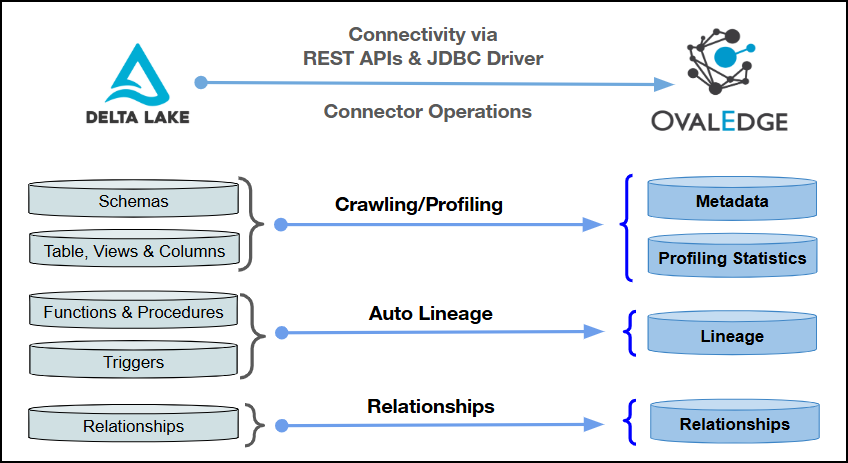
This article outlines the integration with Delta Lake, enabling streamlined metadata management through features such as crawling, profiling, querying, data preview, and lineage building (both automatic and manual). It also ensures secure authentication via Credential Manager.
The connector uses REST APIs and a JDBC driver for connectivity. Authentication is supported through Service Principal and Personal Access Token, with access to Delta Lake metadata objects established using the configured credentials and connection parameters.
Within the OvalEdge Delta Lake integration, two distinct Database Types are supported:
Delta Lake Regular: The standard (legacy) Hive Metastore–based workspace database.
Delta Lake Unity Catalog: A Databricks-governed database managed through Unity Catalog.

Overview
Connector Details
Connector Category
RDBMS System-Data Warehouse
Connector Version
Release6.1 and later
Connectivity
[How the connection is established with Delta Lake]
REST APIs & JDBC driver
Verified Delta Lake Version
2.6.40
Connector Features
Crawling
✅
Delta Crawl
❌
Profiling
✅
Query Sheet
✅
Data Preview
✅
Auto Lineage
✅
Manual Lineage
✅
Authentication via Credential Manager
✅
Data Quality
✅
DAM (Data Access Management)
❌
Bridge
✅
Metadata Mapping
The following objects are crawled from Delta Lake and mapped to the corresponding UI assets.
Schema
DatabaseName
Schema
Databases
Schema
Table
Table Name
Table
Tables
Table
Table
Table Data Type
Table Type
Tables
Table
Columns
Column Name
Column
Table Columns
Columns
Columns
Column Datatype
Column Type
Table Columns
Columns
Columns
Column Comment
Source Description
Table Columns
Columns
Views
View Name
View
Tables
Views
Set up a Connection
Prerequisites
The following are the prerequisites to establish a connection:
Whitelisting Ports
Ensure the inbound port “443” is whitelisted to enable successful connectivity with the Delta Lake database.
Service Account User Permissions
Crawling & Profiling
Schemas
Schemas
USAGE
Crawling & Profiling
Tables / Views
Tables
USAGE
Crawling & Profiling
Table / View Columns
On the Table
SELECT
Crawling & Lineage Building
Lineage related source codes
System.Access.Table_Lineage, System.Access.Column_Lineage
SELECT
Crawling
Column Relations
Information_Schema.Table_Constraints, Information_Schema.Key_Column_Usage, Information_Schema.Referential_Constraints
SELECT
Connection Configuration Steps
Log into OvalEdge, navigate to Administration > Connectors, click + (New Connector), search for Delta Lake, and complete the specific parameters.
Connector Type
By default, "Delta Lake" is displayed as the selected connector type.
Authentication
Delta Lake supports the following two types of authentications:
Service Principal
Personal Access Token
Credential Manager*
Select the desired credentials manager from the drop-down list. Relevant parameters will be displayed based on the selection.
Supported Credential Managers:
OE Credential Manager
AWS Secrets Manager
HashiCorp
Azure Key Vault
For more details, click here.
License Add Ons
Select the checkbox for the Auto Lineage Add-On to build data lineage automatically. Note: In API mode for Unity Catalog, lineage data availability depends on the Databricks REST API response and may be limited to recent activity.
Select the checkbox for the Data Quality Add-On to identify data quality issues using data quality rules and anomaly detection.
For more details, click here.
Connector Name*
Enter a unique name for the Delta Lake connection
(Example: "Delta Lakedb").
Connector Environment
Select the environment (Example: PROD, STG) configured for the connector. For more details, click here.
Connector Description
Enter a description to identify the purpose of the connector.
Client Id*
Enter the Client ID configured for accessing the Delta Lake database.
Client Secret*
Enter the Client Secret associated with the provided Client ID.
Server*
Enter the Delta Lake server name or IP address (Example: xxxx-sxxxxxx.xxxx4ijxxxl.xx-south-1.rxs.xxxxx.com or 1xx.xxx.1.xx).
Port*
By default, the port number for the Delta Lake, "443" is auto-populated. If required, the port number can be modified according to the custom port number configured for the Delta Lake Database.
Database Type*
Select the database type from the drop-down:
Delta Lake_Regular: The standard (legacy) Hive Metastore–based workspace database.
Delta Lake_Unity_Catalog: A Databricks-governed database managed through Unity Catalog.
Database
Enter the database name to which the service account user has access to within Delta Lake.
Driver*
By default, the Delta Lake driver details are auto-populated.
HTTP Path*
Enter the HTTP Path, which is typically associated with the cluster or warehouse.
Lineage Fetching Mode*
Select the Lineage Fetching Mode from the drop-down:
QUERY mode (Access lineage via system tables)
API mode (Access lineage via REST APIs)
Note: In the Delta Lake Unity Catalog, when API mode is used, lineage information depends on the Databricks REST API response. The API may return lineage data only for recent activity (for example, the last 3 months). If lineage data is unavailable in the API response, lineage may not be built in OvalEdge. In such cases, SQL mode is recommended for lineage fetching.
Connection String
Configure the connection string for the Delta Lake database:
Automatic Mode: The system generates a connection string based on the provided credentials.
Manual Mode: Enter a valid connection string manually.
Note: When Manual Mode is enabled for Delta Lake Unity Catalog connections, ensure the connection string does not include http:// or https:// in the server value. Only the hostname or IP address should be used.
Replace placeholders with actual database details.
{sid} refers to the Database Name.
Proxy Enabled*
Select Yes to route API calls through a proxy server. Select No to bypass the proxy and connect directly.
Plugin Server
Enter the server’s name when running as a plugin server.
Plugin Port
Enter the port number on which the plugin is running.
Credential Manager*
Select the desired credential manager from the drop-down list. Relevant parameters will be displayed based on the selection.
Supported Credential Managers:
OE Credential Manager
AWS Secrets Manager
HashiCorp
Azure Key Vault
For more details, click here.
License Add Ons
Select the checkbox for the Auto Lineage Add-On to build data lineage automatically.
Select the checkbox for the Data Quality Add-On to identify data quality issues using data quality rules and anomaly detection.
For more details, click here.
Connector Name*
Enter a unique name for the Delta Lake connection
(Example: "Delta Lakedb").
Connector Environment
Select the environment (Example: PROD, STG) configured for the connector. For more details, click here.
Connector Description
Enter a description to identify the purpose of the connector.
Server*
Enter the Delta Lake server name or IP address (Example: xxxx-sxxxxxx.xxxx4ijxxxl.xx-south-1.rxs.xxxxx.com or 1xx.xxx.1.xx).
Port*
By default, the port number for the Delta Lake, "443" is auto-populated. If required, the port number can be modified according to the custom port number configured for the Delta Lake Database.
Database Type*
Select the database type from the drop-down:
Delta Lake_Regular
Delta Lake_Unity_Catalog
Database
Enter the database name to which the service account user has access within the Delta Lake.
Driver*
By default, the Delta Lake driver details are auto-populated.
HTTP Path*
Enter the HTTP Path, which is typically associated with the cluster or warehouse.
Lineage Fetching Mode*
Select the Lineage Fetching Mode from the drop-down:
QUERY mode (Access lineage via system tables)
API mode (Access lineage via REST APIs)
Username*
Enter the service account username set up to access the Delta Lake database (Example: "oesauser").
Password*
Enter the access token associated with the service account user.
Connection String
Configure the connection string for the Delta Lake database:
Automatic Mode: The system generates a connection string based on the provided credentials.
Manual Mode: Enter a valid connection string manually.
Replace placeholders with actual database details.
{sid} refers to the Database Name
Proxy Enabled*
Select Yes to route API calls through a proxy server. Select No to bypass the proxy and connect directly.
Plugin Server
Enter the server’s name when running as a plugin server.
Plugin Port
Enter the port number on which the plugin is running.
Default Governance Roles
Default Governance Roles*
Select the appropriate users or teams for each governance role from the drop-down list. All users and teams configured in OvalEdge Security are displayed for selection.
Admin Roles
Admin Roles*
Select one or more users from the dropdown list for Integration Admin and Security and Governance Admin. All users configured in OvalEdge Security are available for selection.
No of Archive Objects
No Of Archive Objects*
It indicates the number of recent metadata changes to a dataset at the source. By default, it is off. You can enable it by toggling the Archive button and specifying the number of objects to archive.
Example: Setting it to 4 retrieves the last 4 changes, shown in the 'version' column of the 'Metadata Changes' module.
Bridge
Select Bridge*
If applicable, select the bridge from the drop-down list.
The drop-down list displays all active bridges configured in OvalEdge. These bridges enable communication between data sources and OvalEdge without altering firewall rules.
After entering all connection details, the following actions can be performed:
Click Validate to verify the connection.
Click Save to store the connection for future use.
Click Save & Configure to apply additional settings before saving.
The saved connection will appear on the Connectors home page.
Manage Connector Operations
Crawl/Profile
The Crawl/Profile button allows users to select one or more schemas for crawling and profiling.
Navigate to the Connectors page and click Crawl/Profile.
Select the schemas to crawl.
The Crawl option is selected by default. To perform both operations, select the Crawl & Profile radio button.
Click Run to collect metadata from the connected source and load it into the Data Catalog.
After a successful crawl, the information appears in the Data Catalog > Databases tab.
The Schedule checkbox allows automated crawling and profiling at defined intervals, from a minute to a year.
Click the Schedule checkbox to enable the Select Period drop-down.
Select a time interval for the operation from the drop-down menu.
Click Schedule to initiate metadata collection from the connected source.
The system will automatically execute the selected operation (Crawl or Crawl & Profile) at the scheduled time.
Other Operations
The Connectors page provides a centralized view of all configured connectors, along with their health status.
Managing connectors includes:
Connectors Health: Displays the current status of each connector using a green icon for active connections and a red icon for inactive connections, helping to monitor the connectivity with data sources.
Viewing: Click the Eye icon next to the connector name to view connector details.
Nine Dots Menu Options:
You can view, edit, validate, build lineage, and delete connectors using the Nine Dots menu.
Edit Connector: Update and revalidate the data source.
Validate Connector: Check the connection's integrity.
Settings: Modify connector settings.
Crawler: Configure data that needs to be extracted.
Profiler: Customize data profiling rules and methods.
Query Policies: Define rules for executing queries based on roles.
Access Instructions: Specify how data can be accessed as a note.
Business Glossary Settings: Manage term associations at the connector level.
Connection Pooling: Configure database connection pool parameters to optimize database connectivity and resource utilization. For more details, click here.
Lineage: Configure Server Dialects for source code parsing and Connector Priority for table lineage connection. For more details, click here.
Others: Configure notification recipients for metadata changes.
Build Lineage: Automatically build data lineage using source code parsing.
Delete Connector: Remove connectors with confirmation.
For more details on connector settings, click here.
Troubleshooting
If incorrect parameters are entered, error messages may appear. Ensure all inputs are accurate to resolve these issues. If issues persist, contact the assigned support team.
1
Error while validating connection: connection timeout
The SQL warehouse backing the connection may be in a stopped or sleeping state, or the timeout is being affected by networking, regional, or security-related factors.
Resolution:
Allow the automatic retry process to complete, since the connector retries three to five times to give the warehouse cluster time to activate.
Confirm networking, regional latency, and security configuration between the environment and the warehouse are not restricting the connection.
Escalate for further investigation if failures continue despite correct access and configuration, as some latency causes may not appear directly in the logs.
2
Validation fails or is inconsistent when the server name includes HTTPS
The server name field expects a value starting with adb, and adding HTTPS in front of it can prevent the connection from validating correctly.
Resolution:
Confirm the server name entered starts with adb and does not have HTTPS added in front of it.
Remove any HTTPS prefix from the server field if it has been included.
Retry validation once the server name format has been corrected.
3
Validation repeatedly fails when the SQL warehouse is on demand or idle
On-demand warehouses are stopped when not in use to reduce costs, and an idle or sleeping warehouse needs time to restart before a connection can succeed.
Resolution:
Retry validation after allowing time for the warehouse cluster to start up from a stopped or idle state.
Confirm the warehouse is not configured to require only manual restart, since this can prevent the automatic retry process from succeeding.
Escalate to the relevant administrator if the warehouse consistently fails to start automatically.
4
Error while validating connection: authentication failure using personal access token
The personal access token entered has expired or has been removed, since tokens are created with a defined expiry period.
Resolution:
Confirm the personal access token being used has not expired.
Generate a new token with an appropriate expiry period if the previous one has expired or been removed.
Revalidate the connection once the new token has been entered, noting that existing data and permissions remain unaffected by the token change.
5
Error setting/closing session: 401 Unauthorized
The connection cannot authenticate when the client ID, client secret, HTTP path, or database name is incorrect or invalid.
Resolution:
Verify the client ID and client secret entered for the connection.
Confirm the HTTP path and database name are correct.
Use only the IP address or hostname in the server field without adding HTTP or HTTPS.
Correct any invalid connection details and retry validation.
1
Errors encountered while crawling views under information_schema
The information_schema is a system-generated schema containing views without accessible definitions or sufficient permissions, which commonly causes errors when crawled.
Resolution:
Confirm whether the information_schema is included in the current crawl scope.
Apply a regular expression rule in the connector settings to exclude information_schema from crawling.
Recrawl once the exclusion rule has been applied.
2
Lineage build encounters heap-related issues during crawling
Query-based lineage fetching retrieves the complete set of related lineage data at once, which can lead to heap issues when the underlying data volume is very large.
Resolution:
Confirm which lineage fetching mode, query or API, is currently configured for the connection.
Consider switching to API based lineage fetching if large data volumes are causing heap issues with query mode.
Note that API mode may return a more limited historical window of data compared to query mode.
3
Query operations take longer than expected or time out during crawling or profiling
The configured query timeout or connection pooling settings may not be sufficient for the complexity or volume of the query being run.
Resolution:
Adjust the query timeout setting in the connection pooling configuration if operations are expected to take longer.
Review the connection pooling settings, including the leak detection threshold, to confirm connections are being managed as expected.
Retry the crawl or profile job once the relevant settings have been adjusted.
FAQs
1
What is the difference between regular Delta Lake and Delta Lake Unity Catalog?
Regular Delta Lake uses parquet data files and a log file to record changes to the data. It does not provide built-in governance or centralized lineage.
Delta Lake Unity Catalog uses the same underlying storage approach but adds:
Catalog, schema, and table organization
Built-in lineage tracking
Centralized workspaces
Access across multiple databases
Regular Delta Lake keeps data within individual, workspace-specific locations.
2
When should Unity Catalog be used instead of the regular Delta Lake connector?
Use Unity Catalog when governance, lineage, and centralized access are required.
The regular Delta Lake connector is suitable when only basic storage access is needed and governance or lineage capabilities are not required.
3
What metadata does the Delta Lake Unity Catalog connector fetch?
The connector fetches:
Catalogs
Schemas
Tables
Views
Columns
Functions
Procedures
Triggers are not supported.
Delta crawl and data access management are also not currently supported.
1
What authentication types are supported for this connector?
Two authentication types are supported:
Service principal: Uses a client ID and client secret.
Personal access token: Works similarly to username and password authentication, with the token used as the password.
Both authentication types support credential manager integration, including:
OE Database
AWS secret manager
HashiCorp
Azure key vault
2
What format should the server name follow?
The server name must:
Start with adb
Not include HTTPS
Do not add HTTPS to the server name because secure connection handling is managed internally.
3
What permissions are required on the service account?
The following permissions are required:
Usage permission on schemas, tables, and views.
Select permission on tables to retrieve column level relationships.
For automatic lineage, select permission on the relevant lineage-related tables in Unity Catalog.
4
What is the SQL warehouse, and why does the HTTP path field matter?
The SQL warehouse is the computational engine used to execute queries against the connected Delta Lake environment.
It is available in different capacity tiers, such as small, medium, and large, based on query complexity and data volume.
The HTTP path identifies the location of the SQL warehouse and is required to route queries to the correct compute resource.
5
What does leaving the database name field blank do?
Leaving the database name field blank allows the connector to fetch all catalogs accessible to the configured credentials.
Entering a specific database name limits the connector to that catalog only.
6
How does token expiry work for personal access token authentication?
A personal access token can be created with a defined expiry period.
When the token expires:
1. Remove the expired token.
2. Generate a new token.
3. Update the connection with the new token.
4. Revalidate the connection.
Replacing the token does not affect previously catalogued data or existing permissions because the token is used only for authentication.
7
The system cannot connect to Delta Lake. What could be the issue?
The application may not be able to reach the Databricks workspace because of an incorrect server hostname, HTTP path, port, or network configuration.
Resolution:
Confirm that the server hostname matches the Databricks workspace URL.
Confirm that port 443 is accessible.
Verify that the HTTP path is correctly specified, such as
/sql/1.0/warehouses/<id>.Confirm that network connectivity is available and that firewall or proxy settings do not block access.
Try opening the Databricks workspace in a browser from the same machine to verify connectivity.
Confirm that the connection details and workspace access are valid.
1
I cannot see any tables when browsing the database. Where are they?
Tables may not appear when the incorrect schema or catalog is selected or when the configured user does not have sufficient permissions.
Resolution:
Confirm that the correct schema and database or catalog are selected.
Verify that the tables exist in Databricks.
Refresh the table list.
Confirm that the user has the required permissions to view the schema and access the tables.
For Unity Catalog, ensure that the objects are referenced in the correct
catalog.schemaformat.
2
Should the information_schema be included when crawling a Delta Lake Unity Catalog connection?
No. Crawling the information_schema is not recommended.
The information_schema is system-generated and typically contains views without accessible definitions or permissions, which can result in crawling errors.
Exclude the information_schema from the crawl scope using a regular expression rule in the connector settings.
1
What are the two lineage fetching modes available, and how do they differ?
Two modes are available:
Query mode: Retrieves lineage directly from the lineage-related tables in Unity Catalog.
API mode: Uses API calls to retrieve the lineage information.
Both modes provide the same type of lineage data, but the retrieval method and, in some cases, the amount of historical data returned can differ.
2
Are there any limitations with each lineage fetching mode?
Yes.
Query mode:
Retrieves the complete set of related lineage data for the table.
Large volumes of historical data can cause heap-related issues.
Filtering is currently not available to limit the amount of historical data retrieved.
API mode:
May return a more limited historical window of lineage data.
This limitation is related to the Delta Lake platform rather than the connector.
3
Why does the lineage status show “Success, lineage does not exist” in Unity Catalog?
In Delta Lake Unity Catalog, lineage information fetched through REST APIs may be limited to recent activity. If there is no recent activity for a table, the API may not return lineage data, causing lineage to appear missing in OvalEdge.
In such cases, use SQL mode instead of API mode for lineage fetching.
Copyright © 2025, OvalEdge LLC, Peachtree Corners GA USA
Last updated
Was this helpful?

