# My Profile

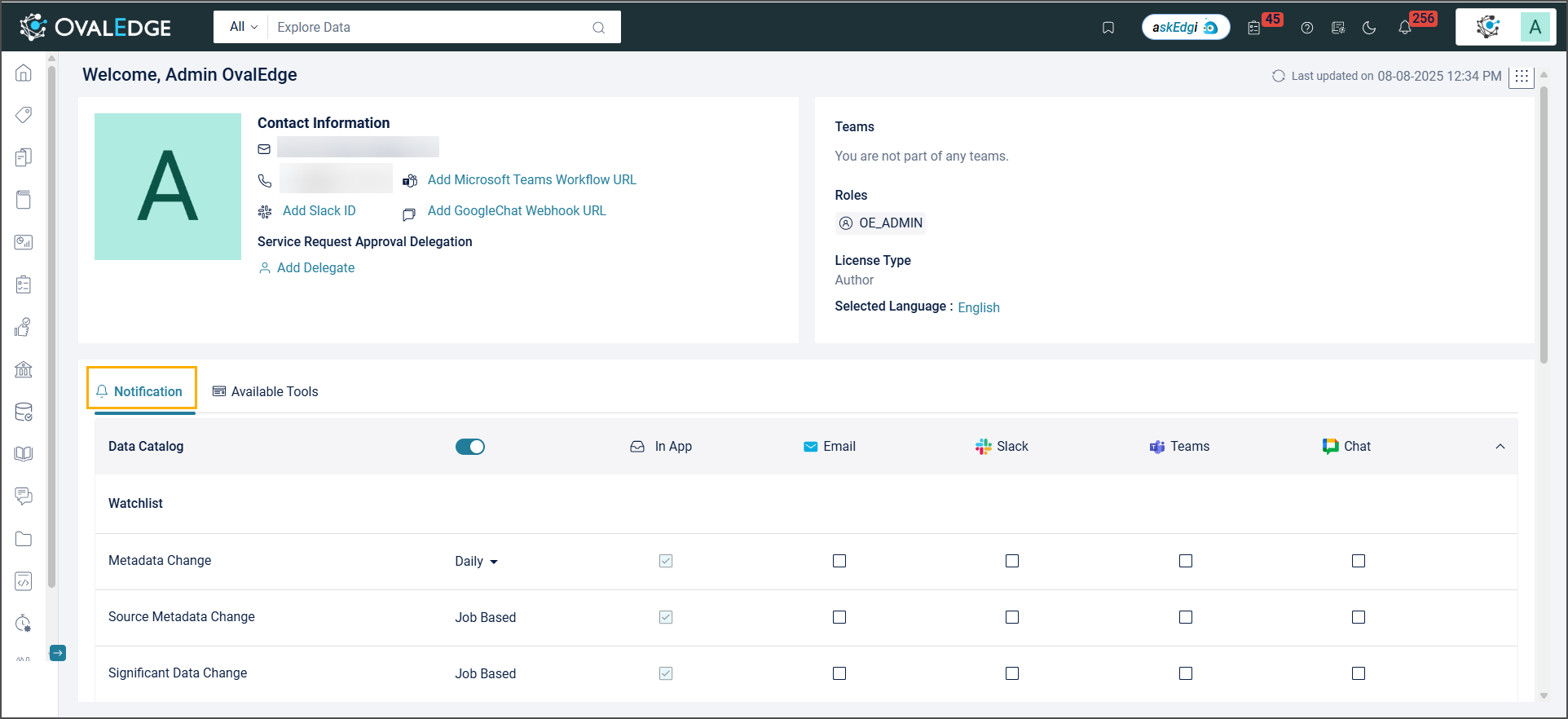
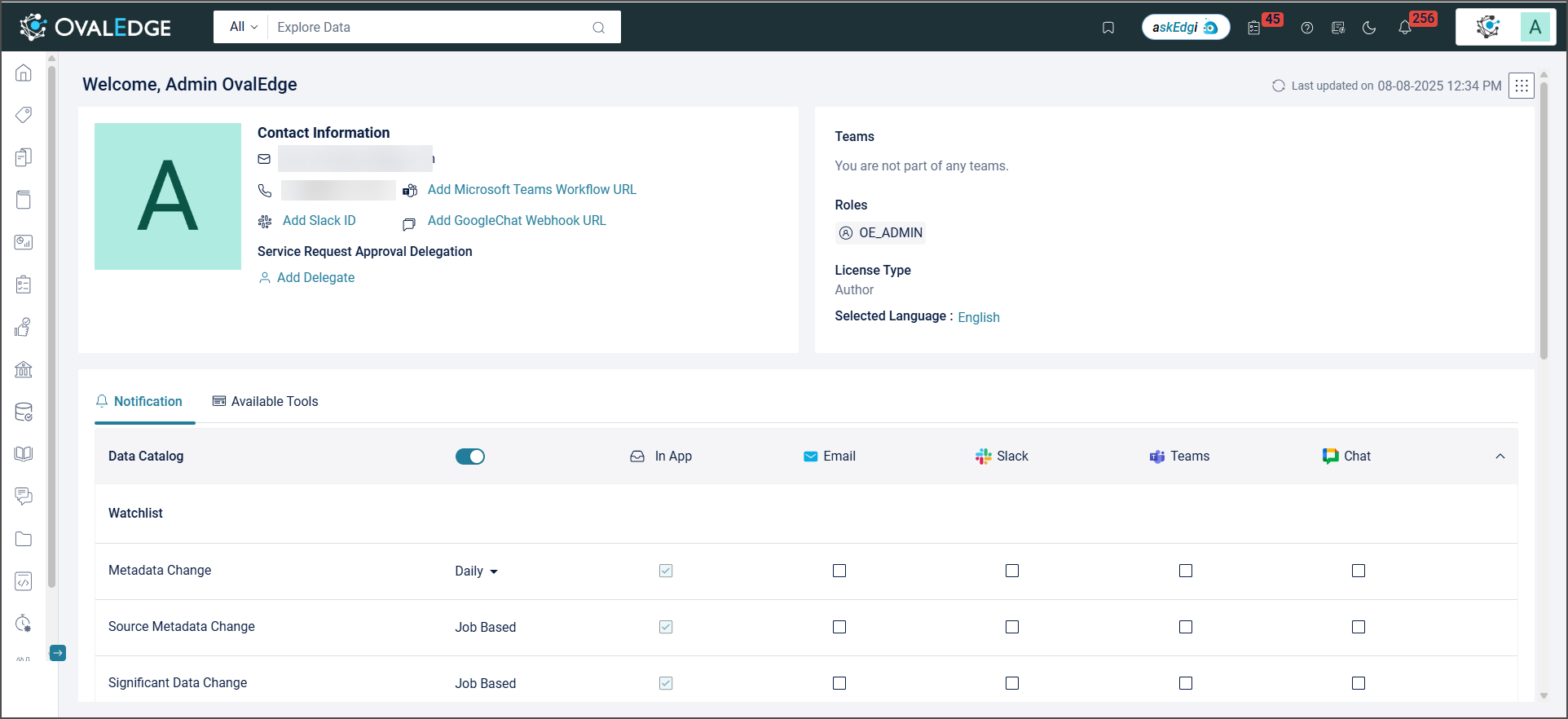
The My Profile provides a complete overview of user information, including a profile picture, name, contact details, associated roles, and API credential specifics. Modify personal information and preferences, update their passwords, view permissions, download API credentials, and access information about license types, roles, and team details.

<figure><img src="https://1813356899-files.gitbook.io/~/files/v0/b/gitbook-x-prod.appspot.com/o/spaces%2FhTnkoJQml0pok9awFDhx%2Fuploads%2FN8wwxeH4EGXzDOxoblNy%2Fimage.png?alt=media&#x26;token=62f3b317-e556-4bb8-914f-78bf7d532876" alt=""><figcaption></figcaption></figure>

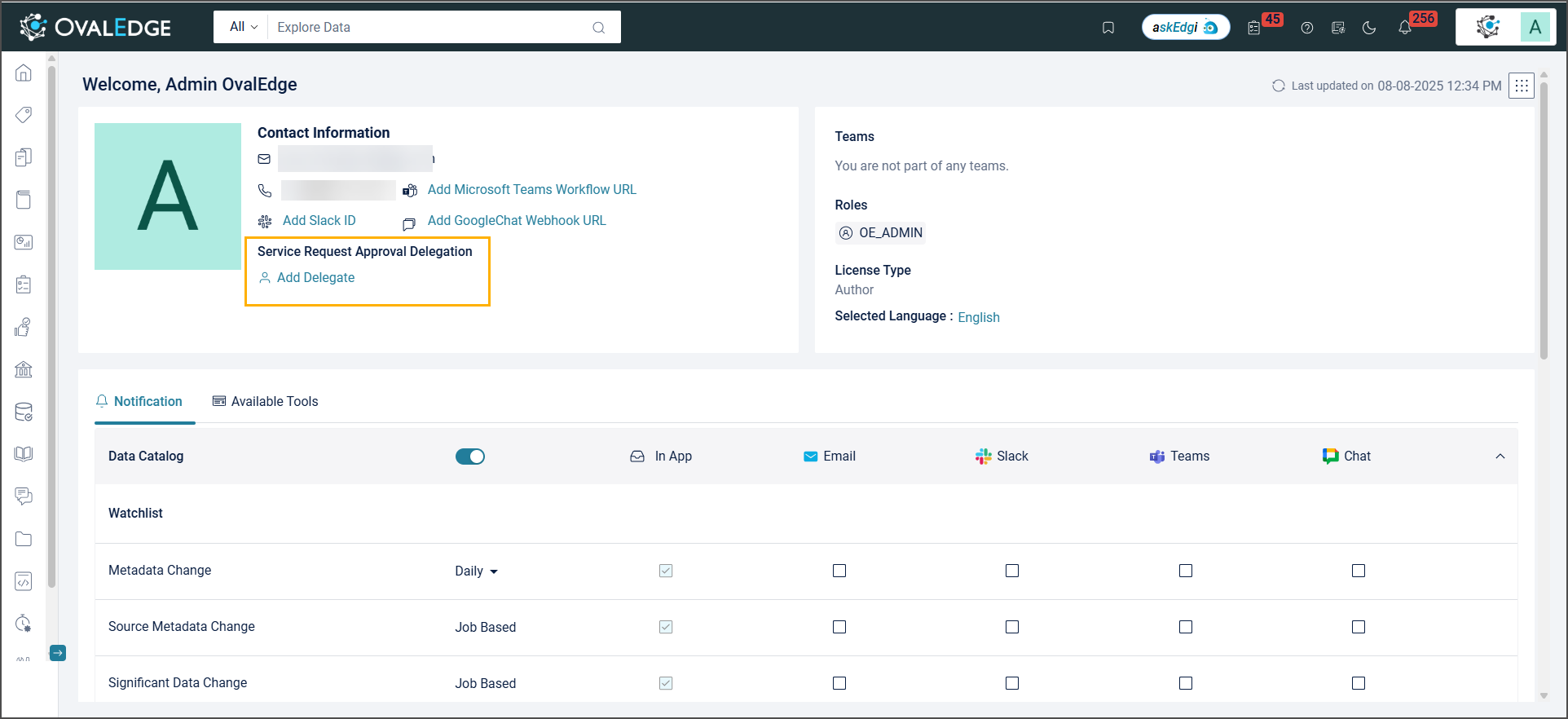
## Service Request Approval Delegation

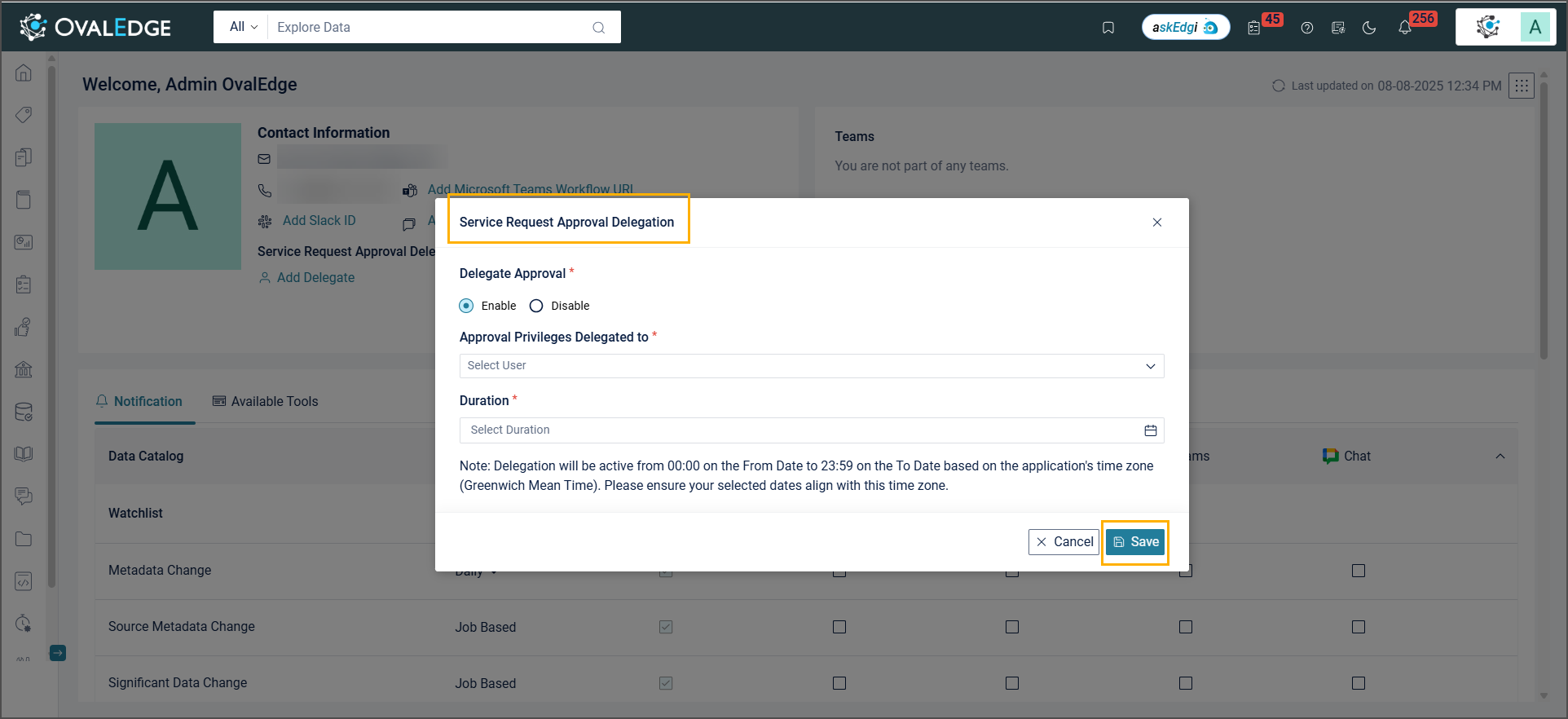
Service Request Approval Delegation helps to assign someone else to manage their service requests while away. This ensures requests are handled without delays, making service management more efficient.<br>

<figure><img src="https://1813356899-files.gitbook.io/~/files/v0/b/gitbook-x-prod.appspot.com/o/spaces%2FhTnkoJQml0pok9awFDhx%2Fuploads%2FWVACKd8ihIIn7vfTOLNc%2Fimage.png?alt=media&#x26;token=a5a15af2-71c0-4c37-a0ee-81b1068d3f21" alt=""><figcaption></figcaption></figure>

### **Add Delegate**

The Add Delegate option enables assignment of a delegate to manage service requests. Click Add Delegate on the screen to open a pop-up window. In the pop-up, select the Enable button, choose a user from the Approval Privileges Delegated to drop-down list, and specify the duration for delegation. Click Save to complete the process. The assigned delegate appears on the My Profile page.

To disable delegation, remove the assigned user. The user will no longer have access to act as a delegate.<br>

<figure><img src="https://1813356899-files.gitbook.io/~/files/v0/b/gitbook-x-prod.appspot.com/o/spaces%2FhTnkoJQml0pok9awFDhx%2Fuploads%2FosWX5biRA3rRlKXmO48m%2Fimage.png?alt=media&#x26;token=ce26324b-3a52-4219-8aca-daad570f4c8c" alt=""><figcaption></figcaption></figure>

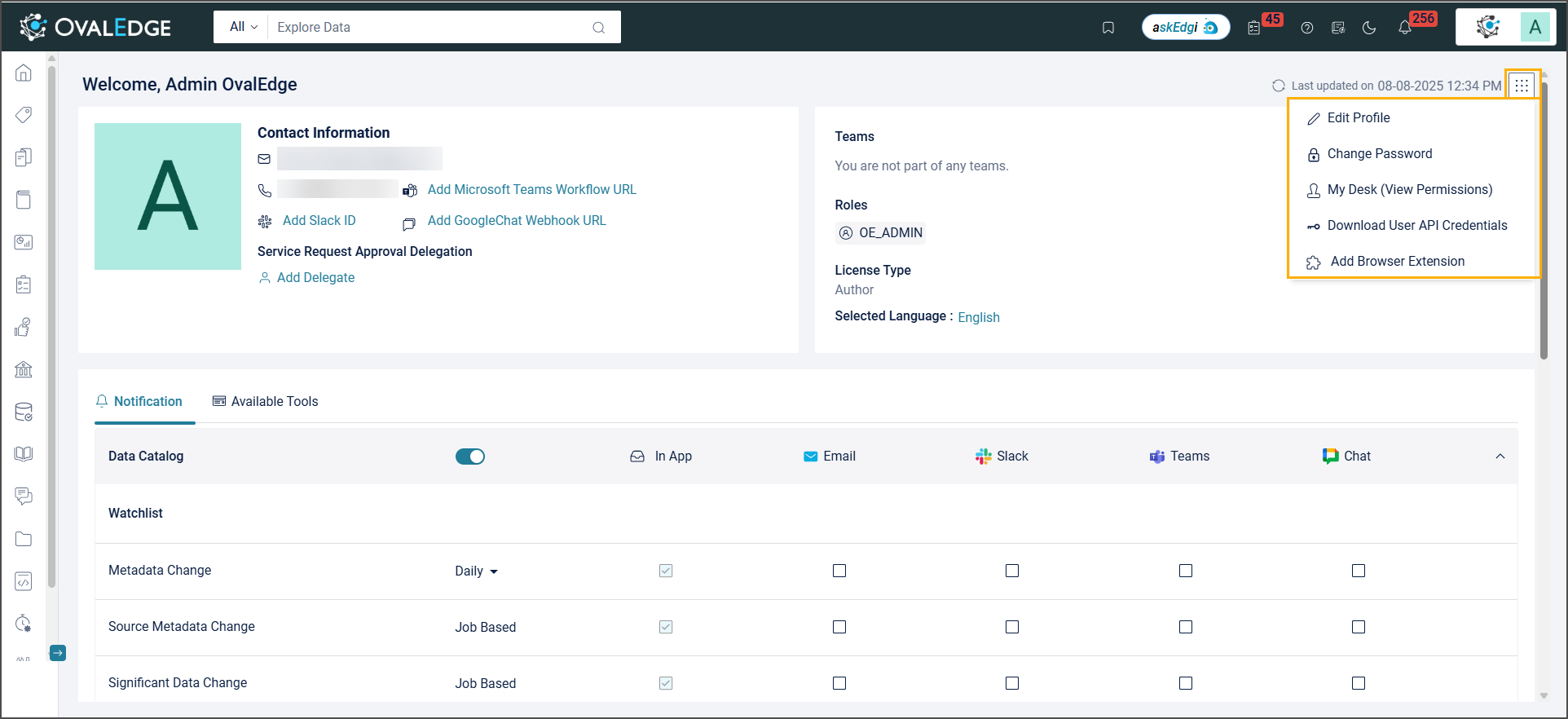
## Nine Dots Actions

<figure><img src="https://1813356899-files.gitbook.io/~/files/v0/b/gitbook-x-prod.appspot.com/o/spaces%2FhTnkoJQml0pok9awFDhx%2Fuploads%2FbionrS3tECii4IpwEJlX%2Fimage.png?alt=media&#x26;token=5dc714e9-5e8f-4d53-b9cd-3d53a832b0d3" alt=""><figcaption></figcaption></figure>

### **Edit Profile**

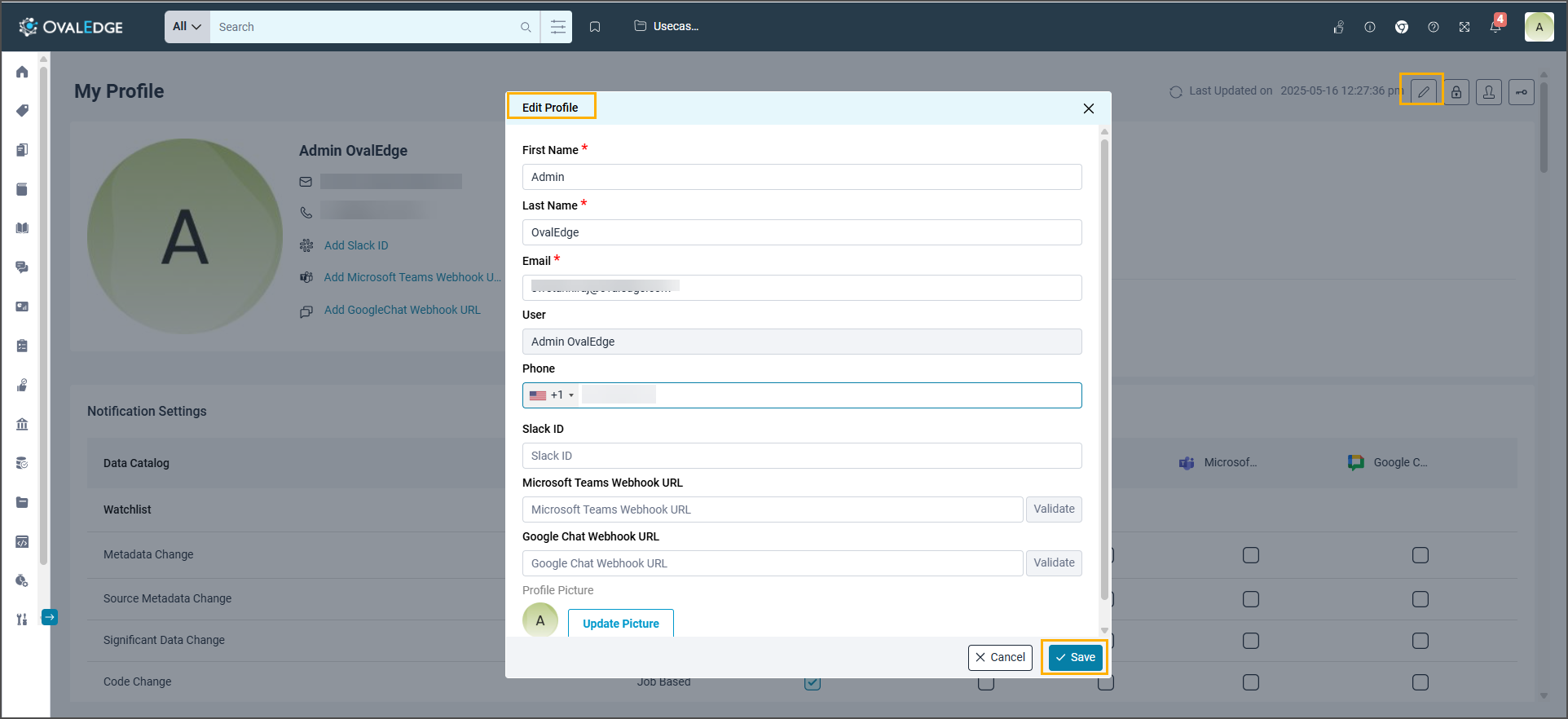
Edit Profile allows users to edit profile information such as first name, last name, email, etc., and then Save. The profile page gets updated with the latest information.

<figure><img src="https://1813356899-files.gitbook.io/~/files/v0/b/gitbook-x-prod.appspot.com/o/spaces%2FhTnkoJQml0pok9awFDhx%2Fuploads%2FsTYNIvzDqziW8OIgpxMY%2Fimage.png?alt=media&#x26;token=48ba4e17-1234-4a96-a809-9719b4d990e7" alt=""><figcaption></figcaption></figure>

| Field Name                  | Description                                                                                                                                                                                                                                                                                    |
| --------------------------- | ---------------------------------------------------------------------------------------------------------------------------------------------------------------------------------------------------------------------------------------------------------------------------------------------- |
| First Name                  | Change or update first name.                                                                                                                                                                                                                                                                   |
| Last Name                   | Change or update last name.                                                                                                                                                                                                                                                                    |
| Email                       | Change or update email id.                                                                                                                                                                                                                                                                     |
| Username                    | Username, which serves as a unique identifier that cannot be edited.                                                                                                                                                                                                                           |
| Phone                       | Add, edit, or remove the phone number.                                                                                                                                                                                                                                                         |
| Slack ID                    | <p>The Slack ID can be entered or modified for immediate communication when integrated with Slack. </p><p>Refer <a href="../../installation-and-settings/integrations-with-enterpirse-apps/slack-integration">here </a>to configure Microsoft Teams.</p>                                       |
| Microsoft Teams Webhook URL | <p>The Microsoft Teams Webhook URL can be entered or modified for immediate communication when integrated with the Microsoft Teams ID.</p><p>Refer <a href="../../installation-and-settings/integrations-with-enterpirse-apps/ms-teams-integration">here </a>to configure Microsoft Teams.</p> |
| Google Chat Webhook URL     | <p>The Google Chat Webhook URL can be entered or modified for immediate communication when integrated with Google Chat. </p><p>Refer <a href="../../installation-and-settings/integrations-with-enterpirse-apps/google-chat-integration">here </a>to configure Google Chat. </p>               |
| Choose your Avatar          | Provides an option to select an avatar from predefined images or upload a custom image from desktop and save changes.                                                                                                                                                                          |

### **Change Password**

Change Password allows users to reset their passwords. To reset them, they must provide the current and new passwords. The new password must meet these criteria: it must contain at least one uppercase letter, one lowercase letter, one number (0-9), and one special character (@,#,$,%,&,-,+,=,()), be at least 12 characters long, and not exceed 16 characters. After providing this information, the system verifies and resets the password.<br>

<figure><img src="https://1813356899-files.gitbook.io/~/files/v0/b/gitbook-x-prod.appspot.com/o/spaces%2FhTnkoJQml0pok9awFDhx%2Fuploads%2Fq1Qur0JQykviNhvAAOoI%2Fimage.png?alt=media&#x26;token=abade877-c621-4db1-ba95-0e43ea82ffcd" alt=""><figcaption></figcaption></figure>

| Field Name                             | Description                                                                                                                                                                  |
| -------------------------------------- | ---------------------------------------------------------------------------------------------------------------------------------------------------------------------------- |
| <p>Current Password</p><p><br><br></p> | To ensure security, first enter the current password. This step prevents unauthorized changes and confirms the user's identity.                                              |
| New Password                           | After successful validation of the current password, a new password can be set. The new password must meet defined security requirements to ensure strength and reliability. |
| Confirm Password                       | Prompts for confirmation of the new password to minimize errors and ensure accuracy.                                                                                         |

### **My Desk(View Permissions)**

The "My Desk (View Permissions)" feature is designed for author-licensed roles. It allows users to access and review permissions within the application. When clicking on the "My Desk (View Permissions)," it is redirected to the "[My Desk](https://docs.ovaledge.com/my-resources/my-desk)" page. Here, they can access detailed information about their permissions and roles within the application.

<figure><img src="https://lh7-rt.googleusercontent.com/docsz/AD_4nXeXl37AQVpKFVjTI-WGyR5KVZSTJ0_5XL3w5i6LxSDZ1Rzggyiu7ZLhUSM-fh4zr_ndVtBUAwb3fcbcIhSnvY9hkiqYjFNe0D_QPcHI-9zt2_qHVPQ6tGXrpqkt9h0Mez49PTJU?key=fmnDxUEd-g4k7FuVGbGRhw" alt=""><figcaption></figcaption></figure>

### **Download User API Credentials**

The "Download User API Credentials" feature is used to download API credentials securely in an accessible format.

* **API Credential Download:** Download the API credentials in a .crd format. This format ensures compatibility and security when accessing and using their API credentials.
* **Chrome Plugin Integration:** The downloaded API credentials will be helpful for the Chrome Plugin. Utilize these credentials to log in.

### **Add Browser Extension**

Clicking on the **Add Browser Extension** redirects to the Chrome Web Store page. By clicking Add to Chrome, the application is added as an Extension to Chrome.

<figure><img src="https://lh7-rt.googleusercontent.com/docsz/AD_4nXd8tQheDy0dtvQUVIt-EGnF_ZUCEVVm48Hw98pPZn61r8QE_ZPoFPedqgjEyq7n5tI1xtr026D9M3Tq9f31i53xVQLhdmpzWR8DfNuvYaWxFg12GhuWkCDjtAvKorQAVoDPu4zcgA?key=fmnDxUEd-g4k7FuVGbGRhw" alt=""><figcaption></figcaption></figure>

The application has also been added as an extension to Microsoft Edge.

## License Type, Roles, and Teams Showcase

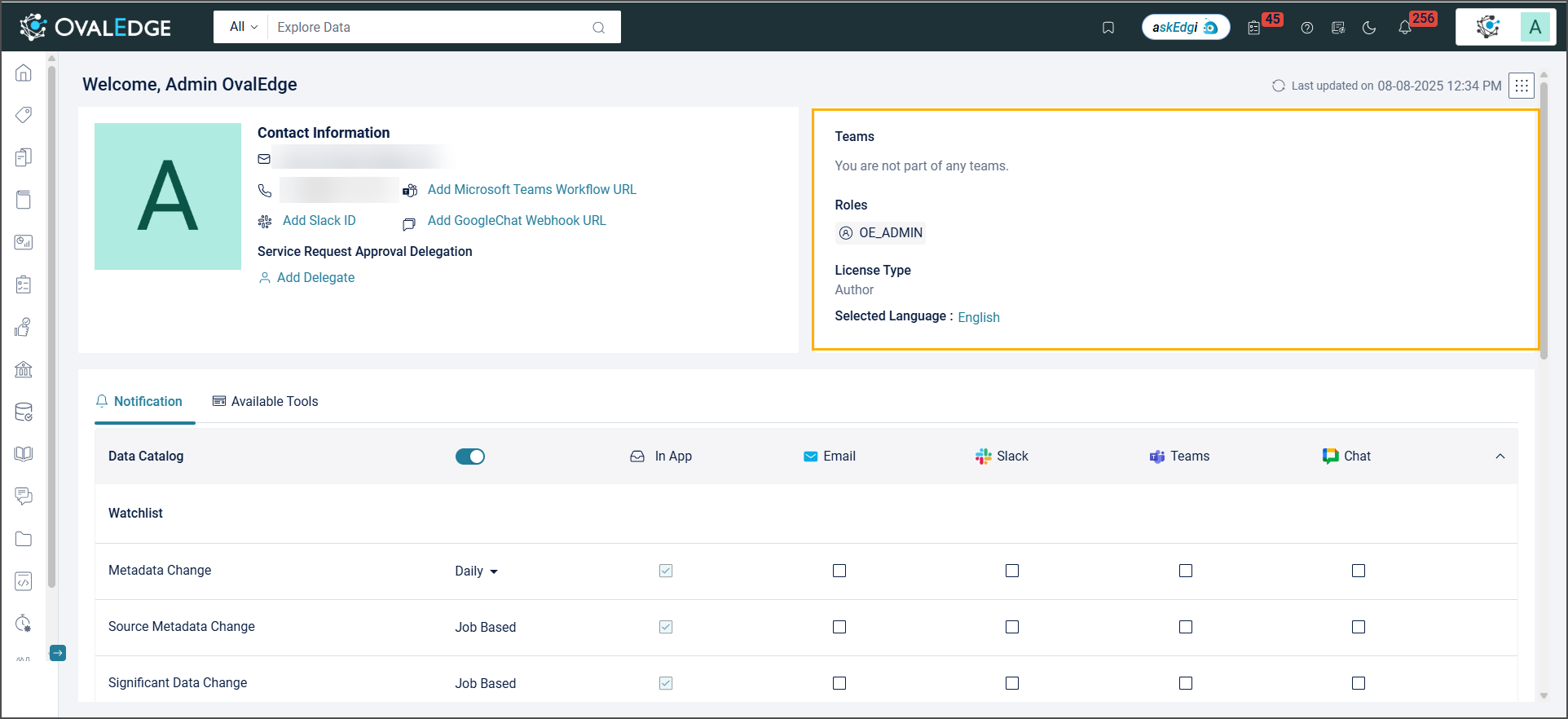
This section gives a clear insight into the role, team, and license to understand the permissions better.

<figure><img src="https://1813356899-files.gitbook.io/~/files/v0/b/gitbook-x-prod.appspot.com/o/spaces%2FhTnkoJQml0pok9awFDhx%2Fuploads%2Fdo1QPihv5dq6nBOAbM66%2Fimage.png?alt=media&#x26;token=809b1777-ac73-478a-893f-3a0ade96f4df" alt=""><figcaption></figcaption></figure>

* **Teams:** A logged-in user can see a list of the teams they are a part of.
* **Roles:** These are roles assigned to the logged-in user. They define the user's permissions and responsibilities within the system.
* **License Type:** See the license type, categorized as "Author" or "Viewer. This feature provides clarity about their access in the application.
* **Selected Language:** The language selection determines the language of the application.

## Notifications

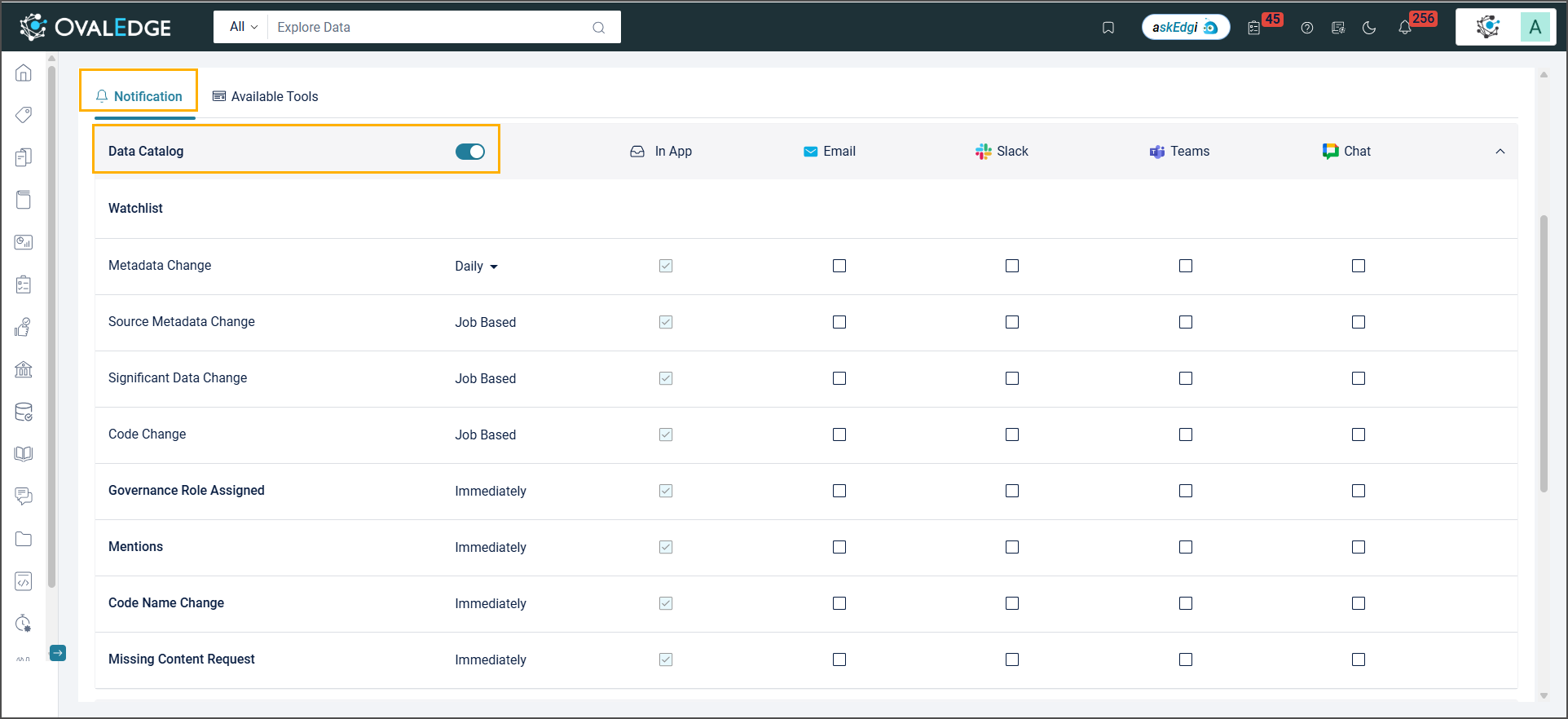
The Notification Settings gives control over how they prefer to receive updates and alerts. Select from various options: Email, Slack, Microsoft Teams, and Google Chat.

<figure><img src="https://1813356899-files.gitbook.io/~/files/v0/b/gitbook-x-prod.appspot.com/o/spaces%2FhTnkoJQml0pok9awFDhx%2Fuploads%2FLRTIhGhSso5GYr2RvQiQ%2Fimage.png?alt=media&#x26;token=b5927f7c-d826-48e5-9ca5-78c07e4ac432" alt=""><figcaption></figcaption></figure>

Sometimes, after migrating to the latest version, not all modules appear in the Notification section. To fix this, run an advanced job "**Notification Preferences Migration**" that displays all modules.

* **Module-level Notification Management:** Toggle switch enables or disables notifications for the entire module. When enabled, all communication channels become active and can be individually selected or deselected as needed.<br>

  <figure><img src="https://1813356899-files.gitbook.io/~/files/v0/b/gitbook-x-prod.appspot.com/o/spaces%2FhTnkoJQml0pok9awFDhx%2Fuploads%2FP8T0O7AMyH3FmN1UQ56d%2Fimage.png?alt=media&#x26;token=7c679e1f-da12-4ae9-93c5-e8b98b7ceb07" alt=""><figcaption></figcaption></figure>

{% hint style="info" %}
‘In App’ notifications check box is selected by default and cannot be unchecked.
{% endhint %}

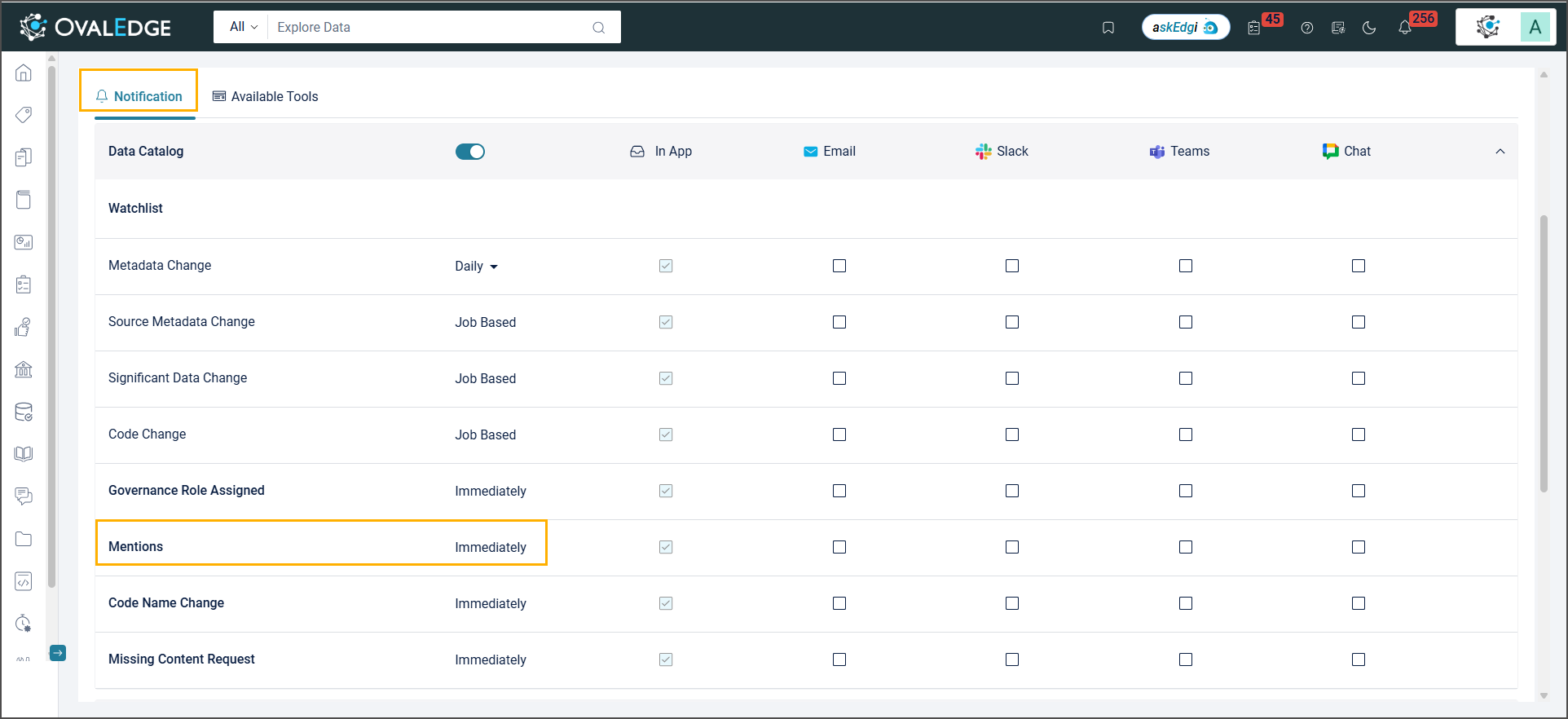
* **Delivery Frequency Customization:** Allows selection of notification frequency: Immediate, Daily, Weekly, or Job Based.&#x20;

**For example,** if a user is mentioned or tagged in the application, the notification can be set to "Immediately" to receive alerts instantly.<br>

<figure><img src="https://1813356899-files.gitbook.io/~/files/v0/b/gitbook-x-prod.appspot.com/o/spaces%2FhTnkoJQml0pok9awFDhx%2Fuploads%2FustF8xMQ5h2JWqd5Dgrf%2Fimage.png?alt=media&#x26;token=e3816d3e-eb7a-4ad9-b115-0819e1dfe078" alt=""><figcaption></figcaption></figure>

* **Effortless Individual and Bulk Preferences:** Customize their notification settings for different events or update multiple preferences simultaneously for efficiency. Hover over a channel name to enable or disable notifications for related events.

**For example,** users can get all data catalog updates in their Slack channel by hovering over and selecting it.

<figure><img src="https://lh7-rt.googleusercontent.com/docsz/AD_4nXcacqRZ-UeR-1Bo0q7UW4XngeKFhssdBBAsP4x5Bl_zeSk9FRTae5a_-uL02cWKQ12BnYF0fq7DMjdHgsAnQWR0Wdh8tbfrZsARrMsc1TtIFUGh34VejvjJoRtzgJ_tGf6wDC2JGg?key=fmnDxUEd-g4k7FuVGbGRhw" alt=""><figcaption></figcaption></figure>

All the configurations related to notifications are provided in [System Settings](https://docs.ovaledge.com/~/changes/967/home/my-resources/customization-via-system-settings).

{% hint style="info" %}
Configuration is necessary to receive notifications for the Watchlist. This can be done by navigating to Administration > Schedule.
{% endhint %}

## Available Tools

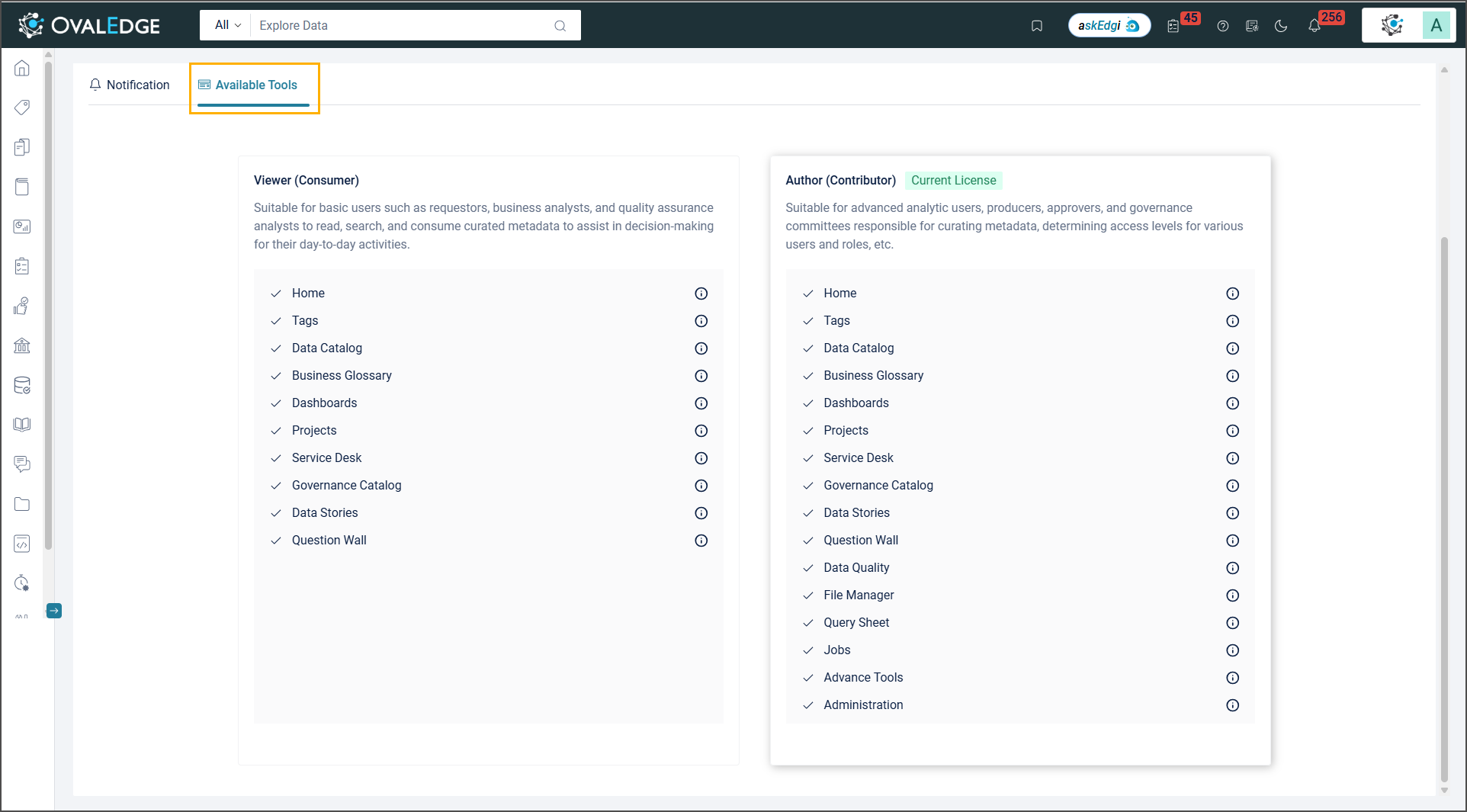
The Available Tools displays additional functionalities and provides options to upgrade licenses for full access. Each module name is accompanied by a brief description accessible through a hover-and-click information icon. This pop-up explains the module's purpose and functionality, helping to decide if upgrading their license is beneficial. <br>

<figure><img src="https://1813356899-files.gitbook.io/~/files/v0/b/gitbook-x-prod.appspot.com/o/spaces%2FhTnkoJQml0pok9awFDhx%2Fuploads%2FMKefluKvAsTy8AwpKPpx%2Fimage.png?alt=media&#x26;token=2ee8cdce-6cae-4a27-a6b7-6d1a710caacb" alt=""><figcaption></figcaption></figure>

***

Copyright © 2025, OvalEdge LLC, Peachtree Corners, GA USA