# CARTOVISTA

OvalEdge connects to the data source using APIs to crawl and build lineage.

![](https://lh7-rt.googleusercontent.com/docsz/AD_4nXed9-QPHwFob2BIHB3InGY9RLwQN8DMB3HJElDZRfl98ZbPpJwpPkn9fO6OoyxtnKJgUfHwq8k6hiOFobNTA8MGcaw-LBxMFopzViGS-0YyXUXzdkcXCMbGqMyl84J4-kLCyw4Q?key=BDvtogHzXl8MolWPep-JwQhq)

## **Overview**

### **Connector Details**

| Connector Category                                                        | Reporting System   |
| ------------------------------------------------------------------------- | ------------------ |
| Connector Version                                                         | 6.3.4              |
| OvalEdge Releases Supported (Available from)                              | Release6.3 onwards |
| <p>Connectivity</p><p><em>\[How OvalEdge connects to CartoVista]</em></p> | API                |

### **Connector Features**

| Crawling                              | ✅       |
| ------------------------------------- | ------- |
| Profiling                             | ❌       |
| Query Sheet                           | **N/A** |
| Report Preview                        | ✅       |
| Auto Lineage                          | ✅       |
| Manual Lineage                        | ✅       |
| Authentication via Credential Manager | ✅       |
| Data Quality                          | ❌       |
| DAM (Data Access Management)          | ❌       |
| Bridge                                | ❌       |

## **Getting Ready to Establish a Connection**

### **Prerequisites**

The following are the prerequisites for establishing a connection between CartoVista and OvalEdge.

### **Service Account User Permissions**&#x20;

{% hint style="warning" %}
***Important**: We recommend having a separate service account to establish a connection from OvalEdge to the data source with minimal permissions.*
{% endhint %}

| Operations            | Minimum Permissions |
| --------------------- | ------------------- |
| Connection Validation | Map Gallery User    |
| Crawling              | Map Gallery User    |
| Lineage               | Map Gallery User    |

Please refer to [Appendix A](https://support.ovaledge.com/cartovista-connector#AppendixA) for guidelines on creating a service account with the required permissions.

## **Set up a Connection**

{% hint style="warning" %}
***Important**: You must have the* [*Connector Creator*](https://support.ovaledge.com/users-roles-deep-dive)[ ](https://support.ovaledge.com/users-roles-deep-dive)*role to set up a connection in OvalEdge.*
{% endhint %}

1. Log into OvalEdge, go to Administration > Connectors, click **+ (New Connector)**, search for **CartoVista**, and complete the specific parameters.\
   **Note:** Fields marked with an asterisk (**\***) are mandatory for establishing a connection.

   <table data-header-hidden><thead><tr><th width="220"></th><th></th></tr></thead><tbody><tr><td><strong>Field Name</strong></td><td><strong>Description</strong></td></tr><tr><td>Connector Type</td><td>By default, "CartoVista" is displayed as the selected connector type.</td></tr><tr><td><strong>Connector Settings</strong></td><td></td></tr><tr><td><p><br><br><br><br></p><p>Credential Manager<strong>*</strong></p></td><td><p>Select the desired credentials manager from the dropdown list. Relevant parameters will be displayed based on your selection.</p><p>Supported Credential Managers:</p><ul><li>OE Credential Manager</li><li>AWS Secrets Manager</li><li>HashiCorp Vault</li><li>Azure Key Vault</li></ul></td></tr><tr><td><p><br><br></p><p>License Add Ons</p></td><td><ul><li>Select the checkbox for <strong>Auto Lineage Add-On</strong> to build data lineage automatically.</li></ul></td></tr><tr><td><strong>Auto Lineage</strong></td><td>Supported</td></tr><tr><td><strong>Data Quality</strong></td><td>Not Supported</td></tr><tr><td><strong>Data Access</strong></td><td>Not Supported</td></tr><tr><td>Connector Name<strong>*</strong></td><td>Enter a unique name for the CartoVista connection (Example: "CartoVista”</td></tr><tr><td>Connector Environment</td><td>Select the environment (Example: PROD, STG) configured for the connector.</td></tr><tr><td>Tenant*</td><td><p>Enter the unique identifier assigned to your workspace.</p><p>Refer <a href="https://support.ovaledge.com/cartovista-connector#AppendixA">here </a>to generate a Tenant ID.</p></td></tr><tr><td>Username*</td><td><p>Enter the "username" used to access the CartoVista Server. </p><p>Refer <a href="https://support.ovaledge.com/cartovista-connector#AppendixA">here </a>to create a username.</p></td></tr><tr><td>Password*</td><td>Enter the "password" used to access the CartoVista Server.</td></tr></tbody></table>

   <br>

   <table data-header-hidden><thead><tr><th width="228"></th><th></th></tr></thead><tbody><tr><td><strong>Default Governance Roles</strong></td><td></td></tr><tr><td>Default Governance Roles<strong>*</strong></td><td>Select the appropriate users or teams for each governance role from the drop-down list. All users and teams configured in OvalEdge Security are displayed for selection.</td></tr><tr><td><strong>Admin Roles</strong></td><td></td></tr><tr><td>Admin Roles<strong>*</strong></td><td>Select one or more users from the dropdown list for Integration Admin and Security and Governance Admin. All users configured in OvalEdge Security are available for selection.</td></tr><tr><td><strong>No of Archive Objects</strong></td><td></td></tr><tr><td>No Of Archive Objects<strong>*</strong></td><td><p>It indicates the number of recent metadata changes to a dataset at the source. By default, it is off. You can enable it by toggling the <strong>Archive</strong> button and specifying the number of objects to archive.</p><p><strong>Example:</strong> Setting it to 4 retrieves the last 4 changes, shown in the 'version' column of the 'Metadata Changes' module.</p></td></tr><tr><td><strong>Bridge</strong></td><td></td></tr><tr><td>Select Bridge<strong>*</strong></td><td><p><strong>If applicable,</strong> select the bridge from the drop-down list.</p><p>The drop-down list displays all active bridges configured in OvalEdge. These bridges enable communication between data sources and OvalEdge without altering firewall rules.</p></td></tr></tbody></table>
2. After entering all connection details, you can perform the following actions:
   1. Click **Validate** to verify the connection.
   2. Click **Save** to store the connection for future use.
   3. Click **Save & Configure** to apply additional settings before saving.
3. The saved connection will appear on the Connectors home page.

## **Connectivity Troubleshooting**

If incorrect parameters are provided, you may encounter error messages. To resolve these issues, ensure all input is correct. If problems persist, contact your assigned **OvalEdge** support team.

<table><thead><tr><th width="77">S.No.</th><th width="273">Error Message(s)</th><th>Error Description/Resolution</th></tr></thead><tbody><tr><td>1</td><td>"code: LoginFailed; codeDetails: InvalidEmailOrPassword"</td><td><strong>Error Description:</strong><br>This error occurs when the username (email) or password provided during login is incorrect.<br><strong>Resolution</strong>:<br>Enter valid credentials.</td></tr><tr><td>2</td><td>HTTP Error 503. The service is unavailable.</td><td><strong>Error Description:</strong><br>This error indicates that the server is temporarily unable to handle the request.<br><strong>Resolution</strong>:<br>Check the server status if required, restart the services.</td></tr></tbody></table>

## **Manage Connector Operations**

### **Crawl/Profile**

{% hint style="info" %}
***Important**: You must have the* [*Integration Admin*](https://support.ovaledge.com/users-roles-deep-dive) *role*[ ](https://support.ovaledge.com/users-roles-deep-dive)*in OvalEdge for crawl/profile operations.*
{% endhint %}

A **Crawl/Profile** button allows you to select one or more reports for crawling.

1. Navigate to the Connectors page and click **Crawl/Profile.** This allows you to select the report groups to be crawled.
2. The crawl option is selected by default.
3. Click **Run** gathers all metadata from the connected source and puts it into the OvalEdge Data Catalog. After a successful crawl, all the information is displayed in the **Data Catalog** > **Reports** tab.

### **Other Operations**

The **Connectors page** in OvalEdge provides a centralized view of all configured connectors, including their health status.

**Managing connectors includes:**

* **Connectors Health**: Displays performance with a green (active) or red (inactive) icon, helping monitor data flow and address issues early.
* **Viewing**: Shows connector details (e.g., Domains, Reports, Report Columns, and Codes) via the **View** icon.

**Nine Dots Menu Options**:

You can view, edit, validate, and delete connectors using the **Nine Dots** menu.

* **Edit Connector**: Update and revalidate the data source.
* **Validate Connector**: Check the connection's integrity.
* **Settings**: Modify connector settings.
* **Crawler:** Configure metadata that needs to be extracted.
  * **Access Instructions:** Specify how data can be accessed as a note.&#x20;
  * **Business Glossary Settings:** Manage term associations at the connector level.
  * **Lineage**: Choose multiple sources simultaneously to create lineage from the needed tables.
  * **Others**: Configure the "Send Metadata Changes Notifications" settings to receive object metadata changes.
* **Build Lineage:** Automatically build data lineage using source code parsing.
* **Delete Connector**: Remove connectors with confirmation.

## **Metadata Mapping**

| **Source Object Name** | **OvaEdge Data Object** | **OvalEdge Data Object Type**                                             |
| ---------------------- | ----------------------- | ------------------------------------------------------------------------- |
| Maps                   | Reports                 | Map                                                                       |
| Slides                 | Reports                 | Slide                                                                     |
| layers                 | Reports                 | <p>Based on the source type<br><em>Example: Point, Polygon, Line</em></p> |
| WMTS layers            | Reports                 | WMTS layers                                                               |
| WMS layers             | Reports                 | WMS layers                                                                |
| Grid layers            | Reports                 | Grid layers                                                               |

## **Limitations**

| **Category**   | **Description**                                                                                                |
| -------------- | -------------------------------------------------------------------------------------------------------------- |
| Report Preview | To embed the map in the application (Data Catalog > Report Preview), you must enable public access to the map. |

## **Appendix A**

Please refer to the below sample steps to create a service account user and grant the required permissions. For more information, consult your CartoVista DBA to check and execute these queries.

1. Go to <https://cartovista.com/>&#x20;
2. Click **Login**.\
   ![](https://lh7-rt.googleusercontent.com/docsz/AD_4nXdDHEDrwXRuVYFYprRh1D0cQv6_kM3_1NjhhHYT43tq5qWYvgdIJm_3T4wI8GqZOp0zK-_CrNI0M60fs_onnf-pfGXxA245_8VVzdmPqvz5fAHXb-5D6Plc_obNHgMNr381HcP9Jg?key=BDvtogHzXl8MolWPep-JwQhq)
3. Enter the relevant details, then click **Sign up**.\
   ![](https://lh7-rt.googleusercontent.com/docsz/AD_4nXcNFNE1en3aGI232x40a8_tjCjTqdEu5476T0v6vP0uII5ydgOkZnLZd1qSrya-pzidgltCdeqSDmGYSmDBRjQkZ6mDucXRlOJAZFQBWOHPElmA--fMgI7l0qq7LLp-dCYZehQneg?key=BDvtogHzXl8MolWPep-JwQhq)
4. A verification email is sent to the entered email address. Then click **Confirm email address**.
5. Enter all the details to set up the account. Then click **Let’s go**.\
   \&#xNAN;***Note**: The Company name acts as a Tenant ID.*\
   ![](https://lh7-rt.googleusercontent.com/docsz/AD_4nXcvaByUfN9wD1fOQola1kF57Q5-r3oVxiC4akGrStdkodqk86KV5Iqne9zL4nQ0qrSfXrzjHj8lYmLW4i2DuBWVxyHSPkmdhsNTmYbMvSzorNmMq5TdEpwRyC3gVCsKG_8bP42K?key=BDvtogHzXl8MolWPep-JwQhq)
6. Maps page opens.\
   ![](https://lh7-rt.googleusercontent.com/docsz/AD_4nXdXTi0c7rC3POoaLRJTxIZYZQicB1E3iQGvyEKkThDqYki0PkzYEnQ105oc1kP8TRWVBQrY8N8K6UL1o6Np_0et85jHPUkEusGt7umBMPzMnVz_jWegtbyJ_rgL4noA5-ifF9e6?key=BDvtogHzXl8MolWPep-JwQhq)
7. To create a new user, select the **Users** tab.\
   ![](https://lh7-rt.googleusercontent.com/docsz/AD_4nXceMaheUXbUSxksrJulb7x9vTwiPplnCCVCaSg3dJ3C06_e128f--OpXGSD1hb3vFOxrOigud87ZMzGlugWp5uTM3RrA_odnPkmWNytR-K2VbF8QdmEhtHyrxGdcWKNrUflTQem?key=BDvtogHzXl8MolWPep-JwQhq)
8. Click **Add a new user**.\
   ![](https://lh7-rt.googleusercontent.com/docsz/AD_4nXfCgU7enCPfgHJBlbjbVxWJYC6D3d2yg8bCRgI-wmuEm83eh2ZR3pK4POu-Hpd2avTBfu9-Y_zpFWH60Uyi77_wSeofG9or7ZJaegkeN_d9e7hHY898nBtml04scI4ycckqVWMz3A?key=BDvtogHzXl8MolWPep-JwQhq)
9. Add a user pop-up display. Enter the relevant details. Then click **Add**.\
   \&#xNAN;***Note**: Select Map Gallery User from the Role drop-down list.*\
   ![](https://lh7-rt.googleusercontent.com/docsz/AD_4nXexXZuxYQvMdWGpdXNE79BQwSqySv6m8Vz9HK8lGHLIvuDhcD0sJfZ9mJrT904FraFmaw8iVppJMlkfUKD_izNOTdYxPWb7aPHSdmMsILfmLWVPuYcfT3QEX15ALmhv5SBMEkcOQQ?key=BDvtogHzXl8MolWPep-JwQhq)
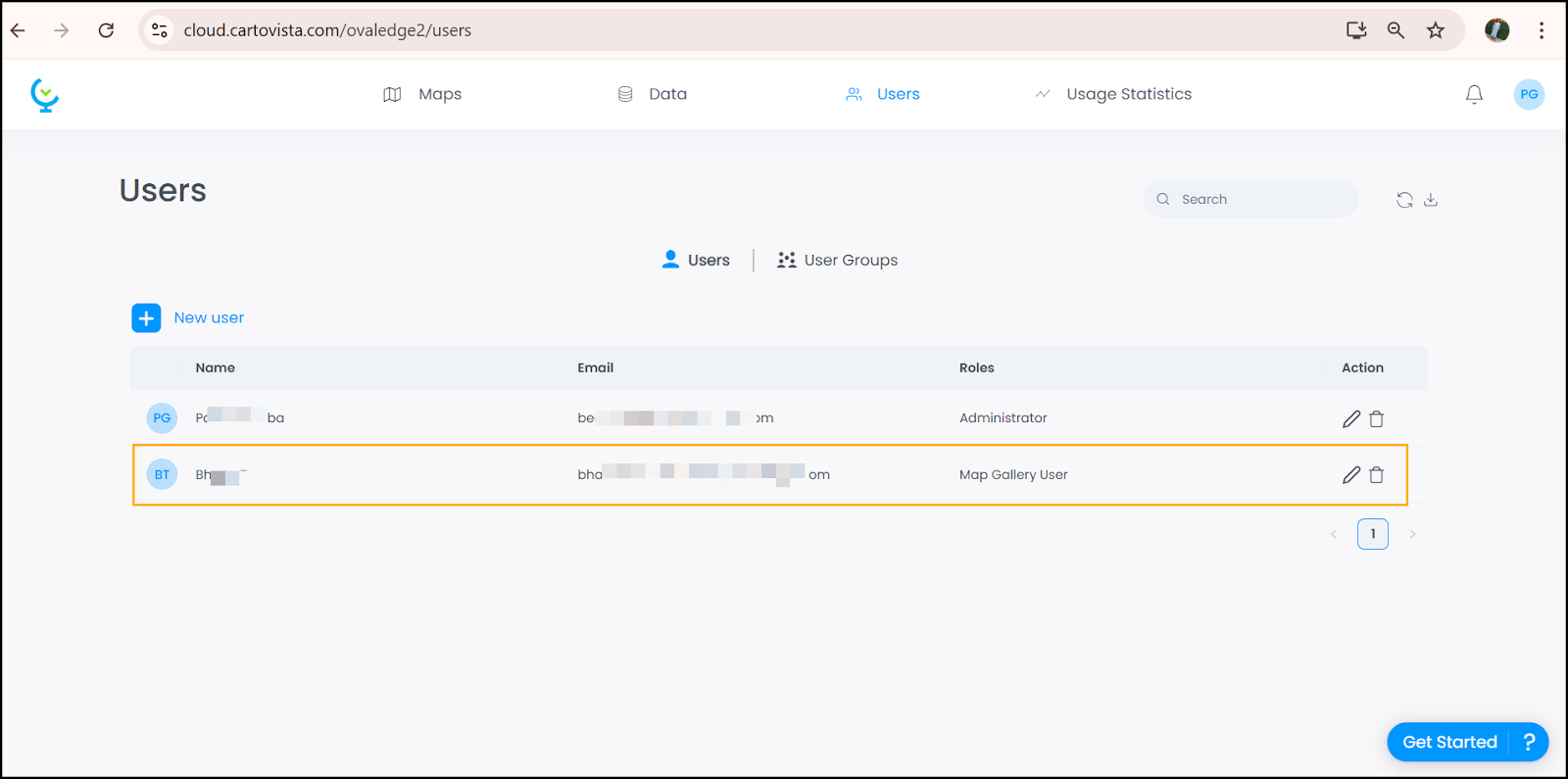
10. A service account user is created.<br>

    <figure><img src="https://lh7-rt.googleusercontent.com/docsz/AD_4nXfByTaWWV5zhJXG-Gi_fWi4T2To-sE5I1bAoV0kVU7VTP6Lg4DjwTUU5J76rHUYvDbKEKzSuVrss5SDsYC3LRuhwIyE0zMAGMOTYMkTbah4oEKzfJZTPVjeNZqGwyL1KLwJ4rSIXg?key=BDvtogHzXl8MolWPep-JwQhq" alt=""><figcaption></figcaption></figure>

***

Copyright © 2025, OvalEdge LLC, Peachtree Corners GA USA
