# Netsuite CRM

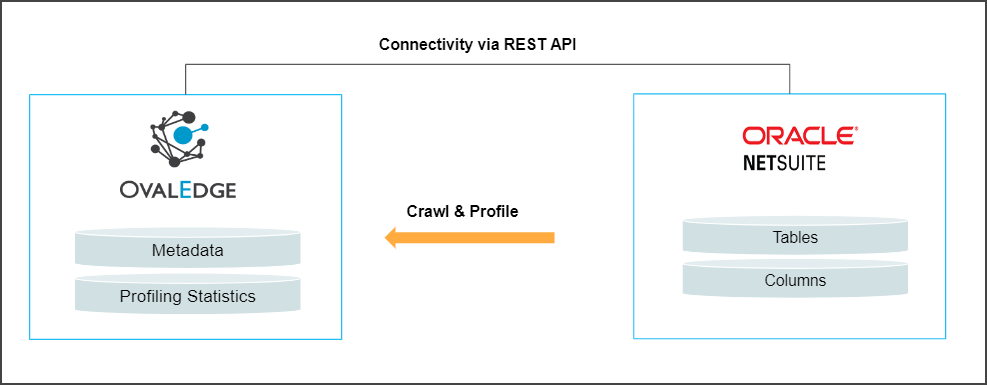
OvalEdge uses Rest API to connect to the data source, which allows you to Crawl the CRM objects and Profile the sample data.

<figure><img src="https://content.gitbook.com/content/hTnkoJQml0pok9awFDhx/blobs/MthC6xlLYC08CO5oQaKT/OracleNetSuite_arch.webp" alt=""><figcaption></figcaption></figure>

## Connectors **Characteristics**

| Connector Category                           | RDBMS       |
| -------------------------------------------- | ----------- |
| Connectivity                                 | API         |
| Connector Version                            | 6.3.1       |
| Oracle NetSuite Versions Supported           | NA          |
| OvalEdge Releases Supported (Available from) | 6.0 onwards |

## **Supported Features**

<table data-header-hidden><thead><tr><th width="261.5"></th><th></th></tr></thead><tbody><tr><td>Crawling of Metadata Objects</td><td>Tables, Table Columns, and Relationships</td></tr><tr><td>Metadata Source</td><td>Make sure to have access to the API endpoint to crawl the metadata</td></tr><tr><td>Profiling</td><td><p><strong>Table Profiling</strong>: Row Count, Column Count, Density, Null Density</p><p><strong>Column Profiling</strong>: Min, Max, Null count, distinct, top 50 values</p><p><strong>Full Profiling:</strong> Supported</p></td></tr><tr><td>Crawling of Query Logs</td><td>Not Supported</td></tr><tr><td>Data Preview</td><td>Supported</td></tr><tr><td>Data Lineage</td><td>Not Supported</td></tr><tr><td>Data Quality Module</td><td>Not Supported</td></tr><tr><td>DAM (Data Access Management) Support</td><td>Not Supported</td></tr><tr><td>Bridge Support</td><td>Supported</td></tr><tr><td><p>Query Sheet Support </p><p>(Run simple queries)</p></td><td>Not Supported</td></tr><tr><td>Crawl of Usage Statistics (Source System)</td><td>Not Supported</td></tr><tr><td>Certifications at Source (Source System)</td><td>Not Supported</td></tr></tbody></table>

## **Prerequisites**

The following are the prerequisites required for establishing a connection:

### **API Details**

OvalEdge uses following REST API to connect to Oracle NetSuite.

| API                | Version | Details                                                                                                                                                     |
| ------------------ | ------- | ----------------------------------------------------------------------------------------------------------------------------------------------------------- |
| Suitetalk Rest API | v1      | [xxxx.suitetalk.api.netsuite.com/services/rest/record/v1/metadata-catalog](http://xxxx.suitetalk.api.netsuite.com/services/rest/record/v1/metadata-catalog) |

### **Service Account with Minimum Permission**

Create an Oracle NetSuite account to connect to OvalEdge with the following permissions to crawl metadata into OvalEdge. Required permissions and corresponding APIs are given below for your reference:

| Operation             | Minimum Access Permission                               |
| --------------------- | ------------------------------------------------------- |
| Connection validation | Read Access to the REST API services in Oracle NetSuite |
| Crawling              | Read Access to the REST API services in Oracle NetSuite |
| Profiling             | Data Read Access to the objects in Oracle NetSuite      |

***The following end-points are used to perform crawl and profile:***

***Connector Validation:***

***<https://xxxx.suitetalk.api.netsuite.com/services/rest/\\>**\**

***Crawling of Tables:***&#x20;

[***xxxx.suitetalk.api.netsuite.com/services/rest/record/v1/metadata-catalog***](http://xxxx.suitetalk.api.netsuite.com/services/rest/record/v1/metadata-catalog)

***Crawling of Table Columns:***

[***https://xxx.suitetalk.api.netsuite.com/services/rest/record/v1/metadata-catalog/${table\_name***](https://xxx.suitetalk.api.netsuite.com/services/rest/record/v1/metadata-catalog/$%7Btable_name)***}***

***Profiling:***&#x20;

[***https://xxx..suitetalk.api.netsuite.com/services/rest/query/v1/suiteql?limit=100***](https://xxx/)

### Establish Environment Variables (Optional)

This section describes the settings or instructions that you should be aware of prior to establishing a connection. If your environments have been configured, skip this step.

#### **Configure Environment Names**

The Environment Names allow you to select the environment configured for the specific connector from the dropdown list in the Add Connector pop-up window.

For consistency, you might want to consider crawling the same schema in both stage and production environments. The typical environments for crawling are PROD, STG, or Temporary, and may also include QA or other environments. Additionally, crawling a temporary environment can be useful for schema comparisons, which can later be deleted, especially during application upgrade assistance.

**Steps to Configure the Environment**

* Navigate to **Administration** > **System Settings**.&#x20;
* Select the Connector tab.
* Find the Key name “connector. environment”.
* Enter the desired environment values (PROD, STG) in the value column.&#x20;
* Click ✔ to save.&#x20;

## Establish a Connection

To establish an Oracle NetSuite connection,&#x20;

1. Log into the **OvalEdge** application
2. In the left menu, click on the **Administration** module name and click on the **Connectors** sub-module name. The Connectors Information page is displayed.
3. Click on **+ New Connector**. The **Add Connector** pop-up window is displayed.
4. Select the connection type as Oracle NetSuite. The Add Connector with Oracle NetSuite-specific details are displayed.

<table><thead><tr><th width="207.75">Field Name</th><th>Description</th></tr></thead><tbody><tr><td>Connector Type</td><td>By default, the selected connector type ‘Netsuite CRM’ is displayed.</td></tr><tr><td>Credential Manager*</td><td><p>Choose the required Credential Manager from the drop-down list.</p><ul><li><strong>OE Credential Manager</strong></li><li><strong>AWS Secrets Manager</strong></li><li><strong>HashiCorp Vault</strong></li><li><strong>Azure Key Vault</strong></li></ul></td></tr><tr><td>License Add-Ons</td><td>In OvalEdge, each connector comes with a default Connector License, which enables users to crawl and profile data sources to gather metadata and statistical information. When setting up a connector, users can select and add specific features through License Add-Ons for enhanced functionality. </td></tr><tr><td>Connector Name*</td><td><p>Select a Connection name for the Netsuite CRM database. The name you specify is a reference for your Netsuite CRM database connection in OvalEdge.</p><p>Example: Netsuite CRM Connection DB1</p></td></tr><tr><td>Connector Environment</td><td>The Connector Environment drop-down-list allows you to select the environment configured for the connector from the drop-down list. For example, PROD or STG (based on the configured items in the OvalEdge configuration for the connector.environment).<br>The purpose of the environment field is to help you identify which connector is connecting what type of system environment (Production, STG, or QA). <br>Note: The steps to set up environment variables are explained in the <a href="https://support.ovaledge.com/ovaledge_oracle-netsuite-connector#ennvar">prerequisite</a> section.</td></tr><tr><td><p>Netsuite account Id*</p><p><br><br></p></td><td><p>The "Account Id" refers to the unique identifier associated with your NetSuite account.</p><p>Example: 123456</p></td></tr><tr><td>Client/Consumer Id*</td><td><p>Client ID generated after the app is registered in Oracle Netsuite.</p><p>Example: ovaledgedemo</p></td></tr><tr><td>Client/Consumer Secret*</td><td>It's paired with the Consumer Key to allow external applications to connect to your NetSuite instance securely.<br>Example: xxxabf@$</td></tr><tr><td>Token Id*</td><td><p>Token ID is a part of the credentials used for Token Based Authentication.</p><p>Example: 12345</p></td></tr><tr><td>Token secret*</td><td>Token Secret is a part of the credentials used to connect with NetSuite API.</td></tr><tr><td>Realm Id*</td><td>Realm ID is a unique identifier associated with your NetSuite account.</td></tr><tr><td>Plugin Server</td><td>Enter the server name if you are running this as a plugin.</td></tr><tr><td>Plugin Port</td><td>The port number on which the plugin is running.</td></tr><tr><td>Default Governance Roles*</td><td><p>You can select a specific user or a  team from the governance roles (Steward, Custodian, Owner) that get assigned for managing the data asset. </p><p><em>Note: The drop-down list displays all the configurable roles (single user or a team) as per the configurations made in the OvalEdge Security | Governance Roles section.</em>  </p></td></tr><tr><td>Admin Roles*</td><td><p>Select the required admin roles for this connector.</p><ul><li>To add <strong>Integration Admin</strong> Roles, search for or select one or more roles from the Integration Admin options, and then click on the Apply button. <br>The responsibility of the Integration Admin includes configuring crawling and profiling settings for the connector, as well as deleting connectors, schemas, or data objects.</li><li><p>To add <strong>Security and Governance Admin</strong> roles, search for or select one or more roles from the list, and then click on the Apply button. <br>The security and Governance Admin is responsible for:</p><ul><li>Configure role permissions for the connector and its associated data objects.</li><li>Add admins to set permissions for roles on the connector and its associated data objects.</li><li>Update governance roles.</li><li>Create custom fields.</li><li>Develop Service Request templates for the connector.</li><li>Create Approval workflows for the templates.</li></ul></li></ul></td></tr><tr><td>No Of Archive Objects*</td><td>The number of archive objects indicates the number of recent metadata modifications made to a dataset at a remote/source location. By default, the archive objects feature is deactivated. However, users may enable it by clicking the Archive toggle button and specifying the number of objects they wish to archive. </td></tr><tr><td>Select Bridge*</td><td>With the OvalEdge Bridge component, any cloud-hosted server can connect with any on-premise or public cloud data sources without modifying firewall rules. A bridge provides real-time control that makes it easy to manage data movement between any source and destination. For more information, refer to Bridge Overview.</td></tr></tbody></table>

5. Click on the **Validate** button to validate the connection details.
6. Click on the **Save** button to save the connection.  Alternatively, you can also directly click on the **Save & Configure** button that displays the Connection Settings pop-up window to configure the settings for the selected Connector. The **Save & Configure** button is displayed only for the Connectors for which the settings configuration is required.

{% hint style="success" %}
***Note:** \* (asterisk) indicates the mandatory field required to create a connection. Once the connection is validated and saved, it will be displayed on the Connectors home page.*&#x20;
{% endhint %}

{% hint style="success" %}
***Note:** You can either save the connection details first, or you can validate the connection first and then save it.*
{% endhint %}

## **Connection Validation Errors**

<table><thead><tr><th width="94">S. No.</th><th width="260.75">Error Message(s)</th><th>Description</th></tr></thead><tbody><tr><td> 1</td><td>error_validate_connection</td><td>An alert message is displayed when the provided details are incorrect.</td></tr></tbody></table>

{% hint style="success" %}
***Note:** If you have issues creating a connection, please contact your assigned OvalEdge GCS team.*
{% endhint %}

## Connector Settings

Once the connection is established successfully, various settings are provided to fetch and analyze the information from the data source.

<table><thead><tr><th width="206.5">Connection Settings</th><th>Description</th></tr></thead><tbody><tr><td>Crawler </td><td>Crawler settings are configured to connect to a data source and collect and catalog all the data elements in the form of metadata.</td></tr><tr><td>Profiler</td><td>Gathering statistics and informative summaries about the connected data source(s). Statistics can help assess the data source's quality before using it in an analysis. Profiling is always optional; crawling can be run without profiling. </td></tr><tr><td>Access Instructions</td><td>Access Instruction allows the data owner to instruct others on using the objects in the application. </td></tr><tr><td>Business Glossary Settings</td><td>The Business Glossary setting provides flexibility and control over how they view and manage term association within the context of a business glossary at the connector level.</td></tr><tr><td>Others</td><td><p>The Send Metadata Changes Notifications option sets the change notification about the metadata changes of the data objects.</p><ul><li>You can use the toggle button to set the Default Governance Roles (Steward, Owner Custodian, etc.) </li><li>From the drop-down menu, you can select the role and team to receive the notification of metadata changes.</li></ul></td></tr></tbody></table>

## **The Crawling of Schema(s)**

You can use the Crawl/Profile option, which allows you to select the specific schemas for the following operations: crawl, profile, crawl & profile, or profile unprofiled. The defined run date and time are displayed to set for any scheduled crawlers and profilers. <br>

1. Navigate to the Connectors page and click the Crawl/Profile option.
2. Select the required Schema(s).
3. Click on the Run button that gathers all metadata from the connected source into the OvalEdge Data Catalog.

## Additional Information

Q1: Is NetSuite also available On-premise?

Answer: NetSuite is a cloud solution with no on-premise software.

***

&#x20;Copyright © 2025, OvalEdge LLC, Peachtree Corners GA USA
