# SFTP (SSH File Transfer Protocol)

This document provides information about the SFTP connector with the OvalEdge application.

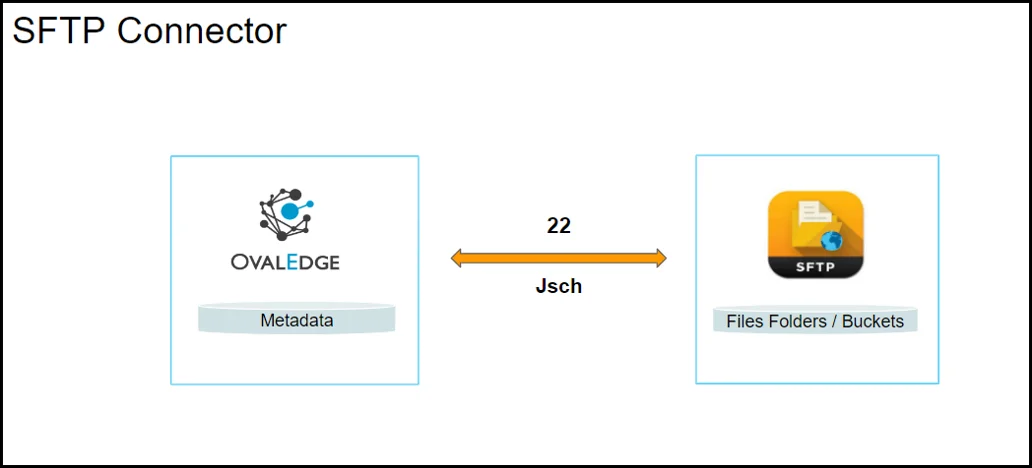
**SSH File Transfer Protocol (SFTP)** is a secure file protocol that is used to access, manage and transfer files over an encrypted SSH protocol. When compared with the traditional FTP protocol, SFTP offers all the functionality of FTP, but it is more secure and easier to configure.

<figure><img src="https://content.gitbook.com/content/hTnkoJQml0pok9awFDhx/blobs/C7pEZCoCM3gSW74rNF4X/SFTP%20connector.webp" alt=""><figcaption></figcaption></figure>

## **Connector Capabilities**

The following is the list of objects and data types the SFTP connector supports.

<table data-header-hidden><thead><tr><th width="220.25"></th><th></th></tr></thead><tbody><tr><td><strong>Functionality</strong></td><td><strong>Support Data Objects</strong></td></tr><tr><td>Crawler </td><td><ul><li>File Folders</li><li>File Objects</li></ul></td></tr><tr><td>Profiler</td><td><ul><li>File Profiling: Row count, Columns count, and View sample data</li><li>Sample Profiling </li></ul></td></tr></tbody></table>

## **Prerequisites**

The following are prerequisites for connecting to the SFTP:

The Drivers/APIs used by the connector are given below:

| **Driver/API** | **Version** | **Details**                                                                                                                                                       |
| -------------- | ----------- | ----------------------------------------------------------------------------------------------------------------------------------------------------------------- |
| Jsch           | 0.1.55      | <p><a href="https://mvnrepository.com/artifact/com.jcraft/jsch"><https://mvnrepository.com/artifact/com.jcraft/jsch></a></p><p>Note: Latest version is 0.1.55</p> |

### **Server User Permission**

By default, the service account provided for the connector will be used for any user operations. The minimum privileges required are:

| **Operation**         | **Access Permission** |
| --------------------- | --------------------- |
| Connection Validation | Read                  |
| Catalog Files/Folders | Read                  |
| Profile Files/Folders | Read                  |

## **Technical Specification**

The connector capabilities are shown below:

### **Crawling**

| **Feature** | **Supported Objects** | **Remarks**                                                                                                                  |
| ----------- | --------------------- | ---------------------------------------------------------------------------------------------------------------------------- |
| Crawling    | Files/Folders         | While crawling root Files/Folders, by default all the folder and files existing in that specific root path will be cataloged |

### **Profiling**

| **Features**     | **Supported Objects**                      | **Details**                                                    |
| ---------------- | ------------------------------------------ | -------------------------------------------------------------- |
| File Profiling   | Row Count, Columns Count, View Sample Data | Supported File Types: CSV, XLS, XLSX, JSON, AVRO, PARQUET, ORC |
| Sample Profiling | Supported                                  | -                                                              |

## **Connection Details**

To connect to the **SFTP** using the OvalEdge application, complete the following steps:

1. Log in to the **OvalEdge** application.
2. Navigate to **Administration** > **Connectors** module.
3. Click on the **+** icon. The **Add Connector** pop-up window is displayed where you can search for the required connector.
4. Search and select the **SFTP** connector. The Add Connector with SFTP specific details pop-up window is displayed.

<table data-header-hidden><thead><tr><th width="220.25"></th><th></th></tr></thead><tbody><tr><td><strong>Field Name</strong></td><td><strong>Description</strong></td></tr><tr><td>Connector Type</td><td>By default, the selected connection type is displayed as the <strong>SFTP</strong>.</td></tr><tr><td>Protocol</td><td><p>The Protocol drop-down menu allows you to select SFTP or FTP. </p><p><strong>SFTP</strong>: It is a secured and fully encrypted layer. Default port no is 22.</p><p><strong>FTP</strong>: It is an unencrypted protocol. It adds a layer of encryption using SSL or TLS. Default port no is 21.</p></td></tr><tr><td>License Add Ons</td><td><p>All the connectors will have a Base Connector License by default that allows you to crawl and profile to obtain the metadata and statistical information from a datasource. </p><p>OvalEdge supports various License Add-Ons based on the connector’s functionality requirements.</p><ul><li>Select the <strong>Auto Lineage Add-On</strong> license that enables the automatic construction of the Lineage of data objects for a connector with the Lineage feature. </li><li>Select the <strong>Data Quality Add-On</strong> license to identify, report, and resolve the data quality issues for a connector whose data supports data quality, using DQ Rules/functions, Anomaly detection, Reports, and more.</li><li>Select the <strong>Data Access Add-On</strong> license that will enforce connector access via OvalEdge with Remote Data Access Management (RDAM) feature-enabled.</li></ul></td></tr><tr><td>Connector Environment</td><td><p>The connector environment drop-down menu allows you to select the environment configured for the connector from the drop-down list. For example, PROD, or STG (based on the configured items in the OvalEdge configuration for the connector.environment).</p><p>The purpose of the environment field is to help you identify which connector is connecting what type of system environment (Production, STG, or QA).</p><p><em><strong>Note:</strong> The steps to set up environment variables are explained in the prerequisite section.</em></p></td></tr><tr><td>Connector Name*</td><td>Enter the connector name specified in the Connector Name text box. It will be a reference to the SFTP connection in the OvalEdge application.</td></tr><tr><td>Server*</td><td><p>Enter the fully qualified server name or IP address related to the SFTP server. </p><p>Example: 12.34.56.78</p></td></tr><tr><td>Username*</td><td><p>A username is required to connect to the SFTP server. Enter the <strong>Service Account</strong> Name established to access the SFTP server environment. </p><p><strong>Note</strong>: Sometimes, this field is auto filled by the web browser with the current OvalEdge user login. Please enter the SFTP Server Service Account name.</p></td></tr><tr><td>Password*</td><td>Enter the <strong>Service Account</strong> password</td></tr><tr><td>Port</td><td><p>Port number of the protocol</p><p>Example: SFTP: 22</p><p>FTP: 21</p></td></tr><tr><td>Path</td><td><p>Path of the location where files or folders located</p><p>Ex: \ovaledge</p></td></tr><tr><td>Default Governance Roles*</td><td><p>Users can select a specific user or a  team from the governance roles (Steward, Custodian, Owner) that get assigned for managing the data asset.</p><p><em>Note: The drop-down list displays all the configurable roles (single user or a team) as per the configurations made in the OvalEdge Security | Governance Roles section.</em></p></td></tr><tr><td>Admin Roles*</td><td><p>Select the required admin roles for this connector.</p><ul><li>To add <strong>Integration Admin</strong> Roles, search for or select one or more roles from the Integration Admin options, and then click on the Apply button.<br>The responsibility of the Integration Admin includes configuring crawling and profiling settings for the connector, as well as deleting connectors, schemas, or data objects.</li><li><p>To add <strong>Security and Governance Admin</strong> roles, search for or select one or more roles from the list, and then click on the Apply button.<br>The security and Governance Admin is responsible for:</p><ul><li>Configure role permissions for the connector and its associated data objects.</li><li>Add admins to set permissions for roles on the connector and its associated data objects.</li><li>Update governance roles.</li><li>Create custom fields.</li><li>Develop Service Request templates for the connector.</li><li>Create Approval workflows for the templates.</li></ul></li></ul></td></tr><tr><td>No of Archive Objects*</td><td>The number of archive objects indicates the number of recent metadata modifications made to a dataset at a remote/source location. By default, the archive objects feature is deactivated. However, users may enable it by clicking the Archive toggle button and specify the number of objects they wish to archive.</td></tr><tr><td>Select Bridge</td><td>Select option NO Bridge if no bridge is available for the connector.</td></tr></tbody></table>

## **Connection Settings**

### **Crawler**

<table data-header-hidden><thead><tr><th width="92.75"></th><th width="224.5"></th><th></th></tr></thead><tbody><tr><td><strong>S. No</strong></td><td><strong>Property</strong></td><td><strong>Description</strong></td></tr><tr><td>1</td><td>Crawler Options</td><td>FileFolders / Buckets by default enabled</td></tr><tr><td>2</td><td>Crawler Rules</td><td>Include and exclude regex for FileFolders and Buckets only but not for files</td></tr></tbody></table>

### **Profiler**

<table data-header-hidden><thead><tr><th width="94"></th><th width="225.75"></th><th></th></tr></thead><tbody><tr><td><strong>S. No</strong></td><td><strong>Property</strong></td><td><strong>Description</strong></td></tr><tr><td>1</td><td>Profile Options</td><td>No existence for profile</td></tr><tr><td>2</td><td>Profile Rules</td><td>No Profile rule exist</td></tr></tbody></table>

## **Points to note**

1. Supported File Types: CSV, XLS, XLSX, JSON, AVRO, PARQUET, ORC.

***

Copyright © 2025, OvalEdge LLC, Peachtree Corners GA USA
