# Apache Airflow

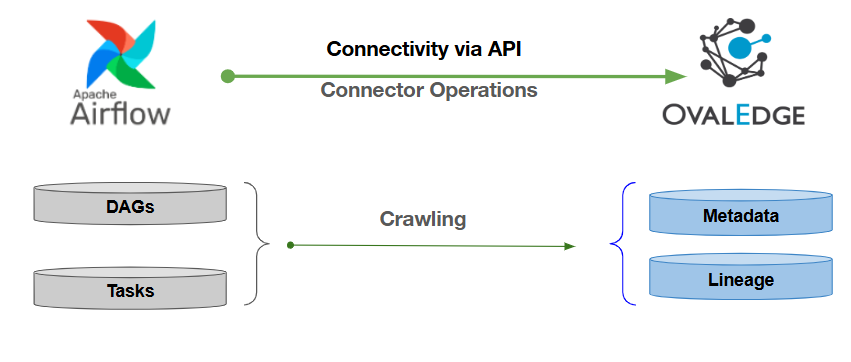
OvalEdge uses API to connect to the Airflow source, allowing users to crawl DAGs and Tasks and build Lineage.

<figure><img src="https://content.gitbook.com/content/hTnkoJQml0pok9awFDhx/blobs/PLdcQJ4QDvegxyG4jA7q/airflow.png" alt=""><figcaption></figcaption></figure>

## **Overview**

### **Connector Details**

| Connector Category                                                     | ETL                |
| ---------------------------------------------------------------------- | ------------------ |
| OvalEdge Release Current Connector Version                             | 6.3.4              |
| <p>Connectivity</p><p><em>\[How OvalEdge connects to Airflow]</em></p> | API                |
| OvalEdge Releases Supported (Available from)                           | Release5.0 onwards |

### **Connector Features**

| Crawling of Metadata Objects          | Supported                                 |
| ------------------------------------- | ----------------------------------------- |
| Profiling                             | Not Supported                             |
| Query Sheet                           | Not Supported                             |
| Metadata Preview                      | Supported                                 |
| Lineage                               | Supported                                 |
| Lineage                               | **Lineage Levels Supported**              |
| Lineage                               | <p>Table Lineage</p><p>Column Lineage</p> |
| Authentication via Credential Manager | Supported                                 |
| Data Quality                          | Not Supported                             |
| DAM (Data Access Management)          | Not Supported                             |
| Bridge                                | Supported                                 |

## **Getting Ready to Establish a Connection**

### **Prerequisites**

The following are the prerequisites required for establishing a connection:

### **Service Account User Permissions**

{% hint style="warning" %}
***Important:** We recommend having a separate service account to establish a connection from OvalEdge to the data source with minimal permissions.*
{% endhint %}

| **Operations**        | **Minimum Permissions** |
| --------------------- | ----------------------- |
| Connection validation | Read Only               |
| Crawling              | Read Only               |

### **Setup a Connection**

{% hint style="danger" %}
***Important:** You must have the Connector Creator role to set up a connection in OvalEdge.*
{% endhint %}

1. Log into OvalEdge, go to Administration > Connectors, click **+ (New Connector)**, search for **Airflow**, and complete the specific parameters.

{% hint style="success" %}
***Note:** Fields marked with an asterisk (**\***) are mandatory for establishing a connection.*
{% endhint %}

<table data-header-hidden><thead><tr><th width="220.25"></th><th></th></tr></thead><tbody><tr><td><strong>Field Name</strong></td><td><strong>Description</strong></td></tr><tr><td>Connector Type</td><td>By default, "Airflow" is displayed as the selected connector type.</td></tr><tr><td><strong>Connector Settings</strong></td><td></td></tr><tr><td>Credential Manager<strong>*</strong></td><td><p>Select the desired credentials manager from the dropdown list. Relevant parameters will be displayed based on your selection.</p><p>Supported Credential Managers:</p><ul><li>OE Credential Manager</li><li>HashiCorp Vault</li><li>AWS Secrets Manager</li><li>Azure Key Vault</li></ul></td></tr><tr><td>License Add Ons</td><td><p>OvalEdge connectors have a default license add-on for data crawling and profiling.</p><ul><li>Select the checkbox for <strong>Auto Lineage Add-On</strong> to build data lineage automatically.</li></ul></td></tr><tr><td>Connector Name<strong>*</strong></td><td><p>Enter a unique name for the Airflow connection.             </p><p>(Example: "Airflow_Prod").</p></td></tr><tr><td>Connector Environment</td><td>Select the environment (Example: PROD, STG) configured for the connector.</td></tr><tr><td>Server<strong>*</strong></td><td>Enter the Airflow database Server name or IP address (Example: Airflow.example.com or 192.168.1.10).</td></tr><tr><td>Remote DAG Path</td><td>Enter the path of the location where all DAGs (Python files) are located in the Airflow server</td></tr><tr><td>Local DAG Path<strong>*</strong></td><td>Enter the location path where all the DAGs (Python files) are present in the Local/OvalEdge server. Here, both (Remote DAGs and Local DAGs) must have the exact count.</td></tr><tr><td>Username<strong>*</strong></td><td>Enter the service account username set up to access the Airflow database (Example: "<em>oesauser</em>").</td></tr><tr><td>Password<strong>*</strong></td><td>Enter the password associated with the service account user (Example: "<em>password</em>").</td></tr><tr><td><strong>Default Governance Roles</strong></td><td></td></tr><tr><td>Default Governance Roles<strong>*</strong></td><td>Select the appropriate users or teams for each governance role from the dropdown list. All users and teams configured in OvalEdge Security are displayed for selection.</td></tr><tr><td><strong>Admin Roles</strong></td><td></td></tr><tr><td>Admin Roles<strong>*</strong></td><td>Select one or more users from the dropdown list for Integration Admin and Security and Governance Admin. All users configured in OvalEdge Security are available for selection.</td></tr><tr><td>No Of Archive Objects<strong>*</strong></td><td><p>It indicates the number of recent metadata changes to a dataset at the source. By default, it is off. You can enable it by toggling the <strong>Archive</strong> button and specifying the number of objects to archive.</p><p><strong>Example:</strong> Setting it to 4 retrieves the last four changes, shown in the 'version' column of the 'Metadata Changes' module.</p></td></tr><tr><td><strong>Bridge</strong></td><td></td></tr><tr><td>Select Bridge<strong>*</strong></td><td><p><strong>If applicable,</strong> select the bridge from the drop-down list.</p><p>The drop-down list displays all active bridges configured in OvalEdge. These bridges enable communication between data sources and OvalEdge without altering firewall rules.</p></td></tr></tbody></table>

2. After entering all connection details, you can perform the following actions:
   1. Click **Validate** to verify the connection.
   2. Click **Save** to store the connection for future use.
   3. Click **Save & Configure** to apply additional settings before saving.
3. The saved connection will appear on the Connectors home page.

## **Connectivity Troubleshooting**

If incorrect parameters are provided, you may encounter error messages. To resolve these issues, ensure all input is correct. If problems persist, contact your assigned **OvalEdge** support team.

<table data-header-hidden><thead><tr><th width="72.75"></th><th width="229.5"></th><th></th></tr></thead><tbody><tr><td><strong>S. No.</strong></td><td><strong>Error Description</strong></td><td><strong>Resolution</strong></td></tr><tr><td>1</td><td>Failed to establish a connection, Please check the credentials</td><td><p><strong>Error Description:</strong> </p><p>It indicates an issue with given credentials or permission on the given credentials.</p><p></p><p><strong>Resolution:</strong> </p><p>Please verify the credentials and permissions for the connector.</p></td></tr><tr><td>2</td><td>Local DAG Path doesn't exist</td><td><p><strong>Error Description:</strong></p><p>It indicates the local DAG path is invalid.</p><p></p><p><strong>Resolution:</strong></p><p>Please check the given local DAG path and verify its permissions.</p></td></tr></tbody></table>

## **Manage Connector Operations**

### **Configure Settings for Connector Operations**

The Airflow connector offers various settings to customize data crawling, profiling, and access. These include:

* **Lineage:** Automatically build data lineage using source code parsing.

### **Crawl/Profile**

**Important**: You must have the Integration Admin role in OvalEdge for crawl/profile operations.

Crawl and Profile operations enable you to select one or more schemas from a list of all available schemas within a specific server. This allows you to customize the crawling operation selection according to your requirements. Furthermore, it provides the option to schedule crawling and enable anomaly detection to identify any irregularities in the data objects.

### **Other Operations**

The **Connectors page** in OvalEdge provides a centralized view of all configured connectors, including their health status. You can view, edit, validate, build lineage, and delete connectors using the **Nine Dots** menu.

#### Managing connectors includes:

* **Connectors Health**: Displays performance with a green (active) or red (inactive) icon, helping monitor data flow and address issues early.
* **Viewing**: Shows connector details (e.g., Databases, Tables, Table Columns, and Codes) via the **View** icon.

#### **Nine Dots Menu Options**:

* **Edit Connector**: Update and revalidate the data source.
* **Validate Connector**: Check the connection's integrity.
* **Settings**: Modify connector settings.
* **Build Lineage**: Automatically build data lineage using SQL logs and source code parsing.
* **Delete Connector**: Remove connectors or schemas with confirmation.&#x20;

## **Limitations**

| **Description**                                                                |
| ------------------------------------------------------------------------------ |
| The Auto-lineage in the Airflow connection is supported only for SQL commands. |

***

Copyright © 2025, OvalEdge LLC, Peachtree Corners GA USA
