> For the complete documentation index, see [llms.txt](https://docs.ovaledge.com/llms.txt). Markdown versions of documentation pages are available by appending `.md` to page URLs; this page is available as [Markdown](https://docs.ovaledge.com/release8.3/deployment-and-maintenance/upgrade/java-21.x-upgrade-windows.md).

# Java 21.x Upgrade (Windows)

Upgrading the Java Development Kit (JDK) is critical for maintaining **security**, **performance**, and **compatibility** with modern Java applications.\
This document provides step-by-step instructions for upgrading Java to **JDK 21.x** on a Windows machine, reconfiguring environment variables, and reintegrating the JDK with an existing **Apache Tomcat** service.

## Prerequisites

Before starting the upgrade, ensure the following:

* **Administrator access** to the Windows machine.
* **Backup of the current Tomcat configuration**, including Java Options and Heap Size.
* **Tomcat service is stopped** before the upgrade.
* **Internet access** available to download the JDK installer.

## Upgrade Process Steps

1. Stop and Backup Tomcat Configuration
   * Open **Services** → Locate the **Tomcat service** → Right-click → **Stop**.<br>

     <figure><img src="https://lh7-rt.googleusercontent.com/docsz/AD_4nXcnZuhGZfkv8PehXFInX5BHZCB0c4Fh3A5xvaaT55Y9ZzNuciVcZa6WJ03OcHX3FLhawQV0mAc9VR8HaSdUMaIviVrcQ8wK9PQOIQTOJc3Iinf8GYf6I-N17lgrxXhfR_PD2cNWeg?key=wsJinZRbAIZ4GlPtfAYaRA" alt=""><figcaption></figcaption></figure>
   * Navigate to the **Tomcat `bin` directory**.

     <figure><img src="https://lh7-rt.googleusercontent.com/docsz/AD_4nXcSc3wXkYzOShX1-B4lonLSXRdMPUIHkVduIXBlbIDZGkIe8AFAZ_nTbyVv6pC7XL8JUmmdrWFjzHYPvJQTXymRZmitt1DBncnFB6_wZXmdykDIASKJG0AbeYoXd64BezBAgX1Hew?key=wsJinZRbAIZ4GlPtfAYaRA" alt=""><figcaption></figcaption></figure>
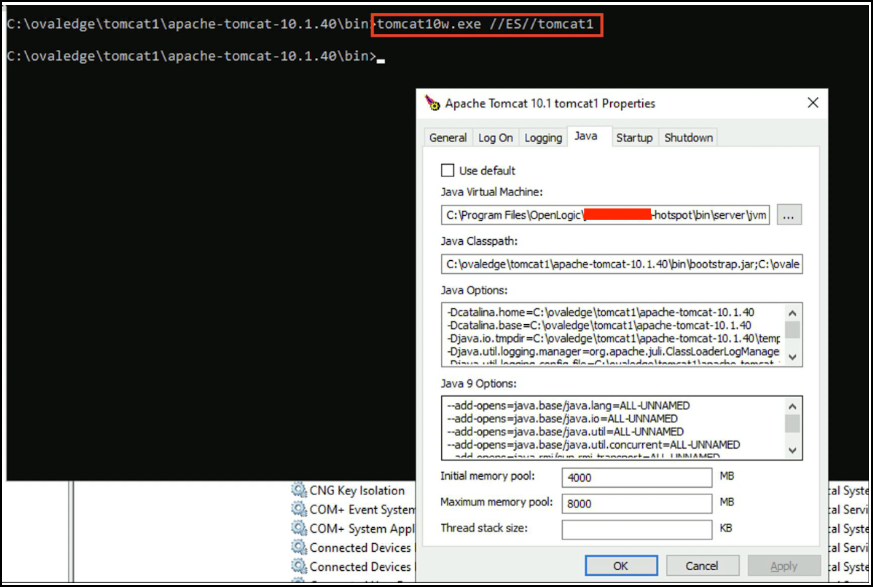
   * Open **Command Prompt** in that directory and run:

     ```cmd
     tomcat10w.exe //ES//<TomcatServiceName>
     ```

     \
     *Sample Reference Screenshot:*

     <figure><img src="https://lh7-rt.googleusercontent.com/docsz/AD_4nXfp9HgGgSiMu88LanZ1JmK_39Hp-B5x6UWDxUhnbCkUPMiRXZ7kE4NlM91aTzBSSBZVmIa-z5CpQJpYuCkiEvs9SLZjC1NlTo_uwnhA1I7H3ny5Tw6Nrz1TB6OYD_x02byLcpA2?key=wsJinZRbAIZ4GlPtfAYaRA" alt=""><figcaption></figcaption></figure>

     \
     *(Replace `<TomcatServiceName>` with your actual Tomcat service name)*.
   * In the **Java tab**, note down:
     * Java Options
     * Heap Size values\
       *(Copy to a Notepad for later reference).*
   * Uninstall the existing Tomcat service:

     ```cmd
     service.bat remove <TomcatServiceName>
     ```

     \
     *Sample Reference Screenshot:*

     <figure><img src="https://lh7-rt.googleusercontent.com/docsz/AD_4nXeuqtFx0VNBixxamlBHelJrmj4opXI5eOHHSxb_YgH3dc-BT0EAF9CD5D9yc0FQ_nrxAK3BxLJf9jVuuh68vanj1XMQo851tv4wTkKfy3aeNZTIR062NV2m1pQmSVJfvWHmso_fxg?key=wsJinZRbAIZ4GlPtfAYaRA" alt=""><figcaption></figcaption></figure>

2. Uninstall Previous JDK Version
   * Open **Control Panel** → Programs → Programs and Features.
   * Locate the existing **Java/JDK installation**.
   * Right-click → **Uninstall**.<br>

3. Download and Install JDK 21.x
   * Download the installer:\
     [OpenLogic JDK 17.0.15+6 MSI (Windows x64)](https://ovaledge.s3.us-west-1.amazonaws.com/scripts/packages/openlogic-openjdk-17.0.15.6-windows-x64.msi)
   * Run the **.msi installer**.
   * Follow the setup wizard to complete the installation.<br>

4. Set Environment Variables
   * Press **Windows Key** → Search for **Environment Variables** → Open **Edit the system environment variables**.

     <figure><img src="https://lh7-rt.googleusercontent.com/docsz/AD_4nXcfwADKKNk7hWARvMfOuvjuTiOx8epfaK7PliVZAufZvjFzMQ8KW6a4efKJTlMRFnKKdgtDL_yaM7nh737b9sNG79YEpObarpyJRGS3hAAWcUXdEoLmOG4BvWfzUQt1dVN6HF3z1w?key=wsJinZRbAIZ4GlPtfAYaRA" alt=""><figcaption></figcaption></figure>
   * Click **Environment Variables**.

     <figure><img src="https://lh7-rt.googleusercontent.com/docsz/AD_4nXc-DneOkByAHhFFl6AdK0FiI9GuLkFPu5mB9j4dv-eeZKre5KZkLWKK4wCbAIvl33m4J-c5m9IYE4sAeXr63yhe5O6yT0Hn_6APEmvAwlFEZCrQgiT1QmdtqewhKqJ7IZMVbL3EsA?key=wsJinZRbAIZ4GlPtfAYaRA" alt=""><figcaption></figcaption></figure>

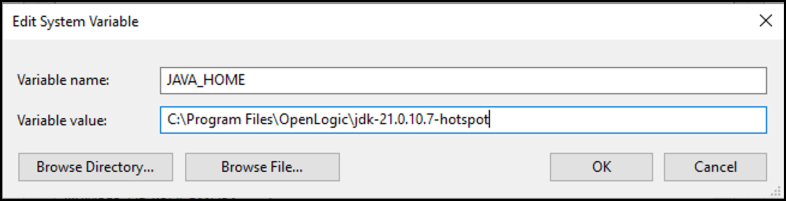
     * Under **System Variables → New**:
       * **Variable Name:** `JAVA_HOME`
       * **Variable Value:**&#x20;

         ```
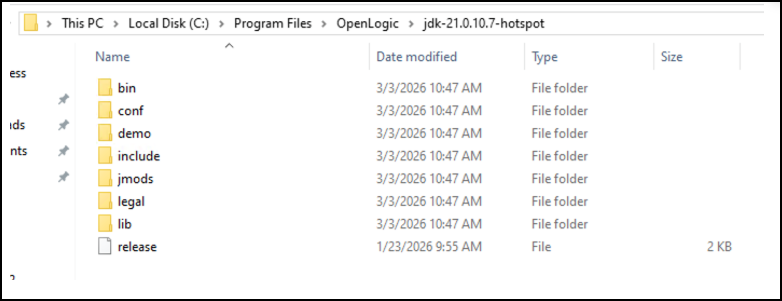
         C:\Program Files\OpenLogic\jdk-21.x.x.x-hotspot
         ```

         <figure><img src="https://content.gitbook.com/content/8fgltewNgYZ8ucAp7Svt/blobs/ZouShJsM90IUmNuHUnWo/image.png" alt=""><figcaption></figcaption></figure>

         <figure><img src="https://content.gitbook.com/content/8fgltewNgYZ8ucAp7Svt/blobs/yNROWknjaEvTkLvzawRQ/image.png" alt=""><figcaption></figcaption></figure>
     * Under **System Variables → Path → Edit**:\
       Ensure the following entry exists (if not already present):
       * ```
         C:\Program Files\OpenLogic\jdk-21.x.x.x.x-hotspot\bin
         ```

5. Verify Java Installation
   * Open **Command Prompt** and run:

     ```cmd
     java -version
     ```
   * Expected output:

     ```
     openjdk version "21.x.0.15" 2024-04-16
     OpenLogic OpenJDK Runtime Environment ...
     ```

     \
     *Sample Reference Screenshot:*<br>

     <figure><img src="https://content.gitbook.com/content/8fgltewNgYZ8ucAp7Svt/blobs/UR0qMGpEKcGMOp62jZnb/unknown.png" alt=""><figcaption></figcaption></figure>

6. Reconfigure Tomcat Service
   * Navigate to Tomcat’s `bin` directory:

     ```cmd
     cd C:\ovaledge\apache-tomcat-10.1.40\bin
     ```
   * Reinstall the Tomcat service:

     ```cmd
     service.bat install <TomcatServiceName>
     ```
   * Open Tomcat configuration:

     ```cmd
     tomcat10w.exe //ES//<TomcatServiceName>
     ```

     \
     *Sample Reference Screenshot:*<br>

     <figure><img src="https://content.gitbook.com/content/8fgltewNgYZ8ucAp7Svt/blobs/UIM6zEULZT0FSnAsC8pA/image.png" alt=""><figcaption></figcaption></figure>
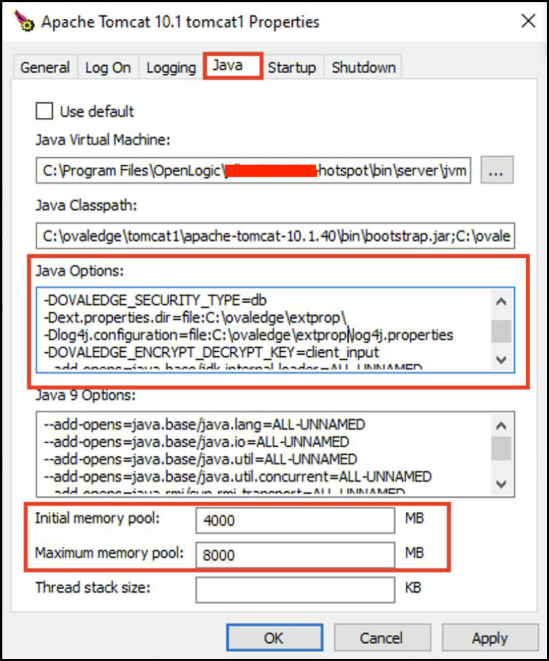
   * Under the **Java tab**:
     * Restore previously saved **Java Options** and **Heap Size**.
     * Update paths if necessary (e.g., to extprop or `log4j.properties`).<br>

       <div align="left"><figure><img src="https://content.gitbook.com/content/8fgltewNgYZ8ucAp7Svt/blobs/QMaNapi5GkuzYIk3nWr3/image.png" alt=""><figcaption></figcaption></figure></div>
   * Under the **General tab**:
     * Set **Startup Type → Automatic (Delayed Start)**.<br>

       <figure><img src="https://lh7-rt.googleusercontent.com/docsz/AD_4nXdmmwO-7tjBVHENyKSEzacc43F6bFMA-0ZReouThVPlZyHcBnsA5GgHvlk98t19wKVHXb6-axiD4xaqsb5gQs40FQ4zdSVPmenUHxYutpptqitfSpkGuMND1PqqId2F_dA-6gabxQ?key=wsJinZRbAIZ4GlPtfAYaRA" alt=""><figcaption></figcaption></figure>
   * Return to **Services** → Locate Tomcat service → **Start**.<br>

     <figure><img src="https://lh7-rt.googleusercontent.com/docsz/AD_4nXc-R0KEXldX4bvQ3mm_Sfo2tT8lR4fI3kwnFAaBO6QlalFOpeEhC9fRrj_ARUh3FU73BmLaaDFt2sjEd5fuplQ_Ao79W89tLunCivlpS5mcDxZo-pJv2MLZxmqdm5n6TuEFIez4Mg?key=wsJinZRbAIZ4GlPtfAYaRA" alt=""><figcaption></figcaption></figure>

## Validation

After Tomcat is started:

* Review **catalina.out** or **stdout/stderr logs** for errors.
* Confirm application accessibility through the web interface.
* Verify environment variables:

  ```cmd
  echo %JAVA_HOME%
  ```
* Ensure it points to the new JDK directory.

***

Copyright © 2025, OvalEdge LLC, Peachtree Corners, GA, USA.


---

# Agent Instructions
This documentation is published with GitBook. GitBook is the documentation platform designed so that both humans and AI agents can read, navigate, and reason over technical content effectively. Learn more at gitbook.com.

## Querying This Documentation
If you need additional information that is not directly available in this page, you can query the documentation by asking a question.

Perform an HTTP GET request on the following URL with the `ask` and `goal` query parameters:

```
GET https://docs.ovaledge.com/release8.3/deployment-and-maintenance/upgrade/java-21.x-upgrade-windows.md?ask=<question>&goal=<user_goal>
```

`ask` is the immediate question: it should be specific, self-contained, and written in natural language.
`goal` is what the user is ultimately trying to achieve, the reason they need the answer. Sharing it helps GitBook give you a better, more relevant answer. A goal is most helpful when it describes the outcome the user wants rather than restating the question. For example, with `ask=how do I create an API token`, a goal like `automate deployments from our CI pipeline` lets GitBook tailor the answer to that use case.

The response will contain a direct answer to the question and relevant excerpts and sources from the documentation.

Use this mechanism when the answer is not explicitly present in the current page, you need clarification or additional context, or you want to retrieve related documentation sections.