> For the complete documentation index, see [llms.txt](https://docs.ovaledge.com/llms.txt). Markdown versions of documentation pages are available by appending `.md` to page URLs; this page is available as [Markdown](https://docs.ovaledge.com/release8.3/deployment-and-maintenance/installation/mysql-8.4.x-on-azure.md).
# MySQL 8.4.x on Azure
This article provides step-by-step instructions to create an **Azure Database for MySQL Flexible Server** with **VNet Integration and private access**. After completing the steps, you will have a fully provisioned and secure MySQL server in Azure, ready for application use.
### Prerequisites
* Access to the **Azure Portal**: [https://portal.azure.com](https://portal.azure.com?utm_source=chatgpt.com)
* Azure permissions to:
* Create Resource Groups
* Provision Azure Database for MySQL Flexible Server
* Create Virtual Networks (VNets) and Private Endpoints
### Steps
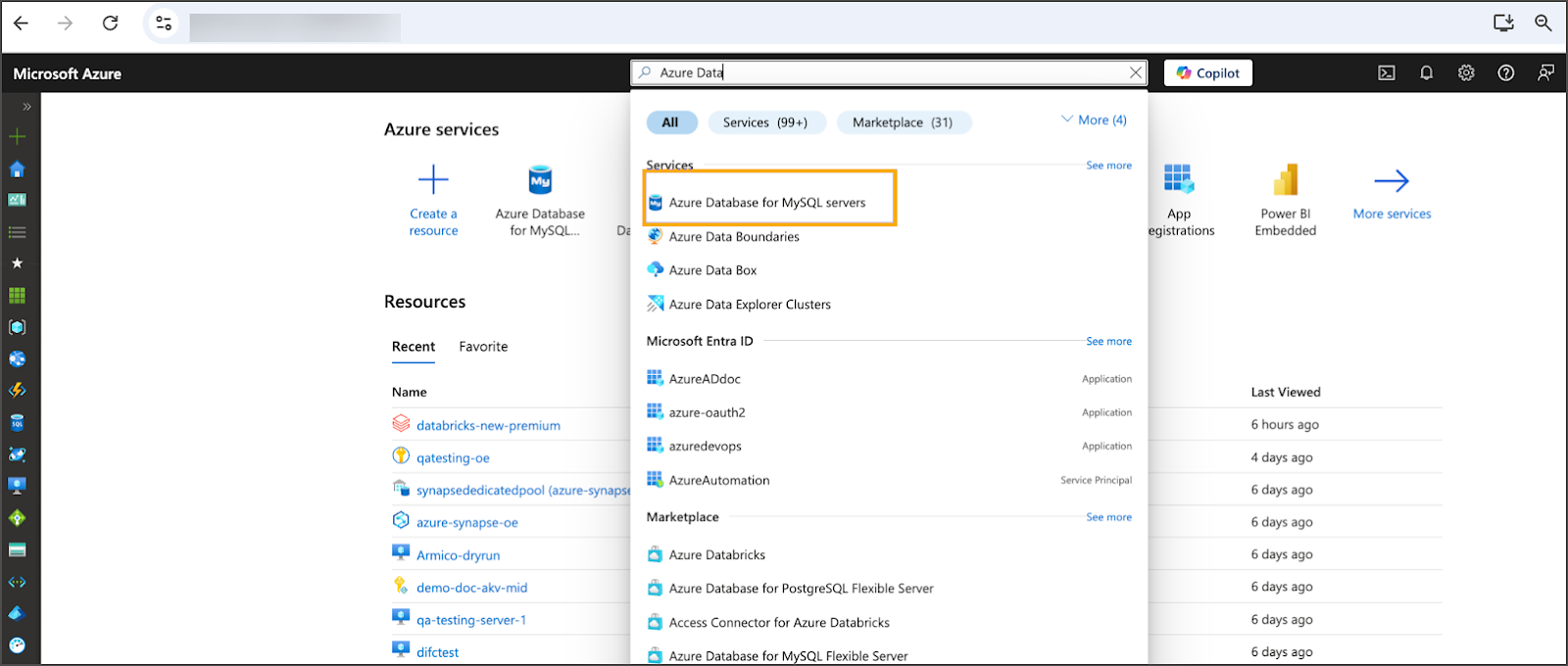
* **Log in to Azure Portal**
* Open the Azure portal and search for **Azure MySQL**.
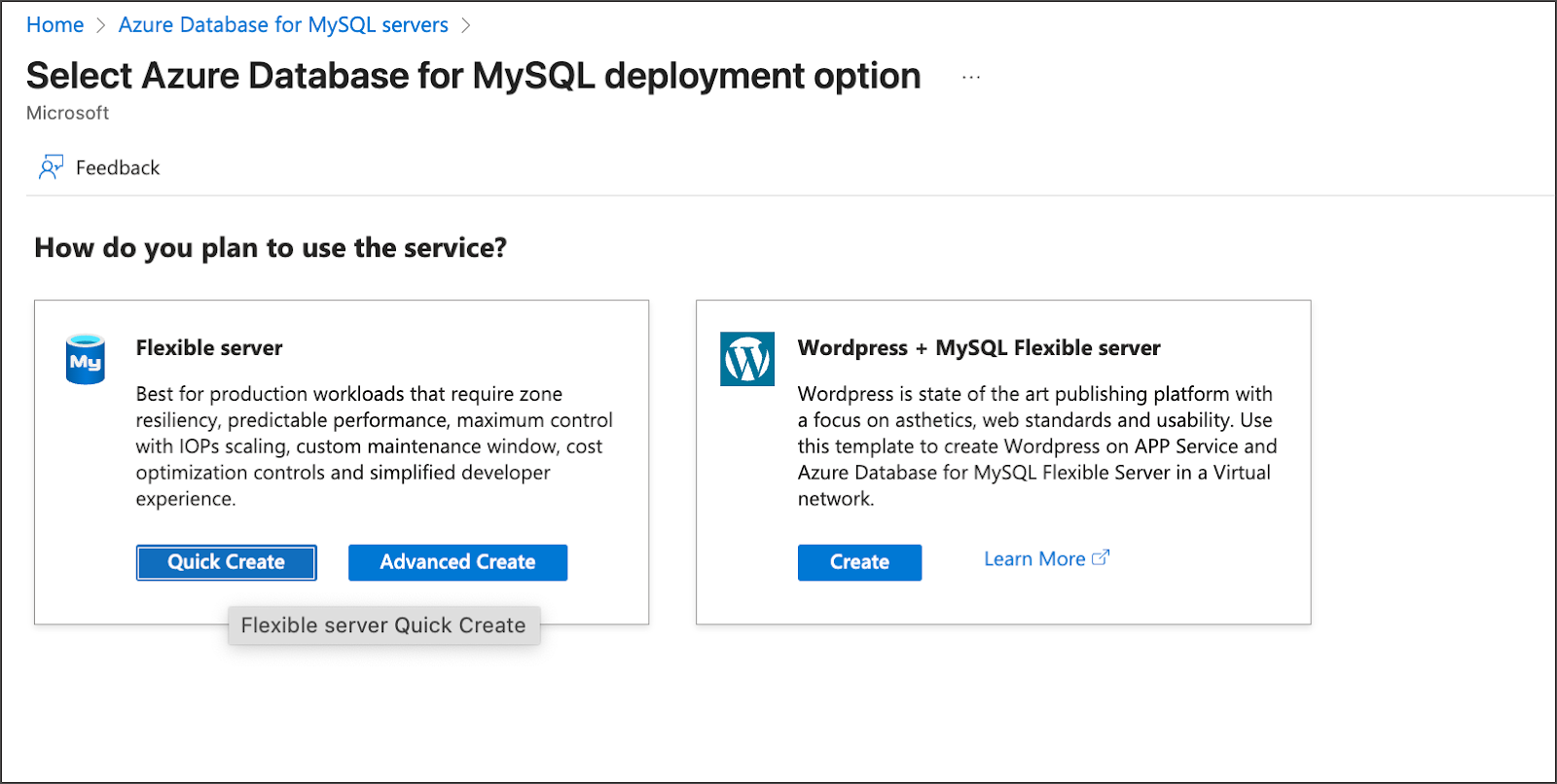
 * **Create Flexible Server**
* Click **Create** and select **Flexible Server**.
* **Create Flexible Server**
* Click **Create** and select **Flexible Server**.
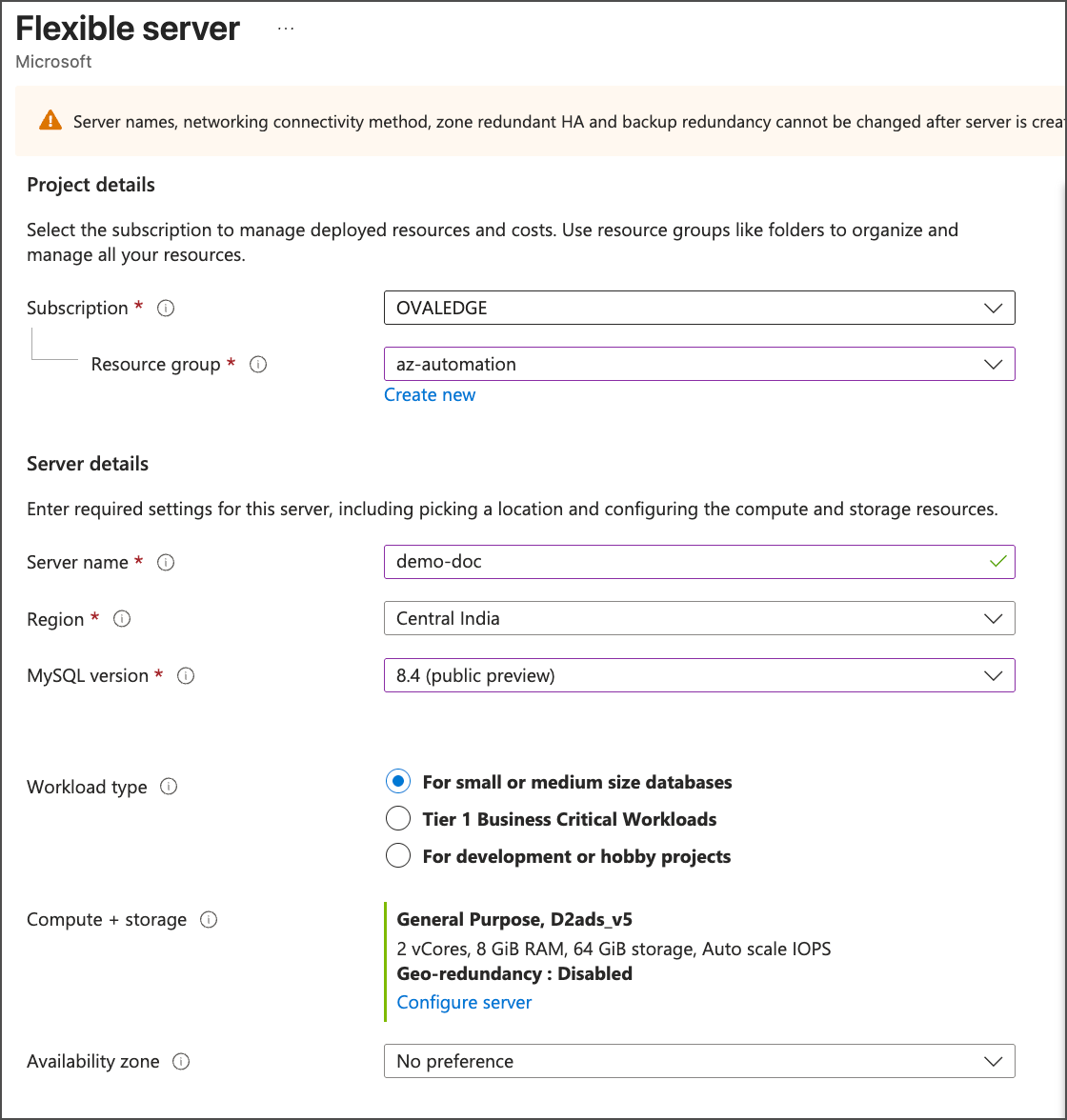
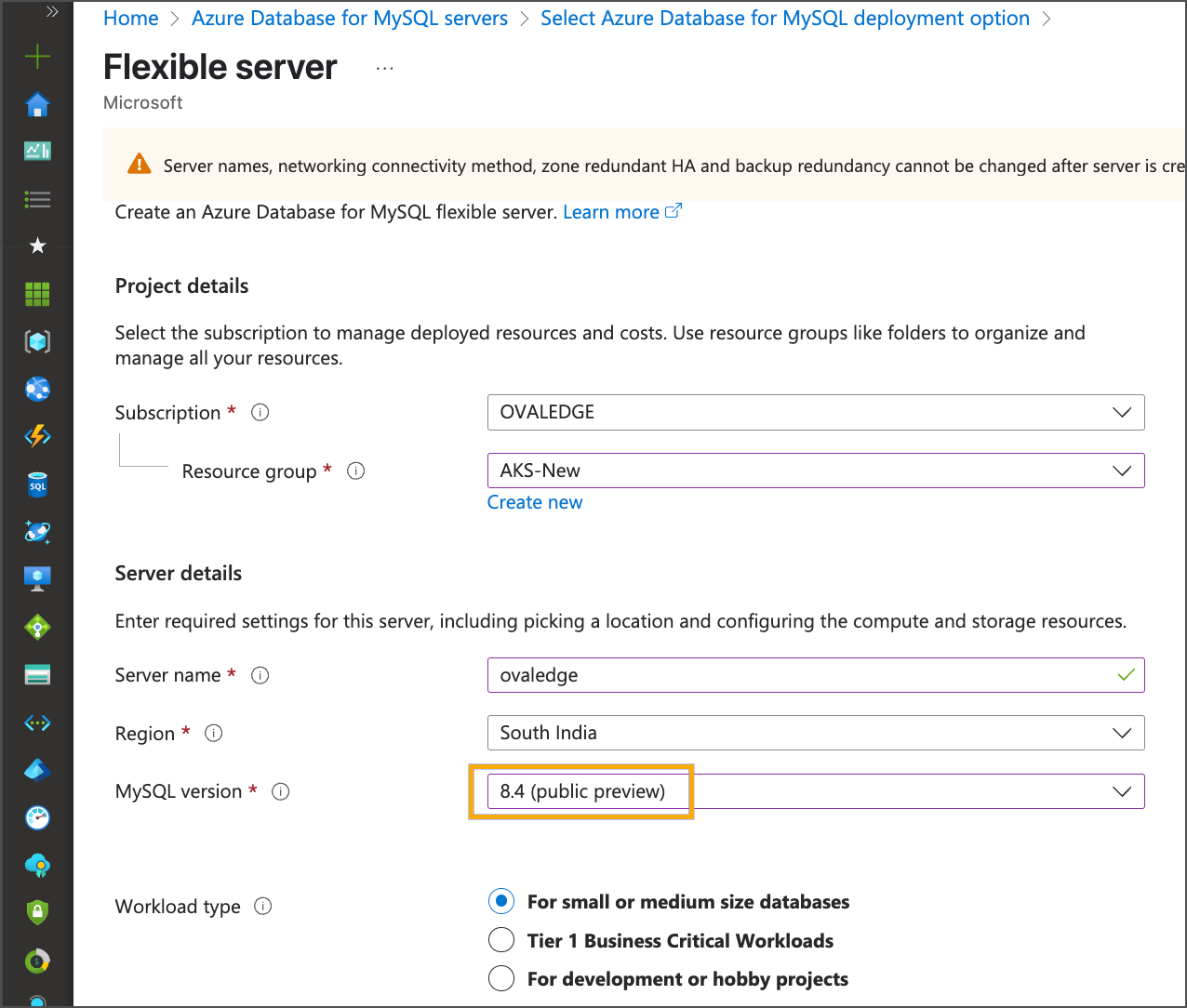 * **Specify Server Details**
* Resource group
* Name
* Region
* Workload
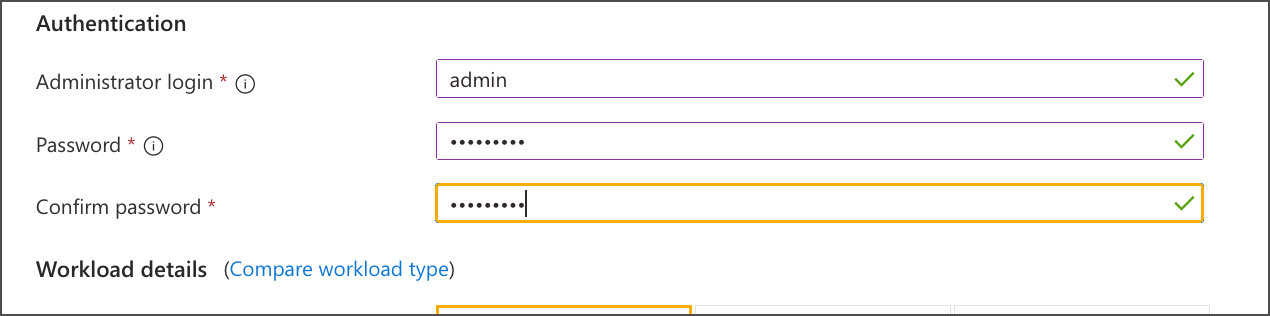
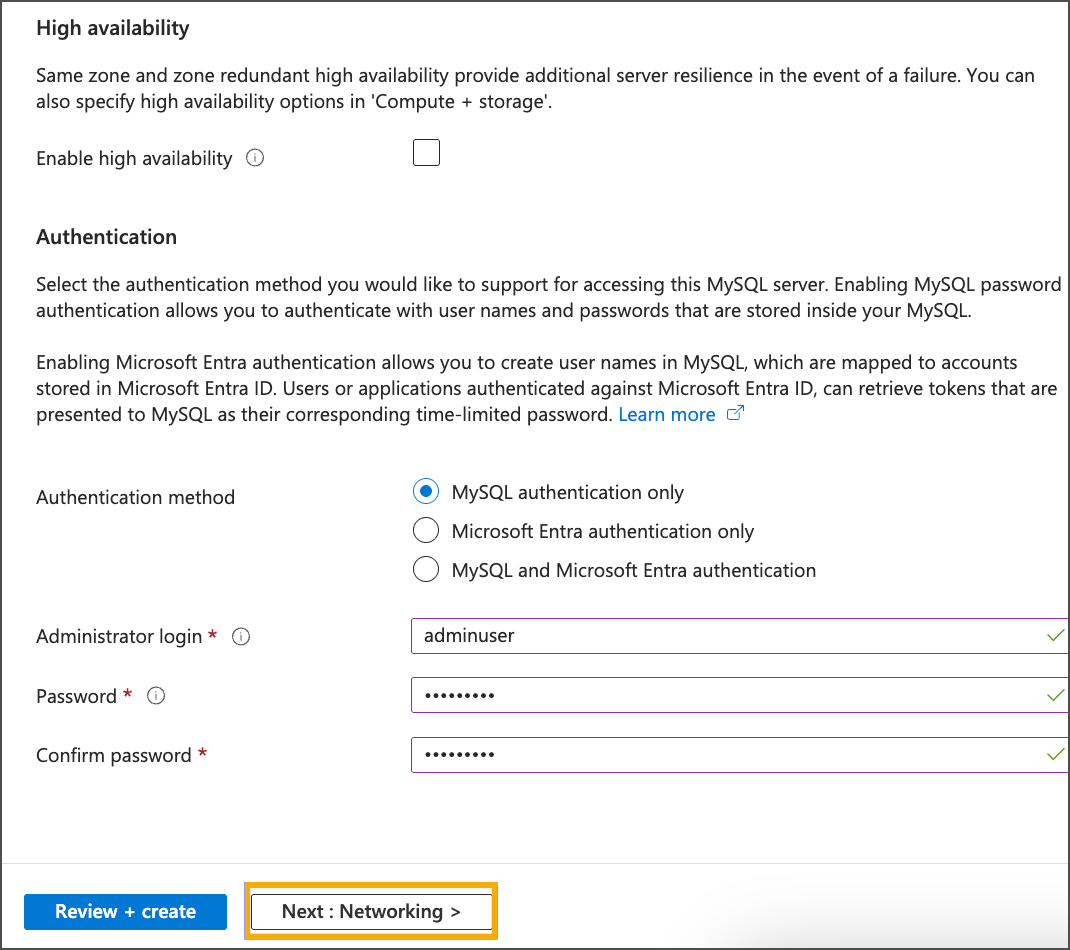
* **Configure Authentication**
* Select **MySQL Authentication**.
* Enter a username and password.
* **Specify Server Details**
* Resource group
* Name
* Region
* Workload
* **Configure Authentication**
* Select **MySQL Authentication**.
* Enter a username and password.
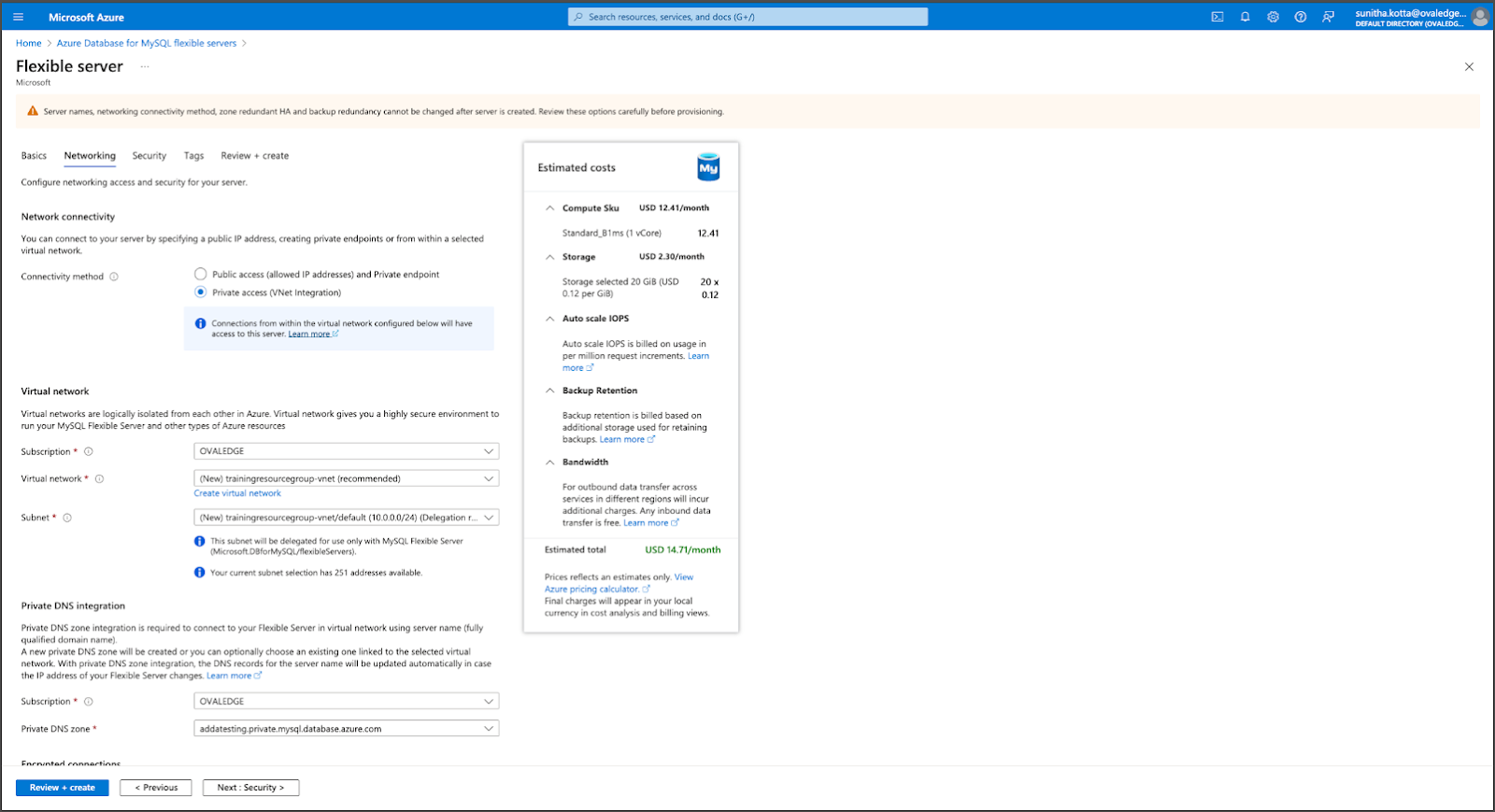 * **Configure Connectivity**
* Choose **Private access (VNet Integration)**.
* If VNets exist under the selected resource group, they appear automatically.
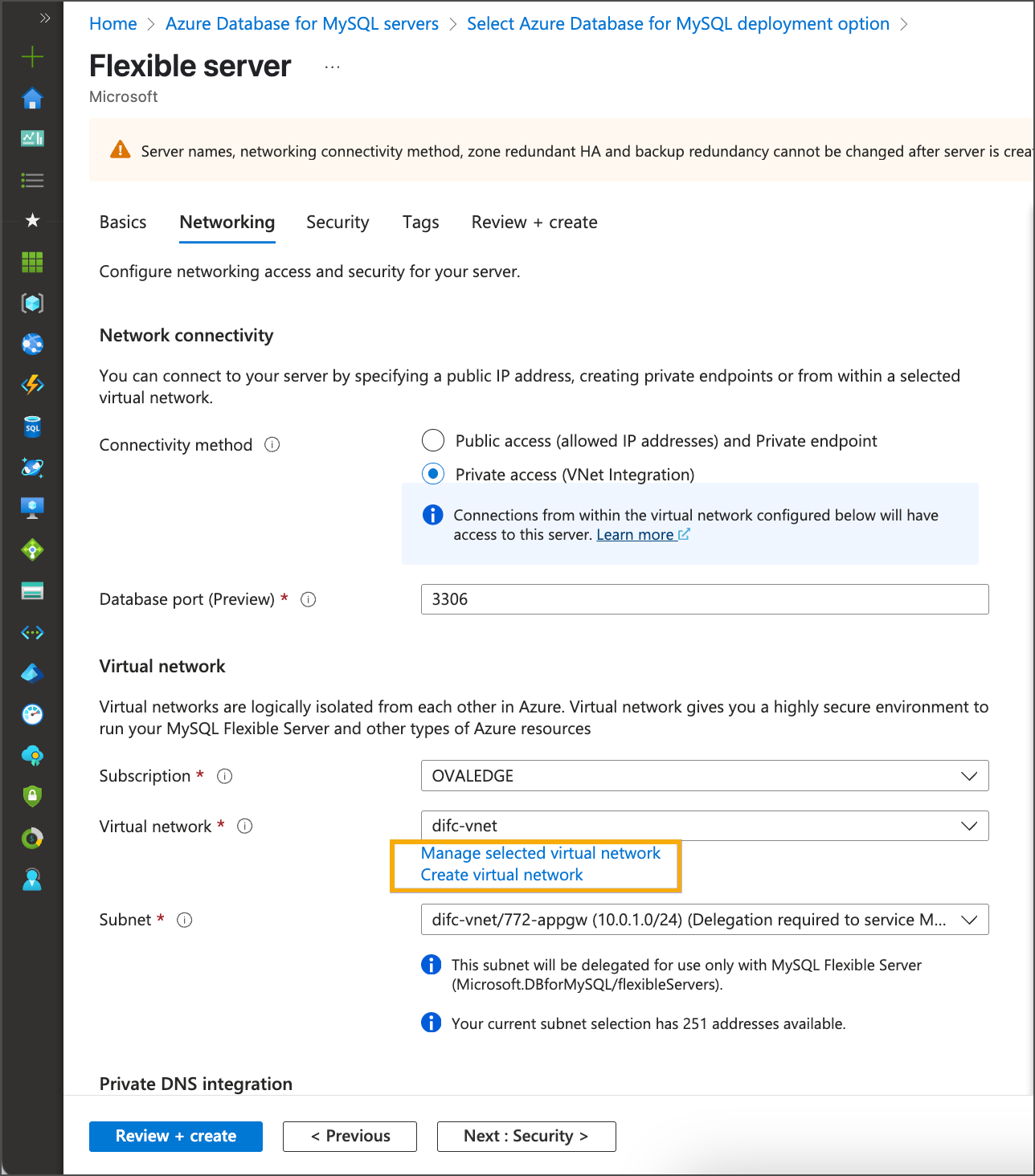
* If no VNets exist:
* Click **Create VNet**.
* Select **OK**.
* **Configure Connectivity**
* Choose **Private access (VNet Integration)**.
* If VNets exist under the selected resource group, they appear automatically.
* If no VNets exist:
* Click **Create VNet**.
* Select **OK**.
 * **Set Security and Tags**
* Configure preferred security settings under the **Security** blade.
* Add the required tags.
* **Review and Create**
* Click **Review + Create** to validate the configuration.
* Click **Create** to start provisioning the server.
* Wait a few minutes for the deployment to complete.
* **Capture Connection Details**
* After creation, record the following for later use:
* MySQL endpoint (private endpoint if configured)
* Username
* Password
* **Connect to Azure MySQL from Ubuntu VM**
* Connect to the Ubuntu virtual machine.
* Update system packages:
```bash
sudo apt update
```
* Install MySQL client:
```bash
sudo apt install mysql-client -y
```
* Verify MySQL client installation:
```bash
mysql --version
```
* Connect to the Azure MySQL server:
```bash
mysql -h -u -p
```
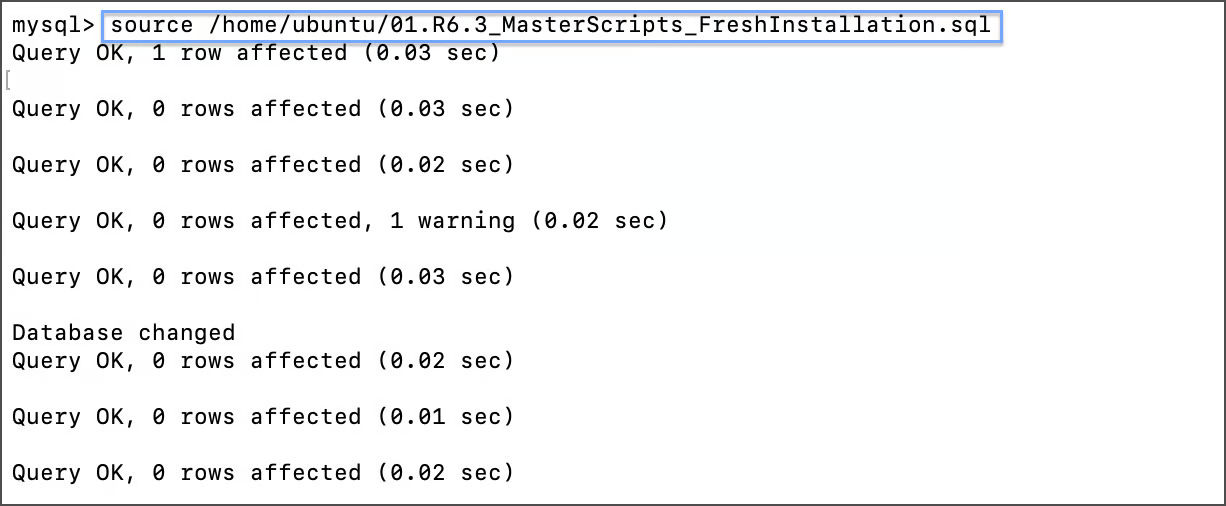
* **Execute Initialization Script**
* Run the required database initialization script after establishing the connection:
```bash
source /01.R6.3_MasterScripts_FreshInstallation.sql;
```
\
**Sample Reference Screenshot:**
* **Set Security and Tags**
* Configure preferred security settings under the **Security** blade.
* Add the required tags.
* **Review and Create**
* Click **Review + Create** to validate the configuration.
* Click **Create** to start provisioning the server.
* Wait a few minutes for the deployment to complete.
* **Capture Connection Details**
* After creation, record the following for later use:
* MySQL endpoint (private endpoint if configured)
* Username
* Password
* **Connect to Azure MySQL from Ubuntu VM**
* Connect to the Ubuntu virtual machine.
* Update system packages:
```bash
sudo apt update
```
* Install MySQL client:
```bash
sudo apt install mysql-client -y
```
* Verify MySQL client installation:
```bash
mysql --version
```
* Connect to the Azure MySQL server:
```bash
mysql -h -u -p
```
* **Execute Initialization Script**
* Run the required database initialization script after establishing the connection:
```bash
source /01.R6.3_MasterScripts_FreshInstallation.sql;
```
\
**Sample Reference Screenshot:**
 ***
Copyright © 2025, OvalEdge LLC, Peachtree Corners, GA, USA.
---
# Agent Instructions
This documentation is published with GitBook. GitBook is the documentation platform designed so that both humans and AI agents can read, navigate, and reason over technical content effectively. Learn more at gitbook.com.
## Querying This Documentation
If you need additional information that is not directly available in this page, you can query the documentation by asking a question.
Perform an HTTP GET request on the following URL with the `ask` and `goal` query parameters:
```
GET https://docs.ovaledge.com/release8.3/deployment-and-maintenance/installation/mysql-8.4.x-on-azure.md?ask=&goal=
```
`ask` is the immediate question: it should be specific, self-contained, and written in natural language.
`goal` is what the user is ultimately trying to achieve, the reason they need the answer. Sharing it helps GitBook give you a better, more relevant answer. A goal is most helpful when it describes the outcome the user wants rather than restating the question. For example, with `ask=how do I create an API token`, a goal like `automate deployments from our CI pipeline` lets GitBook tailor the answer to that use case.
The response will contain a direct answer to the question and relevant excerpts and sources from the documentation.
Use this mechanism when the answer is not explicitly present in the current page, you need clarification or additional context, or you want to retrieve related documentation sections.
***
Copyright © 2025, OvalEdge LLC, Peachtree Corners, GA, USA.
---
# Agent Instructions
This documentation is published with GitBook. GitBook is the documentation platform designed so that both humans and AI agents can read, navigate, and reason over technical content effectively. Learn more at gitbook.com.
## Querying This Documentation
If you need additional information that is not directly available in this page, you can query the documentation by asking a question.
Perform an HTTP GET request on the following URL with the `ask` and `goal` query parameters:
```
GET https://docs.ovaledge.com/release8.3/deployment-and-maintenance/installation/mysql-8.4.x-on-azure.md?ask=&goal=
```
`ask` is the immediate question: it should be specific, self-contained, and written in natural language.
`goal` is what the user is ultimately trying to achieve, the reason they need the answer. Sharing it helps GitBook give you a better, more relevant answer. A goal is most helpful when it describes the outcome the user wants rather than restating the question. For example, with `ask=how do I create an API token`, a goal like `automate deployments from our CI pipeline` lets GitBook tailor the answer to that use case.
The response will contain a direct answer to the question and relevant excerpts and sources from the documentation.
Use this mechanism when the answer is not explicitly present in the current page, you need clarification or additional context, or you want to retrieve related documentation sections.