> For the complete documentation index, see [llms.txt](https://docs.ovaledge.com/llms.txt). Markdown versions of documentation pages are available by appending `.md` to page URLs; this page is available as [Markdown](https://docs.ovaledge.com/release8.3/deployment-and-maintenance/installation/elasticsearch-9.x-on-ubuntu-22.04+.md).
# Elasticsearch 9.x on Ubuntu 22.04+
This article provides the steps to install and configure Elasticsearch on an Ubuntu system. It includes repository setup, installation, service configuration, and security enablement. This setup supports search and indexing capabilities required for platform operations.
### Prerequisites
Ensure the following conditions are met before proceeding:
* **Operating System:** Ubuntu system (supported version)
* **Java Runtime:** Java is installed and configured
* **Privileges:** Sudo or root access to execute installation and service commands
* **Network Access:** Internet connectivity to download packages and repository keys
### Installation Steps
1. #### Add Elasticsearch Signing Key
* Download and install the public signing key for the Elasticsearch repository.
```bash
wget -qO - https://artifacts.elastic.co/GPG-KEY-elasticsearch | sudo gpg --dearmor -o /usr/share/keyrings/elasticsearch-keyring.gpg
```
2. #### Add Elasticsearch Repository
* Add the Elasticsearch APT repository.
```bash
echo "deb [signed-by=/usr/share/keyrings/elasticsearch-keyring.gpg] https://artifacts.elastic.co/packages/9.x/apt stable main" | sudo tee /etc/apt/sources.list.d/elasticsearch.list
```
3. #### Install Elasticsearch
* Update package lists and install Elasticsearch.
```bash
sudo apt update
sudo apt install -y elasticsearch
```
\
**Sample Reference Screenshot**
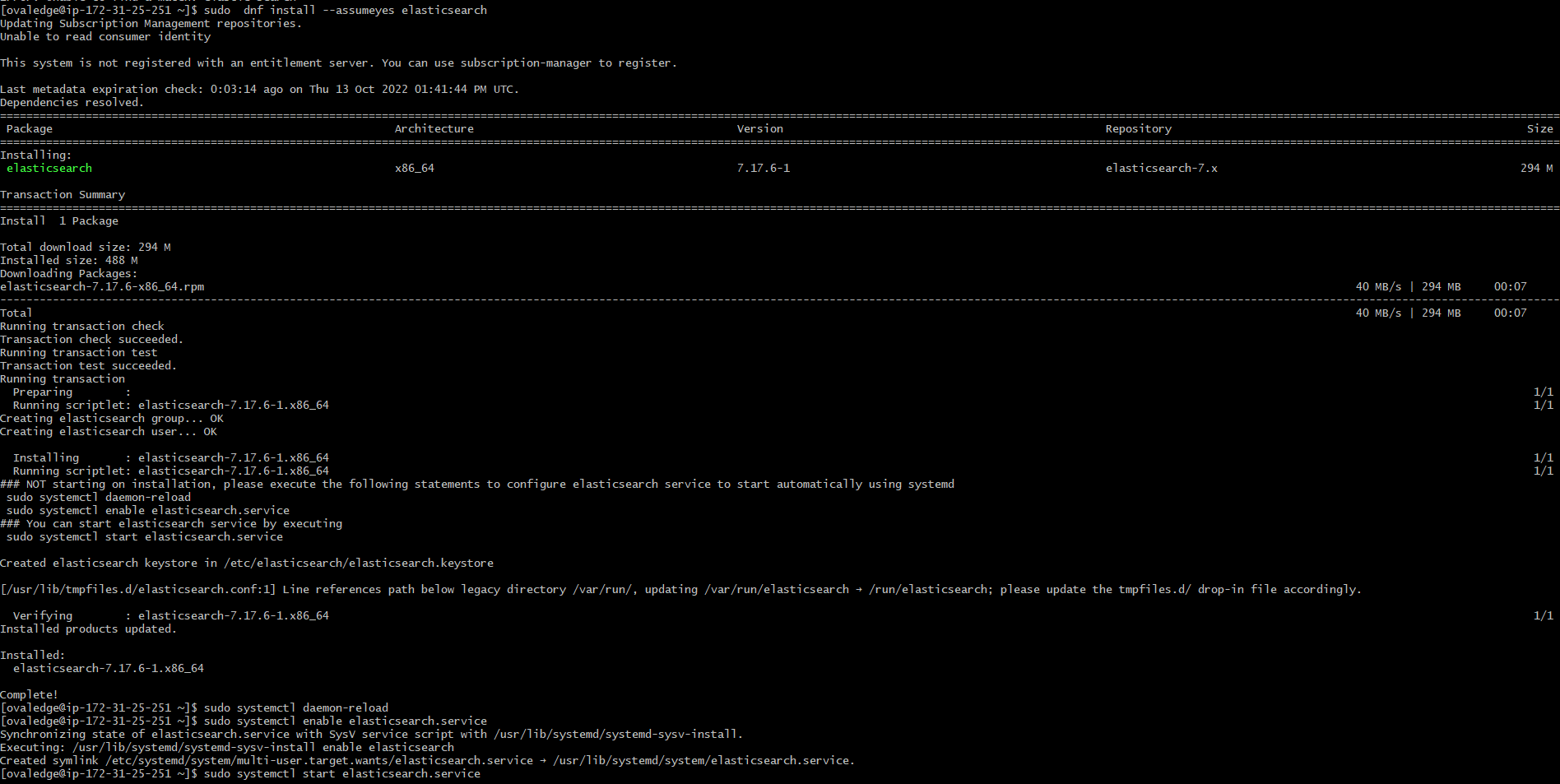 4. #### Configure Elasticsearch
* Edit the Elasticsearch configuration file.
```bash
sudo vi /etc/elasticsearch/elasticsearch.yml
```
* Update the following properties:
```bash
cluster.name: ovaledge
network.host: 0.0.0.0
transport.host: localhost
transport.tcp.port: 9300
http.port: 9200
```
5. #### Enable and Start Elasticsearch Service
* Enable the Elasticsearch service to start on system boot and start the service.
```bash
sudo systemctl enable elasticsearch
sudo systemctl start elasticsearch
sudo systemctl status elasticsearch.service
```
\
**Sample Reference Screenshot**
4. #### Configure Elasticsearch
* Edit the Elasticsearch configuration file.
```bash
sudo vi /etc/elasticsearch/elasticsearch.yml
```
* Update the following properties:
```bash
cluster.name: ovaledge
network.host: 0.0.0.0
transport.host: localhost
transport.tcp.port: 9300
http.port: 9200
```
5. #### Enable and Start Elasticsearch Service
* Enable the Elasticsearch service to start on system boot and start the service.
```bash
sudo systemctl enable elasticsearch
sudo systemctl start elasticsearch
sudo systemctl status elasticsearch.service
```
\
**Sample Reference Screenshot**
 6. #### Enable Security
* Add the following property to the configuration file and restart the service:
```bash
xpack.security.enabled: true
```
7. #### Set Elasticsearch Password
* Navigate to the Elasticsearch bin directory and reset the password.
```bash
sudo /usr/share/elasticsearch/bin/elasticsearch-reset-password -u elastic
```
* Provide and confirm the password when prompted.
8. #### Validate Installation
* Access Elasticsearch using the following URL:
```bash
http://:9200
```
***
Copyright © 2026, OvalEdge LLC, Peachtree Corners, GA, USA.
---
# Agent Instructions
This documentation is published with GitBook. GitBook is the documentation platform designed so that both humans and AI agents can read, navigate, and reason over technical content effectively. Learn more at gitbook.com.
## Querying This Documentation
If you need additional information that is not directly available in this page, you can query the documentation by asking a question.
Perform an HTTP GET request on the following URL with the `ask` and `goal` query parameters:
```
GET https://docs.ovaledge.com/release8.3/deployment-and-maintenance/installation/elasticsearch-9.x-on-ubuntu-22.04+.md?ask=&goal=
```
`ask` is the immediate question: it should be specific, self-contained, and written in natural language.
`goal` is what the user is ultimately trying to achieve, the reason they need the answer. Sharing it helps GitBook give you a better, more relevant answer. A goal is most helpful when it describes the outcome the user wants rather than restating the question. For example, with `ask=how do I create an API token`, a goal like `automate deployments from our CI pipeline` lets GitBook tailor the answer to that use case.
The response will contain a direct answer to the question and relevant excerpts and sources from the documentation.
Use this mechanism when the answer is not explicitly present in the current page, you need clarification or additional context, or you want to retrieve related documentation sections.
6. #### Enable Security
* Add the following property to the configuration file and restart the service:
```bash
xpack.security.enabled: true
```
7. #### Set Elasticsearch Password
* Navigate to the Elasticsearch bin directory and reset the password.
```bash
sudo /usr/share/elasticsearch/bin/elasticsearch-reset-password -u elastic
```
* Provide and confirm the password when prompted.
8. #### Validate Installation
* Access Elasticsearch using the following URL:
```bash
http://:9200
```
***
Copyright © 2026, OvalEdge LLC, Peachtree Corners, GA, USA.
---
# Agent Instructions
This documentation is published with GitBook. GitBook is the documentation platform designed so that both humans and AI agents can read, navigate, and reason over technical content effectively. Learn more at gitbook.com.
## Querying This Documentation
If you need additional information that is not directly available in this page, you can query the documentation by asking a question.
Perform an HTTP GET request on the following URL with the `ask` and `goal` query parameters:
```
GET https://docs.ovaledge.com/release8.3/deployment-and-maintenance/installation/elasticsearch-9.x-on-ubuntu-22.04+.md?ask=&goal=
```
`ask` is the immediate question: it should be specific, self-contained, and written in natural language.
`goal` is what the user is ultimately trying to achieve, the reason they need the answer. Sharing it helps GitBook give you a better, more relevant answer. A goal is most helpful when it describes the outcome the user wants rather than restating the question. For example, with `ask=how do I create an API token`, a goal like `automate deployments from our CI pipeline` lets GitBook tailor the answer to that use case.
The response will contain a direct answer to the question and relevant excerpts and sources from the documentation.
Use this mechanism when the answer is not explicitly present in the current page, you need clarification or additional context, or you want to retrieve related documentation sections.