> For the complete documentation index, see [llms.txt](https://docs.ovaledge.com/llms.txt). Markdown versions of documentation pages are available by appending `.md` to page URLs; this page is available as [Markdown](https://docs.ovaledge.com/release8.3/deployment-and-maintenance/backup/cron-tab-for-daily-backup-and-db-restoration.md).

# Cron Tab for Daily Backup and DB Restoration

This document describes the procedure for automating MySQL database backups and restores using CronTab on a Linux-based system. The process ensures consistent backup execution and supports timely recovery in case of data loss. It reduces manual intervention and improves the reliability of metadata storage for the OvalEdge platform.

## Prerequisites

* Linux-based system with root or sudo access
* Sufficient storage space for backup files
* Basic knowledge of CronTab and shell scripting
* NFS mount (optional) for storing backups in a network location

## Steps Involved

1. Configure MySQL Database Backup

   * Log in to the MySQL server.

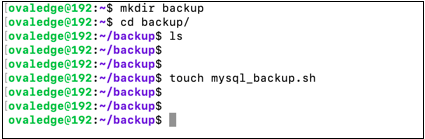
   * Create a directory to store backup scripts and files.

   * Create a file named mysql\_backup.sh.\
     \
     Sample Reference Screenshot:

     <div align="left"><figure><img src="https://content.gitbook.com/content/8fgltewNgYZ8ucAp7Svt/blobs/tqdaWKR6mylxGZr7iVIk/image.png" alt=""><figcaption></figcaption></figure></div>

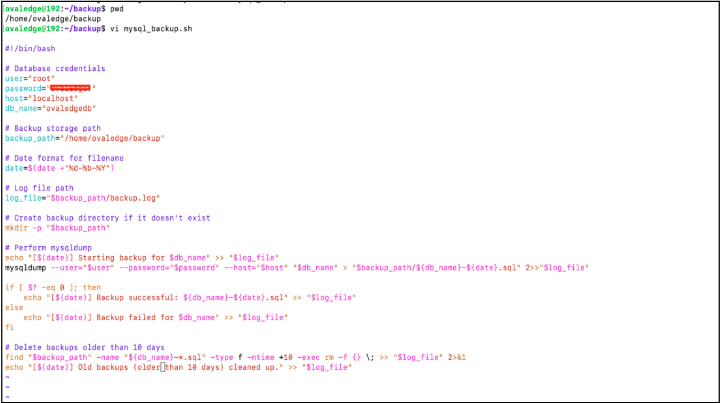
   * Add the following script to the file:

     ```
     #!/bin/bash
     # Database credentials
     user="root"
     password="<mysql root user password>"
     host="<localhost or RDS endpoint>"
     db_name="ovaledgedb"
     # Backup storage path
     backup_path="<full path where backup should be stored>"
     # Date format for filename
     date=$(date +"%d-%b-%Y")
     # Log file path
     log_file="$backup_path/backup.log"
     # Create backup directory if it does not exist
     mkdir -p "$backup_path"
     # Perform mysqldump
     echo "[$(date)] Starting backup for $db_name" >> "$log_file"
     mysqldump --user="$user" --password="$password" --host="$host" "$db_name" > "$backup_path/${db_name}-${date}.sql" 2>>"$log_file"
     if [ $? -eq 0 ]; then
         echo "[$(date)] Backup successful: ${db_name}-${date}.sql" >> "$log_file"
     else
         echo "[$(date)] Backup failed for $db_name" >> "$log_file"
     fi
     # Delete backups older than 10 days
     find "$backup_path" -name "${db_name}-*.sql" -type f -mtime +10 -exec rm -f {} \; >> "$log_file" 2>&1
     echo "[$(date)] Old backups (older than 10 days) cleaned up." >> "$log_file"

     ```

     Sample Reference Screenshot:

     <figure><img src="https://content.gitbook.com/content/8fgltewNgYZ8ucAp7Svt/blobs/4BTACnxzrPCvCA3tI9qJ/image.png" alt=""><figcaption></figcaption></figure>

   * Update the following parameters based on the environment:
     * MySQL username and password
     * Host (local or RDS endpoint)
     * Backup directory path

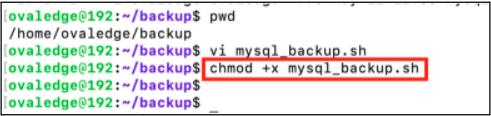
   * Grant execute permission to the script:

     ```
     chmod +x mysql_backup.sh
     ```

     \
     Sample Reference Screenshot:
     <div align="left"><figure><img src="https://content.gitbook.com/content/8fgltewNgYZ8ucAp7Svt/blobs/nX2uSalr8tkfOjQa9AOb/image.png" alt=""><figcaption></figcaption></figure></div>

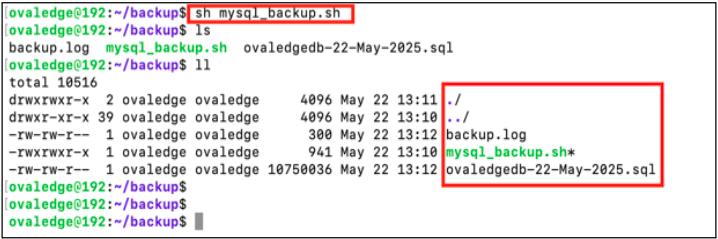
   * Run the script manually to verify execution:

     ```
     sh mysql_backup.sh
     ```

     \
     Sample Reference Screenshot:
     <figure><img src="https://content.gitbook.com/content/8fgltewNgYZ8ucAp7Svt/blobs/yPftyT2NEYSzDeqTP0pO/image.png" alt=""><figcaption></figcaption></figure>

   * Confirm that the backup file is created in the specified directory.

2. Schedule Backup Using CronTab
   * Open the crontab editor:

     ```
     crontab -e
     ```
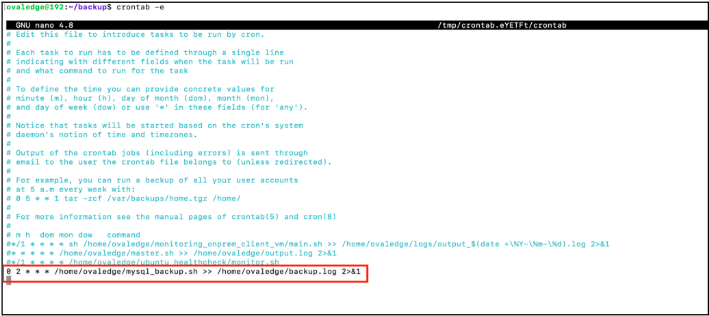
   * Add the following entry to schedule daily execution at 2:00 AM:

     ```
     0 2 * * * /home/ovaledge/mysql_backup.sh >> /home/ovaledge/backup.log 2>&1
     ```

     \
     \
     Sample Reference Screenshot:

     <figure><img src="https://content.gitbook.com/content/8fgltewNgYZ8ucAp7Svt/blobs/tsymGe4ecUDrBZc4mBL6/image.png" alt=""><figcaption></figcaption></figure>

{% hint style="info" %}
This configuration runs the backup script daily at 02:00 AM, and appends logs to the specified log file.
{% endhint %}

3. Perform MySQL Database Restoration
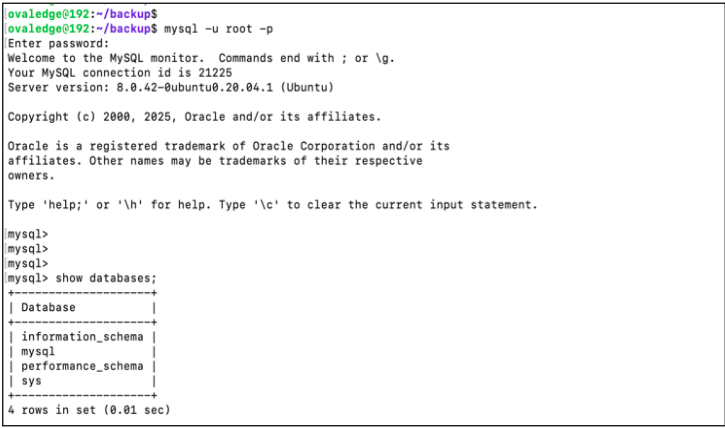
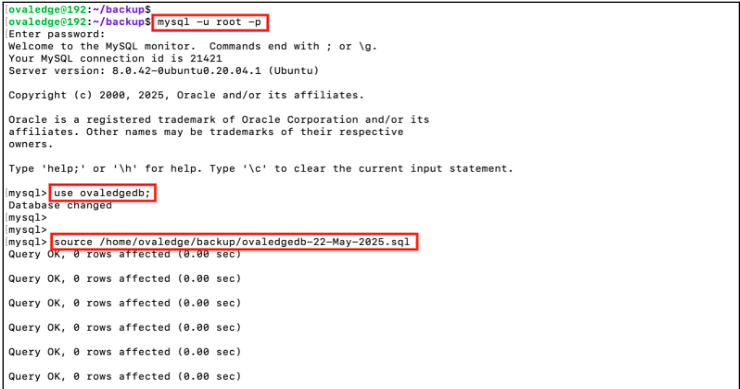
   * Connect to the MySQL server:

     ```
     mysql -u root -p
     ```

     \
     Sample Reference Screenshot:
     <figure><img src="https://content.gitbook.com/content/8fgltewNgYZ8ucAp7Svt/blobs/hN3xw7vfVRroo1DULaiH/image.png" alt=""><figcaption></figcaption></figure>

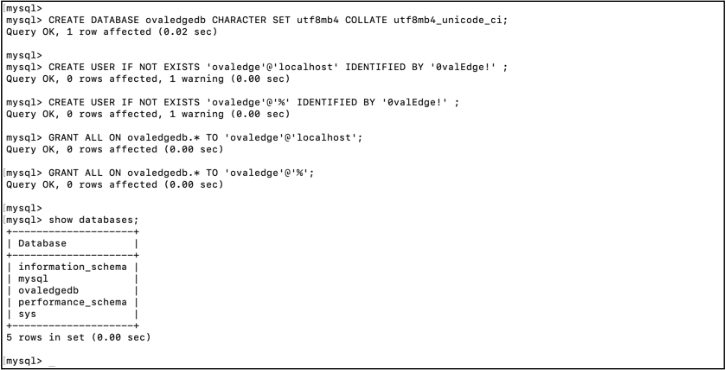
   * Create the database and user, and grant required permissions:

     ```
     CREATE DATABASE ovaledgedb CHARACTER SET utf8mb4 COLLATE utf8mb4_unicode_ci;
     CREATE USER IF NOT EXISTS 'ovaledge'@'localhost' IDENTIFIED BY '<password>';
     CREATE USER IF NOT EXISTS 'ovaledge'@'%' IDENTIFIED BY '<password>';
     GRANT ALL ON ovaledgedb.* TO 'ovaledge'@'localhost';
     GRANT ALL ON ovaledgedb.* TO 'ovaledge'@'%';
     ```

     \
     Sample Reference Screenshot:
     <figure><img src="https://content.gitbook.com/content/8fgltewNgYZ8ucAp7Svt/blobs/awGW7jaZnF2X0opZIEYV/image.png" alt=""><figcaption></figcaption></figure>

   * Replace with the required password.

   * Restore the database using the backup file:

     ```
     source /home/ovaledge/ovaledgedb-22-May-2025.sql
     ```

     \
     Sample Reference Screenshot:
     <figure><img src="https://content.gitbook.com/content/8fgltewNgYZ8ucAp7Svt/blobs/kfUvJtPslC3P0At5Qzqr/image.png" alt=""><figcaption></figcaption></figure>

   * Verify that the database restoration is completed successfully.
4. Update Configuration and Start Services
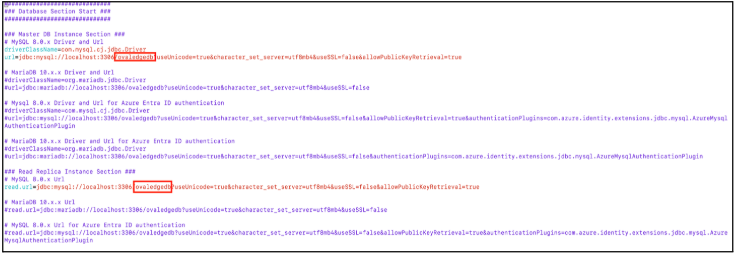
   * Update the oasis.properties file with the correct database details.\
     \
     Sample Reference Screenshot:

     <figure><img src="https://content.gitbook.com/content/8fgltewNgYZ8ucAp7Svt/blobs/BPJ4BxNukDLkxD1e7JFa/image.png" alt=""><figcaption></figcaption></figure>

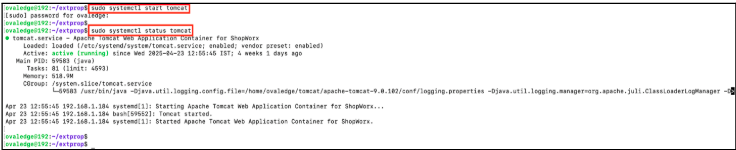
   * Start the Tomcat service:

     ```
     sudo systemctl start tomcat
     ```

     \
     Sample Reference Screenshot:
     <figure><img src="https://content.gitbook.com/content/8fgltewNgYZ8ucAp7Svt/blobs/1ZfQqy0tzDh3VB8dVoXK/image.png" alt=""><figcaption></figcaption></figure>

   * Verify that the application is accessible after a few minutes.

***

Copyright © 2026, OvalEdge LLC, Peachtree Corners, GA, USA.


---

# Agent Instructions
This documentation is published with GitBook. GitBook is the documentation platform designed so that both humans and AI agents can read, navigate, and reason over technical content effectively. Learn more at gitbook.com.

## Querying This Documentation
If you need additional information that is not directly available in this page, you can query the documentation by asking a question.

Perform an HTTP GET request on the following URL with the `ask` and `goal` query parameters:

```
GET https://docs.ovaledge.com/release8.3/deployment-and-maintenance/backup/cron-tab-for-daily-backup-and-db-restoration.md?ask=<question>&goal=<user_goal>
```

`ask` is the immediate question: it should be specific, self-contained, and written in natural language.
`goal` is what the user is ultimately trying to achieve, the reason they need the answer. Sharing it helps GitBook give you a better, more relevant answer. A goal is most helpful when it describes the outcome the user wants rather than restating the question. For example, with `ask=how do I create an API token`, a goal like `automate deployments from our CI pipeline` lets GitBook tailor the answer to that use case.

The response will contain a direct answer to the question and relevant excerpts and sources from the documentation.

Use this mechanism when the answer is not explicitly present in the current page, you need clarification or additional context, or you want to retrieve related documentation sections.