> For the complete documentation index, see [llms.txt](https://docs.ovaledge.com/llms.txt). Markdown versions of documentation pages are available by appending `.md` to page URLs; this page is available as [Markdown](https://docs.ovaledge.com/release8.3/connectors/connector-repositories/reporting-tool/microsoft-ssas-sql-server-analysis-services/ssas-application-setup.md).

# SSAS Application Setup

This document outlines the step-by-step process to install the SSAS Application as a Windows service using NSSM (nssm.exe). This setup is applicable for both .NET 6 and .NET 8 versions.

The SSAS Application can be executed in two ways.

* Automatic execution by installing the application as a Windows Service using NSSM
* Manual execution by running the application using Command Prompt

## Download the SSAS Application Package

Download the SSAS project ZIP file provided as part of the installation artifacts.

#### Download Details

<table><thead><tr><th width="220.140625">Item</th><th>Description</th></tr></thead><tbody><tr><td>Package Name</td><td>ssas_app.zip</td></tr><tr><td>Source</td><td>Provided by OvalEdge as part of the installation artifacts</td></tr></tbody></table>

{% hint style="info" %}
Use the provided ZIP file for the SSAS Application installation and configuration.
{% endhint %}

## Extract the SSAS Package

* Extract the downloaded zip file into a preferred directory.
* This extracted folder contains the SSAS Application project files required for configuration and execution.

## Configure the SSAS Application

### Update the SSAS Configuration File

Before running the SSAS Application, update the SSAS configuration file with the required server details.

#### Locate the Configuration Directory

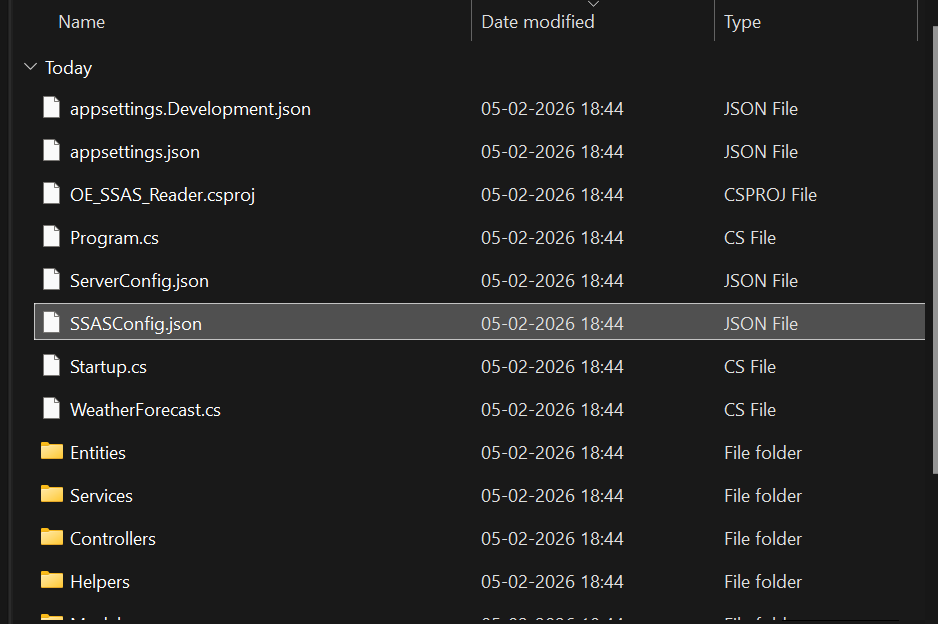
* Navigate to the SSASConfig.json directory inside the extracted SSAS application folder.

<figure><img src="https://content.gitbook.com/content/8fgltewNgYZ8ucAp7Svt/blobs/eF1GVWkvFF4k8hfc94Zq/unknown.png" alt=""><figcaption></figcaption></figure>

#### Edit the Configuration File

* Open the configuration file for editing and update the required SSAS server connection details.

#### Provide SSAS Server Details

* Update the configuration file by entering the following information.

| Parameter                             | Description                                                 |
| ------------------------------------- | ----------------------------------------------------------- |
| SSAS Server Domain Name or IP Address | Domain name or IP address of the SSAS server to be accessed |

{% hint style="warning" %}
The SSAS server domain name or IP address must be correctly updated in the configuration file. Incorrect details may prevent the application from connecting to the SSAS server.
{% endhint %}

## Select the SSAS Execution Mode

### SSAS Application Startup Method

SSAS Application can be started manually or automatically based on the requirement.

| Startup Method | Description                                               |
| -------------- | --------------------------------------------------------- |
| Automatic      | Runs the SSAS Application as a Windows Service using NSSM |
| Manual         | Runs the SSAS Application directly using .Net commands    |

{% hint style="warning" %}
For automatic startup, proceed with next step (Locate the NSSM Executable) where the application is configured as a Windows Service.
{% endhint %}

## Running the SSAS Application Automatically

Configure the SSAS Application as a Windows Service

* Open Command Prompt
  * Open Command Prompt on the Windows machine.
* Navigate to the Project Folder
  * Navigate to the folder where the .NET SSAS project is available.

```
cd C:\ssas_app\v8.0\OE_SSAS_Reader
```

{% hint style="warning" %}
The folder path may vary depending on where the zip file was extracted.
{% endhint %}

## Build the SSAS Application

Execute the following commands in sequence to run the SSAS application manually.

* Build the Project
  * Build the SSAS application using the following command.

```
dotnet build
```

This will generate the SSAS Application executable file OE\_SSAS\_Reader.exe under bin\Debug\net8.0

### Locate the NSSM Executable

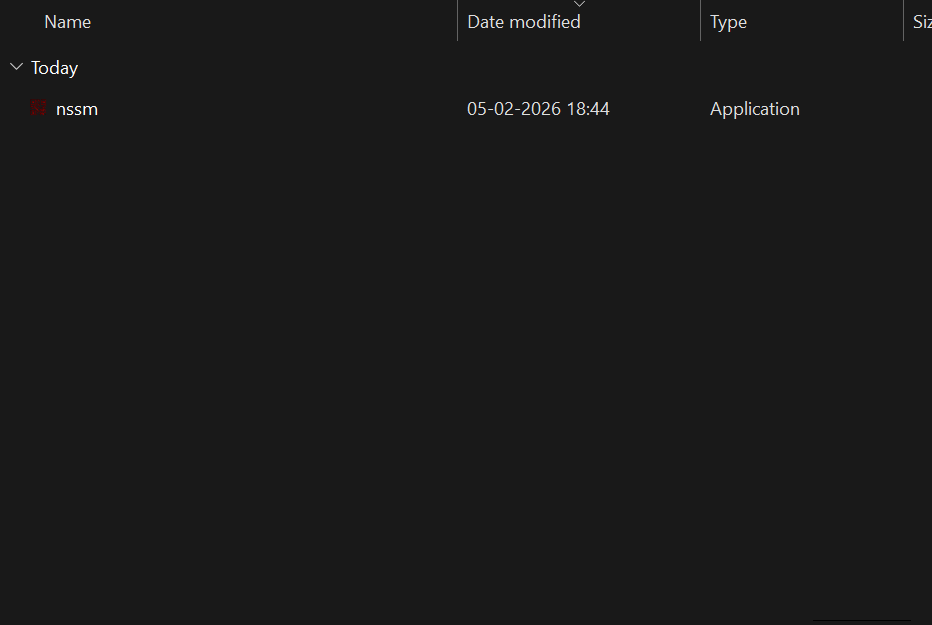
* Navigate to the folder where nssm.exe is available under the extracted ssas\_app.zip directory.
  * Path: \<extracted\_ssas\_app\_folder>\NSSM\nssm.exe
  * The nssm.exe executable is available within the extracted SSAS application package.

<figure><img src="https://content.gitbook.com/content/8fgltewNgYZ8ucAp7Svt/blobs/C413T2G4lZmy71K1OhP0/unknown.png" alt=""><figcaption></figcaption></figure>

* This executable is used to install the SSAS application as a Windows service.

## Install the SSAS Application as a Windows Service

Install the SSAS Application as a Windows service using Command Prompt.

### Open Command Prompt in the NSSM Directory

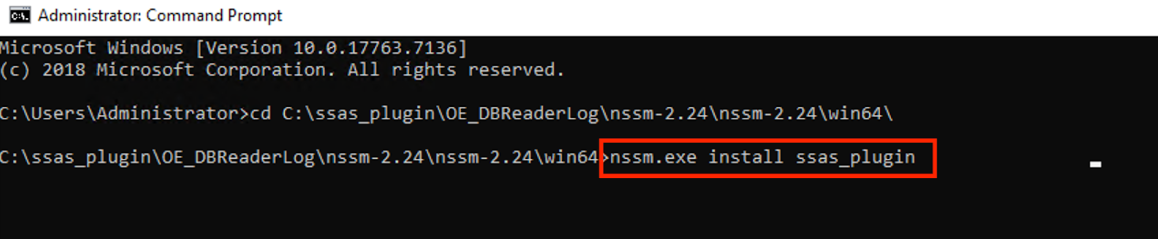
* Open Command Prompt and ensure the current path is set to the directory where nssm.exe is located.

### Execute the NSSM Install Command

* Run the following command to install the SSAS Application as a service.

```
nssm.exe install <ssas_plugin_service_name>
```

<figure><img src="https://content.gitbook.com/content/8fgltewNgYZ8ucAp7Svt/blobs/i6BWlpX9KPSGpKZtvjgm/unknown.png" alt=""><figcaption></figcaption></figure>

### Provide the Application Executable Path

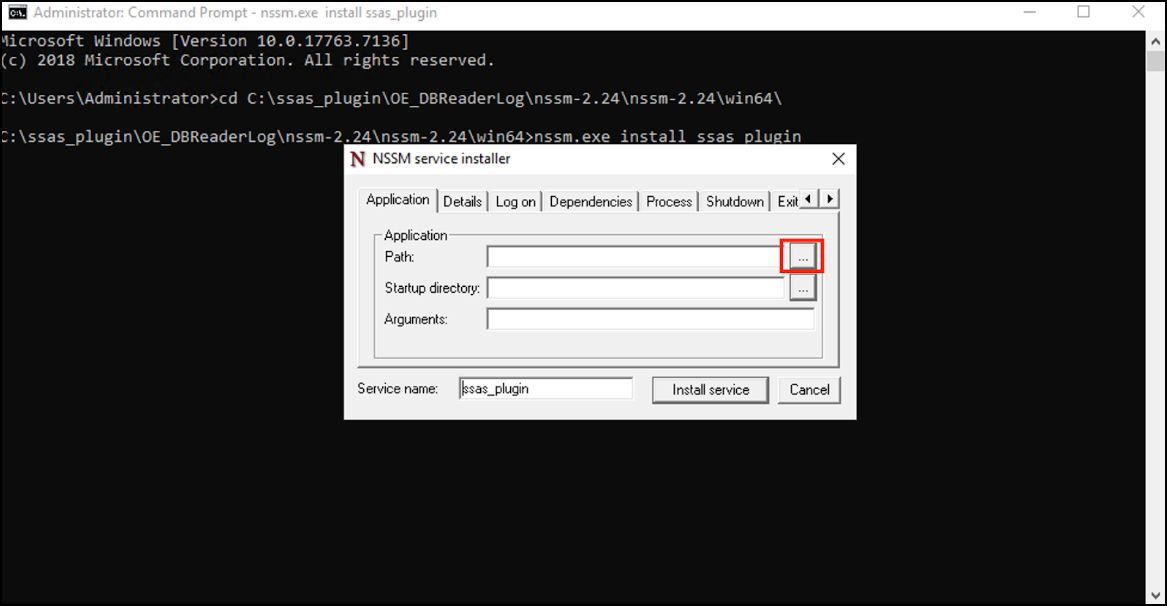
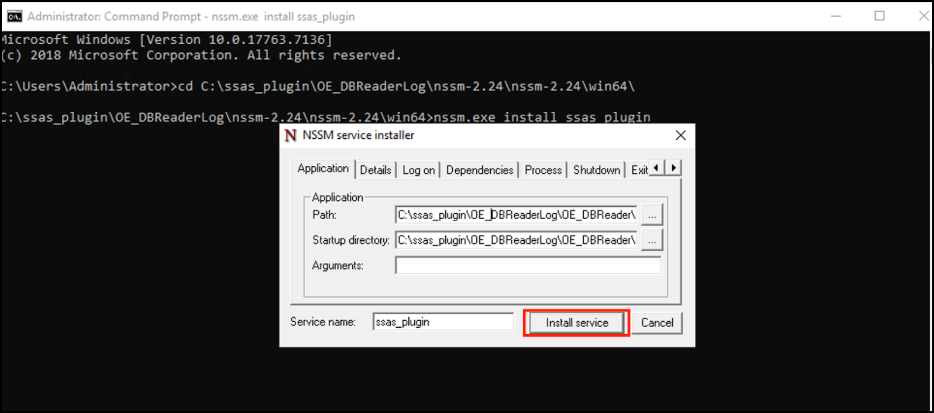
After running the command, a pop-up window is displayed.

* Click the three-dot button (...)
* Browse and select the SSAS Application executable (.exe) file path

<figure><img src="https://content.gitbook.com/content/8fgltewNgYZ8ucAp7Svt/blobs/gbf8rpyDTdZodzmAaphJ/unknown.png" alt=""><figcaption></figcaption></figure>

### Install the Service

* After selecting the executable file, click Install Service to complete the service installation.

<figure><img src="https://content.gitbook.com/content/8fgltewNgYZ8ucAp7Svt/blobs/qZVpjOsjloDx0hbtTAaR/unknown.png" alt=""><figcaption></figcaption></figure>

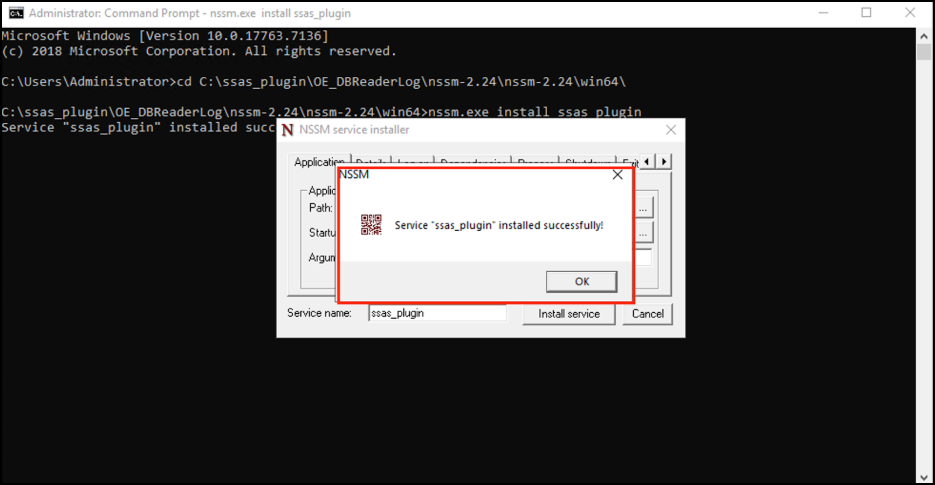
### Confirm the Installation

* A confirmation message is displayed indicating that the service was installed successfully.

<figure><img src="https://content.gitbook.com/content/8fgltewNgYZ8ucAp7Svt/blobs/jdG7J10qitBO1oQqCfDs/unknown.png" alt=""><figcaption></figcaption></figure>

{% hint style="warning" %}
The SSAS Application service name provided in the install command is used to identify the service in the Windows Services console.
{% endhint %}

## Starting the SSAS Windows Service

### Start the Installed SSAS Application Service

After the SSAS Application is installed as a Windows service, start the service from the Services console.

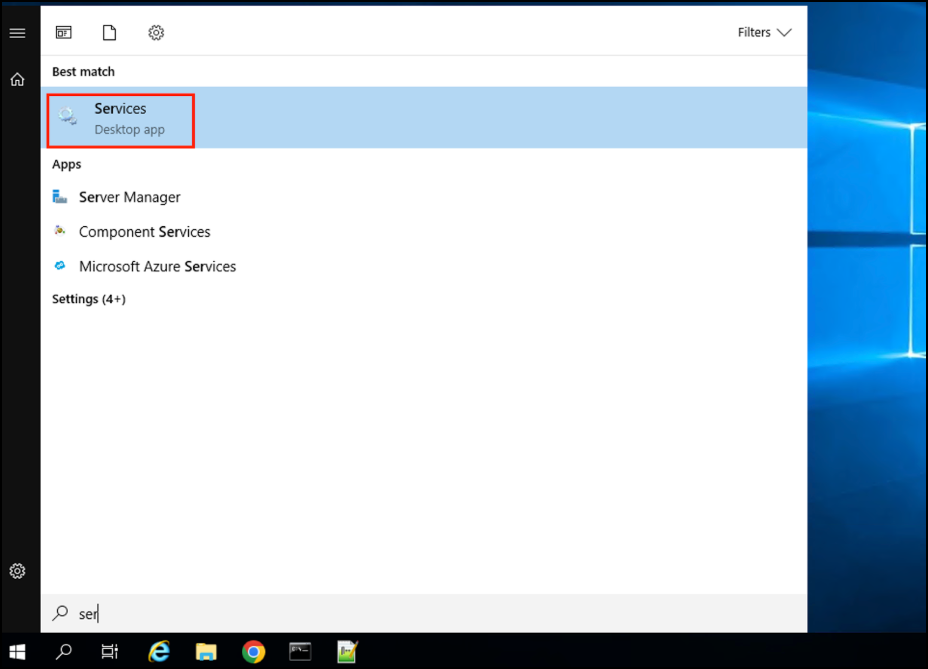
* Open the Services Console
  * Open the Windows Services console using the following command.

```
services.msc
```

<figure><img src="https://content.gitbook.com/content/8fgltewNgYZ8ucAp7Svt/blobs/XrvUmkQp1jPFZi4xqzN4/unknown.png" alt=""><figcaption></figcaption></figure>

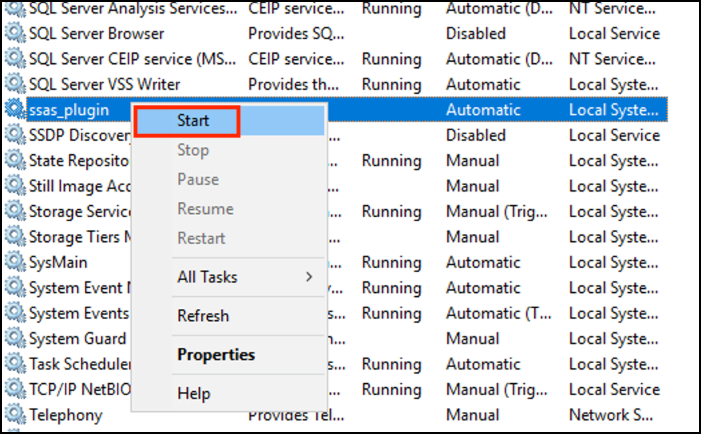
* Locate the Installed Service
  * Locate the SSAS Application service that was installed using NSSM.
* Start the Service
  * Right click the service and select Start.

<figure><img src="https://content.gitbook.com/content/8fgltewNgYZ8ucAp7Svt/blobs/a4v1A0tNSes8nepBJtyg/unknown.png" alt=""><figcaption></figcaption></figure>

{% hint style="warning" %}
The SSAS application runs continuously when started as a Windows service.
{% endhint %}

## Running the SSAS Application Manually

### Execute the SSAS Application Using Command Prompt

Manual execution is supported for running the SSAS application without installing it as a Windows service.

* Open Command Prompt
  * Open Command Prompt on the Windows machine.
* Navigate to the Project Folder
  * Navigate to the folder where the .NET SSAS project is available.

```
cd C:\ssas_app\v8.0\OE_SSAS_Reader
```

{% hint style="warning" %}
The folder path may vary depending on where the zip file was extracted.
{% endhint %}

## Build, Publish, and Run the SSAS Application

Execute the following commands in sequence to run the SSAS application manually.

* Build the Project
  * Build the SSAS application using the following command.

```
dotnet build

```

* Publish the Project
  * After the build is completed, publish the SSAS application using the following command.

```
dotnet publish
```

* Run the Project
  * After the publish is completed, run the SSAS application using the following command.

```
dotnet run
```

{% hint style="warning" %}
All commands must be executed in the SSAS project folder location.
{% endhint %}

## Accessing the SSAS Swagger UI

### Open Swagger UI for SSAS Application

After the SSAS application is started, access the Swagger documentation page using the following URL.

```
http://<ssas_server_domain_name_or_ip>:5000/swagger/index.html
```

{% hint style="warning" %}
Swagger UI provides API documentation and allows validation of the SSAS Application availability.
{% endhint %}

***

Copyright © 2026, OvalEdge LLC, Peachtree Corners GA USA


---

# Agent Instructions
This documentation is published with GitBook. GitBook is the documentation platform designed so that both humans and AI agents can read, navigate, and reason over technical content effectively. Learn more at gitbook.com.

## Querying This Documentation
If you need additional information that is not directly available in this page, you can query the documentation by asking a question.

Perform an HTTP GET request on the following URL with the `ask` and `goal` query parameters:

```
GET https://docs.ovaledge.com/release8.3/connectors/connector-repositories/reporting-tool/microsoft-ssas-sql-server-analysis-services/ssas-application-setup.md?ask=<question>&goal=<user_goal>
```

`ask` is the immediate question: it should be specific, self-contained, and written in natural language.
`goal` is what the user is ultimately trying to achieve, the reason they need the answer. Sharing it helps GitBook give you a better, more relevant answer. A goal is most helpful when it describes the outcome the user wants rather than restating the question. For example, with `ask=how do I create an API token`, a goal like `automate deployments from our CI pipeline` lets GitBook tailor the answer to that use case.

The response will contain a direct answer to the question and relevant excerpts and sources from the documentation.

Use this mechanism when the answer is not explicitly present in the current page, you need clarification or additional context, or you want to retrieve related documentation sections.