> For the complete documentation index, see [llms.txt](https://docs.ovaledge.com/llms.txt). Markdown versions of documentation pages are available by appending `.md` to page URLs; this page is available as [Markdown](https://docs.ovaledge.com/release8.3/connectors/connector-repositories/rdbms/salesforce-marketing-cloud-sfmc.md).

# Salesforce Marketing Cloud (SFMC)

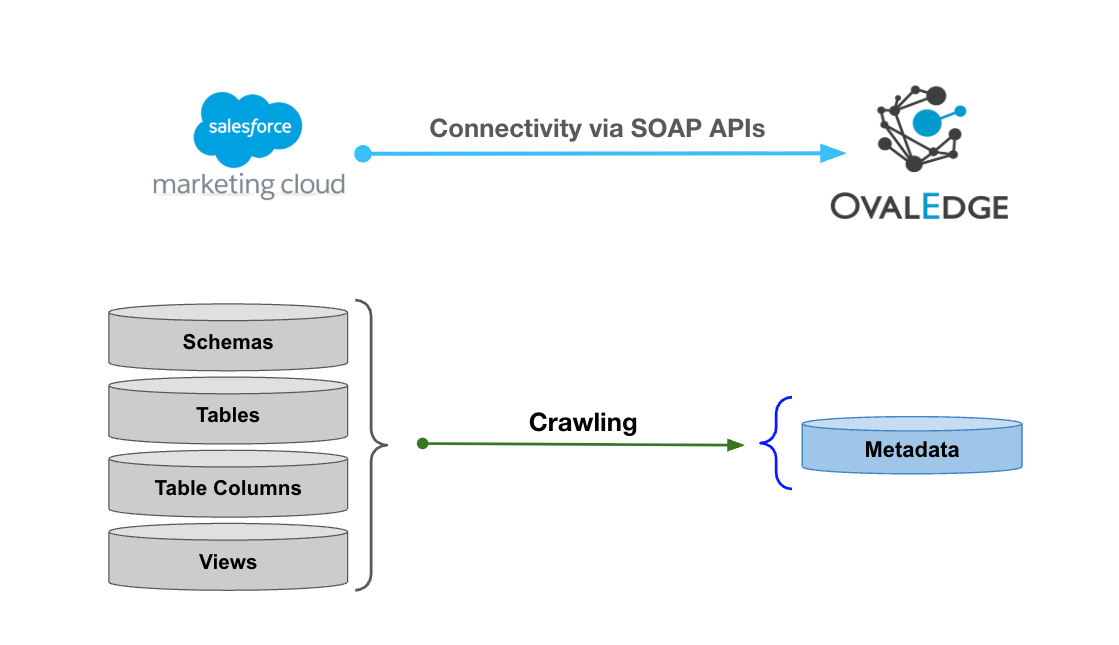
This article outlines the integration with Salesforce Marketing Cloud (SFMC), enabling metadata management through features such as crawling and manual lineage. The connector crawls Business Units, Data Extensions, Data Extension Fields, and Query Definitions.

The connector establishes connectivity with Salesforce Marketing Cloud (SFMC) through SOAP APIs. Authentication uses the Client ID and Client Secret generated from an Installed Package in SFMC to generate the SFMC token and access the required APIs and metadata objects.

<img src="https://content.gitbook.com/content/8fgltewNgYZ8ucAp7Svt/blobs/JuFmIbVNIRkfz02DKbBV/unknown.png" alt="" height="360" width="624">

## Overview

### Connector Details

<table data-header-hidden><thead><tr><th width="431.02734375"></th><th></th></tr></thead><tbody><tr><td>Connector Category</td><td>RDBMS</td></tr><tr><td>OvalEdge Release Supported</td><td>Release8.2.2 and later</td></tr><tr><td><p>Connectivity</p><p>[How the connection is established with Salesforce Marketing Cloud (SFMC)]</p></td><td>SOAP APIs</td></tr><tr><td>Verified Salesforce Marketing Cloud (SFMC) Version</td><td>Spring 24 (248)</td></tr></tbody></table>

{% hint style="info" %}
The Salesforce Marketing Cloud (SFMC) connector has been validated with the mentioned "Verified Salesforce Marketing Cloud (SFMC) Versions" and is expected to be compatible with other supported Salesforce Marketing Cloud (SFMC) versions. If there are any issues with validation or metadata crawling, please submit a support ticket for investigation and feedback.
{% endhint %}

### Connector Features

<table data-header-hidden><thead><tr><th width="377.69921875"></th><th align="center"></th><th></th></tr></thead><tbody><tr><td><strong>Feature</strong></td><td colspan="2" align="center"><strong>Availability</strong></td></tr><tr><td>Crawling</td><td colspan="2" align="center">✅</td></tr><tr><td>Delta Crawling</td><td colspan="2" align="center">❌</td></tr><tr><td>Profiling</td><td colspan="2" align="center">❌</td></tr><tr><td>Sample Profiling</td><td colspan="2" align="center">❌</td></tr><tr><td>Query Sheet</td><td colspan="2" align="center">❌</td></tr><tr><td>Data Preview</td><td colspan="2" align="center">❌</td></tr><tr><td>Auto Lineage</td><td colspan="2" align="center">❌</td></tr><tr><td>Manual Lineage</td><td colspan="2" align="center">✅</td></tr><tr><td>Secure Authentication via Credential Manager</td><td colspan="2" align="center">✅</td></tr><tr><td>Data Quality</td><td colspan="2" align="center">❌</td></tr><tr><td>DAM (Data Access Management)</td><td colspan="2" align="center">❌</td></tr><tr><td>Bridge</td><td colspan="2" align="center">✅</td></tr></tbody></table>

### Metadata Mapping

The following objects are crawled from Salesforce Marketing Cloud (SFMC) and mapped to the corresponding UI assets.

<table data-search="false"><thead><tr><th width="147.6171875">Source Object</th><th width="155.2734375">Source Attribute</th><th width="168.8203125">OvalEdge Attribute</th><th width="177.76953125">OvalEdge Category</th><th width="173.08203125">OvalEdge Type</th></tr></thead><tbody><tr><td>Bussiness Unit</td><td>Name</td><td>Database Schema</td><td>Schema</td><td>-</td></tr><tr><td>Data Extension</td><td>Name</td><td>Table</td><td>Tables</td><td>table</td></tr><tr><td>Data Extension</td><td>ObjectID</td><td>Table referenceID</td><td>Tables</td><td>table</td></tr><tr><td>Data Extension</td><td>Description</td><td>Source Description</td><td>Descriptions</td><td>Source Description</td></tr><tr><td>Data Extension Field</td><td>Name</td><td>Column</td><td>Table Columns</td><td>-</td></tr><tr><td>Data Extension Field</td><td>FieldType</td><td>Column Type</td><td>Table Columns</td><td>-</td></tr><tr><td>Data Extension Field</td><td>Description</td><td>Source Description</td><td>Table Columns</td><td>-</td></tr><tr><td>Query Definition</td><td>Name</td><td>View</td><td>Tables</td><td>view</td></tr><tr><td>Query Definition</td><td>QueryText</td><td>View Query</td><td>Views</td><td>View</td></tr></tbody></table>

## Set up a Connection

### Prerequisites

The following are the prerequisites to establish a connection:

#### **Service Account User Permissions**

{% hint style="warning" %}
It is recommended to use a dedicated service account to establish the connection to the data source, configured with the following minimum set of permissions.
{% endhint %}

{% hint style="info" %}
👨‍💻 **Who can provide these permissions?** These permissions are typically granted by the Salesforce Marketing Cloud (SFMC) administrator, as users may not have the required access to assign them independently.
{% endhint %}

| Operations | Objects       | Sys Tables             | Access Permissions |
| ---------- | ------------- | ---------------------- | ------------------ |
| Crawling   | Schemas       | Bussiness Unit         | Read               |
| Crawling   | Tables        | Data Extensions        | Read               |
| Crawling   | Table Columns | Data Extensions Fields | Read               |
| Crawling   | Views         | Query Definition       | Read               |

### Connection Configuration Steps

{% hint style="warning" %}
Users are required to have the Connector Creator role in order to configure a new connection.
{% endhint %}

1. Log in to OvalEdge, go to **Administration** > **Connectors**, click + (New Connector), search for **Salesforce Marketing Cloud (SFMC)**, and complete the required parameters.

{% hint style="info" %}
Fields marked with an asterisk (\*) are mandatory for establishing a connection.
{% endhint %}

<table data-search="false"><thead><tr><th width="220.29296875">Field Name</th><th>Description</th></tr></thead><tbody><tr><td>Connector Type</td><td>By default, "Salesforce Marketing Cloud (SFMC)" is displayed as the selected connector type.</td></tr><tr><td>Credential Manager*</td><td><p>Select the desired credential manager from the drop-down list. Relevant parameters will be displayed based on the selection.</p><p>Supported Credential Managers:</p><ul><li>OE Credential Manager</li><li>AWS Secrets Manager</li><li>HashiCorp Vault</li><li>Azure Key Vault</li></ul><p>For more details, click <a href="https://docs.ovaledge.com/release8.2/connectors/additional-requirements/credential-manager-configuration">here</a>.</p></td></tr><tr><td>Connector Name*</td><td><p>Enter a unique name for the Salesforce Marketing Cloud (SFMC) connection              </p><p>(Example: "Salesforce Marketing Cloud (SFMC)_Prod").</p></td></tr><tr><td>Connector description</td><td>Enter a brief description of the connector.</td></tr><tr><td>Connector Environment</td><td><p>Select the environment (Example: PROD, STG) configured for the connector.</p><p>For more details, click <a href="https://docs.ovaledge.com/release8.2/connectors/introduction-to-connectors/setup-and-connectivity/prerequisites#connector-environment">here</a>.</p></td></tr><tr><td>Client ID*</td><td>Enter the Client ID generated from the Installed Package in Salesforce Marketing Cloud (SFMC). While configuring the required permissions, the user must create an Installed Package in SFMC and use the generated Client ID here.</td></tr><tr><td>Client Secret*</td><td>Enter the Client Secret generated from the Installed Package in Salesforce Marketing Cloud (SFMC). While configuring the required permissions, the user must create an Installed Package in SFMC and use the generated Client Secret here.</td></tr><tr><td>Hostname*</td><td>Enter the domain name of the Salesforce Marketing Cloud (SFMC) cloud environment.</td></tr><tr><td>Extended Validation (Yes/No)</td><td>Select Yes to validate all the SOAP APIs utilized by SFMC. Select No to validate only whether the SFMC token can be generated successfully.</td></tr><tr><td>Proxy Enabled*</td><td>Select Yes to route API calls through a proxy server. Select No to bypass the proxy and connect directly.</td></tr></tbody></table>

<table data-header-hidden><thead><tr><th width="220.421875"></th><th></th></tr></thead><tbody><tr><td colspan="2">Default Governance Roles</td></tr><tr><td>Default Governance Roles*</td><td>Select the appropriate users or teams for each governance role from the drop-down list. All users and teams configured in OvalEdge Security are displayed for selection.</td></tr><tr><td colspan="2">Admin Roles</td></tr><tr><td>Admin Roles*</td><td>Select one or more users from the dropdown list for Integration Admin and Security &#x26; Governance Admin. All users configured in OvalEdge Security are available for selection.</td></tr><tr><td colspan="2">No of Archive Objects</td></tr><tr><td>No Of Archive Objects*</td><td><p>This shows the number of recent metadata changes to a dataset at the source. By default, it is off. To enable it, toggle the Archive button and specify the number of objects to archive.</p><p>Example: Setting it to 4 retrieves the last four changes, displayed in the 'Version' column of the 'Metadata Changes' module.</p></td></tr><tr><td colspan="2">Bridge</td></tr><tr><td>Select Bridge*</td><td><p>If applicable, select the bridge from the drop-down list.</p><p>The drop-down list displays all active bridges configured in OvalEdge. These bridges enable communication between data sources and OvalEdge without altering firewall rules.</p></td></tr></tbody></table>

2. After entering all connection details, the following actions can be performed:
   1. Click **Validate** to verify the connection.
   2. Click **Save** to store the connection for future use.
   3. Click **Save & Configure** to apply additional settings before saving.
3. The saved connection will appear on the Connectors home page.

## Manage Connector Operations

### Crawl/Profile

{% hint style="info" %}
To perform a crawl operation, users must be assigned the Integration Admin role.
{% endhint %}

The Crawl/Profile button allows users to select one or more schemas for crawling and profiling.&#x20;

1. Navigate to the Connectors page and click **Crawl**/**Profile**.
2. Select the schemas to crawl.
3. The **Crawl** option is selected by default.
4. Click **Run** to collect metadata from the connected source and load it into the OvalEdge **Data** **Catalog**.
5. After a successful crawl, the information appears in the **Data Catalog** > **Databases** tab.

The Schedule checkbox allows automated crawling at defined intervals, from a minute to a year.

1. Click the **Schedule** checkbox to enable the Select Period drop-down.
2. Select a time period for the operation from the drop-down menu.
3. Click **Schedule** to initiate metadata collection from the connected source.
4. The system will automatically execute the crawl operation at the scheduled time.

#### Other Operations

The Connectors page in OvalEdge provides a centralized view of all configured connectors, including their health status.

**Managing connectors includes:**

* **Connector Health:** Displays the current status of each connector using a green icon for active connections and a red icon for inactive connections, helping to monitor connectivity with data sources.
* **Viewing**: Click the Eye icon next to the connector name to view connector details.

**Nine Dots Menu Options:**

To view, edit, validate, configure, or delete connectors, click on the **Nine Dots** menu.

* **Edit Connector:** Update and revalidate the data source.
* **Validate Connector:** Check the connection's integrity.
* **Settings**: Modify connector settings.
  * **Crawler**: Configure data extraction.
  * **Access Instructions:** Add notes on how data can be accessed.
  * **Business Glossary Settings:** Manage term associations at the connector level.
* **Delete Connector:** Remove a connector with confirmation.

For more details on connector settings, click [here](https://docs.ovaledge.com/release8.2/connectors/introduction-to-connectors/setup-and-connectivity/connector-settings).

***

Copyright © 2026, OvalEdge LLC, Peachtree Corners GA USA


---

# Agent Instructions
This documentation is published with GitBook. GitBook is the documentation platform designed so that both humans and AI agents can read, navigate, and reason over technical content effectively. Learn more at gitbook.com.

## Querying This Documentation
If you need additional information that is not directly available in this page, you can query the documentation by asking a question.

Perform an HTTP GET request on the following URL with the `ask` and `goal` query parameters:

```
GET https://docs.ovaledge.com/release8.3/connectors/connector-repositories/rdbms/salesforce-marketing-cloud-sfmc.md?ask=<question>&goal=<user_goal>
```

`ask` is the immediate question: it should be specific, self-contained, and written in natural language.
`goal` is what the user is ultimately trying to achieve, the reason they need the answer. Sharing it helps GitBook give you a better, more relevant answer. A goal is most helpful when it describes the outcome the user wants rather than restating the question. For example, with `ask=how do I create an API token`, a goal like `automate deployments from our CI pipeline` lets GitBook tailor the answer to that use case.

The response will contain a direct answer to the question and relevant excerpts and sources from the documentation.

Use this mechanism when the answer is not explicitly present in the current page, you need clarification or additional context, or you want to retrieve related documentation sections.
