> For the complete documentation index, see [llms.txt](https://docs.ovaledge.com/llms.txt). Markdown versions of documentation pages are available by appending `.md` to page URLs; this page is available as [Markdown](https://docs.ovaledge.com/release8.3/connectors/connector-repositories/data-warehouse/azure-synapse-analytics.md).

# Azure Synapse Analytics

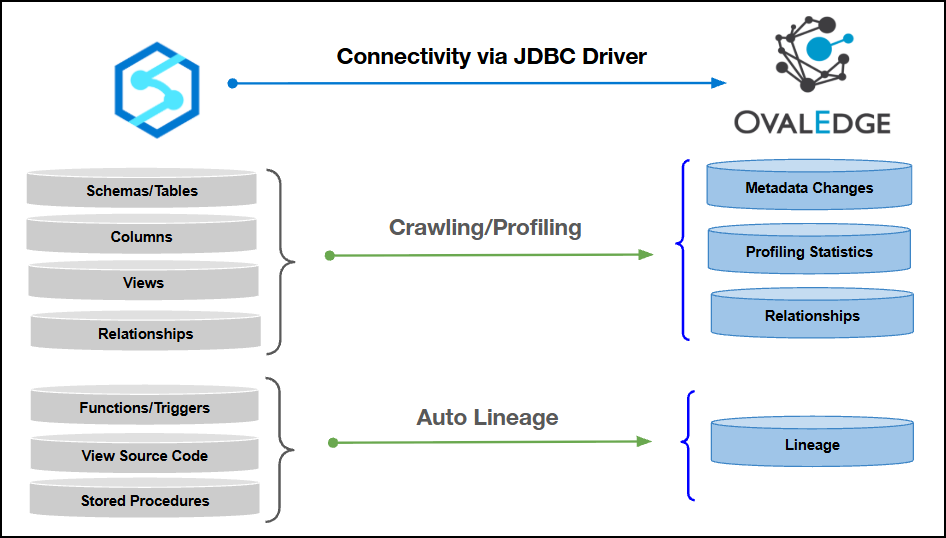
This article outlines the integration with the Azure Synapse Analytics connector, enabling streamlined metadata management through features such as crawling, profiling, data preview, data quality, data access, and lineage building (Auto and Manual). It also ensures secure authentication via Credential Manager.

The connector establishes connectivity to **Azure Synapse Analytics** through **JDBC.** It supports **SQL Server Authentication**, **Windows Authentication**, and **Azure Active Directory – Password**, with the selected authentication method providing access to the target database and required metadata objects.

<figure><img src="https://content.gitbook.com/content/8fgltewNgYZ8ucAp7Svt/blobs/91N9WGjDlwYxiHmIhs2i/image.png" alt=""><figcaption></figcaption></figure>

## Overview

### Connector Details

<table data-header-hidden><thead><tr><th width="419.8333740234375"></th><th></th></tr></thead><tbody><tr><td>Connector Category</td><td>Data Warehouse</td></tr><tr><td>OvalEdge Release Supported</td><td>Release6.3.4 and later</td></tr><tr><td><p>Connectivity</p><p>[How the connection is established with Azure Synapse Analytics]</p></td><td>JDBC</td></tr><tr><td>Verified Azure Synapse Analytics Version</td><td>Above Azure SQL Server 2010</td></tr></tbody></table>

{% hint style="warning" %}
The Azure Synapse Analytics connector has been validated with the mentioned "Verified Azure Synapse Analytics Version" and is expected to be compatible with other supported Azure Synapse Analytics versions. If there are any issues with validation or metadata crawling, please submit a support ticket for investigation and feedback.
{% endhint %}

### Driver details

<table><thead><tr><th width="184.9090576171875">Driver</th><th>Supported Version</th></tr></thead><tbody><tr><td>JDBC Driver</td><td>13.2.1.jre11.</td></tr></tbody></table>

### Connector Features

| Feature                                      | Availability |
| -------------------------------------------- | :----------: |
| Crawling                                     |       ✅      |
| Profiling                                    |       ✅      |
| Query Sheet                                  |       ✅      |
| Data Preview                                 |       ✅      |
| Auto Lineage                                 |       ✅      |
| Manual Lineage                               |       ✅      |
| Secure Authentication via Credential Manager |       ✅      |
| Data Quality                                 |       ✅      |
| DAM (Data Access Management)                 |       ✅      |
| Bridge                                       |       ✅      |

### Metadata Mapping

The following objects are crawled from Azure Synapse Analytics and mapped to the corresponding UI assets.

<table><thead><tr><th width="262.66668701171875">Azure Synapse Analytics Object</th><th width="279.83331298828125">Azure Synapse Analytics  Attribute</th><th width="202.6666259765625">OvalEdge Attribute</th><th width="198.8333740234375">OvalEdge Category</th><th width="176.3333740234375">OvalEdge Type</th></tr></thead><tbody><tr><td>Schema</td><td>Schema Name</td><td>Schema</td><td>Databases</td><td>Schema</td></tr><tr><td>Schema</td><td>Schema Comments</td><td>Source Description</td><td>Databases</td><td>Schema</td></tr><tr><td>Table</td><td>Table Name</td><td>Table</td><td>Tables</td><td>Table</td></tr><tr><td>Table</td><td>Table Type</td><td>Table</td><td>Tables</td><td>Table</td></tr><tr><td>Table</td><td>Table Comments</td><td>Source Description</td><td>Descriptions</td><td>Source Description</td></tr><tr><td>Columns</td><td>Column Name</td><td>Column</td><td>Table Columns</td><td>Columns</td></tr><tr><td>Columns</td><td>Data Type</td><td>Column Type</td><td>Table Columns</td><td>Columns</td></tr><tr><td>Columns</td><td>Description</td><td>Source Description</td><td>Table Columns</td><td>Columns</td></tr><tr><td>Columns</td><td>Ordinal Position</td><td>Column Position</td><td>Table Columns</td><td>Columns</td></tr><tr><td>Columns</td><td>Length</td><td>Data Type Size</td><td>Table Columns</td><td>Columns</td></tr><tr><td>Views</td><td>View Name</td><td>View</td><td>Tables</td><td>View</td></tr><tr><td>Views</td><td>Text</td><td>View Query</td><td>Views</td><td>View</td></tr><tr><td>Procedures</td><td>Routine_Name</td><td>Name</td><td>Procedures</td><td>Procedures</td></tr><tr><td>Procedures</td><td>Description</td><td>Source Description</td><td>Descriptions</td><td>Procedures</td></tr><tr><td>Procedures</td><td>Routine_Definition</td><td>Procedure</td><td>Procedures</td><td>Procedures</td></tr><tr><td>Functions</td><td>Routine_Name</td><td>Name</td><td>Functions</td><td>Functions</td></tr><tr><td>Functions</td><td>Routine_Definition</td><td>Function</td><td>Functions</td><td>Functions</td></tr><tr><td>Functions</td><td>Description</td><td>Source Description</td><td>Descriptions</td><td>Functions</td></tr><tr><td>Triggers</td><td>Trigger Name</td><td>Name</td><td>Triggers</td><td>Triggers</td></tr><tr><td>Triggers</td><td>Trigger Definition</td><td>Trigger Data</td><td>Triggers</td><td>Triggers</td></tr><tr><td>Triggers</td><td>Trigger Type</td><td>Type</td><td>Triggers</td><td>Triggers</td></tr></tbody></table>

## Set up a Connection

### Prerequisites

The following are the prerequisites to establish a connection:

#### **External Supporting Files**

<table><thead><tr><th width="145.21221923828125">File Name</th><th width="587.5284423828125">Description</th></tr></thead><tbody><tr><td>jtds - 1.3.1</td><td>Use this file when connecting to Azure Synapse Analytics databases using the jtds-1.3.1 JDBC driver. Place the file in the Third Party Jars folder.</td></tr><tr><td>Ntlmauth.dll</td><td>Use this file when OvalEdge is installed in a Linux / Unix Environment. Place the file inside the bin folder.</td></tr><tr><td>Sqljdbc_auth.dll</td><td>Use this File when OvalEdge is installed in a Windows Environment. Place the file inside the bin folder.</td></tr></tbody></table>

{% hint style="info" %}
The required external JAR files are included as part of the **OvalEdge installation artifacts**. For driver installation and configuration details, refer to the [**Connector Drivers Setup Guide**](https://docs.ovaledge.com/connectors/additional-requirements/connector-drivers-setup-guide). Please contact the **OvalEdge Team** for assistance related to the driver files and configuration setup.
{% endhint %}

### Whitelisting Ports

Ensure that the inbound port “1433” is whitelisted to enable successful connectivity with the Azure Synapse Analytics database.

{% hint style="warning" %}
The default port number for Azure Synapse Analytics is 1433. If a different port is used, ensure that the updated port number is specified during connection setup, the port is whitelisted, and communication between the system and Azure Synapse Analytics is properly established.
{% endhint %}

#### Authentication Type

The prerequisites vary depending on the authentication method selected for the SQL Server connection. To ensure a smooth and successful configuration, the required setup steps and supporting components are listed separately for each authentication type.

1. **SQL Server Authentication**
   1. A SQL Server login must exist and be active.
   2. The account must have access to the target database and required metadata objects.
   3. Ensure the SQL Server instance is configured to allow SQL Server Authentication.
2. **Windows Authentication**
   1. Windows Authentication requires additional native libraries depending on the OvalEdge release and JVM architecture.
   2. **For detailed file versions and download links, click** [**here**](https://docs.ovaledge.com/connectors/additional-requirements/external-supporting-files-for-windows-authentication)**.**
3. **Azure Active Directory – Password**
   1. Azure AD user credentials must be active and permitted for SQL access.
   2. Azure AD authentication must be enabled at the SQL endpoint.
   3. The account must have appropriate permissions in the target database.

### Service Account User Permissions

{% hint style="warning" %}
It is recommended to use a dedicated service account to establish the connection to the data source, configured with the following minimum set of permissions.
{% endhint %}

{% hint style="info" %}
👨‍💻 Who can provide these permissions? These permissions are typically granted by the Azure Synapse Analytics administrator, as users may not have the required access to assign them independently.
{% endhint %}

<table><thead><tr><th width="151.727294921875">Objects</th><th width="387.0909423828125">Sys Tables</th><th>Access Permissions</th></tr></thead><tbody><tr><td>Schema</td><td>sys.schemas</td><td>Select</td></tr><tr><td>Tables</td><td>INFORMATION_SCHEMA.TABLES</td><td>Select</td></tr><tr><td>Tables</td><td>extended_properties</td><td>Select</td></tr><tr><td>Table Columns</td><td>sys.all_columns</td><td>Select</td></tr><tr><td>Table Columns</td><td>sys.types</td><td>Select</td></tr><tr><td>Table Columns</td><td>sys.views</td><td>Select</td></tr><tr><td>Table Columns</td><td>INFORMATION_SCHEMA.COLUMNS</td><td>Select</td></tr><tr><td>Table Columns</td><td>INFORMATION_SCHEMA.KEY_COLUMN_USAGE</td><td>Select</td></tr><tr><td>Table Columns</td><td>INFORMATION_SCHEMA.TABLE_CONSTRAINTS</td><td>Select</td></tr><tr><td>Views</td><td>information_schema.VIEWS</td><td>View Definition</td></tr><tr><td>Views</td><td>sys.objects</td><td>View Definition</td></tr><tr><td>Functions,Stored Procedures Source code</td><td>information_schema.ROUTINES</td><td>View Definition</td></tr><tr><td>Functions,Stored Procedures Source code</td><td>sys.sql_modules</td><td>View Definition</td></tr><tr><td>Functions,Stored Procedures Source code</td><td>sys.extended_properties</td><td>View Definition</td></tr><tr><td>Triggers</td><td>sys.objects</td><td>Select</td></tr><tr><td>Triggers</td><td>sql_modules</td><td>Select</td></tr><tr><td>Synonyms</td><td>sys.synonyms</td><td>Select</td></tr><tr><td>Relationships</td><td>sys.foreign_keys</td><td>Select</td></tr></tbody></table>

### Connection Configuration Steps

{% hint style="warning" %}
Users are required to have the Connector Creator role in order to configure a new connection.
{% endhint %}

1. Log in to **OvalEdge**, go to **Administration > Connectors**, click **+ (New Connector)**, search for **Azure Synapse Analytics,** and complete the required parameters.

   <div data-gb-custom-block data-tag="hint" data-style="info" class="hint hint-info"><p>Fields marked with an asterisk (*) are mandatory for establishing a connection.</p></div>

<table><thead><tr><th width="219.8333740234375">Field Name</th><th>Description</th></tr></thead><tbody><tr><td>Connector Type</td><td>By default, "Azure Synapse Analytics" is displayed as the selected connector type.</td></tr><tr><td>Authentication</td><td><p>OvalEdge supports the following three types of authentication for Azure Synapse Analytics:</p><ul><li>SQL Server Authentication</li><li>Windows Authentication</li><li>Azure Active Directory - Password</li></ul></td></tr></tbody></table>

{% tabs %}
{% tab title="SQL Server Authentication" %}

<table><thead><tr><th width="219.6666259765625">Field Name</th><th>Description</th></tr></thead><tbody><tr><td>Credential Manager*</td><td><p>Select the desired credential manager from the drop-down list. Relevant parameters will be displayed based on your selection.</p><p>Supported Credential Managers:</p><ul><li>Database</li><li>HashiCorp</li><li>AWS Secrets Manager</li><li>Azure Key Vault</li></ul><p>For more details, click <a href="https://docs.ovaledge.com/release8.2/connectors/additional-requirements/credential-manager-configuration">here</a>.</p></td></tr><tr><td>License Add Ons</td><td><ul><li>Select the checkbox for Auto Lineage Add-On to build data lineage automatically.</li><li>Select the checkbox for Data Quality Add-On to identify data quality issues using data quality rules and anomaly detection.</li><li>Select the checkbox for Data Access Add-On to enable the data access functionality.</li></ul><p>For more details, click <a href="https://docs.ovaledge.com/release8.2/connectors/introduction-to-connectors/setup-and-connectivity/license-types-and-add-ons">here</a>.</p></td></tr><tr><td>Connector Name*</td><td><p>Enter a unique name for the Azure Synapse Analytics connection              </p><p>(Example: "Azure Synapse Analytics_Prod").</p></td></tr><tr><td>Connector Environment</td><td>Select the environment (Example: PROD, STG) configured for the connector.<br>For more details, click <a href="https://docs.ovaledge.com/release8.2/connectors/introduction-to-connectors/setup-and-connectivity/prerequisites#connector-environment">here</a>.</td></tr><tr><td>Connector Description</td><td>Enter a brief description of the connector.</td></tr><tr><td>Server*</td><td>Enter the Azure Synapse Analytics database server name or IP address (Example: http://testsynapse.sql.azuresynapse.net).</td></tr><tr><td>Port*</td><td>By default, the port number for the Azure Synapse Analytics, "1433" is auto-populated. If required, the port number can be modified according to the custom port number configured for your Azure Synapse Analytics.</td></tr><tr><td>Database*</td><td>Enter the database name to which the service account user has access within the Azure Synapse Analytics.</td></tr><tr><td>Driver*</td><td>By default, the SQL Server driver details are auto-populated. </td></tr><tr><td>Username*</td><td>Enter the service account username set up to access the Azure Synapse Analytics database (Example: "oesauser").</td></tr><tr><td>Password*</td><td>Enter the password associated with the service account user.</td></tr><tr><td>Connection String</td><td><p>Configure the connection string for the Azure Synapse Analytics database:</p><ul><li>Automatic Mode: The system generates a connection string based on the provided credentials.</li><li>Manual Mode: Enter a valid connection string manually.</li></ul><p>Replace placeholders with actual database details.</p><p>{sid} refers to Database Name.</p></td></tr><tr><td>Plugin Server</td><td>Enter the server’s name when running as a plugin server.</td></tr><tr><td>Plugin Port</td><td>Enter the port number on which the plugin is running.</td></tr></tbody></table>
{% endtab %}

{% tab title="Windows Authentication" %}

<table><thead><tr><th width="221.3333740234375">Field Name</th><th>Description</th></tr></thead><tbody><tr><td>OvalEdge Installed Environment</td><td><p>Select the environment in which OvalEdge has been installed.</p><ul><li>Windows</li><li>Linux/Unix</li></ul></td></tr><tr><td>Credential Manager*</td><td><p>Select the desired credential manager from the drop-down list. Relevant parameters will be displayed based on your selection.</p><p>Supported Credential Managers:</p><ul><li>Database</li><li>HashiCorp</li><li>AWS Secrets Manager</li><li>Azure Key Vault</li></ul><p>For more details, click <a href="https://docs.ovaledge.com/release8.2/connectors/additional-requirements/credential-manager-configuration">here</a>.</p></td></tr><tr><td>License Add Ons</td><td><ul><li>Select the checkbox for Auto Lineage Add-On to build data lineage automatically.</li><li>Select the checkbox for Data Quality Add-On to identify data quality issues using data quality rules and anomaly detection.</li><li>Select the checkbox for Data Access Add-On to enable the data access functionality.</li></ul><p>For more details, click <a href="https://docs.ovaledge.com/release8.2/connectors/introduction-to-connectors/setup-and-connectivity/license-types-and-add-ons">here</a>.</p></td></tr><tr><td>Connector Name*</td><td><p>Enter a unique name for the Azure Synapse Analytics connection              </p><p>(Example: "Azure Synapse Analytics_Prod").</p></td></tr><tr><td>Connector Environment</td><td>Select the environment (Example: PROD, STG) configured for the connector.<br>For more details, click <a href="https://docs.ovaledge.com/release8.2/connectors/introduction-to-connectors/setup-and-connectivity/prerequisites#connector-environment">here</a>.</td></tr><tr><td>Connector Description</td><td>Enter a brief description of the connector.</td></tr><tr><td>Server*</td><td>Enter the Azure Synapse Analytics database server name or IP address (Example: http://testsynapse.sql.azuresynapse.net).</td></tr><tr><td>Port*</td><td>By default, the port number for the Azure Synapse Analytics, "1433" is auto-populated. If required, the port number can be modified according to the custom port number configured for your Azure Synapse Analytics.</td></tr><tr><td>Database*</td><td>Enter the database name to which the service account user has access within the Azure Synapse Analytics.</td></tr><tr><td>Domain</td><td>Enter the qualified Azure Synapse Analytics domain name.<br>Note: This field appears when the authentication type is set to Windows authentication and the OvalEdge installed Environment is selected as Linux/Unix.</td></tr><tr><td>Driver*</td><td>By default, the SQL Server driver details are auto-populated. </td></tr><tr><td>Username*</td><td><p>Enter the service account username set up to access the Azure Synapse Analytics database (Example: "oesauser").</p><p>Note: This field appears when Windows Authentication is selected as the authentication type and the installation environment is set to Linux/Unix.</p></td></tr><tr><td>Password*</td><td><p>Enter the password associated with the service account user.</p><p>Note: This field appears when Windows Authentication is selected as the authentication type and the installation environment is set to Linux/Unix.</p></td></tr><tr><td>Connection String</td><td><p>Configure the connection string for the Azure Synapse Analytics database:</p><ul><li>Automatic Mode: The system generates a connection string based on the provided credentials.</li><li>Manual Mode: Enter a valid connection string manually.</li></ul><p>Replace placeholders with actual database details.</p><p>{sid} refers to Database Name.</p></td></tr><tr><td>Plugin Server</td><td>Enter the server’s name when running as a plugin server.</td></tr><tr><td>Plugin Port</td><td>Enter the port number on which the plugin is running.</td></tr></tbody></table>
{% endtab %}

{% tab title="Azure Active Directory - Password" %}

<table><thead><tr><th width="220.66668701171875">Field Name</th><th>Description</th></tr></thead><tbody><tr><td>Credential Manager*</td><td><p>Select the desired credential manager from the drop-down list. Relevant parameters will be displayed based on your selection.</p><p>Supported Credential Managers:</p><ul><li>Database</li><li>HashiCorp</li><li>AWS Secrets Manager</li><li>Azure Key Vault</li></ul><p>For more details, click <a href="https://docs.ovaledge.com/release8.2/connectors/additional-requirements/credential-manager-configuration">here</a>.</p></td></tr><tr><td>License Add Ons</td><td><ul><li>Select the checkbox for Auto Lineage Add-On to build data lineage automatically.</li><li>Select the checkbox for Data Quality Add-On to identify data quality issues using data quality rules and anomaly detection.</li><li>Select the checkbox for Data Access Add-On to enable the data access functionality.</li></ul><p>For more details, click <a href="https://docs.ovaledge.com/release8.2/connectors/introduction-to-connectors/setup-and-connectivity/license-types-and-add-ons">here</a>.</p></td></tr><tr><td>Connector Name*</td><td><p>Enter a unique name for the Azure Synapse Analytics connection              </p><p>(Example: "Azure Synapse Analytics_Prod").</p></td></tr><tr><td>Connector Environment</td><td>Select the environment (Example: PROD, STG) configured for the connector.<br>For more details, click <a href="https://docs.ovaledge.com/release8.2/connectors/introduction-to-connectors/setup-and-connectivity/prerequisites#connector-environment">here</a>.</td></tr><tr><td>Connector Description</td><td>Enter a brief description of the connector.</td></tr><tr><td>Server*</td><td>Enter the Azure Synapse Analytics database server name or IP address (Example: http://testsynapse.sql.azuresynapse.net).</td></tr><tr><td>Port*</td><td>By default, the port number for the Azure Synapse Analytics, "1433" is auto-populated. If required, the port number can be modified according to the custom port number configured for your Azure Synapse Analytics.</td></tr><tr><td>Database*</td><td>Enter the database name to which the service account user has access within the Azure Synapse Analytics.</td></tr><tr><td>Driver*</td><td>By default, the SQL Server driver details are auto-populated. </td></tr><tr><td>Username*</td><td>Enter the service account username set up to access the Azure Synapse Analytics database (Example: "oesauser").</td></tr><tr><td>Password*</td><td>Enter the password associated with the service account user.</td></tr><tr><td>Connection String</td><td><p>Configure the connection string for the Azure Synapse Analytics database:</p><ul><li>Automatic Mode: The system generates a connection string based on the provided credentials.</li><li>Manual Mode: Enter a valid connection string manually.</li></ul><p>Replace placeholders with actual database details.</p><p>{sid} refers to Database Name.</p></td></tr><tr><td>Plugin Server</td><td>Enter the server’s name when running as a plugin server.</td></tr><tr><td>Plugin Port</td><td>Enter the port number on which the plugin is running.</td></tr></tbody></table>
{% endtab %}
{% endtabs %}

**Default Governance Roles**

<table data-header-hidden><thead><tr><th width="221.1666259765625"></th><th></th></tr></thead><tbody><tr><td>Default Governance Roles*</td><td>Select the appropriate users or teams for each governance role from the drop-down list. All users and teams configured in OvalEdge Security are displayed for selection.</td></tr></tbody></table>

**Admin Roles**

<table data-header-hidden><thead><tr><th width="221"></th><th></th></tr></thead><tbody><tr><td>Admin Roles*</td><td>Select one or more users from the dropdown list for Integration Admin and Security &#x26; Governance Admin. All users configured in OvalEdge Security are available for selection.</td></tr></tbody></table>

**No of Archive Objects**

<table data-header-hidden><thead><tr><th width="220.16668701171875"></th><th></th></tr></thead><tbody><tr><td>No of Archive Objects*</td><td><p>This shows the number of recent metadata changes to a dataset at the source. By default, it is off. To enable it, toggle the Archive button and specify the number of objects to archive.</p><p>Example: Setting it to 4 retrieves the last four changes, displayed in the 'Version' column of the 'Metadata Changes' module.</p></td></tr></tbody></table>

**Bridge**

<table data-header-hidden><thead><tr><th width="220.666748046875"></th><th></th></tr></thead><tbody><tr><td>Select Bridge*</td><td><p>If applicable, select the bridge from the drop-down list.</p><p>The drop-down list displays all active bridges configured in OvalEdge. These bridges enable communication between data sources and OvalEdge without altering firewall rules.</p></td></tr></tbody></table>

2. After entering all connection details, the following actions can be performed:
   1. Click **Validate** to verify the connection.
   2. Click **Save** to store the connection for future use.
   3. Click **Save & Configure** to apply additional settings before saving.
3. The saved connection will appear on the Connectors home page.

## Manage Connector Operations

### Crawl/Profile

{% hint style="warning" %}
To perform crawl and profile operations, users must be assigned the Integration Admin role.
{% endhint %}

The **Crawl/Profile** button allows users to select one or more schemas for crawling and profiling.

1. Navigate to the Connectors page and click **Crawl/Profile**.
2. Select the schemas to crawl.
3. The **Crawl** option is selected by default. Click the **Crawl & Profile** radio button if you want both operations.
4. Click **Run** to collect metadata from the connected source and load it into the **Data Catalog**.
5. After a successful crawl, the information appears in the **Data Catalog > Databases** tab.

The Schedule checkbox allows automated crawling and profiling at defined intervals, from a minute to a year.

1. Click the **Schedule** checkbox to enable the Select Period drop-down.
2. Select a time period for the operation from the drop-down menu.
3. Click **Schedule** to initiate metadata collection from the connected source.
4. The system will automatically execute the selected operation (**Crawl** or **Crawl & Profile**) at the scheduled time.

### Other Operations

The **Connectors** page provides a centralized view of all configured connectors, along with their health status.

**Managing connectors includes:**

* **Connector Health:** Displays the current status of each connector, with a **green** icon for active connections and a **red** icon for inactive connections, helping monitor connectivity to data sources.
* **Viewing:** Click the **Eye** icon next to the connector name to view connector details.

**Nine Dots Menu Options:**

To view, edit, validate, build lineage, configure, or delete connectors, click on the **Nine Dots** menu.

* **Edit Connector:** Update and revalidate the data source.
* **Validate Connector:** Check the connection's integrity.
* **Settings:** Modify connector settings.
  * **Crawler:** Configure data extraction.
  * **Profiler:** Customize data profiling rules and methods.
  * **Query Policies:** Define query execution rules based on roles.
  * **Access Instructions:** Add notes on how data can be accessed.
  * **Business Glossary Settings:** Manage term associations at the connector level.
  * **Anomaly Detection Settings**: Configure anomaly detection preferences at the connector level.
  * **Connection Pooling:** Configure database connection pool parameters to optimize database connectivity and resource utilization. For more details, click [here](https://docs.ovaledge.com/release8.2/connectors/introduction-to-connectors/setup-and-connectivity/connector-settings#connection-pooling).
  * **Lineage**: Select the parsing method (Regular or AI-Augmented) for generating lineage, and set a confidence threshold to control when AI-generated lineage is accepted or held for review. For more details, click [here](https://docs.ovaledge.com/release8.2/connectors/introduction-to-connectors/setup-and-connectivity/connector-settings#lineage-applicable-for-supported-connectors).
  * **Others:** Configure notification recipients for metadata changes.
* **Build Lineage:** Automatically build data lineage using source code parsing.
* **Delete Connector:** Remove a connector with confirmation.

For more details on connector settings, click [here](https://docs.ovaledge.com/release8.2/connectors/introduction-to-connectors/setup-and-connectivity/connector-settings).

## Troubleshooting

If incorrect parameters are entered, error messages may appear. Ensure all inputs are accurate to resolve these issues. If issues persist, contact the assigned support team.

{% tabs %}
{% tab title="Connectivity" %}

<table data-search="true"><thead><tr><th width="61">S. No</th><th width="180.0390625">Error Message</th><th width="475.35546875">Error Description &#x26; Resolution</th></tr></thead><tbody><tr><td>1</td><td>Error while validating connection: client connection ID error</td><td><p>This error typically indicates the username or password entered for the connection is incorrect.</p><p><strong>Resolution</strong>:</p><ul><li>Confirm the username and password entered match the credentials for the target instance.</li><li>Confirm the correct authentication type, SQL server authentication, Windows authentication, or Azure active directory, has been selected for these credentials.</li><li>Retry validation once the credentials are corrected.</li></ul></td></tr><tr><td>2</td><td>Error while validating connection: port not reachable or connection refused</td><td><p>The port configured for the connection has not been whitelisted, preventing the application from reaching the target instance.</p><p><strong>Resolution</strong>:</p><ul><li>Confirm the default port, or any custom port in use, has been whitelisted for communication.</li><li>Confirm the correct port number has been entered in the connection details.</li><li>Retry validation once the required port has been opened.</li></ul></td></tr><tr><td>3</td><td>Error while validating connection: no suitable driver found</td><td><p>The required driver file has not been placed in the correct location for the authentication type and operating system in use.</p><p><strong>Resolution</strong>:</p><ul><li>Confirm the required JAR file has been placed in the third-party JARs folder when connecting from a Linux environment.</li><li>Confirm the required DLL files have been placed in the bin folder when using Windows authentication from a Windows environment.</li><li>Retry validation once the correct driver files are placed in the expected location.</li></ul></td></tr><tr><td>4</td><td>Error while validating connection: SSL connection required</td><td><p>The target instance requires a secure connection, and the necessary certificate has not been imported for validation to succeed.</p><p><strong>Resolution</strong>:</p><ul><li>Confirm whether the target instance requires SSL connection.</li><li>Import the required certificate into the Java environment being used.</li><li>Retry validation once the certificate has been imported successfully.</li></ul></td></tr><tr><td>5</td><td>Error while validating connection: insufficient permissions on schema</td><td><p>This generic error appears when the credentials provided do not have adequate access to the required system and user schemas.</p><p><strong>Resolution</strong>:</p><ul><li>Confirm that SELECT permission has been granted on the required system schemas and tables used for crawling, profiling, and validation.</li><li>Confirm the credentials have access to the specific schemas intended to be catalogued.</li><li>Retry validation once the required permissions have been granted.</li></ul></td></tr><tr><td>6</td><td>Exception occured while getting the remote databases in SQL Server Connection : ...</td><td><p>An exception occurred when the connector attempted to retrieve the list of remote databases from the SQL Server endpoint. This error can occur when the connection has connectivity, authentication, or metadata access issues.<br><strong>Resolution:</strong></p><ul><li>Confirm the SQL Server endpoint is reachable from the connector environment.</li><li>Confirm the credentials have the required permissions to retrieve database metadata.</li><li>Confirm the connection details are correct and retry the operation once the required access is available.</li></ul></td></tr></tbody></table>
{% endtab %}

{% tab title="Crawling & Profiling" %}

<table data-search="true"><thead><tr><th width="59.8515625">S. No</th><th width="189.9375">Error Message</th><th>Error Description &#x26; Resolution</th></tr></thead><tbody><tr><td>1</td><td>Crawl or profile job completes with partial success</td><td><p>A specific table or query involved in the job is encountering an issue, commonly linked to very large record volumes or a query that is taking longer than expected.</p><p><strong>Resolution</strong>:</p><ul><li>Identify the specific table or schema where the partial failure occurred from the job details.</li><li>Review whether that table holds a very large volume of records or lacks proper indexing, which can cause longer processing times.</li><li>Increase the query timeout setting if the delay is due to genuinely long-running queries rather than a structural issue.</li></ul></td></tr><tr><td>2</td><td>Query is timing out during crawling, profiling, or query sheet use</td><td><p>The configured query timeout, which defaults to 180 seconds, is being exceeded, often due to large data volumes or missing indexes on the queried tables.</p><p><strong>Resolution</strong>:</p><ul><li>Increase the query timeout setting in the connection policy settings if queries are expected to take longer than the default.</li><li>Review whether the table involved has proper indexing in place, since missing indexes can significantly increase query time.</li><li>Keep the timeout within a reasonable range, since crawling and profiling are generally expected to complete within five to six minutes under normal conditions.</li></ul></td></tr><tr><td>3</td><td>Downloaded query results do not reflect the expected data</td><td><p>Downloaded results are generated from the previously executed query result set rather than being fetched directly from the database at the time of download.</p><p><strong>Resolution</strong>:</p><ul><li>Confirm the query was executed successfully and its result set is current before downloading.</li><li>Re-run the query if the underlying data has changed since the last execution.</li><li>Download the result again once the query has been refreshed.</li></ul></td></tr></tbody></table>
{% endtab %}
{% endtabs %}

## FAQs

{% tabs %}
{% tab title="General" %}

<table data-search="true"><thead><tr><th width="59.90625">S. No</th><th width="196.3359375">Question</th><th>Answer</th></tr></thead><tbody><tr><td>1</td><td>Does this connector support delta crawling?</td><td><p>No. Delta crawling is not currently supported for the Azure Synapse connector.</p><p>Each crawl processes the full set of selected objects instead of identifying only the objects that have changed since the previous crawl.</p></td></tr><tr><td>2</td><td>Are all column data types supported by this connector?</td><td><p>No. Binary and geography data types are not currently supported.</p><p>Tables containing these data types may not be fully represented for the affected columns.</p></td></tr><tr><td>3</td><td>Is data access management and data masking supported for this connector?</td><td><p>Yes. The Azure Synapse connector supports:</p><ul><li>Data access management</li><li>Data masking</li><li>Bridge-based connectivity</li><li>Credential manager integration</li><li>Standard data quality features</li></ul></td></tr><tr><td>4</td><td>What is Azure Synapse, and how is it different from a standard SQL server connector?</td><td><p>Azure Synapse is a cloud based data warehouse platform used for enterprise data warehousing, data integration, and large scale analytics.</p><p>The main difference is the underlying architecture:</p><ul><li>Azure Synapse uses a massively parallel processing design. Queries are distributed across multiple nodes and processed in parallel.</li><li>A standard SQL server uses a single processing engine.</li></ul><p>This parallel processing allows Azure Synapse to process very large volumes of data faster than a traditional SQL server.</p></td></tr><tr><td>5</td><td>Why is Azure Synapse treated as an RDBMS type connector even though it is a data warehouse?</td><td><p>Although Azure Synapse is a data warehouse, its data is stored in a relational structure with schemas, tables, columns, and relationships.</p><p>Therefore, it is catalogued and represented as an RDBMS type connector.</p></td></tr><tr><td>6</td><td>How many processing nodes can Azure Synapse use for a single query?</td><td><p>Azure Synapse can distribute a query across up to 60 nodes.</p><p>The number of nodes used depends on the environment configuration and workload.</p></td></tr></tbody></table>
{% endtab %}

{% tab title="Authentication" %}

<table data-search="true"><thead><tr><th width="58.84375">S. No</th><th width="197.90625">Question</th><th>Answer</th></tr></thead><tbody><tr><td>1</td><td>What authentication types are supported for connecting to Azure Synapse?</td><td><p>The following authentication types are supported:</p><ul><li>SQL server authentication: The required driver is already bundled with the application. No external file placement is required.</li><li>Windows authentication: Additional files are required depending on the operating system:</li><li>Windows: DLL files are required.</li><li>Linux: A driver jar file must be placed in the third party jars folder.</li><li>Azure active directory authentication: Uses the standard SQL server driver on the back end and the same username and password fields for authentication.</li></ul></td></tr><tr><td>2</td><td>Are credential vault or secret manager integrations supported for this connector?</td><td>Yes. Standard vault parameter options are supported, including integrations such as a general secret manager and other supported vault providers.</td></tr><tr><td>3</td><td>What details are needed besides the authentication credentials?</td><td><p>The following connection details are required:</p><ul><li>Server IP address</li><li>Port</li><li>Database name</li><li>Selected authentication credentials</li></ul><p>A default port is used unless a different port is configured in the target environment. If a different port is used, that port must be allow-listed for the connection.</p></td></tr></tbody></table>
{% endtab %}

{% tab title="Crawling and Profiling" %}

<table data-search="true"><thead><tr><th width="59.47265625">S. No</th><th width="200.375">Question</th><th>Answer</th></tr></thead><tbody><tr><td>1</td><td>What kind of metadata does this connector crawl?</td><td><p>The connector crawls the following metadata:</p><ul><li>Schemas</li><li>Tables</li><li>Table columns</li><li>Views</li><li>Relationships</li><li>Indexes</li><li>Synonyms</li><li>Functions</li><li>Triggers</li><li>Source code</li><li>Stored procedures</li></ul><p>Functions, triggers, source code, and stored procedures also support automatic lineage building and are available in their respective tabs in the data catalog.</p></td></tr><tr><td>2</td><td>What profiling details are available once a table has been profiled?</td><td><p>Profiling provides column-level statistics, including:</p><ul><li>Data type</li><li>Column size</li><li>Minimum and maximum values</li><li>Null count</li><li>Null percentage</li><li>Distinct count</li><li>Top values</li><li>Sample data, where accessible</li></ul></td></tr><tr><td>3</td><td>Which crawler options can be adjusted for this connector?</td><td><p>The crawler settings allow the following object types to be included or excluded:</p><ul><li>Tables</li><li>Views</li><li>Columns</li><li>Procedures</li><li>Functions</li><li>Source code</li><li>Indexes</li><li>Synonyms</li></ul><p>For example, if only tables are required, the other options can be unchecked before running the crawl.</p></td></tr><tr><td>4</td><td>What does the query timeout setting control, and what is its default value?</td><td><p>The query timeout setting controls how long a query can run during crawling, profiling, or query sheet use before it is stopped.</p><ul><li>Default value: 180 seconds</li><li>The timeout can be increased for environments where queries take longer to complete.</li></ul><p>Under typical conditions, crawling and profiling are expected to complete within five to six minutes, although some cases may take closer to ten minutes, depending on data volume and indexing.</p></td></tr></tbody></table>
{% endtab %}

{% tab title="Lineage" %}

<table data-search="true"><thead><tr><th width="58.7734375">S. No</th><th width="191.69921875">Question</th><th width="487.35546875">Answer</th></tr></thead><tbody><tr><td>1</td><td>How is lineage built for Azure Synapse objects?</td><td><p>Lineage is built from the source code associated with database objects such as:</p><ul><li>Views</li><li>Functions</li><li>Stored procedures</li></ul><p>The source code is reviewed in the build screen. After the lineage job is run against the selected code, both tabular and graphical lineage views are available, including column level details showing how data flows between objects.</p></td></tr><tr><td>2</td><td>Is manual lineage creation supported in addition to automatic lineage?</td><td><p>Yes. Manual lineage creation is supported alongside automatic lineage building.</p><p>It allows lineage relationships to be manually established when automatic lineage detection does not cover a specific scenario.</p></td></tr></tbody></table>
{% endtab %}
{% endtabs %}

***

Copyright © 2026, OvalEdge LLC, Peachtree Corners, GA, USA.


---

# Agent Instructions
This documentation is published with GitBook. GitBook is the documentation platform designed so that both humans and AI agents can read, navigate, and reason over technical content effectively. Learn more at gitbook.com.

## Querying This Documentation
If you need additional information that is not directly available in this page, you can query the documentation by asking a question.

Perform an HTTP GET request on the following URL with the `ask` and `goal` query parameters:

```
GET https://docs.ovaledge.com/release8.3/connectors/connector-repositories/data-warehouse/azure-synapse-analytics.md?ask=<question>&goal=<user_goal>
```

`ask` is the immediate question: it should be specific, self-contained, and written in natural language.
`goal` is what the user is ultimately trying to achieve, the reason they need the answer. Sharing it helps GitBook give you a better, more relevant answer. A goal is most helpful when it describes the outcome the user wants rather than restating the question. For example, with `ask=how do I create an API token`, a goal like `automate deployments from our CI pipeline` lets GitBook tailor the answer to that use case.

The response will contain a direct answer to the question and relevant excerpts and sources from the documentation.

Use this mechanism when the answer is not explicitly present in the current page, you need clarification or additional context, or you want to retrieve related documentation sections.
