> For the complete documentation index, see [llms.txt](https://docs.ovaledge.com/llms.txt). Markdown versions of documentation pages are available by appending `.md` to page URLs; this page is available as [Markdown](https://docs.ovaledge.com/release8.2/connectors/introduction-to-connectors/bridge.md).

# Bridge

The Bridge component establishes a secure connection between cloud-hosted platforms and customer-hosted data sources. To initiate connectivity, deploy the Bridge Client within the customer infrastructure. Whitelist the relevant IP addresses and ports of the target data sources. This configuration allows secure access without requiring changes to firewall rules.

## Manage Bridge

1. Log into the application.
2. Navigate to **Administration** >  **Connectors**.
3. Click **Manage Bridge** to open the Bridge interface.

   <figure><img src="https://lh7-rt.googleusercontent.com/docsz/AD_4nXeQYdA7lnoUo3e_aJ4loW2bbj8OsrRpVfEL0JBp0kyRYjl5esJCIsdeL6Sf_bvbwvJ6--y99qZnnQs6V5_1Du7c51wx9fwCVUnDlOPw_w635Ya9qu3sEoRHrhwU5c0L7Yy1bhrlyw?key=kU5fqtI4eAzquyCyuBsp-g" alt=""><figcaption></figcaption></figure>

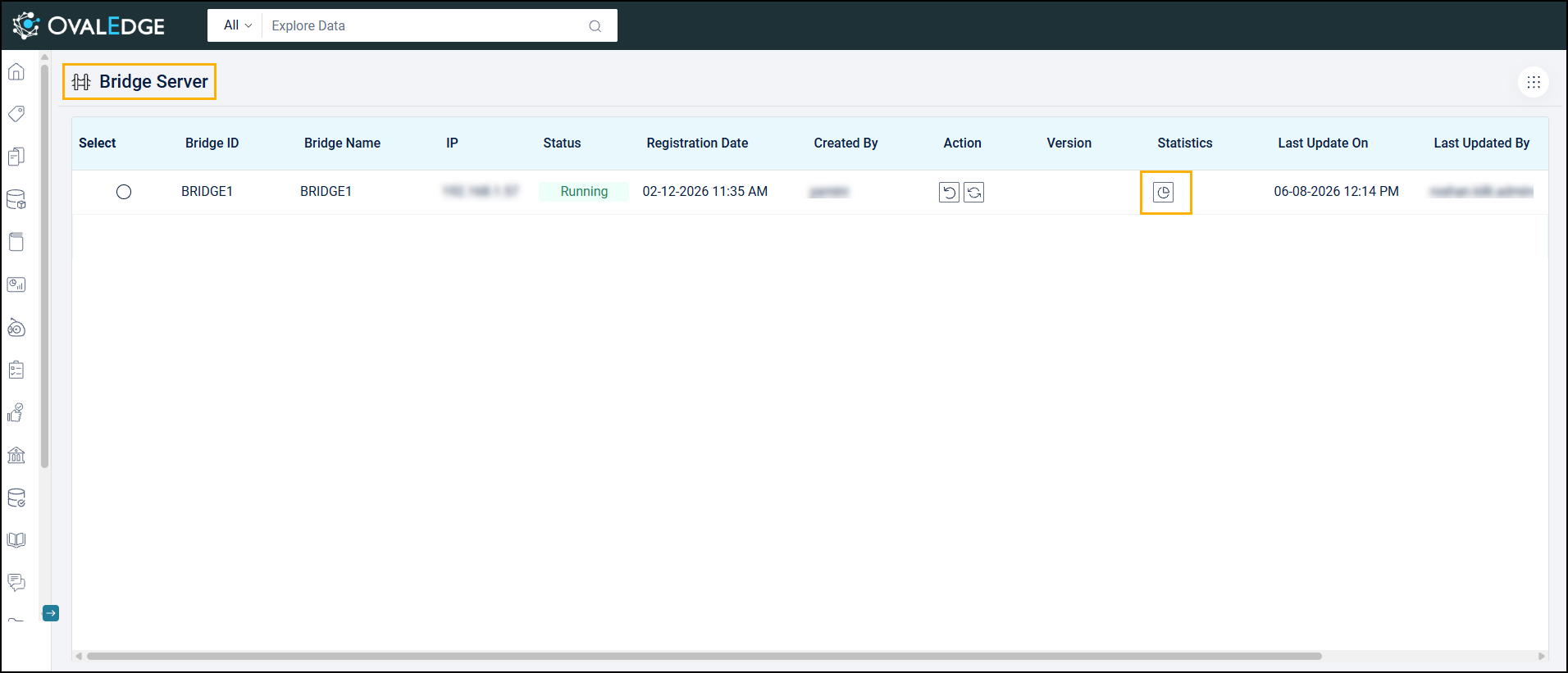
The interface lists all configured bridges with key operational and configuration details, including:

* **Bridge ID**: Unique identifier assigned to each bridge instance
* **Bridge Name**: Descriptive name defined during setup
* **IP Address**: Network address of the Bridge Client host
* **Port**: Designated communication port used by the client
* **Status**: Current state of the bridge (Running, Stopped, etc.)
* **Type**: Defines the category of the bridge.
* **Registration Date**: Date when the bridge was registered in the system
* **Created By**: User account that created the bridge instance
* **Action**: Provides control options for each bridge. It includes the following icons:
  * **Restart Bridge**: It allows the bridge client to re-establish connectivity without reinstalling.
  * **Update Bridge:** Updates the bridge client with the latest available software version.
* **Version**: Current version of the bridge software
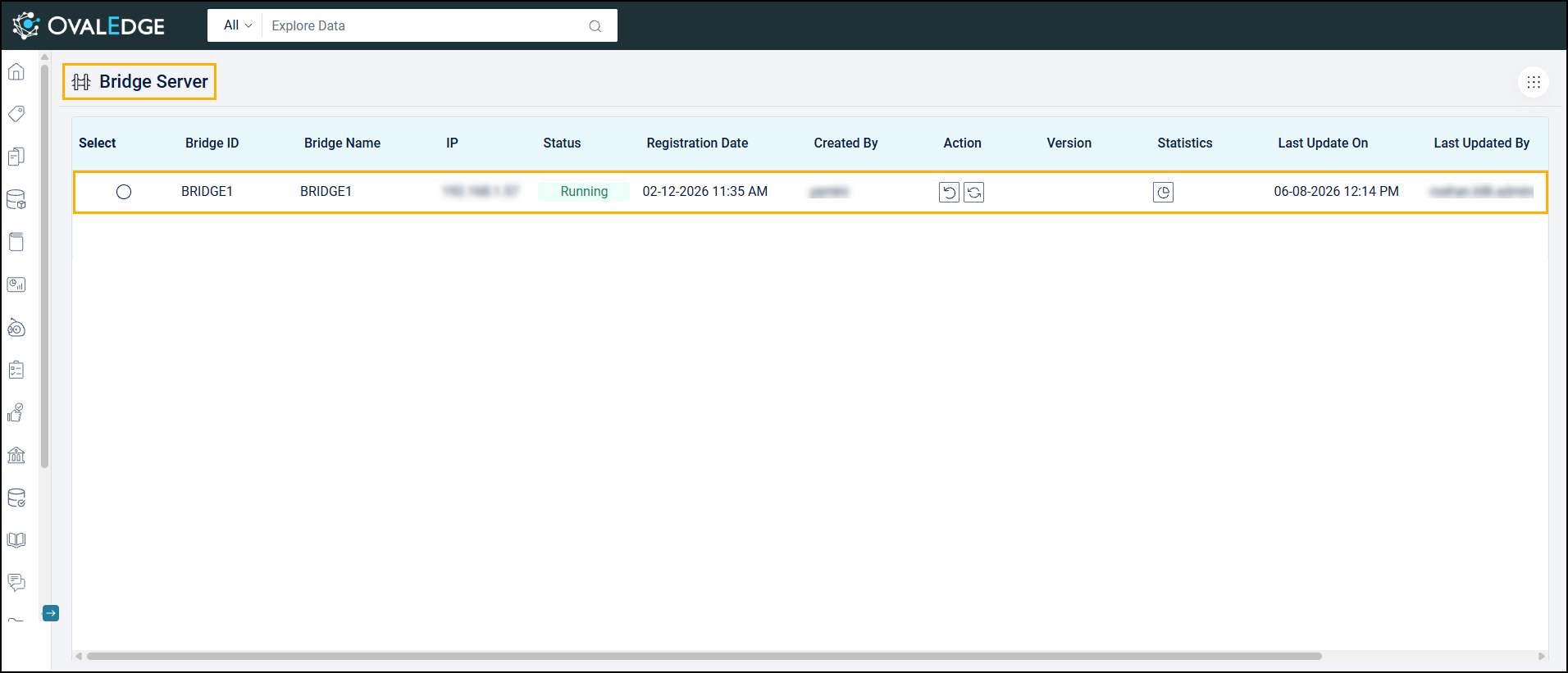
* **Statistics**: Shortcut to view runtime performance and technical metrics
* **Last Updated On:** Timestamp of the most recent configuration or status update
* **Last Updated By:** User who performed the last modification
* **Action Status**: Outcome of the most recent operation.<br>

  <figure><img src="/files/2hwZBWJM1Z0Dq9XQnvOa" alt=""><figcaption></figcaption></figure>

### Bridge Status

1. Click the **Status icon** to view the current state of each bridge.
2. A detailed status pop-up appears after clicking the **Status** icon. The pop-up includes the following parameters:
   1. **Bridge Health:** Real-time condition of the bridge (e.g., Running, Stopped, Restarting, Warning)
   2. **Details**: Contextual information (e.g., “Manually restarted”)
   3. **Mode**: Configuration mode, either Auto or Manual
   4. **Last Health Check Timestamp:** Date and time of the most recent health verification

      <figure><img src="https://lh7-rt.googleusercontent.com/docsz/AD_4nXfp85sM9tkLNIzgExr8pjnOOx9vrJvBUZy-wC4lHnkpZPau0xMs00UkgBzNijFnppudV3tfGlFzOGOLl0_eFYWzDQhGnvo81Ku5z0uaMha_BjBPlj86N94_TdkvHPV2ihS5QH7B8Q?key=kU5fqtI4eAzquyCyuBsp-g" alt=""><figcaption></figcaption></figure>

### Bridge Statistics

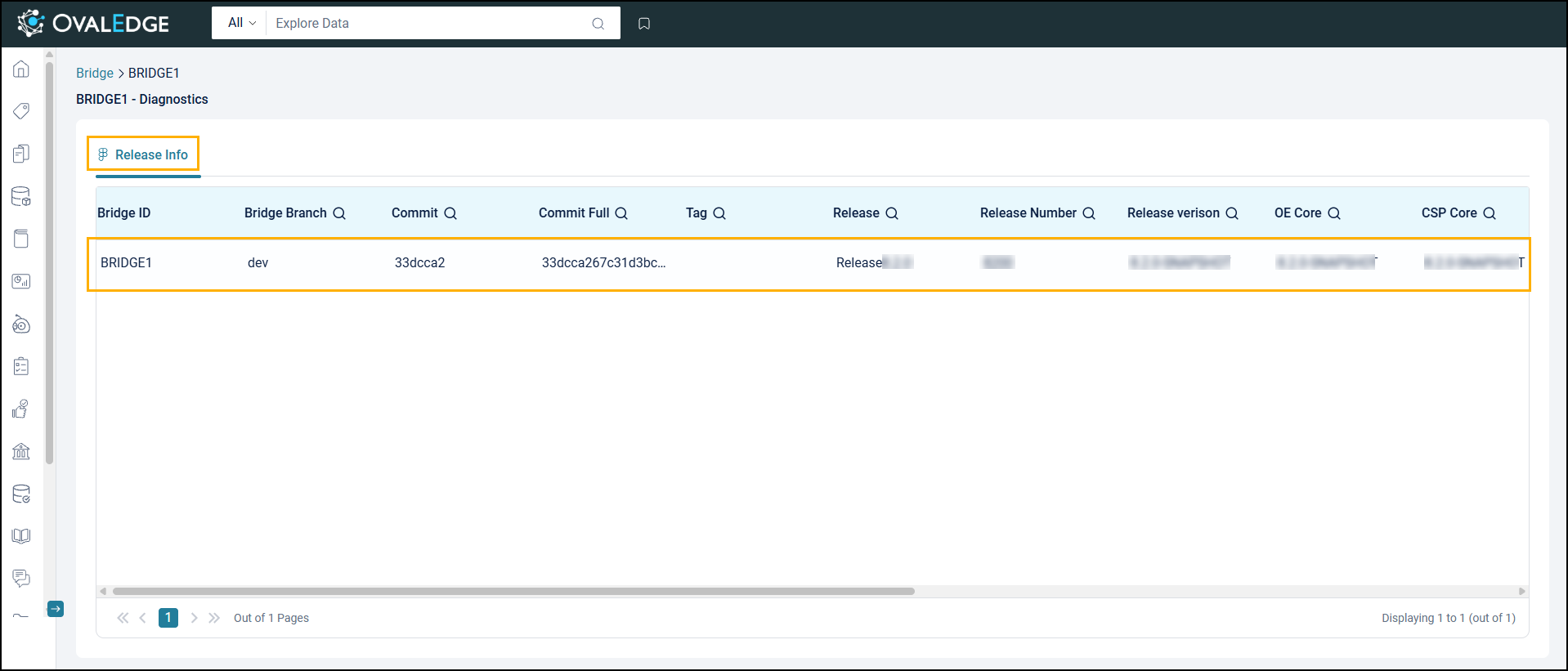
1. Click the **Statistics** icon to access a detailed Statistics interface: **Release Info**.

<figure><img src="/files/CBVS8jtoHpu4DwtNTo7Q" alt=""><figcaption></figcaption></figure>

#### **Release Info Tab**

The Release Info tab provides build, release, and component version details of the Bridge. The information helps validate the deployed bridge version and assists with auditing and troubleshooting activities.

This tab displays the following details:

* **Bridge ID**: Unique identifier of the bridge instance.
* **Bridge Branch**: Source code branch used for the build.
* **Commit**: Short commit ID associated with the build.
* **Commit Full**: Full commit hash for detailed traceability.
* **Tag**: Release tag mapped to the build.
* **Release**: Name of the release.
* **Release Number**: Numeric identifier of the release.
* **Release Version**: Version number of the bridge release.
* **Bridge Components**: Displays version information for the Bridge components and associated libraries included in the release.
* **NiFi Version**: Version of Apache NiFi used by the bridge.
* **Java Version**: Java version used to run the bridge.
* **OS Name**: Operating system on which the bridge is running.
* **Build Date**: Date and time when the bridge build was created.

<figure><img src="/files/LMi6ifFXPESWIITIGmwO" alt=""><figcaption></figcaption></figure>

***

Copyright © 2026, OvalEdge LLC, Peachtree Corners GA USA


---

# Agent Instructions
This documentation is published with GitBook. GitBook is the documentation platform designed so that both humans and AI agents can read, navigate, and reason over technical content effectively. Learn more at gitbook.com.

## Querying This Documentation
If you need additional information that is not directly available in this page, you can query the documentation dynamically by asking a question.

Perform an HTTP GET request on the current page URL with the `ask` query parameter, and the optional `goal` query parameter:

```
GET https://docs.ovaledge.com/release8.2/connectors/introduction-to-connectors/bridge.md?ask=<question>&goal=<endgoal>
```

`ask` is the immediate question: it should be specific, self-contained, and written in natural language.
`goal` is optional and describes the broader end goal you are ultimately trying to accomplish on behalf of the user. GitBook uses it to tailor the answer towards what is most useful for that goal.

The response will contain a direct answer to the question and relevant excerpts and sources from the documentation.

Use this mechanism when the answer is not explicitly present in the current page, you need clarification or additional context, or you want to retrieve related documentation sections.