> For the complete documentation index, see [llms.txt](https://docs.ovaledge.com/llms.txt). Markdown versions of documentation pages are available by appending `.md` to page URLs; this page is available as [Markdown](https://docs.ovaledge.com/release8.1/home/my-resources/inbox.md).
# Inbox
The Inbox guides how to interact with notifications and messages, introducing a more structured, categorized, and action-driven experience. The redesign ensures smooth communication, quick access to critical updates, and efficient notification management across multiple modules.
 ## Direct and Teams Inbox Section
**Direct Inbox**
The Direct Inbox displays notifications and messages for the logged in user, including task assignments, approval requests, and system alerts.
## Direct and Teams Inbox Section
**Direct Inbox**
The Direct Inbox displays notifications and messages for the logged in user, including task assignments, approval requests, and system alerts.
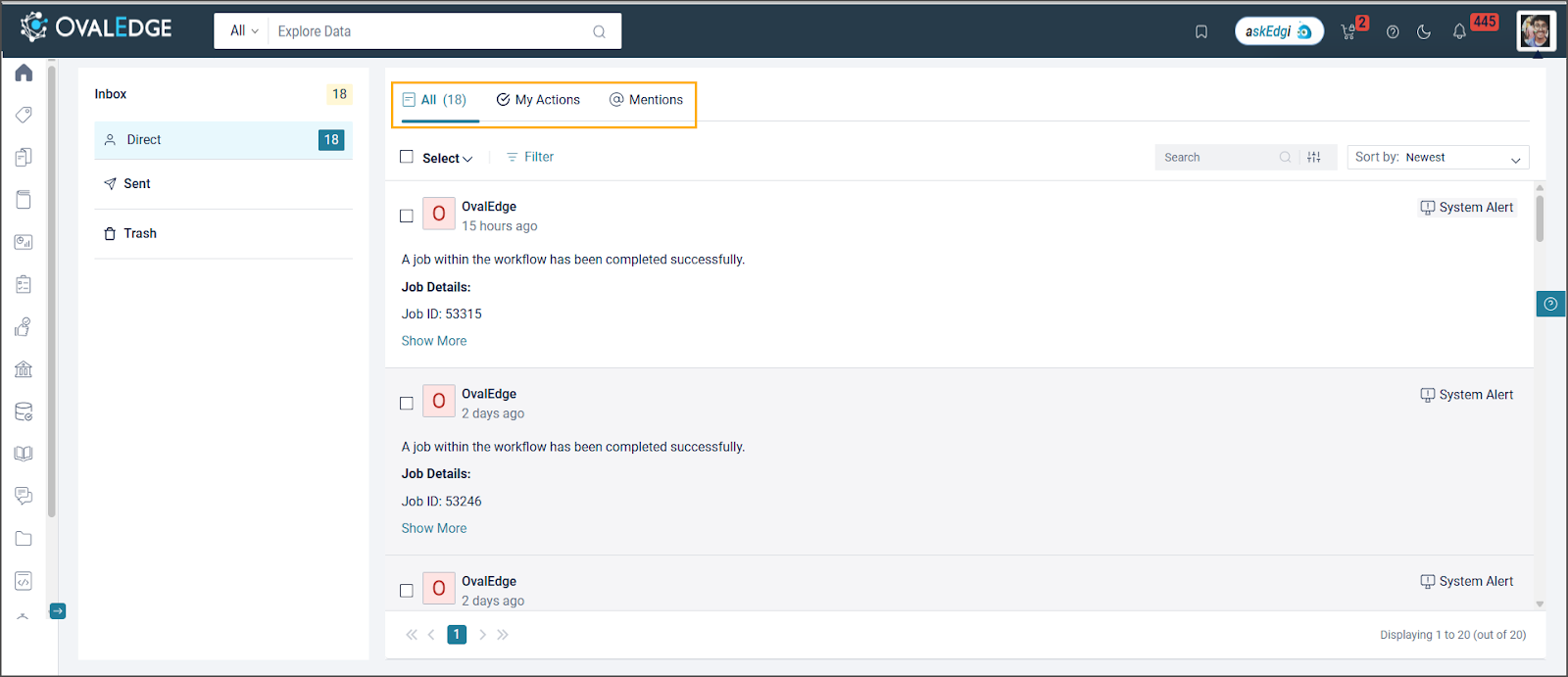
 It consists of three tabs.
 * All
* My Actions
* Mentions
**All:** This tab displays every notification the user has received across modules.
**My Actions:** This tab displays notifications that require the logged-in user to take action in the application, such as approvals, assigned tasks, and pending actions. Only action items will appear under the "My Actions" tab.
The Prioritized Actions items are shown below,
* Data Catalog - Missing Content Request
* Projects - Task Assigned, Project Invitation
* Service Desk - Service Request Opened, Service Request Rejected, Service Request SLA Pre Notification, Service Request SLA Post Notifications, Service Request Approval Workflow, Service Request Referred Back, Delegate User, and Nudge
* Reference Data Management - Attribute Changes
* Data Classification Recommendation - Manual Execution Completed, Scheduler Execution Started, Scheduler Execution Completed, Job Workflow Execution Started, Job Workflow Execution Completed, and Recommendation Created.
* Data Quality - Anomaly Detection, and Data Quality Remediation Center
* System Alerts - Connector Health Check, Impact Analysis Invitation, Notify On Success, Notify On Partial Success, Notify On Failure, User added to a team, Download Data through Job, Upload Data through Job, Governance App Campaign, Bridge health inactive, Governance App New Campaign Alert, Notify on New Questions, Notify on Unanswered Questions, Notify on Question Wall Reply, and Mentions
For example, when a service request is raised, the approval notification appears in the My Actions tab.
**Mentions:** Wherever the logged-in user name is mentioned in the application, then this notification appears in the Mentions tab.
**System vs. User-Triggered Notifications**
Notifications in the Inbox are categorized based on their source.
**System-Triggered Notifications:** These are generated automatically for system events such as Data Catalog Watchlist Alerts, Service Request Opened, for a user, Data Classification Recommendations, Crawling notifications, etc. These notifications will display the sender as "OvalEdge" along with the OvalEdge logo for easy identification.
* All
* My Actions
* Mentions
**All:** This tab displays every notification the user has received across modules.
**My Actions:** This tab displays notifications that require the logged-in user to take action in the application, such as approvals, assigned tasks, and pending actions. Only action items will appear under the "My Actions" tab.
The Prioritized Actions items are shown below,
* Data Catalog - Missing Content Request
* Projects - Task Assigned, Project Invitation
* Service Desk - Service Request Opened, Service Request Rejected, Service Request SLA Pre Notification, Service Request SLA Post Notifications, Service Request Approval Workflow, Service Request Referred Back, Delegate User, and Nudge
* Reference Data Management - Attribute Changes
* Data Classification Recommendation - Manual Execution Completed, Scheduler Execution Started, Scheduler Execution Completed, Job Workflow Execution Started, Job Workflow Execution Completed, and Recommendation Created.
* Data Quality - Anomaly Detection, and Data Quality Remediation Center
* System Alerts - Connector Health Check, Impact Analysis Invitation, Notify On Success, Notify On Partial Success, Notify On Failure, User added to a team, Download Data through Job, Upload Data through Job, Governance App Campaign, Bridge health inactive, Governance App New Campaign Alert, Notify on New Questions, Notify on Unanswered Questions, Notify on Question Wall Reply, and Mentions
For example, when a service request is raised, the approval notification appears in the My Actions tab.
**Mentions:** Wherever the logged-in user name is mentioned in the application, then this notification appears in the Mentions tab.
**System vs. User-Triggered Notifications**
Notifications in the Inbox are categorized based on their source.
**System-Triggered Notifications:** These are generated automatically for system events such as Data Catalog Watchlist Alerts, Service Request Opened, for a user, Data Classification Recommendations, Crawling notifications, etc. These notifications will display the sender as "OvalEdge" along with the OvalEdge logo for easy identification.
 **User-Triggered Notifications:** These notifications are manually triggered by users, such as @mentions in comments, task assignments, access requests, and approvals. The sender will be displayed as the user who initiated the action.
 ## Common Actions Across All Tabs
**Bulk Actions for Faster Management**
Perform bulk operations, reducing time spent on notification handling:
## Common Actions Across All Tabs
**Bulk Actions for Faster Management**
Perform bulk operations, reducing time spent on notification handling:
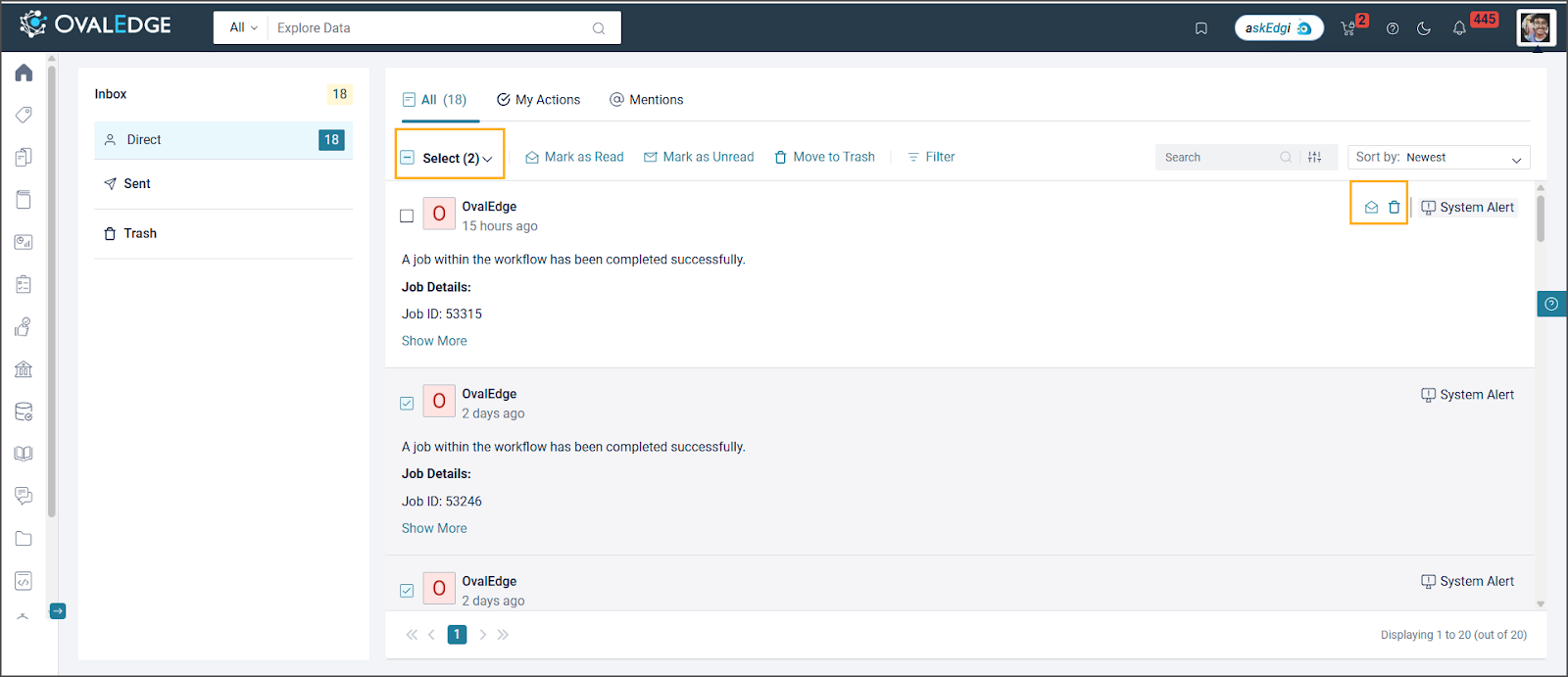 * Hover over each notification to show the mail icon. Click the icon to mark it as read/unread. Use this to update multiple notifications quickly.
* Delete multiple notifications by selecting them.
* Move notifications to Trash.
**Dynamic Event-Based Filtering**
Filter notifications by module to see only relevant updates. Filters include all available modules.
* Hover over each notification to show the mail icon. Click the icon to mark it as read/unread. Use this to update multiple notifications quickly.
* Delete multiple notifications by selecting them.
* Move notifications to Trash.
**Dynamic Event-Based Filtering**
Filter notifications by module to see only relevant updates. Filters include all available modules.
 **Searching, Filtering, and Sorting Functionalities**
To enhance usability, the Inbox provides advanced search and sorting options:
**Searching, Filtering, and Sorting Functionalities**
To enhance usability, the Inbox provides advanced search and sorting options:
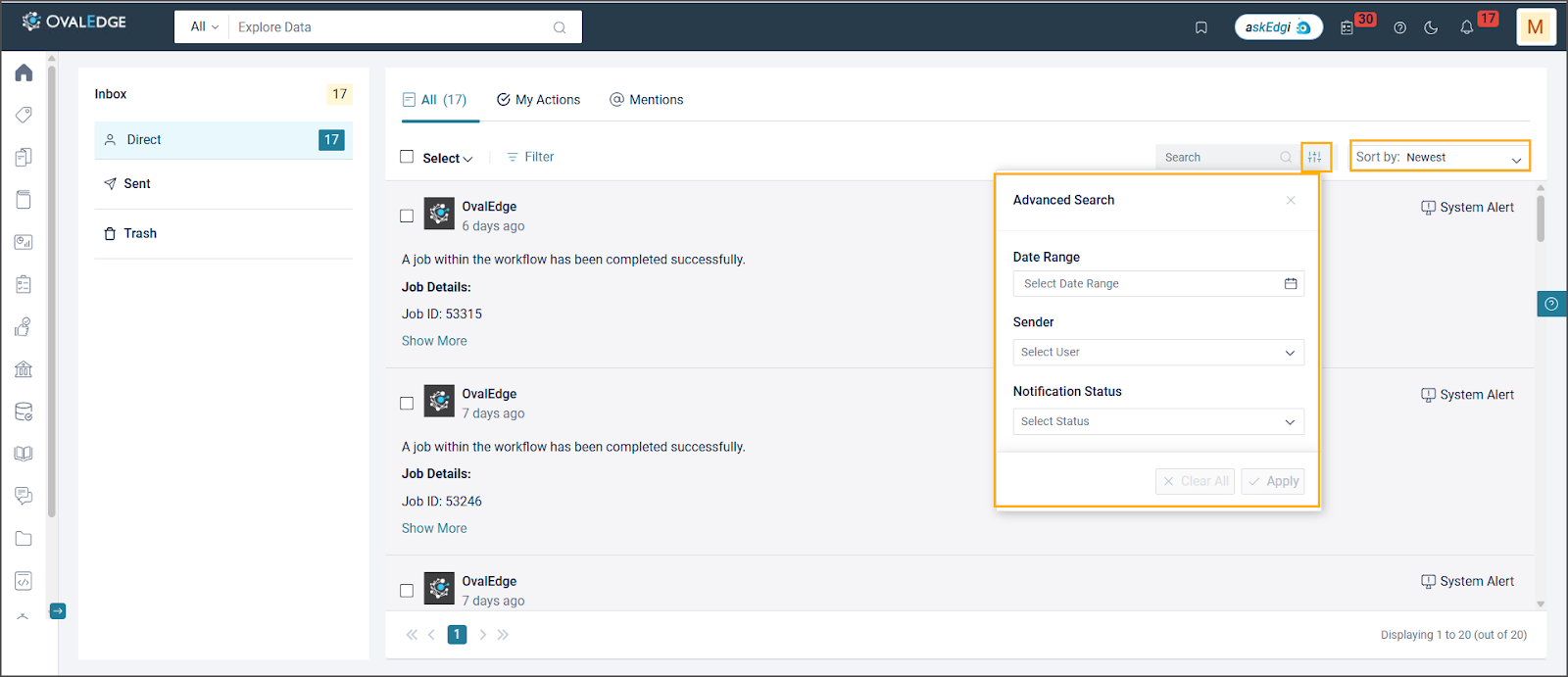 * **Search Bar:** Find specific notifications using keywords, sender names, or object references.
* **Advanced Filters:** Search by Date Range, Sender, and Notification Status.
* **Sorting:** Sort notifications by Newest, Oldest, Unread, or Read.
**Unread Notification Indicators**
To improve visibility, unread notifications are highlighted in two key areas:
**Bell Icon in the Header:** Shows the number of unread notifications for a quick view of pending updates. Click the bell icon to redirect users to the Inbox module.
* **Search Bar:** Find specific notifications using keywords, sender names, or object references.
* **Advanced Filters:** Search by Date Range, Sender, and Notification Status.
* **Sorting:** Sort notifications by Newest, Oldest, Unread, or Read.
**Unread Notification Indicators**
To improve visibility, unread notifications are highlighted in two key areas:
**Bell Icon in the Header:** Shows the number of unread notifications for a quick view of pending updates. Click the bell icon to redirect users to the Inbox module.
 **Left Panel Notification Count:** Each section (Direct Inbox, Teams Inbox, Sent, and Trash) displays a numerical count of unread messages, helping to track pending actions without opening each section manually.
 ## Sent
Sent Messages shows all the messages users have sent across different parts of the application, including "Collaboration," "Question Wall," and "Story Zone."
## Sent
Sent Messages shows all the messages users have sent across different parts of the application, including "Collaboration," "Question Wall," and "Story Zone."
 ## Trash
The trash folder is a temporary storage for emails that users have deleted from their inboxes. When a message is deleted from the Inbox, it is moved to the Trash folder, allowing to recover it if necessary or permanently delete it, and it cannot be undone.
## Trash
The trash folder is a temporary storage for emails that users have deleted from their inboxes. When a message is deleted from the Inbox, it is moved to the Trash folder, allowing to recover it if necessary or permanently delete it, and it cannot be undone.
 ***
Copyright © 2025, OvalEdge LLC, Peachtree Corners, GA USA
---
# Agent Instructions
This documentation is published with GitBook. GitBook is the documentation platform designed so that both humans and AI agents can read, navigate, and reason over technical content effectively. Learn more at gitbook.com.
## Querying This Documentation
If you need additional information that is not directly available in this page, you can query the documentation by asking a question.
Perform an HTTP GET request on the following URL with the `ask` and `goal` query parameters:
```
GET https://docs.ovaledge.com/release8.1/home/my-resources/inbox.md?ask=&goal=
```
`ask` is the immediate question: it should be specific, self-contained, and written in natural language.
`goal` is what the user is ultimately trying to achieve, the reason they need the answer. Sharing it helps GitBook give you a better, more relevant answer. A goal is most helpful when it describes the outcome the user wants rather than restating the question. For example, with `ask=how do I create an API token`, a goal like `automate deployments from our CI pipeline` lets GitBook tailor the answer to that use case.
The response will contain a direct answer to the question and relevant excerpts and sources from the documentation.
Use this mechanism when the answer is not explicitly present in the current page, you need clarification or additional context, or you want to retrieve related documentation sections.
***
Copyright © 2025, OvalEdge LLC, Peachtree Corners, GA USA
---
# Agent Instructions
This documentation is published with GitBook. GitBook is the documentation platform designed so that both humans and AI agents can read, navigate, and reason over technical content effectively. Learn more at gitbook.com.
## Querying This Documentation
If you need additional information that is not directly available in this page, you can query the documentation by asking a question.
Perform an HTTP GET request on the following URL with the `ask` and `goal` query parameters:
```
GET https://docs.ovaledge.com/release8.1/home/my-resources/inbox.md?ask=&goal=
```
`ask` is the immediate question: it should be specific, self-contained, and written in natural language.
`goal` is what the user is ultimately trying to achieve, the reason they need the answer. Sharing it helps GitBook give you a better, more relevant answer. A goal is most helpful when it describes the outcome the user wants rather than restating the question. For example, with `ask=how do I create an API token`, a goal like `automate deployments from our CI pipeline` lets GitBook tailor the answer to that use case.
The response will contain a direct answer to the question and relevant excerpts and sources from the documentation.
Use this mechanism when the answer is not explicitly present in the current page, you need clarification or additional context, or you want to retrieve related documentation sections.