> For the complete documentation index, see [llms.txt](https://docs.ovaledge.com/llms.txt). Markdown versions of documentation pages are available by appending `.md` to page URLs; this page is available as [Markdown](https://docs.ovaledge.com/release8.1/deployment-and-maintenance/upgrade/mysql-upgrade-from-8.0-to-8.4.x-azure.md).
# MySQL Upgrade from 8.0 to 8.4.x (Azure)
This article provides a step-by-step procedure for upgrading **Azure Database for MySQL** from version **8.0 to 8.4**.**x.** The upgrade ensures continued vendor support, access to the latest security patches, improved performance, and new features in MySQL 8.4.
**System Administrators, Database Administrators, and DevOps Engineers** are responsible for managing and maintaining Azure-hosted MySQL services.
## Prerequisites
Before initiating the upgrade, ensure the following conditions are met:
* **Backups**
* Take a full logical backup of all MySQL databases using `mysqldump` or `mysqlpump`.
* Verify backup integrity and ensure restore capability.
* **Application Downtime Preparation**
* Stop dependent application services (e.g., Apache Tomcat hosting OvalEdge or other applications).
* Communicate planned downtime to stakeholders.
* **Access Requirements**
* Ensure administrator-level access to the Azure portal and the Azure Database for MySQL service.
* **Pre-Migration Checks**
* Run pre-migration scripts (if applicable to the environment).
* Validate that no long-running queries or transactions are active.
### Upgrade Steps
1. **Log in to Azure**
* Access the Azure portal at:\
👉 [https://portal.azure.com](https://portal.azure.com?utm_source=chatgpt.com)
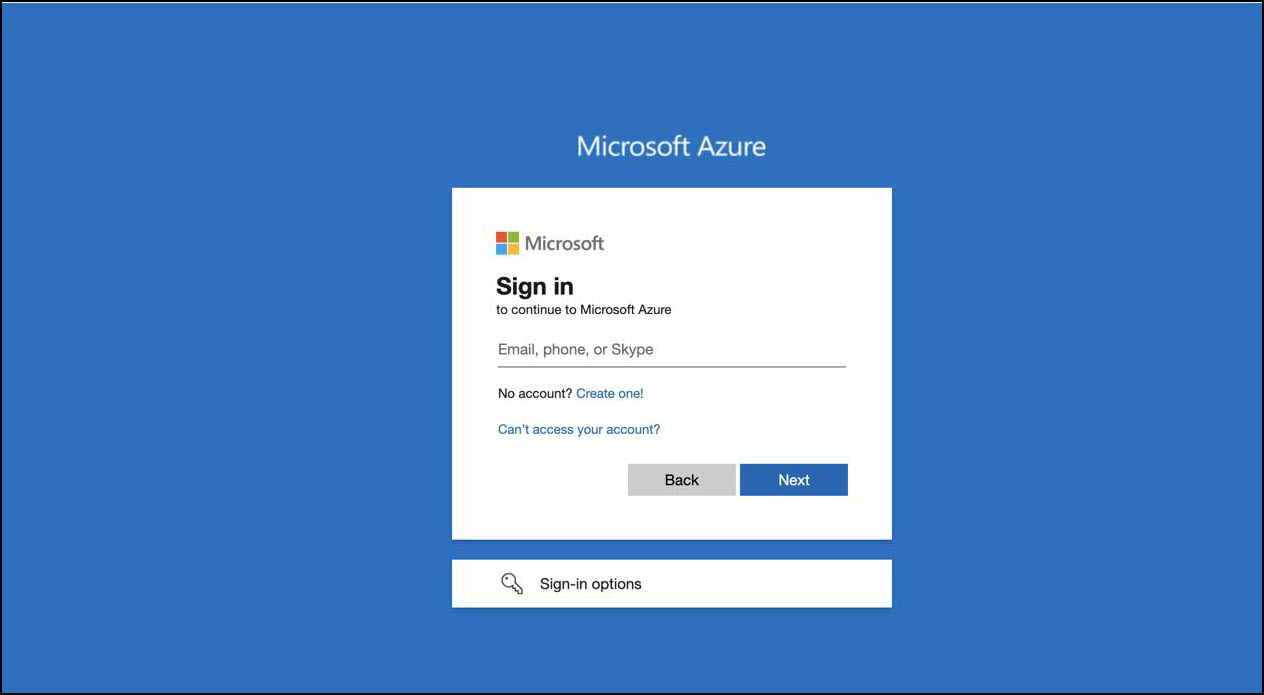 * Authenticate using appropriate credentials with access to Azure Database for MySQL.
2. **Locate the MySQL Instance**
* Navigate to **Azure Database for MySQL servers**.
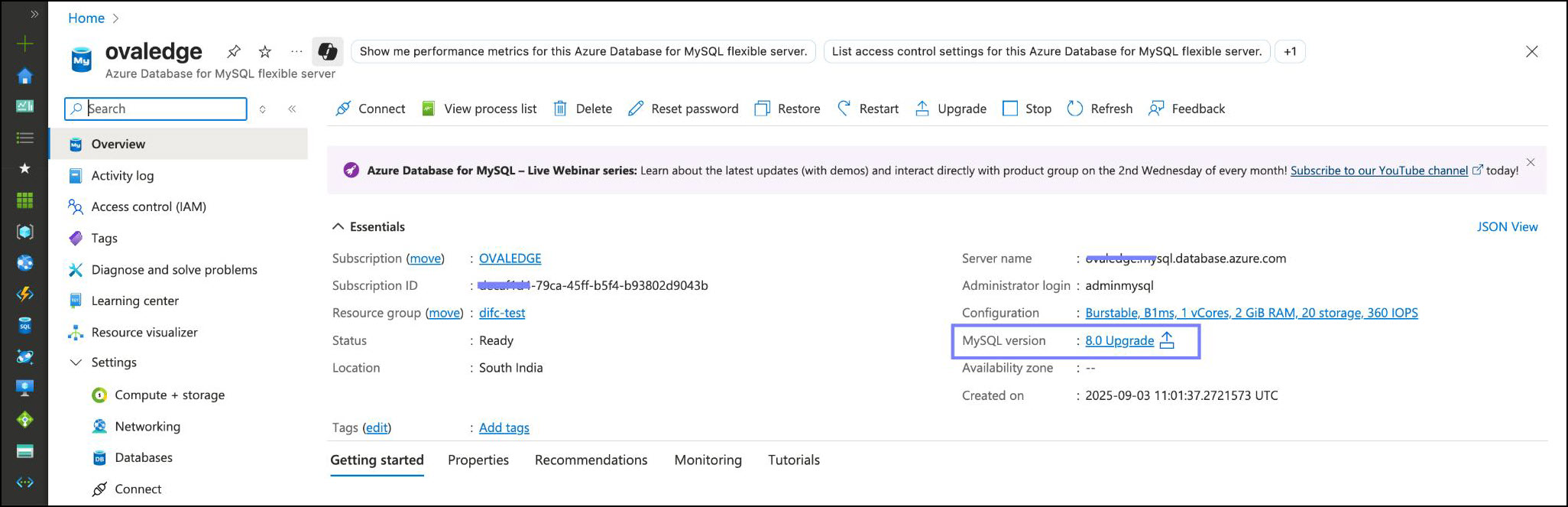 * Select the target instance currently running MySQL **8.0**.
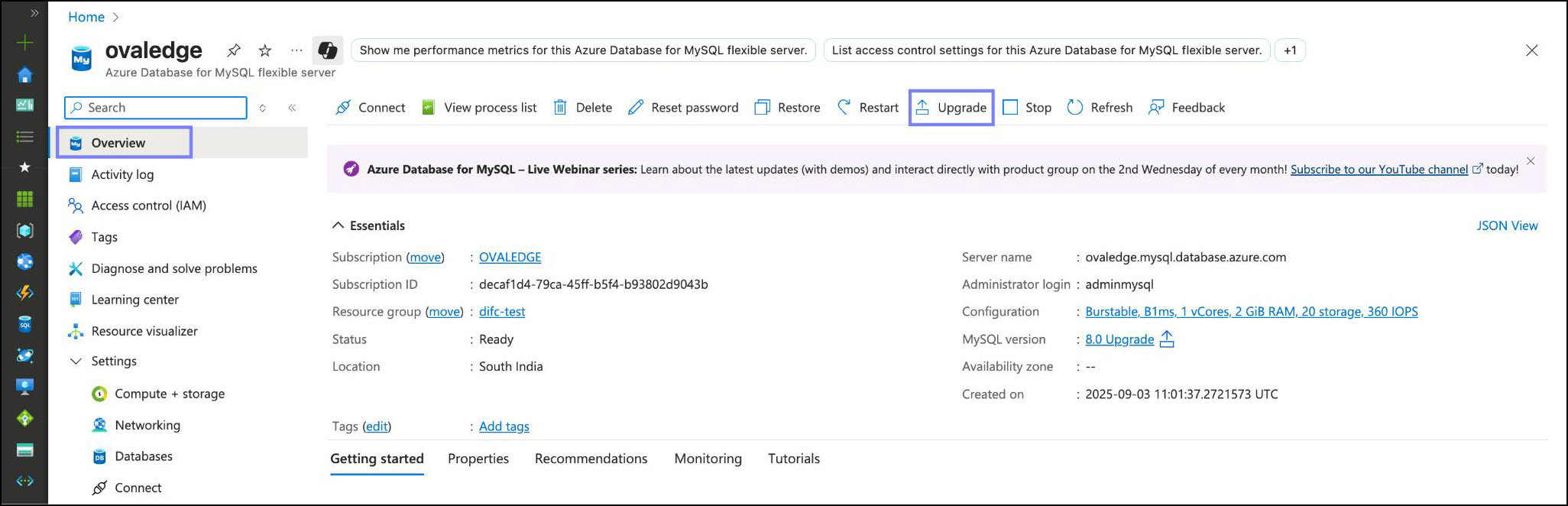
3. **Initiate the Upgrade**
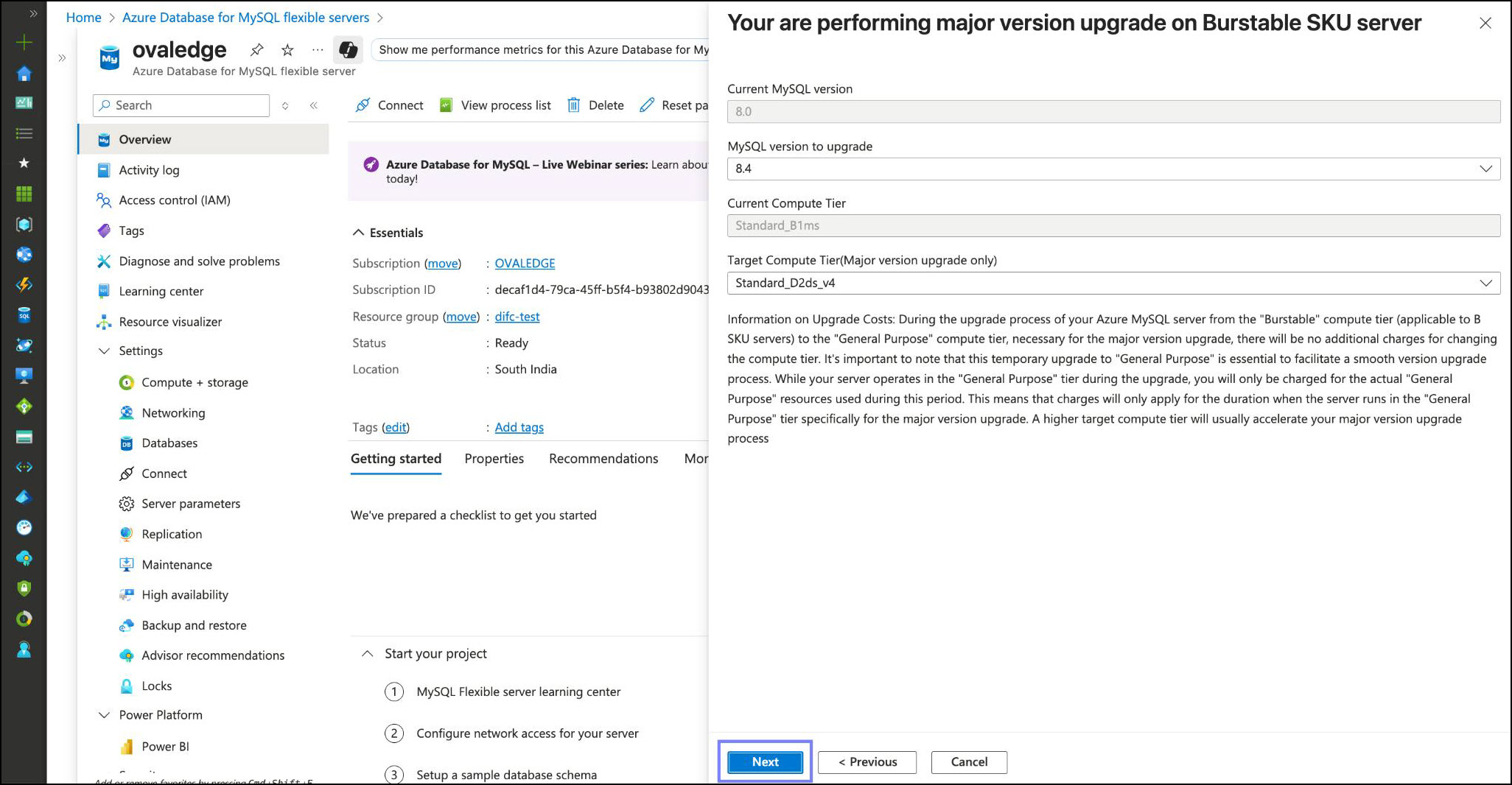
* Go to **Overview** and click **Upgrade**.
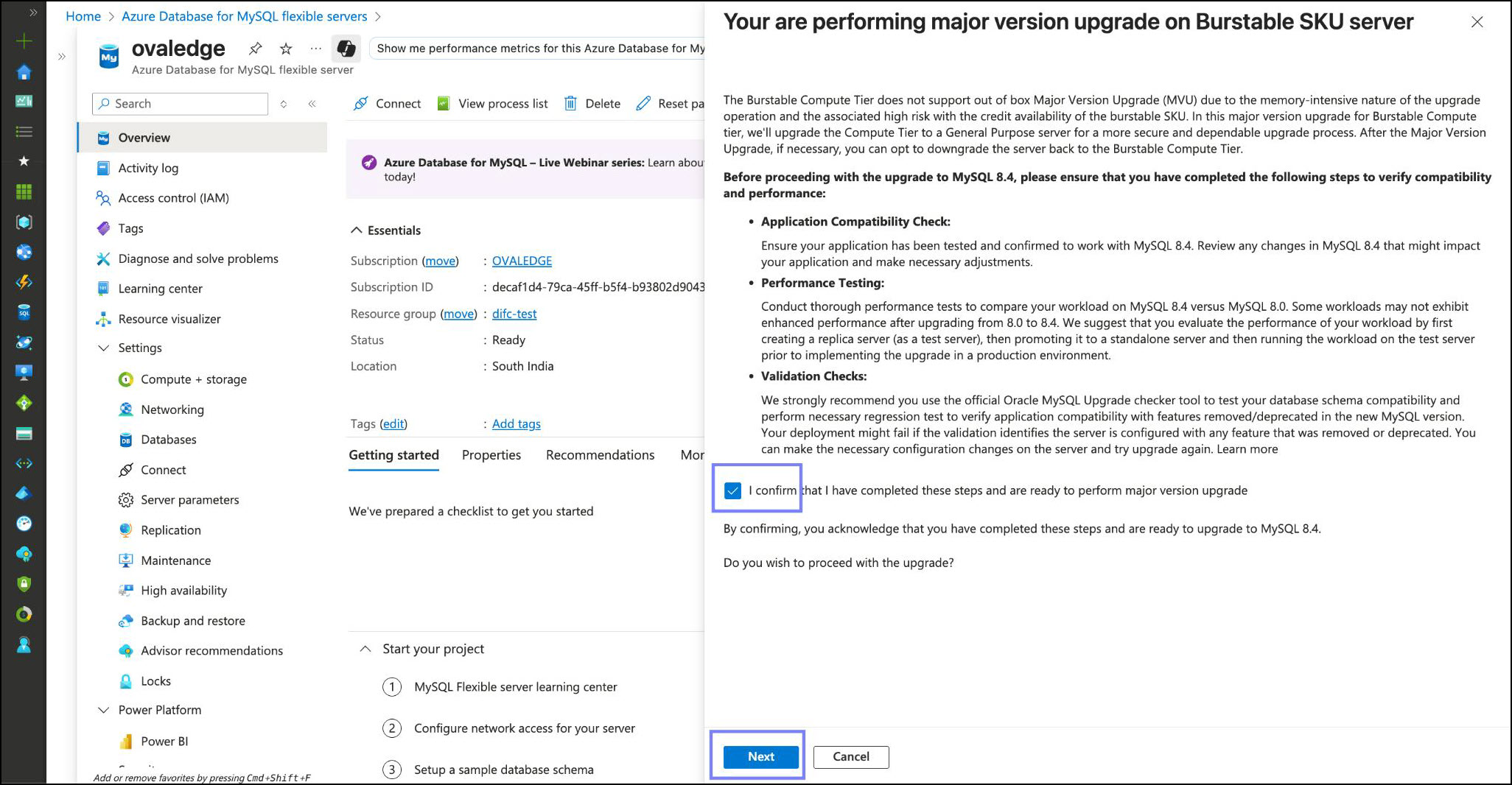
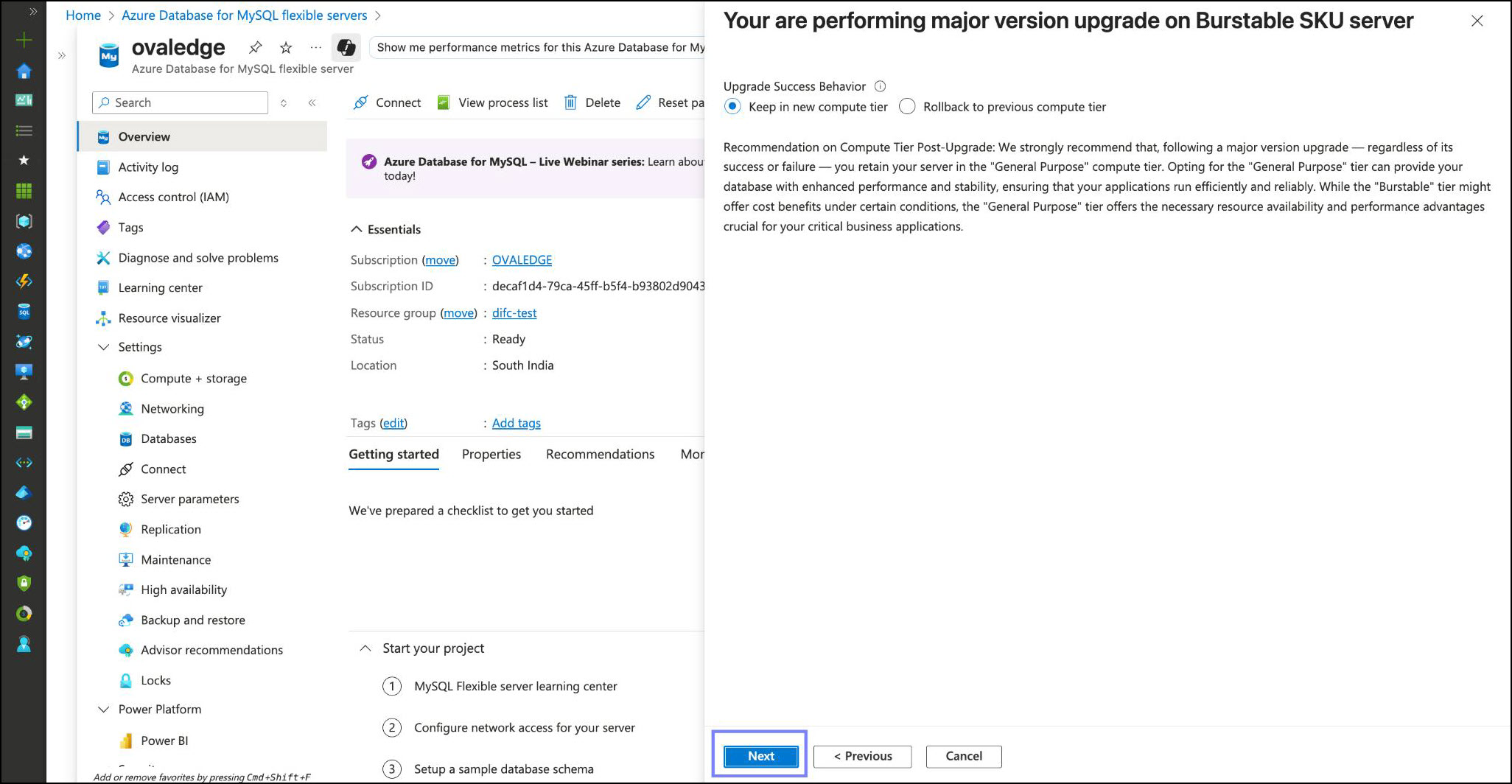
 * Review the upgrade details and check the confirmation box. Click **Next.**
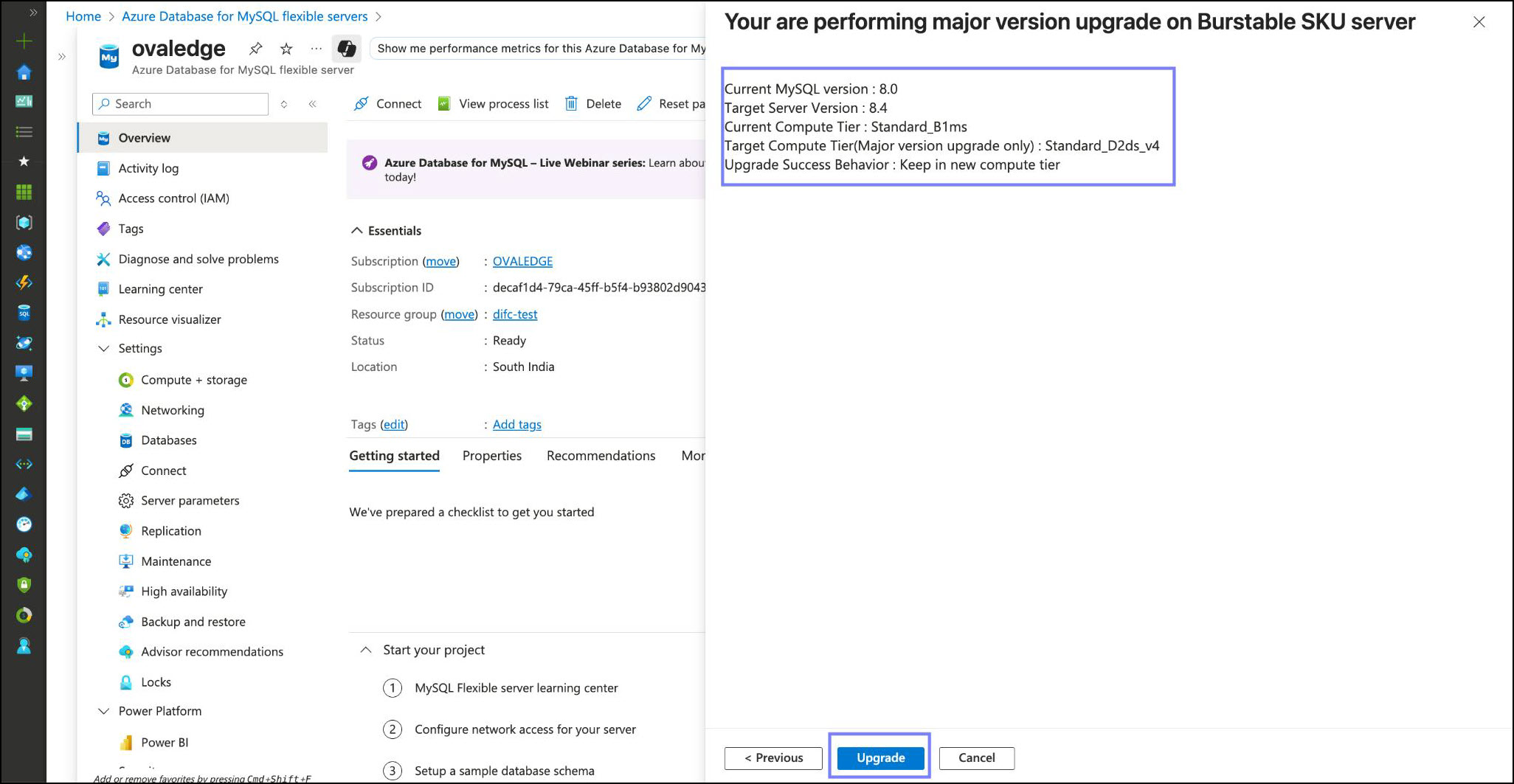
 * Preview the details and click **Next** to proceed.
 4. **Confirm and Execute Upgrade**
* Click **Upgrade** to start the process.
4. **Confirm and Execute Upgrade**
* Click **Upgrade** to start the process.
 * ⚠️ The operation may take several minutes.
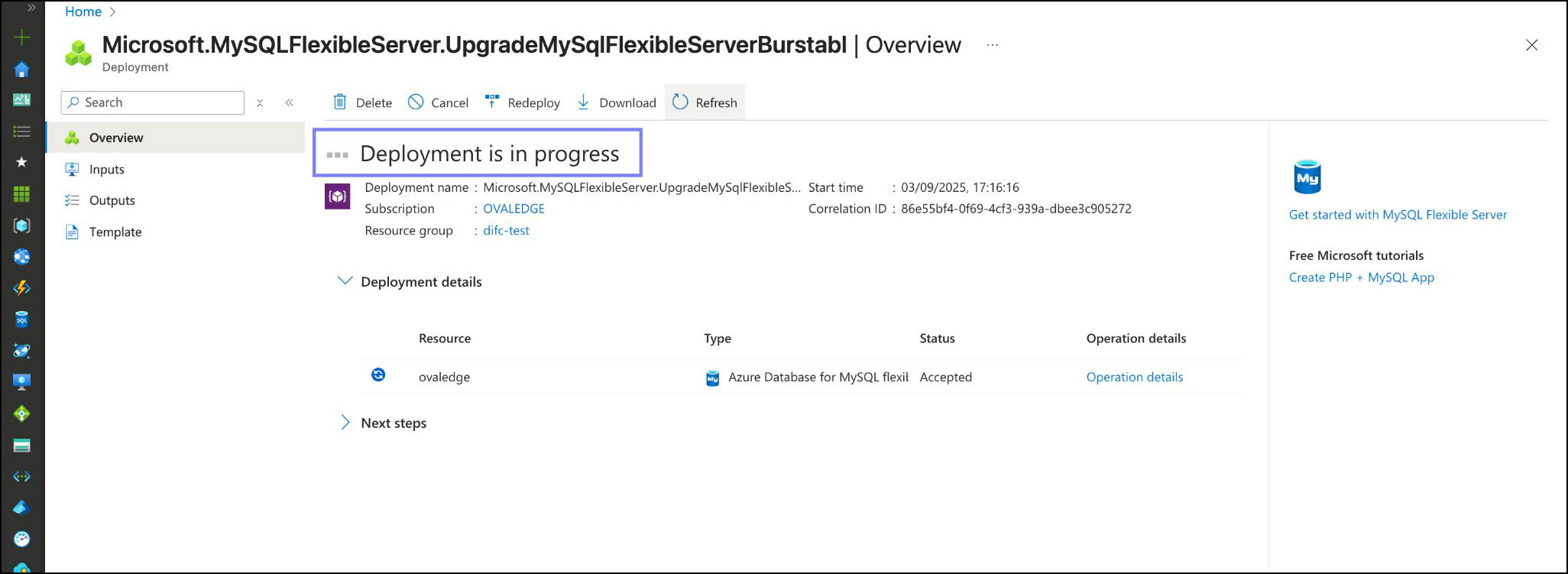 * During this period, the database service may be unavailable.
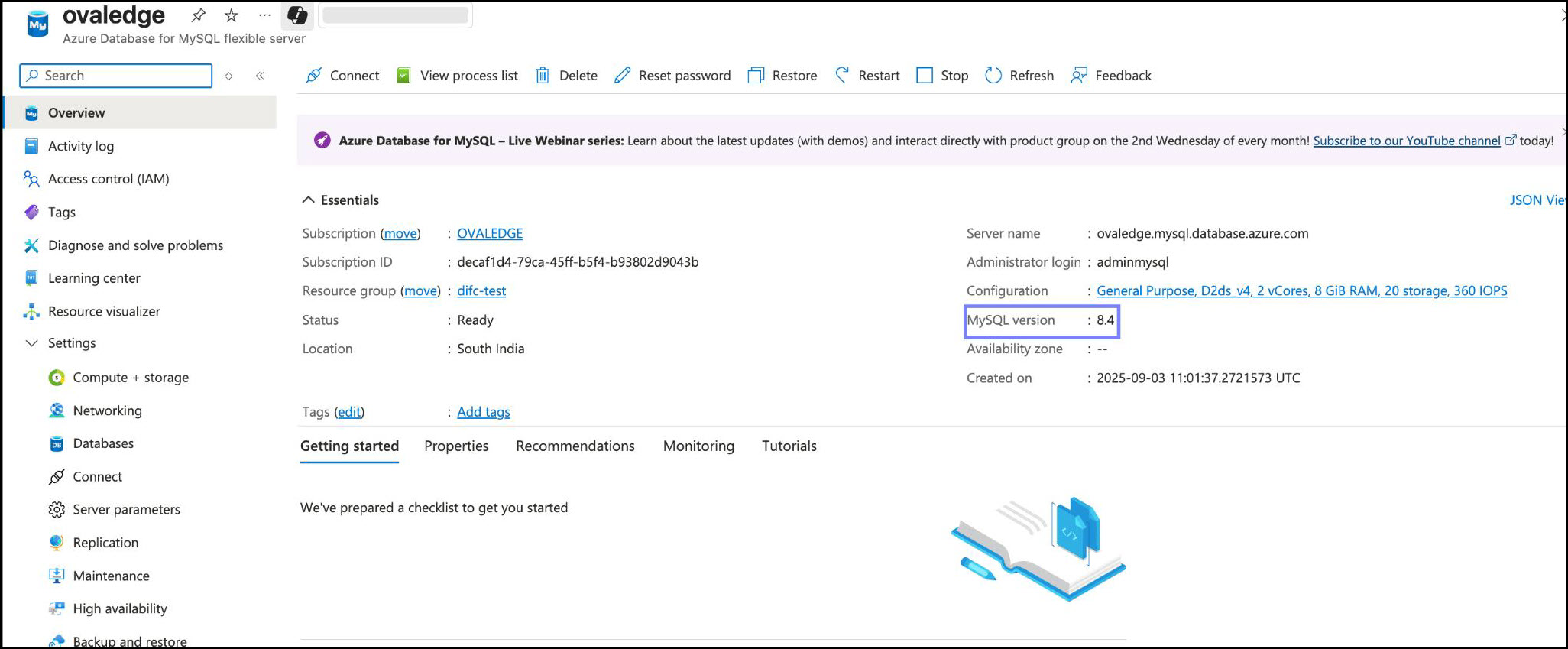
5. **Verify Upgrade Completion**
* Once the upgrade is complete, refresh the **Overview** page.
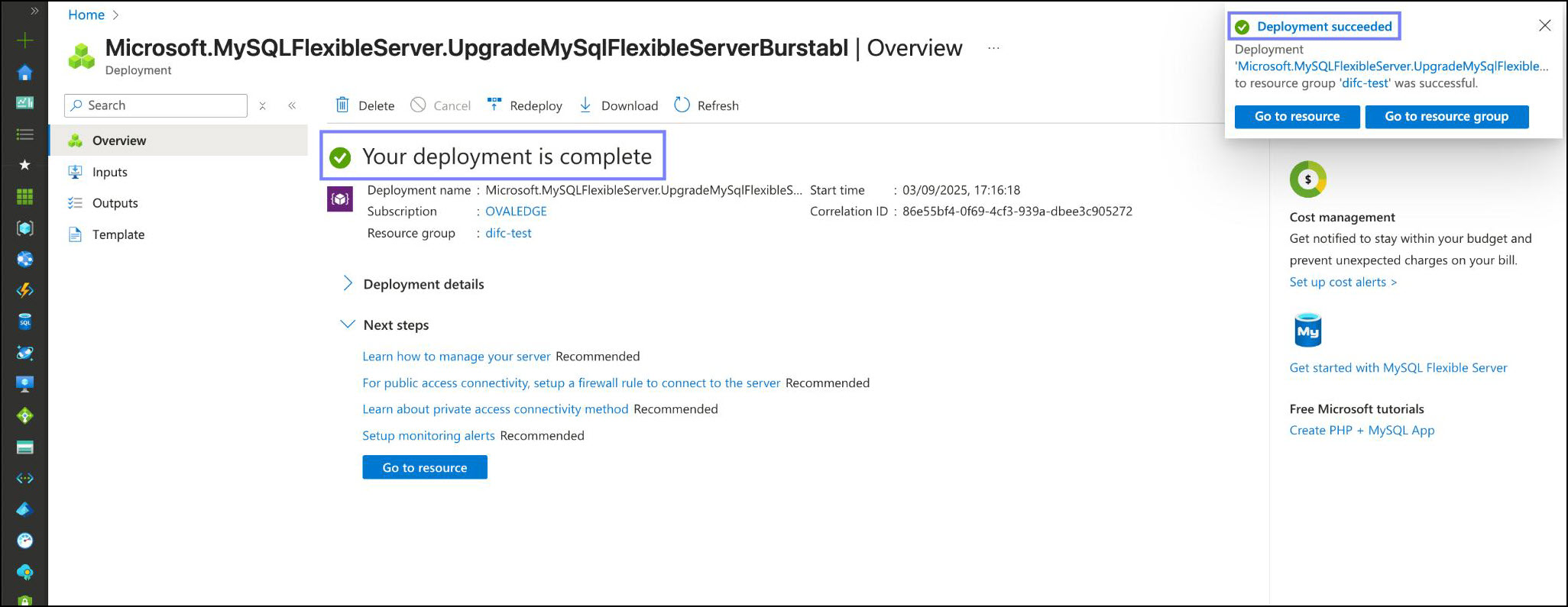 * Confirm the server version is updated to **MySQL 8.4**.
 ### Post-Upgrade Steps
1. **Application Reconnection**
* Update application configurations (if necessary) to point to the upgraded MySQL instance.
* Restart dependent services (e.g., **Tomcat**).
### Post-Upgrade Steps
1. **Application Reconnection**
* Update application configurations (if necessary) to point to the upgraded MySQL instance.
* Restart dependent services (e.g., **Tomcat**).
2. **Run Post-Migration Scripts**
* Execute any required post-migration SQL scripts provided by the application or DBA team.
3. **Validation**
* Confirm application connectivity and functionality.
* Check database logs for warnings or errors.
* Run health checks on critical queries and stored procedures.
### Restore Backup
* If the MySQL upgrade to 8.4 fails:
* The server will remain on MySQL 8.0.
* Point the OE application back to the MySQL 8.0 instance and start the application.
* If issues persist after reconnecting to MySQL 8.0:
* Create a new Azure MySQL instance with version 8.4.
* Restore the pre-upgrade MySQL 8.0 backup to the new instance.
***
Copyright © 2025, OvalEdge LLC, Peachtree Corners, GA, USA.
---
# Agent Instructions
This documentation is published with GitBook. GitBook is the documentation platform designed so that both humans and AI agents can read, navigate, and reason over technical content effectively. Learn more at gitbook.com.
## Querying This Documentation
If you need additional information that is not directly available in this page, you can query the documentation by asking a question.
Perform an HTTP GET request on the following URL with the `ask` and `goal` query parameters:
```
GET https://docs.ovaledge.com/release8.1/deployment-and-maintenance/upgrade/mysql-upgrade-from-8.0-to-8.4.x-azure.md?ask=&goal=
```
`ask` is the immediate question: it should be specific, self-contained, and written in natural language.
`goal` is what the user is ultimately trying to achieve, the reason they need the answer. Sharing it helps GitBook give you a better, more relevant answer. A goal is most helpful when it describes the outcome the user wants rather than restating the question. For example, with `ask=how do I create an API token`, a goal like `automate deployments from our CI pipeline` lets GitBook tailor the answer to that use case.
The response will contain a direct answer to the question and relevant excerpts and sources from the documentation.
Use this mechanism when the answer is not explicitly present in the current page, you need clarification or additional context, or you want to retrieve related documentation sections.