> For the complete documentation index, see [llms.txt](https://docs.ovaledge.com/llms.txt). Markdown versions of documentation pages are available by appending `.md` to page URLs; this page is available as [Markdown](https://docs.ovaledge.com/release8.1/deployment-and-maintenance/integration/governance-app-deployment-on-linux-with-load-balancer.md).
# Governance App Deployment on Linux with Load Balancer
The Governance Apps allow enterprises to create mini-apps that leverage customized forms to conduct surveys and campaigns for governance activities.
This article explains the Governance App deployment process in a Linux environment, including prerequisites and configuration steps.
## Prerequisites
* **Sudo Access**\
Required to create and manage the `gov-app` systemd service file.
* **Internet Access**\
Needed to download the `application.yaml` file.\
*If internet access is unavailable, ensure `application.yaml` is already present in the `governance` folder.*
* **Java**
* Java 1.8 is required.
* Verify installation with:
```bash
java -version
```
* **Memory Requirements**\
Minimum 2 GB RAM.
* **Load Balancer (Optional)**\
When using a load balancer, configure the domain name and SSL certificates in the same manner as for the main OvalEdge application.
## Installation Steps
### Governance App Installation
* **Create Governance Folder**
* Open a terminal window.
* Navigate to the OvalEdge home directory.
* Create a folder named **governance** by running the following command
```bash
mkdir ~/governance
```
* **Download YAML Configuration File**\
Obtain `application.yaml` from the provided the following [link](https://ovaledge.s3.us-west-1.amazonaws.com/OvalEdge+Clients/Gov-App/Ubuntu/Gov-app-domain/application.yaml).
* **Update Configuration File**
* Add database connection details.
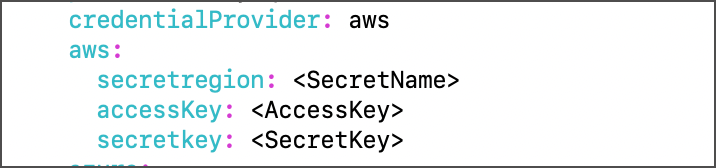
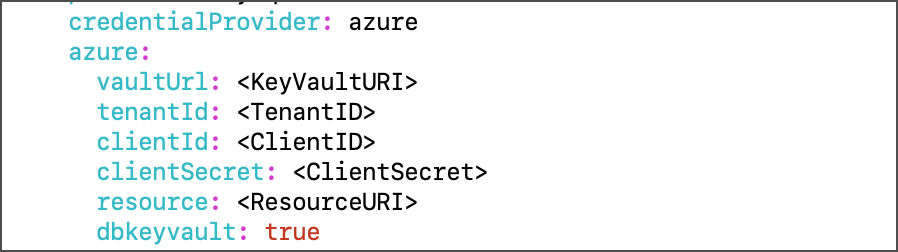
* Supported credential providers:
* **Default (credentialProvider: default)** → credentials stored directly in YAML
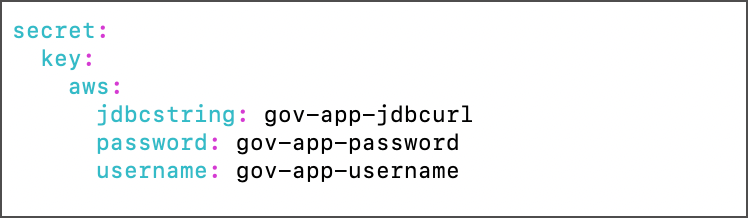
 * **AWS Secrets Manager (credentialProvider: aws)** → provide secret keys for `jdbcstring`, `username`, and `password`\
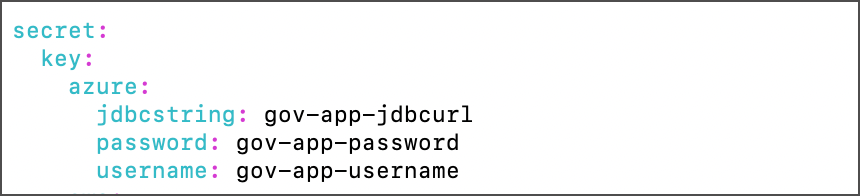
 * **Azure Key Vault (credentialProvider: azure)** → provide secret keys for `jdbcstring`, `username`, and `password`
 * **Create Credentials Folder**
```bash
mkdir ~/governance/credentials
```
Update the path to this folder in `application.yaml`.
* **Create Credentials Folder**
```bash
mkdir ~/governance/credentials
```
Update the path to this folder in `application.yaml`.
 * **Place Governance App JAR File**\
Copy `oe-gov-app.jar` into the `governance` folder.
### Service Setup
* **Create Service File**\
Navigate to `/etc/systemd/system/` and create `oe-gov.service`:
```bash
cd /etc/systemd/system
vi oe-gov.service
```
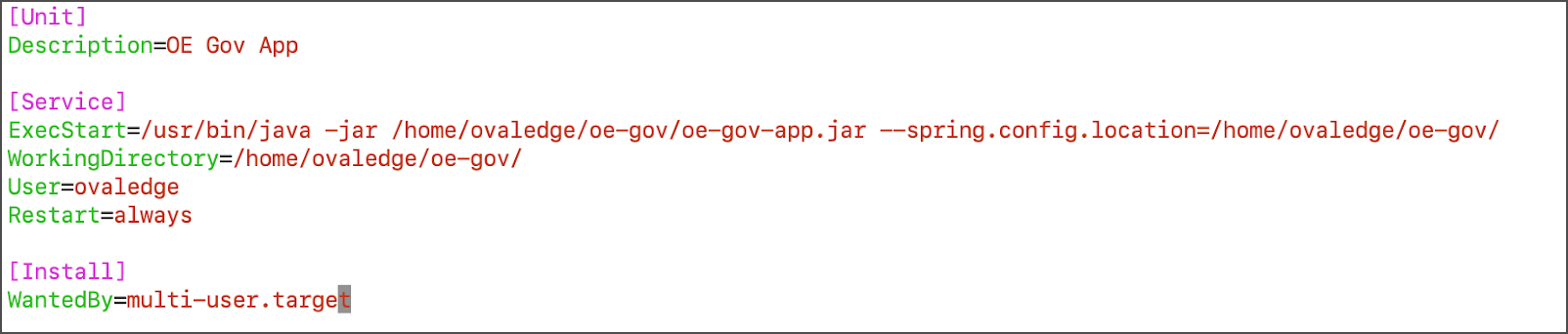
Add the following content:
* **Place Governance App JAR File**\
Copy `oe-gov-app.jar` into the `governance` folder.
### Service Setup
* **Create Service File**\
Navigate to `/etc/systemd/system/` and create `oe-gov.service`:
```bash
cd /etc/systemd/system
vi oe-gov.service
```
Add the following content:
```ini
[Unit]
Description=OE Governance App
[Service]
ExecStart=/usr/bin/java -jar /oe-gov-app.jar --spring.config.location=
WorkingDirectory=/home/ovaledge/governance/
User=ovaledge
Restart=always
[Install]
WantedBy=multi-user.target
```
 * **Enable and Start Service**
```bash
sudo systemctl enable oe-gov
sudo systemctl start oe-gov
sudo systemctl status oe-gov
```
### Integration with OvalEdge
* **Update Oasis Properties**\
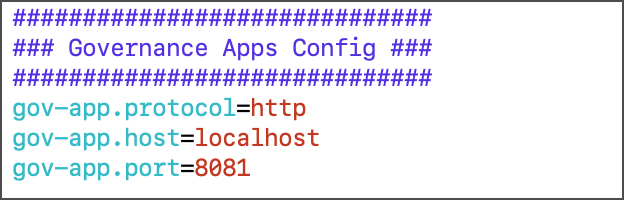
In the OvalEdge installation directory, edit `extprop/oasis.properties` and configure the Governance App URL:
* **Enable and Start Service**
```bash
sudo systemctl enable oe-gov
sudo systemctl start oe-gov
sudo systemctl status oe-gov
```
### Integration with OvalEdge
* **Update Oasis Properties**\
In the OvalEdge installation directory, edit `extprop/oasis.properties` and configure the Governance App URL:
```properties
governance.app.url=https://:
```
 * **Restart Tomcat**
```bash
sudo systemctl restart
```
### Verification
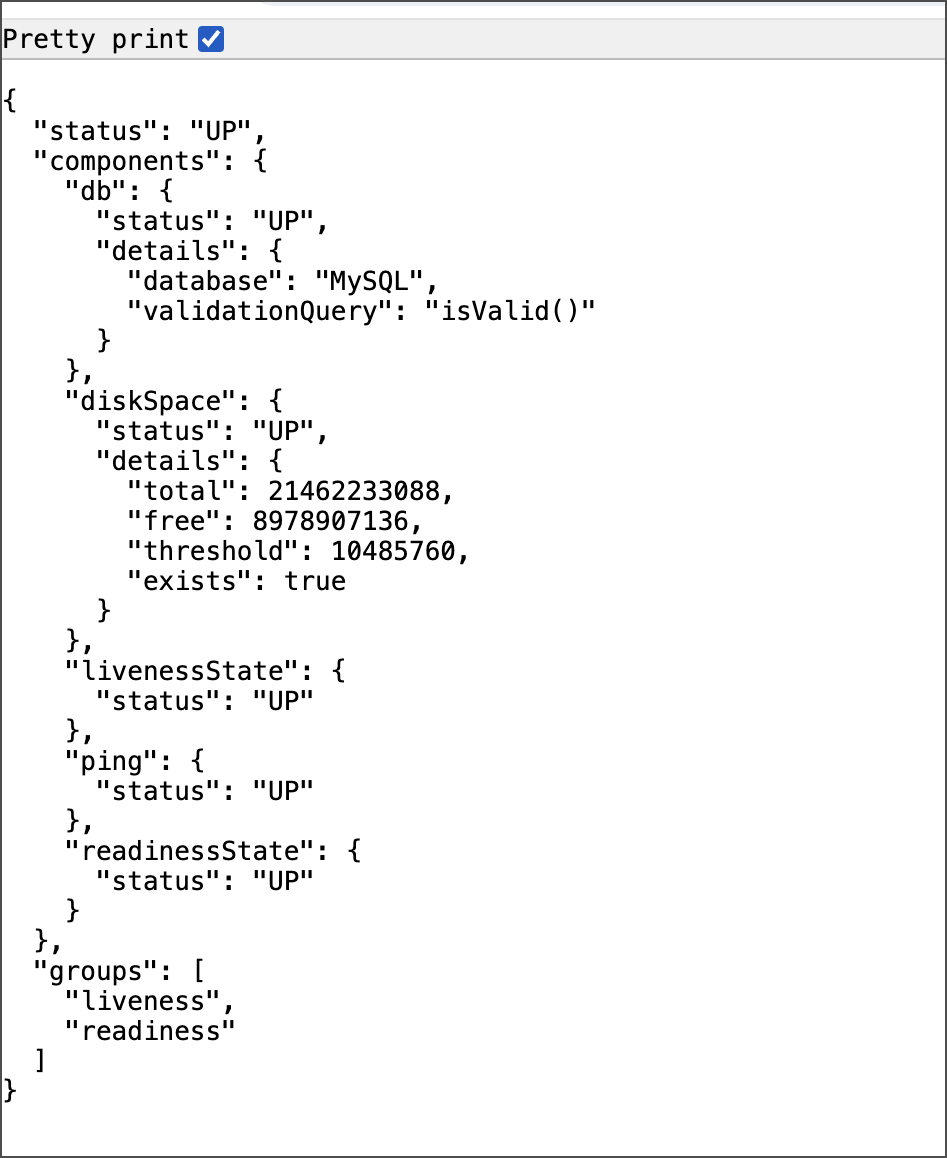
* Access the health endpoint to verify service status:
* **Restart Tomcat**
```bash
sudo systemctl restart
```
### Verification
* Access the health endpoint to verify service status:
```
https:///actuator/health
```
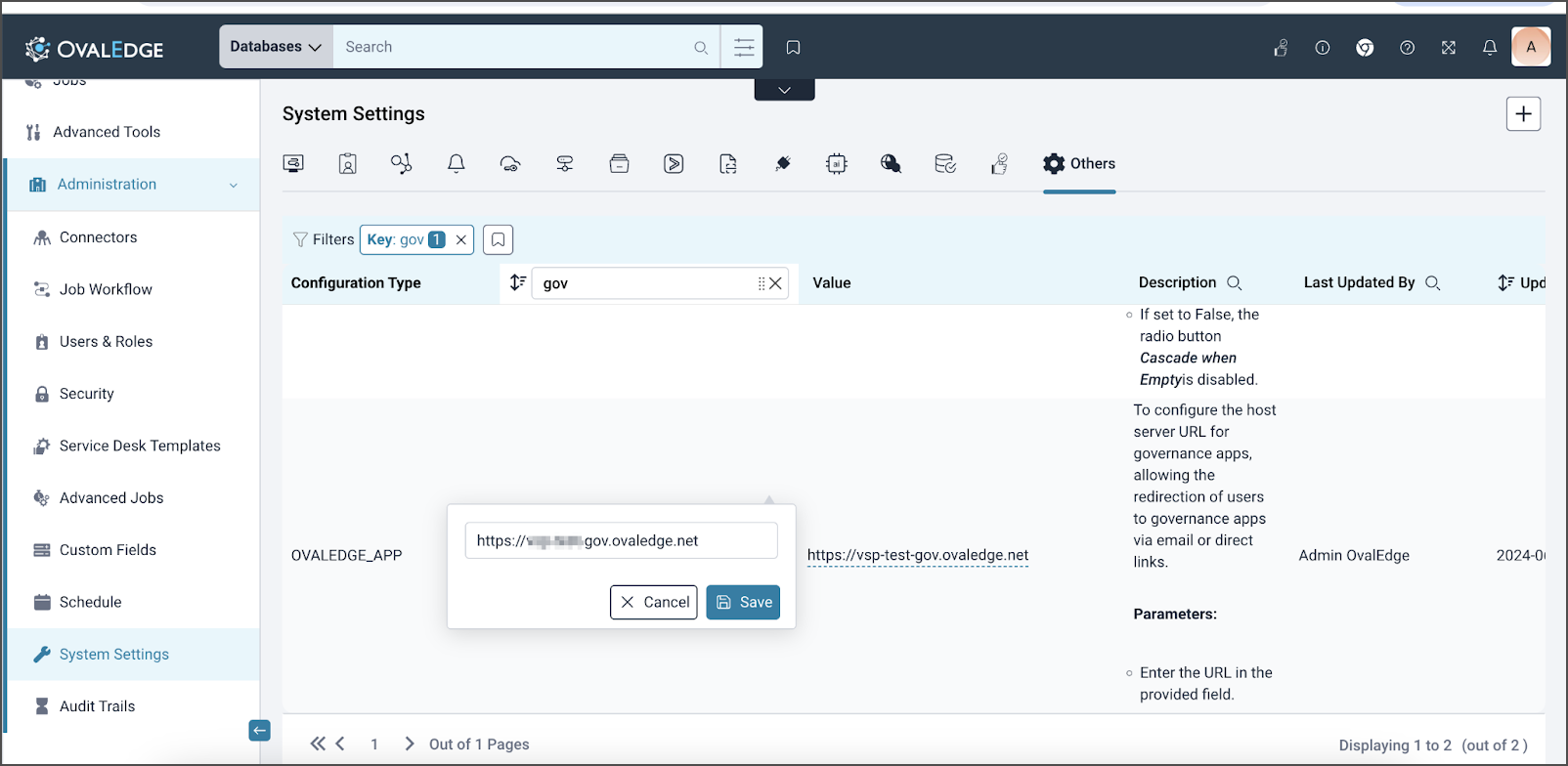
 * In OvalEdge:
* Log in as an administrator.
* Navigate to **Administration > System Settings > Others**.
* Locate the **Gov App Key** setting and update its value with the Governance App domain name.
* In OvalEdge:
* Log in as an administrator.
* Navigate to **Administration > System Settings > Others**.
* Locate the **Gov App Key** setting and update its value with the Governance App domain name.
 ### Troubleshooting
* **Port Conflicts**\
Ensure the port defined in `application.yaml` is available and not blocked.
* **Log Files**\
Use `journalctl -u oe-gov -f` to view logs if the service fails to start.
* **Configuration Issues**\
Recheck `application.yaml` and `oe-gov.service` for errors if deployment fails.
***
Copyright © 2025, OvalEdge LLC, Peachtree Corners, GA, USA.
---
# Agent Instructions
This documentation is published with GitBook. GitBook is the documentation platform designed so that both humans and AI agents can read, navigate, and reason over technical content effectively. Learn more at gitbook.com.
## Querying This Documentation
If you need additional information that is not directly available in this page, you can query the documentation dynamically by asking a question.
Perform an HTTP GET request on the current page URL with the `ask` query parameter, and the optional `goal` query parameter:
```
GET https://docs.ovaledge.com/release8.1/deployment-and-maintenance/integration/governance-app-deployment-on-linux-with-load-balancer.md?ask=&goal=
```
`ask` is the immediate question: it should be specific, self-contained, and written in natural language.
`goal` is optional and describes the broader end goal you are ultimately trying to accomplish on behalf of the user. GitBook uses it to tailor the answer towards what is most useful for that goal.
The response will contain a direct answer to the question and relevant excerpts and sources from the documentation.
Use this mechanism when the answer is not explicitly present in the current page, you need clarification or additional context, or you want to retrieve related documentation sections.
### Troubleshooting
* **Port Conflicts**\
Ensure the port defined in `application.yaml` is available and not blocked.
* **Log Files**\
Use `journalctl -u oe-gov -f` to view logs if the service fails to start.
* **Configuration Issues**\
Recheck `application.yaml` and `oe-gov.service` for errors if deployment fails.
***
Copyright © 2025, OvalEdge LLC, Peachtree Corners, GA, USA.
---
# Agent Instructions
This documentation is published with GitBook. GitBook is the documentation platform designed so that both humans and AI agents can read, navigate, and reason over technical content effectively. Learn more at gitbook.com.
## Querying This Documentation
If you need additional information that is not directly available in this page, you can query the documentation dynamically by asking a question.
Perform an HTTP GET request on the current page URL with the `ask` query parameter, and the optional `goal` query parameter:
```
GET https://docs.ovaledge.com/release8.1/deployment-and-maintenance/integration/governance-app-deployment-on-linux-with-load-balancer.md?ask=&goal=
```
`ask` is the immediate question: it should be specific, self-contained, and written in natural language.
`goal` is optional and describes the broader end goal you are ultimately trying to accomplish on behalf of the user. GitBook uses it to tailor the answer towards what is most useful for that goal.
The response will contain a direct answer to the question and relevant excerpts and sources from the documentation.
Use this mechanism when the answer is not explicitly present in the current page, you need clarification or additional context, or you want to retrieve related documentation sections.