> For the complete documentation index, see [llms.txt](https://docs.ovaledge.com/llms.txt). Markdown versions of documentation pages are available by appending `.md` to page URLs; this page is available as [Markdown](https://docs.ovaledge.com/release8.1/deployment-and-maintenance/integration/efs-volume-mount-with-access-point.md).
# EFS Volume Mount with Access Point
This article describes the procedure to integrate Amazon Elastic File System (EFS) with Amazon Elastic Kubernetes Service (EKS) using EFS Access Points. The integration enables applications deployed on EKS to share storage across multiple pods, ensuring scalability and persistence.
## Prerequisites
* AWS account with permissions to create and manage:
* **Amazon EFS**
* **EKS cluster resources**
* **IAM roles and policies**
* Installed tools:
* **kubectl**
* **helm**
* **AWS CLI**
* EKS cluster already running in the target VPC.
* Read/write access to EFS resources.
## Steps Involved
1. **Create an EFS File System**
* Log in to the **AWS Management Console**.
* Navigate to **Amazon EFS** → **Create file system**.
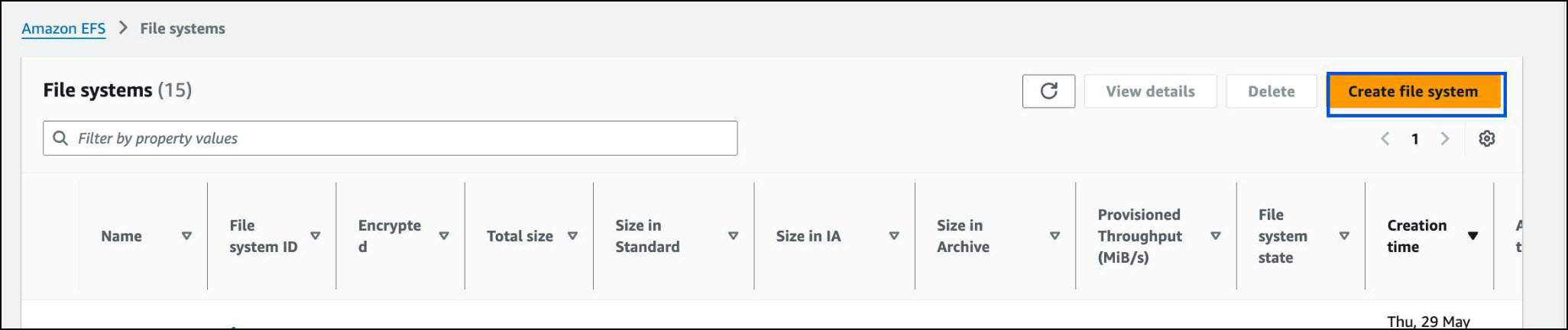 * Select **Customize** to configure the file system.
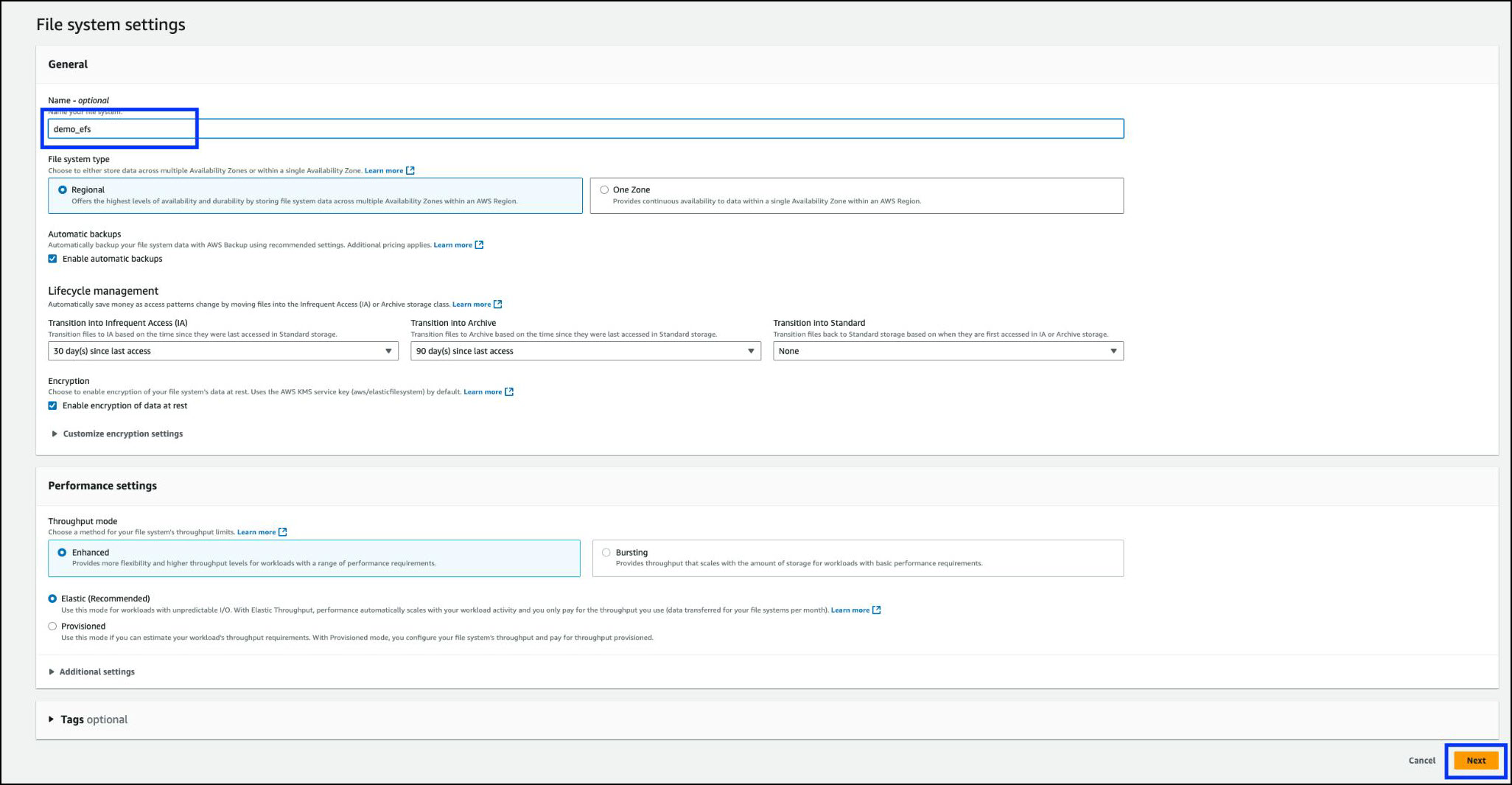
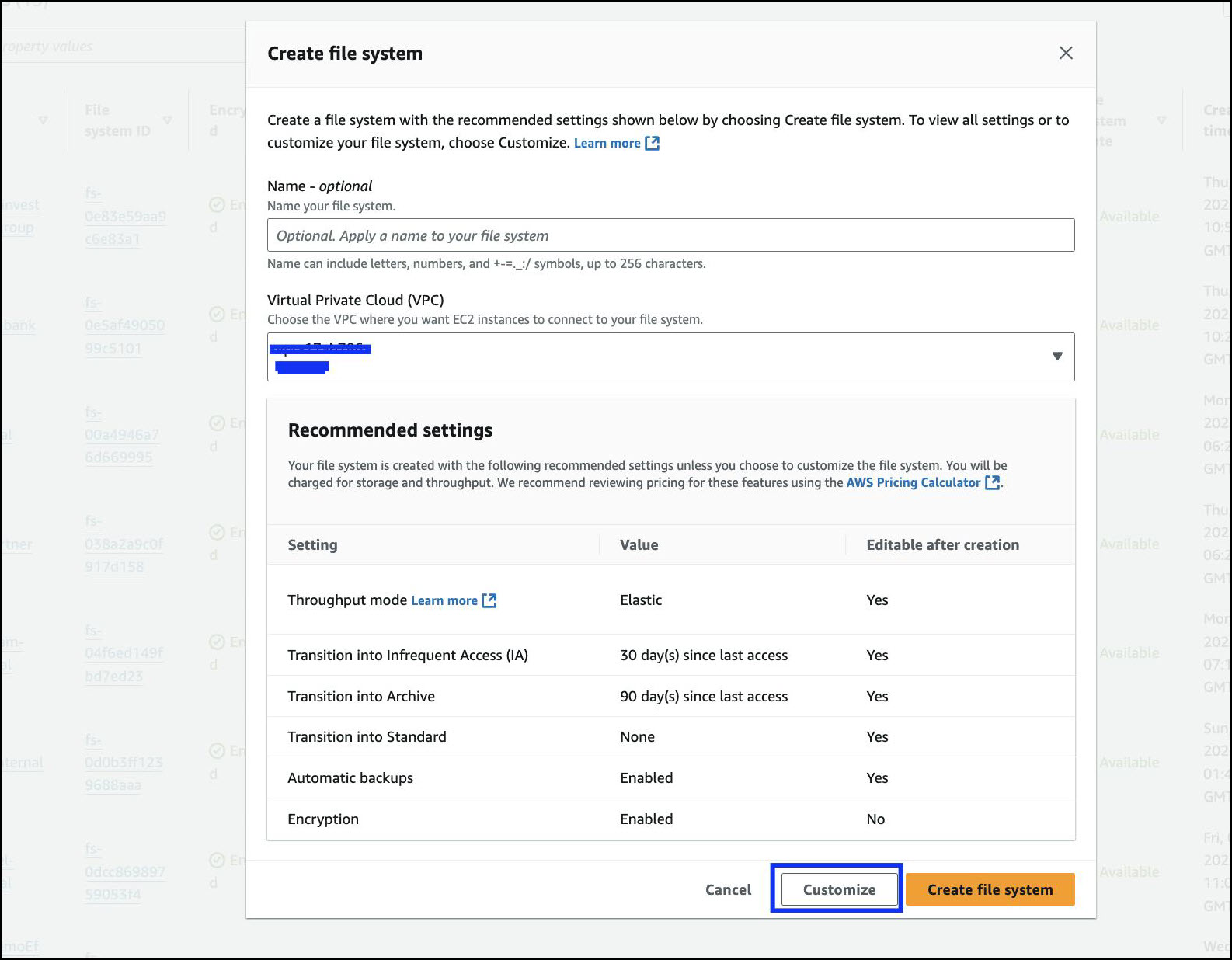 * Provide a **name** for the file system and click **Next**.
 * Select the appropriate **VPC** and **Security Groups** that allow NFS traffic (port 2049).
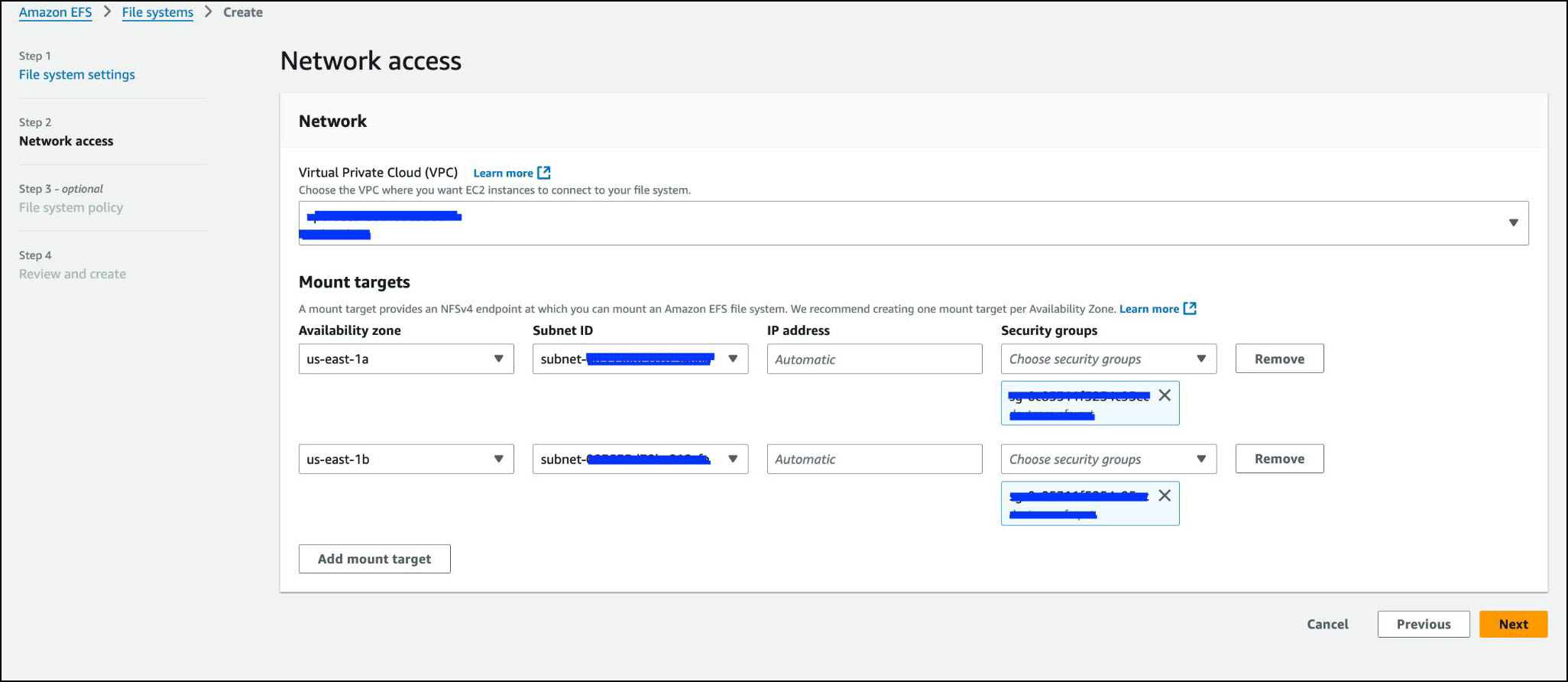 * Review the settings and click **Create**.
 2. **Create EFS Access Points**
* Open the created EFS in the console.
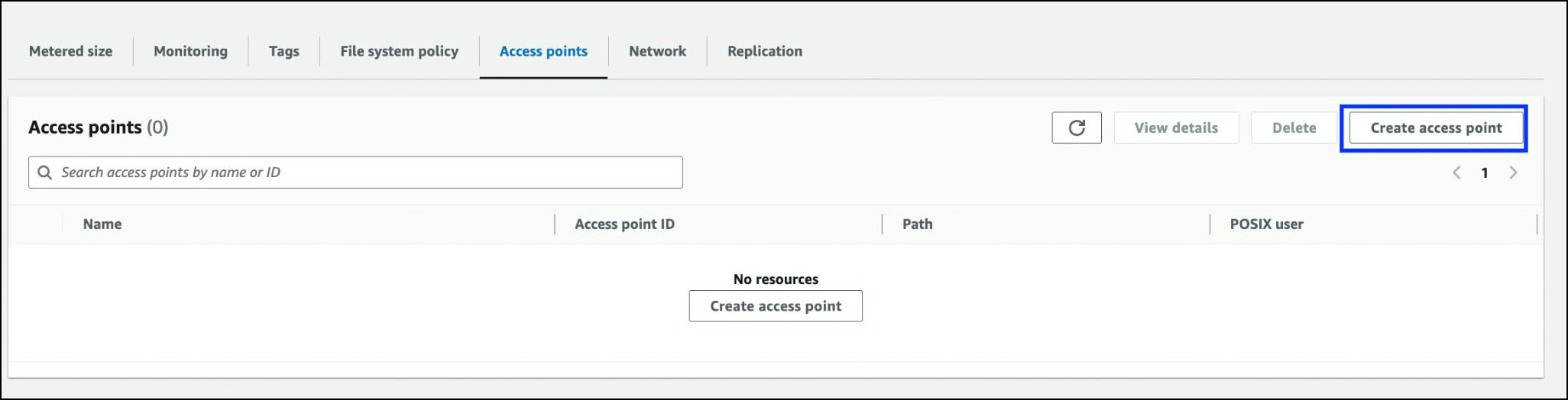
* Select **Access points** → **Create access point**.
2. **Create EFS Access Points**
* Open the created EFS in the console.
* Select **Access points** → **Create access point**.
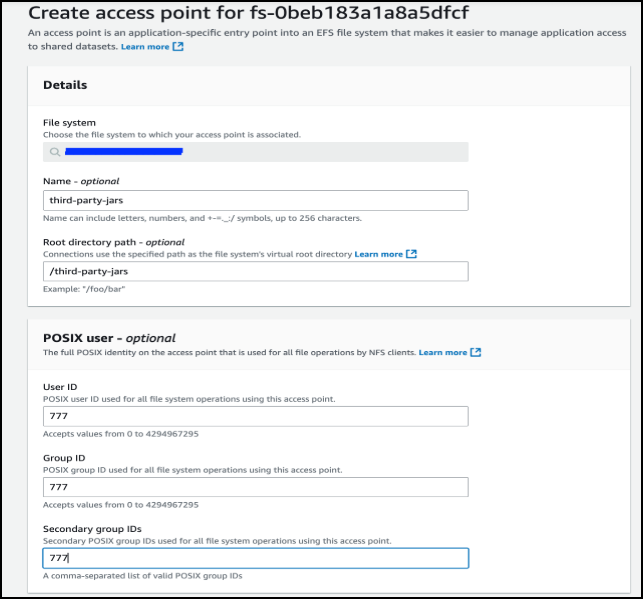
 * Enter a **name** and specify the **root directory path** (e.g., `/any-name`).
* Configure **POSIX user**:
* User ID: `777`
* Group ID: `777`
* Secondary Group ID: `777`
* Enter a **name** and specify the **root directory path** (e.g., `/any-name`).
* Configure **POSIX user**:
* User ID: `777`
* Group ID: `777`
* Secondary Group ID: `777`
 * Configure **Root directory permissions**:
* Owner User ID: `777`
* Owner Group ID: `777`
* Permissions: `777`
* Configure **Root directory permissions**:
* Owner User ID: `777`
* Owner Group ID: `777`
* Permissions: `777`
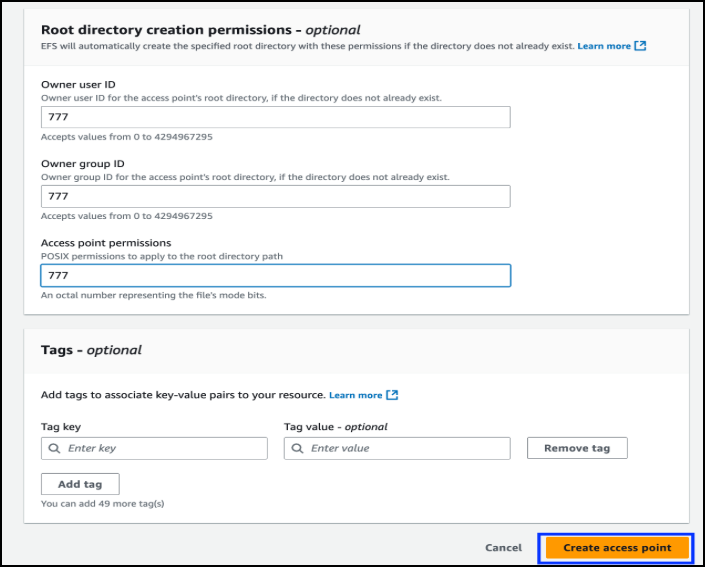 * Save the configuration.
* Repeat the above steps to create access points for the following directories:
* `/third-party-jars` (e.g., `csp-lib.jar`, `lineage.jar`, required JARs)
* `/oelogs`
* `/certs`
* `/esdata`
* Save the configuration.
* Repeat the above steps to create access points for the following directories:
* `/third-party-jars` (e.g., `csp-lib.jar`, `lineage.jar`, required JARs)
* `/oelogs`
* `/certs`
* `/esdata`
3. **Update Helm Charts for Persistent Volumes**
* Update the Helm chart templates to define PersistentVolume (PV) and PersistentVolumeClaim (PVC) resources for each directory. Replace placeholders `` and `` with actual values.
* **Jars**
* **jars\_pv.yaml**
```yaml
apiVersion: v1
kind: PersistentVolume
metadata:
name: efs-pv-jars
spec:
capacity:
storage: 2Gi
volumeMode: Filesystem
accessModes:
- ReadWriteMany
persistentVolumeReclaimPolicy: Retain
storageClassName: efs-sc
csi:
driver: efs.csi.aws.com
volumeHandle: ::
```
* **jars\_pvc.yaml**
```yaml
apiVersion: v1
kind: PersistentVolumeClaim
metadata:
name: efs-claim-jars
spec:
accessModes:
- ReadWriteMany
storageClassName: efs-sc
resources:
requests:
storage: 2Gi
```
* **Certs**
* **certs\_pv.yaml**
```yaml
apiVersion: v1
kind: PersistentVolume
metadata:
name: efs-pv-certs
spec:
capacity:
storage: 1Gi
volumeMode: Filesystem
accessModes:
- ReadWriteMany
persistentVolumeReclaimPolicy: Retain
storageClassName: efs-sc
csi:
driver: efs.csi.aws.com
volumeHandle: ::
```
* **certs\_pvc.yaml**
```yaml
apiVersion: v1
kind: PersistentVolumeClaim
metadata:
name: efs-claim-certs
spec:
accessModes:
- ReadWriteMany
storageClassName: efs-sc
resources:
requests:
storage: 1Gi
```
* **Files**
* **files\_pv.yaml**
```yaml
apiVersion: v1
kind: PersistentVolume
metadata:
name: efs-pv-files
spec:
capacity:
storage: 7Gi
volumeMode: Filesystem
accessModes:
- ReadWriteMany
persistentVolumeReclaimPolicy: Retain
storageClassName: efs-sc
csi:
driver: efs.csi.aws.com
volumeHandle: ::
```
* **files\_pvc.yaml**
```yaml
apiVersion: v1
kind: PersistentVolumeClaim
metadata:
name: efs-claim-files
spec:
accessModes:
- ReadWriteMany
storageClassName: efs-sc
resources:
requests:
storage: 7Gi
```
4. **Attach Volumes to Pods**
* Update the Deployment/StatefulSet specifications to mount the PVCs. Example:
```yaml
volumes:
- name: efs-volume-jars
persistentVolumeClaim:
claimName: efs-claim-jars
- name: efs-volume-certs
persistentVolumeClaim:
claimName: efs-claim-certs
- name: efs-volume-files
persistentVolumeClaim:
claimName: efs-claim-files
volumeMounts:
- name: efs-volume-jars
mountPath: /home/ovaledge/third_party_jars
- name: efs-volume-certs
mountPath: /home/ovaledge/certificates
- name: efs-volume-files
mountPath: /home/ovaledgefiles
```
5. **Install/Upgrade the Helm Chart**
* Deploy the application with the updated configuration:
```bash
helm install ovaledge ./ovaledge
```
* or, if upgrading:
```bash
helm upgrade ovaledge ./ovaledge
```
### Validation
* Verify that the PersistentVolumes and PersistentVolumeClaims are **bound**:
```bash
kubectl get pv,pvc
```
* Confirm that pods are using the mounted EFS volumes:
```bash
kubectl describe pod
```
* Log into a pod and validate that files can be created in the mounted directories:
```bash
kubectl exec -it -- ls /home/ovaledge/third_party_jars
```
### Error Handling and Rollback
* If a pod fails to mount the volume:
* Check **EFS CSI driver logs**:
```bash
kubectl logs -n kube-system -l app=efs-csi-node
```
* Verify that the **Security Group** allows NFS (2049).
* Ensure that the **Access Point ID** matches the configured path.
* Rollback:
* Revert to the previous Helm release:
```bash
helm rollback ovaledge
```
* Delete and recreate PVCs if binding issues persist.
***
Copyright © 2025, OvalEdge LLC, Peachtree Corners, GA, USA.
---
# Agent Instructions
This documentation is published with GitBook. GitBook is the documentation platform designed so that both humans and AI agents can read, navigate, and reason over technical content effectively. Learn more at gitbook.com.
## Querying This Documentation
If you need additional information that is not directly available in this page, you can query the documentation dynamically by asking a question.
Perform an HTTP GET request on the current page URL with the `ask` query parameter, and the optional `goal` query parameter:
```
GET https://docs.ovaledge.com/release8.1/deployment-and-maintenance/integration/efs-volume-mount-with-access-point.md?ask=&goal=
```
`ask` is the immediate question: it should be specific, self-contained, and written in natural language.
`goal` is optional and describes the broader end goal you are ultimately trying to accomplish on behalf of the user. GitBook uses it to tailor the answer towards what is most useful for that goal.
The response will contain a direct answer to the question and relevant excerpts and sources from the documentation.
Use this mechanism when the answer is not explicitly present in the current page, you need clarification or additional context, or you want to retrieve related documentation sections.