> For the complete documentation index, see [llms.txt](https://docs.ovaledge.com/llms.txt). Markdown versions of documentation pages are available by appending `.md` to page URLs; this page is available as [Markdown](https://docs.ovaledge.com/release8.1/deployment-and-maintenance/installation/tomcat-10.1.x-on-windows.md).
# Tomcat 10.1.x on Windows
Apache Tomcat is an open-source implementation of the Java Servlet, JavaServer Pages (JSP), and WebSocket technologies. It is widely used to deploy Java-based web applications. This document provides a detailed, step-by-step process for installing and configuring both single-instance and multi-instance Tomcat setups on a Windows machine for OvalEdge deployment.
### Pre-requisites
Before proceeding with the installation, ensure the following requirements are met:
* Windows OS (Windows 10 or later recommended)
* Administrator privileges
* Java 17 installed and configured
* Ensure the JAVA\_HOME environment variable is set
* Refer to the [Java Installation Guide](/release8.1/deployment-and-maintenance/installation/java-21-on-windows-machine.md) if Java is not configured
## Single Tomcat Installation
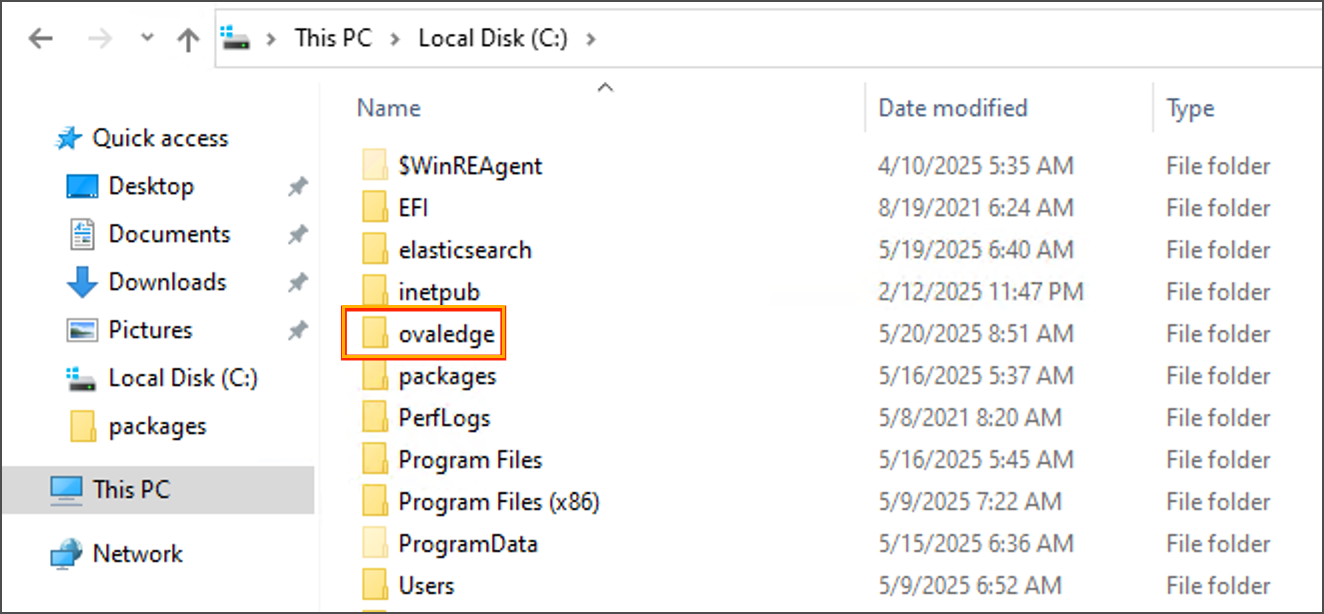
* **Prepare Directory Structure**
Create a base folder, e.g., `C:\ovaledge`, to store all required files.
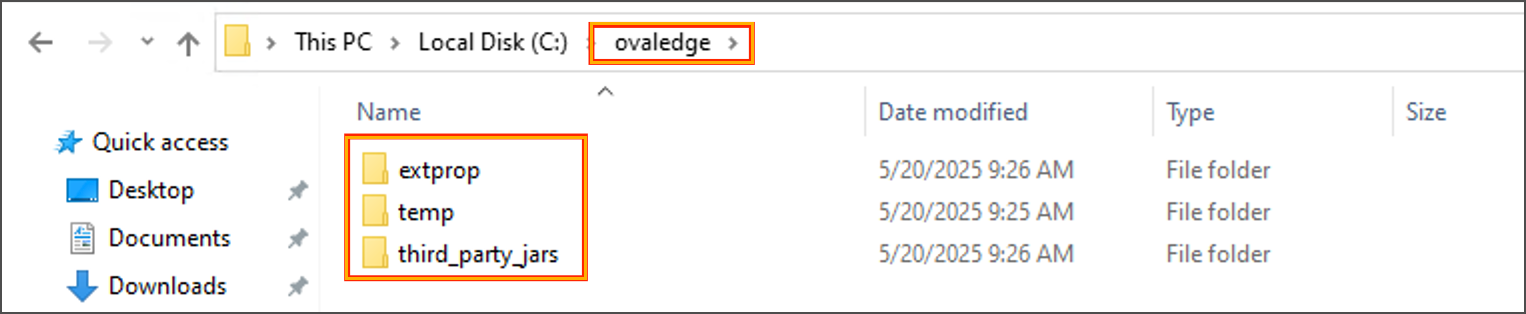
 * Inside this folder, create subfolders:
* `temp`
* `extprop`
* `Third_party_jars`
* Inside this folder, create subfolders:
* `temp`
* `extprop`
* `Third_party_jars`
 * **Place Required Files**
* **Configuration Files**: Place `oasis.properties` and `log4j.properties` inside the `extprop` folder (provided by GCS team).
* **Place Required Files**
* **Configuration Files**: Place `oasis.properties` and `log4j.properties` inside the `extprop` folder (provided by GCS team).
 * **JAR Files**: Place required third-party JARs in the `Third_party_jars` folder.
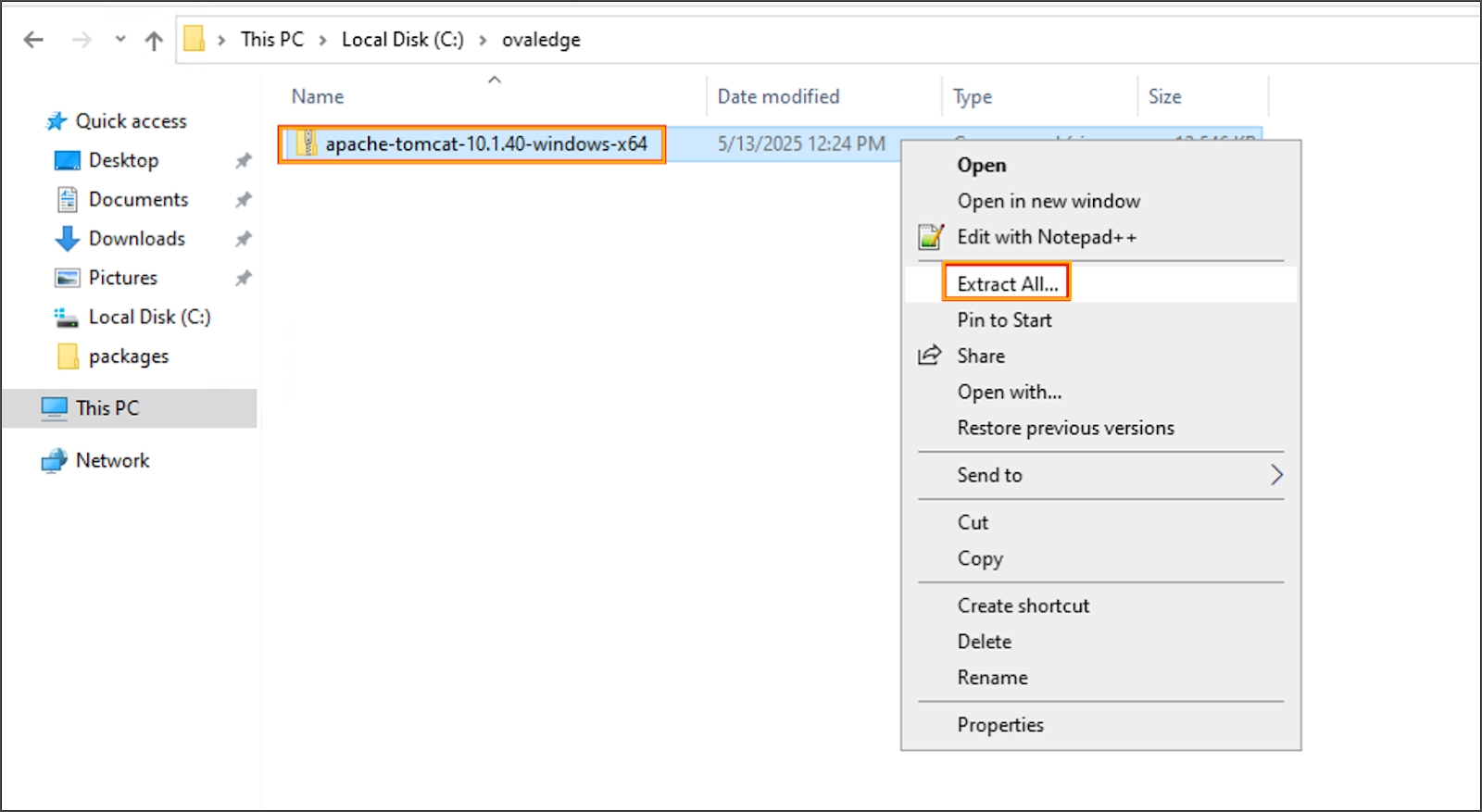
 * **Download and Extract Tomcat**
* Download [Apache Tomcat ](https://ovaledge.s3.us-west-1.amazonaws.com/scripts/hardened_tomcat/apache-tomcat-10.1.40-windows-x64.zip)(ZIP package).
* Extract contents under `C:\ovaledge`.
* **Download and Extract Tomcat**
* Download [Apache Tomcat ](https://ovaledge.s3.us-west-1.amazonaws.com/scripts/hardened_tomcat/apache-tomcat-10.1.40-windows-x64.zip)(ZIP package).
* Extract contents under `C:\ovaledge`.
 * **Deploy WAR File**
* Navigate to the `webapps` folder inside the Tomcat directory.
* Place the `ovaledge.war` file (provided by GCS team).
* **Deploy WAR File**
* Navigate to the `webapps` folder inside the Tomcat directory.
* Place the `ovaledge.war` file (provided by GCS team).
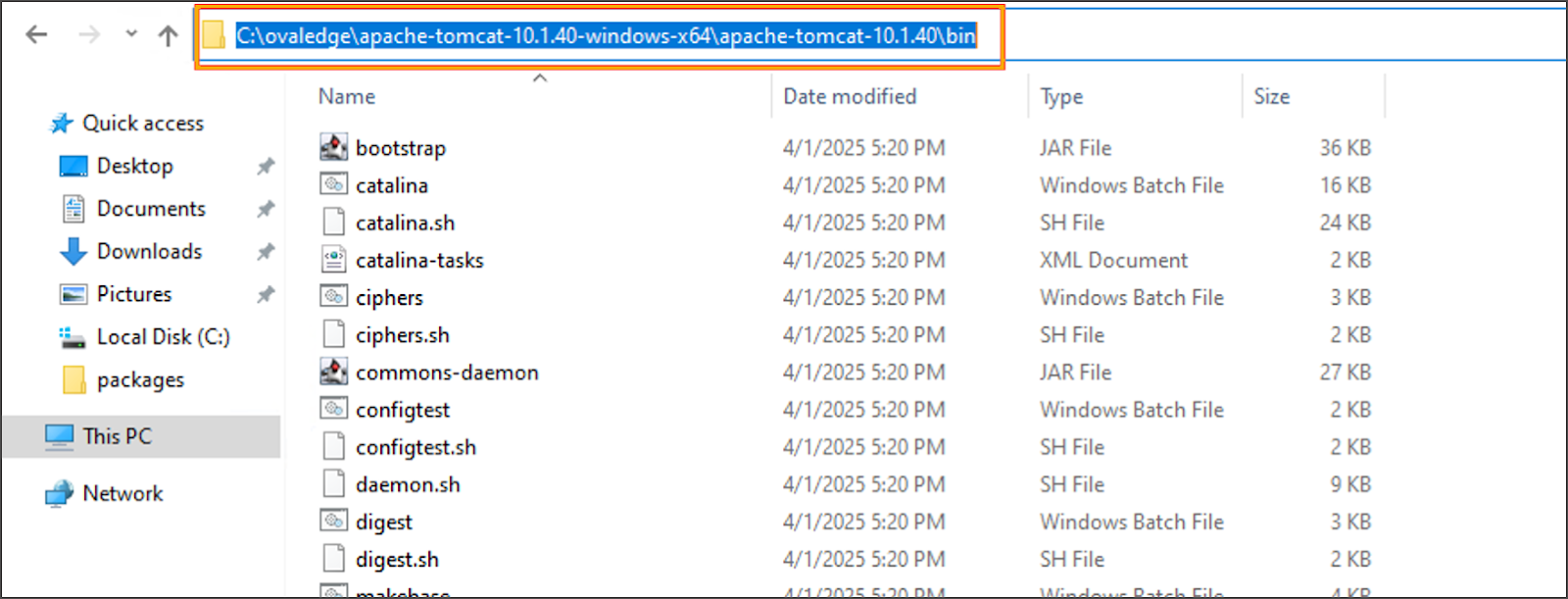
 * **Install Tomcat as a Windows Service**
* Navigate to the `bin` folder inside Tomcat and open Command Prompt.
* **Install Tomcat as a Windows Service**
* Navigate to the `bin` folder inside Tomcat and open Command Prompt.
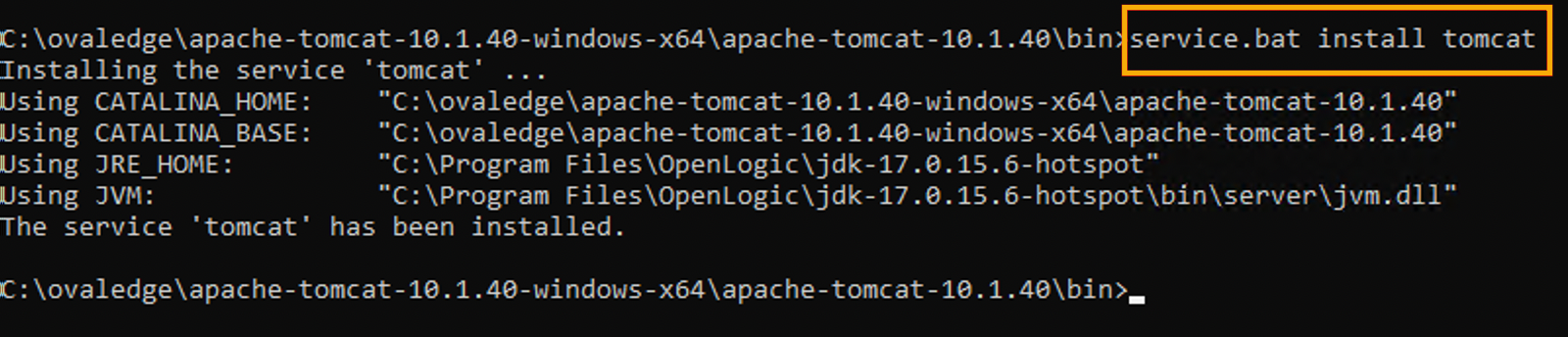
 * Run the command:
```bash
service.bat install tomcat
```
* Run the command:
```bash
service.bat install tomcat
```
 * **Configure Java Options for Tomcat**
* Open Tomcat service properties:
```bash
tomcat10w.exe //ES//tomcat
```
* **Configure Java Options for Tomcat**
* Open Tomcat service properties:
```bash
tomcat10w.exe //ES//tomcat
```
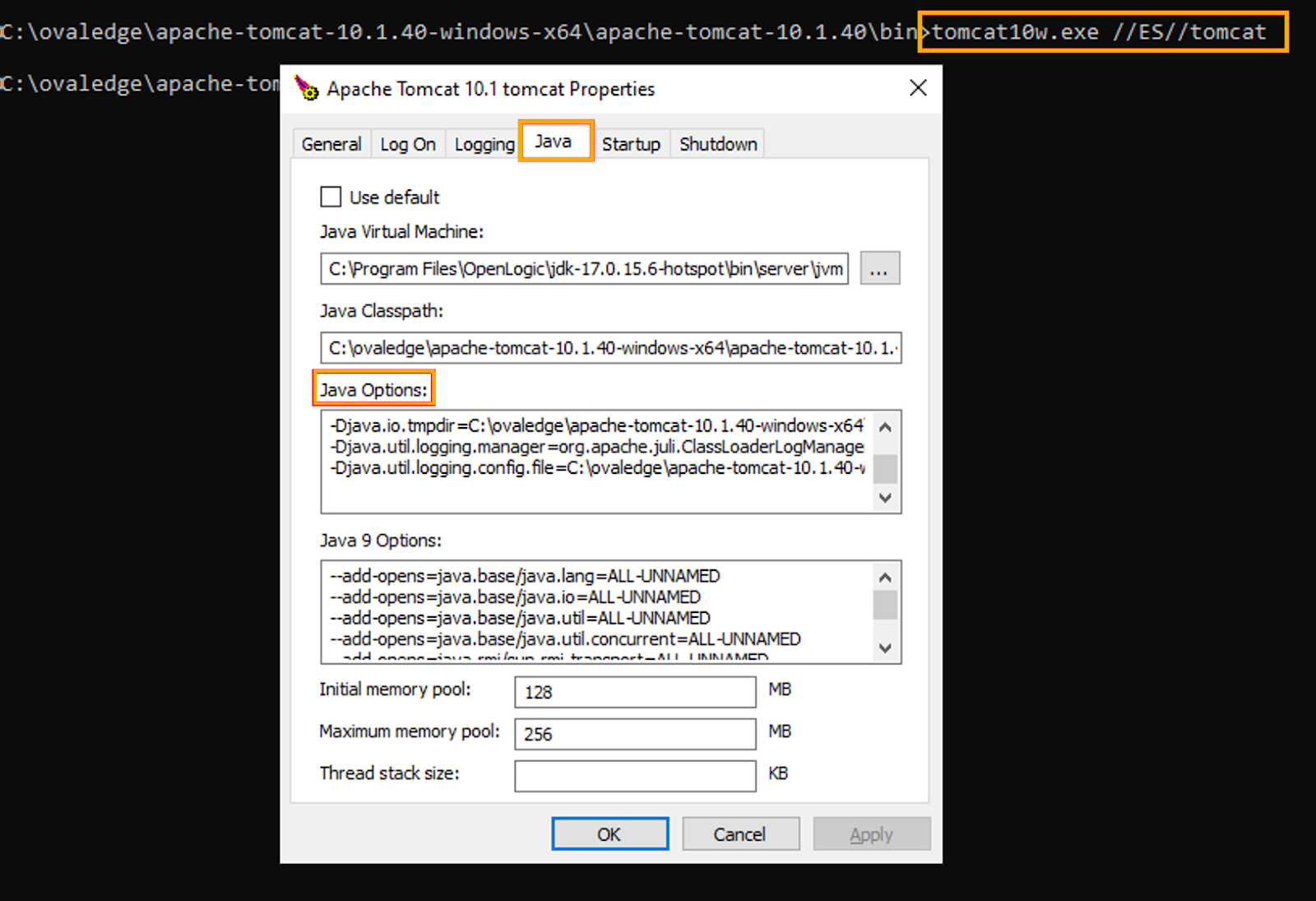 * Go to the **Java** tab and add:
```
-DOVALEDGE_SECURITY_TYPE=db
-Dext.properties.dir=file:C:\ovaledge\extprop\
-Dlog4j.configuration=file:C:\ovaledge\extprop\log4j.properties
-DOVALEDGE_ENCRYPT_DECRYPT_KEY=client_input
--add-opens=java.base/jdk.internal.loader=ALL-UNNAMED
--add-opens=jdk.zipfs/jdk.nio.zipfs=ALL-UNNAMED
--add-opens=java.base/java.net=ALL-UNNAMED
```
* Confirm with GCS/DevOps team:
* `ext.properties.dir` path
* `log4j.configuration` path
* Encryption key value
* Java heap settings (per VM specification)\

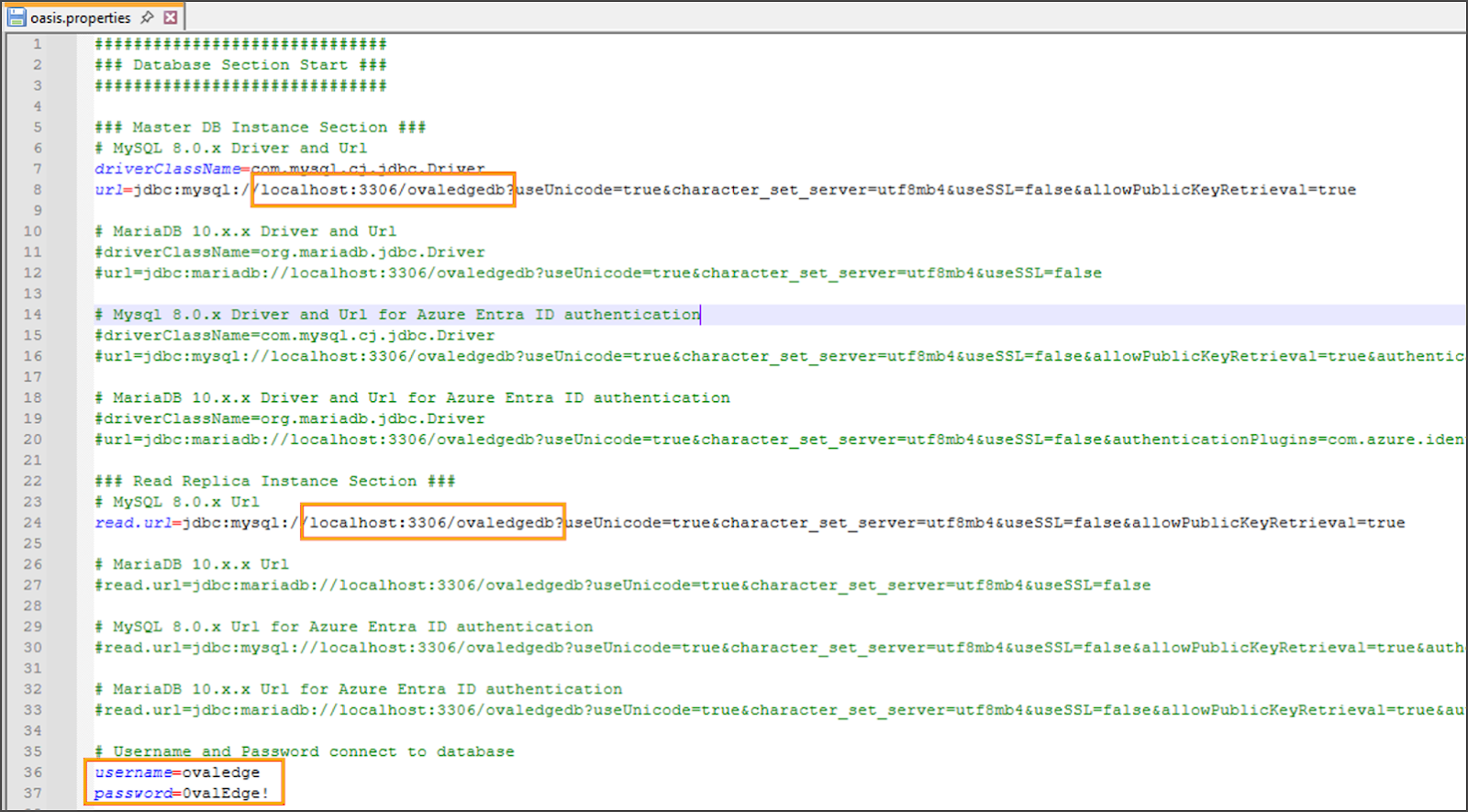
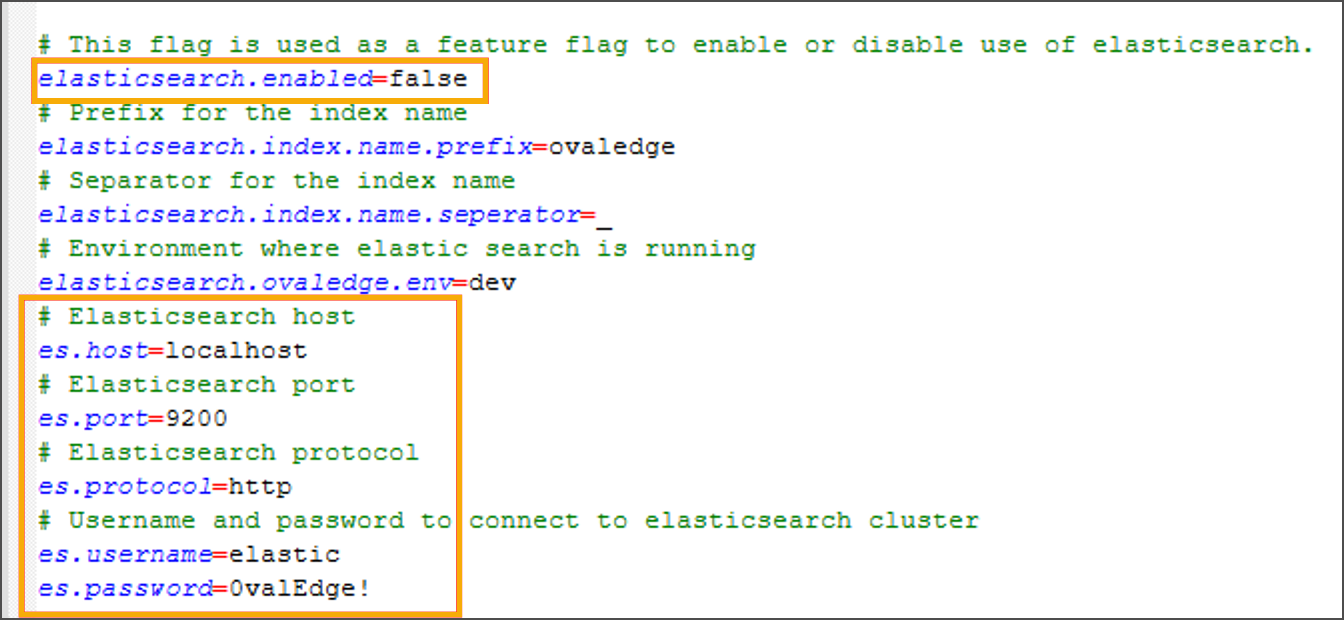
* **Update `oasis.properties`**
* Configure:
* Database connection details
* Elasticsearch configuration (if applicable)
* Path to third-party JAR files
* Go to the **Java** tab and add:
```
-DOVALEDGE_SECURITY_TYPE=db
-Dext.properties.dir=file:C:\ovaledge\extprop\
-Dlog4j.configuration=file:C:\ovaledge\extprop\log4j.properties
-DOVALEDGE_ENCRYPT_DECRYPT_KEY=client_input
--add-opens=java.base/jdk.internal.loader=ALL-UNNAMED
--add-opens=jdk.zipfs/jdk.nio.zipfs=ALL-UNNAMED
--add-opens=java.base/java.net=ALL-UNNAMED
```
* Confirm with GCS/DevOps team:
* `ext.properties.dir` path
* `log4j.configuration` path
* Encryption key value
* Java heap settings (per VM specification)\

* **Update `oasis.properties`**
* Configure:
* Database connection details
* Elasticsearch configuration (if applicable)
* Path to third-party JAR files
 \

* **Start Tomcat Service**
* Open **Services** from Windows Start menu.
* Locate and start the Tomcat service.
\

* **Start Tomcat Service**
* Open **Services** from Windows Start menu.
* Locate and start the Tomcat service.
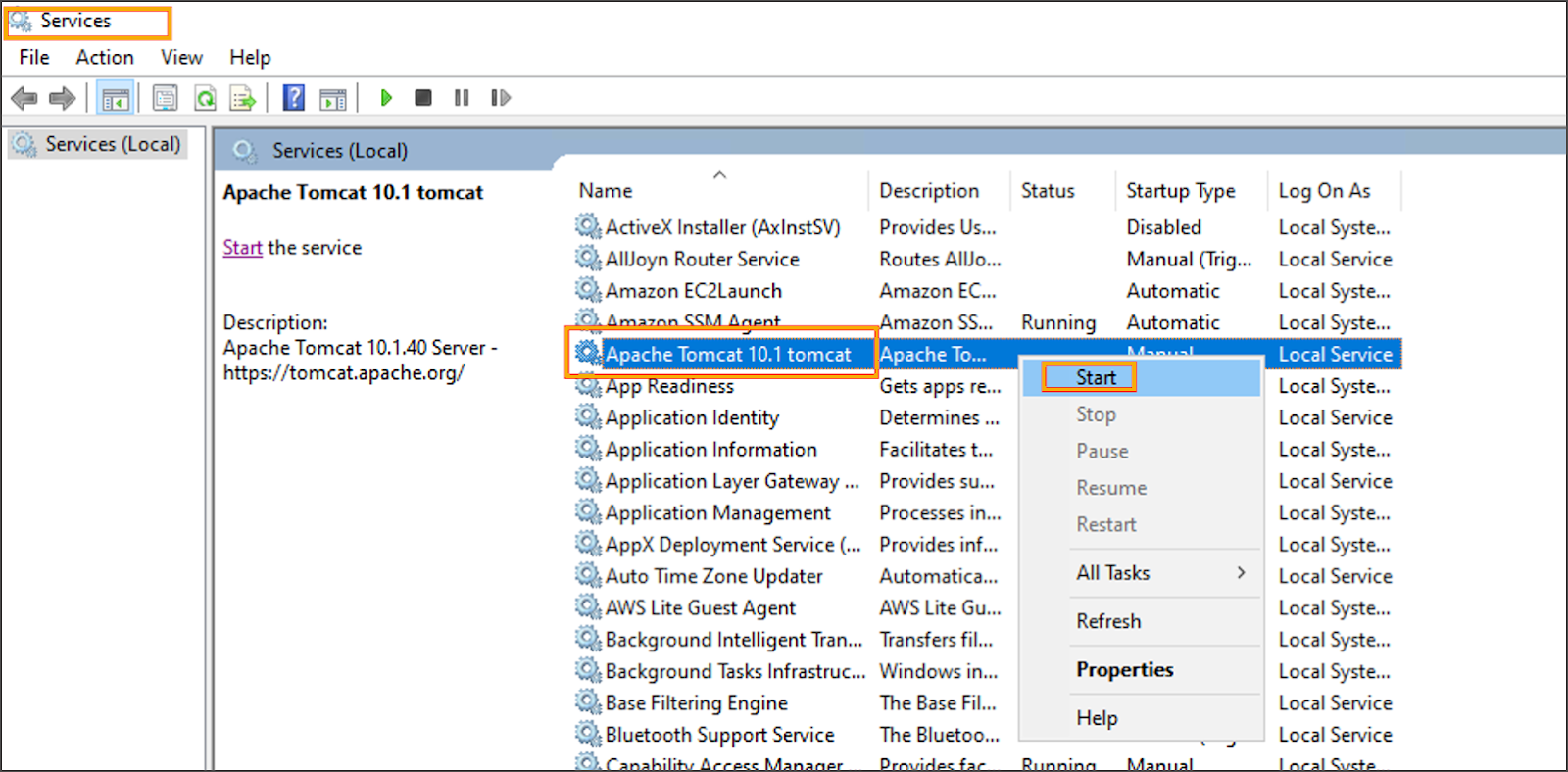
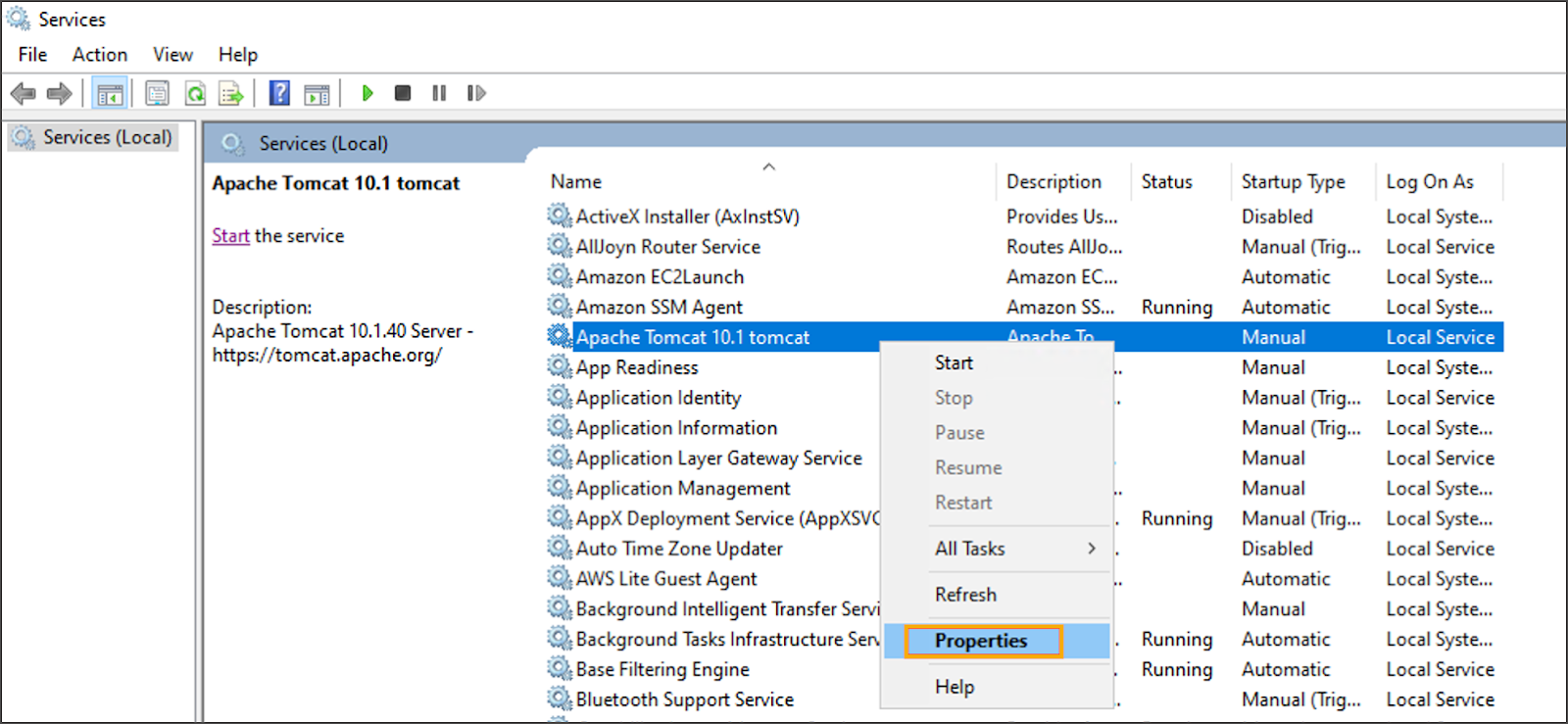 * In Properties:
* Set **Startup type** → *Automatic (Delayed Start)*\

* Update **Log On** credentials as required and click **OK**.\

## Multi-Tomcat Installation (UI + Job)
For multi-instance setups, two Tomcats are configured:
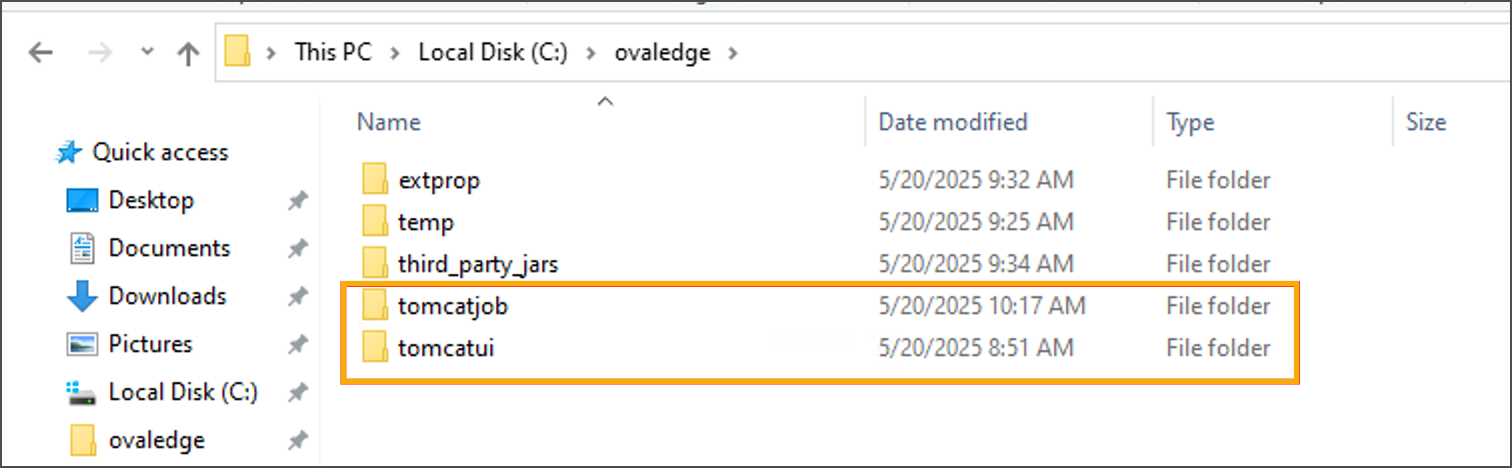
* Two Tomcats are configured:
* `tomcatui` → User Interface (UI)
* `tomcatjob` → Job Processing
* **Repeat Initial Setup**
* Follow **Single Tomcat Installation steps** until WAR deployment.
* **Duplicate Tomcat Directory**
* Create two copies of the Tomcat directory.
* Rename:
* One to `tomcatui`
* One to `tomcatjob`
* In Properties:
* Set **Startup type** → *Automatic (Delayed Start)*\

* Update **Log On** credentials as required and click **OK**.\

## Multi-Tomcat Installation (UI + Job)
For multi-instance setups, two Tomcats are configured:
* Two Tomcats are configured:
* `tomcatui` → User Interface (UI)
* `tomcatjob` → Job Processing
* **Repeat Initial Setup**
* Follow **Single Tomcat Installation steps** until WAR deployment.
* **Duplicate Tomcat Directory**
* Create two copies of the Tomcat directory.
* Rename:
* One to `tomcatui`
* One to `tomcatjob`
 * **Update Ports for `tomcatjob`**
* Navigate to `tomcatjob\conf\server.xml`.
* Modify:
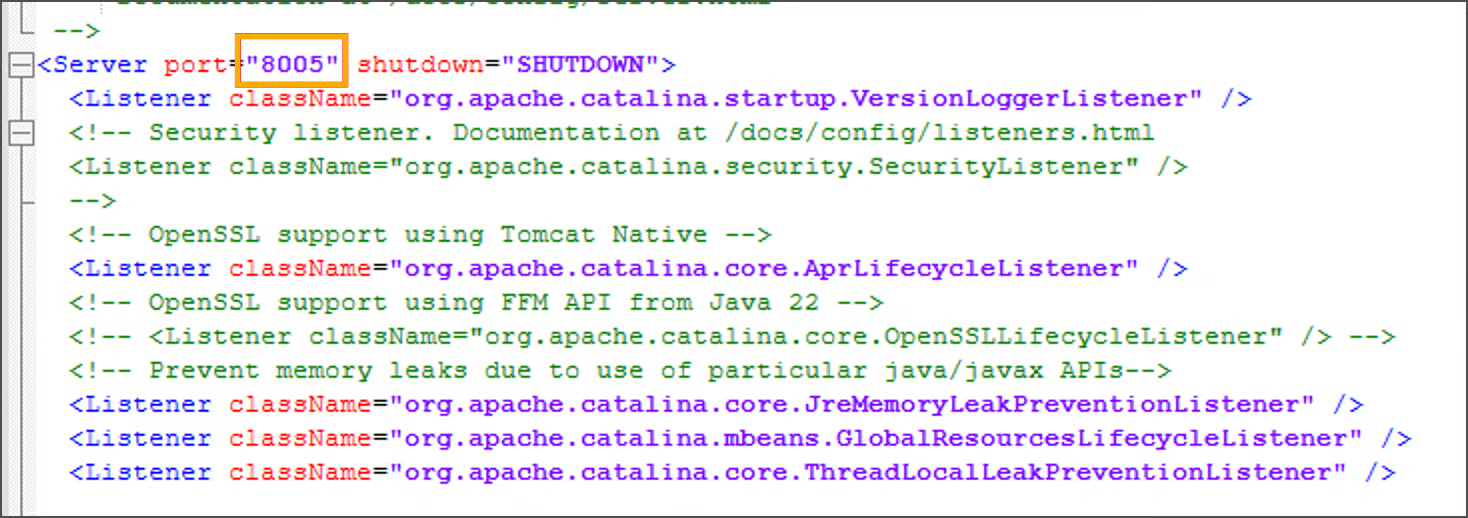
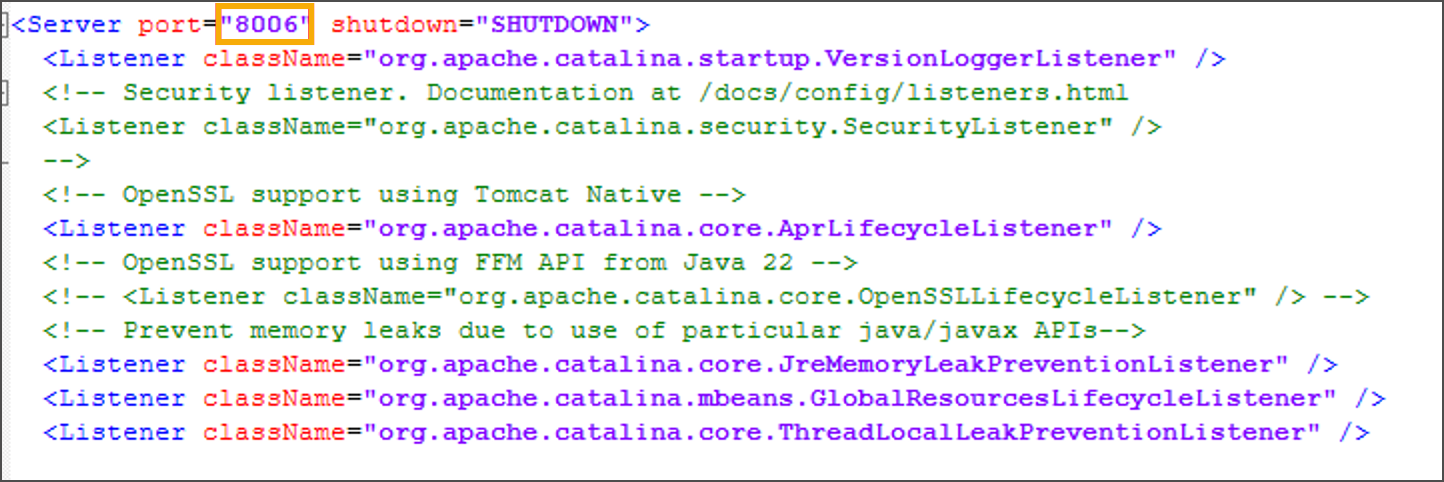
* Shutdown port → `8005` → `8006`
* **Update Ports for `tomcatjob`**
* Navigate to `tomcatjob\conf\server.xml`.
* Modify:
* Shutdown port → `8005` → `8006`
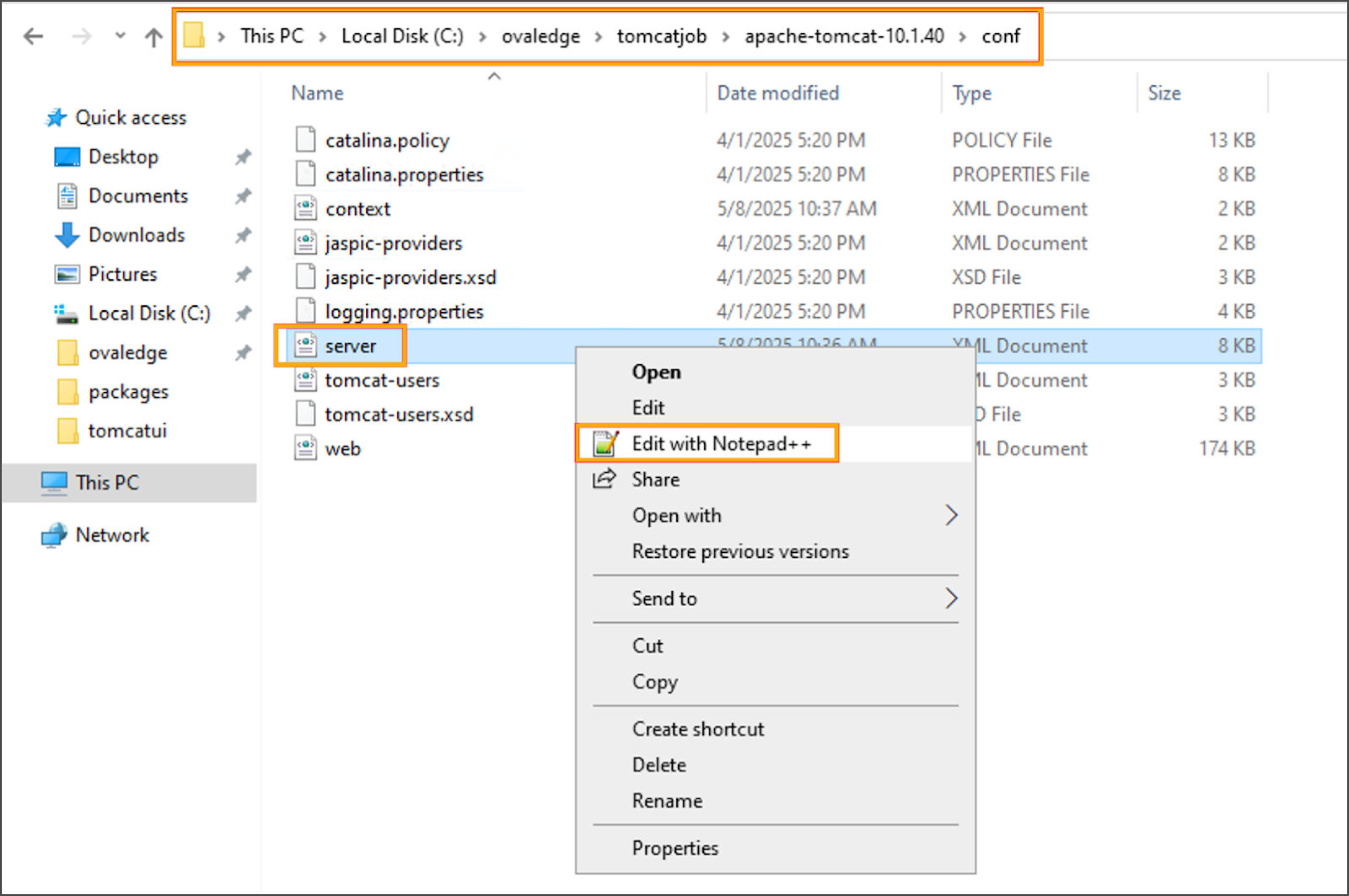
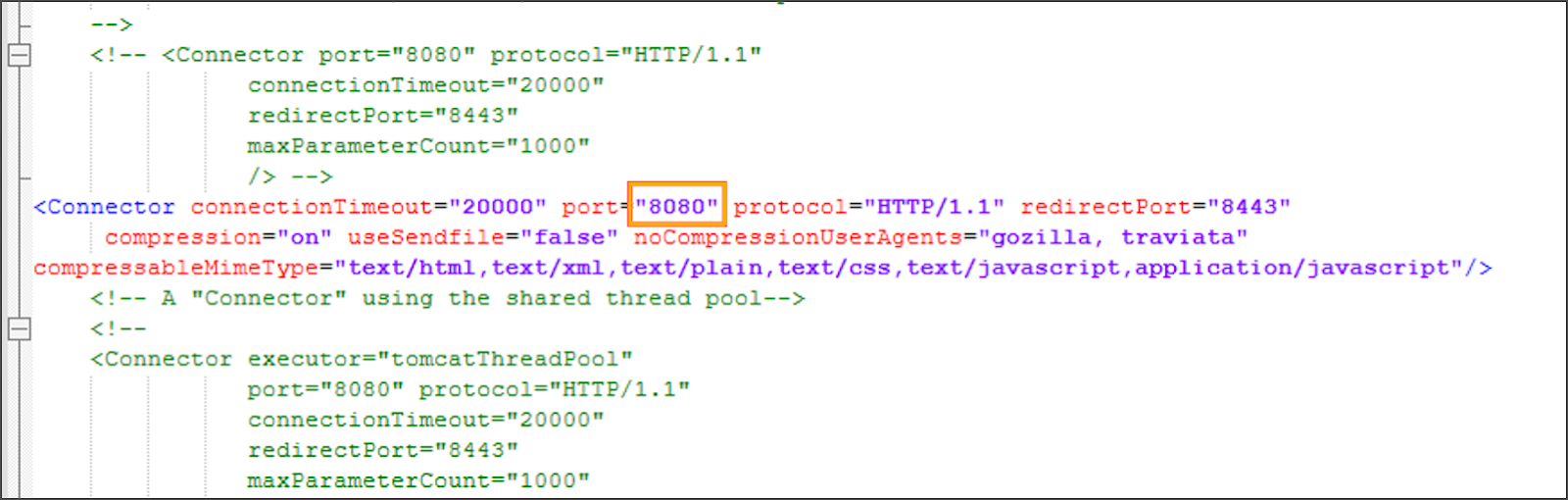
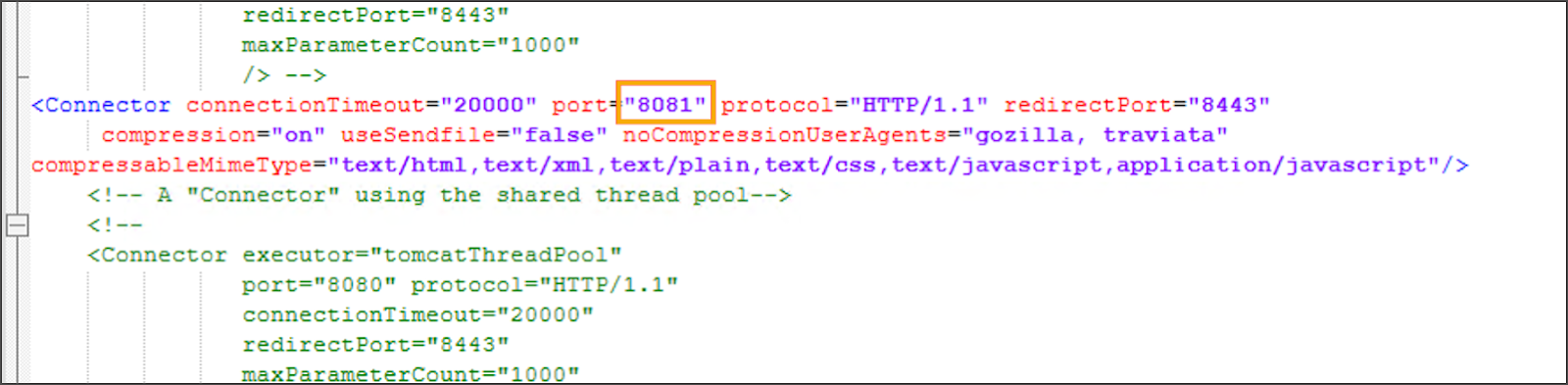
 * HTTP port → `8080` → `8081`
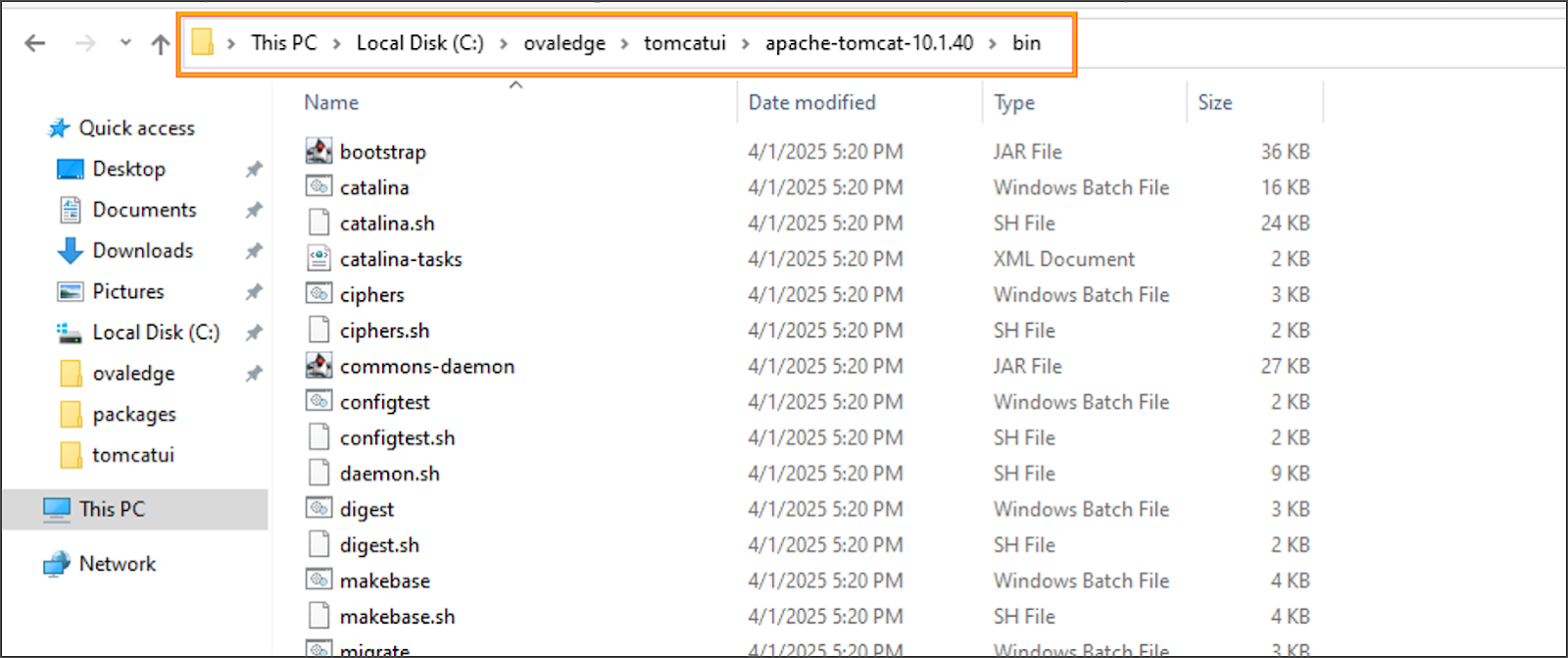
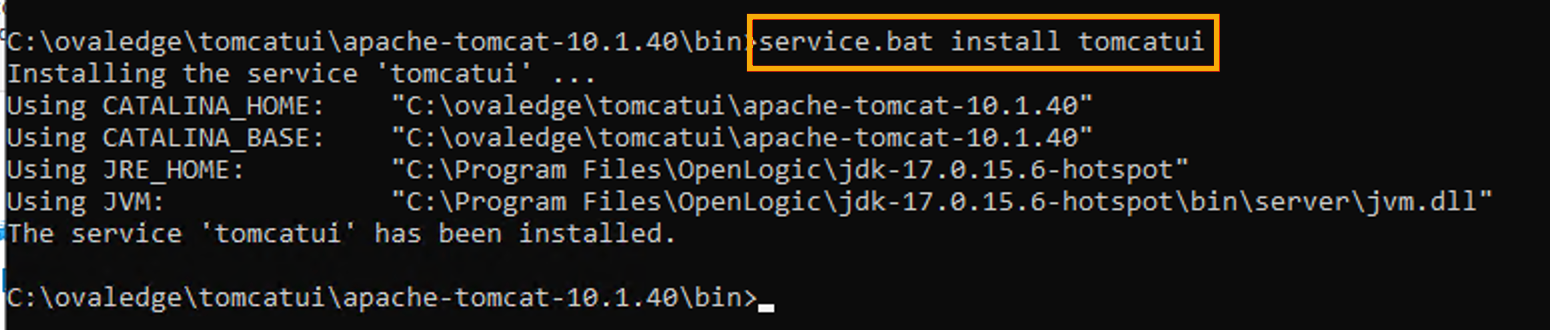
 * **Install and Configure `tomcatui` Service**
* Navigate to `tomcatui\bin` and open Command Prompt:
```bash
service.bat install tomcatui
```
* **Install and Configure `tomcatui` Service**
* Navigate to `tomcatui\bin` and open Command Prompt:
```bash
service.bat install tomcatui
```
 ```bash
tomcat10w.exe //ES//tomcatui
```
```bash
tomcat10w.exe //ES//tomcatui
```
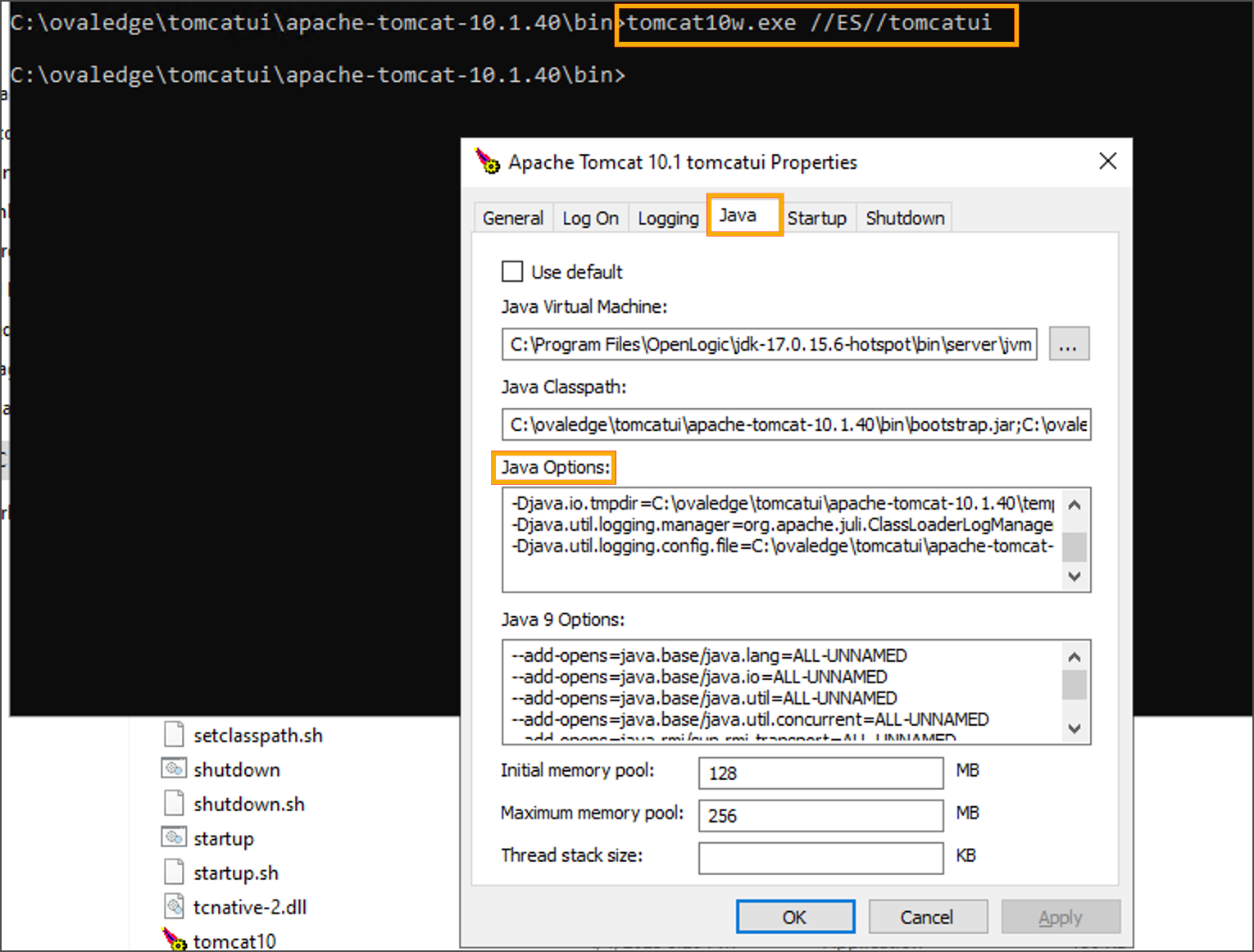 * In the Java tab, add:\

```
-DOVALEDGE_SECURITY_TYPE=db
-Dpod.type=ovaledge-ui-deployment
-Dext.properties.dir=file:C:\ovaledge\extprop\
-Dlog4j.configuration=file:C:\ovaledge\extprop\log4j.properties
-DOVALEDGE_ENCRYPT_DECRYPT_KEY=client_input
--add-opens=java.base/jdk.internal.loader=ALL-UNNAMED
--add-opens=jdk.zipfs/jdk.nio.zipfs=ALL-UNNAMED
--add-opens=java.base/java.net=ALL-UNNAMED
```
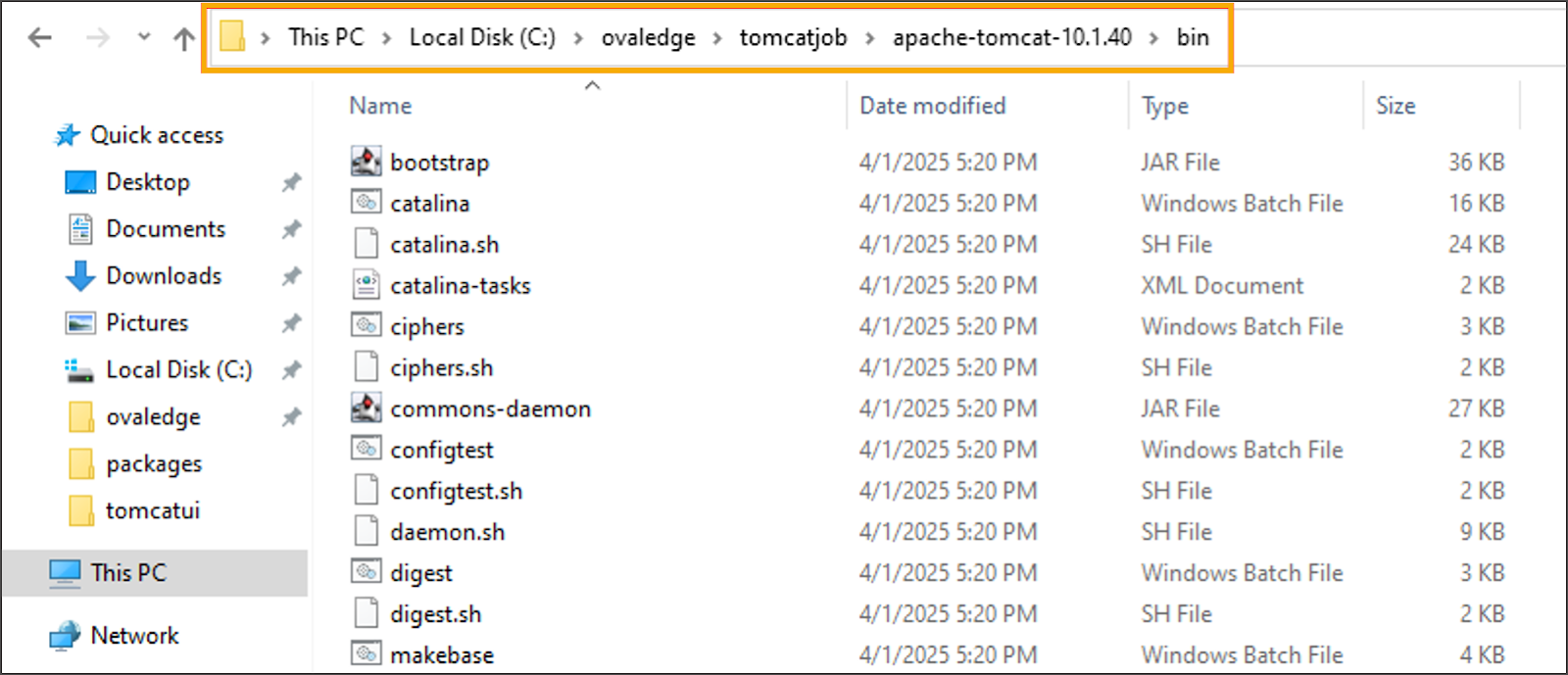
* **Install and Configure `tomcatjob` Service**
* Navigate to `tomcatjob\bin` and open Command Prompt:
```bash
service.bat install tomcatjob
```
* In the Java tab, add:\

```
-DOVALEDGE_SECURITY_TYPE=db
-Dpod.type=ovaledge-ui-deployment
-Dext.properties.dir=file:C:\ovaledge\extprop\
-Dlog4j.configuration=file:C:\ovaledge\extprop\log4j.properties
-DOVALEDGE_ENCRYPT_DECRYPT_KEY=client_input
--add-opens=java.base/jdk.internal.loader=ALL-UNNAMED
--add-opens=jdk.zipfs/jdk.nio.zipfs=ALL-UNNAMED
--add-opens=java.base/java.net=ALL-UNNAMED
```
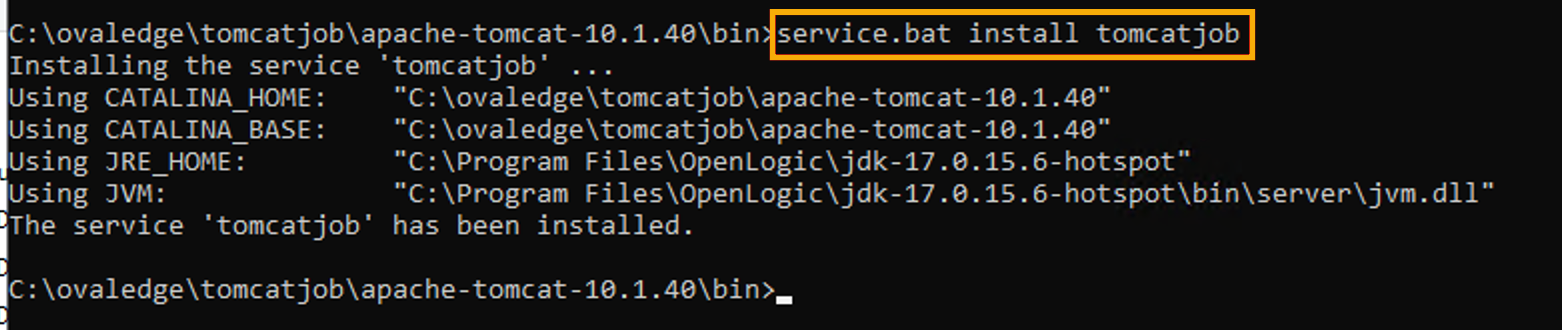
* **Install and Configure `tomcatjob` Service**
* Navigate to `tomcatjob\bin` and open Command Prompt:
```bash
service.bat install tomcatjob
```
 ```
tomcat10w.exe //ES//tomcatjob
```
```
tomcat10w.exe //ES//tomcatjob
```
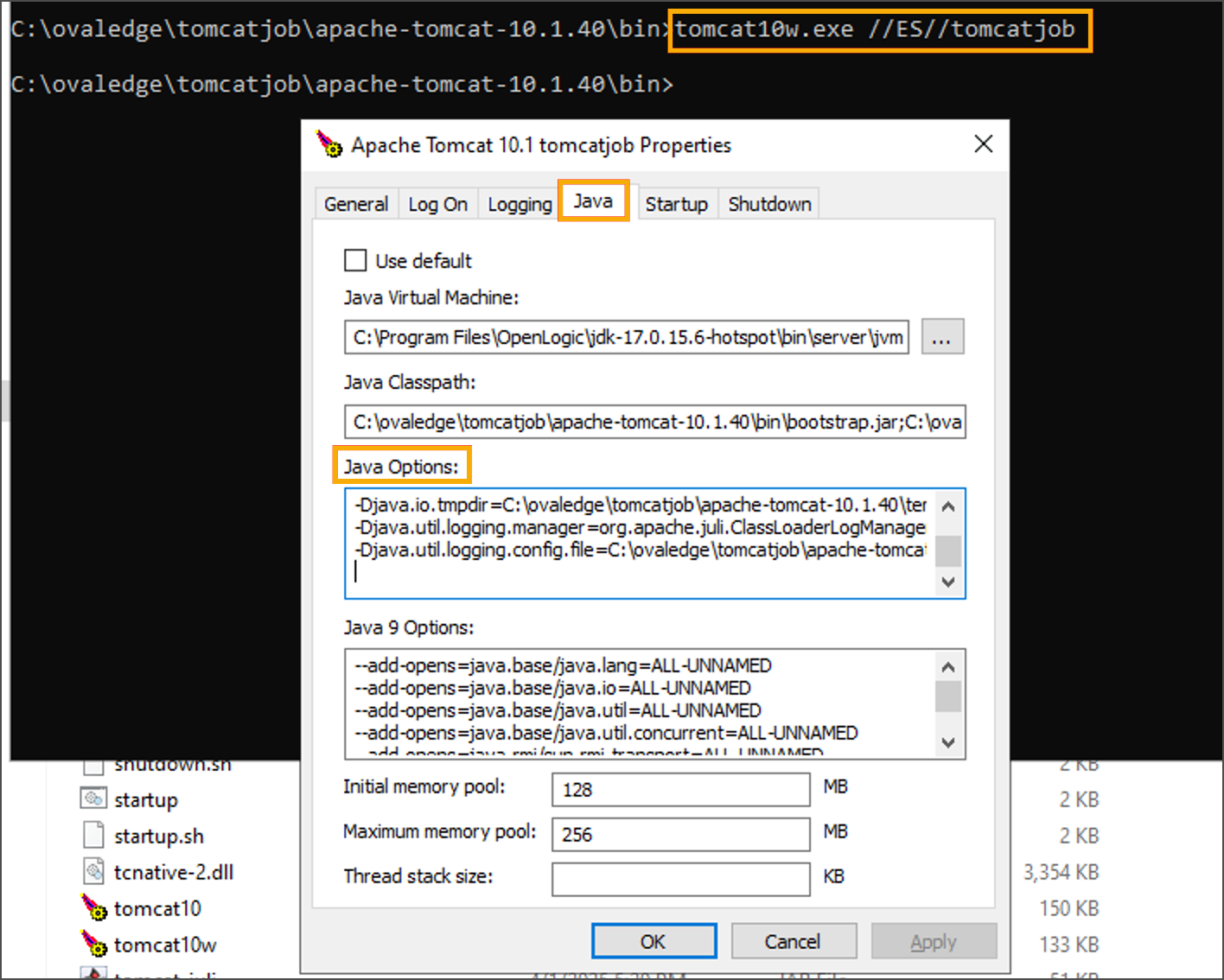 * In the Java tab, add:
```
-DOVALEDGE_SECURITY_TYPE=db
-Dpod.type=ovaledge-job-deployment
-Dext.properties.dir=file:C:\ovaledge\extprop\
-Dlog4j.configuration=file:C:\ovaledge\extprop\log4j.properties
-DOVALEDGE_ENCRYPT_DECRYPT_KEY=client_input
--add-opens=java.base/jdk.internal.loader=ALL-UNNAMED
--add-opens=jdk.zipfs/jdk.nio.zipfs=ALL-UNNAMED
--add-opens=java.base/java.net=ALL-UNNAMED
```
* **Final Configuration and Startup**
* Ensure `oasis.properties` is properly updated.
* Start `tomcatui` and `tomcatjob` services from Services panel.
* In the Java tab, add:
```
-DOVALEDGE_SECURITY_TYPE=db
-Dpod.type=ovaledge-job-deployment
-Dext.properties.dir=file:C:\ovaledge\extprop\
-Dlog4j.configuration=file:C:\ovaledge\extprop\log4j.properties
-DOVALEDGE_ENCRYPT_DECRYPT_KEY=client_input
--add-opens=java.base/jdk.internal.loader=ALL-UNNAMED
--add-opens=jdk.zipfs/jdk.nio.zipfs=ALL-UNNAMED
--add-opens=java.base/java.net=ALL-UNNAMED
```
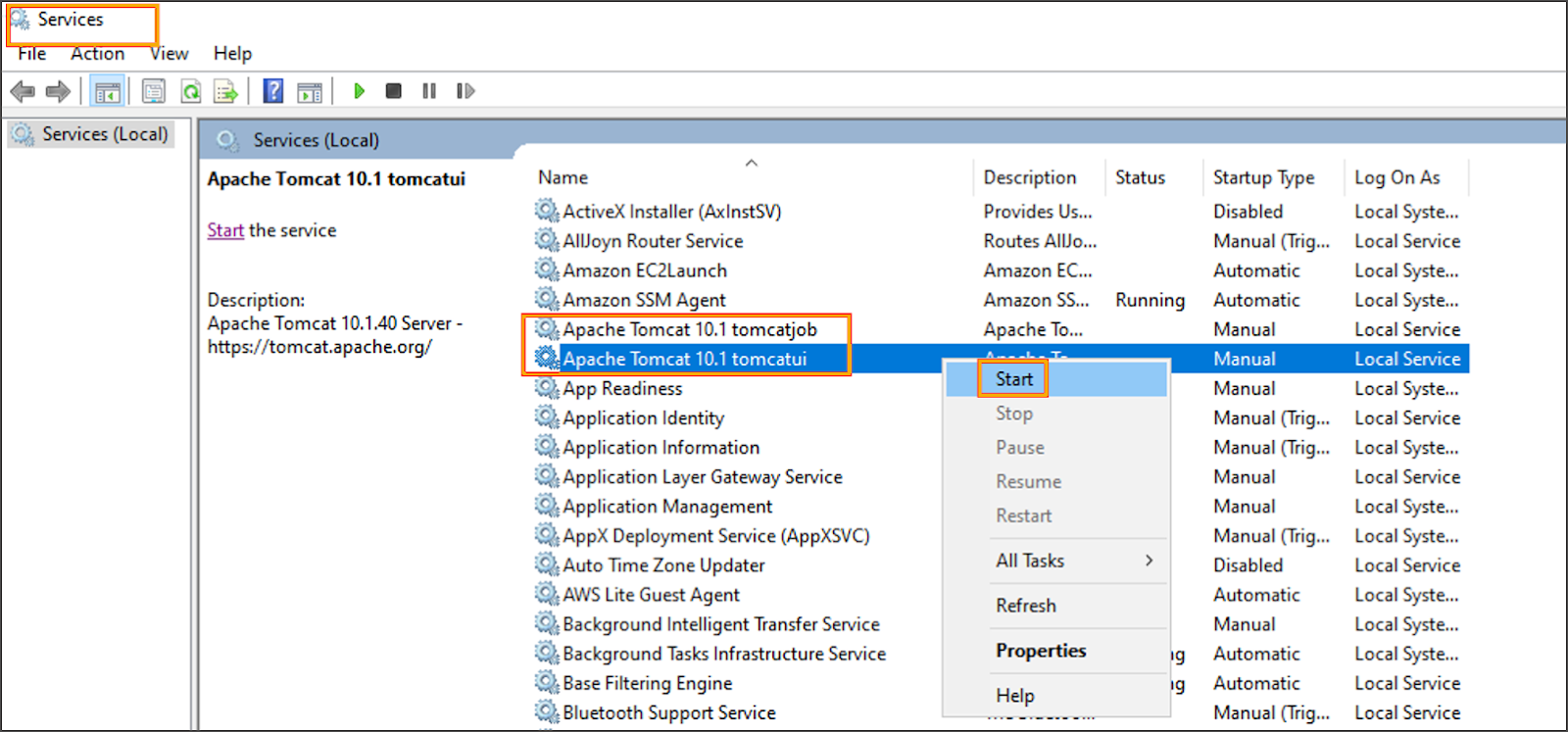
* **Final Configuration and Startup**
* Ensure `oasis.properties` is properly updated.
* Start `tomcatui` and `tomcatjob` services from Services panel.
 * Set **Startup type** to *Automatic (Delayed Start)* for both.
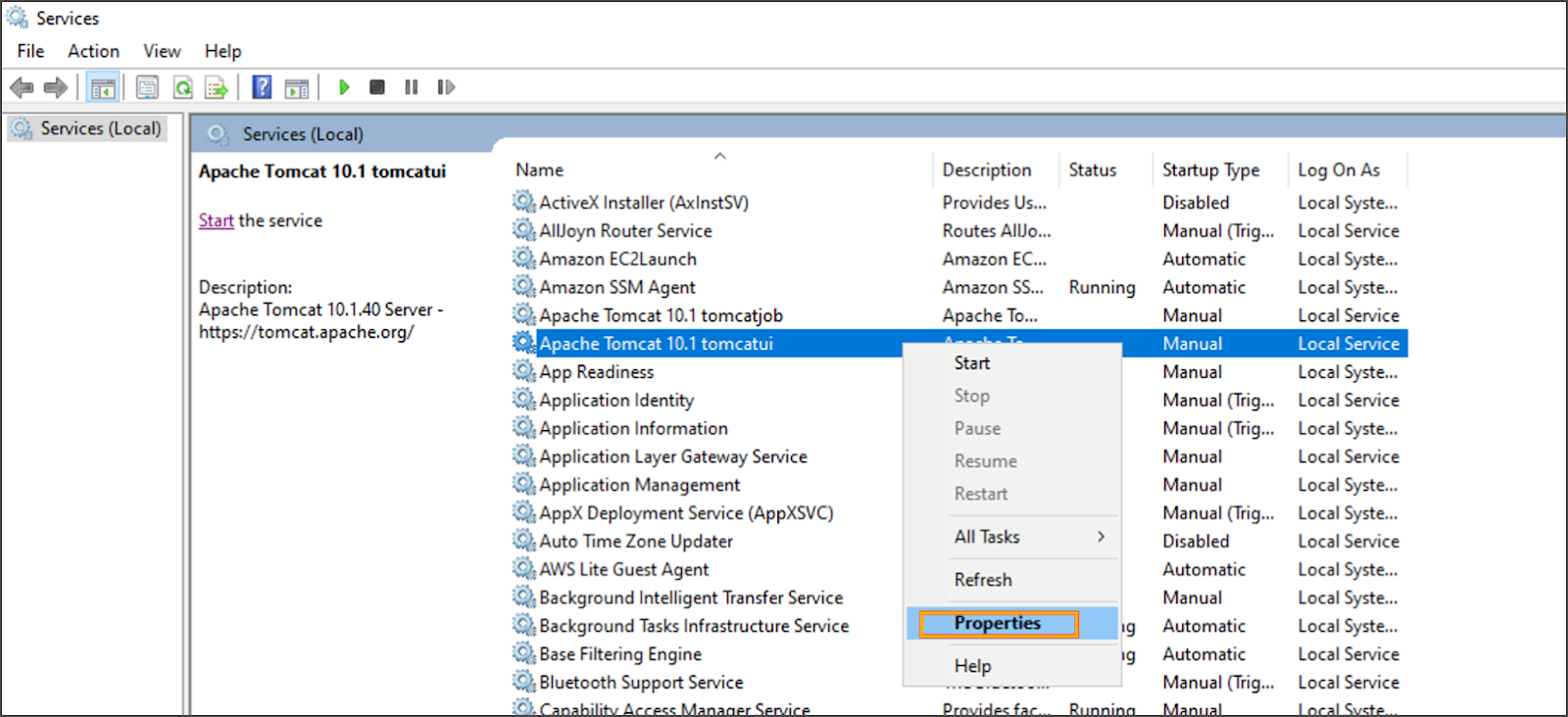 \

* Update **Log On** settings with proper credentials and restart services.\

***
Copyright © 2025, OvalEdge LLC, Peachtree Corners, GA, USA.
---
# Agent Instructions
This documentation is published with GitBook. GitBook is the documentation platform designed so that both humans and AI agents can read, navigate, and reason over technical content effectively. Learn more at gitbook.com.
## Querying This Documentation
If you need additional information that is not directly available in this page, you can query the documentation by asking a question.
Perform an HTTP GET request on the following URL with the `ask` and `goal` query parameters:
```
GET https://docs.ovaledge.com/release8.1/deployment-and-maintenance/installation/tomcat-10.1.x-on-windows.md?ask=&goal=
```
`ask` is the immediate question: it should be specific, self-contained, and written in natural language.
`goal` is what the user is ultimately trying to achieve, the reason they need the answer. Sharing it helps GitBook give you a better, more relevant answer. A goal is most helpful when it describes the outcome the user wants rather than restating the question. For example, with `ask=how do I create an API token`, a goal like `automate deployments from our CI pipeline` lets GitBook tailor the answer to that use case.
The response will contain a direct answer to the question and relevant excerpts and sources from the documentation.
Use this mechanism when the answer is not explicitly present in the current page, you need clarification or additional context, or you want to retrieve related documentation sections.
\

* Update **Log On** settings with proper credentials and restart services.\

***
Copyright © 2025, OvalEdge LLC, Peachtree Corners, GA, USA.
---
# Agent Instructions
This documentation is published with GitBook. GitBook is the documentation platform designed so that both humans and AI agents can read, navigate, and reason over technical content effectively. Learn more at gitbook.com.
## Querying This Documentation
If you need additional information that is not directly available in this page, you can query the documentation by asking a question.
Perform an HTTP GET request on the following URL with the `ask` and `goal` query parameters:
```
GET https://docs.ovaledge.com/release8.1/deployment-and-maintenance/installation/tomcat-10.1.x-on-windows.md?ask=&goal=
```
`ask` is the immediate question: it should be specific, self-contained, and written in natural language.
`goal` is what the user is ultimately trying to achieve, the reason they need the answer. Sharing it helps GitBook give you a better, more relevant answer. A goal is most helpful when it describes the outcome the user wants rather than restating the question. For example, with `ask=how do I create an API token`, a goal like `automate deployments from our CI pipeline` lets GitBook tailor the answer to that use case.
The response will contain a direct answer to the question and relevant excerpts and sources from the documentation.
Use this mechanism when the answer is not explicitly present in the current page, you need clarification or additional context, or you want to retrieve related documentation sections.