# Elasticsearch 7.17.x on Amazon Linux

This article provides a comprehensive guide for installing **Elasticsearch 7.17.x** on **Ubuntu 22.04** and **Amazon Linux**. It includes prerequisites, installation steps, configuration instructions, and integration with the **OvalEdge** application.

### Hardware Requirements

* **Memory**: Minimum **4 GB RAM** (8 GB recommended)
* **CPU**: Minimum **2 vCPUs**
* **Disk Space**: Minimum **10 GB** free

### Prerequisites

* User account with **sudo privileges**
* Stable **internet connection**
* **Java 17** installed (Amazon Corretto or OpenJDK). Elasticsearch 7.17.x requires Java 17.

## Elasticsearch Installation (Amazon Linux)

Follow the steps below to install and start Elasticsearch 7.x on Amazon Linux.

### Install Java 17

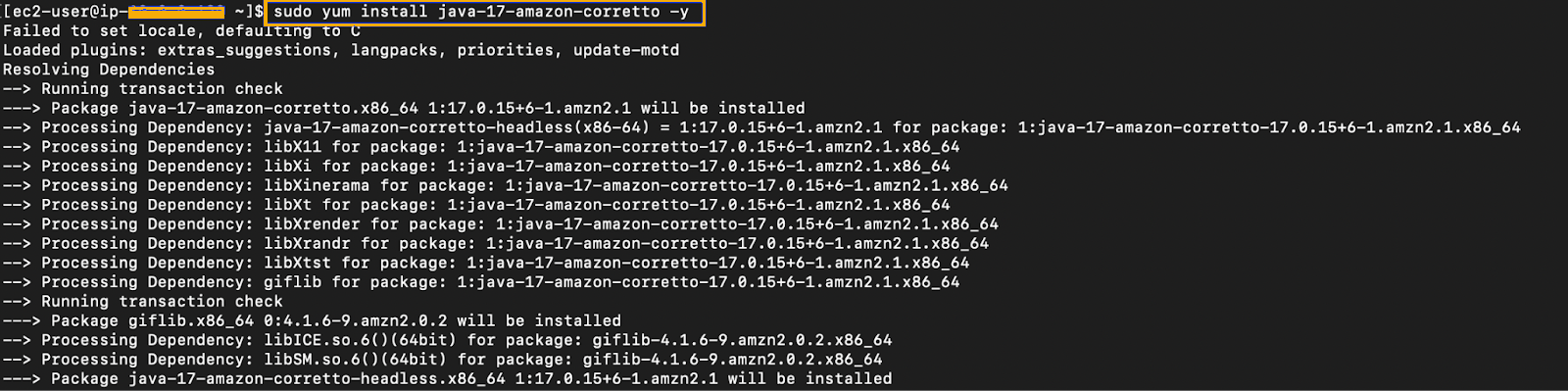
* Elasticsearch requires Java 17. Use Amazon Corretto 17:

  ```bash
  sudo yum install java-17-amazon-corretto -y
  ```

  <figure><img src="/files/hjrdI57S1Gvm0r5oMU0f" alt=""><figcaption></figcaption></figure>

  ```bash
  java -version
  ```

  <figure><img src="/files/nd1C0b7eyhf01CxcJbjl" alt=""><figcaption></figcaption></figure>
* If Java is already installed and `java -version` returns a supported version, skip this step.

### Import the GPG Key

* Add the Elastic GPG key for the Elasticsearch repository:

  ```bash
  sudo rpm --import https://artifacts.elastic.co/GPG-KEY-elasticsearch
  ```

  <figure><img src="/files/5dvSeMOvZYd4YVXzbJBk" alt=""><figcaption></figcaption></figure>

### Create Elasticsearch Repository

* Create the elasticsearch.repo file in the /etc/yum.repos.d/ directory on RedHat-based systems.

  ```bash
  sudo vi /etc/yum.repos.d/elasticsearch.repo
  ```

  <figure><img src="/files/ClR3JkiLhVbHjeWwMluI" alt=""><figcaption></figcaption></figure>
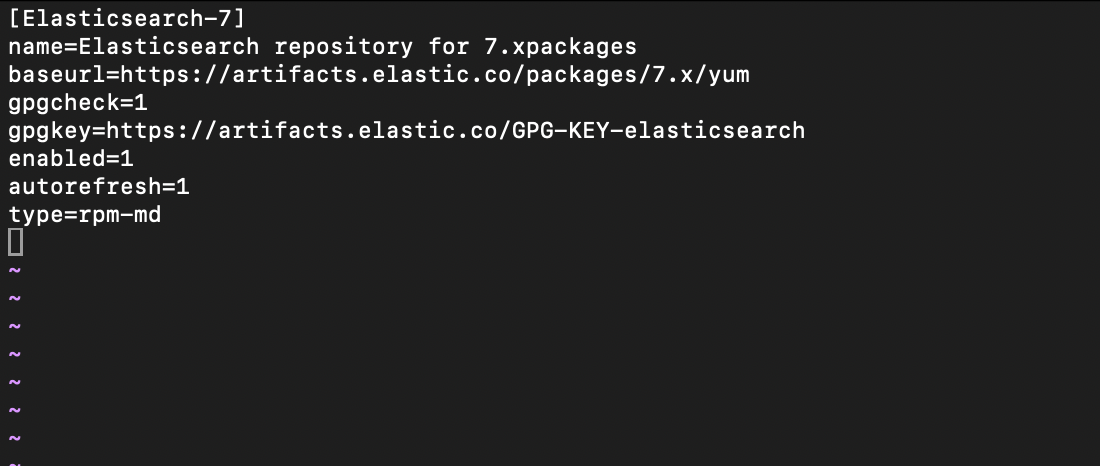
* Add the following content:

  ```ini
  [Elasticsearch-7]
  name=Elasticsearch repository for 7.x packages
  baseurl=https://artifacts.elastic.co/packages/7.x/yum
  gpgcheck=1
  gpgkey=https://artifacts.elastic.co/GPG-KEY-elasticsearch
  enabled=1
  autorefresh=1
  type=rpm-md
  ```

  <figure><img src="/files/cuupLZiBjmTsYoW2cqFD" alt=""><figcaption></figcaption></figure>

### Install Elasticsearch

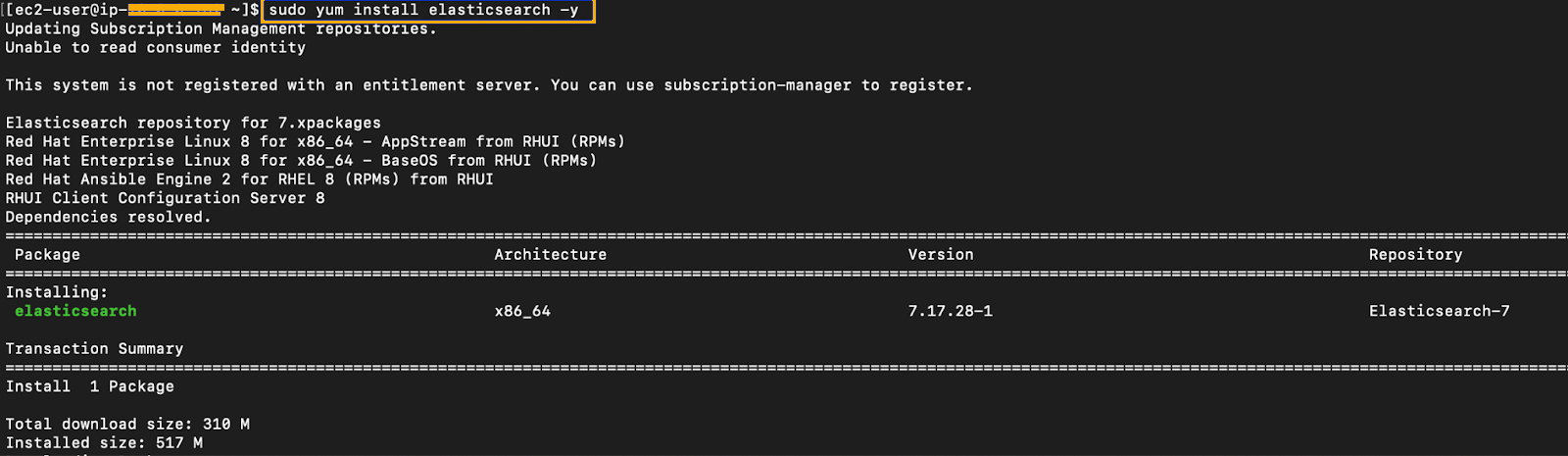
* Update packages and install Elasticsearch:

  ```bash
  sudo yum update -y
  sudo yum install elasticsearch -y
  ```

  <figure><img src="/files/YdaHlqXxGhotrnURchgL" alt=""><figcaption></figcaption></figure>

### Enable and Start Elasticsearch

* Start the Elasticsearch service after installation.
* Reload the systemd manager configuration to recognize the new service:

  ```bash
  sudo systemctl daemon-reload
  ```
* Enable Elasticsearch on boot:<br>

  ```bash
  sudo systemctl enable elasticsearch.service
  ```

  <figure><img src="/files/HzRQVozO0NLJ3GwgM89H" alt=""><figcaption></figcaption></figure>
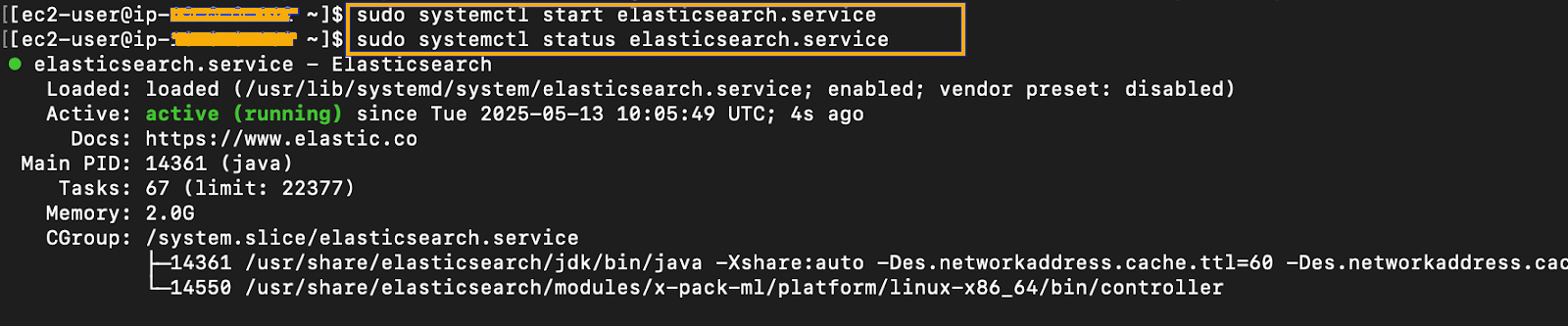
* Start and verify status:<br>

  ```bash
  sudo systemctl start elasticsearch.service
  sudo systemctl status elasticsearch.service
  ```

  <figure><img src="/files/sIhaD12C3QOsIgN9YvPO" alt=""><figcaption></figcaption></figure>
* Ensure the status shows **active (running)** before proceeding.

### Configure Elasticsearch

Elasticsearch requires configuration updates to define cluster settings, enable network access, and activate security features.

### Edit elasticsearch.yml

* Edit the elasticsearch.yml file in the /etc/elasticsearch/ directory to configure Elasticsearch.

  ```bash
  sudo vim /etc/elasticsearch/elasticsearch.yml
  ```
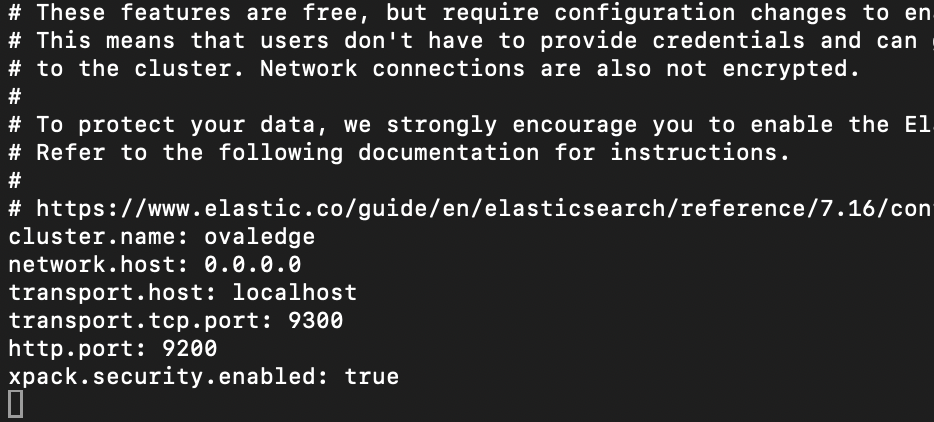
* Append or modify:

  <pre class="language-yaml"><code class="lang-yaml"><strong>cluster.name: ovaledge
  </strong>network.host: 0.0.0.0
  transport.host: localhost
  transport.tcp.port: 9300
  http.port: 9200
  xpack.security.enabled: true
  cluster.name: Logical name for the Elasticsearch cluster.
  network.host: Binds the HTTP service to all available network interfaces.
  xpack.security.enabled: Enables built-in security features including authentication and TLS.
  </code></pre>

### Restart Elasticsearch

* Restart the Elasticsearch Service.<br>

  ```bash
  sudo systemctl restart elasticsearch.service
  ```

  <figure><img src="/files/OwE0zCLIOHvHhSfnsrEz" alt=""><figcaption></figcaption></figure>
* Verify it responds on port `9200`&#x20;

  ```bash
  curl http://localhost:9200
  ```

## Set Up Password for Elastic User

Elasticsearch includes built-in reserved users that require password configuration. These users are used by various components within the Elastic Stack for authentication and internal communication.

* Navigate to the bin directory:

  ```bash
  cd /usr/share/elasticsearch/bin
  ```
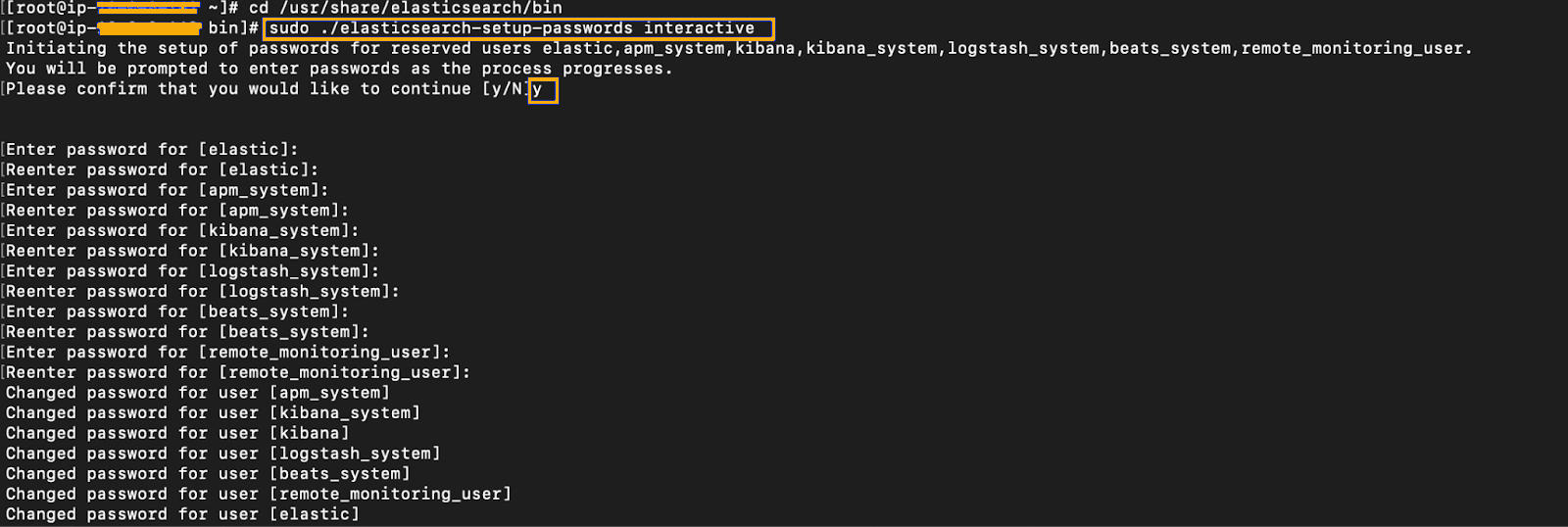
* Run password setup:

  ```bash
  sudo ./elasticsearch-setup-passwords interactive
  ```
* When prompted, type y to continue.
* Enter and confirm a secure password for each built-in user (e.g., `elastic`, `kibana`, `logstash_system`).
* For simplicity and manageability, the same password can be used for all users, but this is optional.<br>

  <figure><img src="/files/d9bCgfUKqEFNhoJc5yBs" alt=""><figcaption></figcaption></figure>

  Record these credentials securely. The elastic user credentials will be required for integrating Elasticsearch with other applications such as OvalEdge.

## Integration with OvalEdge

To integrate Elasticsearch with the OvalEdge application, update the relevant configuration in the `oasis.properties` file located on the OvalEdge application server.

### Edit `oasis.properties`

* Navigate to extprop directory:

  ```bash
  cd /<path_to_ovaledge>/extprop
  sudo vi oasis.properties
  ```
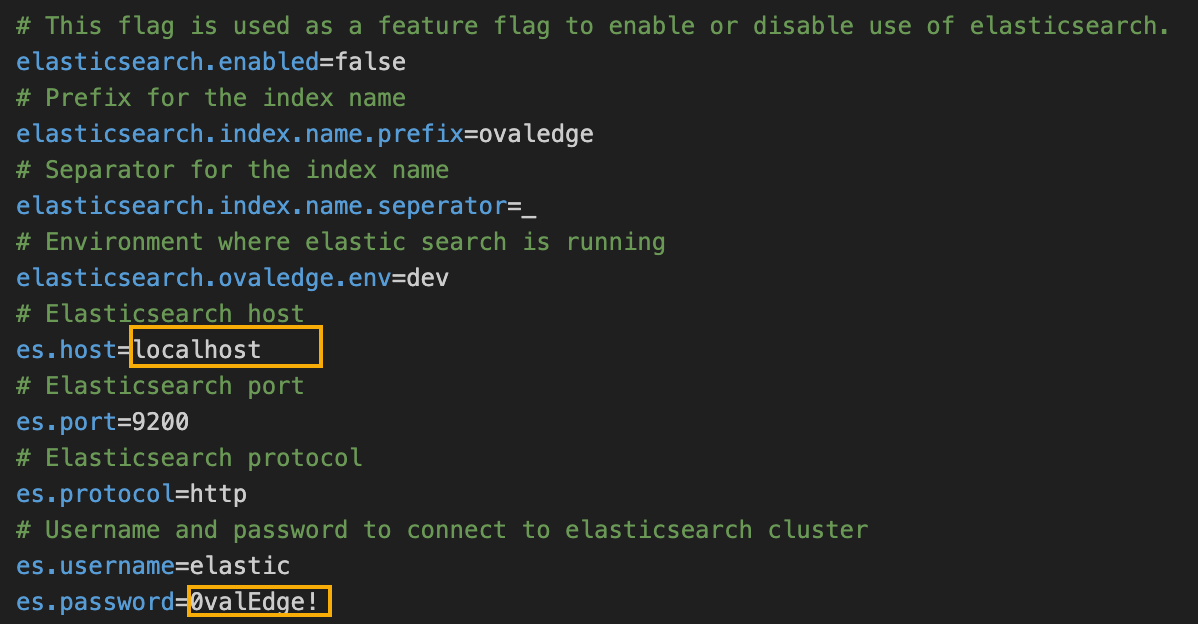
* **Configure Elasticsearch Connection Parameters**
  * If Elasticsearch is on the same VM: `es.host=localhost`
  * If on another VM: Replace `<elasticsearch_host>` with its IP or hostname
  * Add the elasticsearch user password configured during the Elasticsearch setup.<br>

    <figure><img src="/files/qy0ZDVX47VPpMszLMcPv" alt=""><figcaption></figcaption></figure>

#### Restart Tomcat

* Restart OvalEdge application:

  ```bash
  sudo systemctl restart tomcat
  ```
* Ensure Elasticsearch is running and accessible before restarting Tomcat.

***

Copyright © 2025, OvalEdge LLC, Peachtree Corners, GA, USA.


---

# Agent Instructions: Querying This Documentation

If you need additional information that is not directly available in this page, you can query the documentation dynamically by asking a question.

Perform an HTTP GET request on the current page URL with the `ask` query parameter:

```
GET https://docs.ovaledge.com/release8.1/deployment-and-maintenance/installation/elasticsearch-7.17.x-on-amazon-linux.md?ask=<question>
```

The question should be specific, self-contained, and written in natural language.
The response will contain a direct answer to the question and relevant excerpts and sources from the documentation.

Use this mechanism when the answer is not explicitly present in the current page, you need clarification or additional context, or you want to retrieve related documentation sections.