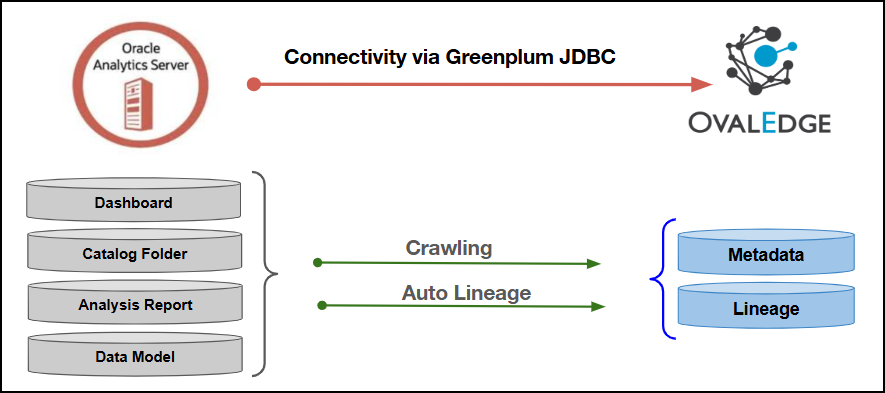
Connectivity
\[How the connection is established with OBIEE OAS]
| GreenPlum JDBC Driver | ### Connector Features| Feature | Availability |
|---|---|
| Crawling | ✅ |
| Delta Crawling | ❌ |
| Profiling | NA |
| Query Sheet | NA |
| Report Preview | ❌ |
| Auto Lineage | ✅ |
| Manual Lineage | ✅ |
| Secure Authentication via Credential Manager | ✅ |
| Data Quality | ❌ |
| DAM (Data Access Management) | NA |
| OBIEE OAS Object | OBIEE OAS Attribute | OvalEdge Attribute | OvalEdge Category | OvalEdge Type |
|---|---|---|---|---|
| Dashboard (Domain) | catalog_dashboardpages_data.folder | Report Group | Reports | Report Group |
| Dashboard (Domain) | catalog_dashboardpages_data.type | Report Group Type | - | - |
| Catalog Folder (Domain) | rpt_catalog_fold_data_table.folder | Report Group | Reports | Report Group |
| Catalog Folder (Domain) | rpt_catalog_fold_data_table.type | Report Group Type | - | - |
| Catalog Analysis Folder (Domain) | rpt_catalog_analy_data_table.folder | Report Group | Reports | Report Group |
| Catalog Analysis Folder (Domain) | rpt_catalog_analy_data_table.type | Report Group Type | - | - |
| Dashboard (Report) | Name: derived from catalog_dashboardpages_data.folder (last segment after /_portal/, Scheduled_Reports/, /shared/Templates/, /shared/Custom Made Reports/) | Report | Reports | Report Name |
| Dashboard (Report) | Type: literal “Dashboard” | Report Type | Reports | Dashboard |
| Analysis Report | rpt_catalog_analy_data_table.name | Report | Reports | Report Name |
| Analysis Report | Analysis Report' literal | Report Type | Reports | Analysis Report' |
| Subject Area Report | CONCAT(name,'.',subject_area) from rpt_catalog_analy_data_table | Report | Reports | Report Name |
| Subject Area Report | Subject Area Report' literal | Report Type | Reports | Subject Area Report |
| Data Model (.xdm) | rpt_catalog_fold_data_table.name (like '%.xdm') | Report | Reports | Report Name |
| Data Model (.xdm) | Data Model' literal | Report Type | Reports | Data Model |
| Publisher Report (.xdo) | vw_publisher_reports_data.report_name | Report | Reports | Report Name |
| Publisher Report (.xdo) | Publisher Report' literal | Report Type | Reports | Publisher Report |
| Analysis Field | rpt_catalog_analy_data_table.column_name | Report Columns | Report Columns | Report Column Name |
| Analysis Field | analysis' literal | Type | Report Columns | analysis |
| Analysis Field | rpt_catalog_analy_data_table.formula | Source Description | Report Columns | Source Description |
| Data Model Field | catalog_datamodel_fileds.fieldname (via joins) | Report Columns | Report Columns | Report Column Name |
| Data Model Field | datamodel' literal | Type | Report Columns | datamodel |
| Access Control List (Custom Field) | rpt_catalog_fold_data_table.acl / rpt_catalog_analy_data_table.acl | Custom Field | Report | Access Control List |
| Access Control List (Custom Field) | tcf1def = "Access Control List" | Custom Field Label | Report | Access Control List |
| Access Control List (Custom Field) | tcf1 = principal names joined by newline | Custom Field Label | Report | Access Control List |
| Access Control List (Custom Field) | tcf1 = principal names joined by newline | Custom Field Value | Report | String (newline-separated) |
| Objects | Access Permission |
|---|---|
| Connector Validation | DB user with read access to the OBIEE/OAS metadata repository database |
| Crawling | Read access to the repository tables |
| Lineage | Read access to analysis, publisher, datamodel, and repository mapping tables |
| Catalog Folder (Domain) | Read repo tables |
| Catalog Analysis Folder (Domain) | Read repo tables |
| Dashboard (Domain) | Read repo tables |
| Dashboards (Reports under Dashboard Domain) | Read repo tables |
| Analysis Reports (Report) | Read repo tables |
| Subject Area Reports (Report) | Read repo tables |
| Data Models (.xdm) (Report) | Read repo tables |
| Publisher Reports (.xdo) (Report) | Read repo tables |
| Dashboard Pages (optional) | Read repo tables |
| ACL (Access Control List) metadata | Read repo tables |
| Field Name | Description |
|---|---|
| Connector Type | By default, "OBIEEOAS" is displayed as the selected connector type. |
| Credential Manager* | Select the desired credentials manager from the drop-down list. Relevant parameters will be displayed based on the selection. Supported Credential Managers:
For more details, click here. |
| License Add-On | Select the Auto Lineage Add-On checkbox to automatically build data lineage. For more details, click here. |
| Connector Name* | Enter a unique name for the OBIEE OAS connection (Example: "OAS_Prod"). |
| Connector Environment | Select the environment (Example: PROD, STG) configured for the connector. For more details, click here. |
| Connector Description | Enter a brief description of the connector. |
| Server* | Enter the Oracle Analytics Server hostname or IP address where the OAS instance is hosted. |
| Port* | Enter the port number configured for the Oracle Analytics Server (OBIEE OAS) instance. |
| Database* | Enter the service name or SID of the Oracle Analytics Server (OBIEE OAS) database. |
| Driver* | By default, OBIEE OAS uses ‘com.pivotal.jdbc.GreenplumDriver.’ This field is not editable. |
| Username* | Enter the username to access the OBIEE OAS server. |
| Password* | Enter the password associated with the OBIEE OAS username. |
| Connection String | Configure the connection string for the OBIEE OAS database:
Replace placeholders with actual database details. {sid} refers to Database Name. |
| Plugin Server | Enter the server name when running as a plugin server. |
| Plugin Port | Enter the port number on which the plugin is running. |
| Default Governance Roles* | Select the appropriate users or teams for each governance role from the drop-down list. All users and teams configured in OvalEdge Security are displayed for selection. |
| Admin Roles* | Select one or more users from the dropdown list for Integration Admin and Security & Governance Admin. All users configured in OvalEdge Security are available for selection. |
| No Of Archive Objects* | This shows the number of recent metadata changes to a dataset at the source. By default, it is off. To enable it, toggle the Archive button and specify the number of objects to archive. Example: Setting it to 4 retrieves the last four changes, displayed in the 'Version' column of the 'Metadata Changes' module. |
| Select Bridge* | If applicable, select the bridge from the drop-down list. The drop-down list displays all active bridges configured in OvalEdge. These bridges enable communication between data sources and OvalEdge without altering firewall rules. |
| S. No | Error Message | Error Description & Resolution |
|---|---|---|
| 1 | java.lang.ClassNotFoundException: org.postgresql.Driver (or similar missing driver error) | Description: The required Greenplum/PostgreSQL JDBC driver is missing or is not available in the expected location. Resolution:
|
| 2 | Connection to <host>:<port> refused. Check that the hostname and port are correct and that the postmaster is accepting TCP/IP connections. | Description: The application cannot establish a connection to the Greenplum server because the specified host or port is unavailable, or the connection is blocked. Resolution:
|
| 3 | FATAL: permission denied for database "<dbname>" (or missing pg_hba.conf entry) | The configured Greenplum user does not have the required access to the specified database, or the connection is not permitted by the Greenplum Resolution:
|
| 4 | FATAL: database "<dbname>" does not exist | The database specified in the connection details does not exist on the Greenplum server. Resolution:
|
| 5 | Missing Greenplum JDBC driver JAR error | When the required Greenplum JDBC driver JAR file is missing or is not placed in the expected directory, the Greenplum connector returns the corresponding missing-driver error.
|
| 6 | Error while validating OBIEEOAS connection Error while validating Database Connection in GreenPlumConnection : Failed to obtain JDBC Connection | The system failed to establish a JDBC connection to the Greenplum database during validation of the OBIEE OAS connector, due to incorrect connection details or an unavailable database service. Resolution: Verify the JDBC connection string, database credentials, and network connectivity to the Greenplum server, then reattempt the validation. |