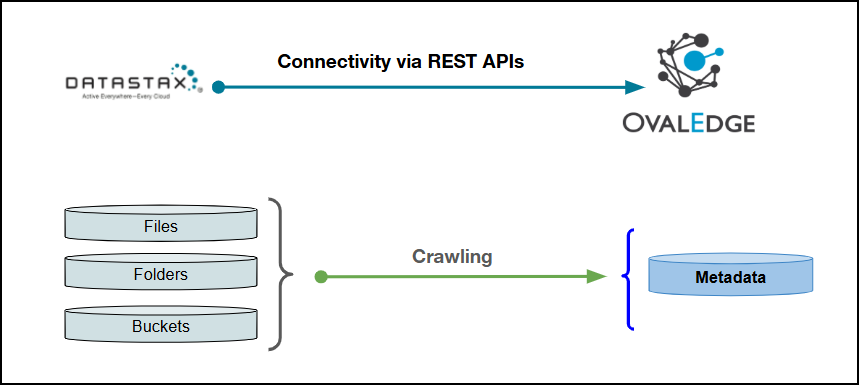
Connectivity
\[How the connection is established with DSEFS]
| REST APIs | | Verified DSEFS Version | 6.7.x | {% hint style="info" %} The DSEFS connector has been validated with the mentioned "Verified DSEFS Versions" and is expected to be compatible with other supported DSEFS versions. If there are any issues with validation or metadata crawling, please submit a support ticket for investigation and feedback. {% endhint %} ### Connector Features | Feature | Availability | | -------------------------------------------- | :----------: | | Crawling | ✅ | | Delta Crawling | ❌ | | Profiling | ❌ | | Sample Profiling | ✅ | | Query Sheet | NA | | Data Preview | ✅ | | Auto Lineage | NA | | Manual Lineage | ✅ | | Secure Authentication via Credential Manager | ✅ | | Data Quality | ❌ | | DAM (Data Access Management) | ❌ | | Bridge | ✅ | {% hint style="info" %} 'NA' indicates that the respective feature is 'Not Applicable.' {% endhint %} ### Metadata Mapping The following objects are crawled from DSEFS and mapped to the corresponding UI assets. | DSEFS Object | DSEFS Attribute | OvalEdge Attribute | OvalEdge Category | OvalEdge Type | | ----------------------------------------------------------- | --------------- | ------------------ | ----------------- | --------------- | | Bucket | Bucket | Bucket | Bucket | Bucket | | Folder | Folder | Folder | Folder | Folder | | File | File | File | File | File | | XLSX | XLSX | Folder(subfile) | Folder(subfile) | Folder(subfile) | | XLS | XLS | Folder(subfile) | Folder(subfile) | Folder(subfile) | | CSV | CSV | File | File | File | | TXT | TXT | File | File | File | | PARQUET | PARQUET | File | File | File | | ORC | ORC | File | File | File | | JSON | JSON | File | File | File | | YAML | YAML | File | File | File | | PIP | PIP | File | File | File | | All Files According to the configuration in System Settings | - | File | File | File | ## Set up a Connection ### Prerequisites The following are the prerequisites to establish a connection. Ensure that the CSV files follow the required formatting standards for proper data processing and visibility. Refer to [CSV Format Requirements](https://docs.ovaledge.com/release8.1/connectors/additional-requirements/csv-format-requirements-for-file-connectors)**.** ### **Service Account User Permissions** {% hint style="warning" %} It is recommended to use a separate service account to establish the connection to the data source, configured with the following minimum set of permissions. {% endhint %} {% hint style="info" %} 👨💻**Who can provide these permissions?** These permissions are typically granted by the DSEFS administrator, as users may not have the required access to assign them independently. {% endhint %}| Objects | Access Permission |
|---|---|
| Connector Validation | Execute permission (x), Files: Read permission (r) |
| Crawling | Execute permission (x), Files: Read permission (r) |
| Folder | Execute permission (x), Files: Read permission (r) |
| Files | Execute permission (x), Files: Read permission (r) |
| Field Name | Description |
|---|---|
| Connector Type | By default, "DSEFS" is displayed as the selected connector type. |
| Credential Manager* | Select the desired credentials manager from the drop-down list. Relevant parameters will be displayed based on the selected option. Supported Credential Managers:
|
| Connector Environment | Select the environment (Example: PROD, STG) configured for the connector. |
| Connector Name* | Enter a unique name for the DSEFS connection (Example: "DSEFSdb"). |
| Connector Description | Enter a brief description of the connector. |
| Username* | Enter the valid username with access privileges to the Datastax Enterprise File System. |
| Password* | Enter the password for the provided username to authenticate access. |
| DSEFS URL* | Enter the complete and valid URL of the Datastax Enterprise File System instance (Example: https://xxxxxx.xxx). |
| Proxy Enabled* | Select Yes to route the connection through a configured proxy, or No to connect directly without a proxy. |
| Default Governance Roles* | Select the appropriate users or teams for each governance role from the drop-down list. All users configured in the security settings are available for selection. |
| Admin Roles* | Select one or more users from the dropdown list for Integration Admin and Security & Governance Admin. All users configured in the security settings are available for selection. |
| No Of Archive Objects* | This shows the number of recent metadata changes to a dataset at the source. By default, it is off. To enable it, toggle the Archive button and specify the number of objects to archive. Example: Setting it to 4 retrieves the last four changes, displayed in the 'Version' column of the 'Metadata Changes' module. |
| Select Bridge* | If applicable, select the bridge from the drop-down list. The drop-down list displays all active bridges that have been configured. These bridges facilitate communication between data sources and the system without requiring changes to firewall rules. |
| S.No. | Error Message(s) | Error Description & Resolution |
|---|---|---|
| 1 | Error while validating connection: Exception in validateConnection() : The API returned an error code [400] invalid_client | Description: Invalid client credentials provided. Resolution: Enter the correct client ID and secret. |
| 2 | Error while validating connection: Error : URI is not absolute | Description: The provided DSEFS URL is not absolute. Resolution: Enter a valid absolute DSEFS URL (e.g., https://xxxxxxx/path). |
| S.No. | Limitation |
|---|---|
| 1 | For File-based connectors, the folder count in the File Manager and Data Catalog Files module may not match if folders or files are added or deleted in the source system after crawling. Run the connection crawl again to refresh and display the latest changes. |