How to Import an SSL Certificate into a Java Keystore
This article explains how to import an SSL certificate into a Java keystore on Linux, Windows, and container environments.
Purpose
An SSL/TLS certificate enables secure, encrypted communication between systems by establishing a TLS (Transport Layer Security) connection. It also authenticates the server's identity and helps protect transmitted data from interception or tampering.
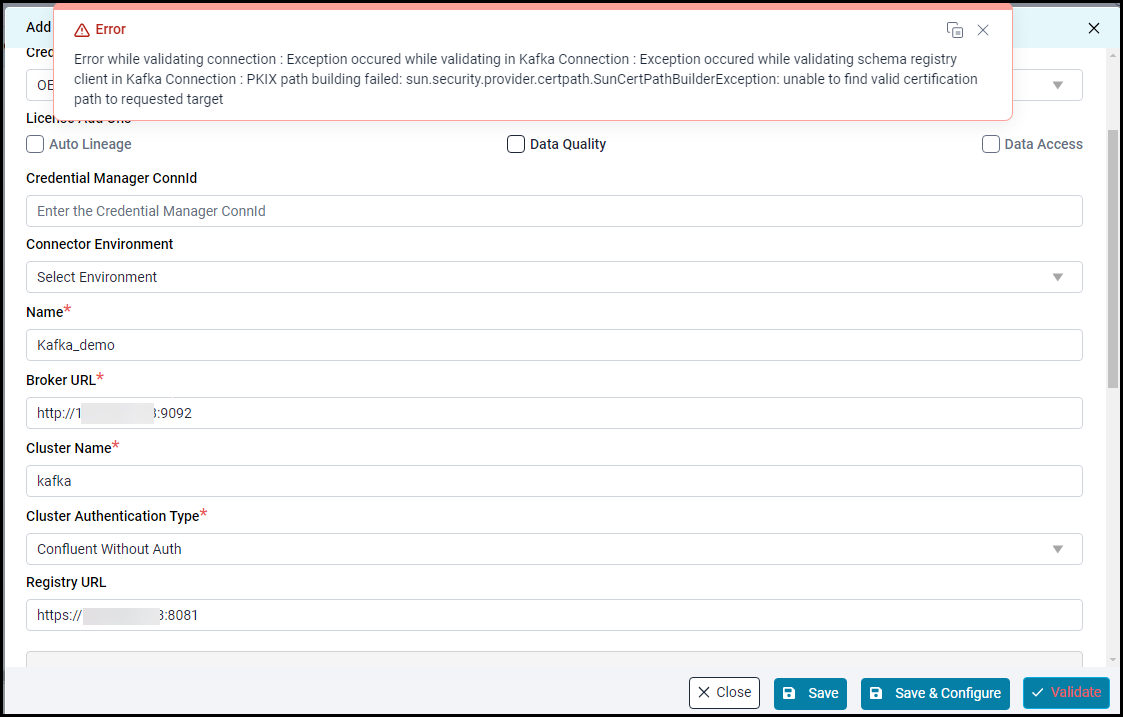
Certificates are issued and digitally signed by trusted Certificate Authorities (CAs). In Java, trusted CA certificates are stored in a truststore (commonly the cacerts keystore included with the JRE/JDK). During a TLS handshake, Java verifies the server’s certificate by checking whether its certificate chain leads to a trusted CA present in the truststore. If the chain cannot be validated against the truststore, the connection fails with an SSL trust error.

To resolve this issue, import the certificate into the Java cacerts keystore.
Prerequisites
Before importing the certificate, ensure the following:
Java is installed on the system.
The keytool utility is available (included with Java).
The SSL certificate file is available.
Access to the Java keystore (usually cacerts).
Obtain the SSL Certificate
Obtain the SSL certificate from your source system administrator, or follow the steps below to obtain it.
The SSL certificate download process remains the same across Linux, Windows, and Container environments.
Download the SSL Certificate
Open the Google Chrome browser and enter the URL of the source system or service endpoint. URL Format: https://IP_ADDRESS:PORT Example URL:
The steps for viewing and exporting an SSL certificate may vary depending on the web browser used.
If the certificate is not trusted by the browser, a warning message may appear indicating that the connection is not secure.
Click on the Certificate details.

Navigate to Details → Certificate Fields → Certificate → Export.

Export and download the certificate.
The certificate will be downloaded with a .cer/.crt/.pem extension and will be saved in your local folder.
Import SSL Certificate into Keystore
Linux Environment
Download/Copy the certificate to Linux machine(s) where the application is running.
Import the certificates to cacerts using the following command.
Parameters:
$JAVA_HOME/lib/security/cacerts – Path to the Java keystore
connector-cert – Alias name used to identify the imported certificate
changeit – Default password for the Java cacerts keystore
Once the command executes successfully, the certificate is imported into the Java keystore.
The same process is followed in the Bridge Client, which runs on Linux.
Restart Tomcat
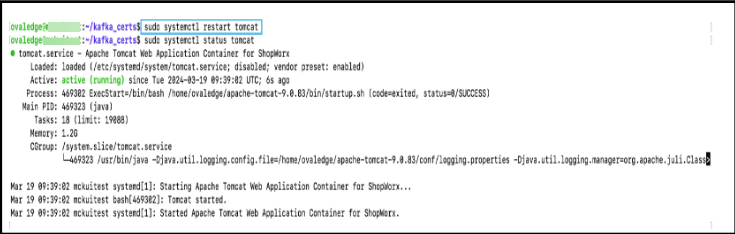
After importing the certificate, restart Tomcat using the command below to ensure the imported certificate is reflected in the OvalEdge application.
Sample reference screenshot

Windows Environment
After transferring the certificate, log in to the OvalEdge application server and verify that the certificate file is present in the specified directory. Sample reference screenshot:

Import the certificate into the Java cacerts keystore using the following command.
Open Command Prompt as Administrator and run the command below to import the certs.
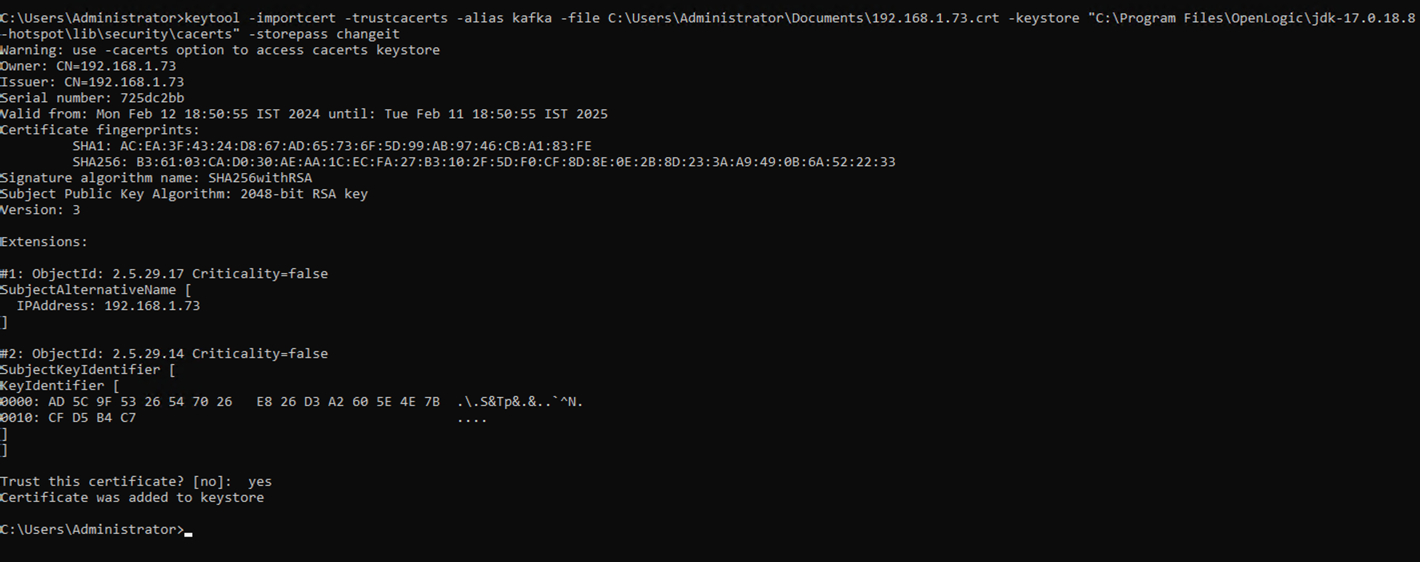
Where:
C:\Program Files\OpenLogic\jdk-17.0.18.8-hotspot\lib\security\cacerts – Path to the Java keystore
<Connector_cert> – Alias name used to identify the imported certificate
changeit – Default password for the Java cacerts keystore Sample reference screenshot:

Once the command executes successfully, the certificate is imported into the Java keystore.
The same process is followed in the Bridge Client, which runs on Windows.
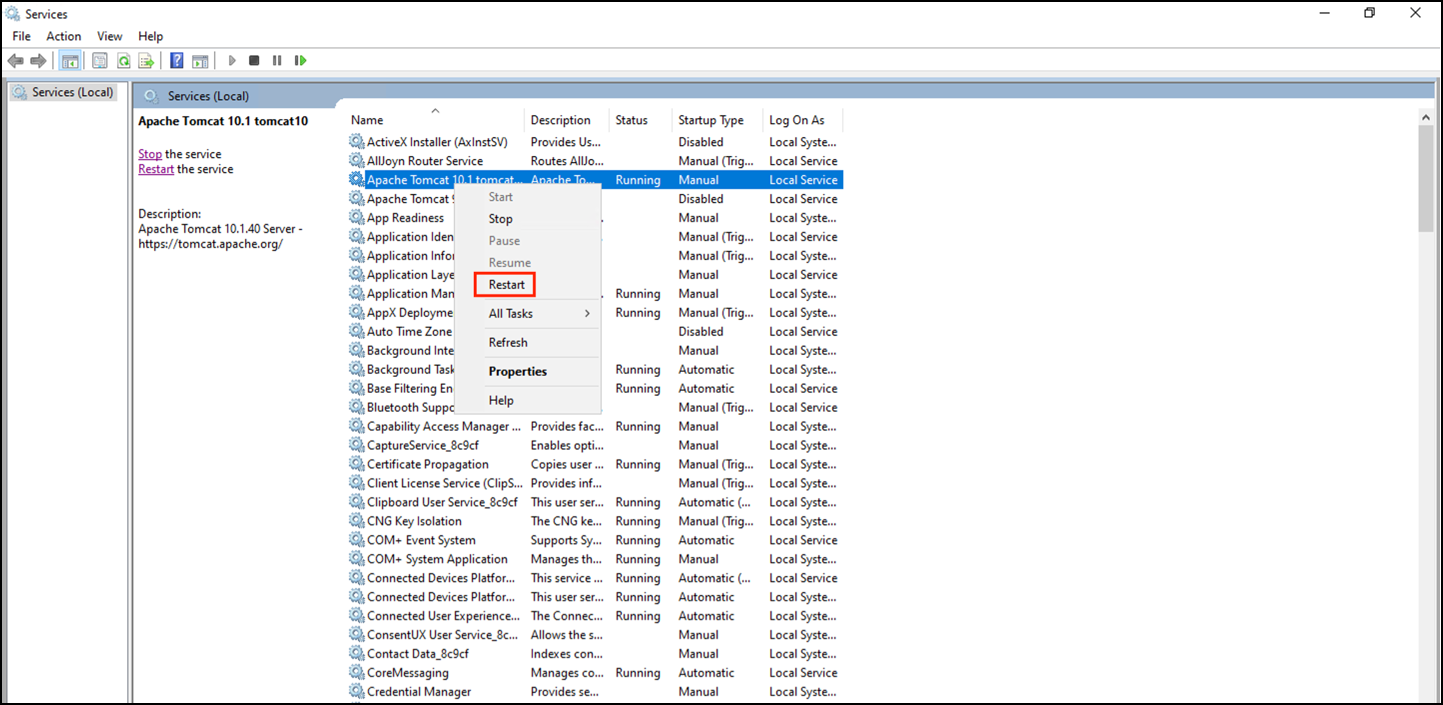
Restart Tomcat
After importing the certificate, restart Tomcat to ensure it is reflected in the OvalEdge application. Sample reference screenshot

Container Environment
SSL certificates can be made available to a container using one of the following approaches:
Mount a certificate directory at runtime
Embed the certificate in the Docker image during the build process
In both approaches, import the certificate into the Java truststore (cacerts) using the keytool command.
Runtime Approach: Mount Certificate Directory
Mount a certificate directory from the host system (for example, /home/ovaledge/certs) as a volume. This approach allows adding or updating certificates without rebuilding the container image.
Steps Involved:
Mount the certificate directory to the container.
Configure a startup script to scan the directory.
Import all available certificates into the Java truststore using keytool.
Build-Time Approach: Embed Certificate in Docker Image
Include the SSL certificate in the Docker image during the build process.
Steps Involved:
Place the certificate in the image using the COPY instruction in the Dockerfile. Example path: /home/ovaledge/certs/service.crt
Ensure the certificate is available in the container at runtime.
Execute the keytool import command
Import the SSL certificate into the Java truststore using the keytool command, whether the certificate is mounted at runtime or embedded in the image during the build.
Steps Involved:
Import the certificate into the Java default truststore (cacerts) using the keytool command.
Parameters:
/home/<username>/certs/<certificate_name>.cer – Path to the certificate file inside the container
$JAVA_HOME/lib/security/cacerts – Path to the Java truststore
connector-cert - Alias used to identify the certificate
changeit – Default password for the Java cacerts keystore
Include the keytool command in the container startup script (for example, run.sh) to ensure the certificate is imported each time the container starts.
After the certificate is imported:
The Java runtime trusts the certificate.
The application establishes secure SSL/TLS connections to external services.
SSL handshake errors are avoided during communication.
Validate the Connector
Navigate to Administration and select Connectors.

Click the + (New Connector) icon.

For example, select Kafka.

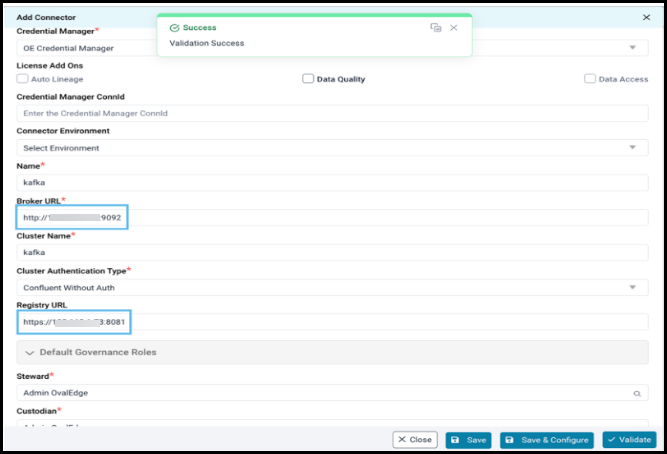
An Add Connector page is displayed. Update the required details and click Validate.

The connector validation should now complete successfully since the SSL certificate has been imported into the Java truststore.
Connector validation must be performed only after restarting the Application Server.
Copyright © 2026, OvalEdge LLC, Peachtree Corners, GA, USA.
Was this helpful?