# ECS-Variant-2: New Customers

This article describes the complete process for enabling AskEdgi components for new SaaS customers in the AWS environment. The deployment is largely managed through AWS Control Tower automation, which provisions and configures the necessary AWS resources, including compute, storage, networking, and security components required for AskEdgi operations.

Certain steps, however, require manual verification and configuration to ensure correct integration, compliance with security standards, and readiness of the environment. This document provides detailed instructions for these manual tasks, covering network setup, IAM configurations, ECS task definitions, service discovery, and post-deployment validation to ensure successful enablement of AskEdgi services.

## Purpose of the document

The purpose of this document is to provide a clear procedure for enabling AskEdgi components for new SaaS customers under Variant 2, where manual configurations and validations are required after AWS Control Tower automation. It serves as a reference for verifying, configuring, and integrating AskEdgi services, ensuring the correct deployment of AWS resources, secure communication between components, and the successful initialization of AskEdgi functionality.

## Prerequisites

Before initiating the AskEdgi SaaS enablement process for Variant 2, the following AWS services and permissions must be available. These services form the foundation for deploying, configuring, and operating AskEdgi components within the environment.

<table><thead><tr><th width="200.6666259765625">AWS Service</th><th>Purpose / Usage</th></tr></thead><tbody><tr><td>ECS</td><td>Hosts AskEdgi containers and manages task execution</td></tr><tr><td>IAM</td><td>Manages users, roles, and permissions for secure access</td></tr><tr><td>RDS</td><td>Stores application and workspace data for AskEdgi services</td></tr><tr><td>EFS</td><td>Provides persistent file storage for the Insight service</td></tr><tr><td>Secrets Manager</td><td>Stores database credentials and sensitive configuration securely</td></tr><tr><td>EC2</td><td>Supports underlying compute resources for ECS tasks</td></tr></tbody></table>

{% hint style="warning" %}

* Ensure the AWS region used for deployment matches the intended operational region for AskEdgi services.
* Verify that IAM permissions allow creating and modifying ECS tasks, security groups, and service discovery resources.
  {% endhint %}

## Implementation Steps

### Step 1: Network Security Configuration

* Create two private subnets for the Edgi Insight Service.
* Create a Security Group for the Edgi ECS service and configure the following inbound rules:

<table><thead><tr><th width="111">Protocol</th><th width="101.3333740234375">Port</th><th width="221.6666259765625">Source/Destination</th><th>Description</th></tr></thead><tbody><tr><td>TCP</td><td>8000</td><td>Destination VPC range</td><td>Allow ECS service communication</td></tr><tr><td>TCP</td><td>9200</td><td>Private Elasticsearch SG</td><td>Allow Elasticsearch to ECS Edgi communication</td></tr><tr><td>TCP</td><td>3306</td><td>Private RDS SG</td><td>Allow RDS to ECS Edgi communication</td></tr><tr><td>All</td><td>All</td><td>Private EFS SG</td><td>Allow EFS to ECS Edgi communication</td></tr></tbody></table>

{% hint style="info" %}

* Ensure that ports 8000, 9200, and 3306 are allowed only from specified sources.
* Security Group configuration ensures proper communication between Edgi ECS, RDS, EFS, and Elasticsearch.
  {% endhint %}

### Step 2: EFS Access Points

* Create EFS Access Points for the Edgi Insight Services using the following paths:

| Access Point Path                   | Notes                       |
| ----------------------------------- | --------------------------- |
| /oe\_edgi\_insights\_dev\_logs      | Stores Insight service logs |
| /oe\_edgi\_insights\_dev\_documents | Stores uploaded documents   |
| /oe\_edgi\_insights\_dev\_store     | Stores processed data       |

{% hint style="warning" %}
Assign correct mount permissions to ECS tasks to ensure persistent storage access.
{% endhint %}

### Step 3: S3 Bucket Creation

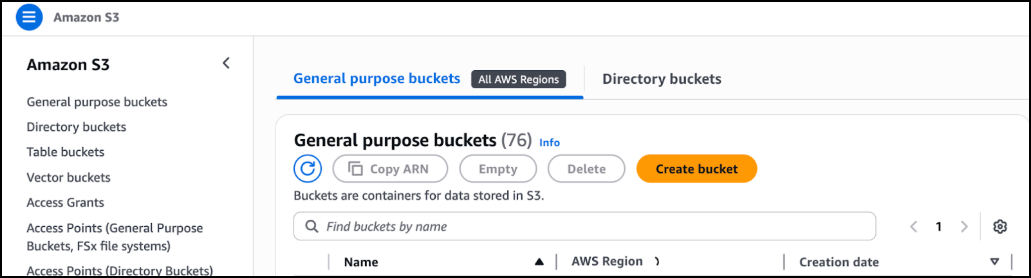
* Create a new S3 bucket for storing Edgi-related data.<br>

  <figure><img src="https://content.gitbook.com/content/ztcvwwOJCeaE1n6oHp4C/blobs/ftZICekOHc7eBkhAZgMN/image.png" alt=""><figcaption></figcaption></figure>
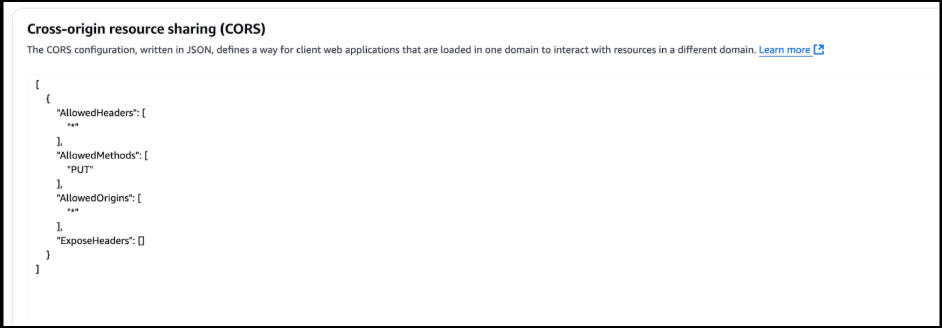
* Configure CORS permissions in the bucket settings as shown below:

```
[
  {
    "AllowedHeaders": ["*"],
    "AllowedMethods": ["PUT"],
    "AllowedOrigins": ["*"],
    "ExposeHeaders": []
  }
]
```

<figure><img src="https://content.gitbook.com/content/ztcvwwOJCeaE1n6oHp4C/blobs/THaFcYk9ZFln0P2Pkyo8/image.png" alt=""><figcaption></figcaption></figure>

{% hint style="info" %}

* The bucket will store all data uploaded via Edgi Data Service and processed by the Insight Service.
* Ensure correct permissions to allow S3 to send events to SQS.
  {% endhint %}

### Step 4: IAM User Configuration

IAM User for AskEdgi Python

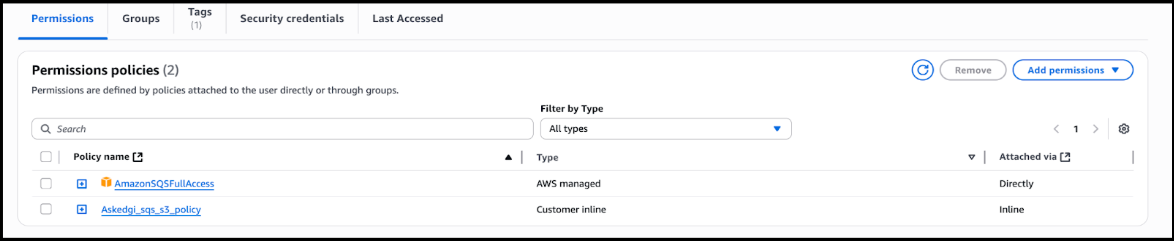
* Create IAM user (example: edgi\_user) with:

  * AskEdgi\_policy\_Saas
  * AmazonSQSFullAccess: <https://oe-saas-distributions-bridgeclient.s3.ap-south-1.amazonaws.com/Askedgi/AWS_SAAS_ECS_Policy.json>

  <figure><img src="https://content.gitbook.com/content/ztcvwwOJCeaE1n6oHp4C/blobs/5ZLaRap6dUGzinK6Q7e7/image.png" alt=""><figcaption></figcaption></figure>

  <figure><img src="https://content.gitbook.com/content/ztcvwwOJCeaE1n6oHp4C/blobs/NNHyJxyKOYkS3rrApf73/image.png" alt=""><figcaption></figcaption></figure>
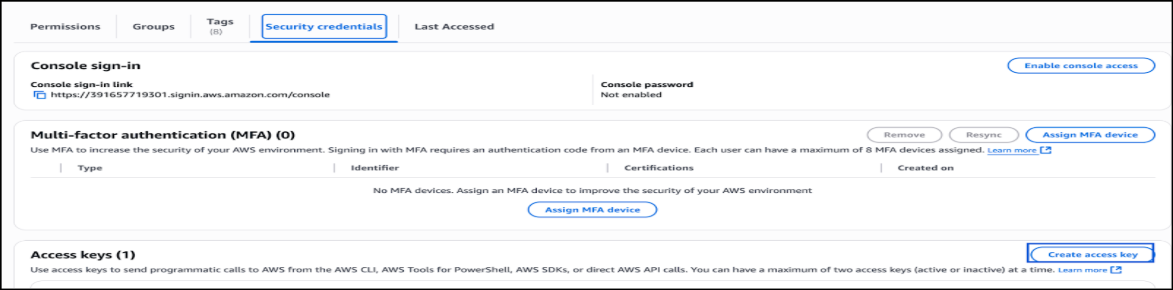
* Generate Access Key and Secret Key for CLI access.<br>

  <figure><img src="https://content.gitbook.com/content/ztcvwwOJCeaE1n6oHp4C/blobs/5aRyXzTz5D8LtObyYaf1/image.png" alt=""><figcaption></figcaption></figure>
* Use credentials in Ovaledge Task Definition environment variables:

| Environment Variable   | Value         |
| ---------------------- | ------------- |
| EDGI\_AWS\_ACCESS\_ID  | \<access key> |
| EDGI\_AWS\_SECRET\_KEY | \<secret key> |

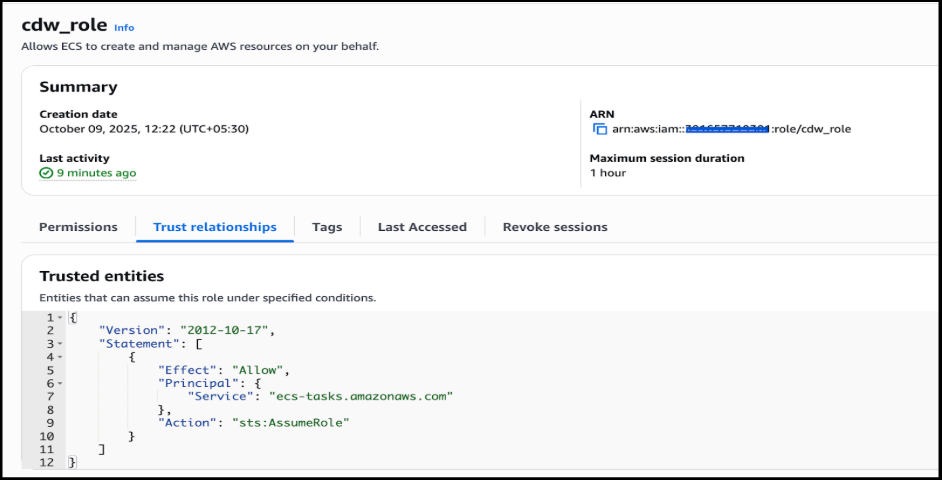
### Step 5: ECS Task Role Configuration

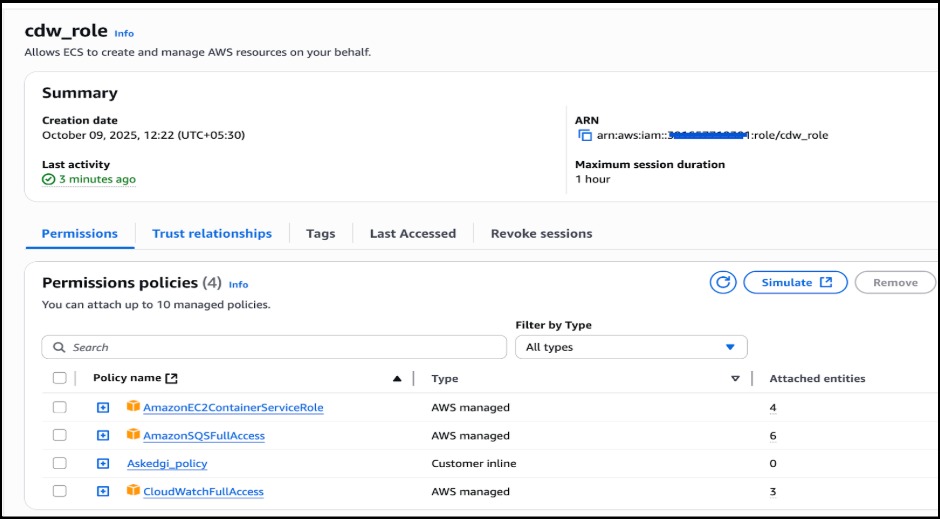
* Create an IAM Role with ECS task execution permissions.
* Attach the custom policy: [AskEdgi ECS Policy JSON.](https://oe-saas-distributions-bridgeclient.s3.ap-south-1.amazonaws.com/Askedgi/AWS_SAAS_ECS_Policy.json)<br>

  <figure><img src="https://content.gitbook.com/content/ztcvwwOJCeaE1n6oHp4C/blobs/oOxd80ad77iAK3fqrADB/image.png" alt=""><figcaption></figcaption></figure>
* Modify the Trust Relationship for ECS.<br>

  <figure><img src="https://content.gitbook.com/content/ztcvwwOJCeaE1n6oHp4C/blobs/Z4Q2HampS7nGg4DgNbPU/image.png" alt=""><figcaption></figcaption></figure>

{% hint style="warning" %}

* This IAM role is shared across all ECS Task Definitions to ensure consistent and secure access.
* Automation scripts handle permission setup automatically, but verification is recommended.
  {% endhint %}

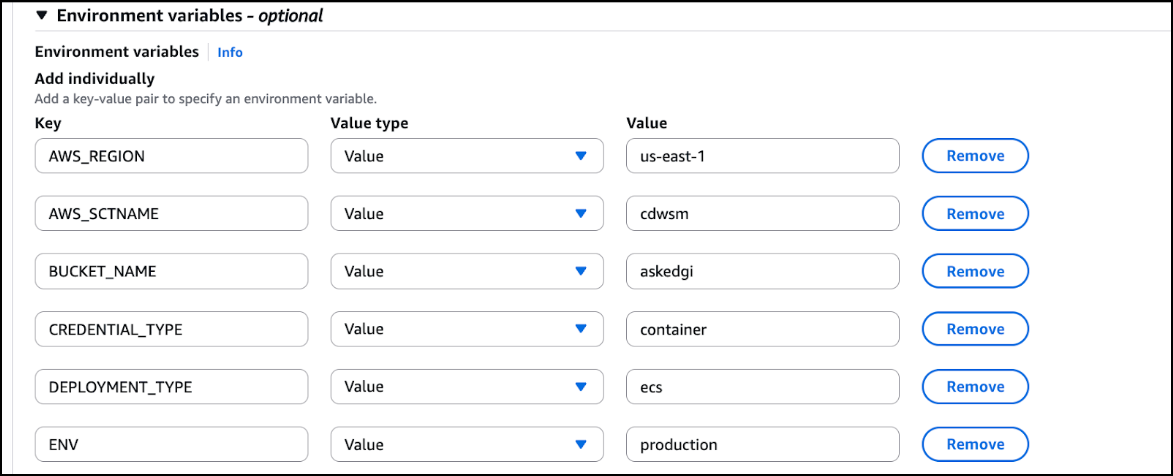
### Step 6: ECS Task Definition – Data Service

Create an ECS Task Definition for the Edgi Data Service with the following configuration:

| Configuration  | Value             |
| -------------- | ----------------- |
| CPU            | 0.5 vCPU          |
| Memory         | 2 GB              |
| Container Name | edgi-data-service |
| Port           | 8000              |

**Environment Variables:**

| Key              | Value                   |
| ---------------- | ----------------------- |
| AWS\_REGION      | \<Region>               |
| AWS\_SCTNAME     | \<Database secret name> |
| BUCKET\_NAME     | \<Bucket name>          |
| CREDENTIAL\_TYPE | container               |
| DEPLOYMENT\_TYPE | ecs                     |
| ENV              | production              |

<figure><img src="https://content.gitbook.com/content/ztcvwwOJCeaE1n6oHp4C/blobs/BggmBDyBF2V7MbMcKMVh/image.png" alt=""><figcaption></figcaption></figure>

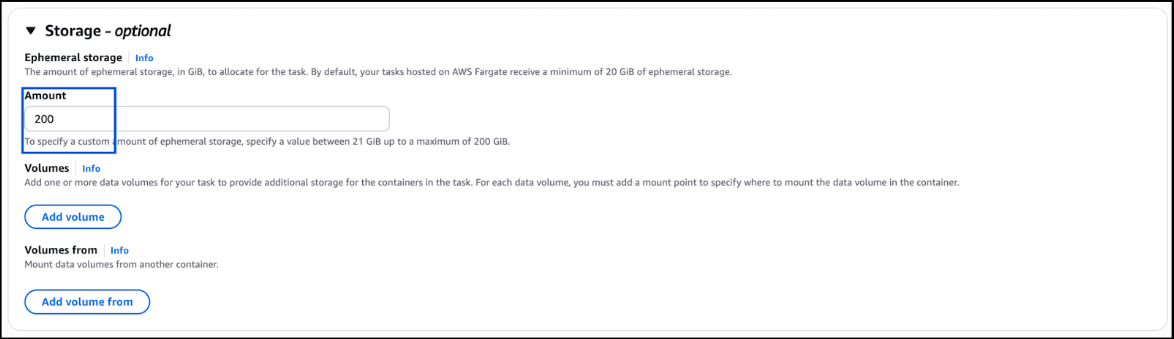
**Additional Configuration**

* Enable CloudWatch Logs for the container.
* Allocate a maximum of 200 GB under the storage configuration.

<figure><img src="https://content.gitbook.com/content/ztcvwwOJCeaE1n6oHp4C/blobs/ANqmOmpKzM8phTOJUnl1/image.png" alt=""><figcaption></figcaption></figure>

{% hint style="warning" %}
Ensure the task definition matches the ECS cluster and service requirements for proper deployment.
{% endhint %}

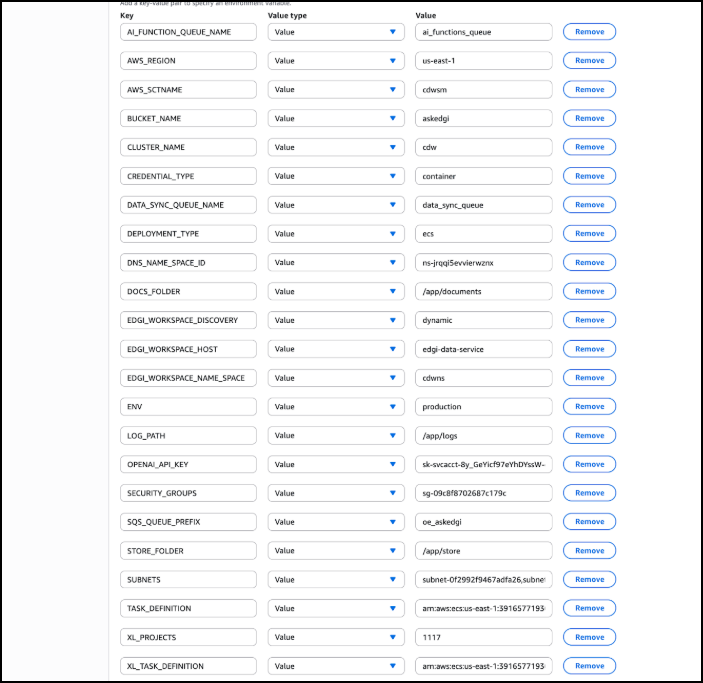
### Step 7: ECS Task Definition - Edgi Insight

* Create an ECS Task Definition for the Edgi Insight Service with the following configuration:

| Configuration  | Value                                      |
| -------------- | ------------------------------------------ |
| CPU            | 1 vCPU                                     |
| Memory         | 2 GB                                       |
| Container Name | oe\_edgi\_insights\_service (customizable) |
| Port           | 8000                                       |

**Environment Variables**

| Key                          | Value                                            |
| ---------------------------- | ------------------------------------------------ |
| AI\_FUNCTION\_QUEUE\_NAME    | ai\_functions\_queue                             |
| AWS\_REGION                  | \<Region>                                        |
| AWS\_SCTNAME                 | \<Database secret name>                          |
| BUCKET\_NAME                 | \<S3 bucket name>                                |
| CLUSTER\_NAME                | \<ECS cluster name>                              |
| CREDENTIAL\_TYPE             | container                                        |
| DATA\_SYNC\_QUEUE\_NAME      | data\_sync\_queue                                |
| DEPLOYMENT\_TYPE             | ecs                                              |
| DNS\_NAME\_SPACE\_ID         | \<ECS namespace ID>                              |
| DOCS\_FOLDER                 | /app/documents                                   |
| EDGI\_WORKSPACE\_DISCOVERY   | dynamic                                          |
| EDGI\_WORKSPACE\_HOST        | edgi-data-service                                |
| EDGI\_WORKSPACE\_NAME\_SPACE | \<ECS namespace name>                            |
| ENV                          | prod                                             |
| LOG\_PATH                    | /app/logs                                        |
| SECURITY\_GROUPS             | \<Edgi Insight Security Group>                   |
| SQS\_QUEUE\_PREFIX           | \<SQS prefix name>                               |
| STORE\_FOLDER                | /app/store                                       |
| SUBNETS                      | \<edgi insight service two subnets> sub1, sub2   |
| TASK\_DEFINITION             | \<Edgi Data Task Definition latest revision ARN> |

<figure><img src="https://content.gitbook.com/content/ztcvwwOJCeaE1n6oHp4C/blobs/J6oz9mhYDrVRxvEAjhjl/image.png" alt=""><figcaption></figcaption></figure>

**Additional Configuration**

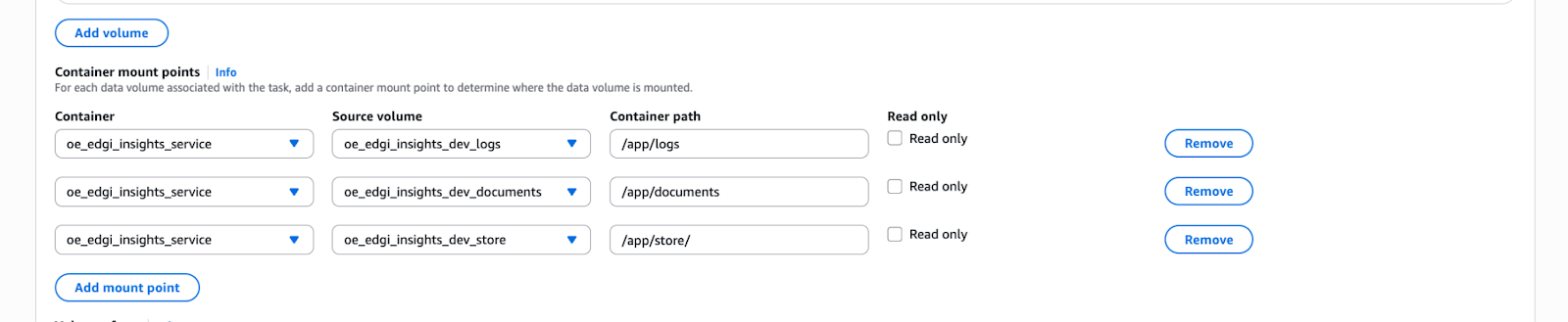
* Add three EFS mounts for the Insight service.

<figure><img src="https://content.gitbook.com/content/ztcvwwOJCeaE1n6oHp4C/blobs/LwqAWN5uy07g0r8lmiBF/unknown.png" alt=""><figcaption></figcaption></figure>

* Enable CloudWatch Logs.
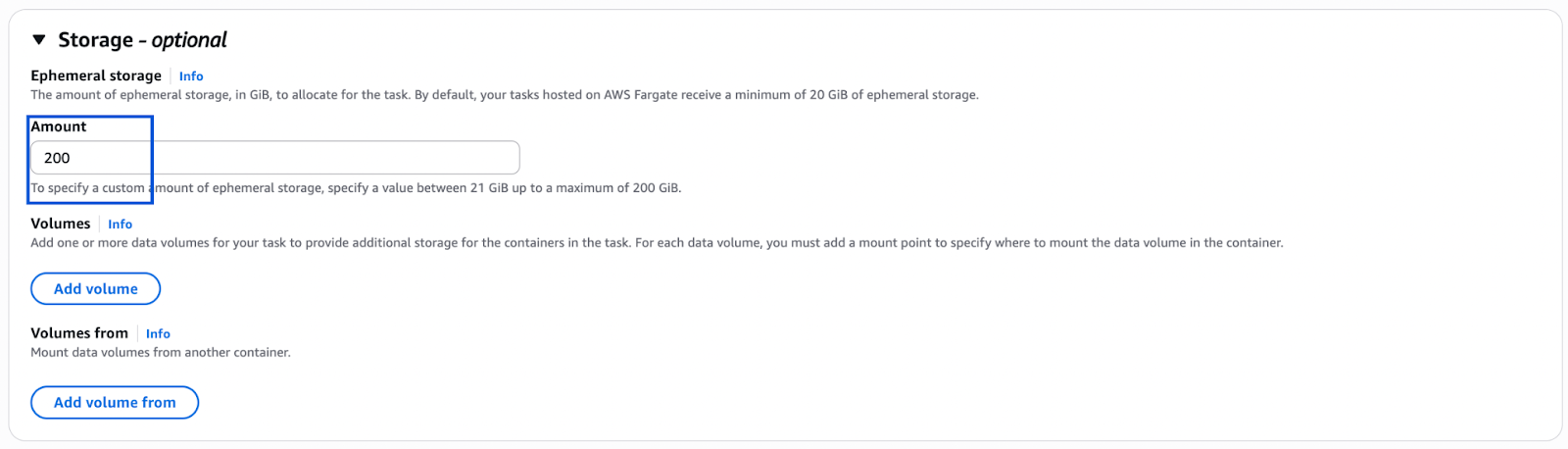
* Allocate up to 200 GB for storage.

<figure><img src="https://content.gitbook.com/content/ztcvwwOJCeaE1n6oHp4C/blobs/XRKHx60azxaZAvitRArI/unknown.png" alt=""><figcaption></figcaption></figure>

{% hint style="warning" %}

* Ensure EFS mounts match the container paths required by the Insight service.
* Verify network security groups allow communication between ECS tasks and other services.
  {% endhint %}

### Step 8: ECS Service Creation – Edgi Insight

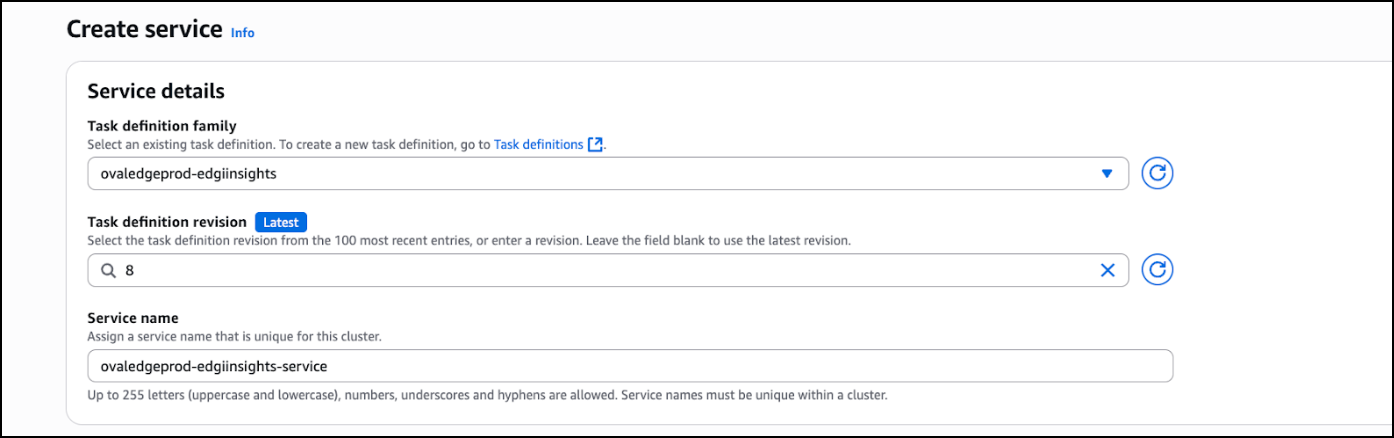
1. Create an ECS Service using the Edgi Insight Task Definition.

<figure><img src="https://content.gitbook.com/content/ztcvwwOJCeaE1n6oHp4C/blobs/JHv11uHqWoD8dv3R5mb8/image.png" alt=""><figcaption></figcaption></figure>

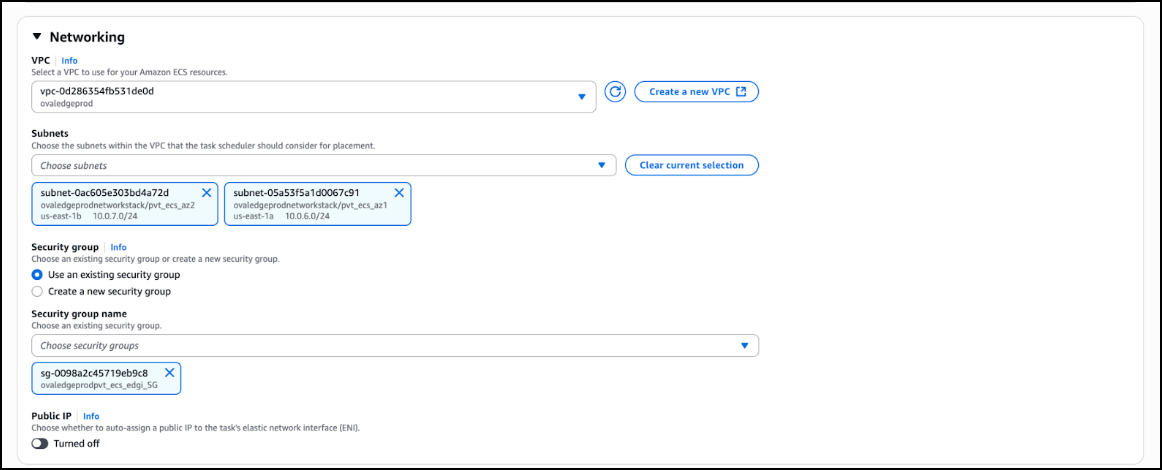
**Network Security**

<figure><img src="https://content.gitbook.com/content/ztcvwwOJCeaE1n6oHp4C/blobs/oKKo1f0kTHCnZsCmDaOT/image.png" alt=""><figcaption></figcaption></figure>

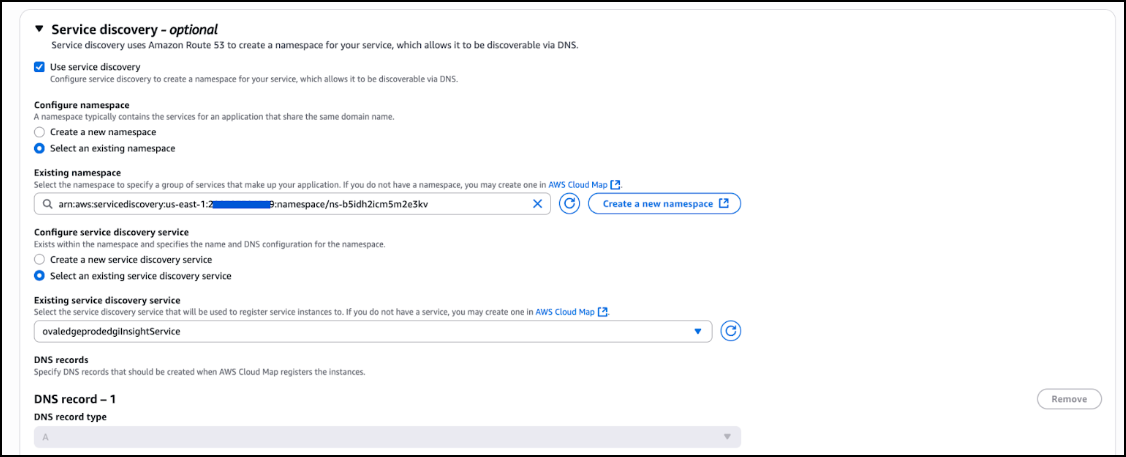
2. Enable Service Discovery during service creation.

<figure><img src="https://content.gitbook.com/content/ztcvwwOJCeaE1n6oHp4C/blobs/pr35QkhI5GqEkkI9i7C1/image.png" alt=""><figcaption></figcaption></figure>

3. Go to Configuration and Networking and select Service Discovery.
4. Note the Service Discovery Endpoint for later use in the Ovaledge configuration.

<figure><img src="https://content.gitbook.com/content/ztcvwwOJCeaE1n6oHp4C/blobs/K0Y0Kw0rGdxHsSpW1ppn/image.png" alt=""><figcaption></figcaption></figure>

{% hint style="warning" %}
Service Discovery must be enabled for proper integration with Ovaledge.
{% endhint %}

### Step 9: Update Ovaledge Task Definition (UI and Job)

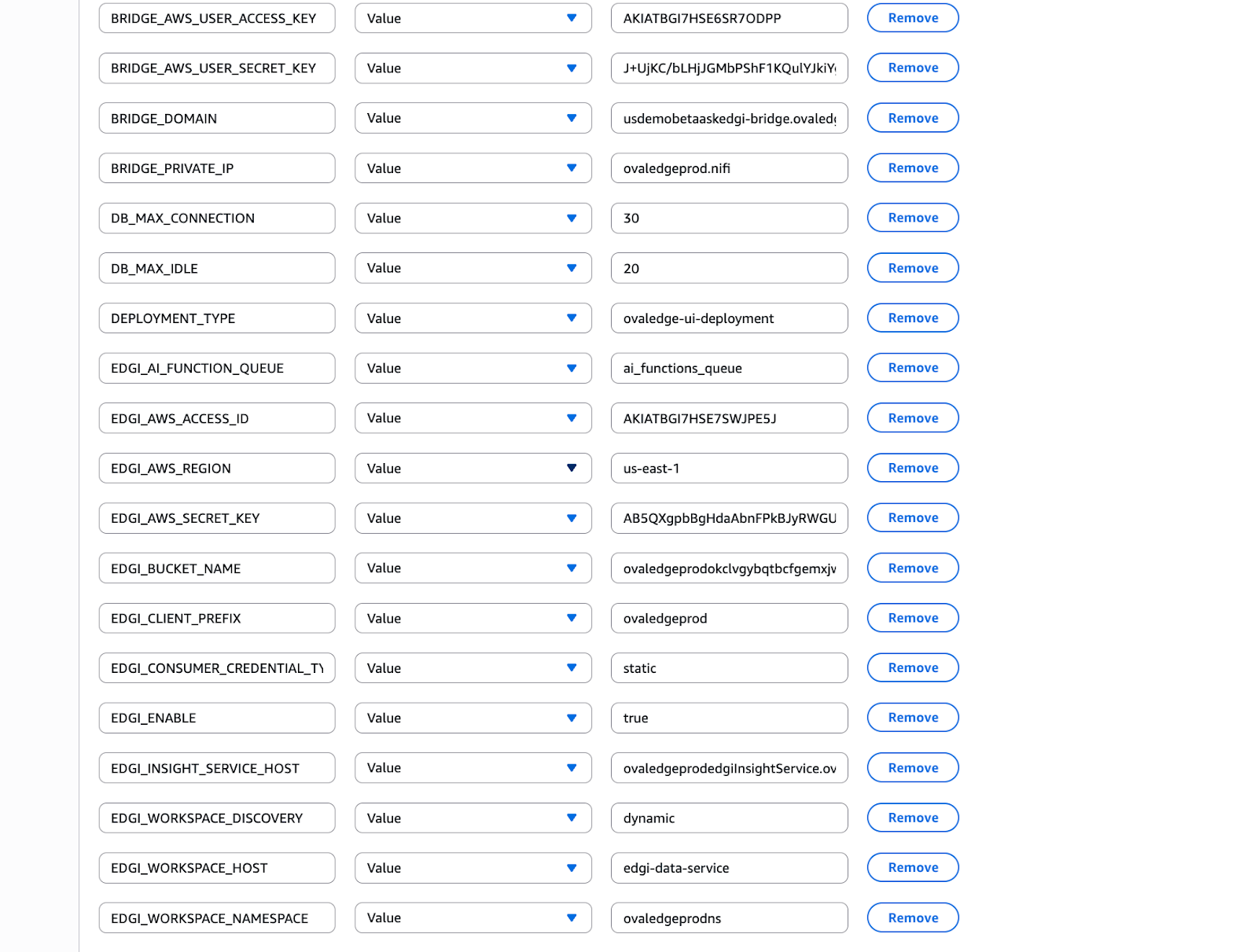
Update both the UI and Job ECS Task Definitions with the following environment variables to enable AskEdgi functionality:

| Key                              | Value                                    |
| -------------------------------- | ---------------------------------------- |
| BRIDGE\_AWS\_USER\_ACCESS\_KEY   | \<Bridge user access key>                |
| BRIDGE\_AWS\_USER\_SECRET\_KEY   | \<Bridge user secret key>                |
| EDGI\_AI\_FUNCTION\_QUEUE        | ai\_functions\_queue                     |
| EDGI\_AWS\_ACCESS\_ID            | \<Edgi user access key>                  |
| EDGI\_AWS\_SECRET\_KEY           | \<Edgi user secret key>                  |
| EDGI\_AWS\_REGION                | \<Region>                                |
| EDGI\_BUCKET\_NAME               | \<S3 bucket name>                        |
| EDGI\_CLIENT\_PREFIX             | \<SQS prefix name>                       |
| EDGI\_CONSUMER\_CREDENTIAL\_TYPE | static                                   |
| EDGI\_ENABLE                     | true                                     |
| EDGI\_INSIGHT\_SERVICE\_HOST     | \<Insight service discovery endpoint>    |
| EDGI\_WORKSPACE\_DISCOVERY       | dynamic                                  |
| EDGI\_WORKSPACE\_HOST            | \<Edgi data task definition family name> |
| EDGI\_WORKSPACE\_NAMESPACE       | \<ECS cluster namespace>                 |

**Optional OAUTH2 Configuration**

| Key                          | Value                            |
| ---------------------------- | -------------------------------- |
| OAUTH2\_BASE\_URL            | \<dev team will provide the URL> |
| OAUTH2\_CLIENTID             | \<dev team will provide the URL> |
| OAUTH2\_CLIENT\_REGISTRATION | auth0                            |
| OAUTH2\_ROLE\_ATTRIBUTE      | https\://\<Domain\_name>/roles   |
| OAUTH2\_SECRET               | \<dev team will provide the URL> |
| OVALEDGE\_SECURITY\_TYPE     | oauth2                           |

<figure><img src="https://content.gitbook.com/content/ztcvwwOJCeaE1n6oHp4C/blobs/aw8yzbynpFKqbKKJxk0S/unknown.png" alt=""><figcaption></figcaption></figure>

{% hint style="info" %}

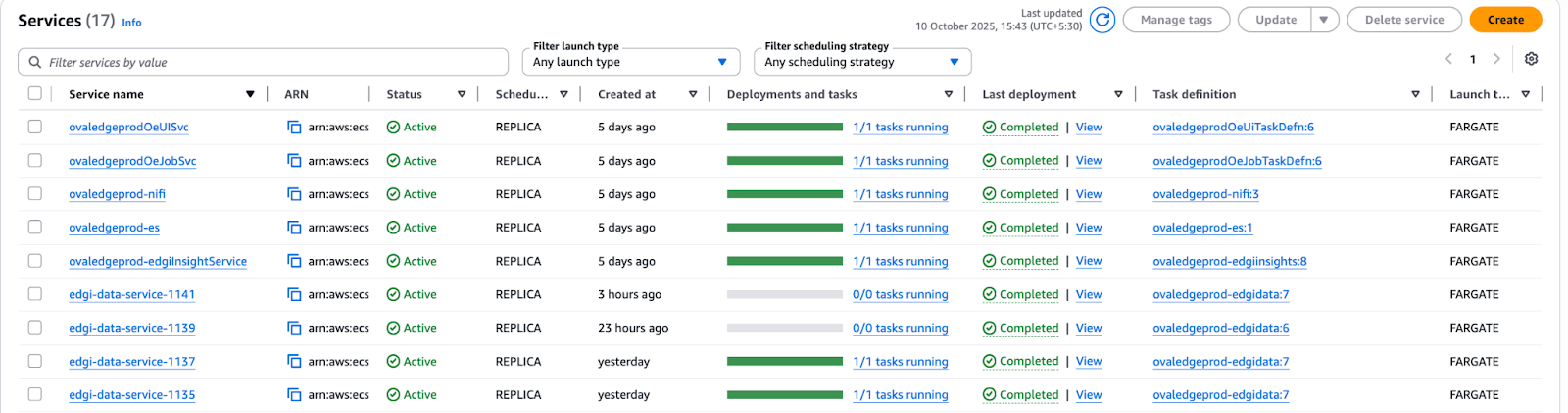
* Both UI and Job task definitions must be updated before deploying new ECS services.
* Always deploy the latest task definition revision to apply changes.
  {% endhint %}

### Step 10: AskEdgi Feature Verification

* Log in with an admin user once the application is running.
* Verify that the workspace for the Data Service is automatically created with a valid project ID.

<figure><img src="https://content.gitbook.com/content/ztcvwwOJCeaE1n6oHp4C/blobs/EmLqIYBSLtWK6s39eUYx/unknown.png" alt=""><figcaption></figcaption></figure>

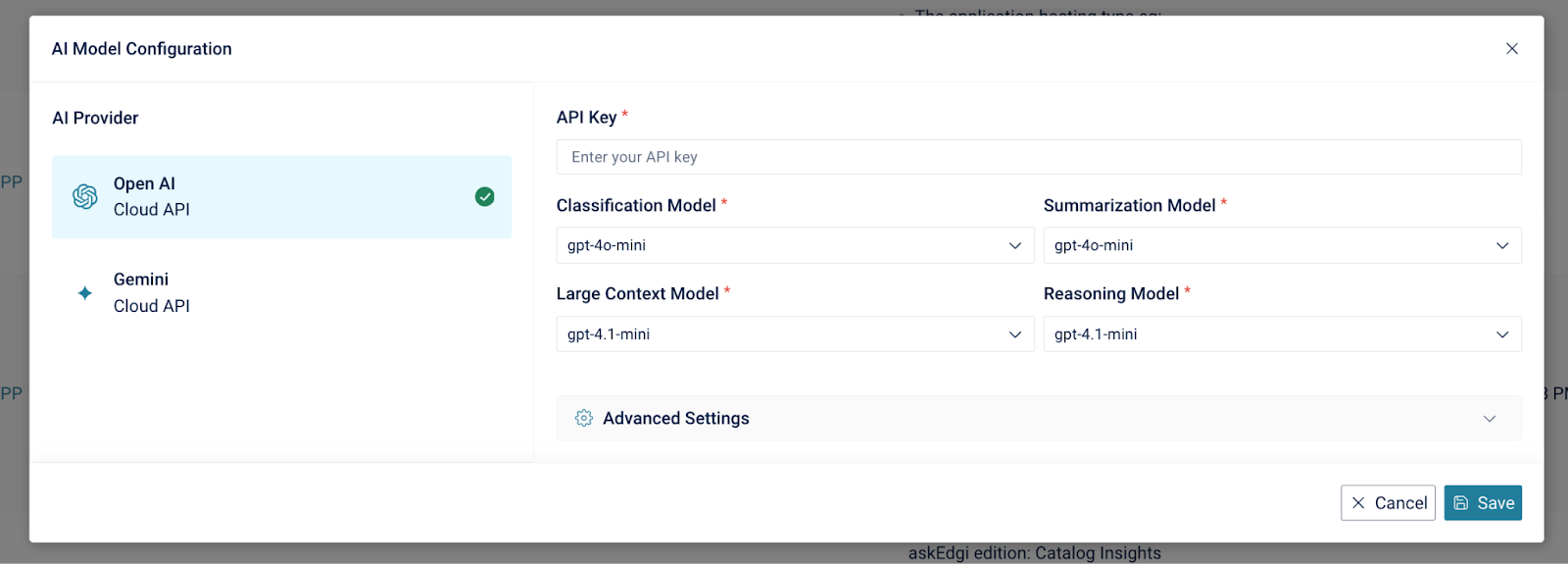
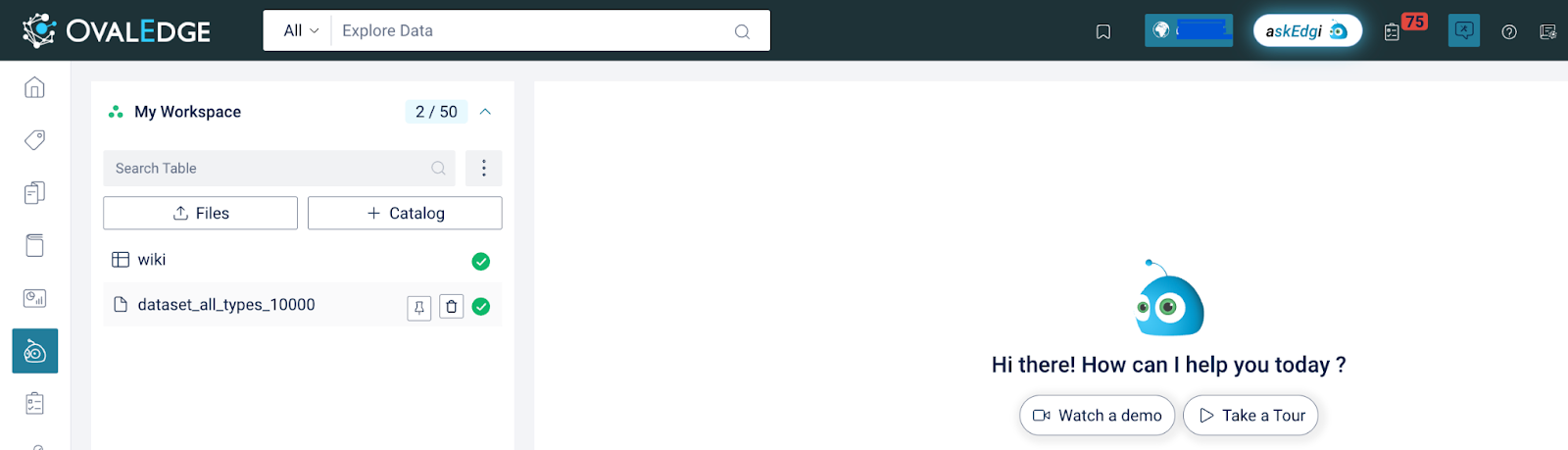
* Go to Application, select Settings, then navigate to AI and open OpenAI.
  * Add the API Key provided by the development team and save the configuration.

<figure><img src="https://content.gitbook.com/content/ztcvwwOJCeaE1n6oHp4C/blobs/sLvLekeZy8MgCCYYdW7O/unknown.png" alt=""><figcaption></figcaption></figure>

<figure><img src="https://content.gitbook.com/content/ztcvwwOJCeaE1n6oHp4C/blobs/KeIVOrNWKzE6aKvEwfuo/unknown.png" alt=""><figcaption></figcaption></figure>

* Functionality:
  * Data Analytics Edition (default): Supports data upload and cataloging.
  * Metadata Analytics Edition (If configured): Supports only data cataloging.
* Log out and re-login.
* Access the AskEdgi module and wait for workspace initialization.
* Upload a file to confirm successful operation.

<figure><img src="https://content.gitbook.com/content/ztcvwwOJCeaE1n6oHp4C/blobs/d1StAH3Wem0icLMnNWc9/unknown.png" alt=""><figcaption></figcaption></figure>

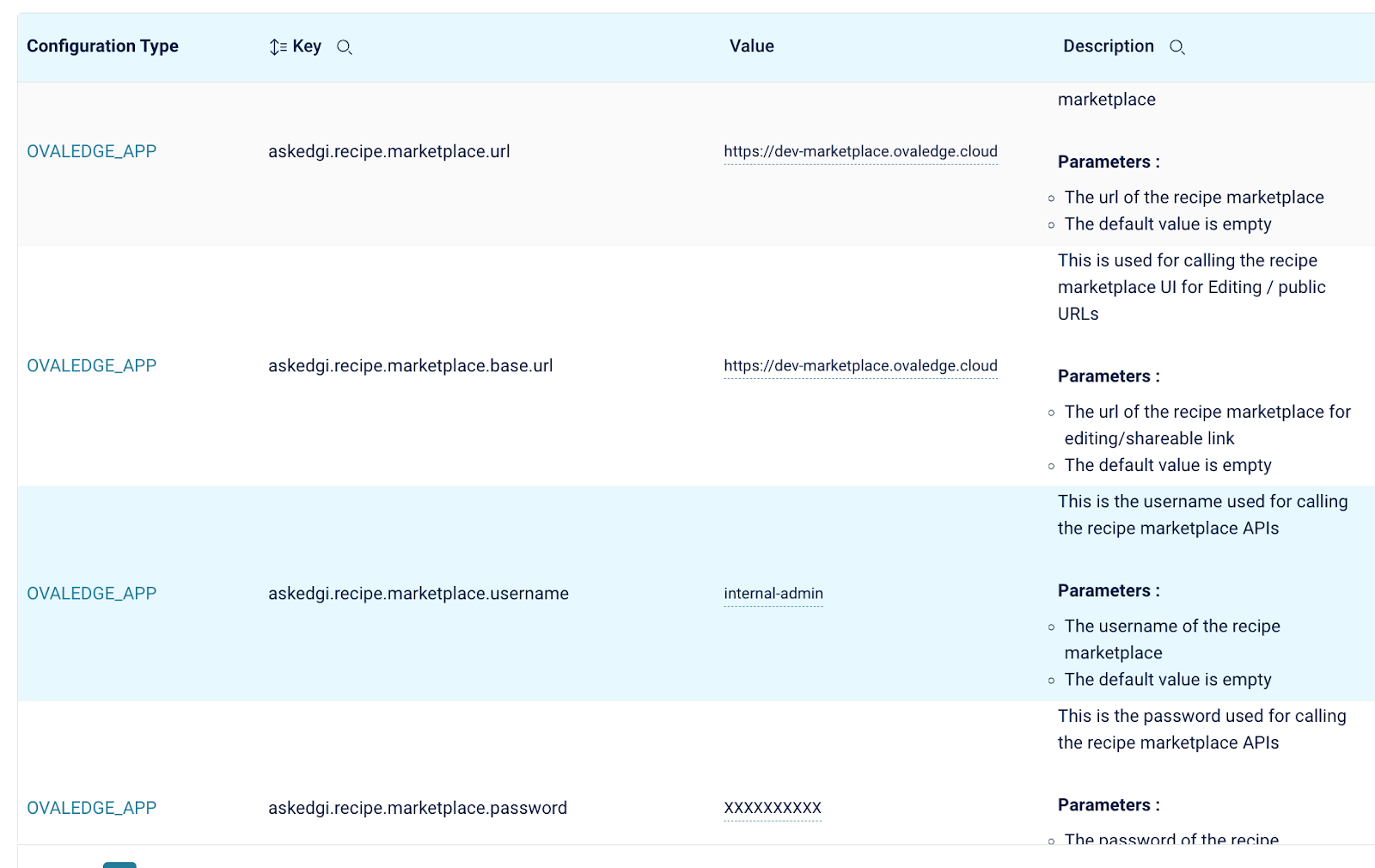
* Go to Application Settings, then select AI.

<figure><img src="https://content.gitbook.com/content/ztcvwwOJCeaE1n6oHp4C/blobs/I4q1qitIn380nf7Z9pck/unknown.png" alt=""><figcaption></figcaption></figure>

* Ensure the marketplace details are available in the settings.

**If Workspace is Not Created:**

* Check Insight Service logs for errors.
* Validate IAM Role permissions.
* Verify the user entry in the database:

```
select * from edgi_data_service_stack edss ;
delete * from edgi_data_service_stack edss;
delete from edgi_data_service_uptime_history ;
```

{% hint style="warning" %}

* Do not execute delete queries unless confirmed by the development team.

* Validate environment variables and task definitions if issues are encountered.
  {% endhint %}

* Go to AWS Cloud Map, access the Service Discovery Resource, delete the user entry, and then re-login to the application.

* Verify that the files have been uploaded successfully.

***

Copyright © 2025, OvalEdge LLC, Peachtree Corners, GA, USA.